Note
Access to this page requires authorization. You can try signing in or changing directories.
Access to this page requires authorization. You can try changing directories.
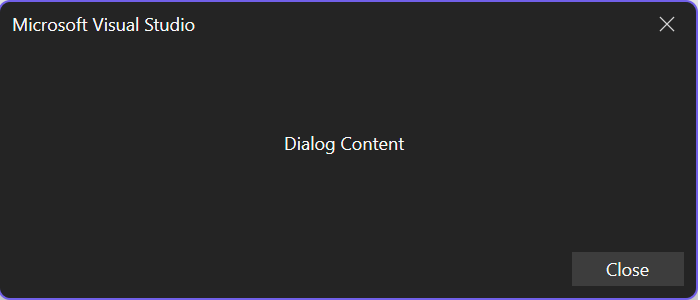
Dialogs are a way to prompt users for information or let them customize feature behavior. In VisualStudio.Extensibility, you show dialogs by passing Remote UI content to ShowDialogAsync.
Note
This article uses the VisualStudio.Extensibility SDK. For help choosing between VisualStudio.Extensibility and the legacy VSSDK, see Choose the right extensibility model.
Full example
The complete implementation is in the sample:
// Copyright (c) Microsoft. All rights reserved.
// Licensed under the MIT license. See LICENSE file in the project root for full license information.

namespace DialogSample;

using System.Threading;
using System.Threading.Tasks;
using Microsoft.VisualStudio.Extensibility;
using Microsoft.VisualStudio.Extensibility.Commands;

/// <summary>
/// A sample command for showing a dialog.
/// </summary>
[VisualStudioContribution]
public class MyDialogCommand : Command
{
    /// <inheritdoc />
    public override CommandConfiguration CommandConfiguration => new("%DialogSample.MyDialogCommand.DisplayName%")
    {
        Placements = [CommandPlacement.KnownPlacements.ToolsMenu],
        Icon = new(ImageMoniker.KnownValues.Dialog, IconSettings.IconAndText),
    };

    /// <inheritdoc />
    public override async Task ExecuteCommandAsync(IClientContext context, CancellationToken cancellationToken)
    {
        var control = new MyDialogControl(null);
        await this.Extensibility.Shell().ShowDialogAsync(control, cancellationToken);
    }
}
Tip
See the full working sample: DialogSample ↗
Related concepts: Remote UI, User prompts, and Create your first extension
Understand the example
Get started
To get started, create a VisualStudio.Extensibility extension by following Create your first extension.
This article covers the main dialog scenarios:
- Create a dialog
- Customize the dialog title
- Customize the dialog buttons
- Get the dialog result
Create a dialog
Creating a dialog is as simple as calling ShowDialogAsync ↗ from ShellExtensibility ↗ and passing in your dialog content.
public override async Task ExecuteCommandAsync(IClientContext context, CancellationToken cancellationToken)
{
    // Ownership of the RemoteUserControl is transferred to Visual Studio,
    // so it shouldn't be disposed by the extension.
#pragma warning disable CA2000 // Dispose objects before losing scope
    var control = new MyDialogControl(null);
#pragma warning restore CA2000 // Dispose objects before losing scope

    await this.Extensibility.Shell().ShowDialogAsync(control, cancellationToken);
}
Create dialog content with Remote UI
Dialog content is a Remote UI control. The dialog sample creates a RemoteUserControl and loads an embedded resource dictionary:
internal class MyDialogControl : RemoteUserControl
{
    public MyDialogControl(object? dataContext, SynchronizationContext? synchronizationContext = null)
        : base(dataContext, synchronizationContext)
    {
        this.ResourceDictionaries.AddEmbeddedResource("DialogSample.Resources.MyResources.xaml");
    }
}
The associated XAML defines the dialog's visible content:
<DataTemplate xmlns="http://schemas.microsoft.com/winfx/2006/xaml/presentation"
              xmlns:x="http://schemas.microsoft.com/winfx/2006/xaml"
              xmlns:vs="http://schemas.microsoft.com/visualstudio/extensibility/2022/xaml">
  <Border Padding="5">
    <TextBlock Margin="0,0,5,0"
               Text="{DynamicResource myDialogText}" />
  </Border>
</DataTemplate>
For more information on building the UI itself, see Remote UI.
Understand ShowDialogAsync
ShowDialogAsync has several overloads:
ShowDialogAsync(content,cancellationToken)↗ShowDialogAsync(content,title,cancellationToken)↗ShowDialogAsync(content,options,cancellationToken)↗ShowDialogAsync(content,title,options,cancellationToken)↗
The key parameters are:
| Parameter | Type | Description |
|---|---|---|
content |
IRemoteUserControl ↗ | The Remote UI content shown in the dialog. |
title |
string ↗ | The dialog title shown in the caption area. |
options |
Microsoft.VisualStudio.RpcContracts.Notifications.DialogOption |
The dialog button set and default action. |
cancellationToken |
CancellationToken ↗ | Cancels the dialog. |
Customize the dialog title
When your extension shows a dialog, you can provide a custom title string to display in the dialog caption.

public override async Task ExecuteCommandAsync(IClientContext context, CancellationToken cancellationToken)
{
#pragma warning disable CA2000 // Dispose objects before losing scope
    var control = new MyDialogControl(null);
#pragma warning restore CA2000 // Dispose objects before losing scope

    await this.Extensibility.Shell().ShowDialogAsync(
        control,
        "My Dialog Title",
        cancellationToken);
}
Customize the dialog buttons
When Visual Studio shows a dialog, you can choose predefined button combinations and default actions through Microsoft.VisualStudio.RpcContracts.Notifications.DialogOption.

You can use predefined combinations such as:
DialogOption.CloseDialogOption.OKDialogOption.OKCancel
You can also create your own combination by using DialogButton with a default DialogResult.
Available DialogButton values:
public enum DialogButton
{
    None,
    Close,
    OK,
    OKCancel
}
Available DialogResult values:
public enum DialogResult
{
    None,
    Close,
    OK,
    Cancel
}
Button examples
Show a single Close button:
await this.Extensibility.Shell().ShowDialogAsync(
    control,
    DialogOption.Close,
    cancellationToken);
Add OK and Cancel buttons:
public override async Task ExecuteCommandAsync(IClientContext context, CancellationToken cancellationToken)
{
#pragma warning disable CA2000 // Dispose objects before losing scope
    var control = new MyDialogControl(null);
#pragma warning restore CA2000 // Dispose objects before losing scope

    await this.Extensibility.Shell().ShowDialogAsync(
        control,
        DialogOption.OKCancel,
        cancellationToken);
}
Show no dialog buttons:
public override async Task ExecuteCommandAsync(IClientContext context, CancellationToken cancellationToken)
{
#pragma warning disable CA2000 // Dispose objects before losing scope
    var control = new MyDialogControl(null);
#pragma warning restore CA2000 // Dispose objects before losing scope

    await this.Extensibility.Shell().ShowDialogAsync(
        control,
        new DialogOption(DialogButton.None, DialogResult.None),
        cancellationToken);
}
Get the dialog return value
If you need to know how the user dismissed the dialog, await ShowDialogAsync. It returns Microsoft.VisualStudio.RpcContracts.Notifications.DialogResult.
public override async Task ExecuteCommandAsync(IClientContext context, CancellationToken cancellationToken)
{
#pragma warning disable CA2000 // Dispose objects before losing scope
    var control = new MyDialogControl(null);
#pragma warning restore CA2000 // Dispose objects before losing scope

    DialogResult result = await this.Extensibility.Shell().ShowDialogAsync(
        control,
        "My Dialog Title",
        DialogOption.OKCancel,
        cancellationToken);

    if (result == DialogResult.OK)
    {
        // The user pressed the OK button.
    }
}
Tips
✅ DO
- Create dialog content with
RemoteUserControl. - Await
ShowDialogAsyncwhen you need the dialog return value. - Use a custom title when the dialog needs more context than the command name provides.
- Choose predefined
DialogOptionvalues when they match your scenario.
❌ DON'T
- Don't dispose the
RemoteUserControlafter passing it toShowDialogAsync; ownership transfers to Visual Studio. - Don't use a full custom dialog when a simpler user prompt is enough.
- Don't forget to pass a
CancellationTokenif the dialog can be canceled by extension logic.
🔧 Troubleshooting
| Symptom | What to check |
|---|---|
| Dialog doesn't appear | Make sure your command has access to this.Extensibility.Shell() and that the command is being invoked. |
| Dialog content is blank | Verify that the RemoteUserControl loads its embedded XAML resources correctly. |
| Wrong buttons appear | Check whether you're using a predefined DialogOption or a custom new DialogOption(DialogButton, DialogResult) value. |
| You can't tell how the dialog closed | Await ShowDialogAsync and inspect the returned DialogResult. |
Next steps
- Explore the full DialogSample ↗.
- Learn more about Remote UI.
- Use User prompts for simpler confirmation flows.
- Start from Create your first extension if you need a project scaffold.