Note
Access to this page requires authorization. You can try signing in or changing directories.
Access to this page requires authorization. You can try changing directories.
Show confirmation dialogs, custom choice prompts, and text input prompts from your extension using ShowPromptAsync.
Note
This guide uses the VisualStudio.Extensibility SDK. See Choose the right extensibility model for model comparison.
Full example
The complete implementation:
// Copyright (c) Microsoft. All rights reserved.
// Licensed under the MIT license. See LICENSE file in the project root for full license information.

namespace UserPromptSample;

using System.Diagnostics;
using System.Threading;
using System.Threading.Tasks;
using Microsoft.VisualStudio.Extensibility;
using Microsoft.VisualStudio.Extensibility.Commands;
using Microsoft.VisualStudio.Extensibility.Shell;

[VisualStudioContribution]
public class SampleCommand : Command
{
    public enum TokenThemeResult
    {
        None,
        Solarized,
        OneDark,
        GruvBox,
    }

    /// <inheritdoc />
    public override CommandConfiguration CommandConfiguration => new("%UserPromptSample.SampleCommand.DisplayName%")
    {
        TooltipText = "%UserPromptSample.SampleCommand.ToolTip%",
        Placements = [CommandPlacement.KnownPlacements.ToolsMenu],
    };

    /// <inheritdoc />
    public override async Task ExecuteCommandAsync(IClientContext context, CancellationToken ct)
    {
        var shell = this.Extensibility.Shell();

        // Asking the user to confirm an operation.
        if (!await shell.ShowPromptAsync("Continue with executing the command?", PromptOptions.OKCancel, ct))
        {
            return;
        }

        // Asking the user to confirm a dangerous operation.
        if (!await shell.ShowPromptAsync("Continue with executing the command?", PromptOptions.OKCancel.WithCancelAsDefault(), ct))
        {
            return;
        }

        // OK-only prompt
        await shell.ShowPromptAsync("The extension must reload.", PromptOptions.OK, ct);

        // Custom prompt
        var themeResult = await shell.ShowPromptAsync(
            "Which theme should be used for the generated output?",
            new PromptOptions<TokenThemeResult>
            {
                Choices =
                {
                    { "Solarized Is Awesome", TokenThemeResult.Solarized },
                    { "OneDark Is The Best", TokenThemeResult.OneDark },
                    { "GruvBox Is Groovy", TokenThemeResult.GruvBox },
                },
                DismissedReturns = TokenThemeResult.None,
                DefaultChoiceIndex = 2,
            },
            ct);

        Debug.WriteLine($"Selected Token Theme: {themeResult}");
    }
}
Tip
See the full working sample: UserPromptSample ↗
Related concepts: Remote UI — the data-binding model used for prompt UI
Understand the example
Parts of a user prompt
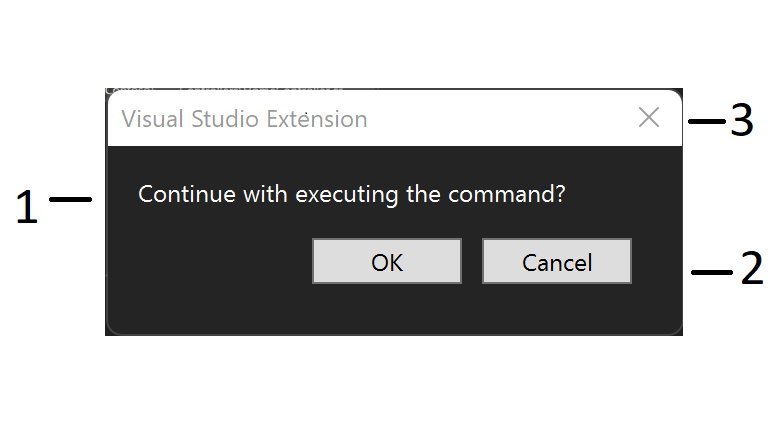
- Message
- Choice buttons
- Close button
Simple confirmation (OK/Cancel)
public override async Task ExecuteCommandAsync(IClientContext context, CancellationToken ct)
{
    bool confirmed = await this.Extensibility.Shell().ShowPromptAsync(
        "Are you sure you want to continue?",
        PromptOptions.OKCancel,
        ct);

    if (!confirmed)
    {
        return;
    }

    // Proceed with the operation...
}
Returns true for OK, false for Cancel or the Close button.
Use WithCancelAsDefault for destructive operations
When a prompt guards a destructive action, make Cancel the default so that pressing Enter doesn't accidentally confirm:
bool confirmed = await this.Extensibility.Shell().ShowPromptAsync(
    "Delete all generated files? This cannot be undone.",
    PromptOptions.OKCancel.WithCancelAsDefault(),
    ct);
Custom options with an enum
Define an enum for your choices, then map labels to values with PromptOptions<T>:
public enum SaveChoice
{
    Save,
    Discard,
    Cancel,
}
SaveChoice result = await this.Extensibility.Shell().ShowPromptAsync(
    "You have unsaved changes.",
    new PromptOptions<SaveChoice>
    {
        Choices =
        {
            { "Save", SaveChoice.Save },
            { "Discard", SaveChoice.Discard },
            { "Cancel", SaveChoice.Cancel },
        },
        DismissedReturns = SaveChoice.Cancel,
        DefaultChoiceIndex = 0,
    },
    ct);

switch (result)
{
    case SaveChoice.Save:
        await SaveDocumentAsync();
        break;
    case SaveChoice.Discard:
        RevertChanges();
        break;
    case SaveChoice.Cancel:
        return;
}
DismissedReturns— value returned when the user closes with the X button or presses Escape.DefaultChoiceIndex— zero-based index of the button that has initial focus.
Customize icon and title
var result = await this.Extensibility.Shell().ShowPromptAsync(
    "Select the system to configure:",
    new PromptOptions<Systems>
    {
        Choices =
        {
            { "Core", Systems.CoreSystem },
            { "Auxiliary", Systems.AuxiliarySystem },
            { "Monitoring", Systems.MonitoringSystem },
        },
        DismissedReturns = Systems.CoreSystem,
        DefaultChoiceIndex = 2,
        Title = "Configuration Assistant",
        Icon = ImageMoniker.KnownValues.Settings,
    },
    ct);
Text input prompt
Use InputPromptOptions to collect a single-line string from the user:
string? name = await this.Extensibility.Shell().ShowPromptAsync(
    "Enter project name:",
    InputPromptOptions.Default,
    ct);

if (name is null)
{
    // User dismissed without entering a value
    return;
}

// Use the value (may be empty string if user confirmed blank input)
await CreateProjectAsync(name);
Set a default value or customize the title:
string? name = await this.Extensibility.Shell().ShowPromptAsync(
    "Enter project name:",
    InputPromptOptions.Default with
    {
        DefaultText = "MyProject",
        Title = "New Project",
    },
    ct);
Input prompt return values:
| User action | Return value |
|---|---|
| Enters text and selects OK | The entered string |
| Leaves blank and selects OK | Empty string ("") |
| Selects Cancel, X, or Escape | null |
Validate text input
Set Validation to check the input against a regular expression. For checks that require asynchronous work, add a ValidationCallback that returns an error message when the input is invalid or null when it's valid:
string? projectName = await this.Extensibility.Shell().ShowPromptAsync(
    "Enter project name:",
    InputPromptOptions.Default with
    {
        Validation = new InputValidation(
            @"^[A-Za-z][A-Za-z0-9_-]*$",
            "Start with a letter; use only letters, numbers, hyphens, or underscores."),
        ValidationCallback = async (input, token) =>
        {
            // Simulate an asynchronous check without an external service.
            await Task.Delay(150, token);
            return string.Equals(input, "CON", StringComparison.OrdinalIgnoreCase)
                ? "CON is a reserved Windows name; choose another project name."
                : null;
        },
    },
    ct);

if (projectName is null)
{
    return; // User dismissed the prompt.
}

await CreateProjectAsync(projectName);
For example, 123project fails the regex, CON fails the callback, and MyProject passes both checks. The SDK checks the regex before invoking the debounced callback, so the callback doesn't run for input that fails the regex. Pass the callback's cancellation token to asynchronous work: validation can be canceled when it is no longer needed. While input is invalid, the prompt displays the corresponding error and disables OK. Dismissing the prompt still returns null, not an empty string. See the UserPromptSample advanced configuration command ↗ for the working example.
Built-in PromptOptions reference
| Option | Buttons | Returns |
|---|---|---|
PromptOptions.OK |
OK | true / false (dismissed) |
PromptOptions.OKCancel |
OK, Cancel | true / false |
PromptOptions.RetryCancel |
Retry, Cancel | true / false |
Icon variants for single-button confirmations:
| Option | Icon |
|---|---|
PromptOptions.ErrorConfirm |
StatusError |
PromptOptions.WarningConfirm |
StatusWarning |
PromptOptions.AlertConfirm |
StatusAlert |
PromptOptions.InformationConfirm |
StatusInformation |
PromptOptions.HelpConfirm |
StatusConfirm |
Tips
✅ DO
- Use
PromptOptions.OKCancelfor simple confirmations. - Use
WithCancelAsDefault()for destructive operations to prevent accidental confirmation. - Always set
DismissedReturnsto handle the X button and Escape gracefully. - Check for
nullreturn from input prompts (user cancelled). - Use descriptive prompt messages that explain the consequence of each option.
❌ DON'T
- Don't use more than 3 custom options — use a dialog for complex choices.
- Don't forget to handle the dismissed case (X button, Escape key).
- Don't use prompts to display information only — use the Output window or status bar instead.
🔧 Troubleshooting
| Symptom | Fix |
|---|---|
| Prompt doesn't appear | Ensure command is executing — prompts require an active execution context. |
| Wrong button selected by default | Set DefaultChoiceIndex explicitly. |
NullReferenceException after input prompt |
Check for null return — user dismissed without entering a value. |
Next steps
- Dialogs — complex multi-field UI
- File pickers — file and folder selection
- Add a command — trigger prompts from commands