Note
Access to this page requires authorization. You can try signing in or changing directories.
Access to this page requires authorization. You can try changing directories.
This article introduces the features of the Visual Studio debugger in a step-by-step walkthrough. If you want a higher-level view of the debugger features, see Overview of the Visual Studio debugger. When you debug your app, it usually means that you're running your application with the debugger attached. When you do this task, the debugger provides many ways to see what your code is doing while it runs.
- Step through your code and look at the values stored in variables.
- Set watches on variables to see when values change.
- Examine the execution path of your code to see whether a branch of code is running.
If this exercise is the first time that you tried to debug code, you might want to read Debugging for absolute beginners.
Although the demonstration app in this article uses Visual Basic, most of the features apply to C#, C++, F#, Python, JavaScript, and other languages supported by Visual Studio. F# doesn't support Edit-and-continue. F# and JavaScript don't support the Autos window. The screenshots are in Visual Basic.
In this tutorial, you:
- Start the debugger and hit breakpoints
- Learn commands to step through code in the debugger
- Inspect variables in data tips and debugger windows
- Examine the call stack
Prerequisites
You must have Visual Studio installed, including the .NET Core cross-platform development workload.
- If you need to install Visual Studio, for a free version, see Visual Studio downloads.
- If you need to install the workload but already have Visual Studio, go to Tools > Get Tools and Features..., which opens the Visual Studio Installer. Choose the .NET desktop development workload, then choose Modify.
Create a project
First, create a .NET Core console application project. The project type comes with all the template files you need, before you even add anything!
Open Visual Studio. If the start window isn't open, select File > Start Window.
On the start window, select Create a new project.
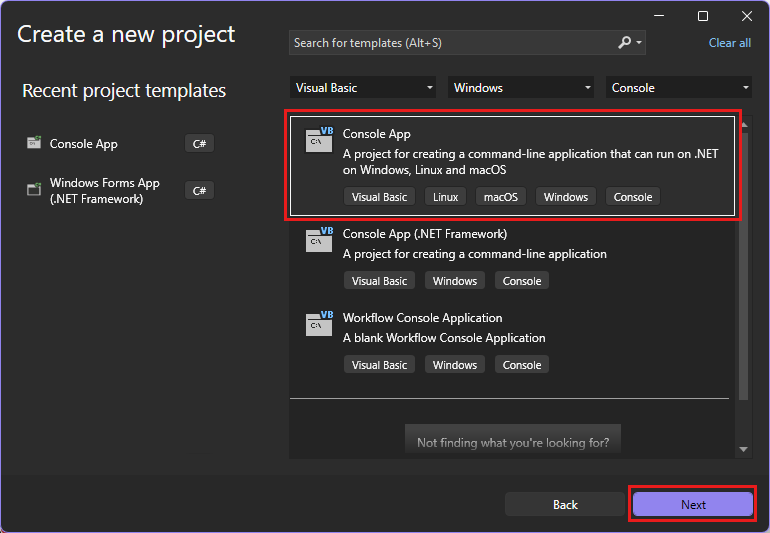
On the Create a new project window, in the search box, enter console. Next, choose Visual Basic from the Language list, and then choose Windows from the Platform list.
After you apply the language and platform filters, choose the Console App template for .NET Core, and then select Next.
Note
If you don't see the Console App template, you can install it from the Create a new project window. In the Not finding what you're looking for? message, choose the Install more tools and features link. Then, in the Visual Studio Installer, choose the .NET desktop development workload.
In the Configure your new project window, for Project name, enter get-started-debugging. Then, select Next.
In the Additional information window, ensure .NET 10.0 is selected for Framework, and then select Create.
Open Visual Studio. If the start window isn't open, select File > Start Window.
On the start window, select Create a new project.
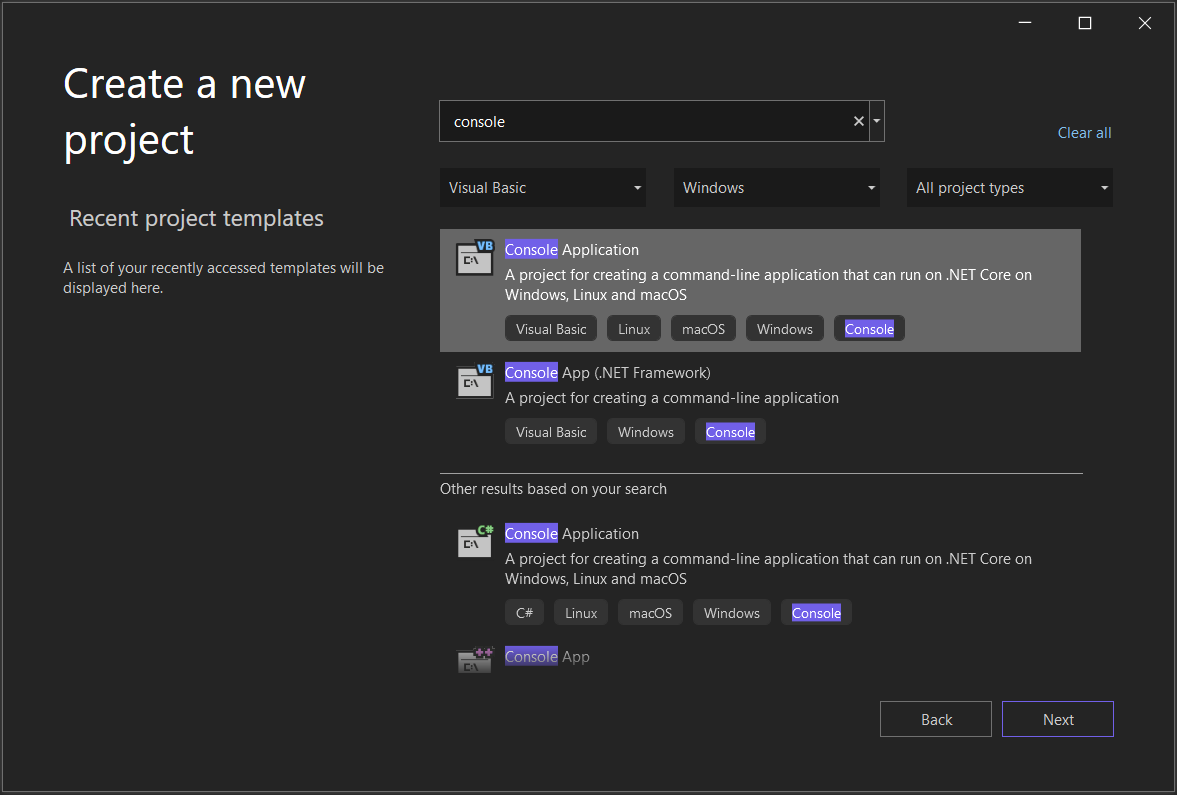
On the Create a new project window, in the search box, enter console. Next, choose Visual Basic from the Language list, and then choose Windows from the Platform list.
After you apply the language and platform filters, choose the Console App template for .NET Core, and then select Next.
Note
If you don't see the Console App template, you can install it from the Create a new project window. In the Not finding what you're looking for? message, choose the Install more tools and features link. Then, in the Visual Studio Installer, choose the .NET desktop development workload.
In the Configure your new project window, for Project name, enter get-started-debugging. Then, select Next.
In the Additional information window, ensure .NET 8.0 is selected for Framework, and then select Create.
Visual Studio opens your new project.
Create the application
In Program.vb, replace all of the default code with the following code:
Imports System

Class ArrayExample
  Public Shared Sub Main()
    Dim letters As Char() = {"f"c, "r"c, "e"c, "d"c, " "c, "s"c, "m"c, "i"c, "t"c, "h"c}
    Dim name As String = ""
    Dim a As Integer() = New Integer(9) {}

    For i As Integer = 0 To letters.Length - 1
      name += letters(i)
      a(i) = i + 1
      SendMessage(name, a(i))
    Next

    Console.ReadKey()
  End Sub

  Private Shared Sub SendMessage(ByVal name As String, ByVal msg As Integer)
    Console.WriteLine("Hello, " & name & "! Count to " & msg)
  End Sub
End Class
Start the debugger!
Press F5 (Debug > Start Debugging) or select the green Start Debugging button in the Debug Toolbar.

F5 starts the app with the debugger attached to the app process. So far, you haven't done anything special to examine the code. The app just loads and you see the console output.
Hello, f! Count to 1
Hello, fr! Count to 2
Hello, fre! Count to 3
Hello, fred! Count to 4
Hello, fred ! Count to 5
Hello, fred s! Count to 6
Hello, fred sm! Count to 7
Hello, fred smi! Count to 8
Hello, fred smit! Count to 9
Hello, fred smith! Count to 10
In this tutorial, you take a closer look at this app using the debugger and get a look at the debugger features.
Stop the debugger by pressing (Shift + F5) or select the red Stop Debugging button in the Debug Toolbar.

In the console window, press a key to close the console window.
Set a breakpoint and start the debugger
In the
Forloop of theMainfunction, set a breakpoint by clicking in the left margin on the following line of code:name += letters(i)A red circle appears where you set the breakpoint.
Breakpoints are one of the most basic and essential features of reliable debugging. A breakpoint indicates where Visual Studio suspends your running code. While suspended, you can look at the values of variables or the behavior of memory. You can see whether a branch of code runs.
Press F5 (Debug > Start Debugging) or the Start Debugging button in the Debug Toolbar. The app starts, and the debugger runs to the line of code where you set the breakpoint.
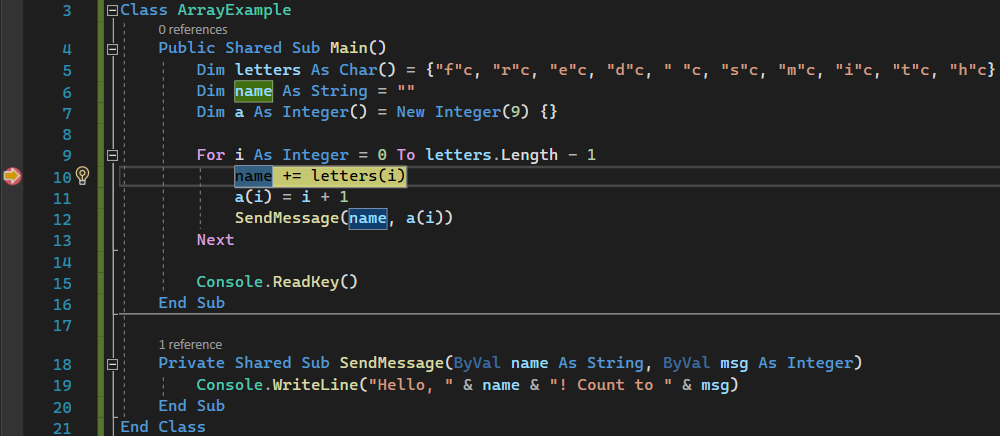
The yellow arrow represents the statement on which the debugger paused, which also suspends app execution at the same point. This statement isn't yet executed.
If the app isn't yet running, F5 starts the debugger and stops at the first breakpoint. Otherwise, F5 continues running the app to the next breakpoint.
Breakpoints are a useful feature when you know the line of code or the section of code that you want to examine in detail. For information on the different types of breakpoints, see Using breakpoints.
Navigate code in the debugger using step commands
This article uses the keyboard shortcuts, because it's a good way to get fast at executing your app in the debugger. It shows equivalent commands, such as menu commands, in parentheses.
While code execution is paused in the
Forloop in theMainmethod, press F11 (or choose Debug > Step Into) twice to advance to theSendMessagemethod call.After pressing F11 twice, you should be at this line of code:
SendMessage(name, a(i))Press F11 one more time to step into the
SendMessagemethod.The yellow pointer advances into the
SendMessagemethod.
F11 is the Step Into command. It advances the app execution one statement at a time. F11 is a good way to examine the execution flow in the most detail. By default, the debugger skips over nonuser code. For more information, see Just My Code.
Suppose you're done examining the
SendMessagemethod, and you want to get out of the method but stay in the debugger. You can do this using the Step Out command.Press Shift + F11 (or Debug > Step Out).
This command resumes app execution and advances the debugger until the current method or function returns.
You should be back in the
Forloop in theMainmethod, paused at theSendMessagemethod call.Press F11 several times until you get back to the
SendMessagemethod call again.While code execution is paused at the method call, press F10 (or choose Debug > Step Over) once.
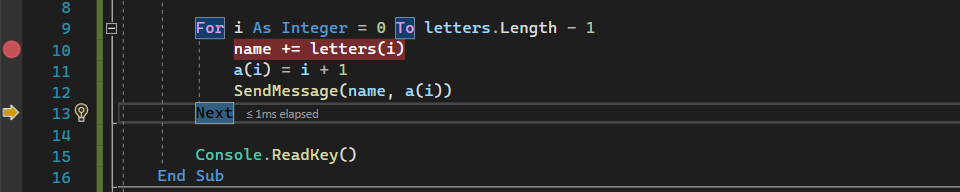
This time that the debugger doesn't step into the
SendMessagemethod. F10 advances the debugger without stepping into functions or methods in your app code. The code still executes. By pressing F10 on theSendMessagemethod call instead of F11, you skipped over the implementation code forSendMessage. For more information on different ways to move through your code, see Navigate code in the debugger.
Navigate code using Run to Click
Press F5 to advance to the breakpoint again.
In the code editor, scroll down and hover over the
Console.WriteLinemethod in theSendMessagemethod until the green Run to Click button appears. The tooltip for the button shows Run execution to here.
Select the Run to Click button.
The debugger advances to the
Console.WriteLinemethod.Using this button is similar to setting a temporary breakpoint. Run to Click is handy for getting around quickly within a visible region of app code, which you can select in any open file.
Restart your app quickly
To restart your app, press the Ctrl + Shift + F5 key combination. It saves time versus stopping the app and restarting the debugger. The debugger pauses at the first breakpoint that is hit by executing code.
The debugger stops again at the breakpoint you previously set inside the For loop.
Inspect variables with data tips
The debugger has features that allow you to inspect variables. There are different ways to inspect variables. Often, when you try to debug an issue, you're attempting to find out whether variables are storing the values that you expect them to have at a particular time.
While code execution is paused on the
name += letters[i]statement, hover over thelettersvariable. You see its default value, the value of the first element in the array,"f"c.Next, hover over the
namevariable to see its current value, an empty string.Press F5 (or Debug > Continue) a few times to iterate several times through the
Forloop, pausing again at the breakpoint, and hovering over thenamevariable each time to check its value.
The value of the variable changes with each iteration of the
Forloop, showing values off, thenfr, thenfre, and so on.Often, when you debug code, you want a quick way to check property values on variables to see whether they're storing the values that you expect them to store. Data tips are a good way to do so.
Inspect variables with the Autos and Locals windows
Look at the Autos window at the bottom of the code editor.
If it's closed, open it while code execution is paused in the debugger by choosing Debug > Windows > Autos.
In the Autos window, you see variables and their current value. The Autos window shows all variables used on the current line or the preceding line. Check documentation for language-specific behavior.
Next, look at the Locals window, in a tab next to the Autos window.
Expand the
lettersvariable to show the elements that it contains.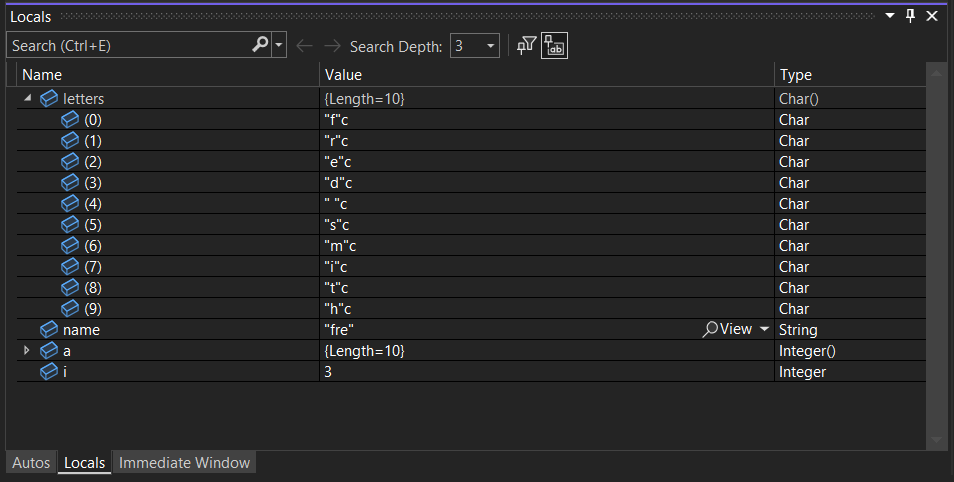
The Locals window shows you the variables that are in the current scope, that is, the current execution context.
Set a watch
You can specify a variable, or an expression, that you want to keep an eye on as you step through code—by adding it to the Watch window.
While the debugger is paused, right-click the
namevariable and choose Add Watch.The Watch window opens by default at the bottom of the code editor.
Now that you've set a watch on the
namevariable, step through your code to see the value of thenamevariable change with eachforloop iteration.Unlike the other variable windows, the Watch window always shows the variables that you're watching. Variables that are out of scope are displayed as unavailable.
For more information about the Watch window, see Watch variables with Watch windows.
Examine the call stack
While code execution is paused in the
Forloop, select the Call Stack window, which is open by default in the lower right pane.If it's closed, open it while code execution is paused in the debugger by choosing Debug > Windows > Call Stack.
Select F11 a few times until you see the debugger pause in the
SendMessagemethod. Look at the Call Stack window.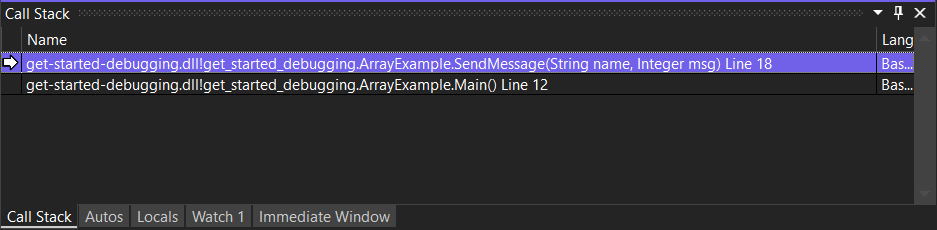
The Call Stack window shows the order in which methods and functions are getting called. The top line shows the current function. In this example, it's the
SendMessagemethod. The second line shows thatSendMessagewas called from theMainmethod, and so on.Note
The Call Stack window is similar to the Debug perspective in some programming tools like Eclipse.
The call stack is a good way to examine and understand the execution flow of an app.
You can double-click a line of code to go look at that source code and that also changes the current scope under inspection by the debugger. This action doesn't advance the debugger.
You can also use right-click menus from the Call Stack window to do other things. For example, you can insert breakpoints into specified functions, advance the debugger using Run to Cursor, and go examine source code. For more information, see How to: Examine the Call Stack.
Change the execution flow
Press F11 twice to run the
Console.WriteLinemethod.With the debugger paused in the
SendMessagemethod call, use the mouse to grab the yellow arrow or execution pointer in the left margin, and drag the pointer up one line to theConsole.WriteLinestatement.Press F11.
The debugger reruns the
Console.WriteLinemethod. You see this action in the console window output.By changing the execution flow, you can test different code execution paths or rerun code without restarting the debugger.
Warning
Often you need to be careful with this feature. There's a warning in the tooltip. You might see other warnings, too. Moving the pointer can't revert your application to an earlier app state.
Press F5 to continue running the app.
Congratulations on completing this tutorial!
Related content
In this tutorial, you learned how to start the debugger, step through code, and inspect variables. You might want to get a high-level look at debugger features along with links to more information.