Note
Access to this page requires authorization. You can try signing in or changing directories.
Access to this page requires authorization. You can try changing directories.
Important
- Changes to Copilot access policies in the Microsoft 365 admin center can take up to 24 hours to take effect for users. During this time, users may not see updated Copilot feature availability in Viva Glint. Avoid making additional changes to the same policy within 24 hours of an initial change, as successive changes may not apply as expected. For more information, see Control access to features in Microsoft 365.
Overview
This document describes how to enable and manage Microsoft 365 Copilot in Viva Glint using Viva Feature Access Management (VFAM) within Microsoft 365 admin center, including how access is configured, evaluated, and kept up to date over time. It is intended for administrators responsible for tenant‑level Copilot enablement and Viva Glint access governance.
What this document covers
- User access
- User prerequisites
- Microsoft 365 admin center access control
- Dynamic Entra groups
- Feature enable scenarios
- Policy precedence and conflict resolution
- FAQs
How user access is determined
Copilot access in Viva Glint isn’t set by manually adding users to a list. Instead, Viva Glint evaluates access automatically using Microsoft Entra ID users and the groups they belong to in Entra.
- VFAM policies can be scoped to:
- All users
- Individual users
- Microsoft Entra security groups, Microsoft 365 groups, or distribution groups
- When policies are scoped to dynamic Entra groups, user access automatically updates as:
- Employees join or leave the organization
- User attributes change and group membership is recalculated
- No manual updates to VFAM policies are required when group membership changes, which helps reduce administrative overhead and keeps Copilot access aligned with organizational structure and governance needs
License requirements
- A license for Viva Glint, Microsoft Viva Suite, or Microsoft Viva Workplace Analytics and Employee Feedback is required to access Copilot in Viva Glint.
- A license for Microsoft 365 Copilot is not required to access Copilot in Viva Glint.
Prerequisites
Copilot in Viva Glint is enabled in the Microsoft 365 admin center. This feature can be managed by:
For more information on Microsoft 365 admin center roles, see Viva Glint and Microsoft 365 admin center access by role
Relationship to Viva Glint user roles
In addition to Microsoft 365 Copilot enablement, users must meet Viva Glint user role prerequisites to access specific Copilot features.
- A user role must have the View Comments permission to access comment summarization in Viva Glint Copilot.
For more information, see Set up Viva Glint User Roles - Comment summarization is only available for Recurring or Ad hoc surveys administered and closed on the Viva Glint platform.
For more information, see Viva Glint programs, survey types, and templates
Dynamic Entra groups
Dynamic groups automatically add or remove users based on defined user attributes, and group membership is recalculated by the Entra service when those attributes change.
When a VFAM policy is scoped to a dynamic Entra group, policy scope changes automatically as group membership changes, because VFAM relies on the group membership provided by Entra ID.
Dynamic Entra groups are particularly useful for targeting Copilot access to specific organizational cohorts without manual list maintenance. Common scenarios include:
- Role-based access: Create groups for HR Business Partners, senior leaders, or managers in specific departments based on job title or department attributes
- Regional rollouts: Target employees by office location or country/region to enable phased deployments
- Pilot groups: Combine multiple attributes (e.g., "managers in Marketing with 5+ direct reports") for controlled testing
Creating Entra groups for Copilot policies
If your organization doesn't already have Entra groups matching your Copilot rollout needs (e.g., a group for all HRBPs), you can create new dynamic Entra groups in the Microsoft Entra admin center based on user attributes such as job title, department, or manager status.
You only need to create Entra groups for users who require different Copilot access than your organization-wide default. You do not need to recreate all existing Viva Glint user roles as Entra groups.
Relationship to Viva Glint user roles
Microsoft Entra groups and Viva Glint user roles serve different purposes and are managed separately:
- Entra groups control which users can access Copilot in Viva Glint (enablement)
- Viva Glint user roles control what data users can see and which reports they can access (permissions)
Note
VFAM policies only affect Copilot feature enablement. They do not replace or modify existing Viva Glint user role permissions, data access, or other configurations within Viva Glint.
For more information on creating and managing dynamic groups in Microsoft Entra, see Create or update a dynamic group in Microsoft Entra ID
Control access in the Microsoft 365 admin center
Microsoft 365 global admins, Viva Glint Tenant Admins, and AI Admins can control the availability of Copilot in Viva Glint with VFAM
To manage access for Viva Glint Copilot in the Microsoft 365 admin center:
Go to the Microsoft 365 admin center.
Select Settings in the menu on the left and select Viva.
Select Viva Glint and choose Manage settings for Microsoft Copilot in Viva Glint. The Manage Microsoft Copilot in Viva Glint pane appears.
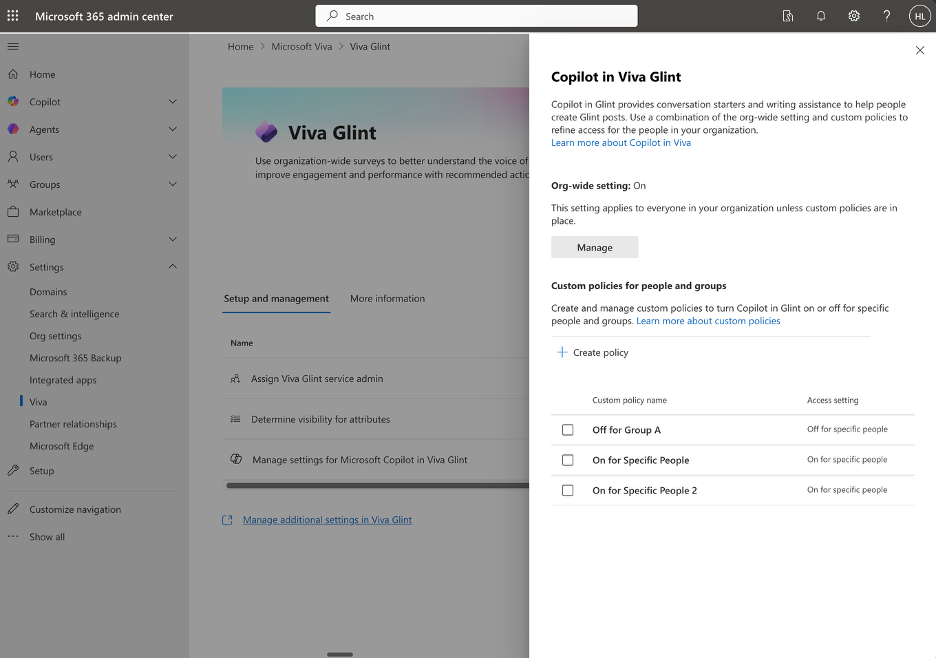
There are three common scenarios for managing access to Copilot in Viva Glint:
- Scenario 1: Enable for all Viva Glint users (default configuration)
- Scenario 2: Disable at tenant level and enable only for specific people and groups
- Scenario 3: Enable at tenant level and disable for specific people and groups
Scenario 1: Enable for all Viva Glint users (default configuration)
When to use this scenario
Use this scenario when:
- You want all users with appropriate Viva Glint user role permissions to access Copilot features
- You do not need to restrict access based on user groups
Steps
Go to the Microsoft 365 admin center.
Select Settings > Viva.
Select Viva Glint and choose Manage settings for Microsoft Copilot in Viva Glint.
In the Manage Microsoft Copilot in Viva Glint pane, select Manage in the Org-wide setting section.
Choose On.
Select Save.
Note
When the organization-wide setting is On and no custom policies exist, all users who meet the Viva Glint user role prerequisites can access Copilot features.
Result
- Users with Comments Report access can use comment summarization.
- Users with Dashboard and Reports access can use Copilot Highlights.
- Access applies only to Recurring or Ad hoc survey programs.
Scenario 2: Disable at tenant level and enable only for specific people and groups
When to use this scenario
Use this scenario when:
- You are piloting Copilot with a limited group before broader rollout
- You want to grant access only to specific departments or teams (for example, HR, senior leadership)
- Your organization requires controlled access for compliance or governance reasons
Steps
Step 1: Disable the organization-wide setting
- Go to the Microsoft 365 admin center.
- Select Settings > Viva.
- Select Viva Glint and choose Manage settings for Microsoft Copilot in Viva Glint.
- In the Manage Microsoft Copilot in Viva Glint pane that appears, select Manage in the Org-wide setting section.
- Choose Off.
- Select Save.
Step 2: Create a custom policy to enable for specific groups
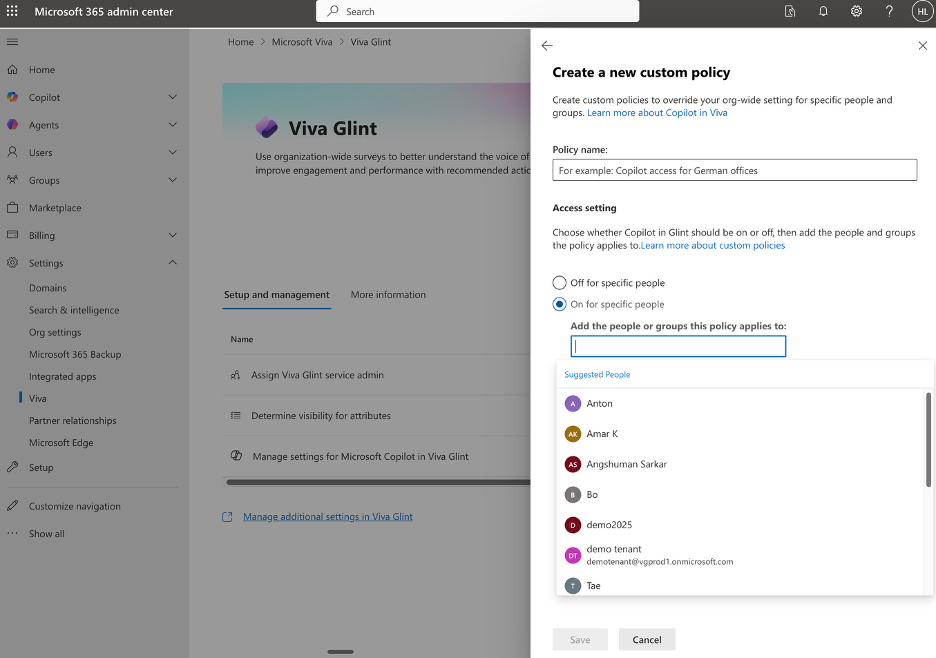
In the same Manage Microsoft Copilot in Viva Glint pane, select Create policy in the Custom policies for people or groups section.
Enter a descriptive name in the Policy name field (e.g., "Enable Copilot for HR Team").
Select On for specific people.
In the Add the people or groups this policy applies to field, search for and add the Microsoft Entra security groups or individual users who should have access.
Select Save.
Tip
Create multiple custom policies if you need to enable access for different groups at different times. Each policy can target different Microsoft Entra security groups.
Result
- Copilot in Viva Glint is disabled for all users by default
- Only users in the specified Microsoft Entra security groups (and meeting Viva Glint user role prerequisites) can access Copilot features
- Users not in the specified groups see no Copilot features in Viva Glint, regardless of their user role permissions
Scenario 3: Enable at tenant level and disable for specific people and groups
When to use this scenario
Use this scenario when:
- You want to enable Copilot broadly but exclude specific regions or user groups (for example, European users pending works council approval)
- You need to temporarily restrict access for certain departments while they complete governance reviews
- You want to disable access for specific user groups due to data sensitivity or compliance requirements
Steps
Step 1: Enable the organization-wide setting
- Go to the Microsoft 365 admin center.
- Select Settings > Viva.
- Select Viva Glint and choose Manage settings for Microsoft Copilot in Viva Glint.
- In the Manage Microsoft Copilot in Viva Glint pane that appears, select Manage in the Org-wide setting section.
- Choose On.
- Select Save.
Step 2: Create a custom policy to disable for specific groups
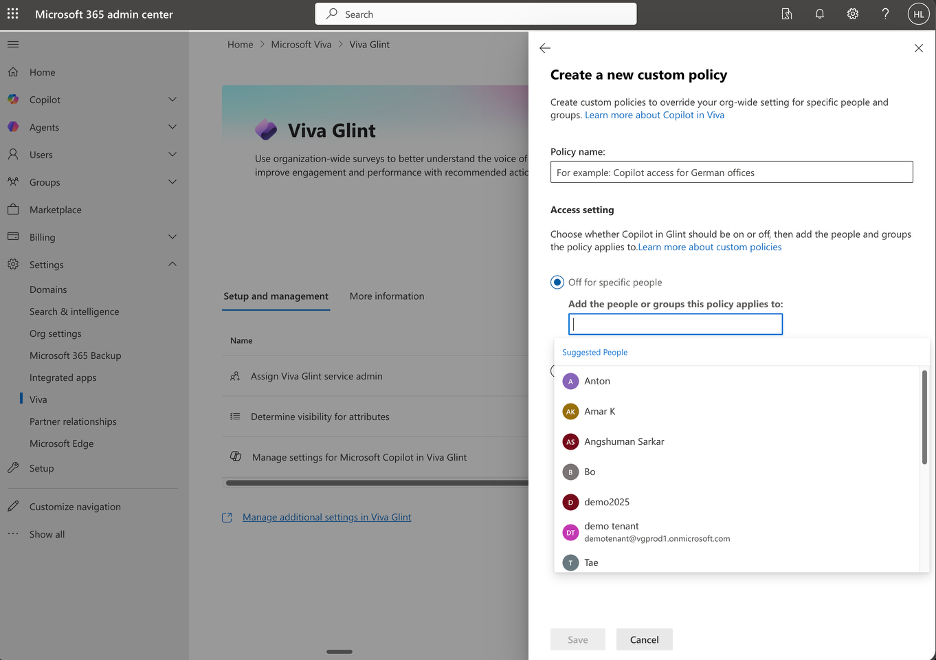
In the same Manage Microsoft Copilot in Viva Glint pane, select Create policy in the Custom policies for people or groups section.
Enter a descriptive name in the Policy name field (e.g., "Disable Copilot for European Users").
Select Off for specific people.
In the Add the people or groups this policy applies to field, search for and add the Microsoft Entra security groups or individual users who should NOT have access.
Select Save.
Important
Custom policies override the organization-wide setting. Users in groups with an "Off" policy will not have access to Copilot in Viva Glint, even if the organization-wide setting is "On".
Result
- Copilot in Viva Glint is enabled for all users by default
- Users in the specified Microsoft Entra security groups (designated as "Off") cannot access Copilot features, regardless of their Viva Glint user role permissions
- All other users who meet the Viva Glint user role prerequisites can access Copilot features
Policy precedence and conflict resolution
When multiple policies exist, VFAM follows this precedence order:
- Custom "Off" policies take highest precedence. If a user is in any group with an "Off" policy, they cannot access Copilot in Viva Glint.
- Custom "On" policies take second precedence. If a user is in a group with an "On" policy and not in any "Off" policy group, they can access Copilot.
- Organization-wide setting applies only to users not covered by any custom policy.
Example
- Organization-wide setting: On
- Custom policy 1: On for "HR Team" group
- Custom policy 2: Off for "European Users" group
Results:
- A user in the "European Users" group cannot access Copilot, even if they are also in the "HR Team" group ("Off" policy takes precedence)
- A user in the "HR Team" group who is not in the "European Users" group can access Copilot
- A user in neither group can access Copilot (organization-wide setting applies)
FAQ
Do VFAM Copilot policies automatically stay up to date as employees join or leave?
Yes. When Copilot access is controlled using Microsoft Entra users or groups through Viva Feature Access Management (VFAM), access is evaluated based on the current membership of those Entra users or groups. VFAM policies do not store a static list of users; they apply to the users who are in scope at the time the policy is evaluated.
How does VFAM determine who is in scope?
VFAM policies can be scoped to:
- All users
- Specific users
- Microsoft Entra security groups, Microsoft 365 groups, or distribution groups
VFAM uses the group or user objects as defined in Microsoft Entra ID to determine who the policy applies to.
What happens when users are added or removed in Entra?
New users
- If a user is added to an Entra group that is included in a VFAM policy, that user becomes subject to the policy once group membership is processed in Entra ID.
- No change to the VFAM policy itself is required.
User removal or departure
- If a user is removed from the Entra group or the user object is removed from Entra ID, that user is no longer in scope for the VFAM policy.
- VFAM continues to evaluate scope based on the current Entra state.