Note
Access to this page requires authorization. You can try signing in or changing directories.
Access to this page requires authorization. You can try changing directories.
The Viva Glint integration with Organizational data in Microsoft 365 is being released in phases. It is currently available for customers who have a single Viva Glint instance in their tenant and are not using a GCC environment.
For new customers, Organizational data in Microsoft 365 is enabled by default. Existing customers with employee data already configured in Viva Glint must complete a one-time onboarding process to map Organizational data attributes to Viva Glint attributes before Viva Glint can import employee data from Organizational data in Microsoft 365.
Organizational data attributes in Viva Glint
When employee data is imported through Organizational data in Microsoft 365, the Organizational data attributes available to Viva Glint fall into two categories:
- Reserved attributes
- Custom attributes
Reserved attributes
Reserved attributes are a set of Organizational data attributes with predefined meanings in Organizational data in Microsoft 365. Reserved attributes can be classified as public or non-public.
Public reserved attributes can be shared with Profile and used by other Microsoft 365 experiences that consume Profile data, including Microsoft 365, Copilot, People card, Viva Amplify, and Viva Engage.
Non-public reserved attributes, along with public reserved attributes, can be shared with supported apps and Microsoft experiences based on the access chosen by the Organizational data source admin during connector setup. These experiences can include Viva Glint, Viva Insights, Copilot Dashboard, Skills, and Agents.
Most Organizational data attributes must be explicitly mapped to corresponding Viva Glint attributes before Viva Glint can import their values. Viva Glint-specific reserved attributes are mapped automatically.
The following Organizational data attributes aren't currently imported into Viva Glint:
Microsoft_PhoneMicrosoft_SecondaryJobTitleMicrosoft_HourlyRateMicrosoft_WeeklyBadgeOnsiteDaysMicrosoft_UserSkillNamesMicrosoft_EmploymentStatus
Note
Microsoft_GlintEmploymentStatus corresponds to the Viva Glint Status attribute and only accepts ACTIVE or INACTIVE values.
Custom attributes
Custom attributes are Organizational data attributes that are unique to your organization's employee data and aren't predefined as reserved attributes in Organizational data in Microsoft 365.
Custom attributes don't automatically become available to every app or service. During connector setup, the Organizational data source admin chooses which custom attributes are shared with each supported app or service.
Viva Glint imports custom Organizational data attributes only when a corresponding Viva Glint attribute already exists and the custom Organizational data attribute is shared with Viva Glint. The custom Organizational data attribute name must exactly match the Viva Glint attribute name, including letter casing.
Important
Custom attribute mapping is case sensitive.
Note
If Viva Glint receives a custom Organizational data attribute that doesn't match an existing Viva Glint attribute, the attribute is ignored and an advisory message is included in the error messages provided after the upload completes. To import a new custom attribute into Viva Glint, first create the corresponding attribute in Viva Glint.
Existing customer onboarding to Organizational data in Microsoft 365
Customers who already have employee data in Viva Glint People, must complete a one-time mapping exercise before Viva Glint can start consuming employee data from Organizational data in Microsoft 365.
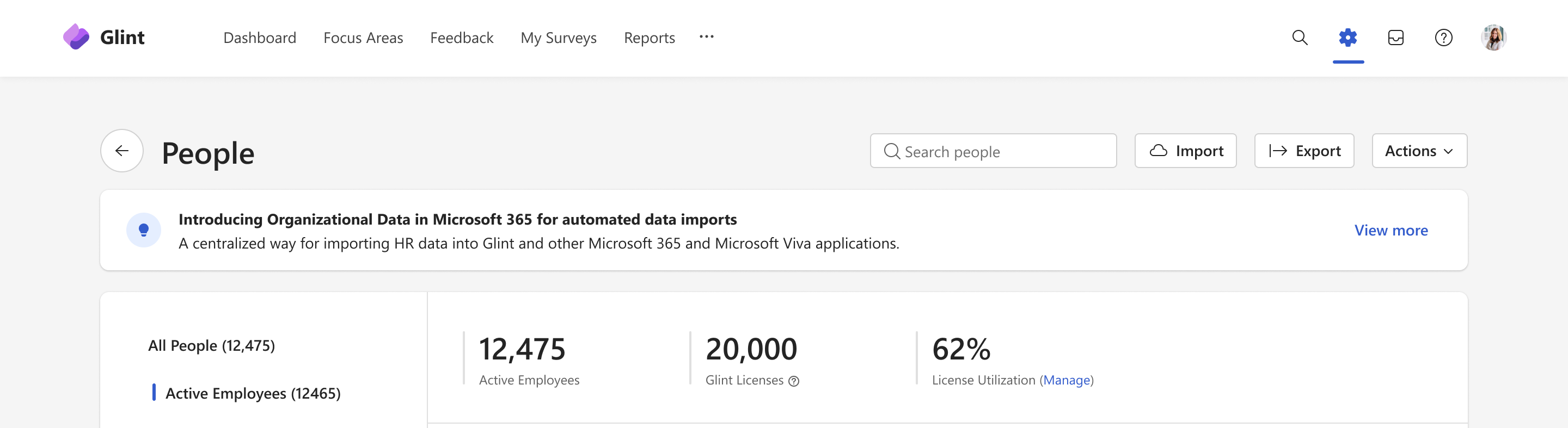
Step 1: An onboarding banner will appear in the People page. Select View more to open the wizard.
Note
Organizational data in Microsoft 365 is being released in phases. If you don't see the onboarding banner, the feature isn't available yet in your tenant.
Step 2: Review Onboarding readiness requirements.
Review these key onboarding readiness information and related documentation articles to understand what is Organizational data in Microsoft 365. When ready, select Get Started.
- Importing data via Organizational data in Microsoft 365
- Organizational data in Microsoft 365
- Organizational data in Microsoft 365 - Attribute reference
- Import and manage your organizational data with a .csv file

Step 3a: Map Organizational data attributes to Viva Glint attributes
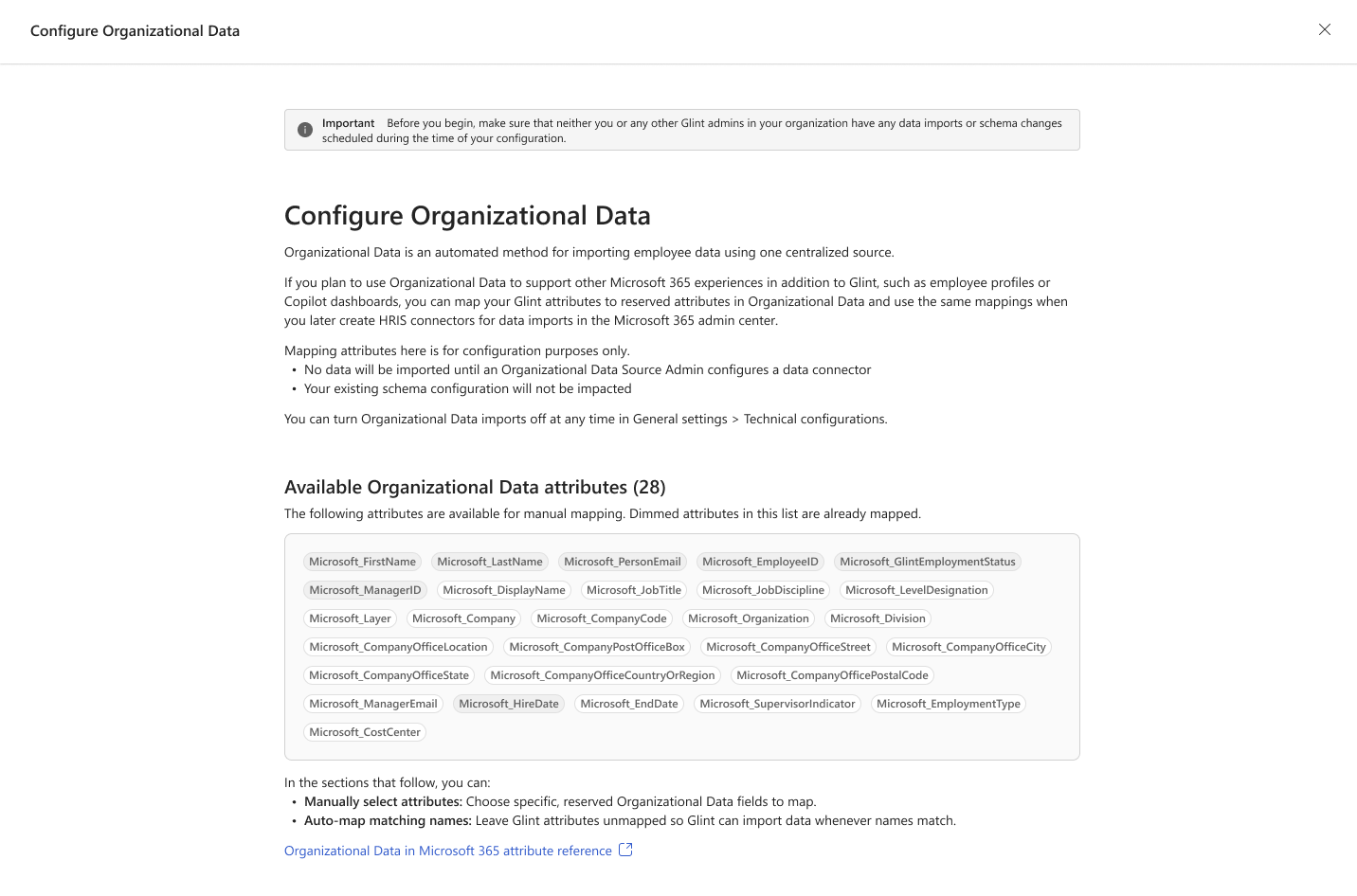

This setup flow enables existing Viva Glint attributes to be linked to Organizational data attributes.
Required Viva Glint attributes are automatically mapped to corresponding reserved Organizational data attributes and can't be modified. Additional mappings, including Manager ID, Hire Date, custom attributes, and hierarchy groups can be added, removed, or updated at any time.
Attribute mappings determine which Viva Glint attributes receive values from Organizational data attributes. Mapping attributes that contain the same employee data ensures a consistent attribute structure across import methods, including Organizational data in Microsoft 365, SFTP imports, and People page imports. This helps prevent duplicate attributes from being created in Viva Glint.
The required Viva Glint attributes are automatically mapped to corresponding reserved Organizational data attributes. These mappings are visible during onboarding but can't be changed or removed. Required Viva Glint attributes include First Name, Last Name, Email, Employee ID, and Status.
Additional Viva Glint attributes can be mapped to reserved Organizational data attributes. This step is optional.
Reserved Organizational data attributes have predefined meanings that can be understood across Microsoft experiences and services. Mapping a Viva Glint attribute to a reserved Organizational data attribute allows employee data associated with that reserved Organizational data attribute to be imported into the selected Viva Glint attribute.
For example, if your Organizational data import includes the reserved attribute Microsoft_SupervisorIndicator, you can map it to a Viva Glint attribute named People Manager. After the mapping is configured, Viva Glint imports the Microsoft_SupervisorIndicator values into the People Manager attribute. If no mapping is configured, the Microsoft_SupervisorIndicator attribute isn't imported into Viva Glint.
Attributes that aren't explicitly mapped to reserved Organizational data attributes continue to support custom attribute imports. When Viva Glint receives a custom Organizational data attribute, Viva Glint looks for an existing attribute with the same name. If an exact name match exists, including letter casing, the attribute and its values are imported. If no matching Viva Glint attribute exists, the custom Organizational data attribute isn't imported.
For example, if Organizational data includes a custom attribute named Supervisor Indicator and Viva Glint already contains a custom attribute named Supervisor Indicator, the attribute and its values are imported automatically. If Viva Glint doesn't contain a matching Supervisor Indicator attribute, the data isn't imported.
Note
If you want to keep the Viva Glint Manager Hierarchy distinct from the Profile or Entra Manager Hierarchy then don’t map Microsoft_ManagerID to Viva Glint’s attribute used for Manager hierarchy derivation.
Step 3b: Rename attributes that don't adhere to naming requirements
This step appears only when existing Viva Glint attribute names don't meet the naming requirements used by Viva Glint and Organizational data in Microsoft 365.
Before onboarding can continue, Viva Glint validates existing attribute names against the [naming requirements](viva/insert-link-here-to Attribute naming guidelines on viva/glint/setup/attribute-fundamentals) used by both Viva Glint and Organizational data in Microsoft 365. Any attributes that don't meet these requirements must be renamed.

Important
If you rename an attribute during onboarding, update any employee data files or import processes that reference the previous attribute name. Future imports must use the renamed attribute.
Step 4: Review your changes and save
Review the summary of changes, including reserved Organizational data attribute mappings and any attribute renames, and then select Save changes.
After the onboarding process is completed, Viva Glint is configured to import employee data from Organizational data in Microsoft 365. The Organizational data imports setting is automatically set to Yes.
Managing Organizational data imports
Enable and disable Organizational data imports
Completing onboarding automatically enables Organizational data imports in Viva Glint.
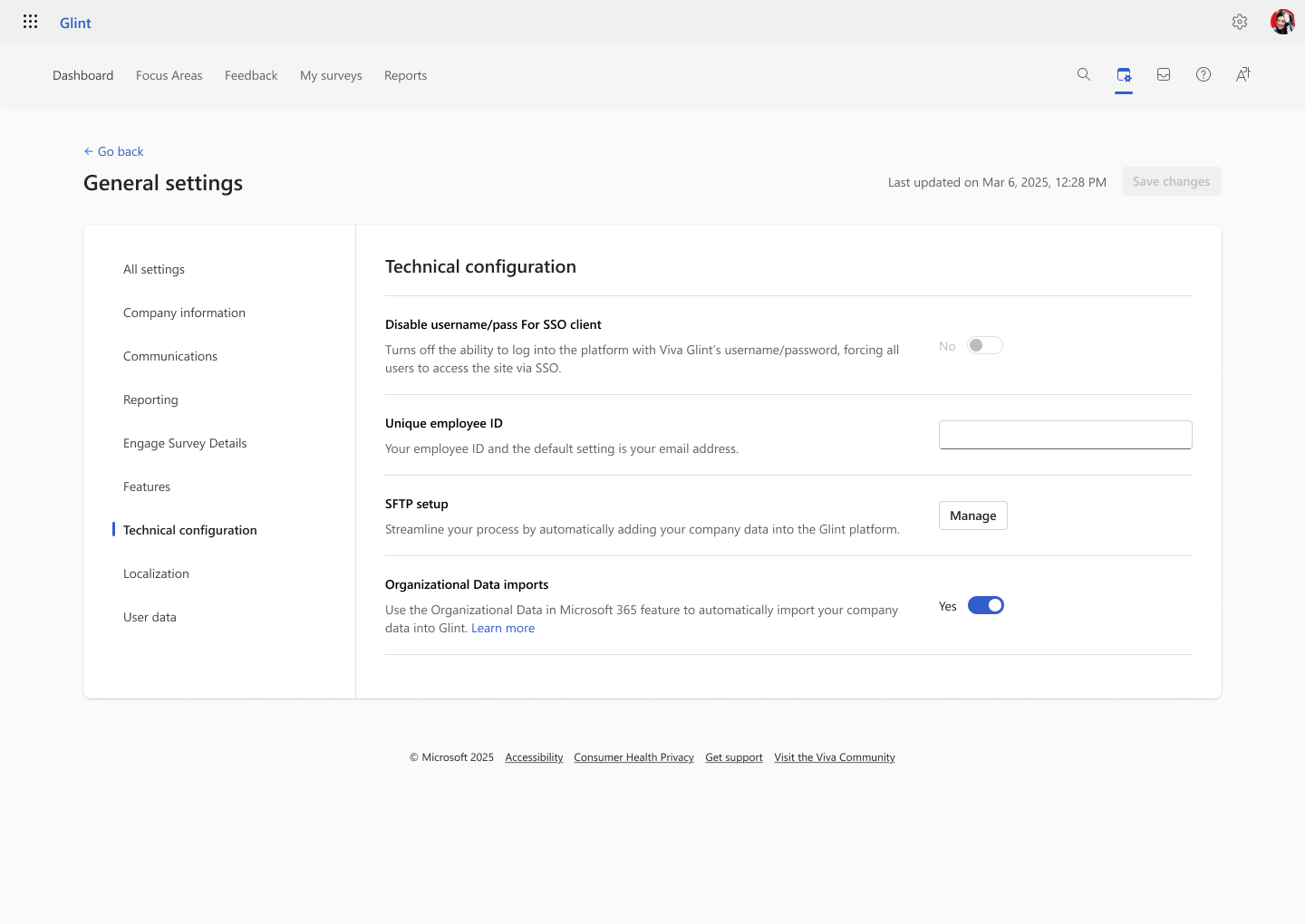
You can enable or disable Organizational data imports at any time from General settings > Technical configuration. When Organizational data imports are disabled, Viva Glint stops importing employee data from Organizational data in Microsoft 365.
If onboarding hasn't been completed, the Organizational data imports setting remains set to No.
Note
This toggle must be Yes for Viva Glint to appear as an optional end point for your connection in the Microsoft Admin Center at Setup > Migration and imports > Organizational data in Microsoft 365.
Remove Organizational data attribute mapping from Viva Glint attribute
You can remove a Viva Glint attribute’s mapping to an Organizational data reserved attribute at any time from People > Actions > Manage User Attributes. After the mapping is removed, Viva Glint no longer updates that attribute from Organizational data reserved attributes. The unmapped Viva Glint attribute remains a custom attribute in Viva Glint and continues to be updated from Organizational data custom attributes when the attribute name matches with the Viva Glint attribute name.
Steps to remove the Organizational Data mappings
In the People > Actions > Manage User Attributes page, select on Manage Organization Data mapping.
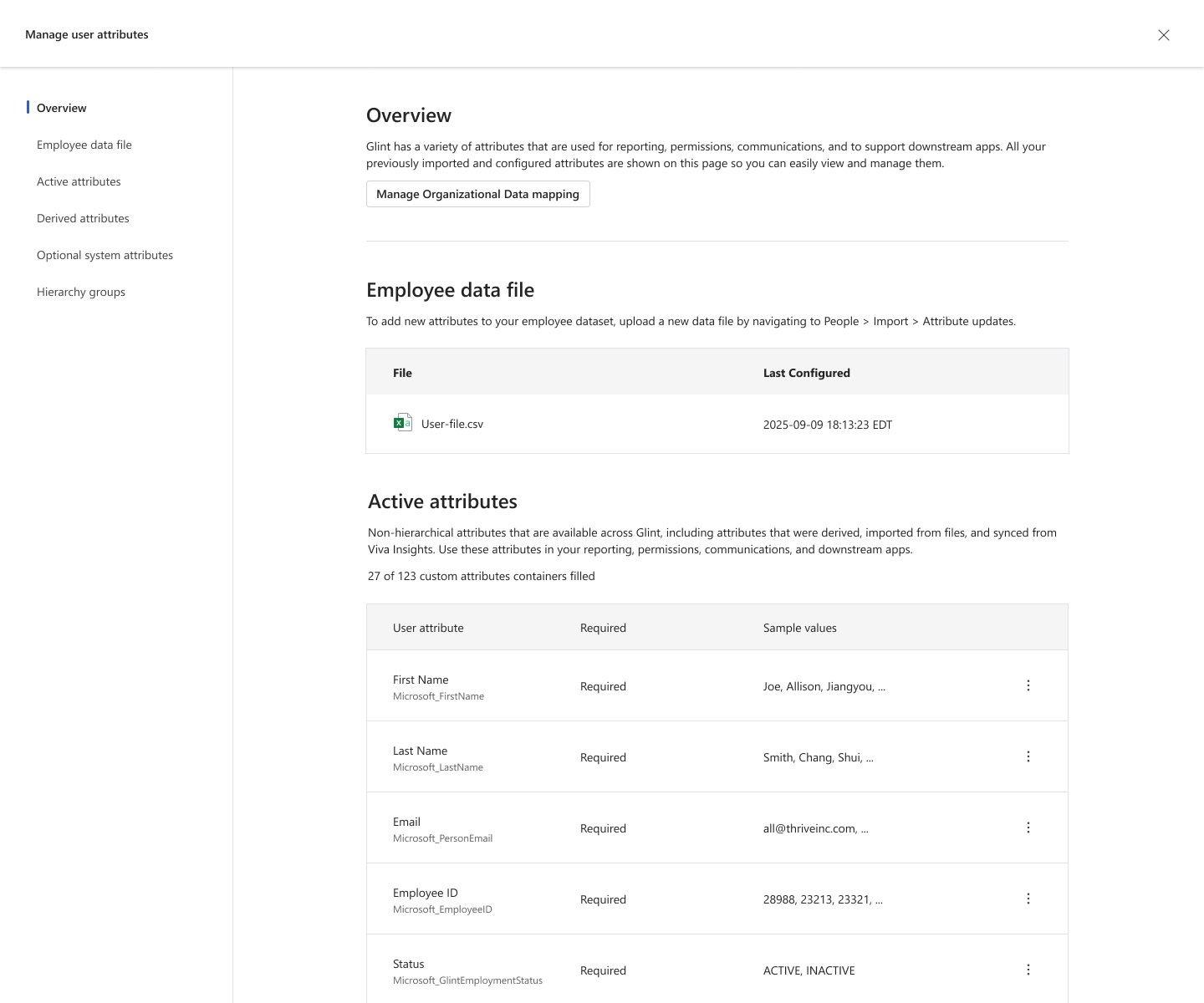
On the Manage Organizational Data mapping page, remove the Organizational data reserved attribute tags under Viva Glint attribute names and select Save.
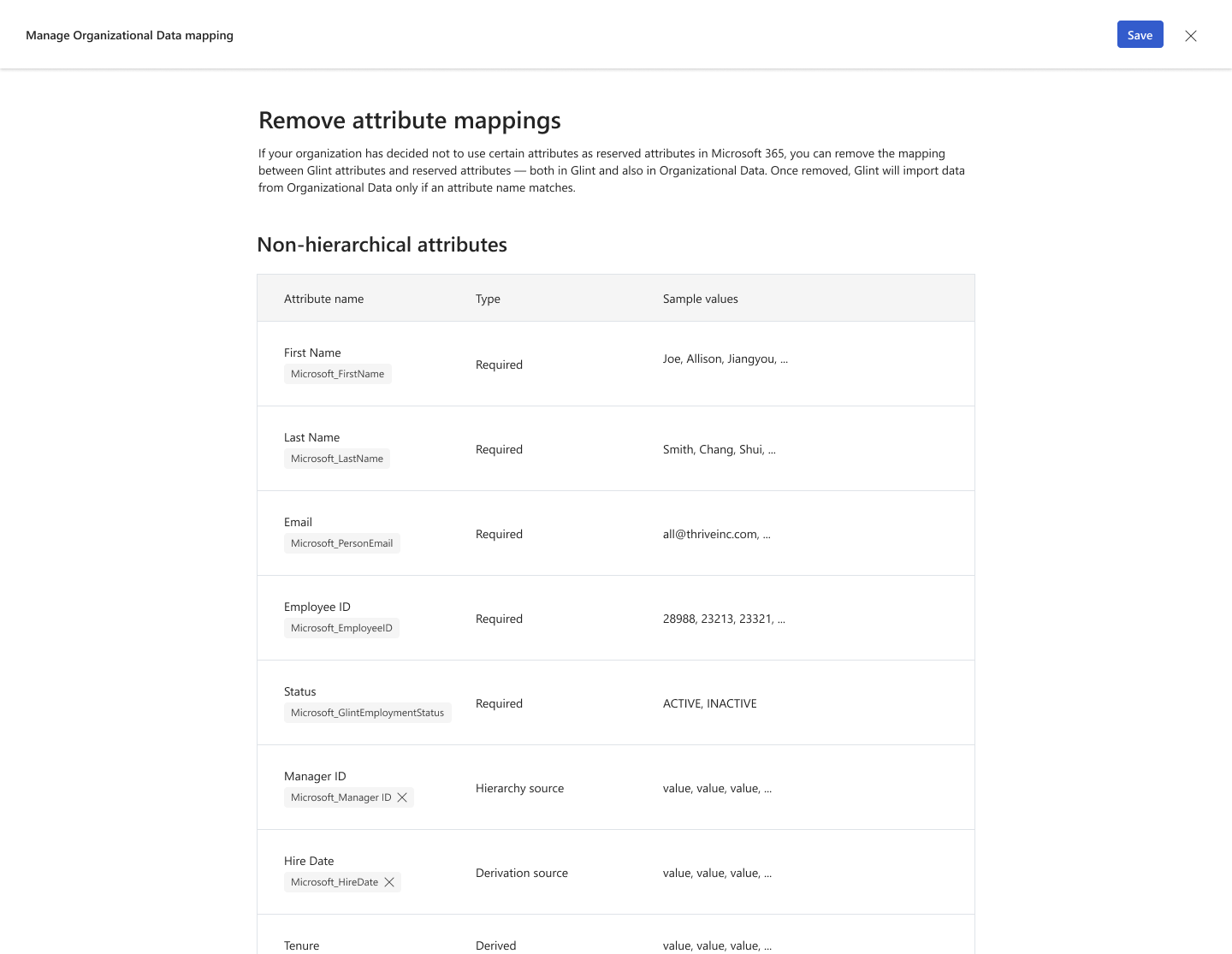
In the review screen, review the set of attributes for which the reserved attribute mappings will be removed and select “Remove attribute mappings”.
Add an Organizational data attribute mapping
You can create or update Organizational data attribute mappings at any time from Settings > People > Actions > Manage User Attributes.
Follow the same mapping process described in the onboarding flow to map Viva Glint attributes to reserved Organizational data attributes.
Monitoring Organizational data attribute mapping to Viva Glint attribute
All Organizational data imports are audited to support easier review, troubleshooting and data reconciliation. Each audit event includes key import details, such as the original file Viva Glint received from Organizational data in Microsoft 365, any advisories generated for that file, and a processed file with an ingestion summary showing rows ingested, ignored, and skipped.