Note
Access to this page requires authorization. You can try signing in or changing directories.
Access to this page requires authorization. You can try changing directories.
Devices with Near Field Communication (NFC) prioritize secure access and sign-in. An NFC antenna on a Windows device allows users to tap their NFC card, key, or badge for quick authentication. For devices where the antenna is on the front or edge of the display, you as an OEM can configure the device to show a visual indicator of the antenna’s location on the lock screen, helping the user locate where to tap when using NFC-enabled Windows security key sign-in.
Benefits of the tap location indicator
Some NFC antennas are visually easy for users to detect. Visual markers are often incorporated by default when the antenna is located in places such as the keyboard, back of the display, or a peripheral NFC reader. However, other NFC-supported devices have an antenna located on the front or edge of the display. While convenient, users of these devices can benefit from an on-screen visual cue to denote where to tap their NFC card, key, or badge when signing in. For devices with a front-of-display or display-edge NFC antenna, the tap location indicator appears on the lock screen when using NFC-enabled security key sign-in to help the user identify the antenna’s location.
The indicator provides tap location guidance only. It doesn't alter the Windows security key sign-in flow. Devices can still set a personalized lock screen background with the indicator. The indicator adapts to different screen resolutions and orientations to provide a consistent location marker. You can configure the indicator based on the location and parameters of the NFC antenna on a particular device.
Supported platforms
This capability is available on Windows 11, version 24H2 and later, for the following builds:
- Windows 11, version 26H1: 28000.3612 and later
- Windows 11, version 26H2: 26300.10066 and later
- Windows 11, version 25H2: 26200.10066 and later
- Windows 11, version 24H2: 26100.10066 and later
Placement modes
You can configure the tap location indicator to one of two modes: Edge or Floating.
Edge mode
The Edge mode features an indicator bar on the edge of the screen. Use this mode for devices with the NFC antenna located in the bezel, on, or near the edge of the screen.
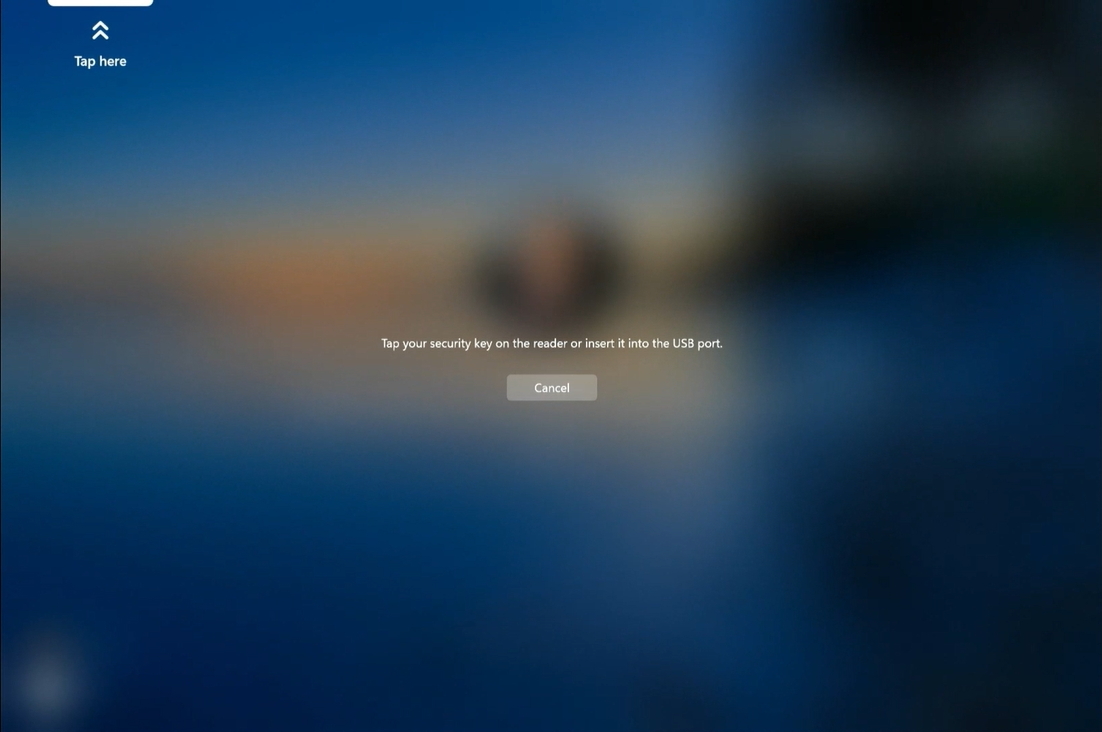
Dimensions (at 100% scale) for the indicator elements are below:
| Element | Size (in px) at 100% scale |
|---|---|
| Accent bar, centered on the antenna | 140x8 |
| Indicator area (chevrons and “Tap here” label) | 160x160 |
Floating mode
The Floating mode features an indicator icon anywhere within the bounds of the screen. Use it for devices with the NFC antenna located in the center of the screen, off the edge.

Dimensions (at 100% scale) for the indicator elements are below:
| Element | Size (in px) at 100% scale |
|---|---|
| NFC glyph and border, centered on the antenna | 72x90 |
| Indicator area (glyph, border and “Tap here” label) | 72x128 |
Configuring the indicator
You can configure the location indicator using a standardized schema, then apply it to the device using one of two methods.
Configuration schema
Use the following schema to declare the location and parameters of the NFC antenna. All values are required unless otherwise specified.
Coordinates below are in physical pixels. They aren’t affected by the display scale setting. We recommend measuring at native resolution, primary landscape orientation, and 100% scale.
| Value | Type | Description | Valid input(s) |
|---|---|---|---|
| Version | DWORD | Version of the configuration schema used (currently 1). | 1 |
| BaselineWidthPx | DWORD | Display width (in px) at baseline rotation and resolution. | Any non-negative value |
| BaselineHeightPx | DWORD | Display height (in px) at baseline rotation and resolution. | Any non-negative value |
| BaselineRotationDeg | DWORD | Baseline rotation when coordinates are measured (0/90/180/270). 0 corresponds to the primary landscape orientation and degree rotation is calculated counterclockwise (with 90 representing the portrait orientation when rotated 90 degrees counterclockwise from 0). | 0, 90, 180, or 270 |
| CenterXpx | DWORD | X-coordinate of center of the NFC antenna in baseline pixels. Example: (0, 0) is the top-left corner. | Any non-negative value |
| CenterYpx | DWORD | Y-coordinate of center of the NFC antenna in baseline pixels.Example: (0, 0) is the top-left corner. | Any non-negative value |
| PlacementMode | DWORD | Placement mode to be used for the indicator. 0 = Floating mode, 1 = Edge mode. | 0 or 1 |
| Edge | DWORD | When using the Edge placement mode, specifies on which edge to show the indicator. 0 = Top, 1 = Bottom, 2 = Left, 3 = Right. Leave this value blank for Floating placement mode. | 0, 1, 2, or 3 |
Example configurations
As a reference, see example configurations for the Edge and Floating modes.
Edge mode example
| Value | Input |
|---|---|
| Version | 1 |
| BaselineWidthPx | 2880 |
| BaselineHeightPx | 1920 |
| BaselineRotationDeg | 0 |
| CenterXpx | 260 |
| CenterYpx | 0 |
| PlacementMode | 1 |
| Edge | 0 |
Floating mode example
| Value | Input |
|---|---|
| Version | 1 |
| BaselineWidthPx | 2196 |
| BaselineHeightPx | 1464 |
| BaselineRotationDeg | 0 |
| CenterXpx | 1364 |
| CenterYpx | 536 |
| PlacementMode | 0 |
| Edge | (blank) |
Example registry file
As a reference, .reg file with a sample configuration looks like this.
"Version"=dword:00000001
"BaselineWidthPx"=dword:00000b40
"BaselineHeightPx"=dword:00000780
"BaselineRotationDeg"=dword:00000000
"CenterXpx"=dword:00000104
"CenterYpx"=dword:00000000
"PlacementMode"=dword:00000001
"Edge"=dword:00000000
Applying the schema
Apply the schema to the device using the appropriate method below.
Direct registry edit (recommended):
Preferred method for all new devices
Place the configuration schema at HKLM\SOFTWARE\Microsoft\Windows\CurrentVersion\NFC\AntennaLocation.
Driver update:
Used for in-market devices or as a fallback when direct registry edit isn’t available
Perform an NFC driver update of the setup information file INF. This declares the antenna location under the driver’s own per-device registry section using the standard HKR (relative-root) directive.
If you apply both configuration methods to a device, Windows prioritizes the direct registry edit and reads the driver configuration only when the direct registry key is absent.
Restart requirement: Restart after applying or changing the configuration, including after installing a driver that declares it. Windows reads the configuration once per boot. Before finalizing the configuration, validate the indicator and its appearance across all resolutions, scaling, and orientations on the device.
Rendering of the tap location indicator
The tap location indicator appears on the Windows lock screen whenever the Windows security key (FIDO) sign-in option is selected, sign-in is pending NFC tap from the user, and a valid schema is present (see exceptions below). For the best visual experience, enable transparency and animation effects on the device.
The indicator is rendered at the antenna coordinates you provide (center X/Y in your baseline resolution). Additionally, for devices that support multiple orientations, the indicator adapts when changing the screen resolution or rotating the device. If the rendered position appears too close to a screen edge to display the indicator completely, it’s automatically adjusted to the nearest fully visible position.
The indicator appears only on the primary display. It doesn’t appear on external monitors, lid-closed docking, duplicated or extended displays, or other non-primary displays. Localization and accessibility settings are supported, such as Narrator, keyboard navigation, high contrast, disable transparency (which renders an opaque background when the indicator is shown), and disable animation.
Cases where the indicator doesn’t appear
Invalid or missing configuration
If the configuration is missing or contains an invalid schema, the tap location indicator isn’t displayed.
Confirm that the configuration was read as follows:
After restart, when a security key sign-in shown at least once, check HKLM\SOFTWARE\Microsoft\Windows\CurrentVersion\NFC\CachedAntennaLocation.
| What you see | Meaning |
|---|---|
| Configuration values plus Source = 1 | Valid configuration was read from the direct registry key. |
| Configuration values plus Source = 2 | Valid configuration was read from the driver. |
| NoUsableConfig = 1 | No configuration is found. |
| NoUsableConfig = 2 | Configuration is found but rejected as invalid. |
| Key absent | Security key sign-in hasn't been shown since the last restart. |
NFC settings disabled in airplane mode
Check the NFC setting for the device under Network & internet > Airplane mode > NFC. If it’s disabled, NFC tap is also disabled in security key sign-in. As a result, the tap location indicator isn’t displayed.
Disabling the indicator via policy
The indicator is on by default. Enterprise IT admins can hide the tap location indicator from devices. By enabling the mobile device management (MDM) policy under CredentialProviders > EnableNFCTapLocationIndicator. To learn more, see NFC tap location indicator on Windows lock screen for security key sign-in.