Note
Access to this page requires authorization. You can try signing in or changing directories.
Access to this page requires authorization. You can try changing directories.
Important
Network HUD for Windows Server is currently in PREVIEW. This information relates to a prerelease product that may be substantially modified before it's released. Microsoft makes no warranties, expressed or implied, with respect to the information provided here.
Network HUD is a host networking diagnostics and operational tool that analyzes and remediates host networking issues. Network HID runs continuously, correlating physical switch links, host adapter settings, and the cluster roles that consume them. Using network intent data, Network HUD selects relevant tests and raises early alerts when emerging issues threaten workload performance or stability.
Host networking can be hard to troubleshoot because you need to gather information from the physical fabric switches, cluster hosts, network adapters settings, and guest workloads. This separation obscures root causes, slows remediation, and increases the risk of performance or stability degradation. Network HUD helps you to:
- Identify misconfiguration on the physical network. For example, missing VLAN or PFC priority.
- Detect operational hardware issues, such as flapping or unstable adapters, PCIe oversubscription.
- Optimize and validate host configuration symmetry and driver readiness.
- Autoremediate selected conditions, such as removing persistently unstable adapters from service when safe to do so.
Availability and requirements
For Network HUD to be available to you, you must be eligible for Windows Server Management enabled by Azure Arc. To learn more about the availability of the Network HUD benefit, see Windows Server Management enabled by Azure Arc.
When your machines are eligible for Windows Server Management enabled by Azure Arc, your environment must meet the following requirements:
- You're using Windows Server Failover Clustering.
- Cluster nodes must run Windows Server 2025 Datacenter.
- Network ATC is deployed with host networking intents. To learn more about deploying Network ATC, see Deploy host networking with Network ATC.
- The cluster must have Storage Spaces Direct (S2D) enabled (required for the Cluster Health service). To learn more about deploying Storage Spaces Direct, see Deploy Storage Spaces Direct on Windows Server.
- Each cluster node must be connected to Azure Arc.
Terminology
The following table defines some of the key terms used in this document:
| Term | Definition |
|---|---|
| Network HUD: Network HUD | Windows Server Management enabled by Azure Arc benefit that analyzes and, where possible, remediates host networking issues. |
| Network HUD: Content | Detection logic packages downloaded separately and updated over time; can run disconnected. |
| Network HUD: Content Detection | Individual detection units that watch for behavior indicating an issue is occurring or likely to occur. |
| Network ATC: Intent | Definition of how you intend to use one or more physical adapters. For example, a converged management/compute/storage set. Each physical adapter can belong to only one intent. |
| Network ATC: Intent type | A role assigned within an intent. Supported types: Management, Compute, Storage, Stretch (similar to Storage but without RDMA). |
How Network HUD works
Network HUD is cluster-aware and continuously interprets raw host and fabric signals in the context of declared Network ATC intents and cluster states. Instead of treating adapters, switches, and roles as isolated components, it correlates them across the cluster so you can understand emerging instability in an operational context. For example, it detects a flapping port in the context of storage, compute, or management intents. Each detection combines multiple telemetry streams to reduce noise and surface only actionable health faults.
To surface actionable health faults, Network HUD gathers and normalizes events from:
- Network ATC intent metadata that declares what each adapter is supposed to carry, shaping which tests are relevant and suppressing unnecessary probes.
- LLDP exchanges with top-of-rack switches to map physical ports, VLAN advertisement, and Priority Flow Control readiness for RDMA traffic.
- Event logs signaling adapter resets, link state transitions, or driver load anomalies that often precede performance degradation.
- Performance counters and real-time adapter metrics for bandwidth, congestion indicators, and stability.
- Packet-level insights (using
pktmon) and low-level hardware properties when precision is required. For example, validating oversubscription risk.
These inputs are combined into intent-aware detections that publish health faults through the existing cluster health pipeline—so Windows Admin Center and PowerShell reflect networking issues. Network HUD runs locally on each node for low latency and resilience.
Health detection scenarios
Network HUD proactively detects host networking conditions that typically precede instability or performance degradation. The following scenarios translate raw detection signals into actionable health faults you can remediate before misconfigurations or hardware issues impact workload performance or stability.
| Detection | Purpose |
|---|---|
| Failed Network ATC intents | Detects intents that don't provision completely (missing virtual adapters, QoS, storage settings) to prevent silent drift and unreliable baselines. |
| Missing Network ATC intent types | Ensures required traffic roles (management, compute, storage) exist so role‑specific diagnostics run; absence reduces coverage and masks unmanaged traffic. |
| PCIe bandwidth oversubscription | Compares aggregate NIC link rates to slot/PCIe lane capacity; oversubscription can cause throttling and inconsistent performance under load. |
| Unstable (flapping) adapters | Flags frequent link resets or drops that trigger failovers, raise latency, and degrade throughput before workload impact escalates. |
| Inbox (unsupported) production drivers | Identifies NICs that use only basic inbox drivers lacking advanced offloads and optimizations, increasing reliability and performance risk. |
| Aging or out‑of‑date drivers | Assesses driver package age and surfaces early maintenance needs. Warns when a driver is more than one year old so you can plan an update. |
| Driver version inconsistency | Detects mismatched versions across identical adapters, preventing asymmetric behavior, and unpredictable performance. |
| LLDP operational status | Indicates LLDP packet absences or parsing failure, reducing physical switch link detection and degrading other fabric validation tests. |
| Misconfigured or inconsistent VLANs | Compares advertised versus expected VLANs across the same-host intent members, the same intent across all hosts, and against the required workload (VM NIC) VLAN availability. Deviations risk VM connectivity loss or storage isolation failure. VLAN consistency across three discrete scopes to catch localized misconfiguration before it becomes a cluster issue: Same-host intent scope: Relevant switchports must advertise the same VLAN set to each adapter in the same Network ATC intent on a single host. Cluster intent scope: All switchports must advertise a consistent VLAN set to adapters in the same Network ATC intent across every host in the cluster. Workload availability scope: VLANs required for all compute workloads (VM NICs) must be advertised to each adapter participating in the same Network ATC intent on every host. |
| Inconsistent Priority Flow Control (PFC) | For storage intent adapters, Network HUD compares LLDP-advertised priorities from the physical switch with host-configured PFC. Flags missing or mismatched settings can cause congestion, prolonged pause conditions, elevated latency, or storage (S2D) failures. Alignment of PFC priorities for RDMA storage traffic with host intent configuration. For storage intent adapters, PFC validation includes comparing the LLDP-advertised priorities from the switch with the priorities enabled by Network ATC on the host. Network HUD flags mismatched configurations to make sure congestion, prolonged pause conditions, elevated latency, or storage (S2D) failures don't occur. |
Administrators can query faults using PowerShell, for example:
Get-HealthFault | Where-Object Reason -like '*HUD*'
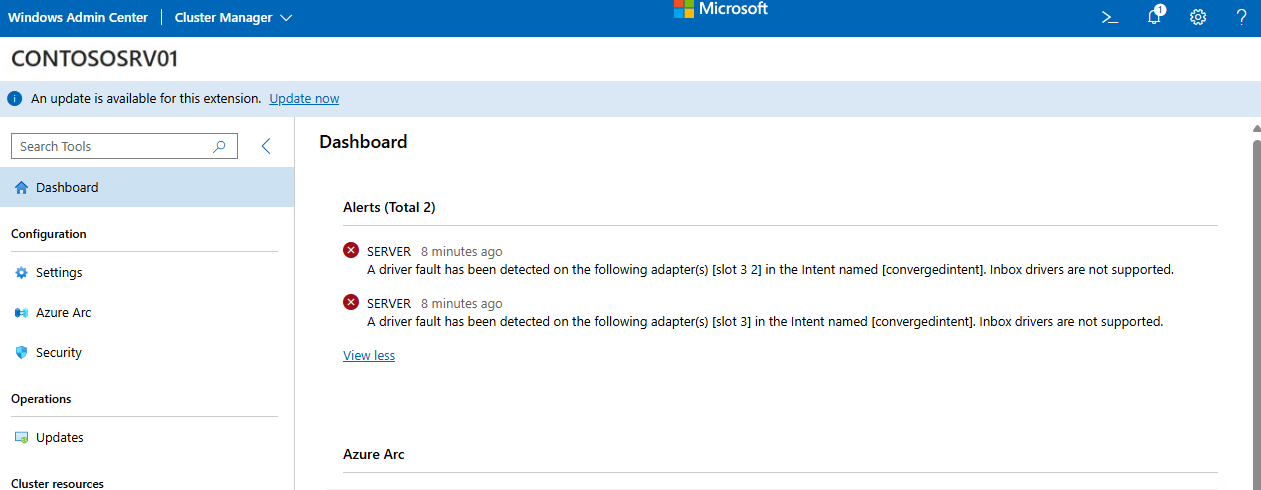
Administrators can also view Network HUD faults in Windows Admin Center cluster health views. The following screenshot shows an example of a Network HUD fault in Windows Admin Center: