Note
Access to this page requires authorization. You can try signing in or changing directories.
Access to this page requires authorization. You can try changing directories.
Important
The TableView control is available starting in Windows App SDK 2.5.4-experimental. The APIs are marked experimental and might change or be removed in a future release. Don't use them in production apps.
Use the experimental TableView control to display a collection of items in rows and columns. Each row represents one item from your data source, and you define the columns that display the item's values. TableView supports sorting, filtering, grouping, column resizing, frozen leading columns, single-row selection, and opt-in cell editing. Rows are virtualized, so the control creates UI only for the rows in and near the visible area.
To try the control, install the Windows App SDK 2.5.4-experimental package and matching runtime. For download links and setup information, see Latest Windows App SDK downloads.
Is this the right control?
Use a TableView when you want to:
- Display records that share the same fields, such as orders, files, or customers, in aligned columns.
- Let users compare values across items and change the row order by column.
- Filter or group the displayed rows without changing your underlying collection.
- Let users edit individual values in place.
In Windows App SDK 2.5.4-experimental, TableView has these limitations:
- Users can select only one row at a time.
- Users can sort by one column at a time, and column headers don't support sorting from the keyboard.
- Rows can be grouped by only one level.
- Users can't reorder columns, and the control doesn't display row headers.
- Only leading columns can be frozen.
- Columns aren't virtualized. The control is designed for tables with about 5 to 50 columns.
- TableView isn't a DataGrid replacement and doesn't provide spreadsheet-style interaction.
Consider these alternatives:
| Scenario | Consider |
|---|---|
| Your app uses a stable Windows App SDK release. | ItemsView or ListView with a columnar item template, or a supported third-party grid control. For guidance, see Display tabular data in a WinUI app. |
| Items need a card, tile, or custom layout instead of aligned columns. | ItemsView or ListView and GridView. |
| You need features that this release doesn't include, such as multiple selection or column reordering. | A supported third-party grid control. |
The community WinUI.TableView project is a separate open-source control that's distributed as the WinUI.TableView NuGet package. It isn't part of the Windows App SDK, and its API is different from the API that this article describes. Code and markup that you write for one control don't work with the other without changes.
Add TableView to your app
The WinUI 3 Gallery app includes interactive examples of WinUI controls and features. Get the app from the Microsoft Store or browse the source code on GitHub.

The WinUI 3 Gallery includes an experimental TableView sample starting with version 3.0.4. You can also view the TableView sample source code on GitHub.
TableView requires theme resources that aren't included in XamlControlsResources. In App.xaml, merge TabularControlsResources into your app resources after XamlControlsResources:
<Application.Resources>
    <ResourceDictionary>
        <ResourceDictionary.MergedDictionaries>
            <XamlControlsResources xmlns="using:Microsoft.UI.Xaml.Controls" />
            <TabularControlsResources xmlns="using:Microsoft.UI.Xaml.Controls.Tabular" />
        </ResourceDictionary.MergedDictionaries>
    </ResourceDictionary>
</Application.Resources>
If you don't merge these resources, your app throws a XAML parse exception when it first lays out a TableView.
To use TableView in markup, declare the Microsoft.UI.Xaml.Controls.Tabular namespace. The examples in this article use the tabular prefix for this namespace and the local prefix for the app's own namespace:
xmlns:tabular="using:Microsoft.UI.Xaml.Controls.Tabular"
In C# code files, add using Microsoft.UI.Xaml.Controls.Tabular;.
Note
Because the APIs are experimental, the C# compiler reports warning CS8305 and the XAML compiler reports warning WMC1501 when you use them. These warnings are expected. To suppress CS8305 in a project that you use for evaluation, add it to the NoWarn property in your project file.
Create a table
TableView doesn't generate columns from your data. Add a column for each value that you want to display. Without columns, TableView doesn't display any cells.
Use a TableViewTextColumn to display a value as text. Set its Binding property to a {Binding} markup extension that names the property to display, and set Header to the text for the column header. The Binding property takes a Binding object, so use {Binding} instead of {x:Bind} for this property.
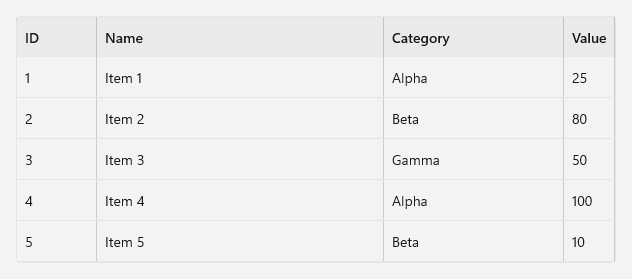
The following example creates a table with four text columns:
<tabular:TableView
    x:Name="ItemsTable"
    Height="280"
    AutomationProperties.Name="Inventory items"
    ItemsSource="{x:Bind Items}">
    <tabular:TableView.Columns>
        <tabular:TableViewTextColumn Binding="{Binding Id}" Header="ID" Width="80" />
        <tabular:TableViewTextColumn Binding="{Binding Name}" Header="Name" Width="*" />
        <tabular:TableViewTextColumn Binding="{Binding Category}" Header="Category" Width="180" />
        <tabular:TableViewTextColumn Binding="{Binding Value}" Header="Value" Width="Auto" />
    </tabular:TableView.Columns>
</tabular:TableView>
Columns is the content property of TableView, so you can also add columns directly inside the TableView element.
The page exposes the items as an ObservableCollection<T>, so the table updates when you add or remove items:
using System.Collections.ObjectModel;
using Microsoft.UI.Xaml.Controls;

public sealed partial class InventoryPage : Page
{
    public ObservableCollection<TableViewSampleItem> Items { get; } =
    [
        new(1, "Item 1", "Alpha", 25),
        new(2, "Item 2", "Beta", 80),
        new(3, "Item 3", "Gamma", 50),
        new(4, "Item 4", "Alpha", 100),
        new(5, "Item 5", "Beta", 10),
    ];

    public InventoryPage()
    {
        InitializeComponent();
    }
}
The item class implements INotifyPropertyChanged, so cells update when a value changes, for example after a user edits a cell:
using System.ComponentModel;
using System.Runtime.CompilerServices;

public sealed partial class TableViewSampleItem(int id, string name, string category, int value)
    : INotifyPropertyChanged
{
    private string _name = name;
    private string _category = category;

    public event PropertyChangedEventHandler? PropertyChanged;

    public int Id { get; } = id;
    public int Value { get; } = value;

    public string Name
    {
        get => _name;
        set => SetProperty(ref _name, value);
    }

    public string Category
    {
        get => _category;
        set => SetProperty(ref _category, value);
    }

    private bool SetProperty(ref string field, string value, [CallerMemberName] string? propertyName = null)
    {
        if (field == value)
        {
            return false;
        }

        field = value;
        PropertyChanged?.Invoke(this, new PropertyChangedEventArgs(propertyName));
        return true;
    }
}
The following image shows the table from this example:
Tip
If you publish your app with trimming or Native AOT, mark your item classes and comparer classes as partial. C#/WinRT requires the partial modifier to generate the interop code for classes that it passes to Windows Runtime APIs.
Set column widths
Set each column's Width property to one of these values:
| Width | Behavior |
|---|---|
A number of pixels, such as 80 |
The column has a fixed width. The default width is 120 pixels. |
Auto |
The column fits the widest header or cell that's currently realized. Because rows are virtualized, the width can change as the user scrolls. |
A star value, such as * or 2* |
The column shares the remaining width with other star-sized columns, in proportion to its star value. |
Use MinWidth and MaxWidth to limit the width of a column. The default minimum width is 20 pixels. To get the current width of a column, read ActualWidth.
Set column headers
Use string values for Header when you can. TableView uses string headers to name cells for assistive technologies and to announce sort changes. To customize how a header looks, set HeaderTemplate and keep a string Header. The header template receives the Header value as its content.
To hide a column, set its Visibility property to Collapsed.
Display custom content with template columns
Use a TableViewTemplateColumn when a cell needs more than text, such as a progress bar, an image, or several values. Set the column's CellTemplate property to a DataTemplate. Each cell's data is the item for that row, so you can use {x:Bind} with x:DataType in the template.
The following column displays each value as a progress bar and a number:
<tabular:TableViewTemplateColumn Header="Value" SortMemberPath="Value" Width="220">
    <tabular:TableViewTemplateColumn.CellTemplate>
        <DataTemplate x:DataType="local:TableViewSampleItem">
            <Grid Padding="12,0" ColumnSpacing="12">
                <Grid.ColumnDefinitions>
                    <ColumnDefinition Width="*" />
                    <ColumnDefinition Width="32" />
                </Grid.ColumnDefinitions>
                <ProgressBar
                    VerticalAlignment="Center"
                    AutomationProperties.AccessibilityView="Raw"
                    IsHitTestVisible="False"
                    Maximum="100"
                    Value="{x:Bind Value}" />
                <TextBlock
                    Grid.Column="1"
                    HorizontalAlignment="Right"
                    VerticalAlignment="Center"
                    Text="{x:Bind Value}" />
            </Grid>
        </DataTemplate>
    </tabular:TableViewTemplateColumn.CellTemplate>
</tabular:TableViewTemplateColumn>
A template column has no binding that TableView can sort by. To make the column sortable, set SortMemberPath to the name of the property to sort by, as in the previous example, or set a custom comparer. For more information, see Sort rows.
TableView reuses cell elements as rows scroll in and out of view. Bind each value in the template to the item instead of setting values on individual cell elements in code. The progress bar in the example repeats the number in the text block, so it's marked with AutomationProperties.AccessibilityView="Raw" to keep assistive technologies from reporting the value twice.
Supply data with TableViewSource
You can set ItemsSource directly to a collection, as in the previous example, and users can still sort by column. To filter, sort, or group rows from code, wrap the collection in a TableViewSource and set ItemsSource to the source instead. TableViewSource changes only the rows that TableView displays. It doesn't change the contents or order of your collection.
Call TableViewSource.From to create the source, and bind ItemsSource to it:
public TableViewSource TableSource { get; }

public InventoryPage()
{
    TableSource = TableViewSource.From(Items);
    InitializeComponent();
}
<tabular:TableView
    x:Name="ItemsTable"
    Height="280"
    AutomationProperties.Name="Inventory items"
    ItemsSource="{x:Bind TableSource}">
    <!-- Columns -->
</tabular:TableView>
The filter, sort, and grouping methods return the same TableViewSource, so you can chain calls:
TableSource
    .Filter(item => ((TableViewSampleItem)item).Value >= 25)
    .Sort("Name", SortDirection.Ascending);
Keep these behaviors in mind when you use a TableViewSource:
Fromaccepts a collection such as anObservableCollection<T>or aList<T>. It throws an exception if you passnullor an object that isn't a collection.- When your collection raises collection-changed notifications, for example when you add an item to an
ObservableCollection<T>, TableView applies the current filter, sort, and grouping to the change. - A property change on an item doesn't filter, sort, or group that item again. For example, when a user edits a value in the sorted column, the row keeps its position. The rows are reshaped the next time the collection changes or you apply a filter, sort, or grouping again.
- Use the source and its collection only on the UI thread, and raise collection-changed notifications on the UI thread.
- A TableViewSource can be used by only one TableView at a time. To use it with a different TableView, first set the original TableView's
ItemsSourceto a different value. - TableView identifies rows by object identity, whether or not you use a TableViewSource. The same object can't appear in the collection more than once. The selection follows an item when the rows are reshaped, but not when you replace the item with a new object.
Select rows
Users select a row by clicking or tapping it, or by moving to it with the keyboard. To control selection, set SelectionMode to one of these values:
Single(default): Users can select one row at a time.None: Users can't select rows. Setting this value clears the current selection.
The SelectedItem and SelectedIndex properties are read-only. To change the selection from code, call Select, Deselect, or DeselectAll. To check whether a row is selected, call IsSelected.
// Select the first displayed row.
ItemsTable.Select(0);
Index-based members use the position of the row in the displayed order, after filtering, sorting, and grouping are applied. When rows are grouped, group header rows also occupy positions, but they can't be selected. Select has no effect if ItemsSource isn't set or SelectionMode is None.
To respond when the selection changes, handle the SelectionChanged event:
<tabular:TableView
    x:Name="ItemsTable"
    AutomationProperties.Name="Inventory items"
    ItemsSource="{x:Bind Items}"
    SelectionChanged="ItemsTable_SelectionChanged">
    <!-- Columns -->
</tabular:TableView>
<TextBlock x:Name="SelectionStatusText" AutomationProperties.LiveSetting="Polite" Text="No row selected." />
private void ItemsTable_SelectionChanged(TableView sender, SelectionChangedEventArgs args)
{
    SelectionStatusText.Text = sender.SelectedItem is TableViewSampleItem item
        ? $"Selected: {item.Name} (ID {item.Id})."
        : "No row selected.";
}
The selection follows the selected item when rows are sorted again or items are inserted. Removing the selected item from the collection, hiding it with a filter, or setting a new ItemsSource clears the selection. Users can deselect the selected row by pressing Ctrl and clicking it, or by pressing Ctrl+Space.
Sort rows
By default, users can sort the rows by clicking or tapping a column header. The header displays an indicator that shows the sort direction. Sorting a column clears the sort from any other column.
A text column sorts by the property in its Binding. A template column needs a SortMemberPath or a custom comparer before it can be sorted. To prevent users from sorting by any column, set CanUserSortColumns to False. To prevent sorting by a specific column, set that column's CanSort property to False.
Choose a sort cycle
The SortCycle property of a column controls the order of directions as a user clicks its header repeatedly:
| Value | Directions |
|---|---|
AscendingDescending (default) |
Ascending, then descending. |
AscendingDescendingNone |
Ascending, descending, and then the original order of the source. |
DescendingAscending |
Descending, then ascending. |
DescendingAscendingNone |
Descending, ascending, and then the original order of the source. |
When a user returns a column to the original order, TableView clears all sorting, including sorting that you applied with TableViewSource.
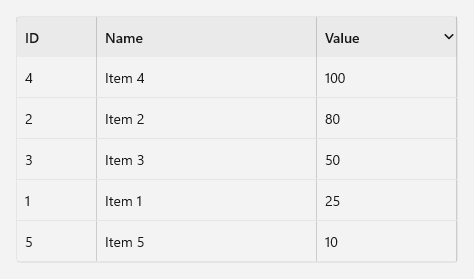
The following example, based on the WinUI 3 Gallery sample, prevents sorting by ID, lets users return the Name column to the original order, and sorts values from highest to lowest first:
<tabular:TableView.Columns>
    <tabular:TableViewTextColumn
        Binding="{Binding Id}"
        CanSort="False"
        Header="ID"
        Width="80" />
    <tabular:TableViewTextColumn
        x:Name="NameColumn"
        Binding="{Binding Name}"
        Header="Name"
        SortCycle="AscendingDescendingNone"
        Width="220" />
    <tabular:TableViewTextColumn
        Binding="{Binding Value}"
        Header="Value"
        SortCycle="DescendingAscendingNone"
        Width="140" />
</tabular:TableView.Columns>
The following image shows this table sorted by the Value column in descending order, the first direction in that column's sort cycle. The Value header displays a sort indicator.
Sort from code
Call SortByColumn, ToggleSortDirection, or ClearSort. Each method returns true if the sort changed. Sorting from code works even when CanUserSortColumns is False.
// Sort by name in ascending order.
ItemsTable.SortByColumn(NameColumn, SortDirection.Ascending);

// Move the Name column to the next direction in its sort cycle.
ItemsTable.ToggleSortDirection(NameColumn);

// Remove sorting from all columns.
ItemsTable.ClearSort();
To read a column's current direction, use its read-only SortDirection property.
Respond to sort changes
TableView raises the Sorting event before it applies a sort and the Sorted event after it applies the sort. Both events report the column and the new direction. When you call ClearSort, the column is null and the direction is None.
To prevent a sort, set Cancel to true in the Sorting event handler. TableView then keeps the current order and sort indicators and doesn't raise Sorted.
<tabular:TableView
    x:Name="ItemsTable"
    AutomationProperties.Name="Inventory items"
    ItemsSource="{x:Bind Items}"
    Sorted="ItemsTable_Sorted"
    Sorting="ItemsTable_Sorting">
    <!-- Columns -->
</tabular:TableView>
<TextBlock x:Name="SortStatusText" AutomationProperties.LiveSetting="Polite" Text="Rows are in source order." />
// Set to true while the app loads data.
private bool _isLoading;

private void ItemsTable_Sorting(TableView sender, TableViewSortingEventArgs args)
{
    // Keep the current order while the app is still loading data.
    if (_isLoading)
    {
        args.Cancel = true;
    }
}

private void ItemsTable_Sorted(TableView sender, TableViewSortedEventArgs args)
{
    SortStatusText.Text = args.Direction == SortDirection.None
        ? "Rows are in source order."
        : $"Sorted by {args.Column.Header}, {args.Direction.ToString().ToLowerInvariant()}.";
}
When you set a new ItemsSource, TableView clears the sort without raising Sorting or Sorted.
Sort with a custom comparer
To control the sort order of a column, implement ITableViewSortComparer and assign it to the column's CustomSortComparer property. A custom comparer takes precedence over SortMemberPath and the column's binding.
The Compare method receives two data items and defines the ascending order. TableView reverses the order for a descending sort. Return a consistent result for the same pair of items, and don't throw exceptions. TableView treats a comparison that throws as equal.
using Microsoft.UI.Xaml.Controls.Tabular;

public sealed partial class NameLengthComparer : ITableViewSortComparer
{
    public int Compare(object left, object right)
    {
        string leftName = ((TableViewSampleItem)left).Name;
        string rightName = ((TableViewSampleItem)right).Name;

        // Shorter names first. Names of equal length sort in ordinal order.
        int result = leftName.Length.CompareTo(rightName.Length);
        return result != 0 ? result : string.CompareOrdinal(leftName, rightName);
    }
}
You can declare the comparer as a resource and reference it in markup:
<Page.Resources>
    <local:NameLengthComparer x:Key="NameLengthComparer" />
</Page.Resources>
<tabular:TableViewTextColumn
    Binding="{Binding Name}"
    CustomSortComparer="{StaticResource NameLengthComparer}"
    Header="Name"
    Width="220" />
Or assign it in code:
NameColumn.CustomSortComparer = new NameLengthComparer();
Sort with TableViewSource
When ItemsSource is a TableViewSource, you can also sort by calling TableViewSource.Sort. Unlike header sorting, this method can sort by more than one property. The first sort that you add is the primary sort, and each later sort orders items that are equal in the previous sorts.
// Sort by category, and then by name within each category.
TableSource
    .Sort("Category", SortDirection.Ascending)
    .Sort("Name", SortDirection.Ascending);
Prefer the overload that takes a property path. TableView can match the path to a column and show that column's sort indicator. Sorting by the same path again replaces that sort in place, and SortDirection.None removes it. The overload that takes a key selector sorts by a computed value, and TableView clears all column sort indicators when you use it.
A sort that you apply with TableViewSource and a sort that a user applies from a column header replace each other. Whichever is applied last determines the order. To remove all sorts from the source, call ClearSort.
TableView doesn't raise Sorting for a sort that you apply with TableViewSource, so you can't cancel it from the event handler. After TableView updates the column sort indicators to match the new sort, it raises Sorted. If no column matches the primary sort, for example because you sorted with a key selector, the event reports a null column and a direction of None.
Filter rows
To show only the rows that match a condition, call TableViewSource.Filter with a predicate that returns true for each item to keep. Each call replaces the previous filter. To remove the filter, call ClearFilter.
The following example, from the WinUI 3 Gallery sample, filters the rows as the user types:
<TextBox
    x:Name="FilterBox"
    Header="Filter by name or category"
    TextChanged="FilterBox_TextChanged" />
private void FilterBox_TextChanged(object sender, TextChangedEventArgs e)
{
    string text = FilterBox.Text.Trim();
    if (text.Length == 0)
    {
        TableSource.ClearFilter();
        return;
    }

    TableSource.Filter(item => item is TableViewSampleItem sampleItem &&
        (sampleItem.Name.Contains(text, StringComparison.CurrentCultureIgnoreCase) ||
         sampleItem.Category.Contains(text, StringComparison.CurrentCultureIgnoreCase)));
}
The filter runs before sorting and grouping. If the predicate throws an exception for an item, TableViewSource excludes that item.
When no rows match, TableView displays the content of its EmptyTemplate property. TableView also displays this template when ItemsSource is null or empty.
<tabular:TableView.EmptyTemplate>
    <DataTemplate>
        <TextBlock
            Margin="24"
            HorizontalAlignment="Center"
            VerticalAlignment="Center"
            Text="No items match the filter." />
    </DataTemplate>
</tabular:TableView.EmptyTemplate>
Group rows
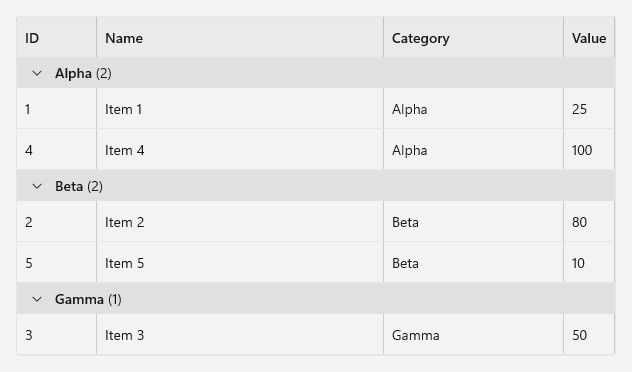
To group rows, call TableViewSource.GroupBy with a key selector. TableView displays a header row for each group, and users can expand or collapse each group. To remove grouping, call ClearGroupBy.
// Group the rows by category.
TableSource.GroupBy(item => ((TableViewSampleItem)item).Category);
To customize the content of the group headers, set GroupHeaderTemplate. The data for the template is a TableViewGroupInfo object. TableView updates this object in place, so use Mode=OneWay in your bindings. The template replaces only the content area of the header. TableView continues to display the expand and collapse glyph.
<tabular:TableView.GroupHeaderTemplate>
    <DataTemplate x:DataType="tabular:TableViewGroupInfo">
        <TextBlock>
            <Run FontWeight="SemiBold" Text="{x:Bind KeyText, Mode=OneWay}" />
            <Run Text="{x:Bind ItemCountText, Mode=OneWay}" />
        </TextBlock>
    </DataTemplate>
</tabular:TableView.GroupHeaderTemplate>
KeyText is the group key as text, and ItemCountText is the number of items in the group, formatted for display.
The following image shows the items grouped by category with this header template:
To expand or collapse every group from code, call ExpandAllGroups or CollapseAllGroups. These methods have no effect when the rows aren't grouped.
private void ExpandAllGroups_Click(object sender, RoutedEventArgs e)
{
    ItemsTable.ExpandAllGroups();
}

private void CollapseAllGroups_Click(object sender, RoutedEventArgs e)
{
    ItemsTable.CollapseAllGroups();
}
Choose group keys
The key selector must return a key for every item, and the key can't be null or an empty string. Otherwise, TableViewSource throws an exception. Return a placeholder value for items that don't have a key:
// Items without a category are grouped under "(None)".
TableSource.GroupBy(item =>
    ((TableViewSampleItem)item).Category is { Length: > 0 } category ? category : "(None)");
TableViewSource can identify keys of type String, Int32, Int64, Guid, Boolean, and enumeration types. For other key types, such as a custom object, use the GroupBy overload that also takes a TableViewIdentitySelector. The identity selector receives a key and returns a non-empty string that uniquely identifies its group.
Combine sorting and grouping
The order in which you call TableViewSource methods determines how sorting and grouping combine. Sorts that you add before GroupBy order the groups. Sorts that you add after GroupBy order the rows within each group.
// Order the groups by category, and order the rows in each group by value.
TableSource
    .Sort("Category", SortDirection.Ascending)
    .GroupBy(item => ((TableViewSampleItem)item).Category)
    .Sort("Value", SortDirection.Descending);
Resize and freeze columns
Users can resize a column by dragging the edge of its header. A resize sets the column's Width to a pixel value within its MinWidth and MaxWidth. To cancel a resize while dragging, press Esc.
To prevent users from resizing any column, set CanUserResizeColumns to False. To prevent resizing a specific column, set its CanResize property to False.
To keep a column visible while users scroll horizontally, set its FrozenEdge property to Leading. Only a continuous set of columns that starts with the first column can be frozen. TableView ignores Leading on any column that comes after a column that isn't frozen. The TableViewFrozenEdge enumeration also defines a Trailing value, which is reserved and isn't implemented in this release.
<tabular:TableView.Columns>
    <tabular:TableViewTextColumn
        x:Name="IdColumn"
        Binding="{Binding Id}"
        CanResize="False"
        FrozenEdge="Leading"
        Header="ID"
        Width="80" />
    <tabular:TableViewTextColumn
        Binding="{Binding Name}"
        Header="Name"
        MaxWidth="400"
        MinWidth="120"
        Width="220" />
</tabular:TableView.Columns>
You can also change FrozenEdge from code. The WinUI 3 Gallery sample uses a ToggleSwitch to freeze the first column:
private void FreezeFirstColumnToggle_Toggled(object sender, RoutedEventArgs e)
{
    IdColumn.FrozenEdge = FreezeFirstColumnToggle.IsOn
        ? TableViewFrozenEdge.Leading
        : TableViewFrozenEdge.None;
}
Edit cells
Cells are read-only by default. To let users edit cells, set the TableView's IsReadOnly property to False. To keep a specific column read-only, set that column's IsReadOnly property to True. Mark columns that display read-only properties, such as Id in the following example, as read-only.
<tabular:TableView
    x:Name="EditingTable"
    AutomationProperties.Name="Editable items"
    BeginningEdit="EditingTable_BeginningEdit"
    CellEditEnding="EditingTable_CellEditEnding"
    IsReadOnly="False"
    ItemsSource="{x:Bind Items}">
    <tabular:TableView.Columns>
        <tabular:TableViewTextColumn Binding="{Binding Id}" Header="ID" IsReadOnly="True" Width="80" />
        <tabular:TableViewTextColumn Binding="{Binding Name}" Header="Name" Width="180" />
        <tabular:TableViewTextColumn Binding="{Binding Category}" Header="Category" Width="180" />
    </tabular:TableView.Columns>
</tabular:TableView>
<TextBlock x:Name="EditStatusText" AutomationProperties.LiveSetting="Polite" />
Users edit a cell this way:
- To start editing, double-click or double-tap the cell, or press F2. F2 edits the cell in the focused row and in the column that the user last clicked or tapped. If the user hasn't clicked a cell, F2 edits the first visible editable column.
- To commit the edit, press Enter or move focus out of the editor. To cancel the edit, press Esc.
- While the editor is open, it receives the arrow and navigation keys, and the selection doesn't change.
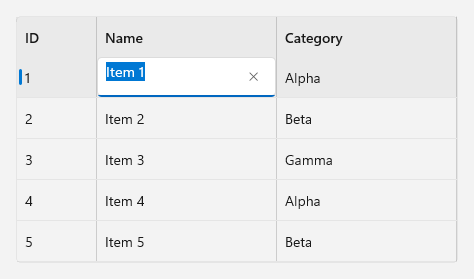
A text column edits its value in a TextBox that uses the column's Binding. When the user commits the edit, TableView writes the new value to the item. Edits are committed one cell at a time. There's no row-level commit or cancel in this release, so canceling an edit restores only the cell that's being edited.
The following image shows the editor for the Name cell in the first row:
To commit or cancel the current edit from code, call CommitEdit or CancelEdit. For example, commit any pending edit before you save data. Both methods return true when they close the editor. They return false when no edit is open, or when the edit stays open because an event handler canceled the change or validation failed. To check whether an editor is open, read IsEditing.
Respond to edit events
TableView raises BeginningEdit before it opens an editor. To prevent the edit, set Cancel to true:
private void EditingTable_BeginningEdit(TableView sender, TableViewBeginningEditEventArgs args)
{
    // Only allow edits to items in the Alpha category.
    if (args.Item is TableViewSampleItem item && item.Category != "Alpha")
    {
        args.Cancel = true;
    }
}
TableView raises CellEditEnding when an edit is about to be committed or canceled. The EditAction property tells you which. To keep the editor open, set Cancel to true. Set Cancel before the handler returns, because these events don't support deferrals.
TableView raises CellEditEnding before it writes the value to the item. To run code after the value is committed, queue the work on the dispatcher queue, as the WinUI 3 Gallery sample does:
private void EditingTable_CellEditEnding(TableView sender, TableViewCellEditEndingEventArgs args)
{
    if (args.EditAction == TableViewEditAction.Cancel || args.Item is not TableViewSampleItem item)
    {
        return;
    }

    // CellEditEnding is raised before TableView writes the value to the item.
    // Queue work that needs the committed value.
    sender.DispatcherQueue.TryEnqueue(() =>
    {
        if (!sender.IsEditing)
        {
            EditStatusText.Text = $"Saved {item.Name}.";
        }
    });
}
Provide a custom editor
To use a different editor, set the column's CellEditingTemplate property. On a text column, this template replaces the default TextBox. A template column is editable only when you set CellEditingTemplate.
In the editing template, bind the edited value with {Binding}, Mode=TwoWay, and UpdateSourceTrigger=Explicit. TableView updates the source of that binding when the user commits the edit. It finds bindings on these properties: TextBox.Text, AutoSuggestBox.Text, ToggleSwitch.IsOn, ToggleButton.IsChecked, Selector.SelectedItem, Selector.SelectedIndex, Selector.SelectedValue, Slider.Value, and NumberBox.Value. TableView can't find {x:Bind} bindings. If it can't find a binding to update, the commit fails and the editor stays open.
The following example edits the category with a ComboBox:
<tabular:TableViewTextColumn Binding="{Binding Category}" Header="Category" Width="180">
    <tabular:TableViewTextColumn.CellEditingTemplate>
        <DataTemplate x:DataType="local:TableViewSampleItem">
            <ComboBox
                AutomationProperties.Name="Category"
                ItemsSource="{x:Bind local:TableViewSampleItem.Categories}"
                SelectedItem="{Binding Category, Mode=TwoWay, UpdateSourceTrigger=Explicit}" />
        </DataTemplate>
    </tabular:TableViewTextColumn.CellEditingTemplate>
</tabular:TableViewTextColumn>
The example uses a static property on the item class for the list of categories:
public static IReadOnlyList<string> Categories { get; } = ["Alpha", "Beta", "Gamma"];
Validate edits
If the item implements INotifyDataErrorInfo, TableView checks for errors on the edited property after it writes the value. If the property has errors, TableView restores the previous value and keeps the editor open, so the user can correct the value or press Esc to cancel. If the property setter throws an exception, the editor also stays open.
The following item class, from the WinUI 3 Gallery sample, requires a name:
using System;
using System.Collections;
using System.ComponentModel;
using System.Runtime.CompilerServices;

public sealed partial class TableViewSampleItem : INotifyPropertyChanged, INotifyDataErrorInfo
{
    private string _name;
    private string _category;
    private string? _nameError;

    public event PropertyChangedEventHandler? PropertyChanged;
    public event EventHandler<DataErrorsChangedEventArgs>? ErrorsChanged;

    public int Id { get; }
    public int Value { get; }
    public bool HasErrors => _nameError is not null;

    public string Name
    {
        get => _name;
        set
        {
            string normalizedValue = value ?? string.Empty;
            if (SetProperty(ref _name, normalizedValue))
            {
                string? error = string.IsNullOrWhiteSpace(normalizedValue) ? "Name is required." : null;
                if (_nameError != error)
                {
                    _nameError = error;
                    PropertyChanged?.Invoke(this, new PropertyChangedEventArgs(nameof(HasErrors)));
                    ErrorsChanged?.Invoke(this, new DataErrorsChangedEventArgs(nameof(Name)));
                }
            }
        }
    }

    public string Category
    {
        get => _category;
        set => SetProperty(ref _category, value ?? string.Empty);
    }

    public TableViewSampleItem(int id, string name, string category, int value)
    {
        ArgumentException.ThrowIfNullOrWhiteSpace(name);
        Id = id;
        _name = name;
        _category = category;
        Value = value;
    }

    public IEnumerable GetErrors(string? propertyName)
    {
        if ((string.IsNullOrEmpty(propertyName) || propertyName == nameof(Name)) && _nameError is not null)
        {
            yield return _nameError;
        }
    }

    private bool SetProperty(ref string field, string value, [CallerMemberName] string? propertyName = null)
    {
        if (field == value)
        {
            return false;
        }

        field = value;
        PropertyChanged?.Invoke(this, new PropertyChangedEventArgs(propertyName));
        return true;
    }
}
TableView doesn't display the error message. To tell users why the value wasn't accepted, display the message yourself. For example, the WinUI 3 Gallery sample handles the edited item's ErrorsChanged event and shows the message in an InfoBar.
Customize the appearance
Use these properties to change how a TableView looks:
| Property | Description |
|---|---|
Density |
Sets the minimum row height and the padding in cells and column headers. Values are Compact, Standard (default), and Comfortable. |
GridLinesVisibility |
Shows All (default), Horizontal, Vertical, or None of the grid lines. |
HeadersVisibility |
Shows the column headers (Column, default) or hides them (None). |
RowBackground, AlternatingRowBackground |
Set the background of rows and of alternating rows. When these properties are null, rows use the theme background. |
EmptyTemplate |
Sets the content to display when there are no rows. |
If you hide the column headers, users can't sort or resize columns by using the headers.
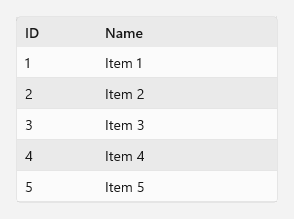
The following example, based on the WinUI 3 Gallery sample, displays compact rows with horizontal grid lines and alternating row backgrounds:
<tabular:TableView
Height="320"
AlternatingRowBackground="{ThemeResource SubtleFillColorSecondaryBrush}"
AutomationProperties.Name="Compact items"
Density="Compact"
GridLinesVisibility="Horizontal"
ItemsSource="{x:Bind Items}"
RowBackground="{ThemeResource CardBackgroundFillColorDefaultBrush}">
<tabular:TableView.EmptyTemplate>
<DataTemplate>
<StackPanel
Padding="32"
HorizontalAlignment="Center"
VerticalAlignment="Center"
Spacing="8">
<FontIcon AutomationProperties.AccessibilityView="Raw" FontSize="32" Glyph="" />
<TextBlock
HorizontalAlignment="Center"
AutomationProperties.HeadingLevel="Level3"
Style="{ThemeResource SubtitleTextBlockStyle}"
Text="No items" />
</StackPanel>
</DataTemplate>
</tabular:TableView.EmptyTemplate>
<tabular:TableView.Columns>
<tabular:TableViewTextColumn Binding="{Binding Id}" Header="ID" Width="80" />
<tabular:TableViewTextColumn Binding="{Binding Name}" Header="Name" Width="180" />
</tabular:TableView.Columns>
</tabular:TableView>
The following image shows this table with five items:
Show tooltips
To show a tooltip for the cells in a column, set the column's CellToolTipBinding property to a {Binding}. TableView evaluates the binding for each row. If the value is null or empty, the cell doesn't show a tooltip. To compute the tooltip text, use a converter in the binding.
To show a tooltip for a column header, set the column's HeaderToolTip property to a string or other content. If you use a UI element as tooltip content, give each column its own instance.
TableView creates the ToolTip for you, so set the tooltip content, such as a string, rather than a ToolTip object. If the value is a ToolTip, TableView doesn't show a tooltip.
The following template column, based on the WinUI 3 Gallery sample, shows the item name as a cell tooltip and describes the column in a header tooltip:
<tabular:TableViewTemplateColumn
    CellToolTipBinding="{Binding Name}"
    Header="Item"
    HeaderToolTip="The item's name and category"
    SortMemberPath="Name"
    Width="200">
    <tabular:TableViewTemplateColumn.CellTemplate>
        <DataTemplate x:DataType="local:TableViewSampleItem">
            <StackPanel Padding="12,6" Orientation="Horizontal" Spacing="12">
                <PersonPicture
                    Width="32"
                    Height="32"
                    AutomationProperties.AccessibilityView="Raw"
                    DisplayName="{x:Bind Name, Mode=OneWay}" />
                <StackPanel VerticalAlignment="Center">
                    <TextBlock Style="{ThemeResource BodyStrongTextBlockStyle}" Text="{x:Bind Name, Mode=OneWay}" />
                    <TextBlock Style="{ThemeResource CaptionTextBlockStyle}" Text="{x:Bind Category, Mode=OneWay}" />
                </StackPanel>
            </StackPanel>
        </DataTemplate>
    </tabular:TableViewTemplateColumn.CellTemplate>
</tabular:TableViewTemplateColumn>
Tooltips appear when the user points to a cell or column header. Cell tooltips don't appear for keyboard focus, because keyboard focus moves between rows, not cells. When the tooltip content of a cell or column header is a string, TableView also exposes it to assistive technologies as help text. Content that isn't a string isn't exposed, so use a converter that returns text when you need to compute a cell tooltip.
Accessibility and keyboard support
TableView provides UI Automation support for its parts:
- The table is exposed as a data grid. It supports the Grid and Table patterns, so assistive technologies can report its rows and columns. When
SelectionModeisn'tNone, it also supports the Selection pattern. - When
SelectionModeisn'tNone, rows support the SelectionItem pattern. - Column headers are exposed as header items. When users can sort by a column, its header supports the Invoke pattern, which sorts by that column, and its help text reports the sort state. A header's help text also includes the column's tooltip, if the tooltip is a string.
- Cells support the GridItem and TableItem patterns. Each cell's name combines the column header and the cell value, such as "Name, Item 1". The header is included only when it's a string. Text cells that users can edit with the default editor also support the Value pattern.
- Group headers support the ExpandCollapse pattern.
- When the sort order changes or a user resizes a column, TableView raises a notification that assistive technologies can announce.
To make your table accessible:
- Set
AutomationProperties.Nameon each TableView to describe its content. - Use string values for column headers.
- In cell templates, mark decorative elements with
AutomationProperties.AccessibilityView="Raw", and give interactive elements an accessible name. Test template columns with an accessibility tool, such as Accessibility Insights for Windows, to verify what assistive technologies report for each cell. - Avoid setting
Foregroundexplicitly on text in cell templates. An explicit foreground overrides the colors that TableView uses for selected rows and high contrast themes. If you set it, check those states. - Users can't sort from the keyboard by using column headers in this release. If sorting is important in your app, provide another keyboard-accessible way to sort, such as a menu or a
ComboBoxthat callsSortByColumn. - TableView doesn't announce when an edit starts or ends. Report the result of an edit yourself when it matters to the user, for example in a
TextBlockthat hasAutomationProperties.LiveSettingset toPolite.
TableView supports these keyboard interactions:
| Key | Action |
|---|---|
| Up arrow, Down arrow | Move focus to the previous or next row and select it. |
| Home, End | Move focus to the first or last row and select it. |
| Page Up, Page Down | Move focus up or down by about one page of rows and select the row. |
| Ctrl + a navigation key | Move focus without changing the selection. |
| Space | Select the focused row. |
| Ctrl+Space | Select the focused row, or deselect it if it's already selected. |
| Enter or Space on a group header | Expand or collapse the group. |
| Right arrow, Left arrow on a group header | Expand or collapse the group. The keys are reversed in right-to-left layouts. |
| Tab | Move focus to and between the headers of resizable columns. |
| Left arrow, Right arrow on a column header | Resize the column. Hold Shift to resize in larger steps. |
| F2 | Start editing a cell in the focused row. |
| Enter | Commit the current edit. |
| Esc | Cancel the current edit, or cancel a column resize while dragging. |
For more information, see Keyboard accessibility and Accessibility overview.
Related content
Collaborate with us on GitHub
The source for this content can be found on GitHub, where you can also create and review issues and pull requests. For more information, see our contributor guide.

Windows developer