Note
Access to this page requires authorization. You can try signing in or changing directories.
Access to this page requires authorization. You can try changing directories.
Important
Cloud rebuild is in preview. Use it for evaluation on non-production devices only. Features, UX, and command-line options may change before general availability.
Cloud rebuild enables IT administrators and users to restore a Windows 11 PC to a clean, known-good state by performing a full operating system reinstall. Unlike Reset your PC, Cloud rebuild downloads both the target Windows image and the device's drivers from Windows Update, so the device comes back fully functional, without USB media, without a custom image, and without depending on the integrity of the installed operating system. After the rebuild completes, the device proceeds through the out-of-box experience (OOBE), and managed devices can re-provision automatically through Windows Autopilot, Microsoft Intune, Backup for Organizations, and OneDrive.
How it works
In the Windows Insider preview release, a Cloud rebuild can be initiated locally, from the WinRE troubleshooting menu by a user with physical access to the device. A Cloud rebuild can also be initiated remotely by an IT administrator through an enterprise endpoint management solution, such as Microsoft Intune, using the Recovery CSP. The subsections below describe the prerequisites and the step-by-step instructions for each entry point.
Prerequisites
Before initiating Cloud rebuild, confirm the following on the target device:
- The device is running Windows 11 and has a healthy Windows Recovery Environment. You can confirm WinRE is enabled by running
reagentc /infofrom an elevated command prompt. - The device manufacturer has included a compatible networking driver in the Windows Recovery Environment, and the device can reach the internet from WinRE.
- The device meets Windows 11 minimum hardware requirements.
Using Cloud rebuild
Cloud rebuild runs in the Windows Recovery Environment (WinRE). Start with Start Cloud rebuild to reach the point where you choose how files are removed, then follow the section that matches the option you selected.
Start Cloud rebuild
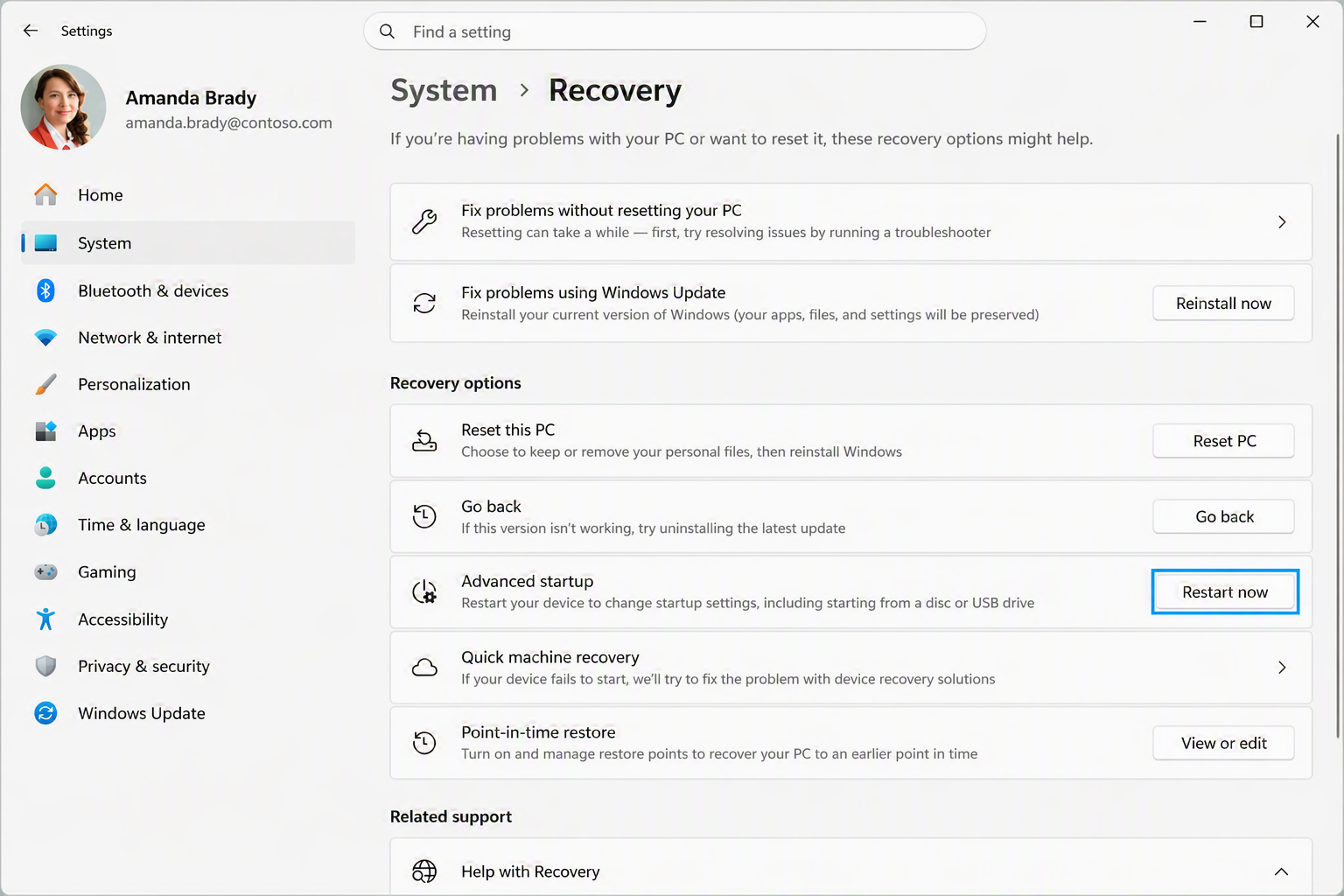
- Enter the Windows Recovery Environment. This happens automatically after repeated boot failures, or the user can launch it manually from Windows by going to Settings > System > Recovery and selecting Restart now next to Advanced startup.
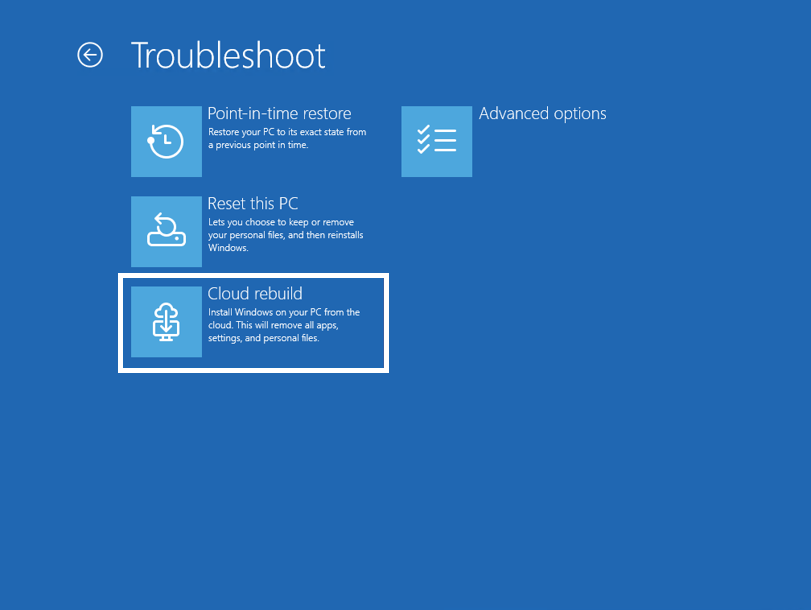
- On the Choose an option screen, select Troubleshoot, and then select Cloud rebuild.
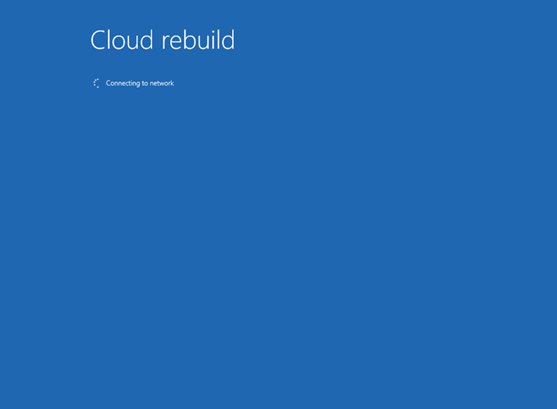
- Cloud rebuild attempts to connect to the network. If the device is connected to Ethernet, the connection completes automatically. If only Wi-Fi is available, select a WPA-Personal network and provide the passkey when prompted.
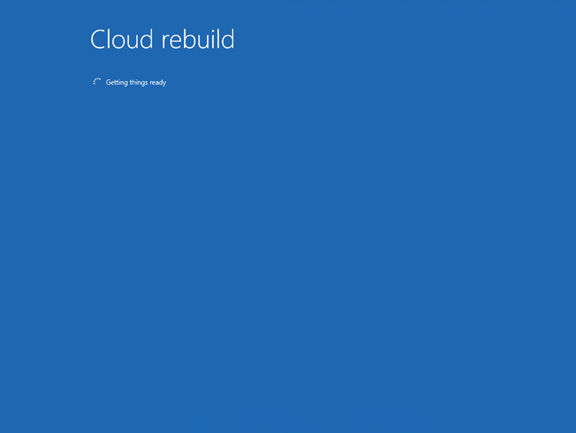
- Wait for Cloud rebuild to finish preparing. Cloud rebuild contacts Windows Update to determine the target Windows build and to download the device's networking drivers.
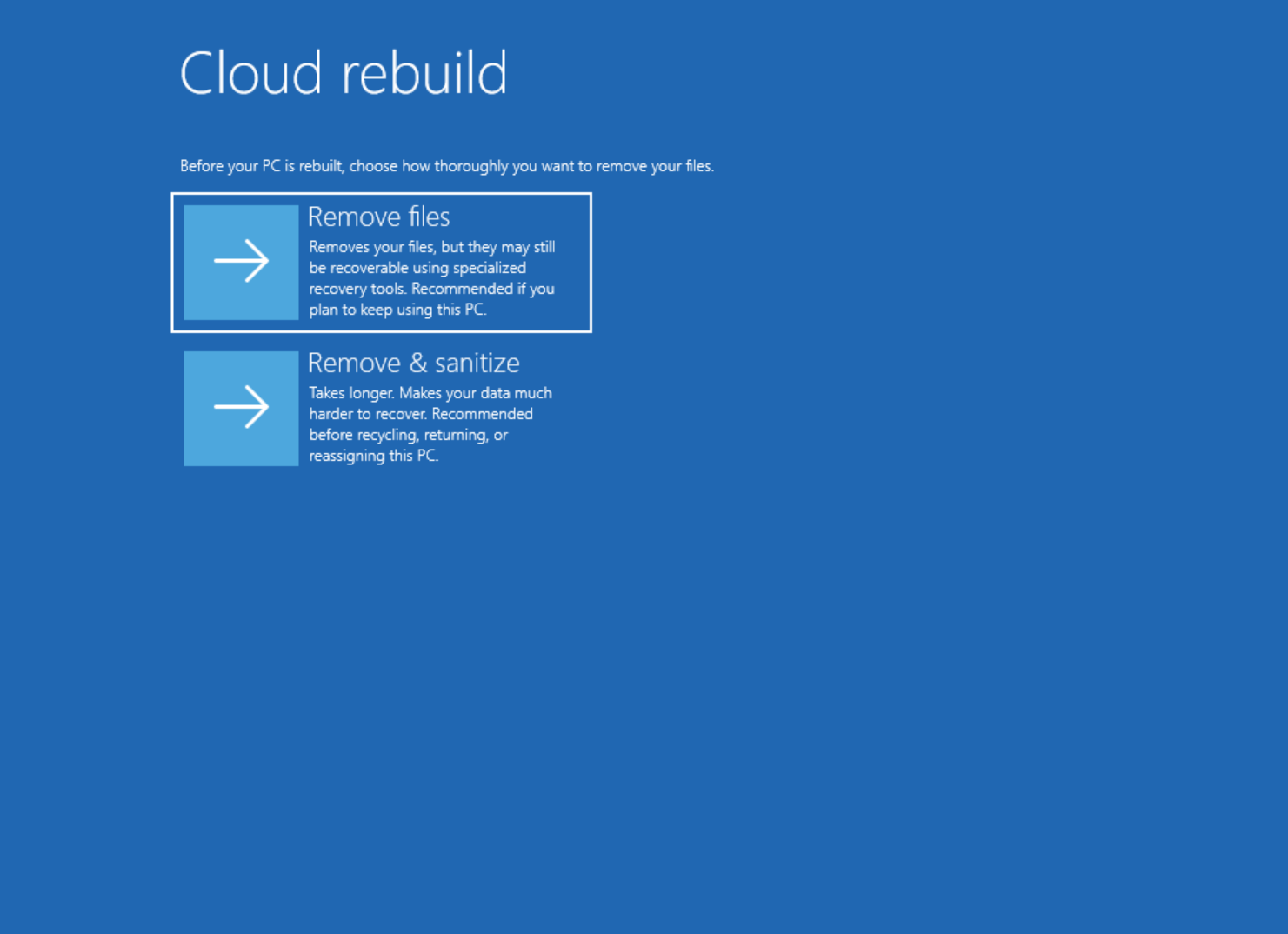
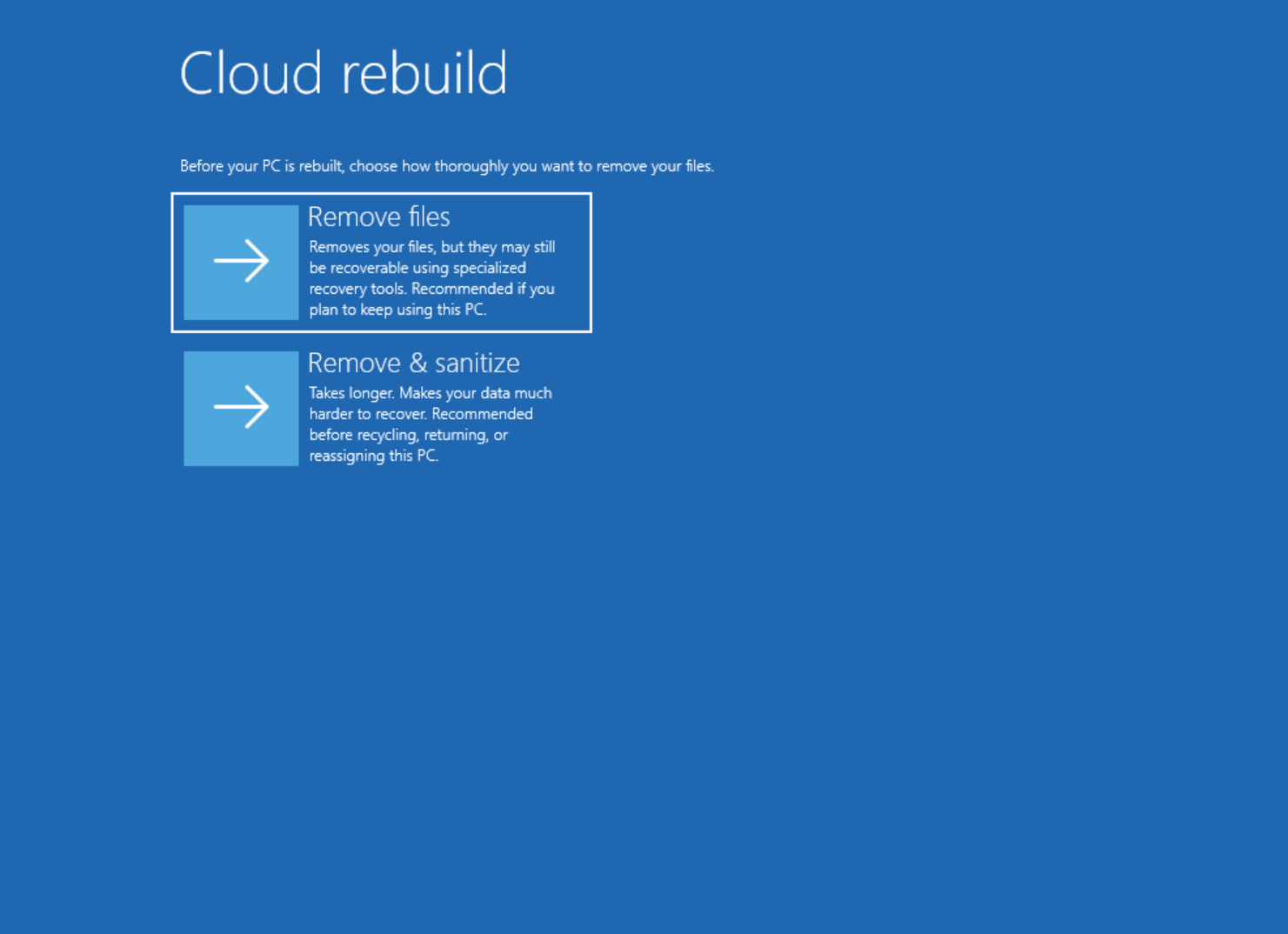
- Choose how thoroughly files are removed before Windows is reinstalled, and then select the option you want:
- Remove files. Use if you plan to keep this PC. This option is faster, but files might be recoverable using specialized recovery tools.
- Remove & sanitize files. Use before recycling, returning, or reassigning this PC. This option might take longer to complete.
If you select Remove files, continue to Cloud rebuild with remove files option.
If you select Remove & sanitize files, continue to Cloud rebuild with remove and sanitize files option.
Cloud rebuild with remove files option
Follow these steps if you selected Remove files in step 5.
- Review the rebuild target state. Confirm that the displayed Windows build, edition, and language match the expected target before continuing.
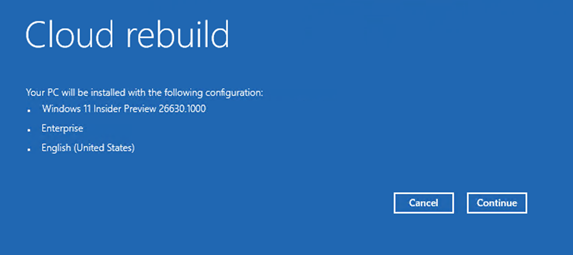
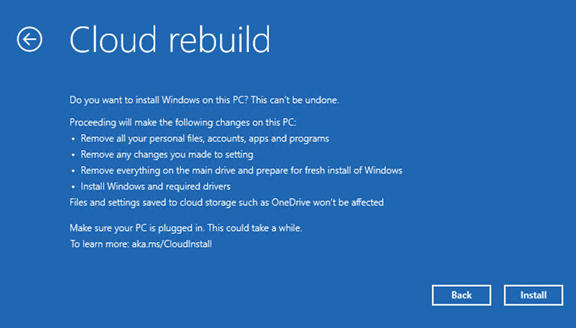
- Review and acknowledge the data loss warning, and then select Continue to start the rebuild.
Warning
Cloud rebuild reformats the system disk and removes all locally stored files, accounts, apps, and settings. Data stored in cloud services such as OneDrive is not affected.
Cloud rebuild with remove and sanitize files option
Follow these steps if you selected Remove & sanitize files in step 5.
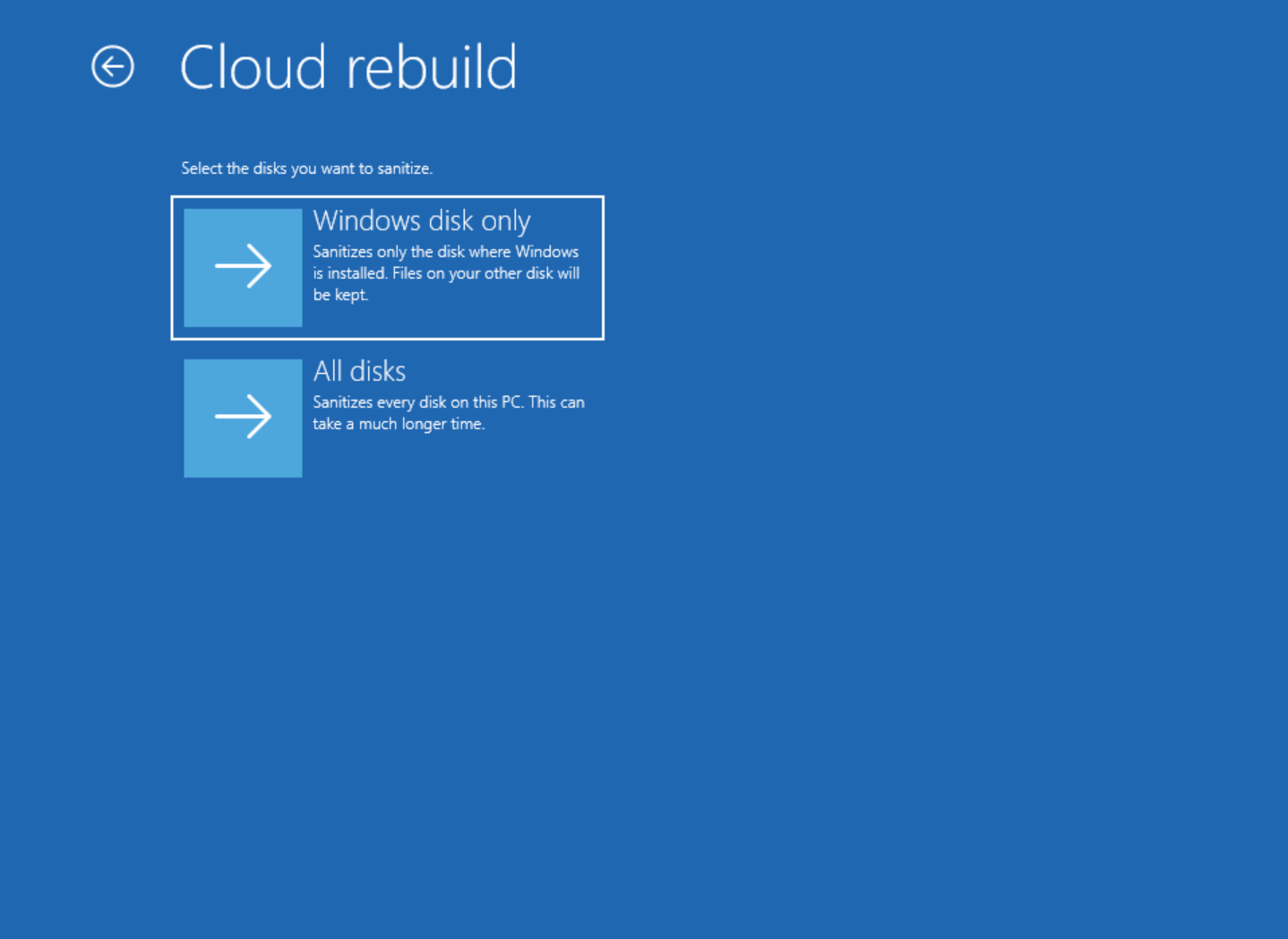
- If the device has more than one disk, select the disks to sanitize:
- Windows disk only. Sanitizes only the disk where Windows is installed. Files on the other disks are kept.
- All disks. Sanitizes every disk on the PC. This can take much longer to complete.
If the device has a single disk, this screen is not displayed and Cloud rebuild continues to the next step.
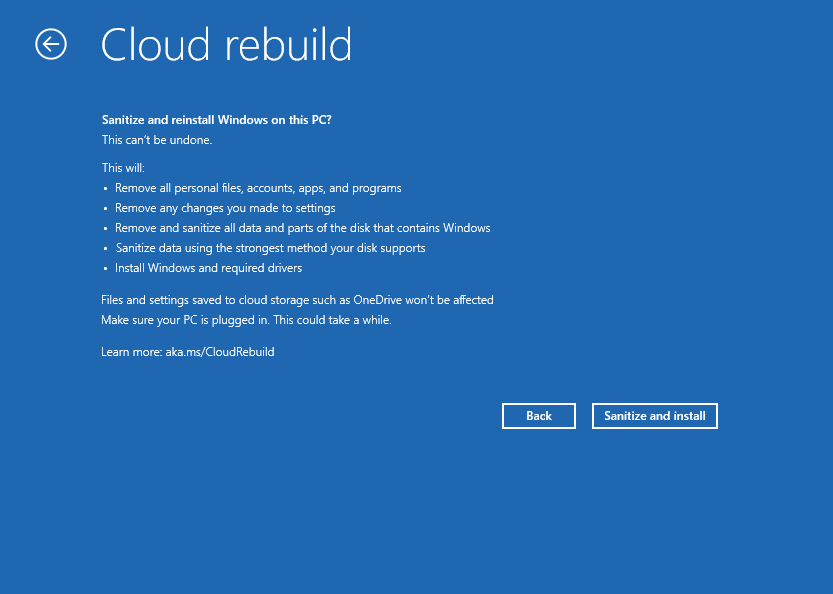
- Review the sanitization confirmation screen, and then select Sanitize and install. The confirmation screen lists the actions that Cloud rebuild performs:
- Remove all personal files, accounts, apps, and programs.
- Remove any changes made to settings.
- Remove and sanitize all data and partitions from the disk containing Windows, or from all disks if All disks was selected.
- Sanitize the data on the targeted disks using the storage hardware's erase capability.
- Install Windows and required drivers.
Warning
Data sanitization is irreversible. Files stored in cloud services such as OneDrive are not affected.
Completing Cloud rebuild
Both options complete the rebuild the same way. Step 1 applies only if you selected Remove & sanitize files.
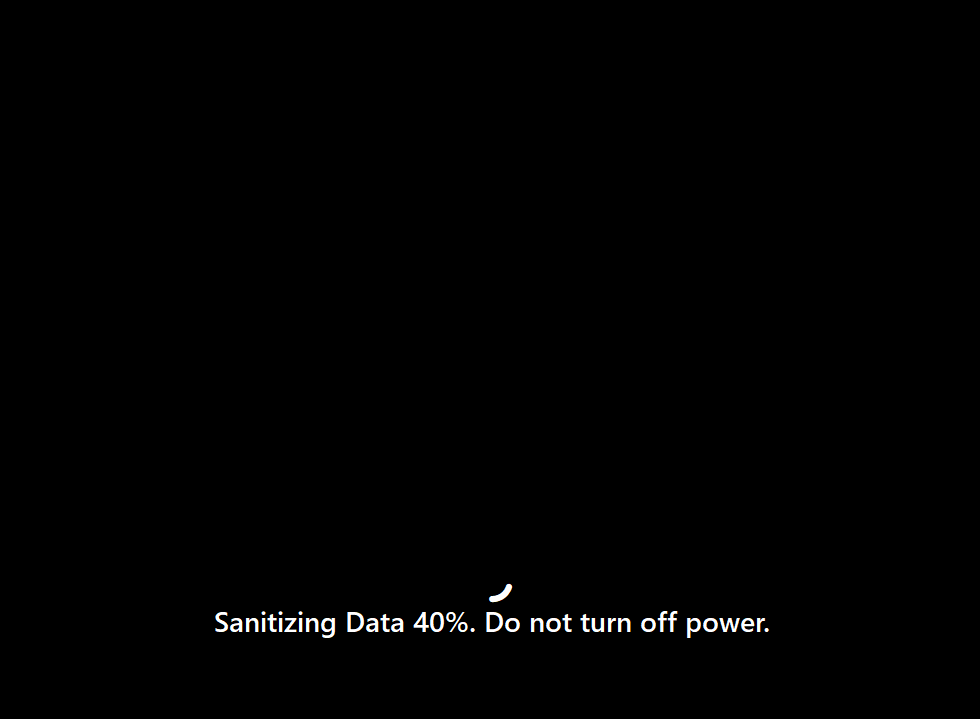
- If you selected Remove & sanitize files, wait for data sanitization to complete. Progress is displayed on screen as Sanitizing data. Depending on the size and type of the disks, this phase can take a significant amount of time, and the device may appear idle while it runs.
Warning
Keep the device connected to power and do not turn off the device while data is being sanitized.
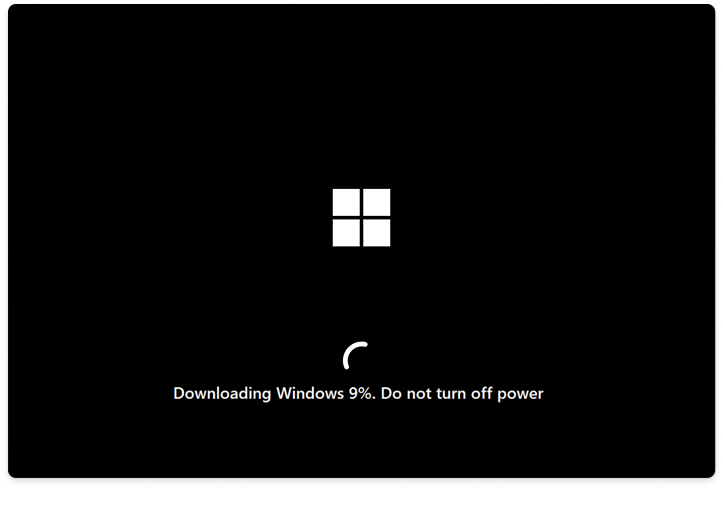
- Cloud rebuild moves through the preparation, download, and install phases. Progress is displayed on screen. The device may restart one or more times during this process. Do not power off the device.
Warning
Keep the device connected to power until Cloud rebuild is complete. Do not manually restart or power off the device while Cloud rebuild is preparing, downloading, or installing Windows. Interrupting the process can leave Windows unable to boot. If this happens, recover the device by using Recovery Drive - Microsoft Support, Reinstall Windows with the installation media - Microsoft Support, or recovery media provided by the device manufacturer.
- When the rebuild completes, the device boots into the Windows out-of-box experience (OOBE).
After the rebuild completes
After Cloud rebuild finishes, the device boots into the Windows out-of-box experience (OOBE). For unmanaged devices, the user completes OOBE just as they would on a new PC. For Microsoft Entra–joined and Intune-managed devices that are registered with Windows Autopilot, the device automatically reconnects to Microsoft Intune, Intune redeploys the apps and policies assigned to the user or device, Backup for Organizations restores user settings, and user files are available through OneDrive once the user signs in.
Data sanitization
Cloud rebuild can sanitize the device's drives as part of the rebuild. Data sanitization leverages the storage hardware's capability to securely erase the data on the device before Windows is reinstalled. Use this option when a device is being repurposed, returned, or decommissioned.
Warning
Data sanitization is irreversible. When data sanitization is selected, the data on the targeted disks is erased and the device cannot be restored to its previous state. Back up any data that must be retained before you start a rebuild with data sanitization.
Important
Data sanitization depends on the storage hardware in the device. Windows requests the erase operation and reports the result returned by the storage device, but the outcome depends on the storage device supporting that operation and implementing it correctly. Windows cannot independently verify what the storage device did. If a device is being retired or transferred under a policy or regulatory obligation, confirm with the device manufacturer that the configuration supports data sanitization, and use a manufacturer-provided tool for any device where it does not.
Data sanitization is selected during the Cloud rebuild flow in the Windows Recovery Environment, at the point where you choose how thoroughly files are removed. To sanitize the device, select Remove & sanitize files, and then follow Cloud rebuild with remove and sanitize files option.
- Remove files. The drives are reformatted and Windows is reinstalled. This option is faster, but files might be recoverable using specialized recovery tools.
- Remove & sanitize files. The storage hardware is asked to securely erase the data on the targeted disks before Windows is reinstalled. This option may take longer to complete, and the additional time depends on the size and type of the drives in the device.
Note
When data sanitization is selected, keep the device connected to power for the entire operation. The device may appear idle for an extended period while the drives are being erased. Do not manually restart or power off the device during this phase.
Data sanitization command line
Data sanitization is also available as a stand-alone command-line tool, DataSanitization.exe, which runs in the Windows Recovery Environment. Use the command line when you need to sanitize a device without rebuilding it, or on a device where the Cloud rebuild experience is not available.
The command line sanitizes the eligible local fixed disks on the device. It applies the same disclosure, consent, target confirmation, progress reporting, and logging as the Cloud rebuild experience.
Important
Unlike the Cloud rebuild experience, the command line does not reinstall Windows. After the command completes, the device does not boot until Windows is installed again, so plan to reprovision the device afterward.
To run data sanitization from the command line:
Boot the device into the Windows Recovery Environment.
On the Choose an option screen, select Troubleshoot, then Advanced options, and then Command Prompt.
Run the following command:
DataSanitization.exeReview the disclosure that the command displays. It describes what is erased, the method used, the expected duration, and the consequence that the device does not boot until Windows is installed again. Type Y to continue, or N to cancel. Nothing is erased before this point.
Review the list of disks that the command displays, and confirm that the disks listed are the ones you intend to sanitize. Type Y to confirm, or N to cancel.
Wait for the operation to complete. Progress is reported on screen for each disk.
Warning
Keep the device connected to power for the entire operation. The command does not run while the device is on battery power.
When the command completes, reinstall Windows on the device.
If the command fails, it reports an error code and the reason for the failure, and offers to retry or cancel. Activity is written to a log file on the device, and the path to the log file is displayed when the command starts.
The log records the start time, the disks that were targeted, the method that was selected, and the final status. Because the command runs in the Windows Recovery Environment, copy the log to external storage before you leave the recovery environment if you need to retain it.
Configuration
Cloud rebuild is configured through the Recovery CSP. The nodes under Recovery/CloudRebuild let you control which rebuild flows are available on a device and let you start a rebuild remotely.
Default configuration
A Cloud rebuild can be initiated locally, by a user with physical access to the device in WinRE, or remotely, by an IT administrator through the Recovery CSP. On devices that are not under enterprise management, a locally initiated Cloud rebuild is available from WinRE and no configuration is required. On enterprise-managed devices, IT administrators can use the Recovery CSP to enable or block each rebuild type and to start a remotely initiated Cloud rebuild.
Note
The Recovery/CloudRebuild nodes are available in Windows Insider Preview builds only and are subject to change before general availability.
Configuration options
The configuration options consist of:
- Enable or block a Cloud rebuild that reinstalls the build currently installed on the device.
- Enable or block a Cloud rebuild that installs a target build that you specify.
- Remotely start a Cloud rebuild on a managed device, either using the build currently installed on the device or using a build that you specify.
- Retrieve the result of the most recent remotely initiated Cloud rebuild.
The following section provides details about the Recovery CSP nodes that you use to configure your devices.
Recovery CSP
The Cloud rebuild nodes are located under the CloudRebuild interior node of the Recovery CSP:
./Device/Vendor/MSFT/Recovery
    CloudRebuild
        EnableLocalRebuild
        EnableCustomRebuild
        Execute
            RebuildType
            BuildBranch
            OSVersion
            Edition
            InstallationType
            SystemLanguage
            LCUVersion
            UnattendXML
        Status
CloudRebuild/EnableLocalRebuild
./Device/Vendor/MSFT/Recovery/CloudRebuild/EnableLocalRebuild
Enables a Cloud rebuild that reinstalls the build currently installed on the device. When enabled, Cloud rebuild scans the installed operating system to determine the target build to install. When disabled, this rebuild type is blocked for both locally initiated and remotely initiated Cloud rebuilds. The Cloud rebuild entry point remains visible in WinRE, and an error page is displayed if a user attempts to start a rebuild while the setting is disabled.
| Property name | Property value |
|---|---|
| Format | bool |
| Access type | Add, Delete, Get, Replace |
Allowed values:
| Value | Description |
|---|---|
true |
Rebuilding with the currently installed build is allowed. |
false |
Rebuilding with the currently installed build is blocked. |
CloudRebuild/EnableCustomRebuild
./Device/Vendor/MSFT/Recovery/CloudRebuild/EnableCustomRebuild
Enables a Cloud rebuild that installs a target build that you specify. When enabled, Cloud rebuild accepts a build composition, configured through the Execute nodes, that specifies the build to install. When disabled, this rebuild type is blocked when it is initiated from the running operating system, including a remotely initiated Cloud rebuild started through the CSP.
| Property name | Property value |
|---|---|
| Format | bool |
| Access type | Add, Delete, Get, Replace |
Allowed values:
| Value | Description |
|---|---|
true |
Rebuilding with a specified target build is allowed. |
false |
Rebuilding with a specified target build is blocked. |
CloudRebuild/Execute
./Device/Vendor/MSFT/Recovery/CloudRebuild/Execute
Interior node used to configure and trigger a remotely initiated Cloud rebuild. Execute and its child nodes are atomic: the values are validated together at runtime, and the rebuild starts only after a complete and valid configuration is committed to the device.
Important
A Cloud rebuild reformats the system disk and clean installs Windows. All locally stored files, accounts, apps, and settings are removed from the device.
CloudRebuild/Execute/RebuildType
./Device/Vendor/MSFT/Recovery/CloudRebuild/Execute/RebuildType
Specifies the Cloud rebuild flow to execute.
Set RebuildType to select the rebuild flow. If LocalRebuild is specified, the values in the remaining child nodes are ignored and the device is rebuilt using the build currently installed on it. If CustomRebuild is specified, the remaining configuration nodes are required.
| Property name | Property value |
|---|---|
| Format | chr (string) |
| Access type | Add, Delete, Get, Replace |
Allowed values:
| Value | Description |
|---|---|
LocalRebuild |
Rebuild the device using the build currently installed on it. The remaining configuration nodes are ignored. |
CustomRebuild |
Rebuild the device using the target build described by the remaining configuration nodes, which are required. |
CloudRebuild/Execute/BuildBranch
./Device/Vendor/MSFT/Recovery/CloudRebuild/Execute/BuildBranch
Specifies the build branch to target for a custom Cloud rebuild, for example ge_release. This node is required when RebuildType is set to CustomRebuild, and it is ignored when RebuildType is set to LocalRebuild.
| Property name | Property value |
|---|---|
| Format | chr (string) |
| Access type | Add, Delete, Get, Replace |
CloudRebuild/Execute/OSVersion
./Device/Vendor/MSFT/Recovery/CloudRebuild/Execute/OSVersion
Specifies the operating system version to target for a custom Cloud rebuild, for example 26300. This node is required when RebuildType is set to CustomRebuild, and it is ignored when RebuildType is set to LocalRebuild.
| Property name | Property value |
|---|---|
| Format | chr (string) |
| Access type | Add, Delete, Get, Replace |
CloudRebuild/Execute/Edition
./Device/Vendor/MSFT/Recovery/CloudRebuild/Execute/Edition
Specifies the Windows edition to target for a custom Cloud rebuild, for example Enterprise. This node is required when RebuildType is set to CustomRebuild, and it is ignored when RebuildType is set to LocalRebuild.
| Property name | Property value |
|---|---|
| Format | chr (string) |
| Access type | Add, Delete, Get, Replace |
CloudRebuild/Execute/InstallationType
./Device/Vendor/MSFT/Recovery/CloudRebuild/Execute/InstallationType
Specifies the installation type to target for a custom Cloud rebuild. Client is currently the only supported value. This node is required when RebuildType is set to CustomRebuild, and it is ignored when RebuildType is set to LocalRebuild.
| Property name | Property value |
|---|---|
| Format | chr (string) |
| Access type | Add, Delete, Get, Replace |
Allowed values:
| Value | Description |
|---|---|
Client |
Rebuild the device using a Windows client installation. This is currently the only supported value. |
CloudRebuild/Execute/SystemLanguage
./Device/Vendor/MSFT/Recovery/CloudRebuild/Execute/SystemLanguage
Specifies the system language to target for a custom Cloud rebuild, for example en-US. This node is required when RebuildType is set to CustomRebuild, and it is ignored when RebuildType is set to LocalRebuild.
| Property name | Property value |
|---|---|
| Format | chr (string) |
| Access type | Add, Delete, Get, Replace |
CloudRebuild/Execute/LCUVersion
./Device/Vendor/MSFT/Recovery/CloudRebuild/Execute/LCUVersion
Specifies the latest cumulative update (LCU) version to target for a custom Cloud rebuild, for example 26100.4700. This node is required when RebuildType is set to CustomRebuild, and it is ignored when RebuildType is set to LocalRebuild.
| Property name | Property value |
|---|---|
| Format | chr (string) |
| Access type | Add, Delete, Get, Replace |
CloudRebuild/Execute/UnattendXML
./Device/Vendor/MSFT/Recovery/CloudRebuild/Execute/UnattendXML
Specifies the raw unattend answer file, as an XML string, that is applied to the device during a custom Cloud rebuild. The answer file can be generated with a tool such as Windows System Image Manager (Windows SIM). This node is optional for custom rebuild, and ignored for local rebuild.
| Property name | Property value |
|---|---|
| Format | chr (string) |
| Access type | Add, Delete, Get, Replace |
Examples
Example: rebuild using the build currently installed on the device
Set RebuildType to LocalRebuild. No other configuration nodes are required.
./Device/Vendor/MSFT/Recovery/CloudRebuild/Execute/RebuildType = LocalRebuild
Example: rebuild using a specified target build
Set RebuildType to CustomRebuild, and set each of the build composition nodes.
./Device/Vendor/MSFT/Recovery/CloudRebuild/Execute/RebuildType       = CustomRebuild
./Device/Vendor/MSFT/Recovery/CloudRebuild/Execute/BuildBranch      = ge_release
./Device/Vendor/MSFT/Recovery/CloudRebuild/Execute/OSVersion        = 26300
./Device/Vendor/MSFT/Recovery/CloudRebuild/Execute/Edition          = Enterprise
./Device/Vendor/MSFT/Recovery/CloudRebuild/Execute/InstallationType = Client
./Device/Vendor/MSFT/Recovery/CloudRebuild/Execute/SystemLanguage   = en-US
./Device/Vendor/MSFT/Recovery/CloudRebuild/Execute/LCUVersion       = 26300.4700
CloudRebuild/Status
./Device/Vendor/MSFT/Recovery/CloudRebuild/Status
Returns the result of the most recent Cloud rebuild that was initiated through the Execute node, as an HRESULT. This node supports the Get operation only. Query this node after starting a rebuild to determine whether the operation failed.
| Property name | Property value |
|---|---|
| Format | int |
| Access type | Get |
Note
Status is only set when a rebuild fails early enough that the device still has access to the installed operating system, before data sanitization or repartitioning occurs. If the rebuild fails without access to the installed operating system, or if the rebuild succeeds and the device is clean installed, this node is not available. In those cases, use recovery remote management plugins to follow the offline progress of the rebuild.
Troubleshooting
If Cloud rebuild fails, the WinRE UX displays an error code on the failure screen. Use the following section to diagnose issues.
Cloud rebuild fails with error code 0x800704C6
Error code 0x800704C6 indicates that the device has no network connection. Cloud rebuild requires internet access to download the target Windows image and the device's drivers from Windows Update. To resolve this error:
- Ensure that the device has either an active Ethernet connection or an available Wi-Fi connection. At this time, only WPA-2 Personal Wi-Fi connections are supported in the WinRE environment.
- Select Cancel on the error screen.
- Select Troubleshoot, and then select Cloud rebuild.
- Connect to Ethernet with an active internet connection, or on the Let's connect you to a network screen, select an available Wi-Fi connection and complete the connection.
- Continue and complete the Cloud rebuild process.
Cloud rebuild fails with error code 0xc1900200
Error code 0xc1900200 indicates that the device does not meet the Windows 11 minimum hardware requirements. The most common cause is that the Trusted Platform Module (TPM) is not enabled. For the full list of requirements, see Windows 11 specifications. To resolve this error:
- Confirm that the TPM is enabled in firmware. Restart the device, enter the UEFI/BIOS setup, locate the security or trusted computing menu, and verify that TPM (sometimes labeled PTT, fTPM, or Security Device) is enabled. Save the settings and restart.
- From Windows, verify the TPM is detected by pressing Windows key + R, running
tpm.msc, and confirming the status is The TPM is ready for use. - Retry Cloud rebuild.
Cloud rebuild fails with error code 0xc1900224
Error code 0xc1900224 indicates that a required driver for the device is missing from Windows Update. Cloud rebuild downloads the device's drivers from Windows Update during the rebuild, so a driver that is not published there causes the operation to fail. To resolve this error:
- Contact the device manufacturer to confirm that all required drivers for the device, in particular networking and storage drivers, are published on Windows Update.
- Retry Cloud rebuild after the manufacturer confirms that the required drivers are available.
- If the required drivers are not available on Windows Update, use recovery media provided by the device manufacturer, or Reinstall Windows with the installation media, to recover the device.
Data sanitization fails to complete
If data sanitization cannot be completed, Cloud rebuild displays a Data sanitization couldn't be completed screen with an error code, and the data on the device may not be fully sanitized. The following options are available on the failure screen:
- Try again. Retries the data sanitization operation.
- Skip sanitizing. Continues the rebuild without sanitizing the data. Windows is reinstalled, but the previously stored data is not securely erased.
- Copy log. Copies the log files to a removable drive. Connect a removable drive before selecting this option.
Warning
If the device is being recycled, returned, or reassigned, do not continue without sanitizing. Use a tool provided by the device manufacturer to securely erase the data instead.
Report a Cloud rebuild failure to Microsoft
If Cloud rebuild fails, you can collect logs from the device and report the problem to Microsoft through Feedback Hub. To gather the logs and submit a report:
- Open a Command Prompt in WinRE. On the Choose an option screen, select Troubleshoot, then Advanced options, and then Command Prompt.
- Copy the following log files and folders from the device to an external drive:
X:\$Windows.~BT\Sources\PantherX:\Windows\Logs\MoSetupX:\Windows\Logs\Rebuild
- If the device is able to boot successfully to Windows, boot to Windows and open Feedback Hub. Select Report a problem, and under the Select a category drop-down, select Cloud rebuild, and then submit the report.
- If the device is not able to boot successfully to Windows, use another PC to open Feedback Hub. Select Report a problem, and under the Select a category drop-down, select Cloud rebuild. Attach the log files gathered in step 2 to the feedback report, and then submit the report. Then recover the non-booting device by using Recovery Drive - Microsoft Support, Reinstall Windows with the installation media - Microsoft Support, or recovery media provided by the device manufacturer.