Note
Access to this page requires authorization. You can try signing in or changing directories.
Access to this page requires authorization. You can try changing directories.
When you optimize a game, it's common to assign performance budgets to aspects of the game that are critical to performance. Overall frame time is the most common budget, but budgets are also often assigned to individual subsystems such as simulation, rendering, or physics, or used to limit how much memory the game or a subsystem can allocate. Budgets make it easy to find the points in a metric's graph that are over budget.
Use the Budgets layout to define budget profiles for Timing Capture metrics. A budget profile is a named group of fixed budget values, where each budget applies to one metric from the Metrics layout. You can define a budget for any metric. Budget values use the same units as their metrics. For example, a budget for a subsystem's PIX event uses a time unit, usually milliseconds, while a memory budget uses a memory size, such as MB or GB.
Budget profiles are useful when a title has different performance targets for different hardware specifications, quality modes, or scenarios. For example, you might define separate profiles for min-spec, mid-range, and high-end PCs.
Create a budget profile
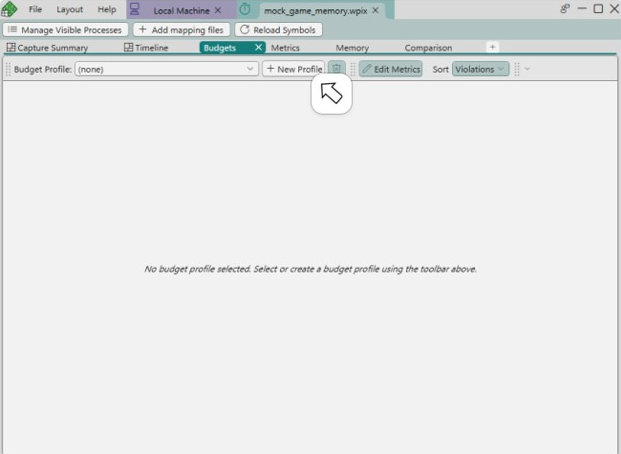
Select New Profile to create a budget profile.
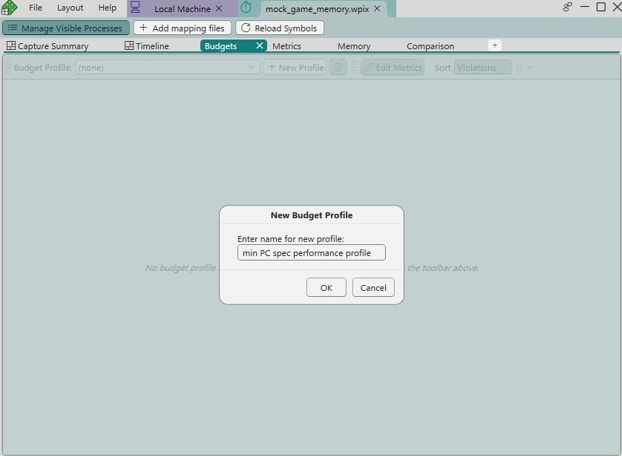
Enter the profile name, then select OK.
After you create a profile, PIX opens the metric selection panel. Select a metric to add a budget to the profile. PIX then opens the Create New Budget dialog, where you can set the Fixed Budget value and choose the budget color. The initial value is based on the metric summary, and you can replace it before saving the budget.
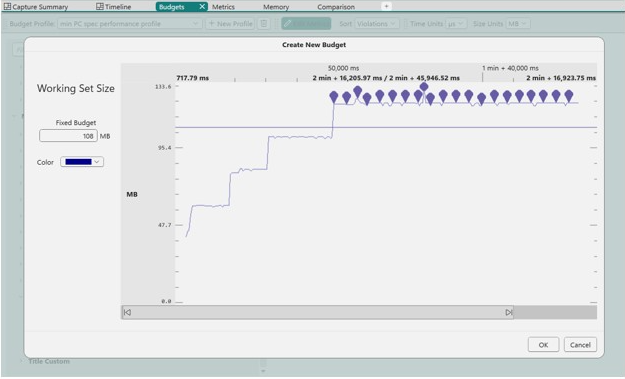
PIX draws a horizontal line at the fixed budget value. Points above the line are budget violations.
A profile holds one budget per metric. If you create a budget for a metric that already has one in the profile, the new budget replaces the existing one.
Work with budgets in a profile
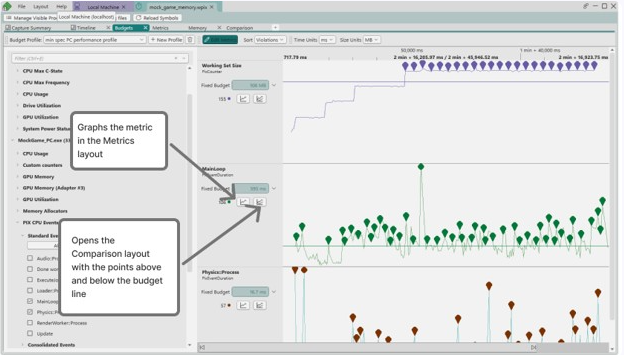
A budget profile can contain multiple budgets. Each budget lane shows the metric, the fixed budget value, and the number of violations. Use Edit Metrics to add or remove metrics from the profile. Use Sort to sort budget lanes by violation count or by name.
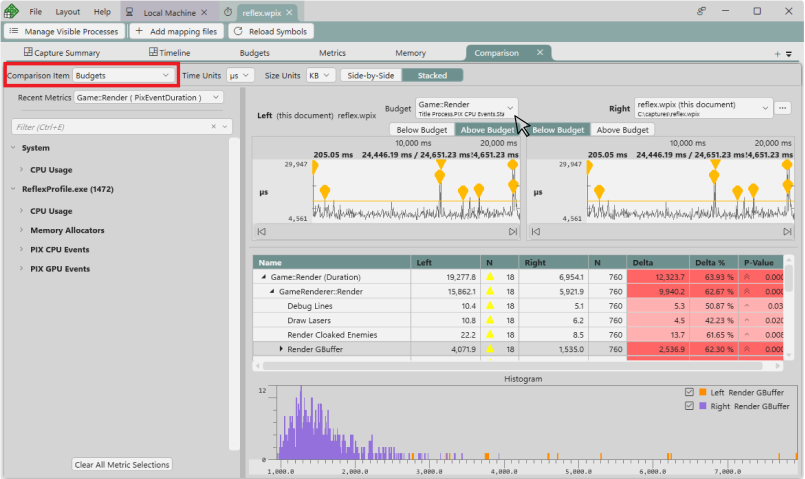
Use the buttons on each budget lane to open the metric in the Metrics layout (Examine in Metrics View) or to compare points above and below the budget in the Comparison layout (Compare Metrics Above/Below).
When you open the Comparison layout from a budget lane, the left graph contains points above the budget and the right graph contains points below the budget.
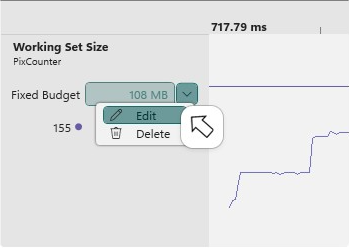
Use the menu next to the budget value to edit or delete the budget.
Switch between budget profiles
Use the Budget Profile: dropdown to switch between profiles. To delete the selected profile, select the delete button next to New Profile.
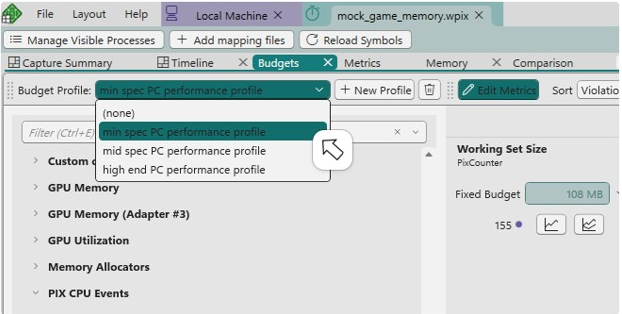
The selected budget profile determines which budget values PIX uses in the Metrics layout and the Comparison layout. Switching profiles changes the displayed budget lines and the points included in above-budget and below-budget comparisons. For example, if a min-spec profile sets a budget of 108 for Working Set Size, the Working Set Size graph in the Metrics layout uses 108 as its budget while that profile is selected, and the Comparison layout uses 108 to split points into above-budget and below-budget groups.
Find points that are over budget in the Metrics layout
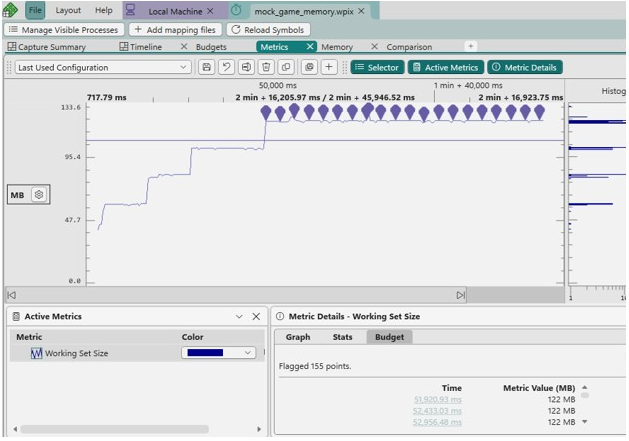
In the Metrics layout, PIX draws the budget line for each metric you select in the Active Metrics panel and adds markers to the graph that flag the points above the budget.
To list the points that are over budget, select a single metric in Active Metrics, and then open the Budget tab of the Metric Details panel. The tab shows how many points are flagged and lists the time and value of each one. Select a time to navigate the Timeline to the section that contains that point.
Set a budget from the Metrics layout
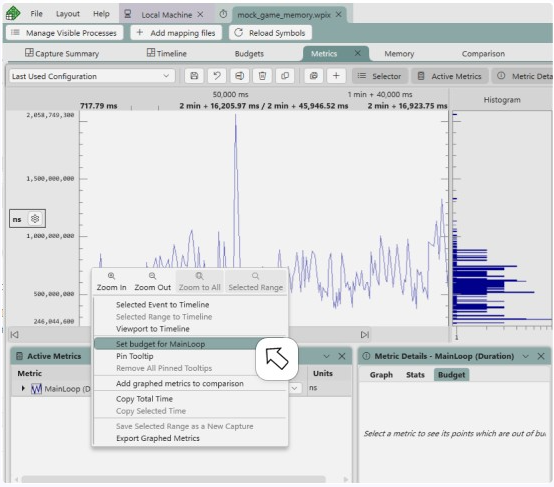
You can also create a budget from the Metrics layout. Right-click a point on the graph and select Set budget for followed by the metric name. PIX creates a budget for the selected metric with the value of the point you selected.
If no budget profile is selected, PIX prompts you to select or create one. The new budget is added to the selected budget profile.