Note
Access to this page requires authorization. You can try signing in or changing directories.
Access to this page requires authorization. You can try changing directories.
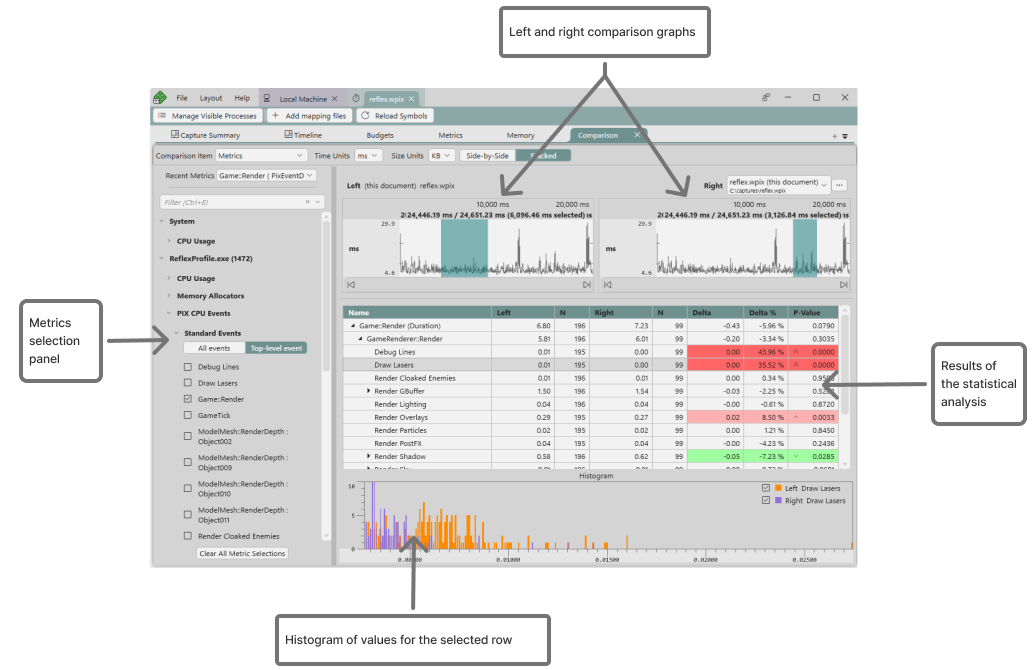
The Comparison layout produces a statistical comparison of the average values for the points that represent PIX event hierarchies in two selected ranges of time, or for the points above and below a metric's budget. Statistical comparisons help determine which portions of the event hierarchies had statistically different values, such as durations or memory sizes, for the set of points being compared.
The layout contains:
- A metric selection panel.
- Graphs for the left and right sets of points to compare.
- A table that shows the comparison results.
- A histogram that shows the left and right value distributions for the selected table row.
The right side of the comparison can come from the current capture or from another capture. Use this when you need to compare captures taken from different runs, settings, PCs, or Windows devices. If a selected metric is not present in the right capture, PIX shows a warning and omits that metric from the comparison.
Use the Side-by-Side and Stacked layout control to choose how the left and right graphs are arranged. If you do not select a time range, PIX compares the full reliable time span of that side's capture.
Compare groups of points for a metric
To produce a comparison for a metric, select Metrics from the Comparison Item dropdown, then select a metric from the selection panel or the Recent Metrics dropdown. Select a range of time in both the left and right graphs.
You can also start a comparison from the Metrics layout. Graph the PIX CPU event metrics you want to compare, right-click the graph, and select Add graphed metrics to comparison. PIX opens the Comparison layout and adds all graphed metrics to the comparison.
For example, the following graph of a metric named Game::Render shows ranges where event durations are relatively consistent and other ranges where durations differ between the left and right graphs. A statistical comparison of the event durations in the two highlighted ranges can determine which portions of the Game::Render event hierarchy account for the difference.
Each selected range of time must have at least two points for the metric being compared. Select ranges with enough points to represent your game's behavior. The amount of data depends on how noisy the source data is, but 50 to 100 data points is a useful starting point. PIX shows a warning indicator when a group has 20 or fewer points.
Compare points above and below a metric's budget
To compare the points above and below a metric's budget, select Budgets from the Comparison Item dropdown, then select the budget to analyze from the Budget dropdown. The Budget dropdown is populated from the current Budget profile.
When you compare against a budget, the left and right graph controls include Below Budget and Above Budget choices. Choose Above Budget for one side and Below Budget for the other. By default, opening a comparison from a budget uses Above Budget on the left and Below Budget on the right.
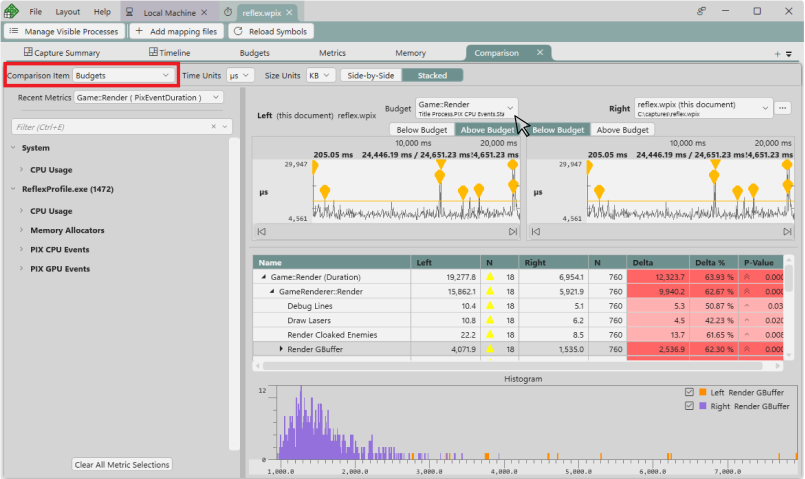
The selected budget defines the above-budget and below-budget time ranges, but the comparison can include any metric selected in the selector panel. Use this to see what else changed while the budgeted metric was over budget.
You can also open the Comparison layout from the Budgets view by selecting Compare Metrics Above/Below for a budget.
Interpret statistical comparison results
The Left column displays the average value for the set of points in the left group. The Right column displays the average value for the set of points in the right group. The Delta column shows the left average minus the right average. The Delta % column shows that difference as a percentage of the larger average.
The P-Value column identifies whether the difference between the left and right groups is statistically significant or is likely due to other factors such as noise, random sampling, or sampling bias. Lower P-Value values indicate that the measured difference is more likely to be a real effect. The rows with the lowest P-Value values are usually the ones to investigate further by drilling into the event hierarchy. Sort by P-Value to bring the most statistically significant rows to the top of the table.
PIX uses Welch's t-test to compute P-Value. Rows with P-Value below 0.05 are marked as statistically significant. Rows with P-Value below 0.001 receive stronger emphasis. Positive deltas use red emphasis, negative deltas use green emphasis, and the P-Value column also shows up or down chevrons for accessibility.
The histogram at the bottom of the layout shows the distribution of the values for the left and right groups for the selected table row. Rows with high P-Value values usually have left and right histograms that overlap heavily. Rows with low P-Value values usually have less overlap.
The number of points in the left and right groups also affects how you interpret the results. The N columns display the number of points in each group. A warning indicator in an N cell means that the sample count is small and the comparison may be biased.