Note
Access to this page requires authorization. You can try signing in or changing directories.
Access to this page requires authorization. You can try changing directories.
Redis keyspace notifications enable clients to subscribe to Pub/Sub channels and receive events that affect the Redis data set. Use keyspace notifications (preview) to monitor changes to keys and values in your Azure Managed Redis cache.
This article shows how to deploy a cache with keyspace notifications enabled, connect clients by using Redis commands, subscribe to notification channels, and test the resulting events.
Prerequisites
Redis Insight or
redis-clicommand line tool. For installation steps, see Use client tools to manage data in Azure Managed Redis.Note
When you use Redis client tools, use Microsoft Entra ID authentication to Azure Managed Redis when available.
Understanding of Azure Resource Manager (ARM) templates. For more information, see Azure Resource Manager documentation.
For Azure CLI:
Use the Bash environment in Azure Cloud Shell. For more information, see Get started with Azure Cloud Shell.

If you prefer to run CLI reference commands locally, install the Azure CLI. If you're running on Windows or macOS, consider running Azure CLI in a Docker container. For more information, see How to run the Azure CLI in a Docker container.
If you're using a local installation, sign in to the Azure CLI by using the az login command. To finish the authentication process, follow the steps displayed in your terminal. For other sign-in options, see Authenticate to Azure using Azure CLI.
When you're prompted, install the Azure CLI extension on first use. For more information about extensions, see Use and manage extensions with the Azure CLI.
Run az version to find the version and dependent libraries that are installed. To upgrade to the latest version, run az upgrade.
Deploy a cache with keyspace notifications enabled
In this example, use an Azure Resource Manager (ARM) template and the Azure CLI to deploy an Azure Managed Redis cache with keyspace notifications enabled.
Modify the CacheName and Region parameters in the following template, and save the file as KeyspaceTemplate.json.
Note
The notifyKeyspaceEvents value of "KEA" enables keyspace notifications for most events. The value "K" or "E" is required to receive keyspace notifications. For more information about the different event types and how to configure notifications for them, see the Redis keyspace notifications documentation.
{
    "$schema": "https://schema.management.azure.com/schemas/2019-04-01/deploymentTemplate.json#",
    "contentVersion": "1.0.0.0",
    "parameters": {
        "cachename": {
            "defaultValue": "{CacheName}",
            "type": "String"
        },
        "region": {
            "defaultValue": "{Region}",
            "type": "String"
        }
    },
    "variables": {},
    "resources": [
        {
            "type": "Microsoft.Cache/redisEnterprise",
            "apiVersion": "2026-02-01-preview",
            "name": "[parameters('cachename')]",
            "location": "[parameters('region')]",
            "sku": {
                "name": "Balanced_B5"
            },
            "identity": {
                "type": "None"
            },
            "properties": {
                "minimumTlsVersion": "1.2",
                "publicNetworkAccess": "Enabled"
            }
        },
        {
            "type": "Microsoft.Cache/redisEnterprise/databases",
            "apiVersion": "2026-02-01-preview",
            "name": "[concat(parameters('cachename'), '/default')]",
            "dependsOn": [
                "[resourceId('Microsoft.Cache/redisEnterprise', parameters('cachename'))]"
            ],
            "properties": {
                "clientProtocol": "Encrypted",
                "port": 10000,
                "clusteringPolicy": "OSSCluster",
                "evictionPolicy": "NoEviction",
                "persistence": {
                    "aofEnabled": false,
                    "rdbEnabled": false
                },
                "notifyKeyspaceEvents": "KEA"
            }
        }
    ]
}
Deploy the template by using the az deployment group create Azure CLI command. In the following example, the deployment is in the exampleRG resource group.
az deployment group create --resource-group exampleRG --template-file KeyspaceTemplate.json
Connect Redis clients
Open two CLI sessions using either Redis Insight or redis-cli, and connect both clients to the cache. Use one terminal as the subscriber that receives keyspace notifications and the other as the operator that runs Redis commands.
Verify and subscribe to events
In either terminal, confirm that the notification string is configured.
CONFIG GET notify-keyspace-events
In the subscriber terminal, choose the subscription pattern that matches the events you want to observe. The following examples show how to subscribe to different events:
Subscribe to all events and all keys:
PSUBSCRIBE __keyevent@0__:* __keyspace@0__:*Subscribe to a specific event type:
SUBSCRIBE __keyevent@0__:setSubscribe to a specific key:
SUBSCRIBE __keyspace@0__:mykey
Test notifications
Switch to the operator terminal and run a few Redis commands against a test key.
SET mykey "hello"
EXPIRE mykey 10
DEL mykey
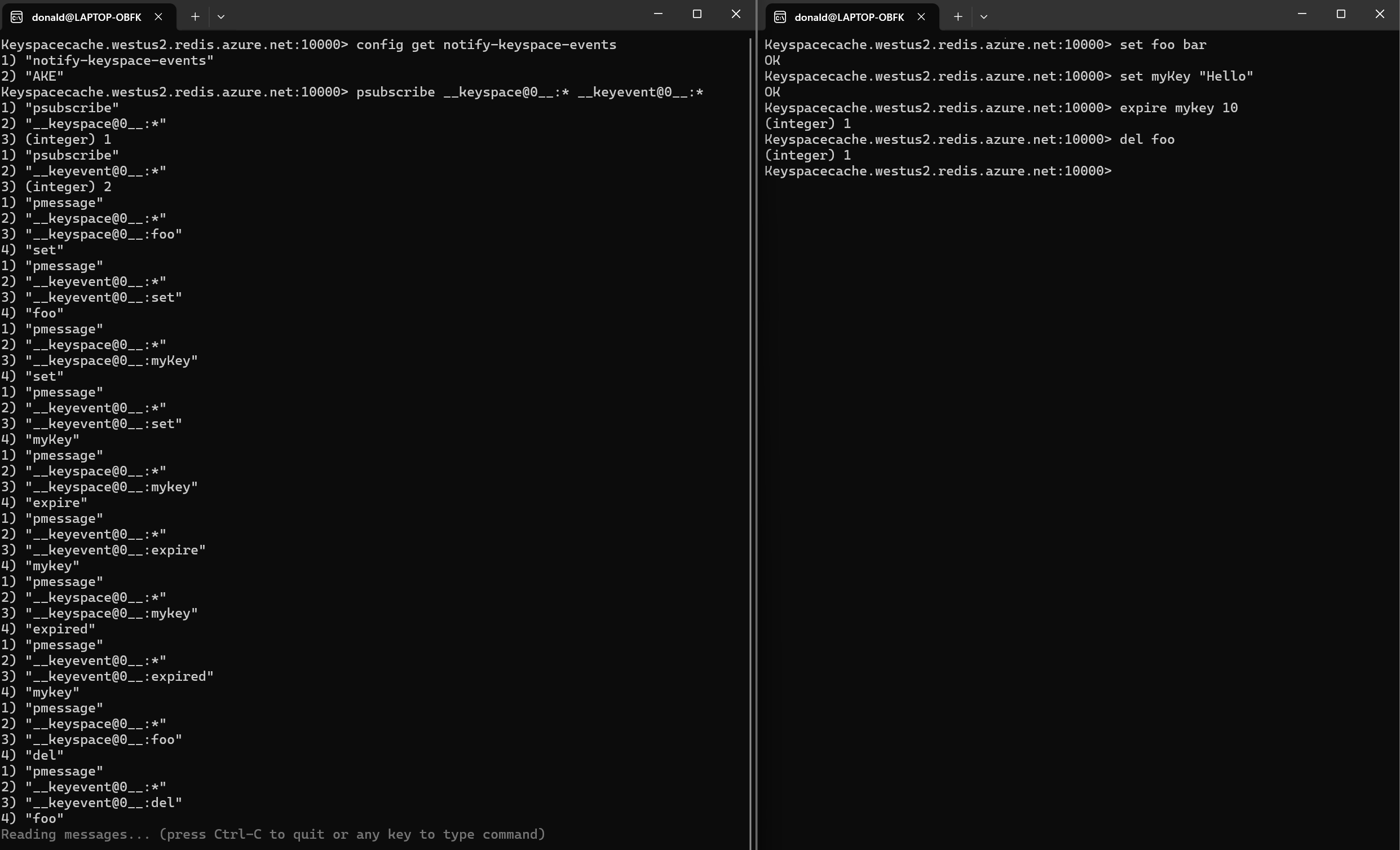
The subscriber terminal shows which events occurred and which keys were affected.
In the following screenshot, the subscriber terminal is on the left, subscribed to all events and all keys, so it receives notifications for all events that occur in the cache. The operator terminal is on the right, where Redis commands are issued against various keys.
Update notification settings
You can change the keyspace notification configuration later without recreating the cache.
- Update the
notifyKeyspaceEventsvalue inKeyspaceTemplate.jsonwhile keepingCacheNameandRegionthe same. - Redeploy the template.
az deployment group create --resource-group exampleRG --template-file KeyspaceTemplate.json
Redeploying updates the notification settings without data loss, which lets you enable, disable, or change the events that are tracked, such as moving from KEA to Ex to track expiration events only.
Note
If you're updating the notification settings on an existing cache that wasn't deployed through the ARM template shown previously, you can configure your own template to set the notifyKeyspaceEvents property. Ensure that the template includes the existing cache cluster and database configurations to avoid overwriting other cache properties.
Enable keyspace notifications in the Azure portal
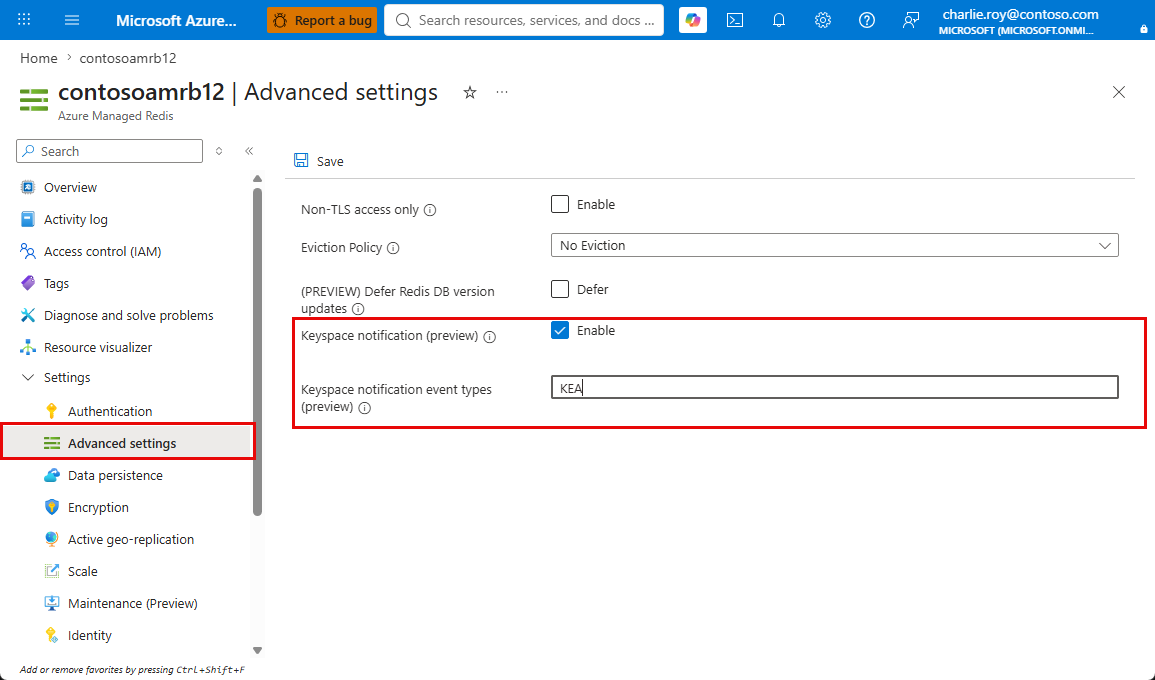
If you already have an Azure Managed Redis cache, you can enable keyspace notifications directly in the Azure portal.
- Open the existing Azure Managed Redis resource in the Azure portal.
- Select Advanced settings.
- Enable Keyspace notification.
- In Keyspace notifications event types, enter the event types string. The value of "KEA" enables keyspace notifications for most events. The value "K" or "E" is required to receive keyspace notifications.
- Use
KEAto enable keyspace and keyevent notifications for a broad set of event types. - Select Save to apply the setting.
In the following screenshot, the KEA value is configured in Advanced settings for an existing cache.