Note
Access to this page requires authorization. You can try signing in or changing directories.
Access to this page requires authorization. You can try changing directories.
APPLIES TO: All API Management tiers
This article shows you how to import an OpenAI-compatible Google Gemini API to access models such as gemini-2.5-flash-lite. For these models, Azure API Management can manage an OpenAI-compatible chat completions endpoint.
Learn more about managing AI APIs in API Management:
Prerequisites
- An existing API Management instance. Create one if you haven't already.
- An API key for the Gemini API. If you don't have one, create it at Google AI Studio and store it in a safe location.
Import an OpenAI-compatible Gemini API by using the portal
In the Azure portal, go to your API Management instance.
In the left menu, under APIs, select APIs > + Add API.
Under Define a new API, select Language Model API.
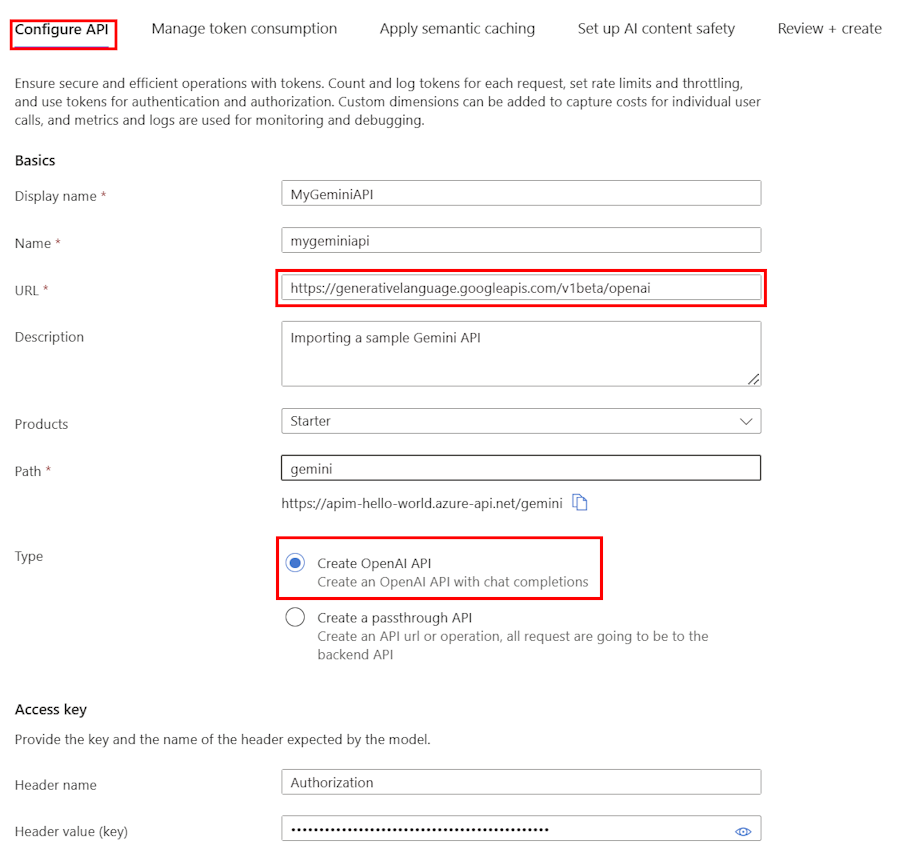
On the Configure API tab:
Enter a Display name and optional Description for the API.
In URL, enter the following base URL from the Gemini OpenAI compatibility documentation:
https://generativelanguage.googleapis.com/v1beta/openaiIn Path, append a path that your API Management instance uses to route requests to the Gemini API endpoints.
In Type, select Create OpenAI API.
In Access key, enter the following:
- Header name: Authorization.
- Header value (key):
Bearerfollowed by your API key for the Gemini API.
On the remaining tabs, optionally configure policies to manage token consumption, semantic caching, and AI content safety. For details, see Import a language model API.
Select Review.
After the portal validates the settings, select Create.
API Management creates the API and configures the following:
- A backend resource and a set-backend-service policy that direct API requests to the Google Gemini endpoint.
- Access to the LLM backend by using the Gemini API key you provided. API Management protects the key as a secret named value.
- (optionally) Policies to help you monitor and manage the API.
Test Gemini model
After importing the API, you can test the chat completions endpoint for the API.
Select the API that you created in the previous step.
Select the Test tab.
Select the
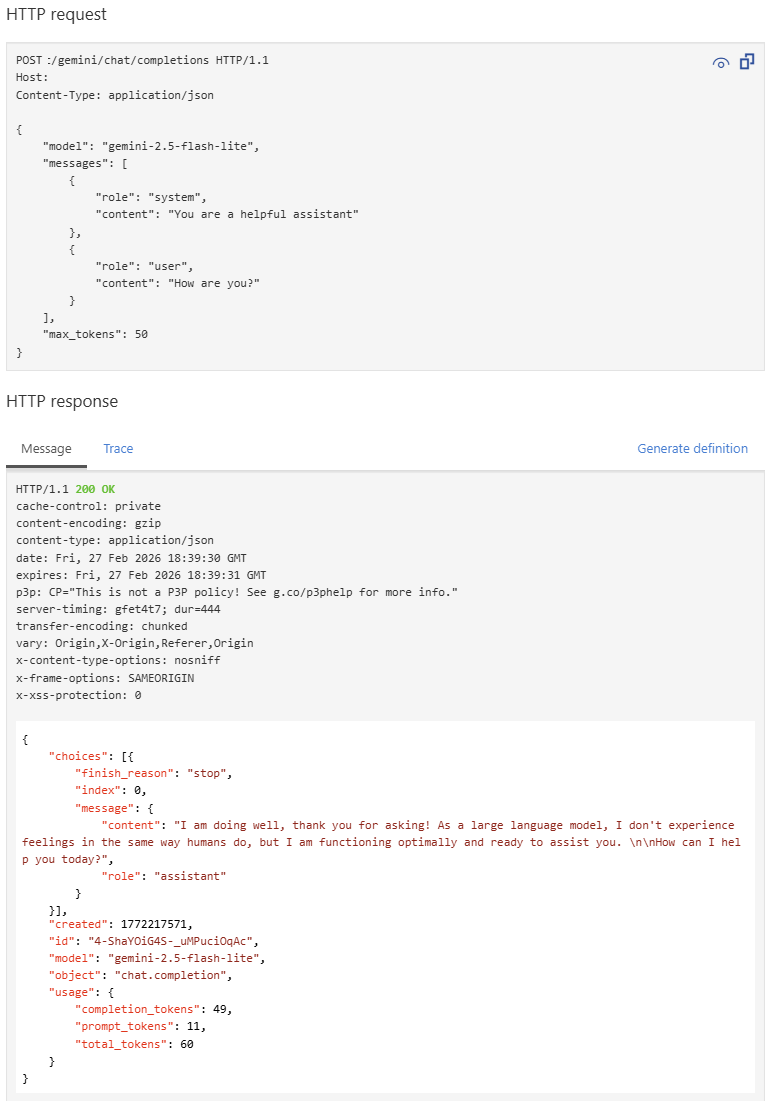
POST Creates a model response for the given chat conversationoperation, which is aPOSTrequest to the/chat/completionsendpoint.In the Request body section, enter the following JSON to specify the model and an example prompt. In this example, the
gemini-2.5-flash-litemodel is used.{ "model": "gemini-2.5-flash-lite", "messages": [ { "role": "system", "content": "You are a helpful assistant" }, { "role": "user", "content": "How are you?" } ], "max_tokens": 50 }When the test succeeds, the backend responds with a successful HTTP response code and some data. The response includes token usage data to help you monitor and manage your language model token consumption.