Note
Access to this page requires authorization. You can try signing in or changing directories.
Access to this page requires authorization. You can try changing directories.
APPLIES TO: All API Management tiers
You can import OpenAI-compatible language model endpoints to your API Management instance, or import non-compatible models as passthrough APIs. For example, manage self-hosted LLMs or those hosted on inference providers other than Azure AI services. Use AI gateway policies and other API Management capabilities to simplify integration, improve observability, and enhance control over model endpoints.
Learn more about managing AI APIs in API Management:
Language model API types
API Management supports two language model API types. Choose the option that matches your model deployment, which determines how clients call the API and how requests get route to the AI service.
OpenAI-compatible - Language model endpoints compatible with OpenAI's API. Examples include Hugging Face Text Generation Inference (TGI) and Google Gemini API.
API Management configures a chat completions endpoint.
Passthrough - Language model endpoints not compatible with OpenAI's API. Examples include models deployed in Amazon Bedrock or other providers.
API Management configures wildcard operations for common HTTP verbs. Clients can append paths to wildcard operations, and API Management passes requests to the backend.
Prerequisites
- An existing API Management instance. Create one if you haven't already.
- A self-hosted or non-Azure-provided language model deployment with an API endpoint.
Import language model API by using the portal
Importing the LLM API automatically configures:
- A backend resource and set-backend-service policy that direct requests to the LLM endpoint.
- (optionally) Access using an access key (protected as a secret named value).
- (optionally) Policies to monitor and manage the API.
To import a language model API:
In the Azure portal, go to your API Management instance.
In the left menu, under APIs, select APIs > + Add API.
Under Define a new API, select Language Model API.
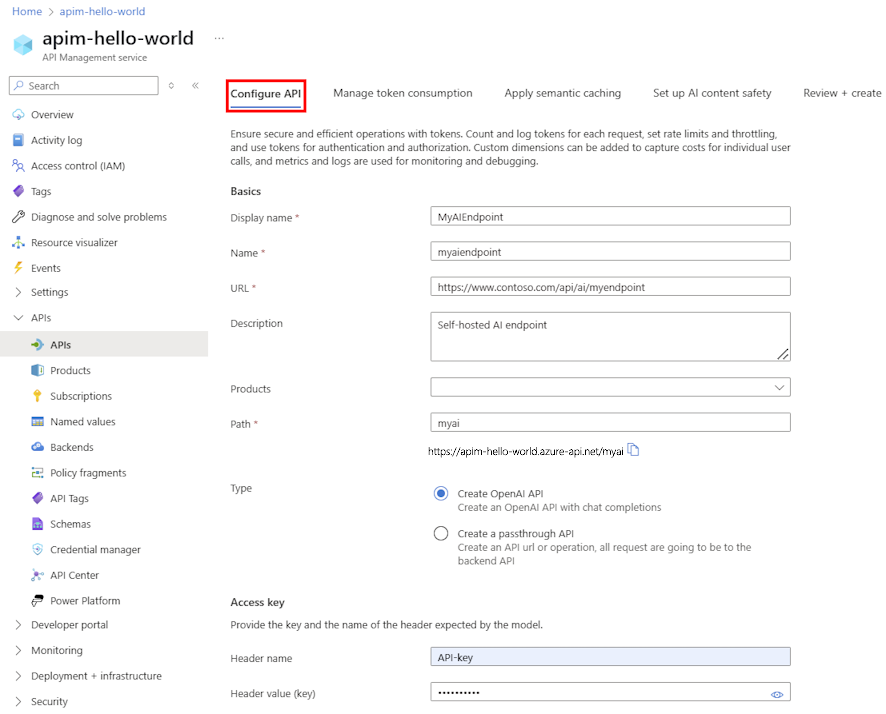
On the Configure API tab:
- Enter a Display name and Description (optional).
- Enter the LLM API URL.
- Select one or more Products to associate with the API (optional).
- In Path, append the path to access the LLM API.
- Select either Create OpenAI API or Create a passthrough API. See Language model API types.
- Enter the authorization header name and API key (if required).
- Select Next.
On the Manage token consumption tab, enter settings or accept defaults for the following policies:
On the Apply semantic caching tab, enter settings or accept defaults for the policy to optimize performance and reduce latency:
On the AI content safety tab, enter settings or accept defaults to configure Azure AI Content Safety to block unsafe content:
Select Review.
After validation, select Create.
API Management creates the API and configures operations for the LLM endpoints. By default, the API requires an API Management subscription.
Test the LLM API
Verify your LLM API in the test console.
Select the API you created.
Select the Test tab.
Select an operation compatible with the model deployment. Fields for parameters and headers appear.
Enter parameters and headers. Depending on the operation, configure or update a Request body as needed.
Note
The test console automatically adds an Ocp-Apim-Subscription-Key header (using the built-in all-access subscription), which provides access to every API. To display it, select the "eye" icon next to HTTP Request.
Select Send.
When the test succeeds, the backend returns data including token usage metrics to monitor language model consumption.