Note
Access to this page requires authorization. You can try signing in or changing directories.
Access to this page requires authorization. You can try changing directories.
Genie Code helps developers generate, optimize, explain, and fix code in Azure Databricks notebooks, the SQL editor, jobs, AI/BI dashboards, and the file editor.
To learn how Genie Code helps with code, see Get coding help from Genie Code.
Tour of the Genie Code pane
To open the Genie Code pane, click  in the upper-right corner of the page.
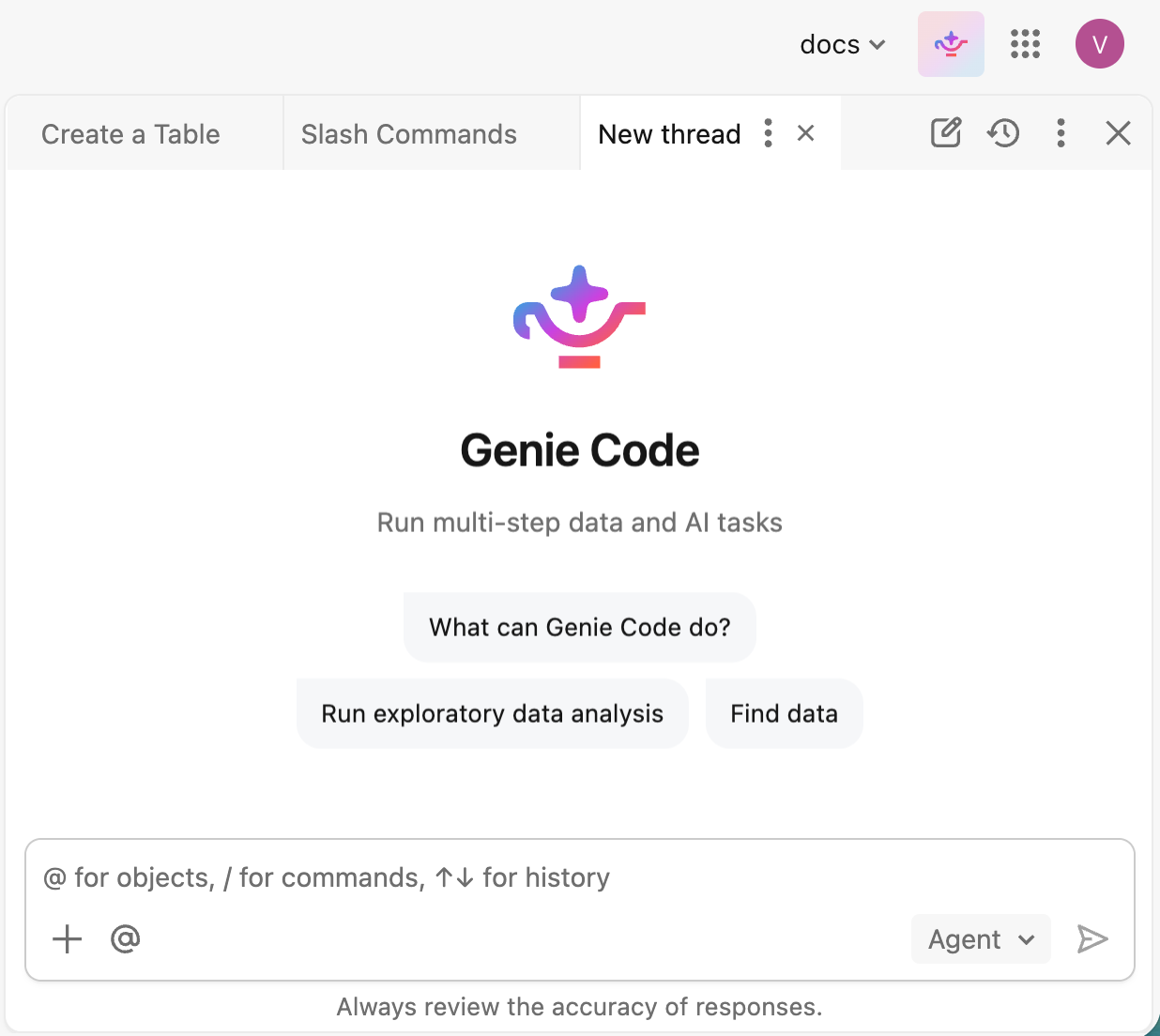
Enter a prompt in the text box at the bottom of the pane, then press Enter or click  . You can:
- Click the
 plus icon to connect to MCP servers or attach files.
 - Click the
 at icon or enter @ to select resources for Genie Code to reference.
 - Enter / to select and run a slash command.
If you prompt Genie Code to help with code, it leads you through running, accepting, or rejecting the changes it proposes.
Work with multiple chats as tabs
The Genie Code pane shows your open chats as tabs along the top of the pane. You can run more than one task at a time and move between chats without losing your place.
- Switch chats: Click a tab to make that chat active. A chat keeps running in the background when you switch tabs, so you can start a long task in one chat and continue working in another.
- Open a new chat: Click
 New chat to start a chat in a new tab.
 - Reopen a past chat: Click
 Chat history and select a chat to open it in a tab.
 - Manage a chat: Use the
 kebab menu on an active tab to manage the chat, or click
  to close the tab.
Genie Code pane controls
The Genie Code pane header has the following controls:
| Control | Description |
|---|---|
| New chat |
Start a new chat in a new tab. |
| Chat history |
View past chats and reopen one in a tab. |
| More |
Access  Settings and other options. See Genie Code settings. Settings and other options. See Genie Code settings. |
| Close |
Collapse the Genie Code pane. |
Genie Code settings
To open Genie Code settings, click the More menu in the pane header, then click Settings. The settings pane includes the following:
| Setting | Description |
|---|---|
| Actions | Set how Genie Code asks for approval before it uses a tool. See Approve tool actions. |
| MCP servers | Connect to external tools and data sources using MCP servers and built-in connectors. |
| Toggle panel view | Choose whether to use Genie Code in a Docked pane view or a Side pane view. |
| User instructions | Add user instructions that guide how Genie Code responds to you. |
| Workspace instructions | Add workspace instructions that apply to everyone in the workspace. |
| Skills | Add reusable agent skills that Genie Code can apply to tasks. |
| Workspace skills | Add skills that are available to everyone in the workspace. |
| Serverless usage policy | Set the serverless usage policy for running code that Genie Code generates in the chat output. |
Agent mode
Genie Code runs in Agent mode, which automates multi-step workflows, plans solutions, retrieves relevant assets, runs code, uses cell outputs to improve results, and fixes errors automatically. If you want a direct conversational response without autonomous task execution, say so in your prompt, for example, "Just explain this to me, don't run any code."
To complete tasks, Genie Code sends your prompt and relevant context to the model, including table and column names, descriptions, the code you are working with, data samples from tables, and cell outputs. All data sent to the model respects your Unity Catalog permissions. For details, see Data sent to the models.
Requirements
To use Genie Code's agentic capabilities, your workspace needs the following:
- Partner-powered AI features enabled for both the account and workspace. See Partner-powered AI features.
- Your workspace must be in a supported region. Genie Code is a Designated Service that uses Geos to manage data residency. See Geo availability of Genie Code features.
If partner-powered AI features are disabled, Genie Code is still available but without its agentic capabilities, using a Databricks-hosted model.
Full page Genie Code (Beta)
Genie Code has a full page command center experience, where the active chat is shown prominently, surfacing assets like notebooks and files alongside it as tabs when needed. See Full page Genie Code.
Approve tool actions
When Genie Code needs to use a tool, like running code, editing a notebook, or querying a table, it asks for your approval before proceeding. You can approve each request individually, or set an approval mode that applies to the rest of your current chat or to all future chats.
Approve a single request
When Genie Code requests permission to use a tool, click Allow to approve the action or Skip to refuse it.
To change how Genie Code handles future approval requests in the current chat, select one of the following from the same prompt:
| Option | Behavior |
|---|---|
| Ask every time | Genie Code asks for approval every time it uses a tool. This is the default. |
| Allow in current chat | Genie Code can use the requested tool for the rest of the current chat without asking. |
| Always allow | Genie Code can use the requested tool in every chat without asking. |
| Auto-approve | Genie Code automatically approves tool actions for the rest of the current chat. An AI classifier reviews each action and blocks risky ones. (Recommended.) |
Set a default approval mode
To apply the same approval mode to every Genie Code chat, set a default in the Genie Code settings. Click in the Genie Code pane header to open settings.
Choose one of the following:
Ask first: Approve each tool when it runs. Per-tool overrides still apply.
Auto-approve: An AI classifier reviews each proposed action against your stated intent and approves or blocks each one, minimizing manual approvals while blocking risky actions.
Important
Auto-approve is a productivity feature, not a security boundary. The classifier is a best-effort heuristic that can be wrong. It might approve unsafe actions or block safe ones. Do not rely on it to enforce security, compliance, or access-control requirements. Keep auto-approve off when working with production data, sensitive workspaces, or shared resources where the consequences of an incorrect approval matter. You remain responsible for reviewing Genie Code's results.
When auto-approve is on, Genie Code typically allows low-risk operations like read-only queries, edits to your own workspace files and notebooks, writes to tables you own, and running jobs or pipelines you've already referenced. It blocks anything that could escalate scope or affect shared resources, such as destructive operations, production deployments, permission and secret changes, external calls to third parties, and risky source control operations like force pushes.
When an action is blocked, Genie Code receives the reason and adapts, for example by retrying with a narrower scope.
Share a chat
You can share Genie Code chats with other users, groups, or service principals.
To share a chat:
In the Genie Code pane, click
Chat history to open chat history.Hover over the chat you want to share and click the
kebab menu.Click
 Share.
In the share dialog, add the users, groups, or service principals to share with. Recipients receive Can View permission on the chat. See Genie Code chat ACLs.
(Optional) Check Email new users to send an email notification to newly added users.
(Optional) To share a direct link to the chat, click
 Copy link at the bottom of the share dialog.
Click Add to share the conversation.
Get help with code
Get help with code from Genie Code directly in your notebooks. Genie Code offers:
- Use Genie Code for data science to help you plan and automate multi-step data science workflows.
- AI-based autocomplete.
- Data filtering with natural language prompts.
- Code debugging with Diagnose Error.
- Quick Fix, which presents automatic recommendations for fixing code errors that you can Accept and run.
- Serverless code execution.
Databricks recommends that you always review any code generated by Genie Code before running it, because it can sometimes make mistakes.
For more information about how Genie Code can help with code, see Get coding help from Genie Code.
Code optimized for the Azure Databricks environment
Code generated by Genie Code is intended to run in a Databricks compute environment. It is optimized to create code in Databricks-supported programming languages, frameworks, and dialects. It is not intended to be a general-purpose programming assistant.
Genie Code often uses information from Databricks resources, such as the Databricks documentation website or Knowledge Base, to better answer user queries. It performs best when the user question is related to questions that can be answered with knowledge from Databricks documentation, Unity Catalog, and user code in the workspace.
Get answers sourced from documentation
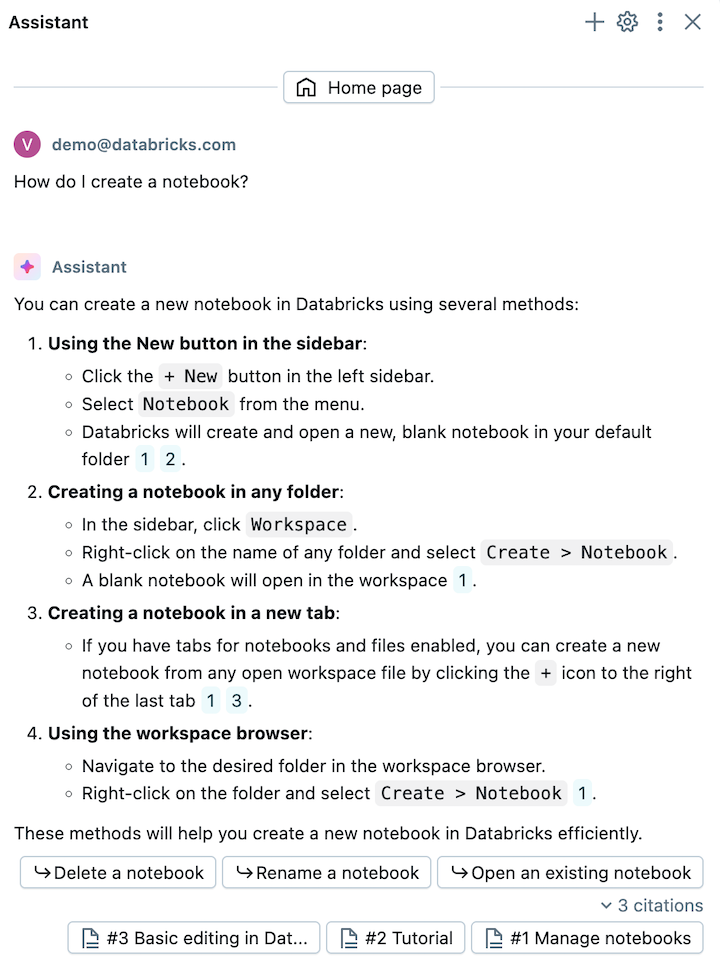
Genie Code searches Databricks documentation to answer your questions. When it references documentation, you see a Searched documentation step in the response. You can ask Genie Code to cite its sources, and it provides links to relevant documentation pages.
Give feedback on Genie Code answers
Let Databricks know whether Genie Code answers are useful:
- Hover just below the Genie Code answer.
- Click the Useful
 or Not useful
  button.