Note
Access to this page requires authorization. You can try signing in or changing directories.
Access to this page requires authorization. You can try changing directories.
This article shows how to assign the built-in DevCenter Project Admin role for project administrators and the Deployment Environments User role for developers. Assign roles at the project level or at a specific environment-type scope to control access.
The following built-in roles are commonly used with Azure Deployment Environments:
| Role | Description |
|---|---|
| DevCenter Project Admin | Full project-level management for Deployment Environments projects. Project admins can manage project settings, environment types, and perform administrative actions across all environments in the project. |
| Deployment Environments User | Allows users to create, start, stop, and manage their own environments within a project. Intended for developers who need to provision and work with environments. |
| Deployment Environments Reader | Read-only access to environment and project resources. Use this role to grant users or service principals visibility into environments without modification rights. |
Note
To delegate administration of a dev center that hosts your Deployment Environments projects, you can use the DevCenter Owner role at the dev center scope. DevCenter Owner can manage Microsoft.DevCenter resources for that dev center and manage access to those resources by assigning or removing the DevCenter Project Admin and DevCenter Dev Box roles. To learn more, see Assign dev center permissions to users.
You can create multiple projects that are associated with your dev center to align with each team's requirements. By using the built-in DevCenter Project Admin role, you can delegate project administration to a member of a team. DevCenter Project Admin users can configure project environment types to enable developers to create various types of environments. They can also apply settings to each environment type.
Prerequisites
- You must have an Azure account with permission to create role assignments on the project.
- You must have a dev center and at least one project.
Permissions required
To create role assignments, you need permission to create role assignments on the target resource. Specifically:
Required permission actions:
- Microsoft.Authorization/roleAssignments/write
- Microsoft.Authorization/roleAssignments/read (for verification)
- Microsoft.Authorization/roleDefinitions/read (to list available roles)
Recommended built-in roles that include these actions:
- Owner
- User Access Administrator
If your organization uses custom roles, ensure the role includes Microsoft.Authorization/roleAssignments/write for the intended scope.
Grant permissions for dev team leads
Assign the DevCenter Project Admin role to a team lead either at the project level or at one or more environment-type scopes. Project-level assignment grants admin rights across all environment types in that project; environment-type assignment limits admin rights to only the selected environment type.
Assign project-level role
Assign the DevCenter Project Admin role at the project level to team leads who manage the project, its environment types, and the environments within it.
Sign in to the Azure portal and go to Azure Deployment Environments.
In the sidebar menu, select Projects, then select the project you want to manage.
Select Access control (IAM) in the sidebar menu.
Select + Add > Add role assignment.
On the Role tab, search for and select the DevCenter Project Admin role. Then select Next.
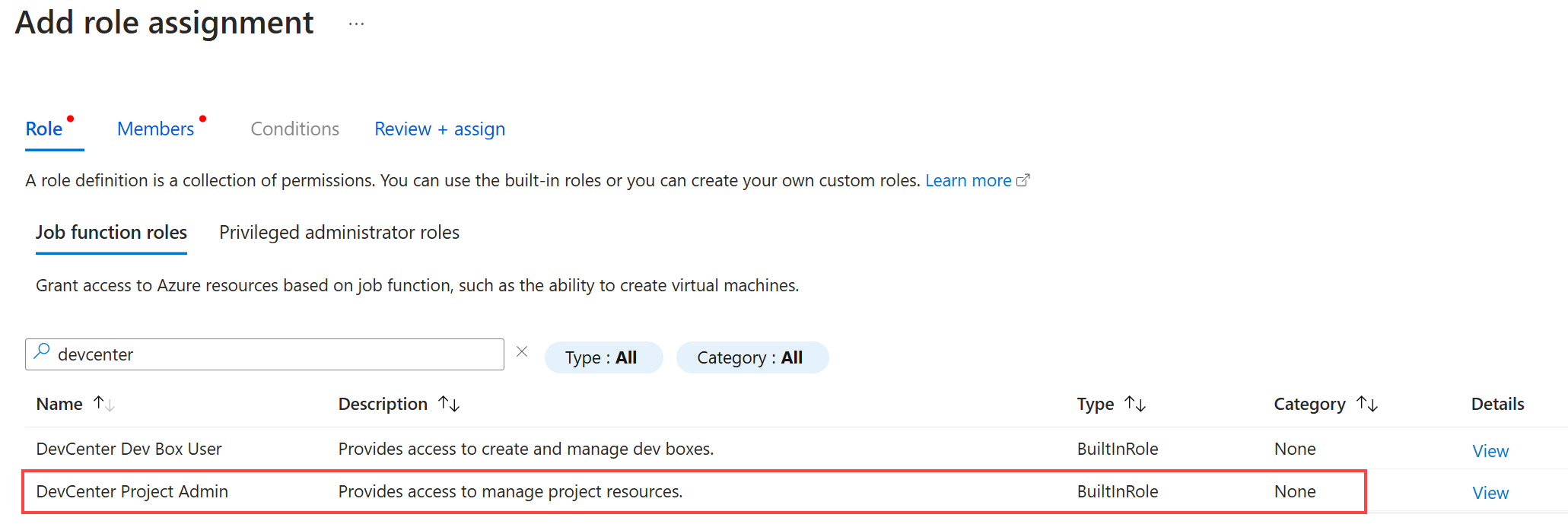
On the Members tab, for Assign access to, select User, group, or service principal. Then select + Select members to choose the users or groups you want to assign as project admins.
Select Review + assign to review your selections, then select Review + assign again to confirm.
Assign environment type-level role
Assign the role at the environment type scope so a team lead can manage only environments of that type.
In the project, under Environment configuration, select Environment types.
Select the ellipsis (...) next to the environment type, and choose Access control.
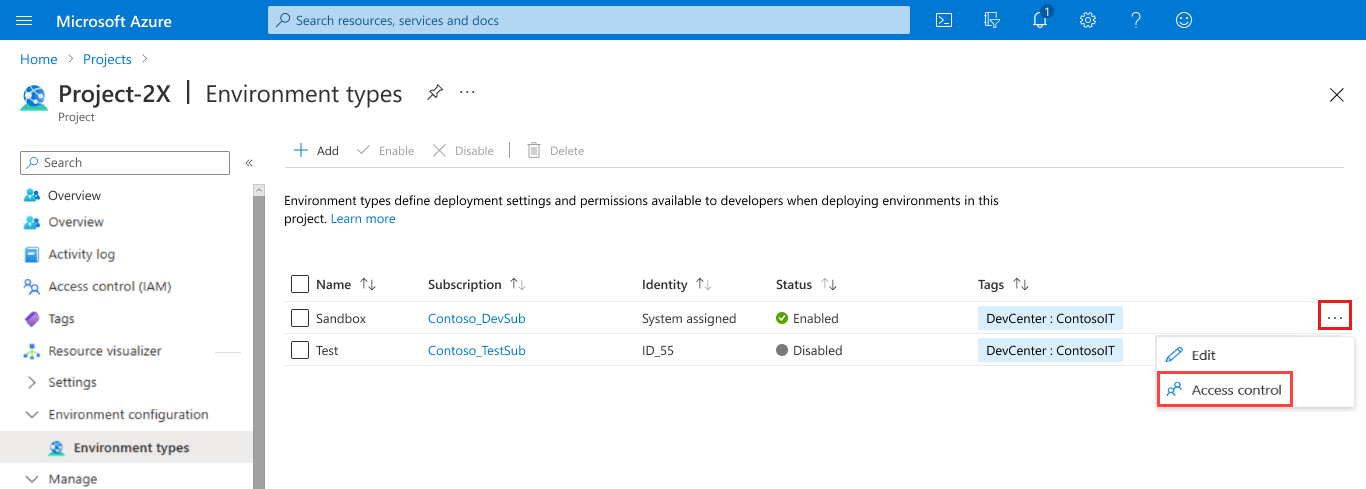
Select Add > Add role assignment.
Assign DevCenter Project Admin to the desired users or groups and select Save.
Grant permissions for developers
Assign the Deployment Environments User or Deployment Environments Reader role to a developer either at the project level or at one or more environment-type scopes. Project-level assignment grants permissions across all environment types in that project; environment-type assignment limits permissions to only the selected environment type.
Assign roles at the project-level
Assign Deployment Environments User role to developers who need to create and manage their own environments.
Assign Deployment Environments Reader role to developers who need to view environments of a specific environment type.
Sign in to the Azure portal and go to Azure Deployment Environments.
In the sidebar menu, select Projects, then select the project your developers need to access.
Select Access control (IAM) in the sidebar menu.
Select + Add > Add role assignment.
On the Role tab, search for and select the Deployment Environments User role. Then select Next.
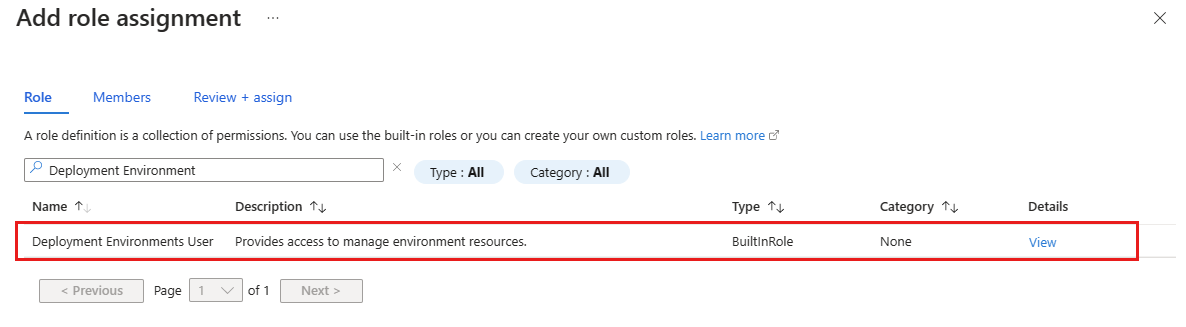
On the Members tab, for Assign access to, select User, group, or service principal. Then select + Select members to choose the users or groups you want to assign as project admins.
Select Review + assign to review your selections, then select Review + assign again to confirm.
Assign roles for a specific environment type
Assign Deployment Environments User role to developers who need to create and manage environments of a specific environment type.
Assign Deployment Environments Reader role to developers who need to view environments of a specific environment type.
In the project, under Environment configuration, select Environment types.
Select the ellipsis (...) next to the environment type, and choose Access control.
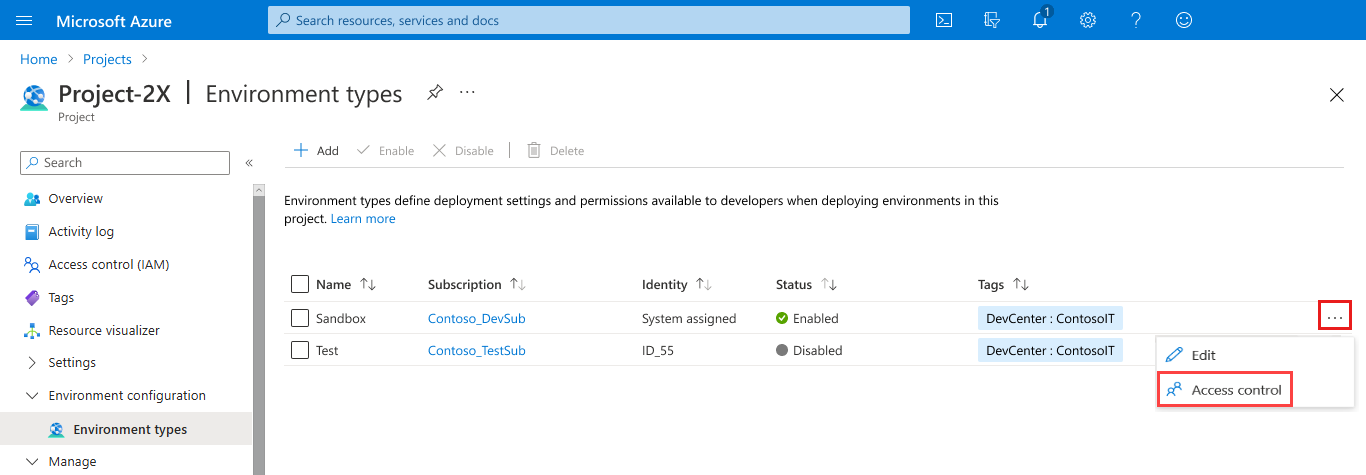
Select Add > Add role assignment.
Assign Deployment Environments User to the desired users or groups and select Save.
Note
Only users who have the Deployment Environments User role, the DevCenter Project Admin role, or a built-in role that has appropriate permissions can create an environment. Users who have the Deployment Environments Reader role can view their own environments and environments created by others.
Troubleshooting
- Role assignment propagation can take up to a minute. Refresh the portal.
- If you get an authorization error, confirm your account has
Microsoft.Authorization/roleAssignments/writeat the project scope or a parent scope. - Assign roles to groups rather than individuals for easier lifecycle management.
- If a role doesn't appear, confirm you're viewing the correct scope (project vs. environment type) and that the role definition exists in the subscription.
Clean up resources
If you created test role assignments that you no longer need:
- In the project's Access control (IAM) pane, locate the role assignment.
- Select Delete and confirm.