Note
Access to this page requires authorization. You can try signing in or changing directories.
Access to this page requires authorization. You can try changing directories.
Use quick campaigns to send an email blast to customers who fit a specific demographic, a mail campaign to clients in a specific region, or a phone call campaign to previous buyers of a particular product.
When to use quick campaign
Quick campaigns are designed for fast, seller-led outreach such as:
- Post-meeting follow-ups
- Event or webinar recaps
- Policy updates
- One-time announcements to many customers at once
A quick campaign is a single campaign activity geared towards a targeted audience. Track the success of your quick campaign through campaign responses, and convert the positive responses into new leads, quotes, orders, or opportunities.
If you need to perform more than one activity for your campaign, such as an email blast and a phone call, create a standard campaign instead. Learn more in Create or edit a campaign using in-app marketing.
Create a quick campaign and activity
When you create a quick campaign activity, you create an activity for each member in the target list that's part of the quick campaign. Quick campaigns need a target list such as a marketing list, accounts, contacts, or leads list.
Note
- The average time for distributing a quick campaign activity to 100,000 members is 24 hours. For larger campaigns and faster activity distribution, use Dynamics 365 Customer Insights - Journeys. For more information, go to Dynamics 365 Customer Insights - Journeys documentation.
- When creating a quick campaign using the following options, the application verifies the record preferences settings to ensure that the campaign is sent only to the records that allow it. This setting is found under the Details tab of a record.
- Through marketing list, the target record must allow both bulk email and marketing materials.
- Through accounts, contacts, or leads grid, the target record must allow marketing materials.

Enhanced experience (preview)
[This section is prerelease documentation and is subject to change.]
Important
- This is a preview feature.
- Preview features aren’t meant for production use and might have restricted functionality. These features are subject to supplemental terms of use, and are available before an official release so that customers can get early access and provide feedback.
The enhanced quick campaign experience simplifies quick campaign creation with a streamlined and modern interface. You can create and send one-time bulk emails, schedule emails, manage and discover templates, personalize messages without changing shared templates, compose emails from scratch, and preview or test emails before sending them to the full audience—all within the quick campaign flow.
Note
Your admin must enable the new enhanced quick campaign experience for you to access the new experience.
Create a quick campaign from the following entry points in the site map:
- From the Marketing Lists page, select the marketing list that you want to target and then select New Quick Campaign.
- From the Accounts, Contacts, or Leads grid, select the records or a view that you want to target and select Quick Campaign from the command bar. If you don't see the Quick Campaign option, select the ellipsis (⋮) to find it. The following screenshot shows an example of creating a quick campaign from the Leads grid for selected leads:

In the Create a Quick campaign wizard, enter the following details:
- Campaign title: Enter the title for the campaign.
- Target Audience: Select the target audience for the campaign. If you selected specific records from the Accounts, Contacts, or Leads grid, you can choose whether to target the selected members or all members in the view.
- Activity type: Select the type of activity you want to create for the campaign. Supported activity types are email, appointment, phone call, fax, and letter. Custom activities or other out-of-the-box activities aren't supported.
For the Email activity, select when you want to send the activity. You can choose to send it immediately, schedule it for a later time, or just create the email activity without sending it. The Auto mark as complete to close the activity option automatically marks the activity as complete once the email is marked to be sent. This option is read-only.
Select who you want to assign the activity to. - The owner of the records**: Assigns the activity to the owner of each record in the target list or view. This option is useful when a record owner needs to take action on the activity, such as following up with their respective contacts for phone call activities. - Assign to me: Assigns the activity to yourself, regardless of the record owners. This option is useful for bulk email activities where you want to manage and send the emails yourself. - Assign to other user or team: Assigns the activity to a different user or team. This option is useful when you want someone other than the record owners to handle and track the activity.
- (Optional) Select Add activity to a queue if you want the activity to be added to a specific queue.
- Select Next to define the details of the activity.
Select the To field to modify the recipients of the activity. You can't add members to a quick campaign after you create it. So, make sure to include all the members you want to target at this stage.
Enter the details of the activity, such as the priority, subject, and description.
For the Email activity, the following additional options are available:
- Email tracking: Track the email activity to monitor its status and engagement. To count email replies, ensure that the settings within the Tracking email conversations section are properly configured in the Power Platform admin center. More information: Manage email tracking settings.
- Insert template: Select an existing template or create a new one for the email activity.
- Send test email (optional): Validate formatting and personalization before sending to your full audience. Select a record that you want to preview the email for and an internal user you want to send the test email to.
Select Create to create the quick campaign and the associated activities.
Legacy experience
The legacy quick campaign experience uses a step-by-step wizard for creating and managing quick campaigns.
Create a quick campaign from the following entry points in the site map:
- From the Marketing Lists page, select the marketing list that you want to target and then select New Quick Campaign.
- From the Accounts, Contacts, or Leads grid, open a view that contains the records you want to target and select Quick Campaign from the command bar and select the appropriate option:
- For Selected Records: Only the records you select in the view are included in the campaign.
- For All Records in Current Page: Include all records displayed on the current page of the view in the campaign.
- For All Records in All Pages: Include all records across all pages of the view in the campaign.
Note
- You can't add members to a quick campaign after you create it.
- If you don't see the Quick Campaign option, select the ellipsis (⋮) to find it.
In the Create a Quick Campaign wizard, read the instructions on the welcome page, and then select Next.
On the Specify the Campaign Name step, enter a name for the quick campaign, and then select Next.
On the Select the Activity Type and Owners step, from the Activity Type list, select the type of activity you want to create.
Note
Supported activity types are email, appointment, phone call, fax, and letter. Custom activities or other out-of-the-box activities aren't supported.
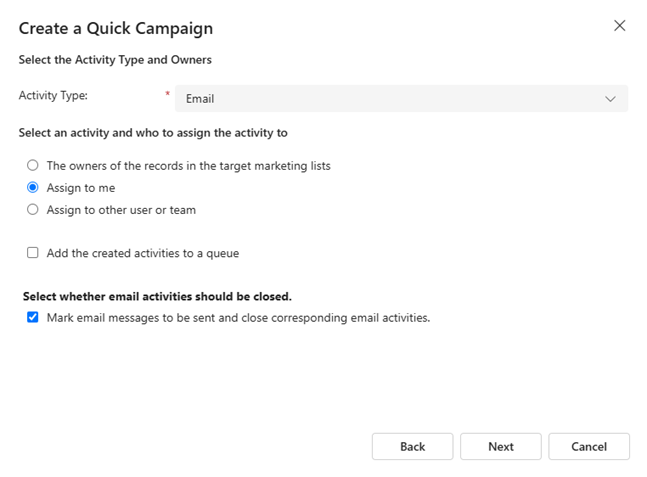
You can also select who you want Dynamics 365 Sales to assign the activity to and whether Dynamics 365 Sales should perform the activity automatically for appropriate activities, such as sending email messages. For example, if you're creating a phone call activity for all the sales representatives, you can select the Activity Type as Phone Call, and then select The owners of the records in the target marketing lists. Each sales representative can then see the activity and take action on it. However, if you're creating a large number of email activities that you want Dynamics 365 Sales to perform automatically, you can assign the email activity to yourself instead of the record owners.
When you select the Activity Type as Email, you see an additional checkbox Mark email messages to be sent and close corresponding email activities. Perform one of the following actions:
Select the checkbox if you want the system to create an email activity for each member in the marketing list, send the email, and close the activity. In this case, an activity is considered successful when the email is marked to be sent.
Clear the checkbox if you want the system to just create an email activity for each member in the marketing list, and you want to manually send the email and close the activity. In this case, an activity is considered successful when the activity is created.
You see the number of successes and failures after you create the campaign.
Select Next.
On the Specify the Content of the Activity step, specify the details of the activity to be created, and then select Next.
Note
For email activity, when you choose a template that has dynamic text fields related to user, the system automatically populates those data fields with the current user's information. For example, if you have a template with the subject line as "Hello, user.fullname", the system replaces the user.fullname with the current user's full name.
On the Completing the Create Quick Campaign Wizard step, select Create.
The campaign activity is added to the Quick Campaigns section.
Verify quick campaign status and results
Verify the status to check whether the activities in the quick campaign are complete.
- Select Quick Campaigns from the site map to view the list of quick campaigns.
- In the list of quick campaigns, locate the campaign you want to verify and check the following columns:
- Status Reason: Indicates the current status of the quick campaign, such as whether it's completed or pending.
- No. of Successes: Indicates the number of activities that were successfully created for the quick campaign.
- No. of Failures: Indicates the number of activities that failed to be created for the quick campaign.
- Select the quick campaign to open its details.
- Select the Responses tab to view the responses for the quick campaign. To learn more about tracking marketing campaign responses by using in-app marketing, see Track a marketing campaign response using in-app marketing.
- Select the Related > Activities tab to view the status of each activity associated with the quick campaign.
- After the Status Reason field is marked as Completed, check the No. of Successes and No. of Failures fields. Successes and failures don't indicate email delivery status; they indicate the status of email activity creation in Dynamics 365.
- To view more details about the activities, open the quick campaign:
To view more information about the type, owner, and status of the activities created for the campaign, view the Timeline section.
Note
If your campaign has letter or fax activities, they'll not be listed in the timeline by default. To view them, select Related > Activities.
To view the reasons for failures, select Related > Members and select the corresponding failure view. For example, if your campaign was targeted to accounts, select Account Bulk Operations Failures view.
Can't find the feature in your app?
There are a few possibilities:
- You don't have the necessary license to use this feature. Check out the comparison table and the licensing guide to see which features are available with your license.
- You don't have the necessary security role to use this feature.
- To configure or setup a feature, you need to have the Administration and customization roles
- To use sales-related features, you need to have the Primary sales roles
- Some tasks require specific Functional roles.
- Your administrator hasn't turned on the feature.
- Your organization is using a custom app. Check with your administrator for exact steps. The steps described in this article are specific to the out-of-the-box Sales Hub and Sales Professional apps.
Related information
Get started with in-app marketing
Create a marketing list using in-app marketing
Create or edit a campaign using in-app marketing
Add an activity to a campaign using in-app marketing
Add a marketing list, sales literature, or product to a campaign using in-app marketing
Track a marketing campaign response using in-app marketing
Customize quick campaign and campaign activity distribution forms