Note
Access to this page requires authorization. You can try signing in or changing directories.
Access to this page requires authorization. You can try changing directories.
The Agent Inventory feature provides administrators with tenant-wide visibility into all Copilot Studio custom agents and declarative agents in the organization, across environments. Agent inventory data includes basic metadata such as creation times, publish status, and authentication mode, as well as information on feature usage like knowledge sources, prompt usage, orchestration type, and more.
Dashboard
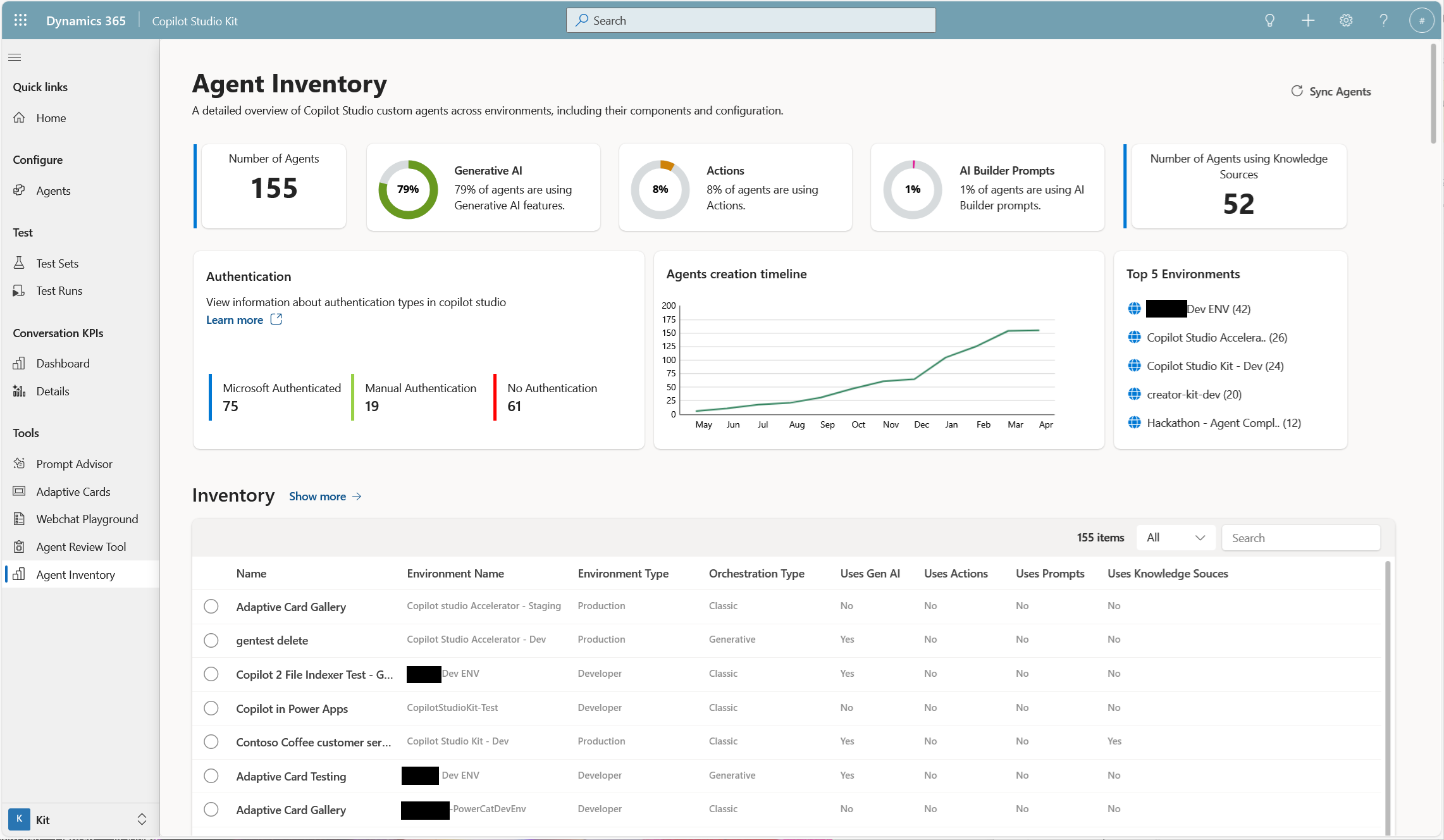
The Agent Inventory feature includes a dashboard that shows an overview of agents, growth, and AI adoption. You can view detailed data for each agent and export it for use in other applications.
Detailed view
From the Agent Inventory dashboard, you can see the total number of agents in the tenant, the usage percentage of generative AI features, actions, prompts, and how many agents use knowledge sources. You can also see the authentication mechanism used by the custom agents, an agent creation timeline that visualizes the growth, and a list of the top five environments by agent count.
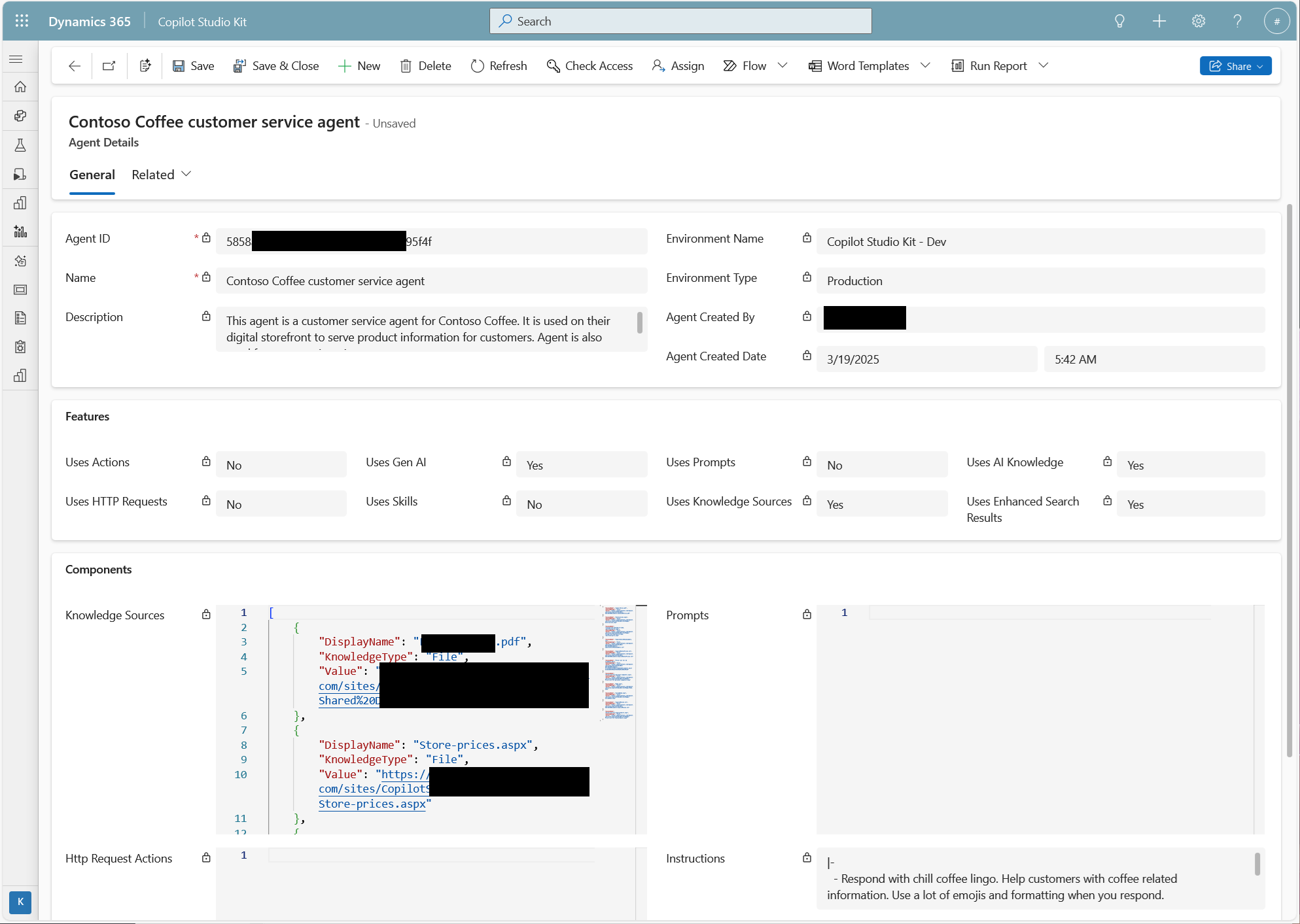
Select an agent and then select View details to see a detailed view of the selected agent. This view includes basic metadata about the custom agent, the environment, creation time, creator, and detailed information about the usage of features such as actions, generative AI, skills, prompts, and knowledge sources.
List view
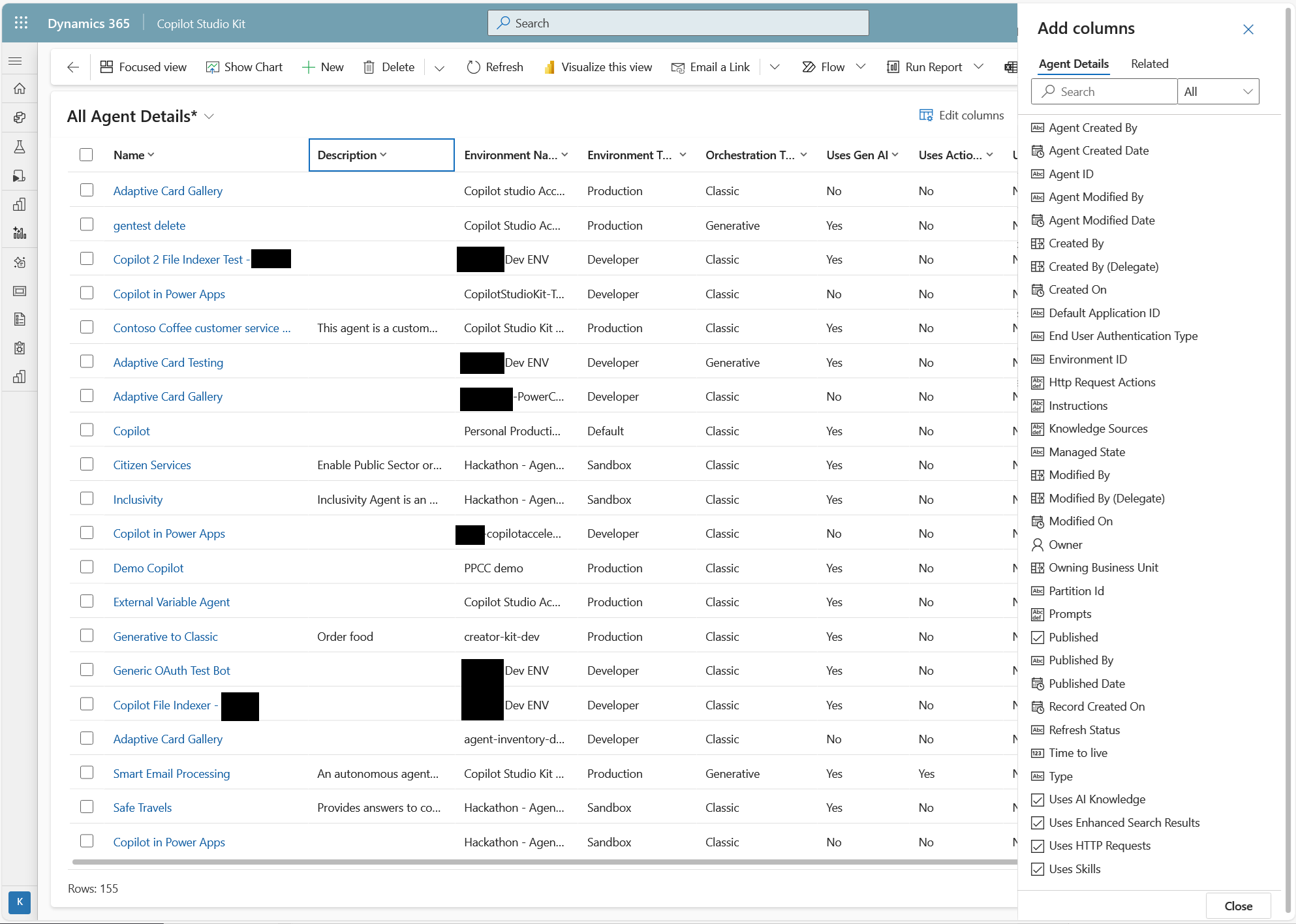
When you select Show more from the dashboard view, you see a list view. Find the information you need by filtering, sorting, and adding extra columns.
Take actions on agents
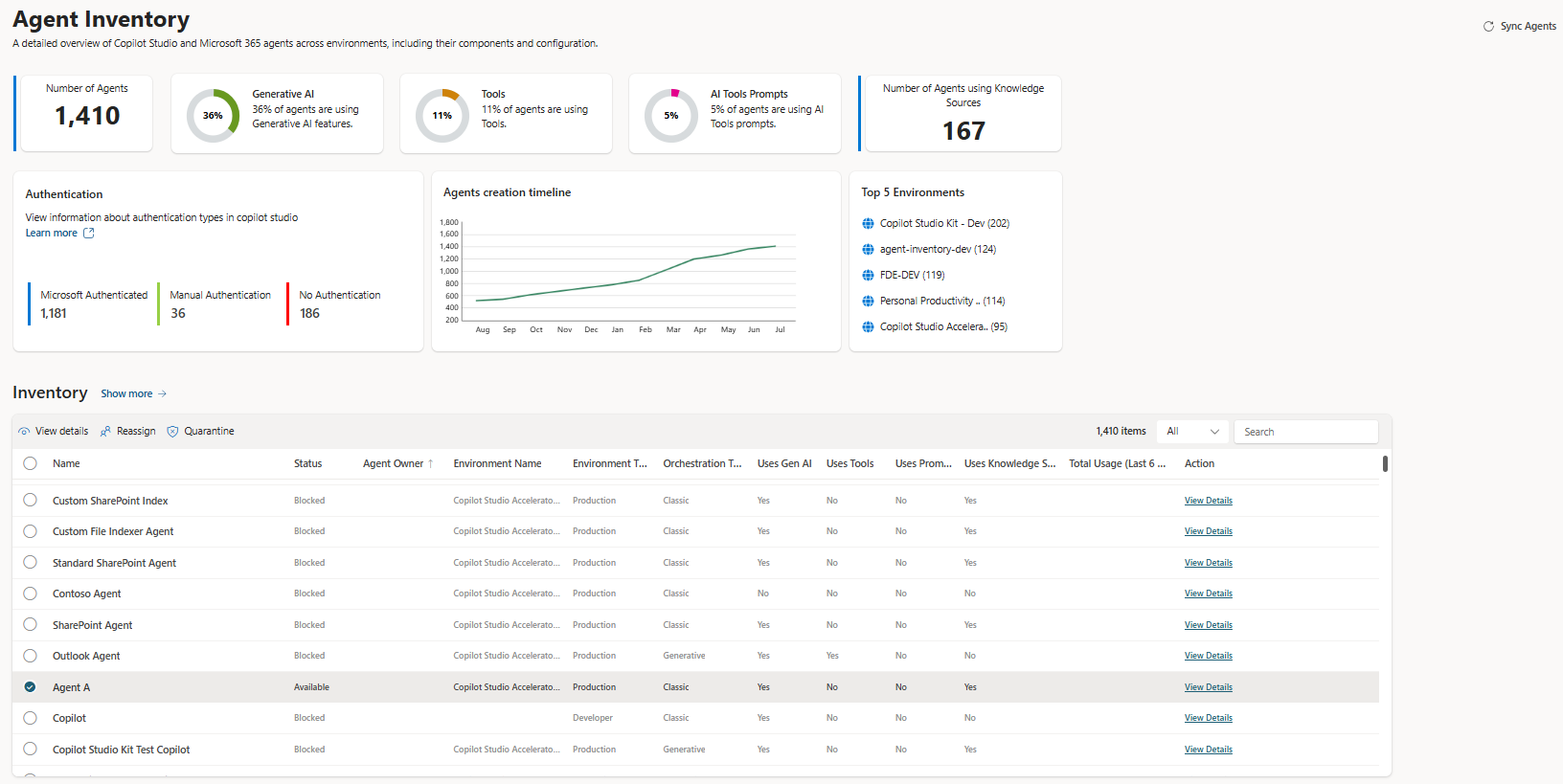
Agent Inventory lets administrators act on agents directly from the grid. The available actions are View Details, Reassign, Quarantine, and Unquarantine. Which actions appear on the command bar depends on the number of records selected and their status.
Action availability
The Status column in the grid is populated during the Agent Inventory sync and reflects the value coming from the Power Platform admin center (One Inventory data). Which actions are shown depends on how many records you select and their status.
| Action | Selection rule | Hidden when |
|---|---|---|
| View Details | Shown only when exactly one record is selected. | Zero or more than one record is selected. |
| Reassign | One or many records (up to a maximum of 50) can be selected. | Any selected agent isn't eligible for reassign. |
| Quarantine | One or many records in Draft or Available status (up to a maximum of 50) can be selected. | Any selected agent is Blocked or isn't eligible for quarantine. |
| Unquarantine | One or many records in Blocked status (up to a maximum of 50) can be selected. | Any selected agent is Draft, Available, or isn't eligible for unquarantine. |
When the selection includes an agent that doesn't meet the criteria for an action, the action is hidden from the command bar.
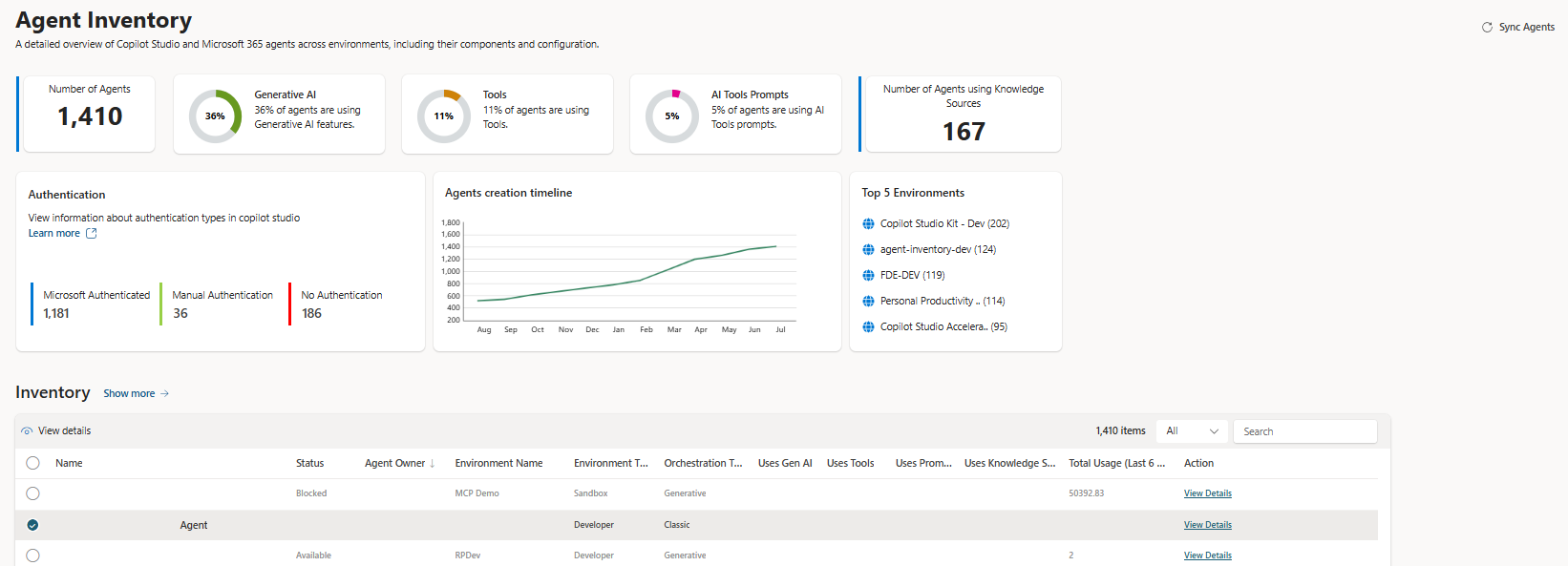
For example, Quarantine is hidden when the selection includes an agent that's already Blocked.
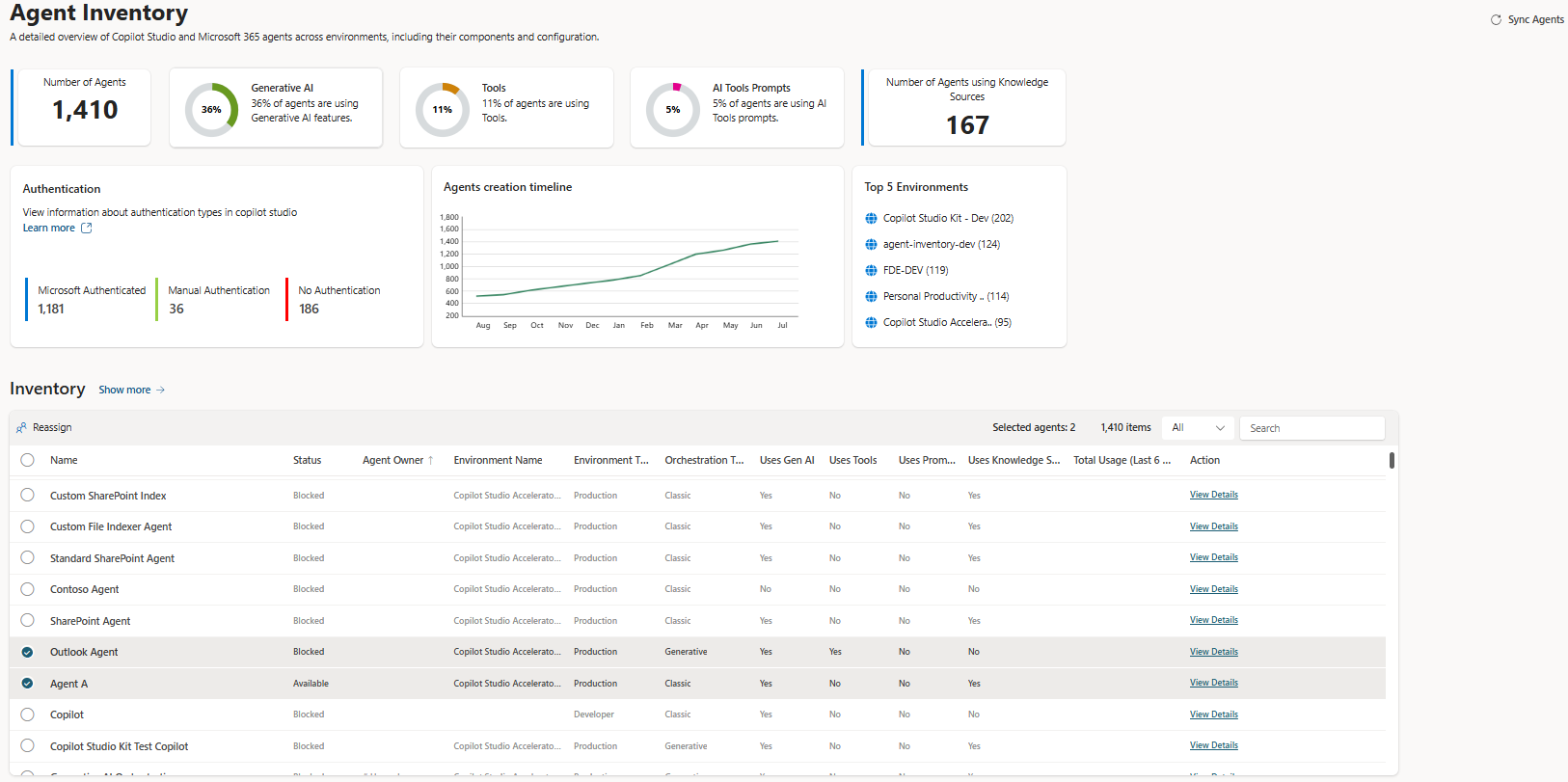
Reassign
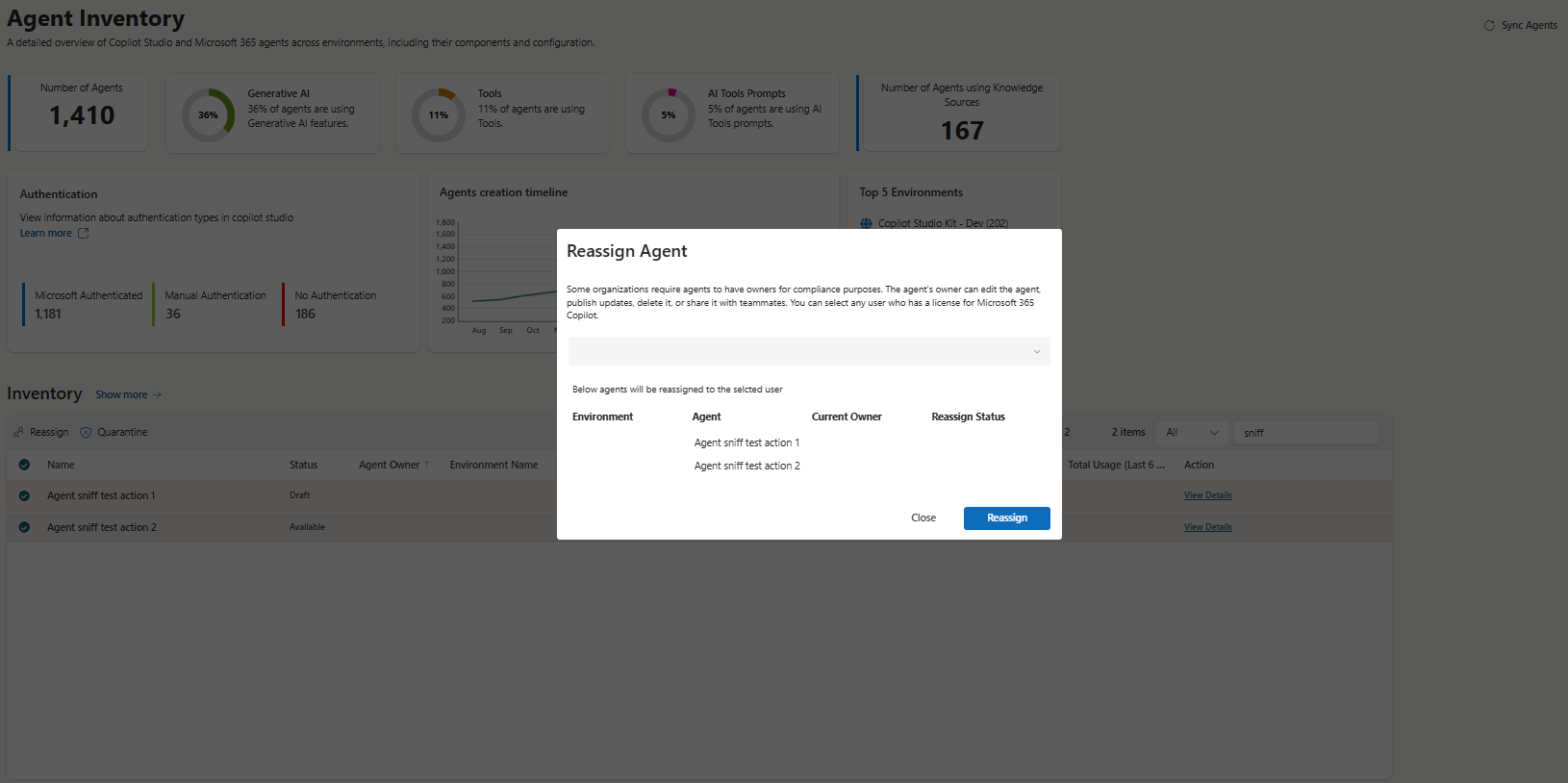
Some organizations require agents to have owners for compliance purposes. The agent's owner can edit the agent, publish updates, delete it, or share it with teammates. Selecting Reassign opens a dialog where you can choose any user who has a license for Microsoft 365 Copilot. All the selected agents are reassigned to the chosen user.
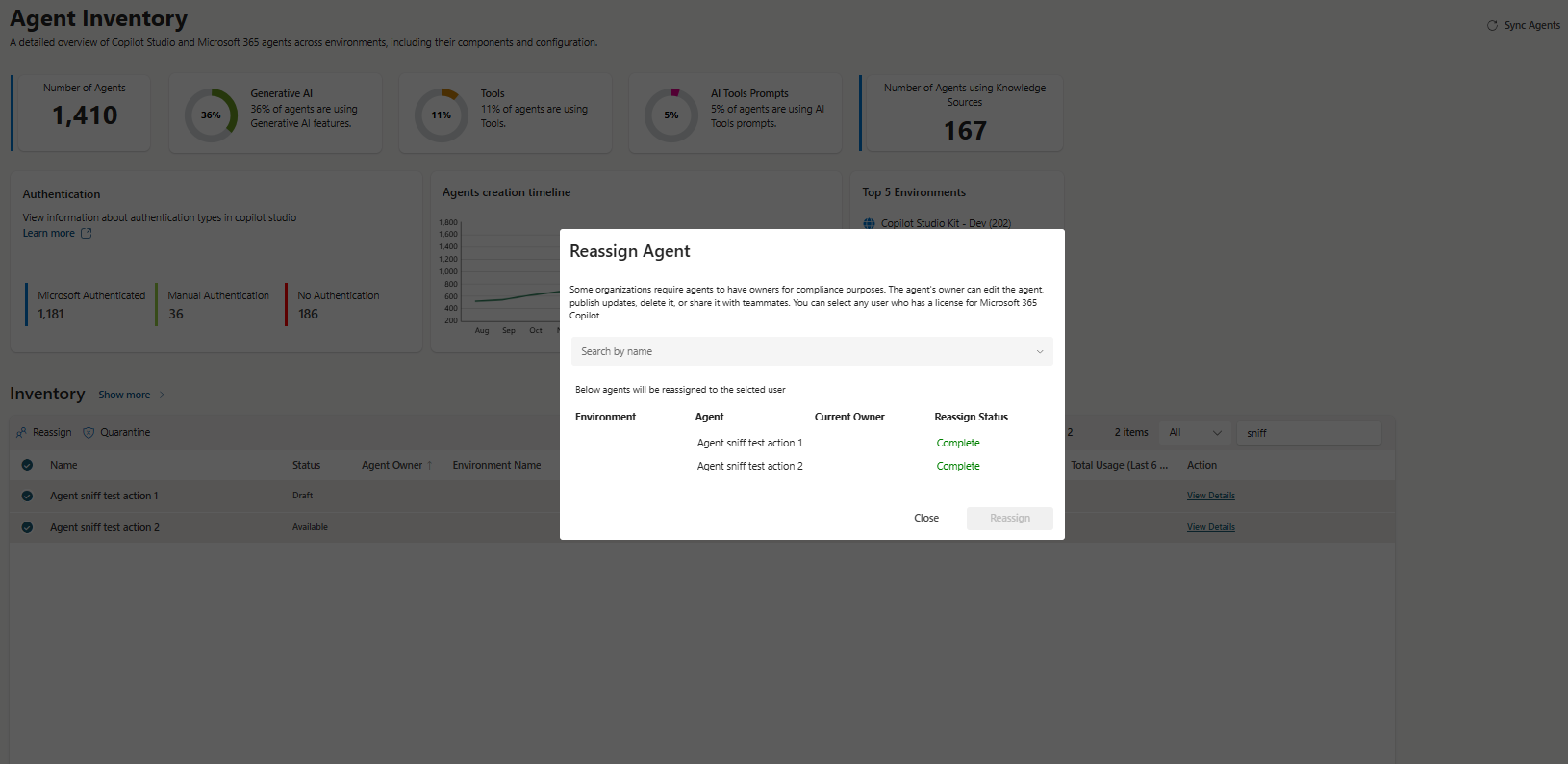
After the reassignment finishes, the Reassign Status column shows Complete for each agent.
Quarantine and unquarantine
Quarantine blocks an agent, and Unquarantine unblocks an agent. When you select an action, a confirmation dialog opens that lists the environment, agent, and current agent status. Confirm the operation to apply the change to the selected agents.
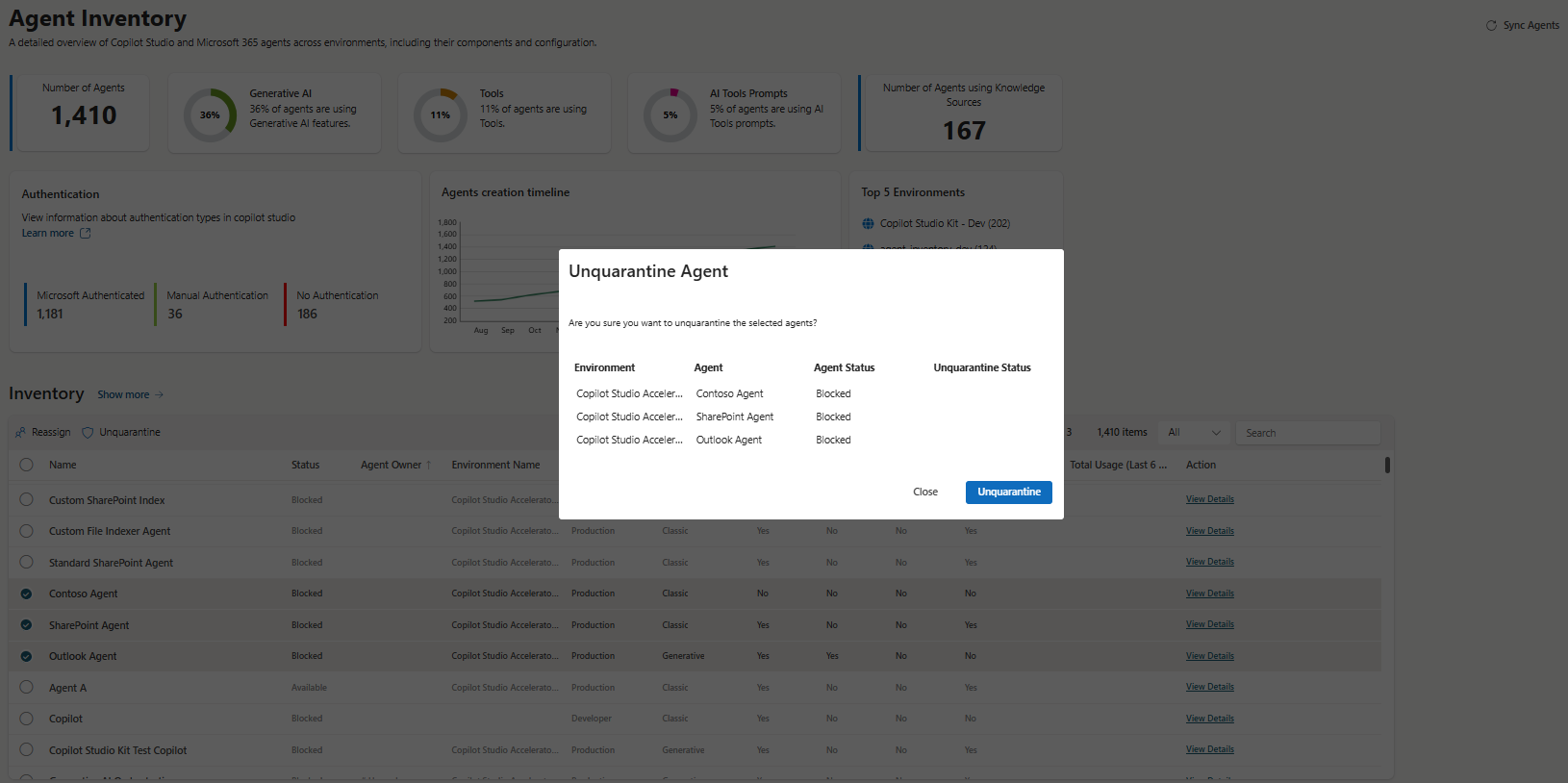
Actions on the Agent Details page
The same actions are available on the Agent Details page for the individual agent. On this page, the quarantine or unquarantine status shown is based on the live status of the agent, rather than the synced status displayed in the grid.
Data collection modes
The Enable One Inventory environment variable controls the data collection process. It determines how agent data is retrieved and loaded into Agent Inventory.
One Inventory mode (recommended)
When you set Enable One Inventory to Yes, Agent Inventory uses One Inventory data:
- It retrieves agent data from One Inventory through the Power Platform admin center.
- It lists environments by using the Copilot Agent Kit - Power Platform for Admins V2 connection reference.
- It combines the One Inventory agent data with the environments list to construct environment details.
- For each environment, it loads agent details into Agent Inventory by merging agents fetched from the environment with the corresponding One Inventory data.
Standard mode
When you set Enable One Inventory to No, Agent Inventory uses the standard data collection approach:
- It lists all environments by using the Copilot Studio Kit - Power Platform for Admins connection reference (V1).
- It fetches agents for each environment.
- It loads agent data into Agent Inventory.
In both modes, Agent Inventory uses the Copilot Studio Kit - Dataverse connection reference to connect to each environment and gather detailed agent information, including metadata, feature usage, and configuration. The system retrieves detailed information only for environments where the configured account has system admin access.
For the full list of connectors used across the kit, see Connector requirements.
View usage metrics
You can view usage details for your agent over the past 180 days in Agent Inventory.
To view usage data, check the Agents grid in the Agent Inventory dashboard. If the Total Usage/Month field contains a value, the Usage metrics section appears on the Agent Details page.
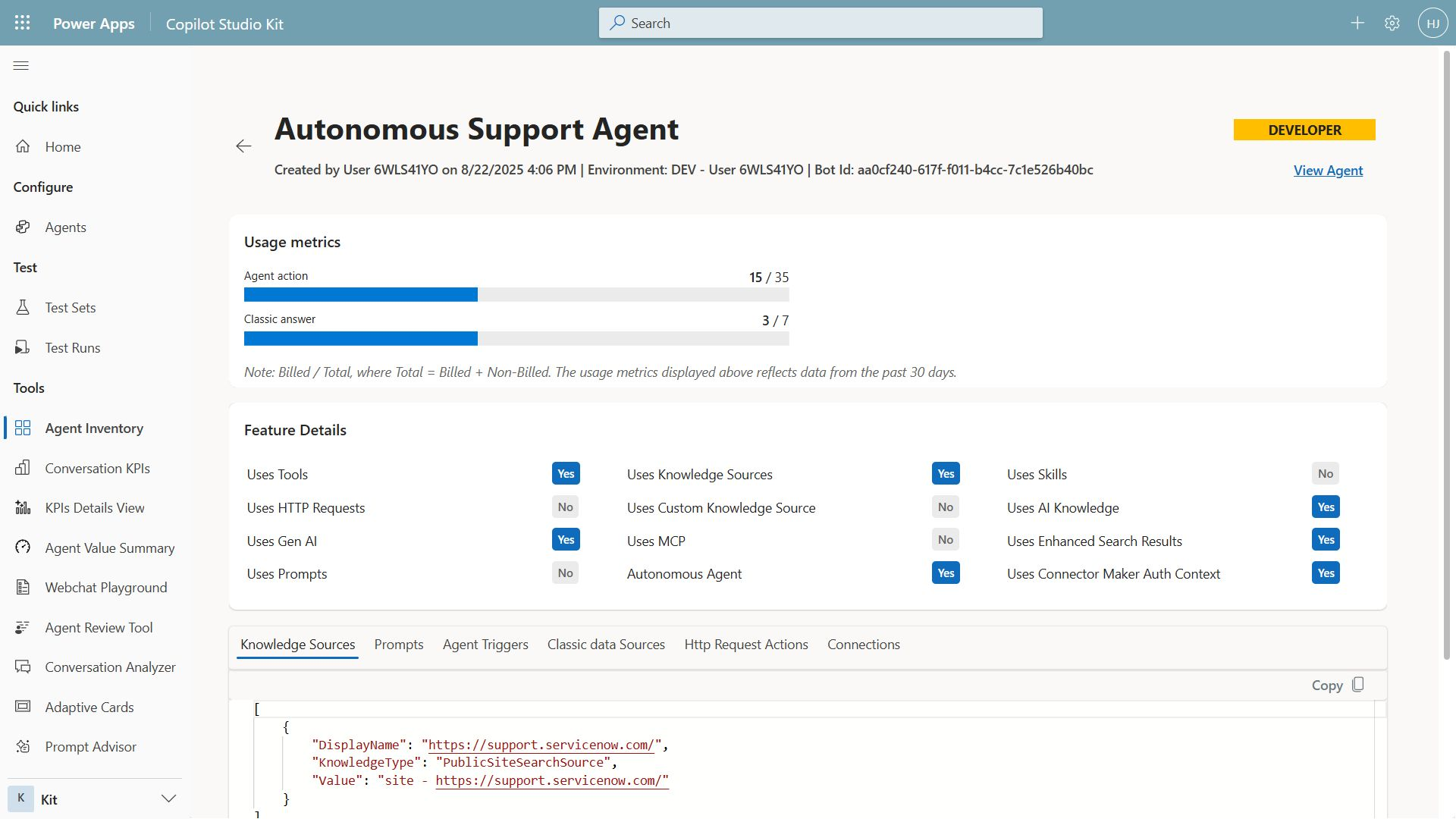
Usage data is refreshed automatically when Agent Inventory runs on its daily schedule. You can also refresh it manually by running an Agent Sync operation.
Configure the HTTP with Microsoft Entra ID connection
Usage metrics rely on the HTTP with Microsoft Entra ID (preauthorized) connector. The connection values depend on the cloud your tenant runs in. Use the Base Resource URL and Microsoft Entra ID Resource URI that match your cloud when you create the connection.
| Cloud | Base Resource URL | Microsoft Entra ID Resource URI |
|---|---|---|
| Commercial | https://licensing.powerplatform.microsoft.com/ |
https://licensing.powerplatform.microsoft.com/ |
| GCC | https://gov.licensing.powerplatform.microsoft.us/ |
https://gov.licensing.powerplatform.microsoft.us/ |
| GCC High | https://high.licensing.powerplatform.microsoft.us/ |
https://high.licensing.powerplatform.microsoft.us/ |
Note
The connection references in the solution limit and control visibility to the agents. The Copilot Studio Kit - Power Platform for Admins connection reference gets the list of environments in the tenant, and the Copilot Studio Kit - Dataverse connection reference collects the agent information from the environments. For full visibility, set up the connection references with an account that has the Power Platform admin role and system admin-level permission to all environments. You can use other accounts, but the visibility of the agent inventory is limited to the environments where the user has system admin access. Learn more in Configure Agent Inventory.