Note
Access to this page requires authorization. You can try signing in or changing directories.
Access to this page requires authorization. You can try changing directories.
Authentication governance gives you, as an admin, control over which authentication options makers can configure for Power Pages sites in your environments. When you allow an option, it becomes available for setup; it doesn't enable authentication or configure an identity provider for a site.
By default, all authentication options are allowed for makers to configure. No action is required unless your organization wants to restrict the options available to makers.
Important
These controls can change how users sign in to live sites. Before you restrict an authentication option, align with the owners of the affected sites and plan the change together. Their users might not have another way to sign in.
Understand authentication governance
Authentication governance follows a simple flow which is admins allow or block authentication options for selected sites, then makers configure the allowed options as sign-in methods, and lastly users see only the methods that are both configured and allowed.
Authentication options you can govern
You can manage the availability of the following authentication options:
- External authentication controls whether makers can configure external sign-in methods or restrict the site to internal use only. Blocking this option also prevents anonymous visitors from accessing static content pages.
- Authentication protocols include OpenID Connect, SAML 2.0, WS-Federation, and OAuth 2.0.
- OAuth 2.0 identity providers include Google, Microsoft, and Facebook.
- Local authentication uses username and password credentials stored locally.
Authentication options follow a dependency hierarchy. A child option is available only when its parent options are also allowed.
| Control level | Options | Available only when | Default state |
|---|---|---|---|
| External authentication | Allow or block external sign-in options. | No parent control applies. | Allowed. |
| Authentication protocols | OpenID Connect, SAML 2.0, WS-Federation, and OAuth 2.0. | External authentication is allowed. | Allowed. |
| OAuth 2.0 identity providers | Google, Microsoft, and Facebook. | External authentication and OAuth 2.0 are allowed. | Allowed. |
| Local authentication | Allow or block local sign-in. | External authentication is allowed. | Allowed. |
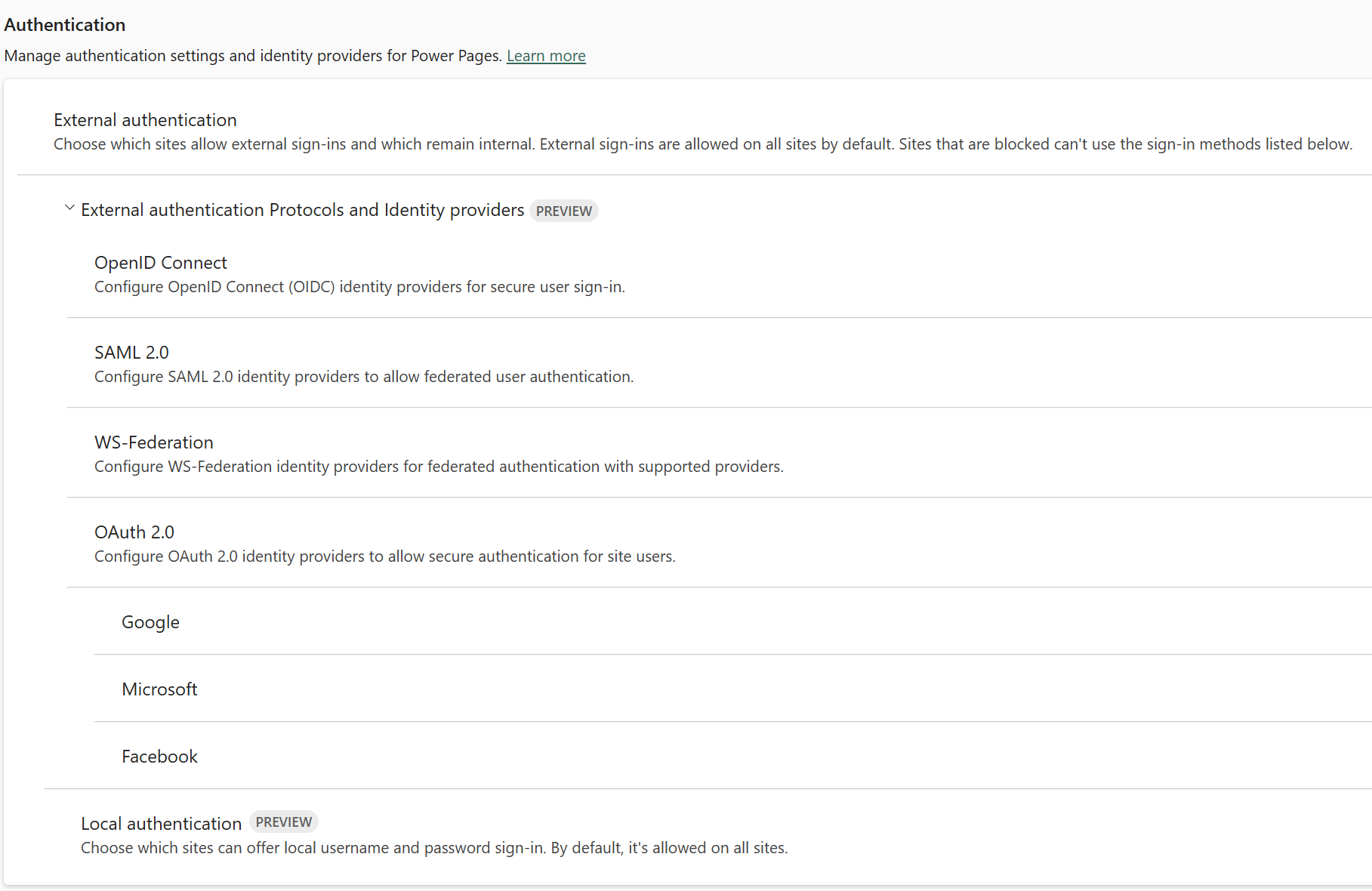
External authentication is the parent control. Authentication protocols and local authentication depend on it. The Google, Microsoft, and Facebook identity provider controls depend on both external authentication and OAuth 2.0. Each control has its own environment and site-targeting setting.
Makers can configure an option only when that option and all its parent controls are allowed for the site. For example, if OAuth 2.0 is blocked, makers can't configure Google, Microsoft, or Facebook.
How each authentication control works
Use the parent control to restrict external authentication as a whole, or use the child controls to restrict individual protocols, providers, or local authentication.
External authentication
External authentication determines whether makers can configure external authentication options for the targeted sites. It must be allowed before any authentication protocol, identity provider, or local authentication option is available.
When you block external authentication:
- Makers can't configure authentication protocols, identity providers, or local authentication.
- Existing external sign-in methods stop working.
- Users must sign in with Microsoft Entra ID through your organization's sign-in page.
- Anonymous visitors can't access the site.
Blocking external authentication doesn't change the site's Public or Private visibility setting. Review both settings to ensure the site's access behavior matches your intent. For details, see Site visibility in Power Pages.
When you allow external authentication, anonymous static-page access and anonymous access to Dataverse data are separate. A public static page can remain available to anonymous visitors while anonymous access to Dataverse data is blocked. For details, including the distinction between reading and writing data, see Use governance controls to disable anonymous access.
Authentication protocols (preview)
[This section is prerelease documentation and is subject to change.]
Each protocol control determines whether makers can configure identity providers that use that protocol on the targeted sites.
| Control | What makers can configure |
|---|---|
| OpenID Connect | OpenID Connect (OIDC) identity providers, including Microsoft Entra External ID. |
| SAML 2.0 | SAML 2.0 identity providers. |
| WS-Federation | WS-Federation identity providers. |
| OAuth 2.0 | OAuth 2.0 identity providers. This control is also the parent of Google, Microsoft, and Facebook. |
OAuth 2.0 identity providers (preview)
[This section is prerelease documentation and is subject to change.]
You can independently govern Google, Microsoft, and Facebook identity providers. Makers can configure a provider only when the targeted site allows external authentication, OAuth 2.0, and that specific provider. Blocking one provider doesn't affect the availability of the other providers or protocols.
The Microsoft control governs the Microsoft OAuth 2.0 provider. It doesn't govern identity providers configured with Microsoft Entra ID through OpenID Connect, SAML 2.0, or WS-Federation. The corresponding protocol control governs those providers.
Local authentication (preview)
[This section is prerelease documentation and is subject to change.]
Local authentication determines whether makers can configure username and password sign-in by using locally stored accounts. It's available only when the site also allows external authentication.
Note
Local authentication isn't recommended. It's intended for internal testing and demonstration scenarios, not for sites that external users sign in to. Use an external identity provider instead. For details, see Overview of authentication in Power Pages.
Configure authentication governance controls
To configure authentication governance controls:
- Sign in to the Power Platform admin center.
- In the left navigation pane, select Manage.
- Under Products, select Power Pages.
- Select the Settings tab.
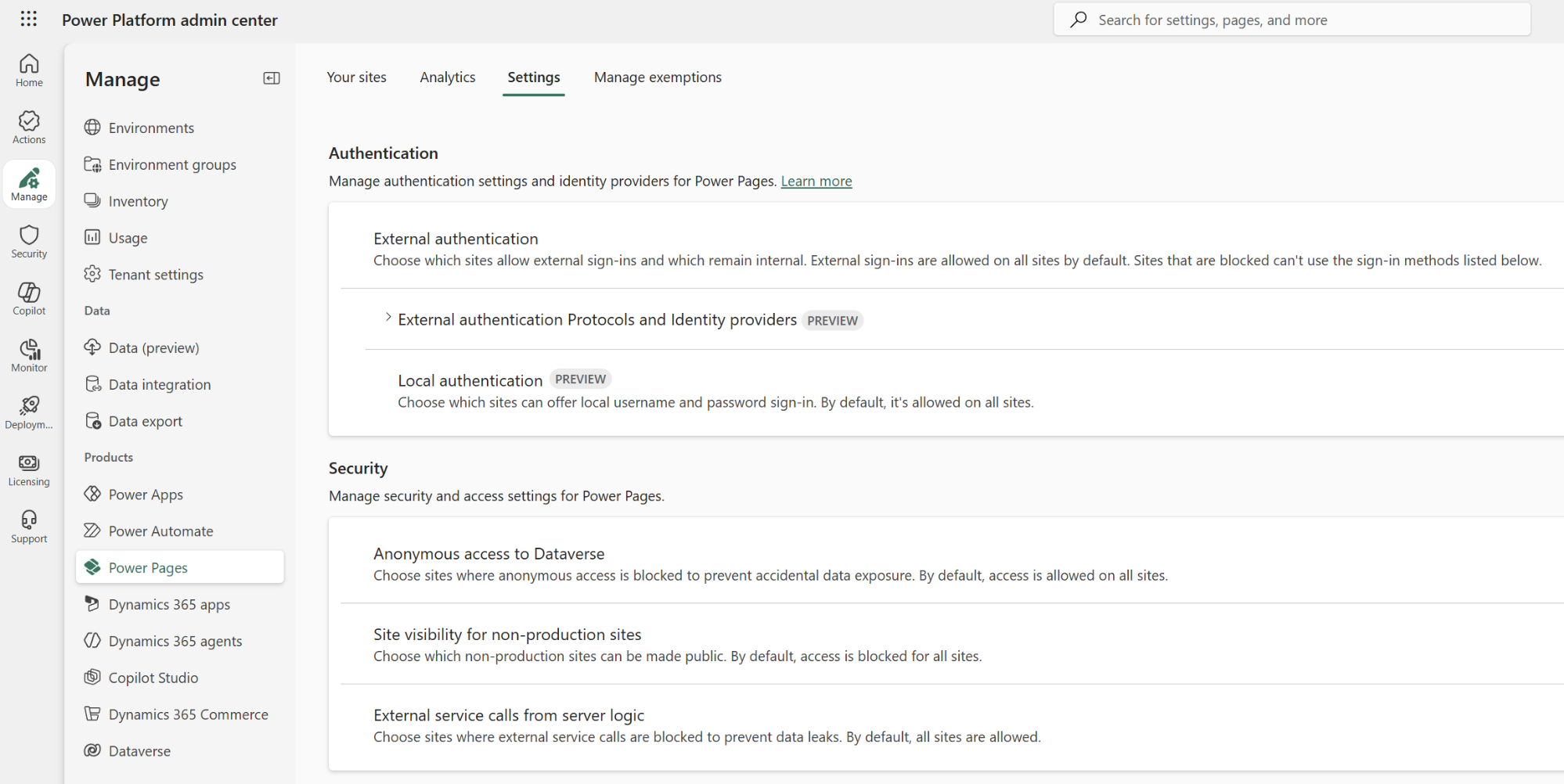
- Under Authentication, select the authentication option you want to manage.
- Select an environment, and then select Manage.
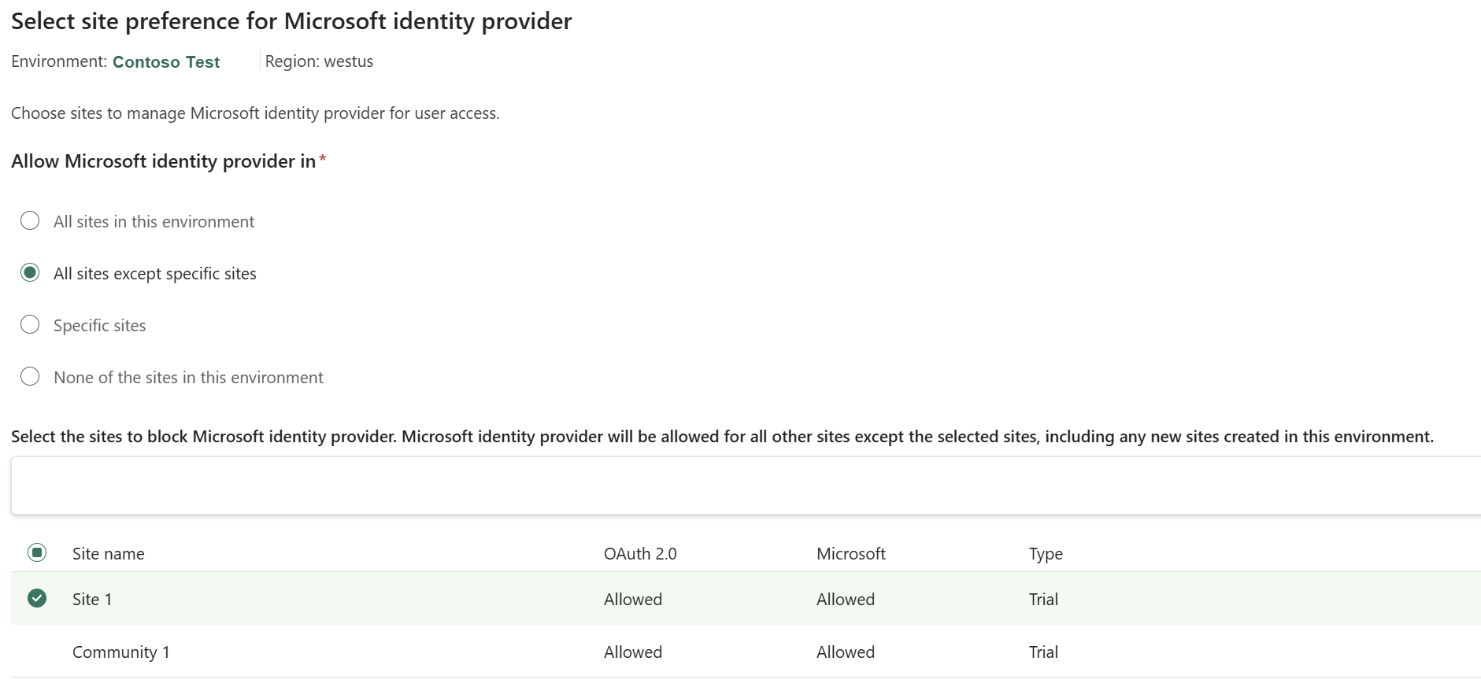
- Choose the sites where makers can configure the authentication option. For targeting choices that apply to selected sites, select the sites to include or exclude.
| Option | Effect |
|---|---|
| All sites in this environment | Makers can configure the authentication option for every site in the environment. |
| All sites except specific sites | Makers can configure the option for every site except the sites you select. |
| Specific sites | Makers can configure the option only for the sites you select. |
| None of the sites in this environment | Makers can't configure the option for any site in the environment. |
Note
Your site preference applies to existing sites in the environment and to sites created later in that environment.
If you set an external-authentication control for your tenant before environment-level granular governance was introduced, that setting is preserved. Review it for each environment to confirm that it still matches your intent.
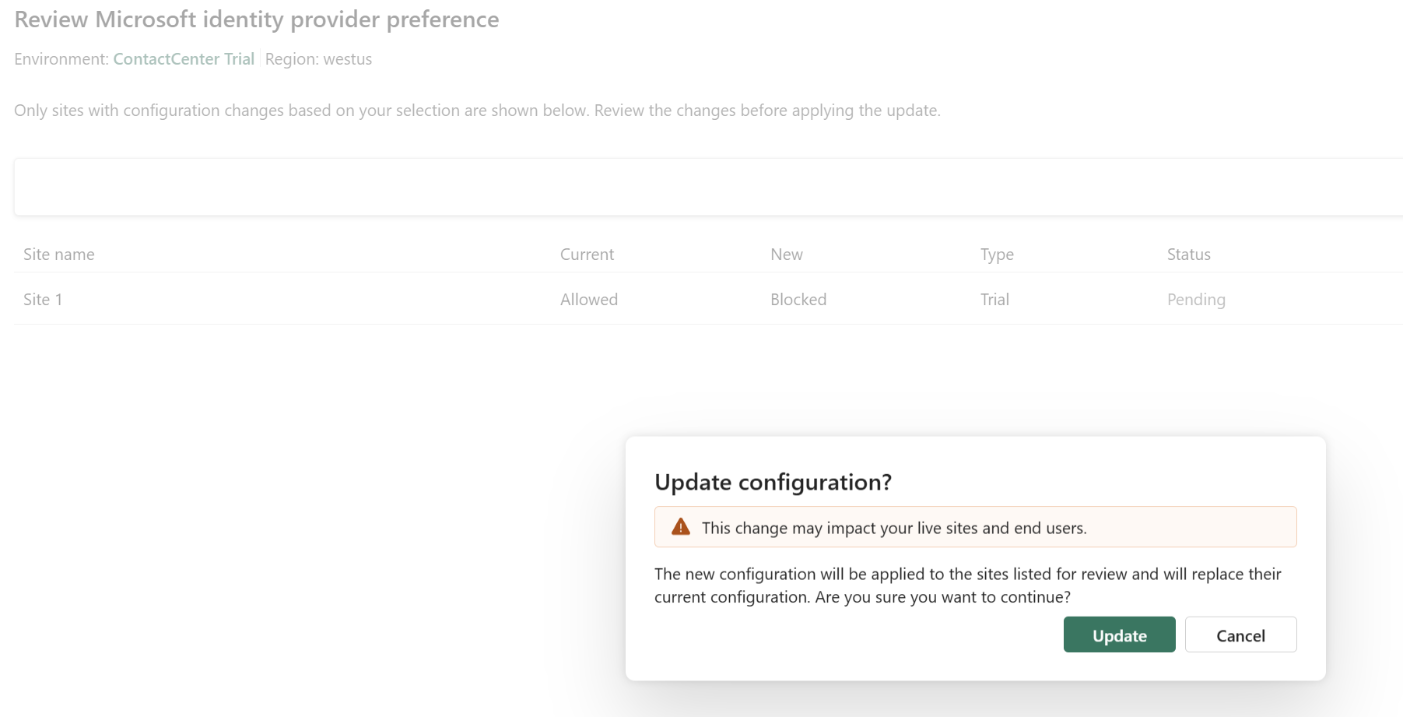
Review and apply the governance setting. Before you save the governance setting, the admin center lists the sites that the update affects and warns that the change might affect live sites and users.
- Select Continue.
- Review the affected sites list and the policy change generated from your selection.
- Confirm with site owners that users have another sign-in method before blocking an authentication option used in production.
- Select Update.
- Review the warning about the impact on live sites, and then select Update again to confirm.
- When an admin applies or updates an authentication governance control, we send an email notification to the site owner and the admin, briefing them on the change and suggesting that they take the necessary action as required.
The governance setting changes which authentication options makers can configure. It doesn't configure a replacement identity provider or sign-in method. If an existing site configuration uses a sign-in method associated with a blocked option, the governance setting takes precedence.
Warning
When a governance setting that blocks an authentication option takes effect, users can no longer sign in or register by using that authentication option.
Maker and user experience
Governance settings affect both the options makers can configure and the authentication options available to users.
What makers see
In the design studio, a protocol or identity provider that governance blocks appears dimmed and can't be configured.
When a maker tries to select a blocked option, the following message appears:
The selected identity provider has been disabled by your administrator and can't be configured. Select a different provider or protocol to continue.
When one or more providers are blocked for a site, the following message appears at the top of the identity providers page:
Some identity providers for this site have been disabled by your administrator. Contact your administrator for more information.
What users experience
Users see only the sign-in methods that the maker configured and the governance settings allow.
If a governance change blocks a method that users previously used, that method is no longer offered. Users must use one of the remaining configured methods.
If external authentication is blocked, users must sign in with Microsoft Entra ID through your organization's sign-in page, and anonymous users can't access the site.
Common scenarios
The following scenarios show how an admin defines the authentication options available to makers. Except where noted, the maker must still configure an allowed option as a sign-in method for the site.
Scenario 1: Make selected sites internal-only
As an admin:
- For External authentication, select All sites except specific sites.
- Select the sites that should be internal-only.
- Review and apply the setting.
As a maker, you don't need to set up an external identity provider or local authentication. Users sign in with Microsoft Entra ID through the organization's sign-in page. Review the site's public or private visibility setting separately. For details, see Site visibility in Power Pages.
As a result:
- Makers can't configure external authentication protocols, identity providers, or local authentication.
- Existing external sign-in methods stop working.
- Users must sign in with Microsoft Entra ID through your organization's sign-in page.
- Anonymous users can't access the site.
Scenario 2: Allow OpenID Connect for an Microsoft Entra External ID setup
As an admin:
- Allow External authentication for the targeted sites.
- Allow OpenID Connect for the same sites.
- Block SAML 2.0, WS-Federation, OAuth 2.0, and Local authentication for those sites.
As a maker, set up Microsoft Entra External ID with Power Pages as an OpenID Connect provider.
As a result, OpenID Connect is the only external authentication protocol available to makers.
Important
Allowing OpenID Connect doesn't limit the maker to Microsoft Entra External ID. A maker can configure another OpenID Connect provider unless your organization uses other controls to restrict provider selection.
Scenario 3: Allow local authentication on selected sites
As an admin:
- Make sure External authentication is allowed for the selected sites.
- For Local authentication, select Specific sites.
- Select the sites on which makers can configure username and password sign-in.
- Review and apply the setting.
As a maker, configure local authentication on the specific site. For details about the related site settings, see Local authentication, registration, and other settings.
As a result, makers can configure local authentication only on the selected sites. Local authentication remains unavailable to makers on other sites in the environment.
Scenario 4: Allow an anonymous static homepage but protect Dataverse data
As an admin:
- Allow External authentication for the site so makers can configure sign-in for users who need protected content or data.
- Under Security, block Anonymous access to Dataverse for the site. This setting prevents unauthenticated users from viewing Dataverse data, but it doesn't prevent anonymous submissions. For details, see Use governance controls to disable anonymous access.
As a maker:
- Set the site's visibility to public so anonymous visitors can reach it. For details, see Site visibility in Power Pages.
- Keep the static homepage available to anonymous visitors.
- Use page permissions in the design studio, or webpage access control rules in the Power Pages Management app, to require sign-in or specific web roles for protected pages.
- Create and assign web roles, and assign table permissions to define which Dataverse records authenticated users can access.
As a result, anonymous visitors can read static homepage content but can't view Dataverse data. Users sign in through a maker-configured identity provider to access protected pages or data for which their web role has permission.
Other access controls
Authentication governance controls which authentication options are available to makers. It doesn't replace other controls that determine who can reach a site, view a page, or access Dataverse data.
| Access layer | What controls it |
|---|---|
| Site reachability | Site visibility determines whether a site is public or private and who can access it. |
| Sign-in option availability | Authentication governance determines which authentication options makers can configure. |
| Page access | Page permissions in the design studio, or webpage access control rules in the Power Pages Management app, determine which web roles can view a page. |
| Dataverse data access | Web roles and table permissions determine which Dataverse records users can access. |
| Anonymous Dataverse access | The anonymous-access governance setting determines whether unauthenticated users can view Dataverse data, even when the anonymous web role has table permissions. |
For example, a public site can show a static homepage to anonymous visitors while requiring users to sign in before they view protected pages or Dataverse data. Authentication governance, page permissions, and data permissions work together to create this experience.
Related content
For other Power Pages governance controls, see:
- Use governance controls to disable anonymous access.
- Use governance controls to disable external service calls.
- Configure non-production Power Pages site visibility.
- Control use of Generative AI features for users (preview).
For authentication and site access, see: