Märkus.
Juurdepääs sellele lehele nõuab autoriseerimist. Võite proovida sisse logida või kausta vahetada.
Juurdepääs sellele lehele nõuab autoriseerimist. Võite proovida kausta vahetada.
APPLIES TO:  Azure Data Factory
Azure Synapse Analytics
Azure Data Factory
Azure Synapse Analytics
Tip
Try out Data Factory in Microsoft Fabric, an all-in-one analytics solution for enterprises. Microsoft Fabric covers everything from data movement to data science, real-time analytics, business intelligence, and reporting. Learn how to start a new trial for free!
This article focuses on fundamental concepts and examples that help you create parameterized data pipelines in Azure Data Factory. Parameterization and dynamic expressions add flexibility to ADF and can save time by allowing for more flexible Extract, Transform, Load (ETL) or Extract, Load, Transform (ELT) solutions. These features reduce solution maintenance costs and speed up the implementation of new features into existing pipelines. Parameterization minimizes hard coding and increases the number of reusable objects and processes in a solution.
Azure Data Factory UI and parameters
You can find the parameter creation and assignment in the Azure Data Factory user interface (UI) for pipelines, datasets, and data flows.
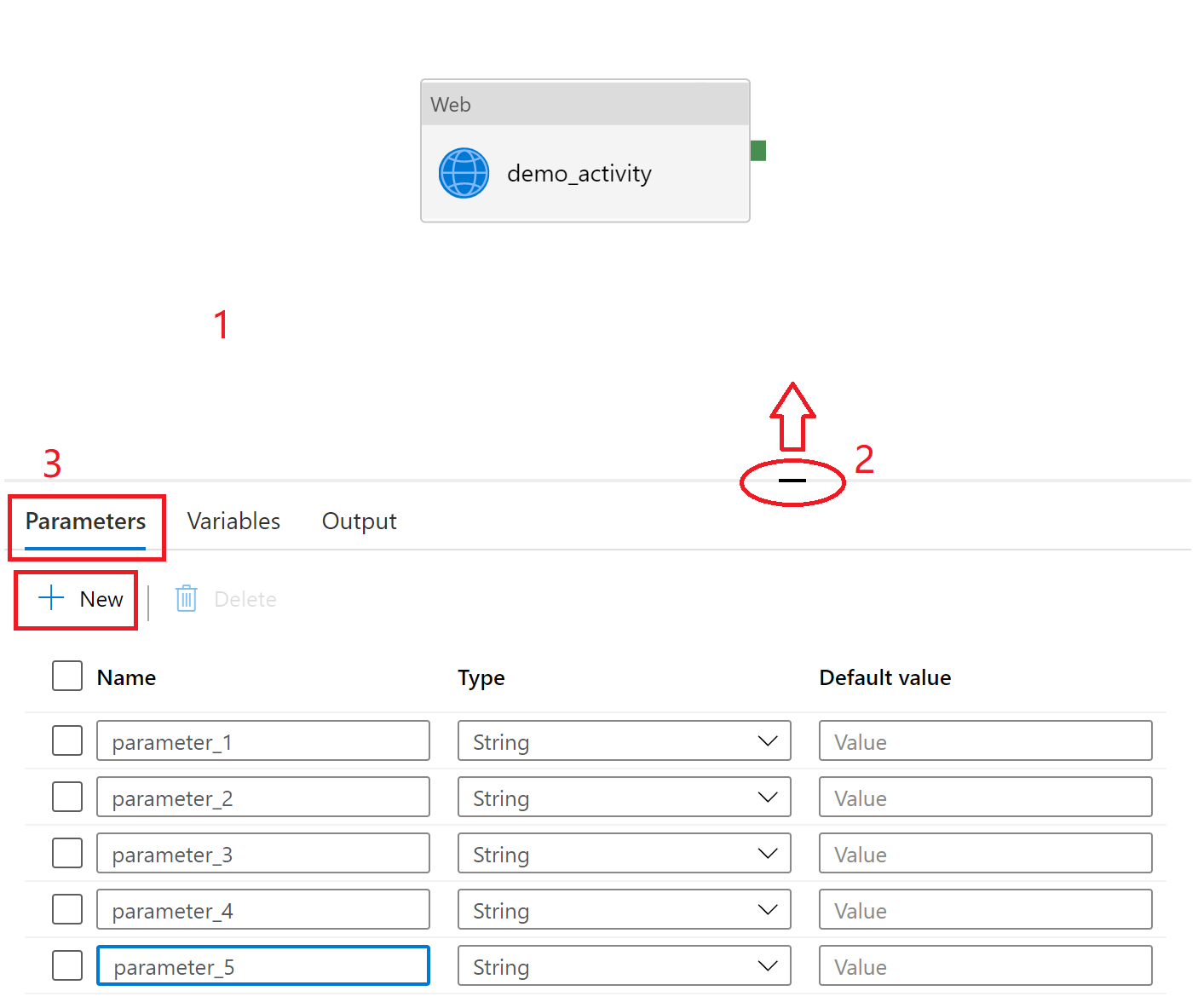
In the Azure Data Factory studio, go to the Authoring Canvas and edit a pipeline, dataset, or data flow.
Select the blank canvas to bring up pipeline settings. Don't select any activity. You might need to pull up the setting pane from the bottom of the canvas because it might be collapsed.
Select the Parameters tab and select + New to add parameters.
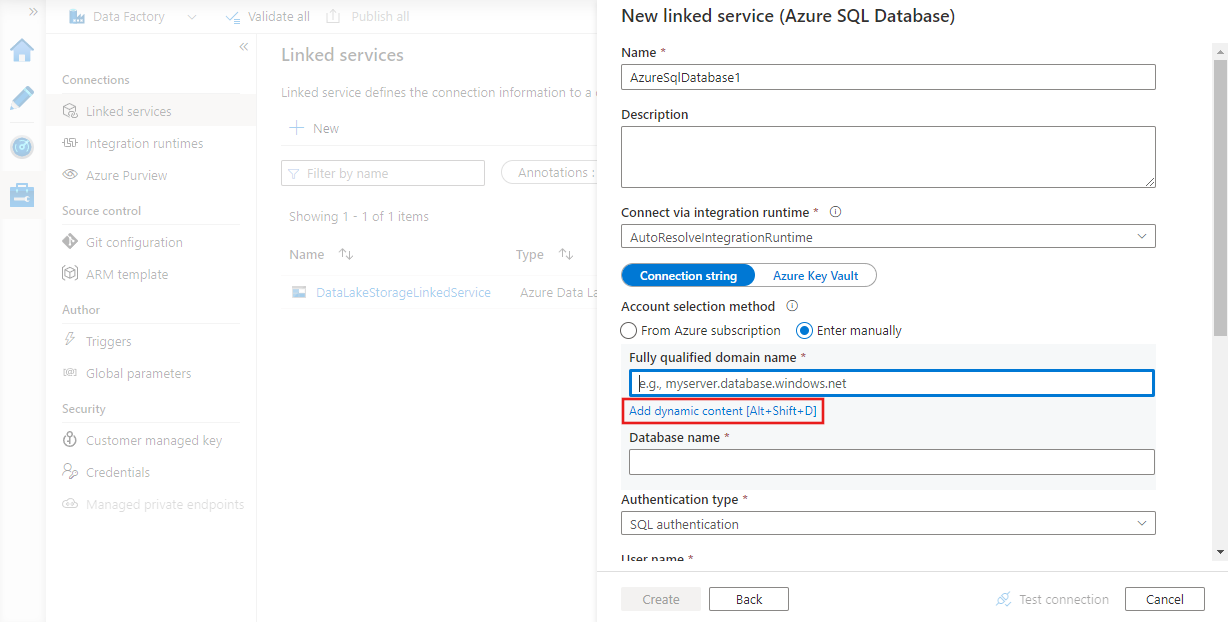
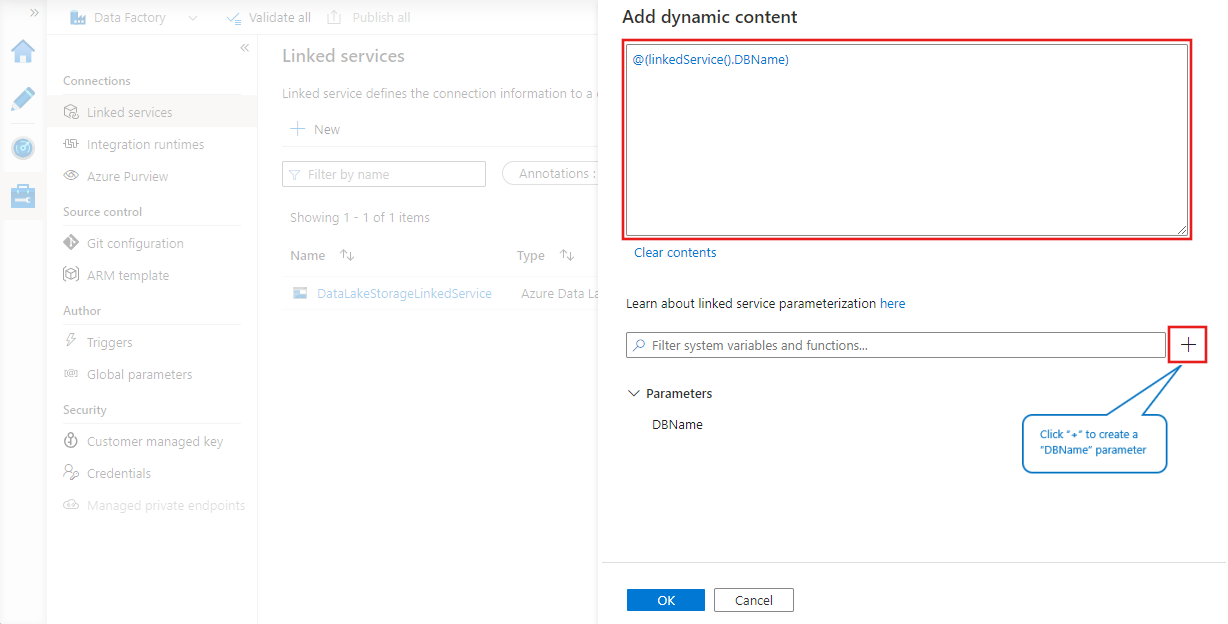
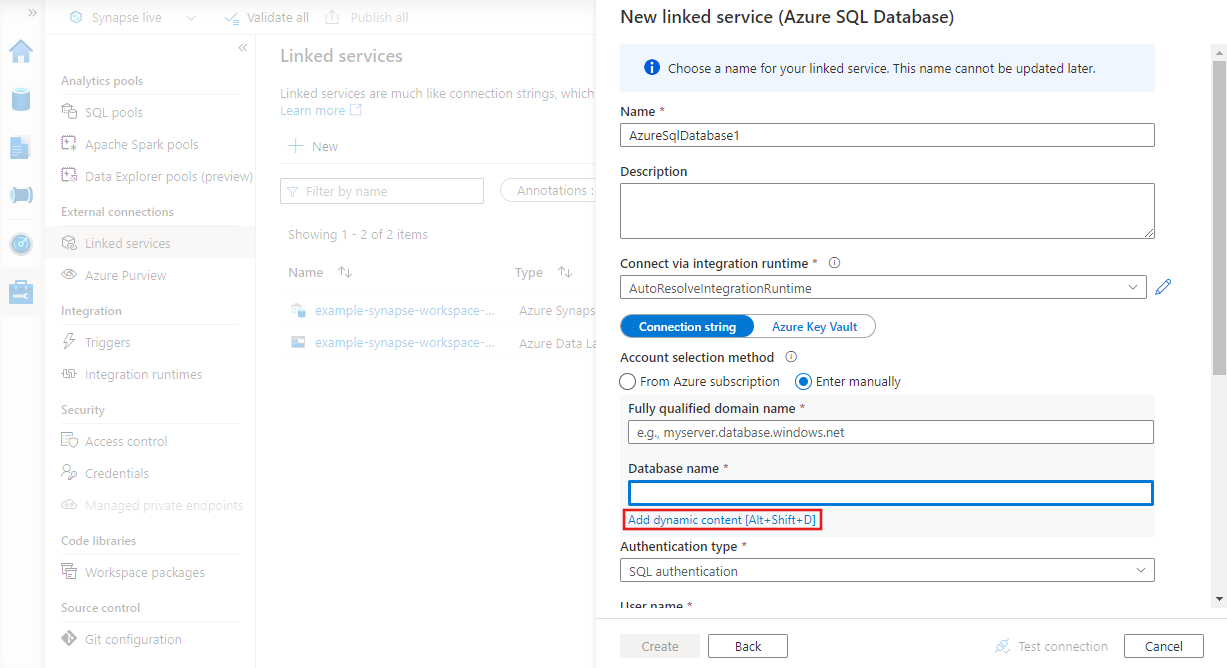
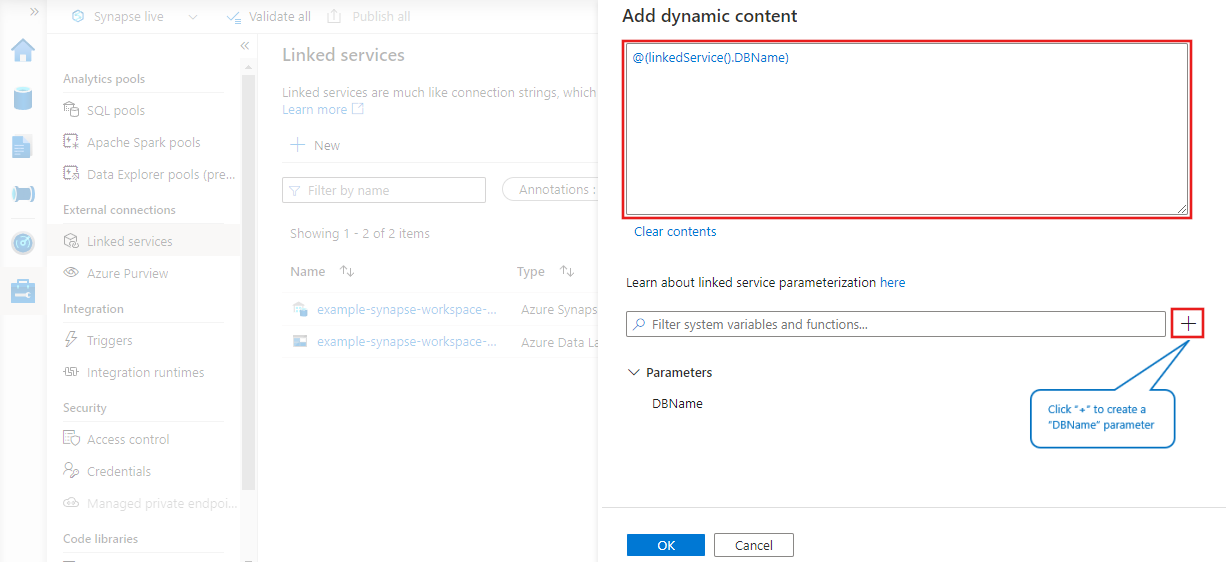
You can also use parameters in linked services by selecting Add dynamic content next to the property you want to parameterize.
Parameter concepts
You can use parameters to pass external values into pipelines, datasets, linked services, and data flows. For example, if you have a dataset that accesses folders in Azure Blob Storage, you can parameterize the folder path so that you can reuse the same dataset to access different folders each time the pipeline is run.
Parameters are similar to variables, but they differ in that parameters are external and therefore passed into pipelines, datasets, linked services, and data flows, whereas variables are defined and used within a pipeline. Parameters are read-only, whereas variables can be modified within a pipeline by using the Set Variable activity.
You can use parameters by themselves, or as part of expressions. And the value of a parameter can be a literal value or an expression that is evaluated at runtime.
For example:
"name": "value"
or
"name": "@pipeline().parameters.password"
Expressions with parameters
Expressions are used to construct dynamic values in various parts of a pipeline, dataset, linked service, or data flow definition. Expressions always start with an at-sign (@) followed by the expression body enclosed in parentheses. For example, the following expression uses the concat function to combine two strings:
@concat('Hello, ', 'World!')
When you reference parameters in expressions, you use the following syntax:
@pipeline().parameters.parameterName
or
@dataset().parameters.parameterName
You can learn more about expressions in the Expression language overview article, but here are some examples of using parameters in expressions.
Complex expression example
The following example references a deep sub-field of activity output. To reference a pipeline parameter that evaluates to a sub-field, use [] syntax instead of the dot(.) operator (as in the case of subfield1 and subfield2).
@activity('*activityName*').output.*subfield1*.*subfield2*[pipeline().parameters.*subfield3*].*subfield4*
Dynamic content editor
The dynamic content editor automatically escapes characters in your content when you finish editing. For example, the following content in the content editor is a string interpolation with two expression functions.
{
  "type": "@{if(equals(1, 2), 'Blob', 'Table' )}",
  "name": "@{toUpper('myData')}"
}
The dynamic content editor converts the content above to the expression "{ \n \"type\": \"@{if(equals(1, 2), 'Blob', 'Table' )}\",\n \"name\": \"@{toUpper('myData')}\"\n}". The result of this expression is a JSON format string, shown below.
{
  "type": "Table",
  "name": "MYDATA"
}
A dataset with parameters
In the following example, the BlobDataset takes a parameter named path. Its value sets a value for the folderPath property by using the expression: dataset().path.
{
    "name": "BlobDataset",
    "properties": {
        "type": "AzureBlob",
        "typeProperties": {
            "folderPath": "@dataset().path"
        },
        "linkedServiceName": {
            "referenceName": "AzureStorageLinkedService",
            "type": "LinkedServiceReference"
        },
        "parameters": {
            "path": {
                "type": "String"
            }
        }
    }
}
A pipeline with parameters
In the following example, the pipeline takes inputPath and outputPath parameters. The path for the parameterized blob dataset is set by using the values of these parameters. The syntax used here is: pipeline().parameters.parametername.
{
    "name": "Adfv2QuickStartPipeline",
    "properties": {
        "activities": [
            {
                "name": "CopyFromBlobToBlob",
                "type": "Copy",
                "inputs": [
                    {
                        "referenceName": "BlobDataset",
                        "parameters": {
                            "path": "@pipeline().parameters.inputPath"
                        },
                        "type": "DatasetReference"
                    }
                ],
                "outputs": [
                    {
                        "referenceName": "BlobDataset",
                        "parameters": {
                            "path": "@pipeline().parameters.outputPath"
                        },
                        "type": "DatasetReference"
                    }
                ],
                "typeProperties": {
                    "source": {
                        "type": "BlobSource"
                    },
                    "sink": {
                        "type": "BlobSink"
                    }
                }
            }
        ],
        "parameters": {
            "inputPath": {
                "type": "String"
            },
            "outputPath": {
                "type": "String"
            }
        }
    }
}
Detailed examples for practice
Azure Data Factory copy pipeline with parameters
This Azure Data Factory copy pipeline parameter passing tutorial walks you through how to pass parameters between a pipeline and activity, and also between activities.
Mapping data flow pipeline with parameters
Follow the Mapping data flow with parameters guide for a comprehensive example of how to use parameters in data flow.
Metadata driven pipeline with parameters
Follow the Metadata driven pipeline with parameters guide to learn more about how to use parameters to design metadata driven pipelines. This is a common use case for parameters.
Related content
For a list of system variables you can use in expressions, see System variables.