Märkus.
Juurdepääs sellele lehele nõuab autoriseerimist. Võite proovida sisse logida või kausta vahetada.
Juurdepääs sellele lehele nõuab autoriseerimist. Võite proovida kausta vahetada.
During local development, applications need to authenticate to Azure to use different Azure services. Authenticate locally by using one of these approaches:
- Use a developer account with one of the developer tools supported by the Azure Identity library.
- Use a service principal.
This article explains how to authenticate by using a developer account with tools supported by the Azure Identity library. In the following sections, you learn:
- How to use Microsoft Entra groups to efficiently manage permissions for multiple developer accounts.
- How to assign roles to developer accounts to scope permissions.
- How to sign in to supported local development tools.
- How to authenticate by using a developer account from your app code.
Supported developer tools for authentication
For an app to authenticate to Azure during local development by using the developer's Azure credentials, the developer must be signed in to Azure from one of the following developer tools:
- Azure CLI
- Azure Developer CLI
- Azure PowerShell
The Azure Identity library can detect that the developer is signed in from one of these tools. The library can then obtain the Microsoft Entra access token via the tool to authenticate the app to Azure as the signed-in user.
This approach takes advantage of the developer's existing Azure accounts to streamline the authentication process. However, a developer's account likely has more permissions than required by the app, therefore exceeding the permissions the app runs with in production. As an alternative, you can create application service principals to use during local development, which can be scoped to have only the access needed by the app.
Create a Microsoft Entra group for local development
Create a Microsoft Entra group to encapsulate the roles (permissions) the app needs in local development rather than assigning the roles to individual service principal objects. This approach offers the following advantages:
- Every developer has the same roles assigned at the group level.
- If a new role is needed for the app, it only needs to be added to the group for the app.
- If a new developer joins the team, a new application service principal is created for the developer and added to the group, ensuring the developer has the right permissions to work on the app.
Navigate to the Microsoft Entra ID overview page in the Azure portal.
Select All groups from the left-hand menu.
On the Groups page, select New group.
On the New group page, fill out the following form fields:
- Group type: Select Security.
- Group name: Enter a name for the group that includes a reference to the app or environment name.
- Group description: Enter a description that explains the purpose of the group.
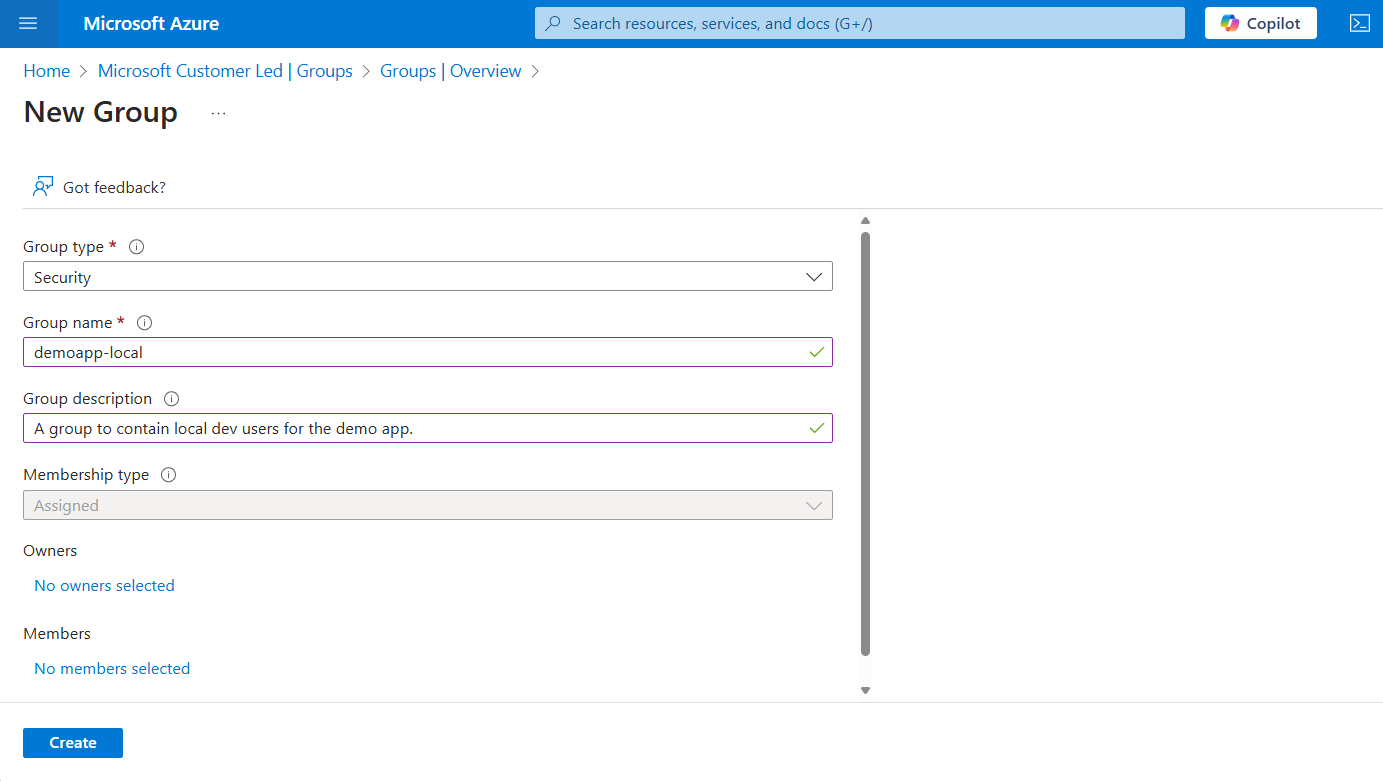
Select the No members selected link under Members to add members to the group.
In the flyout panel that opens, search for the service principal you created earlier and select it from the filtered results. Choose the Select button at the bottom of the panel to confirm your selection.
Select Create at the bottom of the New group page to create the group and return to the All groups page. If you don't see the new group listed, wait a moment and refresh the page.
Assign roles to the group
Next, determine what roles (permissions) your app needs on what resources and assign those roles to the Microsoft Entra group you created. Groups can be assigned a role at the resource, resource group, or subscription scope. This example shows how to assign roles at the resource group scope, since most apps group all their Azure resources into a single resource group.
In the Azure portal, navigate to the Overview page of the resource group that contains your app.
Select Access control (IAM) from the left navigation.
On the Access control (IAM) page, select + Add and then choose Add role assignment from the drop-down menu. The Add role assignment page provides several tabs to configure and assign roles.
On the Role tab, use the search box to locate the role you want to assign. Select the role, and then choose Next.
On the Members tab:
- For the Assign access to value, select User, group, or service principal .
- For the Members value, choose + Select members to open the Select members flyout panel.
- Search for the Microsoft Entra group you created earlier and select it from the filtered results. Choose Select to select the group and close the flyout panel.
- Select Review + assign at the bottom of the Members tab.
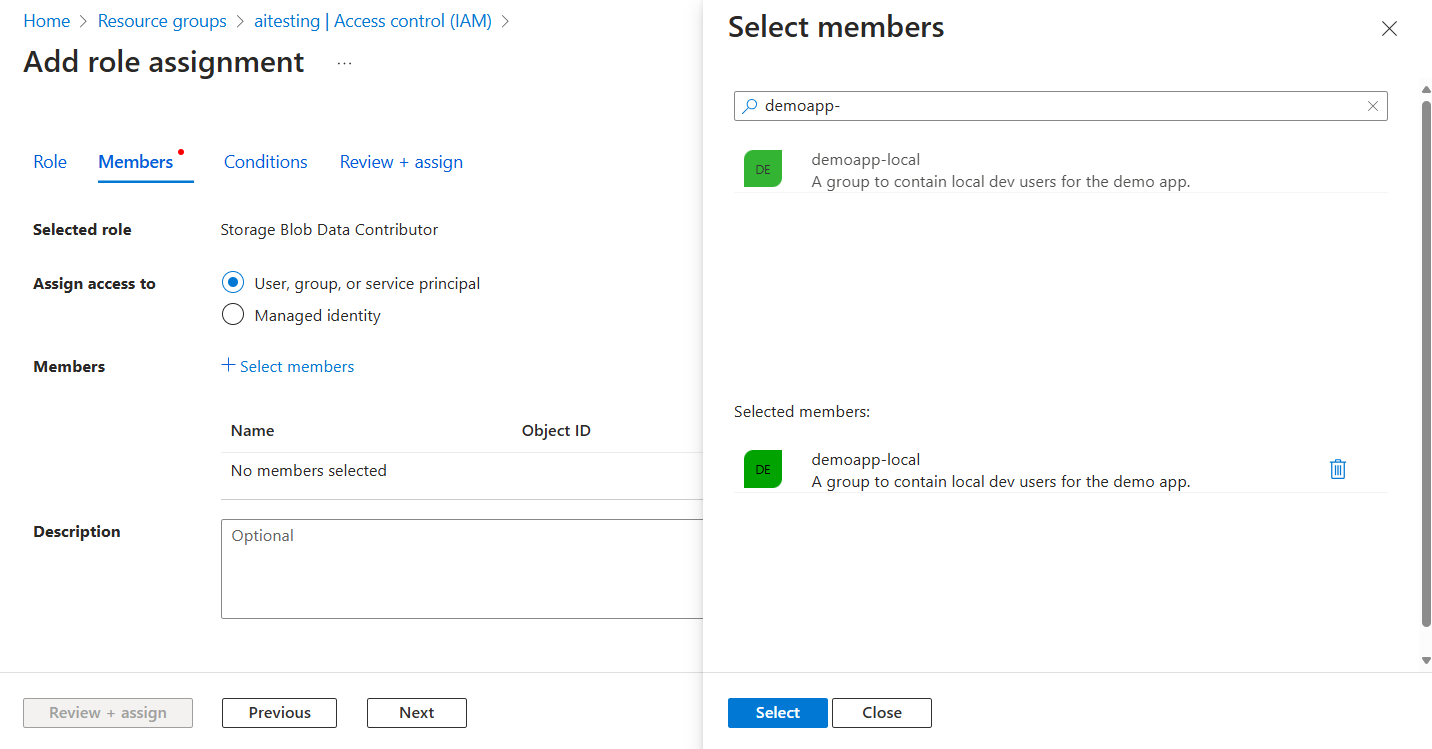
On the Review + assign tab, select Review + assign at the bottom of the page.
Sign in to Azure by using developer tooling
Next, sign in to Azure by using one of several developer tools that you can use to perform authentication in your development environment. The account you authenticate should also exist in the Microsoft Entra group you created and configured earlier.
Developers can use Azure CLI to authenticate. Apps that use DefaultAzureCredential or AzureCLICredential can then use this account to authenticate app requests.
To authenticate with the Azure CLI, run the az login command. On a system with a default web browser, the Azure CLI launches the browser to authenticate the user.
az login
For systems without a default web browser, the az login command uses the device code authentication flow. You can also force the Azure CLI to use the device code flow rather than launching a browser by specifying the --use-device-code argument.
az login --use-device-code
Authenticate to Azure services from your app
The azidentity package provides various credentials adapted to supporting different scenarios and Microsoft Entra authentication flows. The following steps demonstrate how to use DefaultAzureCredential when working with service principals locally and in production.
Implement the code
To authenticate Azure SDK client objects to Azure, your application should use the DefaultAzureCredential class. In this scenario, DefaultAzureCredential sequentially checks if the developer signed in to Azure by using the Azure CLI or Azure developer CLI. If the developer signs in to Azure by using one of these tools, the app uses the credentials for authentication.
DefaultAzureCredential is an ordered sequence of mechanisms for authenticating to Microsoft Entra ID. Each authentication mechanism is a type implementing the TokenCredential interface and is known as a credential. DefaultAzureCredential sequentially checks if the developer signed in to Azure by using the Azure CLI or Azure developer CLI. If the developer signs in to Azure by using one of these tools, the app uses the credentials for authentication. For more information about customizing the credential chain, see How to customize DefaultAzureCredential.
Add the
azidentitypackage to your application.go get github.com/Azure/azure-sdk-for-go/sdk/azidentityFor any Go code that creates an Azure SDK client object in your app, you want to:
- Import the
azidentitypackage. - Use
DefaultAzureCredentialorAzureCLICredentialto create an instance of a credential. For example:
To use
DefaultAzureCredential, set the environment variableAZURE_TOKEN_CREDENTIALStodevthat indicates the app is running in a development environment. For more information, see How to customize DefaultAzureCredential.// Environment variable AZURE_TOKEN_CREDENTIALS=dev or a specific developer tool credential value cred, err := azidentity.NewDefaultAzureCredential(nil)Or use a specific credential such as
AzureCLICredential,AzureDeveloperCLICredential, orAzurePowerShellCredentialto authenticate by using the signed-in user for a specific development tool.cred, err := azidentity.NewAzureCLICredential(nil) // or cred, err := azidentity.NewAzureDeveloperCLICredential(nil) // or cred, err := azidentity.NewAzurePowerShellCredential(nil)
- Pass the credential instance to the Azure SDK client constructor.
- Import the
An example of these steps is shown in the following code segment.
import (
	"context"

	"github.com/Azure/azure-sdk-for-go/sdk/azidentity"
	"github.com/Azure/azure-sdk-for-go/sdk/storage/azblob"
)

const (
	account       = "https://<replace_with_your_storage_account_name>.blob.core.windows.net/"
	containerName = "sample-container"
	blobName      = "sample-blob"
	sampleFile    = "path/to/sample/file"
)

func main() {
	// create a credential
	cred, err := azidentity.NewDefaultAzureCredential(nil)
	// or cred, err := azidentity.NewAzureCLICredential(nil)
	// or cred, err := azidentity.NewAzureDeveloperCLICredential(nil)
	// or cred, err := azidentity.NewAzurePowerShellCredential(nil)
	if err != nil {
	  // TODO: handle error
	}

	// create a client for the specified storage account
	client, err := azblob.NewClient(account, cred, nil)
	if err != nil {
	  // TODO: handle error
	}

	// TODO: perform some action with the azblob Client
	// _, err = client.DownloadFile(context.TODO(), <containerName>, <blobName>, <target_file>, <DownloadFileOptions>)
}