Märkus.
Juurdepääs sellele lehele nõuab autoriseerimist. Võite proovida sisse logida või kausta vahetada.
Juurdepääs sellele lehele nõuab autoriseerimist. Võite proovida kausta vahetada.
Important
.NET Standard user-defined functions for Azure Stream Analytics were retired on September 30, 2024. The feature is no longer available. Transition to JavaScript user-defined functions for Azure Stream Analytics.
Azure Stream Analytics offers a SQL-like query language for performing transformations and computations over streams of event data. The language includes many built-in functions, but some complex scenarios require more flexibility. By using .NET Standard user-defined functions (UDF), you can invoke your own functions written in any .NET Standard language (for example, C# or F#) to extend the Stream Analytics query language. Use UDFs to perform complex math computations, import custom ML models by using ML.NET, and use custom imputation logic for missing data.
Because this feature is retired, use this article to understand how .NET Standard UDFs worked and to plan your migration to JavaScript user-defined functions.
About .NET Standard user-defined functions
.NET Standard UDFs extend the Stream Analytics query language with custom logic. Before you build a UDF, review the regions where the feature runs, the package path that it uses, the supported type mappings, and the feature limitations.
Azure Stream Analytics enables the .NET user-defined function feature for cloud jobs that run on Stream Analytics clusters. Jobs that run on the Standard multitenant SKU can use this feature in the following public regions:
- West Central US
- North Europe
- East US
- West US
- East US 2
- West Europe
To use this feature in another region, request access.
The format of any UDF package has the path /UserCustomCode/CLR/*. Azure Stream Analytics copies dynamic link libraries (DLLs) and resources under the /UserCustomCode/CLR/* folder, which helps isolate user DLLs from system and Azure Stream Analytics DLLs. All functions use this package path, regardless of how you employ them.
For Azure Stream Analytics values to be used in C#, they need to be marshaled from one environment to the other. Marshaling happens for all input parameters of a UDF. Every Azure Stream Analytics type has a corresponding type in C#, shown in the following table:
| Azure Stream Analytics type | C# type |
|---|---|
| bigint | long |
| float | double |
| nvarchar(max) | string |
| datetime | DateTime |
| Record | Dictionary<string, object> |
| Array | Object[] |
The same is true when data needs to be marshaled from C# to Azure Stream Analytics, which happens on the output value of a UDF. The following table shows the supported types:
| C# type | Azure Stream Analytics type |
|---|---|
| long | bigint |
| double | float |
| string | nvarchar(max) |
| DateTime | dateTime |
| struct | Record |
| object | Record |
| Object[] | Array |
| Dictionary<string, object> | Record |
The UDF feature has the following limitations:
- You can author .NET Standard UDFs only in Visual Studio Code or Visual Studio, and then publish them to Azure. You can view read-only versions of .NET Standard UDFs under Functions in the Azure portal. The Azure portal doesn't support authoring of .NET Standard functions.
- The Azure portal query editor shows an error when you use a .NET Standard UDF in the portal.
- You can't call out to external REST endpoints, such as doing reverse IP lookup or pulling reference data from an external source.
- Because the custom code shares context with the Azure Stream Analytics engine, custom code can't reference anything that has a conflicting namespace or DLL name with Azure Stream Analytics code. For example, you can't reference Newtonsoft.Json.
- Azure Stream Analytics copies supporting files in the project to the User Custom Code zip file that it uses when you publish the job to the cloud. During decompression, all files in subfolders move to the root of the User Custom Code folder in the cloud. Decompression flattens the zip file.
- User Custom Code doesn't support empty folders. Don't add empty folders to the supporting files in the project.
Develop a UDF in Visual Studio Code
Visual Studio Code tools for Azure Stream Analytics make it easy for you to write UDFs, test your jobs locally (even offline), and publish your Stream Analytics job to Azure. You can implement .NET Standard UDFs in Visual Studio Code from a local project or from local DLLs. You can also reference local DLLs that include the user-defined functions.
Use a local project for complex functions that require the full power of a .NET Standard language beyond its expression language, such as procedural logic or recursion. A local project also helps when you need to share the function logic across several Azure Stream Analytics queries, and you can debug and test your functions locally. In the following example, CSharpUDFProject is a C# class library project, and ASAUDFDemo is the Azure Stream Analytics project, which references CSharpUDFProject.
Create a new .NET Standard class library on your local machine.
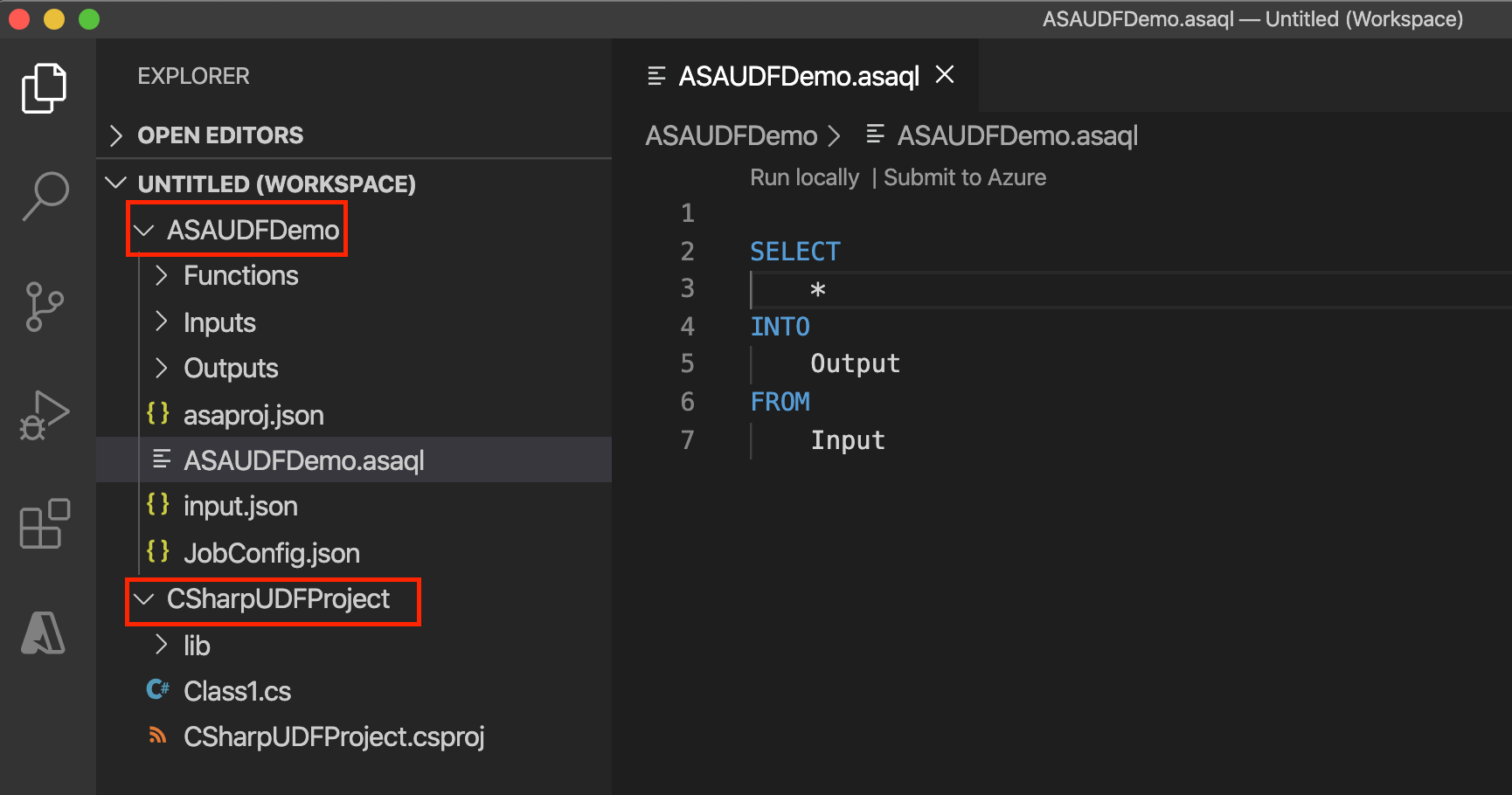
Write the code in your class. Define the classes as public and the objects as static public. The following UDF multiplies an integer by itself to produce the square of the integer.
using System;

namespace CSharpUDFProject
{
   //
    public class Class1
    {
        public static Int64 SquareFunction(Int64 a)
        {
            return a * a;
        }
    }
}
Add a new C# function configuration file in your Azure Stream Analytics project, and reference the C# class library project. To add the function, select and hold (or right-click) the Functions folder, and then choose Add Item.
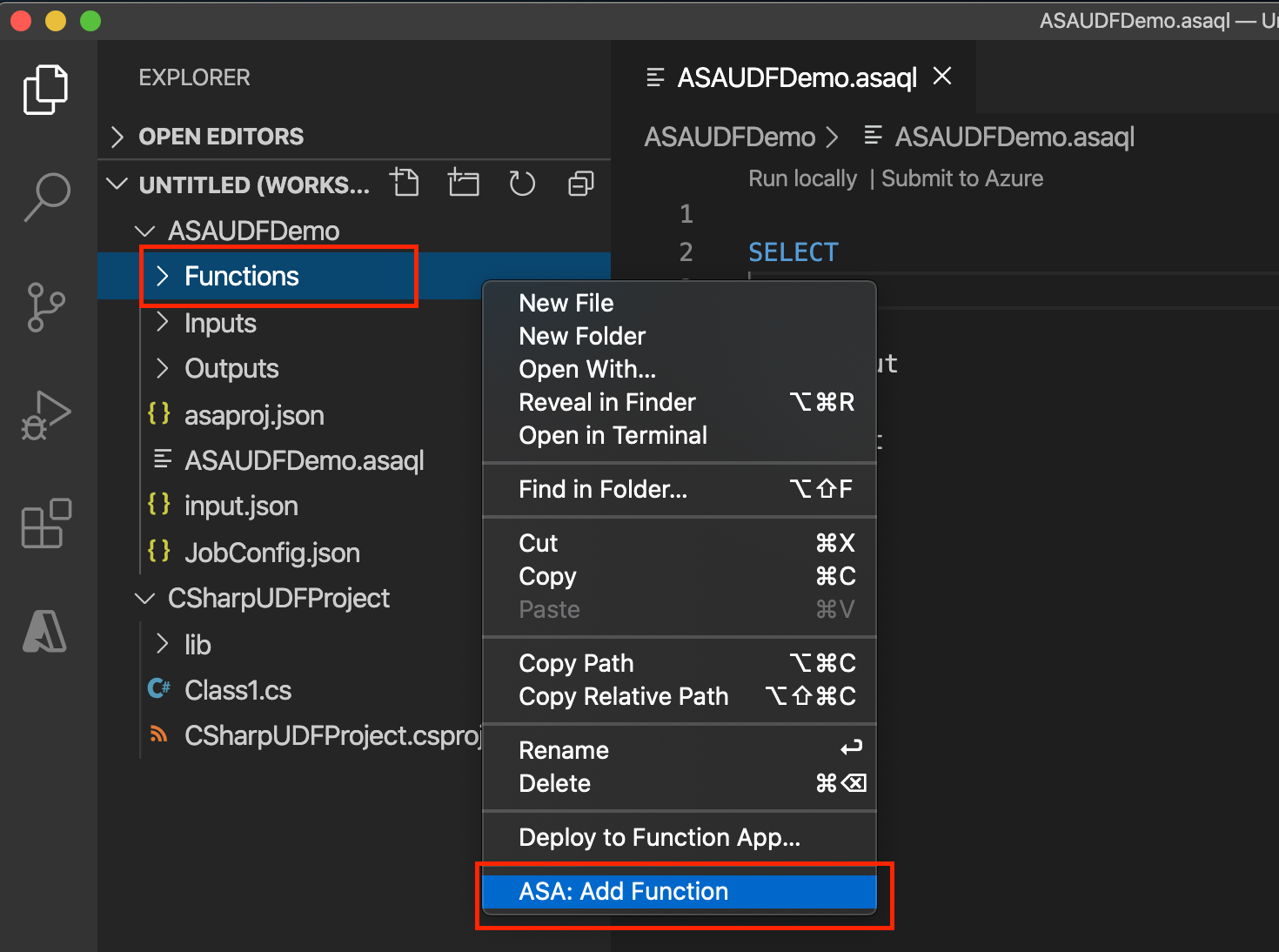
Add a C# function SquareFunction to your Azure Stream Analytics project.
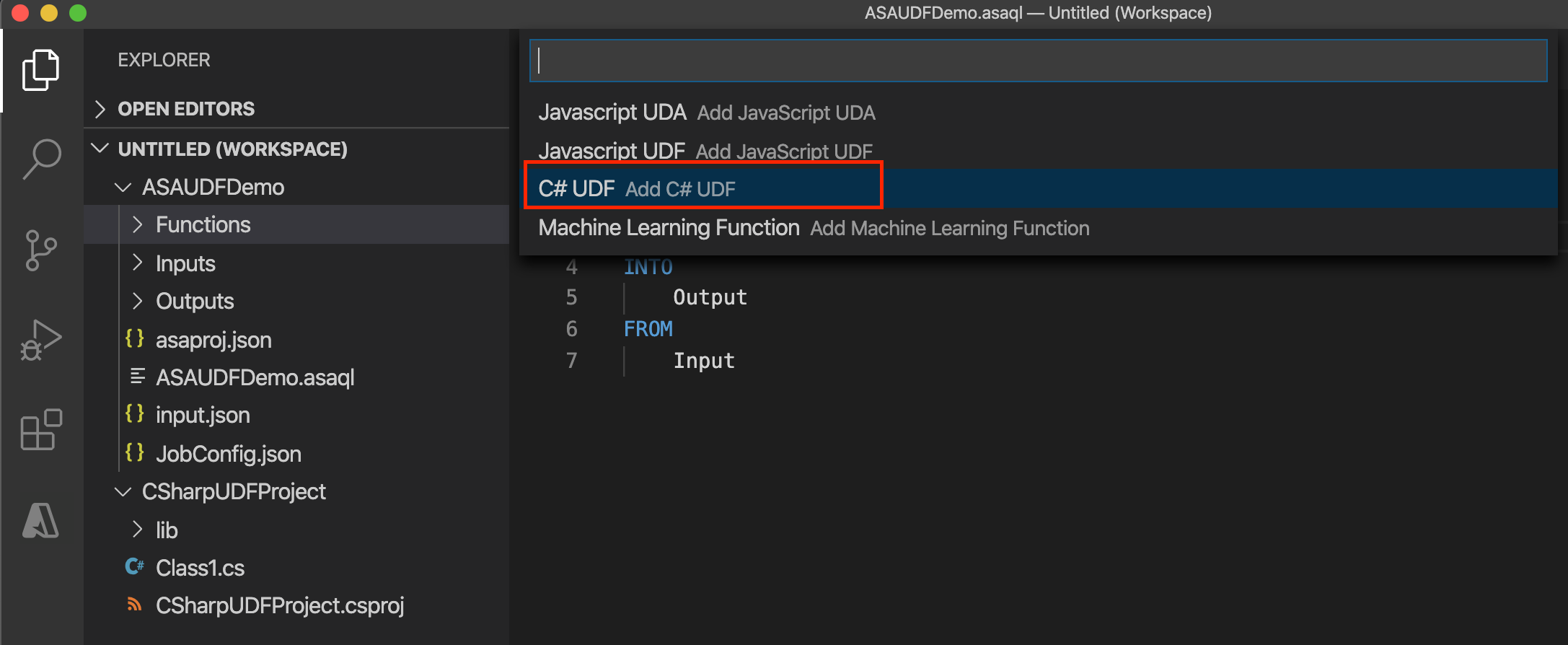
Enter the C# function name.

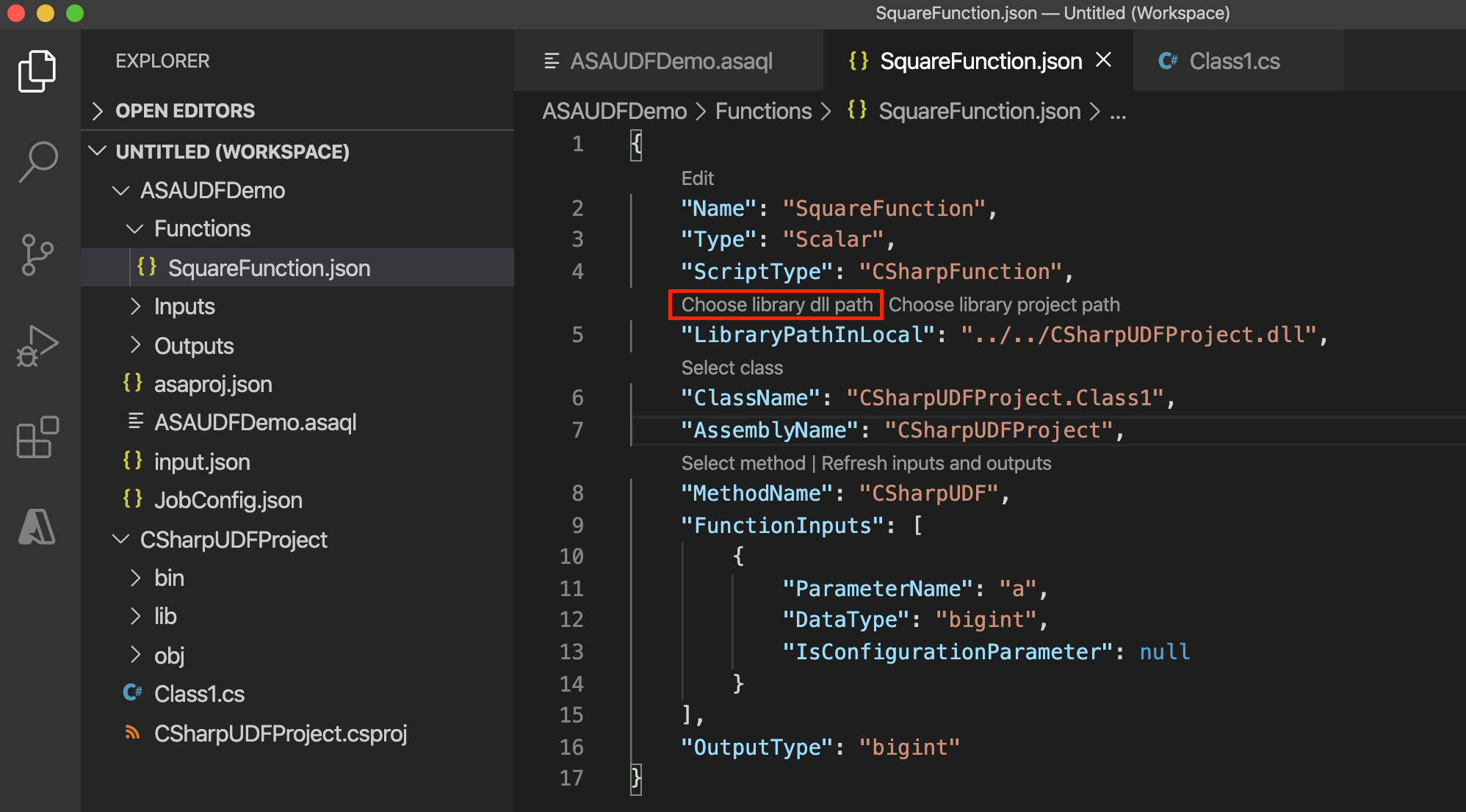
In the C# function configuration, select Choose library project path to choose your C# project from the dropdown list, and select Build project to build your project. Then choose Select class and Select method to select the related class and method name from the dropdown list. To refer to the methods, types, and functions in the Stream Analytics query, define the classes as public and the objects as static public.
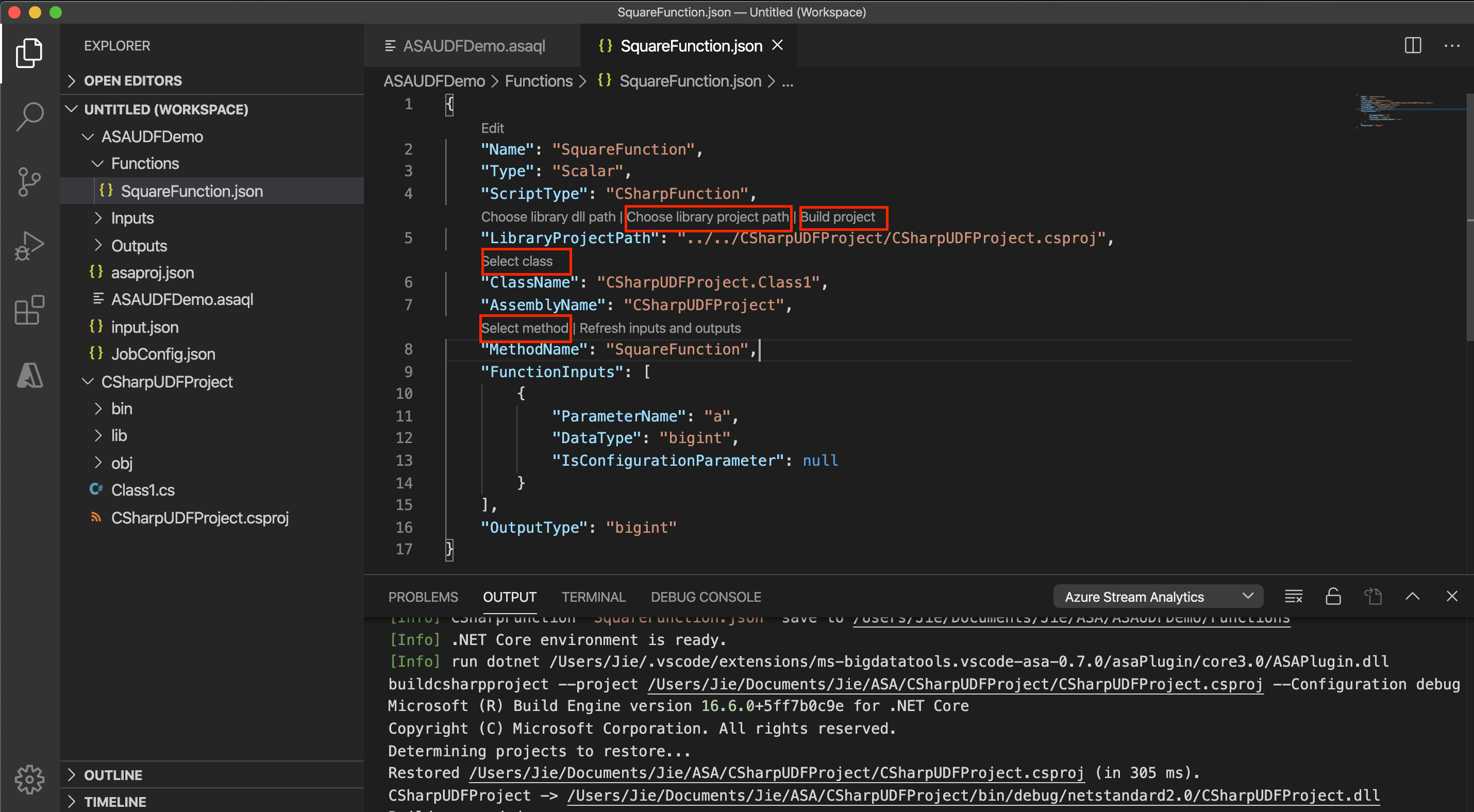
To use the C# UDF from a DLL instead, select Choose library dll path to choose the DLL, then choose Select class and Select method.
Invoke the UDF in your Azure Stream Analytics query.
 SELECT price, udf.SquareFunction(price)
 INTO Output
 FROM Input
Configure the assembly path in the
JobConfig.jsonjob configuration file, in the CustomCodeStorage section. This step isn't needed for local testing.Before submitting the job to Azure, configure the package path in the
JobConfig.jsonjob configuration file, in the CustomCodeStorage section. Use Select from your subscription in CodeLens to choose your subscription, and choose the storage account and container name from the dropdown list. Leave Path as default. This step isn't needed for local testing.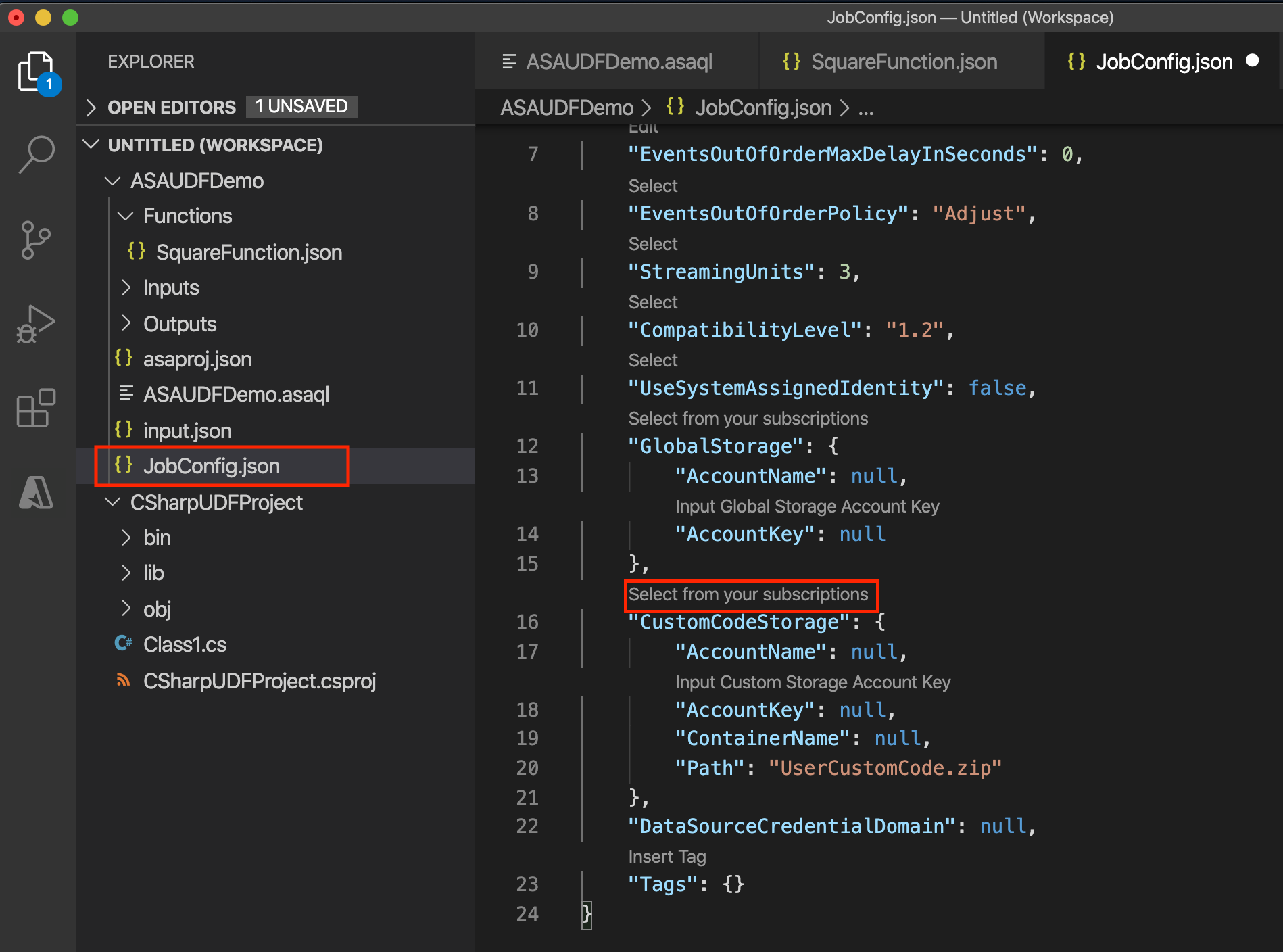
Develop a UDF in Visual Studio
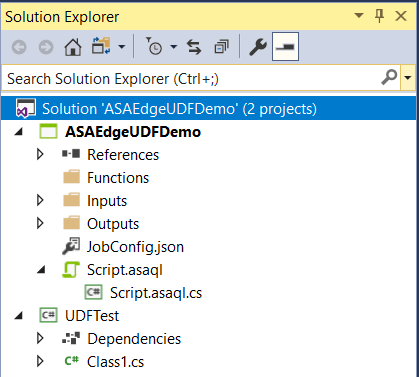
You can implement UDFs in Visual Studio by using CodeBehind files in an ASA project, a UDF from a local project, or an existing package from an Azure storage account. In the following example, UDFTest is a C# class library project, and ASAUDFDemo is the Azure Stream Analytics project, which references UDFTest.
For the CodeBehind option, write user-defined functions in the Script.asql CodeBehind file. Visual Studio tools automatically compile the CodeBehind file into an assembly file. The tools package the assemblies as a zip file and upload them to your storage account when you submit your job to Azure. To learn how to write a C# UDF by using CodeBehind, follow the C# UDF for Stream Analytics Edge jobs tutorial.
Create a new .NET Standard class library in your solution.
Write the code in your class. Define the classes as public and the objects as static public.
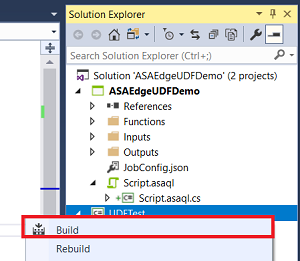
Build your project. The tools package all the artifacts in the bin folder to a zip file and upload the zip file to the storage account. For external references, use an assembly reference instead of the NuGet package.
Reference the new class in your Azure Stream Analytics project.
Add a new function in your Azure Stream Analytics project.
Configure the assembly path in the
JobConfig.jsonjob configuration file. Set the assembly path to Local Project Reference or CodeBehind.Rebuild both the function project and the Azure Stream Analytics project.
Build your C# project so you can add a reference to your C# UDF from the Azure Stream Analytics query.
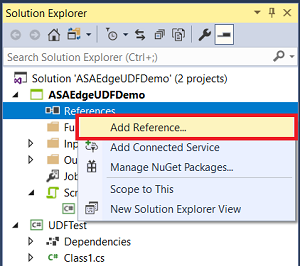
Add the reference to the C# project in the ASA project. Select and hold (or right-click) the References node, and then choose Add Reference.
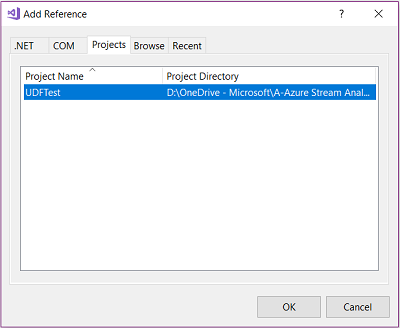
Choose the C# project name from the list.
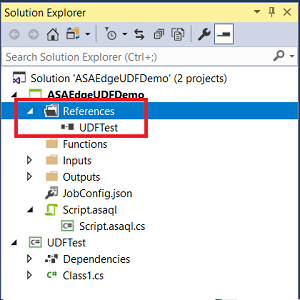
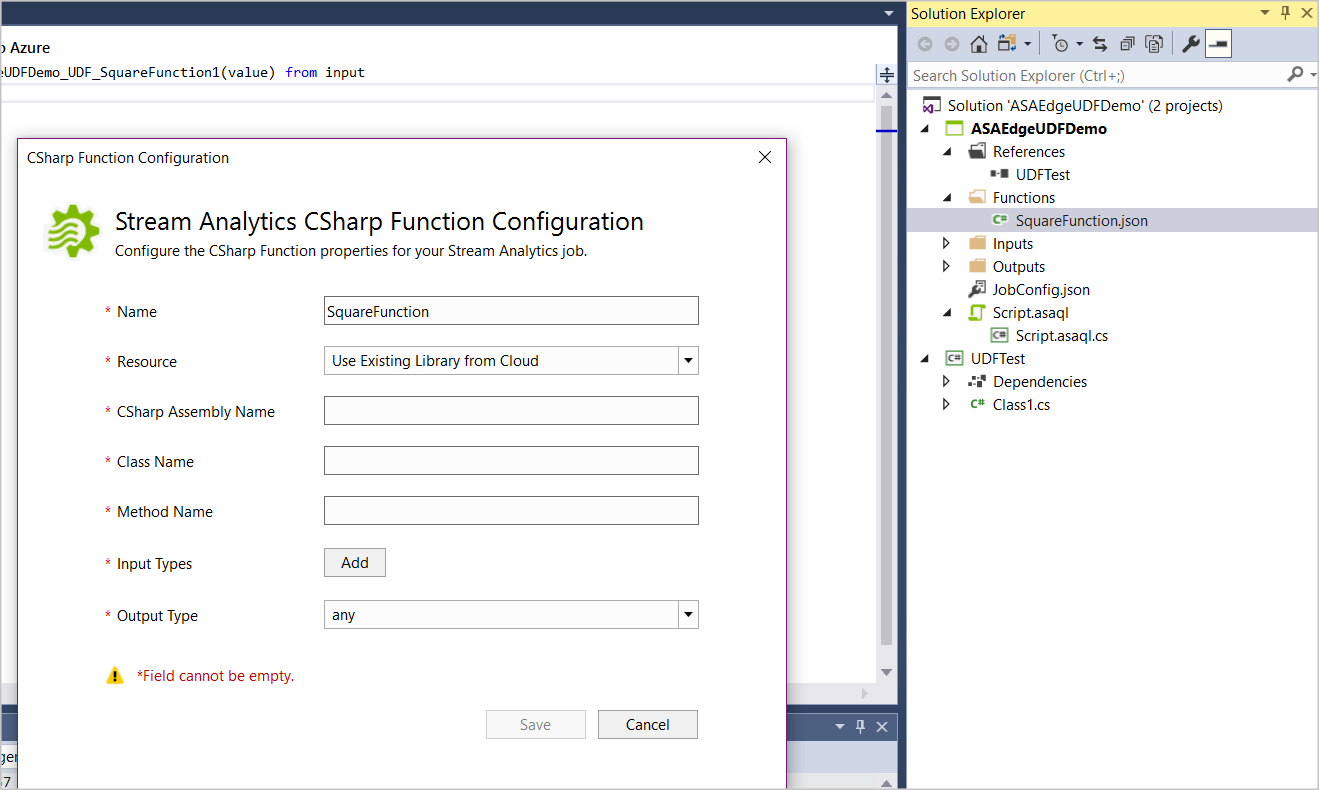
Confirm that UDFTest appears under References in Solution Explorer.
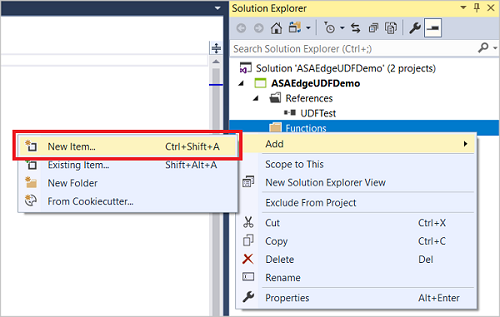
Select and hold (or right-click) the Functions folder, and then choose New Item.
Add a C# function SquareFunction.json to your Azure Stream Analytics project.
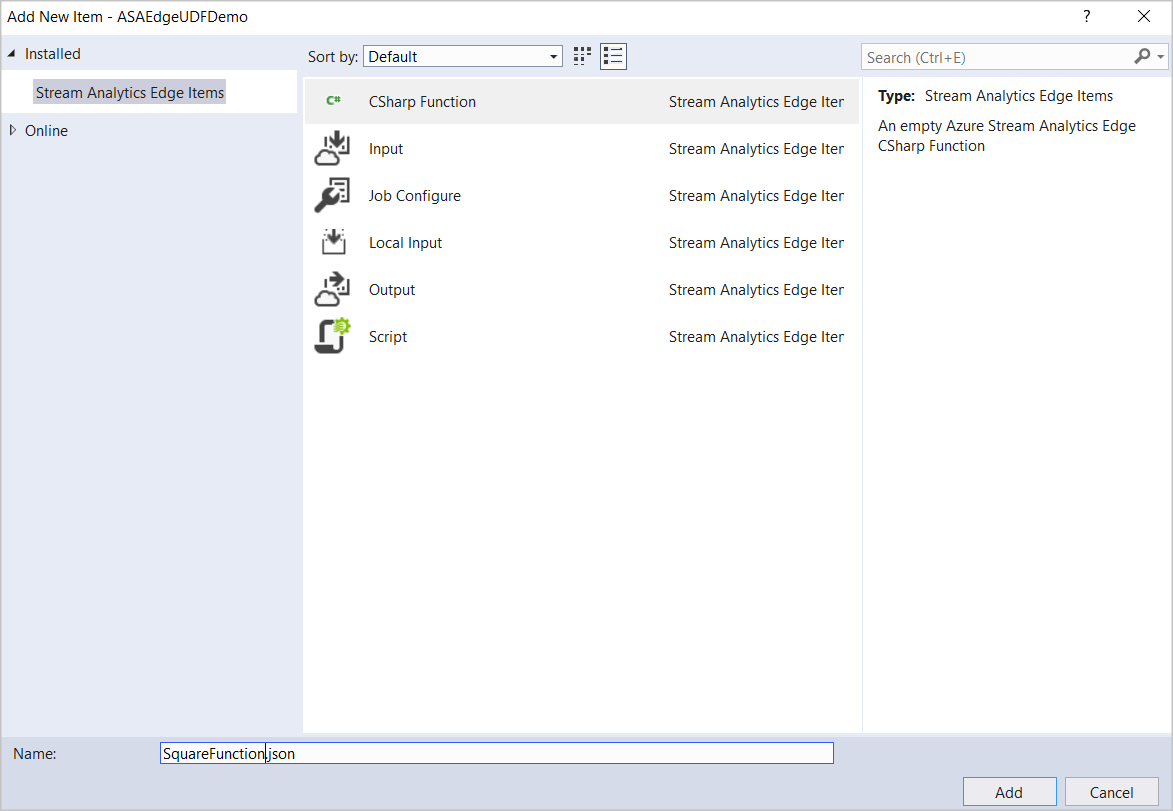
Open the function in Solution Explorer to display the configuration dialog.
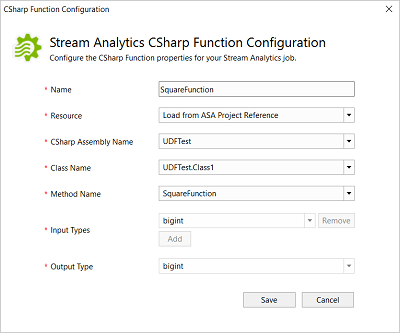
In the C# function configuration, choose Load from ASA Project Reference and the related assembly, class, and method names from the dropdown list. To refer to the methods, types, and functions in the Stream Analytics query, define the classes as public and the objects as static public.
Configure existing .NET Standard UDF packages
You can author .NET Standard UDFs in any IDE and invoke them from your Azure Stream Analytics query. After you upload the assembly zip packages to your Azure storage account, you can use the functions in Azure Stream Analytics queries by including the storage information in the Stream Analytics job configuration. You can't test the function locally with this option because Visual Studio tools don't download your package. The service parses the package path directly. To use an existing package:
Compile your code and package all the DLLs by using the path
/UserCustomCode/CLR/*.Upload
UserCustomCode.zipto the root of the container in your Azure storage account.In the
JobConfig.jsonjob configuration file, expand the User-Defined Code Configuration section.Fill out the configuration with the following suggested values.
Setting Suggested value Global Storage Settings Resource Choose data source from current account Global Storage Settings Subscription < your subscription > Global Storage Settings Storage Account < your storage account > Custom Code Storage Settings Resource Choose data source from current account Custom Code Storage Settings Storage Account < your storage account > Custom Code Storage Settings Container < your storage container > Custom Code Assembly Source Existing assembly packages from the cloud Custom Code Assembly Source UserCustomCode.zip
Log custom information with the StreamingContext class
By using the logging mechanism, you can capture custom information while a job runs. Use log data to debug or assess the correctness of the custom code in real time. Use the following steps to publish and access log messages:
Use the
StreamingContextclass to publish diagnostic information by using theStreamingDiagnostics.WriteErrorfunction. The following code shows the interface that Azure Stream Analytics exposes.public abstract class StreamingContext { public abstract StreamingDiagnostics Diagnostics { get; } } public abstract class StreamingDiagnostics { public abstract void WriteError(string briefMessage, string detailedMessage); }Pass
StreamingContextas an input parameter to the UDF method, and use it within the UDF to publish custom log information. In the following example,MyUdfMethoddefines a data input, which the query provides, and a context input as theStreamingContext, which the runtime engine provides.public static long MyUdfMethod(long data, StreamingContext context) { // write log context.Diagnostics.WriteError("User Log", "This is a log message"); return data; }Call the UDF from your query. You don't need to pass in the
StreamingContextvalue in the SQL query, because Azure Stream Analytics provides a context object automatically if an input parameter is present. The use ofMyUdfMethoddoesn't change, as shown in the following query.SELECT udf.MyUdfMethod(input.value) as udfValue FROM inputAccess log messages through the diagnostic logs.