Märkus.
Juurdepääs sellele lehele nõuab autoriseerimist. Võite proovida sisse logida või kausta vahetada.
Juurdepääs sellele lehele nõuab autoriseerimist. Võite proovida kausta vahetada.
Database Hub in Microsoft Fabric gives database teams one place to detect, investigate, act on, and automate responses to issues and opportunities across their database estate.
Use Database Hub to:
- Discover the databases you already have access to across Azure, Fabric, on-premises, and supported multicloud environments.
- Prioritize performance, security, utilization, and best practice findings.
- Investigate real-time and historical telemetry without moving between multiple portals.
- Collaborate using saved and shared estate views.
- Take guided action through built-in experiences, database tools, and agents.
- Extend database signals into Microsoft Fabric, Power BI, OneLake, and custom applications and workflows.
Database Hub uses your existing Microsoft Entra ID identity and Azure role-based access control permissions. It doesn't grant additional access or modify database resources simply by discovering them.
In addition to the Fabric portal, you can access Database Hub data through skills for agentic observability or through integrations with tools you use every day, such as SQL Server Management Studio (SSMS) or the MSSQL extension for Visual Studio Code.
Tip
💡 Agent setup for Database Hub
You can use ready-made skills to interact with Database Hub data. Get started using Database Hub agent skills to understand and interact with the Database Hub in Fabric:
- Use [Database Hub skills](https://github.com/microsoft/microsoft-sql/tree/main/plugins/microsoft-sql-fdh).
- Review [Database Hub in Fabric documentation](https://learn.microsoft.com/fabric/database/hub/)
  and use the [Microsoft Learn MCP server](https://learn.microsoft.com/api/mcp) for official docs.
Get started for free
Database Hub is available with a Fabric Free license. You don't need any Fabric capacity or a separate Database Hub license to get started.
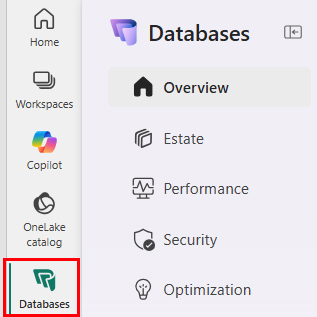
Sign in with your existing Microsoft account or sign up for Fabric Free. Database Hub displays the supported database resources you already have permission to access.
You don't need to move your Azure or on-premises databases into Fabric. Your databases remain in their existing subscriptions and environments while Database Hub brings together their operational metadata, signals, and available actions.
The resources, capabilities, and data you see depend on your existing permissions, tenant configuration, region, resource configuration, and preview enrollment.
Important
This feature is in preview.
Bring your database estate into one operational experience and move from fragmented signals to guided action.
You don't need to deploy another monitoring service, purchase a separate Database Hub license, or provision Fabric capacity just to get started.
If you don't have an account already, sign up for Fabric Free. Sign in and open Database Hub, and begin with the supported database resources you already have permission to access.
How Database Hub works
Database Hub creates a shared operational workflow for database teams:
- Detect issues and opportunities across the estate.
- Monitor performance with prebuilt and custom experiences.
- Investigate and act using guided experiences and existing database tools.
- Automate repeatable investigation and remediation workflows with agents.
- Extend database signals into Fabric, Power BI, OneLake, alerts, and custom solutions.
The goal isn't simply to show more telemetry. Database Hub helps teams understand what needs attention, why it matters, and what to do next.
Get started
Before you begin, confirm the following prerequisites.
Prerequisites
- Sign in to Fabric with your Microsoft Entra ID account.
- You have Azure subscriptions, Fabric workspaces, or database resources you want to view.
- For supported performance-monitoring experiences, you have at least the Reader role, or an equivalent role with greater permissions, on each Azure subscription containing resources you want to monitor.
- Your organization allows access to Microsoft Fabric and Database Hub.
- Any required Azure resource providers are registered for the subscriptions you want to include.
- Some Microsoft SQL resources require additional setup before they appear in Database Hub or provide performance telemetry. For current setup requirements, see Add Microsoft SQL resources to Database Hub.
Database Hub respects your existing Azure and Fabric permissions. You see only the resources your current identity is authorized to access. Sharing a Database Hub view doesn't grant access to the underlying resources. Each person sees only the resources allowed by their own Azure or Fabric permissions.
Open Database Hub from Microsoft Fabric
Open Microsoft Fabric and select Database Hub from the Fabric navigation or an available database experience.
Use this route when you're already working in Fabric or want to connect database operations with Fabric analytics, data engineering, real-time intelligence, and AI experiences.
Open Database Hub from Power BI
Open Database Hub from the Power BI or Fabric web experience when Database Hub is available for your tenant and account.
Use this route when you want to connect operational database findings with reports, semantic models, or business-facing monitoring experiences.
Open Database Hub from Azure
Supported Azure database experiences can provide an entry point into Database Hub.
Use this route when you begin with an individual Azure resource and want to expand from resource-level management to an estate-wide view.
Open Database Hub from a direct URL
You can also open Database Hub directly.
Consider bookmarking Database Hub if it's part of your regular operational workflow. You can also use Database Hub skills with supported agent experiences to investigate your estate.
1. Understand what needs attention
The Overview page is the starting point for understanding the current state of your database estate.
Use Overview to:
- See issues and suggestions across supported resources.
- Identify which databases need attention first.
- Separate urgent problems from longer-term optimization opportunities.
- Move from a high-level finding into the relevant resource or investigation experience.
- Establish a common operational picture for database, application, platform, and security teams.
Issues identify conditions that might require timely attention or remediation.
Suggestions identify opportunities to improve security, performance, utilization, cost efficiency, or operational posture over time.
Together, issues and suggestions help your team decide what matters, why it matters, and where to investigate first.
Explore your estate
The Estate page provides a cross-engine inventory of the database resources you can access.
Use Estate to:
Browse supported Azure, Fabric, on-premises, and multicloud database resources in one place.
Filter resources by characteristics, ownership, environment, and findings.
Review issues and suggestions without moving between multiple management portals.
Save a filtered view for a recurring operational workflow.
Share a custom view with colleagues.
Open a resource for more detailed investigation or action.
Create supported database resources.
The Fabric portal prioritizes and sorts resources in descending order based on the number of open issues, so you can focus on the most important items.
Collaborate with saved and shared views
Multiple teams usually operate database estates. By using saved and shared views, each team can create a focused operational perspective without duplicating inventory.
For example, a team could create views for:
- Production databases with active performance findings.
- Resources owned by a specific application or service team.
- Databases requiring security attention.
- Underutilized resources that might present an optimization opportunity.
- A specific subscription, region, platform, or environment.
Sharing a view shares its configuration, not access to the underlying resources. Recipients see only the resources their own permissions allow.
2. Monitor performance with prebuilt and custom experiences
The Performance page provides an estate-level view of real-time and historical performance across supported database engines.
Use Performance to:
- Review database health across the estate.
- Compare performance between resources.
- Identify unusual behavior or emerging resource pressure.
- Move from estate-level monitoring into resource-level investigation.
- Reduce the need to open and correlate multiple monitoring tools manually.
Use prebuilt monitoring
Prebuilt monitoring gives teams an immediate starting point for common performance investigations. A typical workflow is:
- Open the Performance page.
- Identify a resource or metric that needs attention.
- Review the available real-time and historical context.
- Narrow the investigation to the affected database.
- Open the relevant resource-level experience for deeper investigation.
- Use the appropriate database tool or workflow to validate and address the finding.
Create custom monitoring experiences
When the prebuilt experience doesn't answer a team-specific question, use the underlying telemetry and supported Fabric experiences to create custom monitors.
Custom monitoring can be useful when you need to:
- Focus on an application-specific workload.
- Combine database behavior with application, incident, or business signals.
- Monitor a defined group of databases.
- Create team-specific thresholds or visualizations.
- Build an operational dashboard for a service or business process.
- Establish a monitor that can drive alerts or agent-assisted workflows.
3. Investigate and act on issues and opportunities
By using Database Hub, teams have ready-to-use monitoring experiences tailored to their applications and operating models to quickly identify security and performance issues.
Run real-time, ad hoc performance analysis
For supported resources, Database Hub provides access to underlying query performance monitoring telemetry through an Azure Data Explorer-compatible endpoint.
Use this capability when you need to move beyond a prebuilt dashboard and conduct an ad hoc investigation.
You can use the telemetry to:
- Explore query and resource behavior interactively.
- Filter performance data for a specific investigation.
- Narrow an investigation to a particular database and time period.
- Correlate behavior across time periods or resources.
- Build queries that support repeatable troubleshooting workflows.
- Use the same telemetry in supported dashboards, notebooks, applications, and agent-driven investigations.
A common workflow is:
- Begin with an issue, suggestion, or unusual metric in Database Hub.
- Identify the affected database.
- Narrow the investigation to the relevant time period.
- Query the detailed telemetry.
- Validate the likely source and impact of the behavior.
- Save or operationalize the query if the investigation is likely to recur.
- Use the appropriate database tool or process to take action.
For connection and query instructions, see Query performance monitoring telemetry.
This telemetry experience currently applies to supported databases and platforms. Availability can vary by service, region, configuration, permissions, and preview enrollment.
Query performance data directly in Azure Data Explorer (ADX)
For tabular analysis beyond the built-in dashboards, you can use Power BI or Azure Data Explorer to query the data collected from your database estate, via the SQL ADX proxy. Currently, this feature is available for Microsoft SQL databases only. For more information, see Monitor Microsoft SQL databases: Sample KQL queries in Azure Data Explorer.
4. Automate findings and repeatable fixes with agents
Database Hub can participate in agent and chat experiences, so teams can investigate their database estate by using natural language and reusable skills.
You can find Database Hub agent skills in the Microsoft SQL GitHub repository. Supported agents can also use official documentation through the Microsoft Learn MCP server.
Agents can help translate an operational question into a structured investigation, identify relevant Database Hub information, and guide the user toward an appropriate next step.
Example questions include:
Which databases need attention?What changed for this database?Which resources have open performance issues?What should I investigate first?Show the telemetry relevant to this finding.Create a repeatable query for this investigation.Summarize the findings for the application team.What evidence should I review before taking action?
Agent experiences create a path from human-driven observability to agent-assisted database operations while keeping the operator in control.
Use agents responsibly
Agent-generated findings and recommendations require operator review.
Agents don't replace:
- Azure and Fabric RBAC.
- Database authentication and authorization.
- Existing approval processes.
- Change-management requirements.
- Production validation.
- Human accountability for operational changes.
Begin with investigation, summarization, and evidence gathering.
Introduce automated actions only after your organization has defined the permissions, validation, approval, rollback, and audit requirements for the workflow.
5. Extend database signals into your workflows
Database Hub is both an operational experience and an extensible starting point for broader data, analytics, AI, and automation workflows.
Start with the built-in Database Hub experiences when you want to quickly detect what needs attention, investigate the evidence, and take action. When you need more, extend database inventory, signals, and telemetry into the tools and experiences your teams already use.
Examples can include:
- Building business-facing reports and dashboards in Power BI.
- Combining database signals with application, incident, operational, or business data.
- Creating custom real-time dashboards and monitors.
- Extending supported data into OneLake, Lakehouse, Warehouse, and other Fabric experiences for additional analysis.
- Connecting database signals with Rayfin and other operational experiences.
- Creating alerts and downstream workflows from database signals.
- Building custom tools, applications, and automation over supported interfaces.
- Providing database estate and telemetry context to agents, skills, and chat experiences.
This makes Database Hub more than a destination for monitoring. It can become an operational signal layer that teams use to detect what matters and then extend those signals into the analytical, application, automation, and agentic experiences where work happens.
A useful progression is:
- Detect issues and opportunities with built-in Database Hub signals.
- Investigate through Overview, Estate, Performance, and detailed telemetry.
- Customize with saved views, queries, monitors, and dashboards.
- Connect database signals with application, operational, and business context.
- Extend into Fabric, Power BI, OneLake, Rayfin, and custom experiences.
- Automate repeatable workflows with alerts, agents, and controlled actions.
You can start with the built-in experience and progressively extend it as your operational needs grow.
Create a database from the Database Hub
You can use Database Hub as a starting point for creating supported database resources.
To create a resource:
- Open Estate.
- Select Create resource.
- Choose a supported database platform.
- Select the target Fabric workspace or Azure subscription.
- Complete the service-specific creation experience.
You need permission to create resources in the selected Fabric workspace or Azure subscription.
Although you don't need Fabric capacity to access Database Hub, the resource you create might have its own licensing, capacity, workspace, subscription, or service requirements.
For Azure Cosmos DB, Database Hub supports account creation. You handle container creation separately through the relevant Azure Cosmos DB experience.
Supported database services
During the current preview, Database Hub can show supported resources from Azure, Fabric, and on-premises environments, including:
- Azure SQL Database
- Azure SQL Elastic Pools
- Azure SQL Managed Instance
- SQL database in Fabric
- SQL Server enabled by Azure Arc
- SQL Server on Azure Virtual Machines
- Azure Database for PostgreSQL flexible server
- Azure Cosmos DB
The inventory, findings, monitoring, and actions available for each resource can differ.
A database appearing in Estate doesn't necessarily mean every monitoring, investigation, agent, or action capability is available for that database type.
What appears in Database Hub depends on the service, configuration, region, tenant settings, your permissions, and preview enrollment.
Limitations
Important
This feature is in preview.
- You can view resources in the Database Hub from Azure, Fabric, and on-premises, including: Azure SQL Database, SQL database in Fabric, Azure SQL Elastic pools, Azure SQL Managed Instance, SQL Server enabled by Azure Arc, SQL Server instances in Azure VMs, Azure Database for PostgreSQL flexible server, and Azure Cosmos DB.
- Not currently supported in the Database Hub: Cosmos DB in Fabric, mirrored databases in Fabric, Fabric Data Warehouse.
- Currently, for a Microsoft SQL database service to appear in the Overview and Estate pages of the Database Hub, an additional step is necessary to register an Azure resource provider in each subscription. This resource provider might already be in place for your subscription.
- For Azure SQL Database, an extended property must be added to your database in order to start collecting performance monitoring data, which you can then view in the Performance page of Database Hub. You can add this extended property by selecting the Enable Performance Monitoring option in the Estate page of Database Hub or by running T-SQL scripts to add metadata to each database.
- The following Microsoft SQL services show inventory on the Estate page but don't yet show on the Performance page: Azure SQL Elastic Pools, Azure SQL Managed Instance, and SQL database in Fabric.
- For Azure Database for PostgreSQL flexible server, Estate lists flexible server resources, not the individual PostgreSQL databases hosted on each server.
- In the current preview, monitoring for Azure Database for PostgreSQL flexible server uses existing Azure Monitor metrics and doesn't provide query-level diagnostics in Database Hub. Use the Azure portal and native PostgreSQL tools to investigate queries.
- Supported signals, actions, agents, engines, and regions can change during preview.
- Supported inventory doesn't mean every monitoring or action capability is available for that service.
- Generated findings and recommendations require operator review.
- Existing Azure, Fabric, database, security, and change-management controls continue to apply.
- The resources visible to each user depend on that user's permissions.
- Sharing a custom view doesn't grant access to the underlying resources.
- Available experiences can vary by tenant configuration, region, permissions, resource configuration, and preview enrollment.
- Accessing Database Hub doesn't require Fabric capacity. However, services and resources opened, created, or used from Database Hub can have their own licensing, capacity, or subscription requirements.
- Evaluate preview capabilities against your organization's production, compliance, privacy, security, and data-residency requirements before depending on them for critical operational processes.
Troubleshoot
- If Azure databases don't appear in Database Hub:
- Verify Database Hub is available for your tenant and region.
- Verify you're signed in with the expected Microsoft Entra ID account that has access to the resource or its Azure subscription.
- Verify sufficient time has passed for newly enabled telemetry to become available.
- Database Hub uses Azure Resource Graph to discover Azure database resources that your signed-in account can access. Access to Microsoft Fabric doesn't automatically grant access to Azure resources.
- If your account doesn't have access to the relevant Azure resources, those resources won't appear in Database Hub. The Azure Resource Graph request can also return an access-denied response (403 Forbidden) when none of the subscriptions included in the request are accessible to your account.
- Users in the same organization can see different Azure resources because their Azure permissions differ.
- Verify the required Azure resource provider is registered. Verify required metadata or extended property is added. For more information, review Add Microsoft SQL resources to Database Hub.
- If you expect to see databases in Microsoft Fabric but don't see them:
- Azure resource permissions and Fabric permissions are managed separately. You don't need to request Azure access solely because the Azure portion of Database Hub is empty. Access to your Fabric databases is governed by your existing Fabric permissions.
- An empty Azure resource list doesn't necessarily mean that your organization has no Azure databases. It can mean that your account doesn't have permission to view them.
- If you expect to see Azure databases but don't see them:
- Check your account and directory. Sign in to the Azure portal with the same account you use for Database Hub, and verify that you're in the Microsoft Entra directory that contains the resources you expect to see.
- Verify your Azure access. Confirm that you can view the expected resources in the Azure portal. If you can't, ask your Azure administrator to review your Azure role-based access control (Azure RBAC) assignments.
- Request read access at the appropriate scope. Azure Resource Graph requires at least read access to the resources being queried. Your administrator can grant an appropriate role, such as Reader, at a scope approved by your organization. Fabric workspace permissions don't grant this Azure access.
- Sign out and sign back in after access changes. After the permissions take effect, sign out and sign back in to refresh your subscription context, then reopen Database Hub.
- If you can view the expected resources in the Azure portal but they still don't appear in Database Hub, contact support. Include the time of the problem, any displayed error or correlation ID, and the affected tenant and subscription IDs. Don't include passwords or access tokens.
- For more information, see Permissions in Azure Resource Graph.
- A shared view shows different resources
- This is expected when users have different permissions. A shared view preserves the view and filter configuration. It doesn't grant access to resources. Each person sees only the resources their own Azure or Fabric RBAC permits.
- Cannot create a database from the Database Hub
- Before creating a resource, review your organization's:
- Allowed regions.
- Network requirements.
- Authentication policies.
- Applicable capacity or workspace requirements for the resource being created.
- Azure subscription quotas.
- Naming and tagging standards.
- Security and governance requirements.
- Before creating a resource, review your organization's:
- An action isn't available
- Check that:
- The action is supported for that database service.
- Your role permits the requested operation.
- The resource is enrolled in the relevant preview capability.
- Your organization's Azure or Fabric policies permit the action.
- The resource meets the service-specific configuration requirements.
- Check that:
- An agent recommendation can't be applied
- Agent recommendations remain subject to existing permissions and operational controls. Confirm that:
- The recommended action applies to the resource and service.
- The available evidence supports the recommendation.
- You have the necessary permissions.
- Required approvals are completed.
- The action has an appropriate validation and rollback plan.
- Agent recommendations remain subject to existing permissions and operational controls. Confirm that: