Märkus.
Juurdepääs sellele lehele nõuab autoriseerimist. Võite proovida sisse logida või kausta vahetada.
Juurdepääs sellele lehele nõuab autoriseerimist. Võite proovida kausta vahetada.
Mirroring in Microsoft Fabric is an enterprise, cloud-based, zero-ETL, SaaS technology. This guide helps you establish a mirror from Azure Databricks Unity Catalog, which creates a read-only, continuously replicated copy of your Azure Databricks data in OneLake.
Prerequisites
- A Fabric workspace.
- Enable external data access on the metastore. For more information, see Enable external data access on the metastore.
- Create or use an existing Azure Databricks workspace with Unity Catalog enabled.
- Have the
EXTERNAL USE SCHEMAprivilege on the schema in Unity Catalog that contains the tables that Fabric accesses. - Use Fabric's permissions model to set access controls for catalogs, schemas, and tables in Fabric.
Create a mirror from Azure Databricks Unity Catalog
Follow these steps to create a new mirror from your Azure Databricks Unity Catalog.
Go to your workspace in Fabric.
Select New item > Mirrored Azure Databricks catalog.
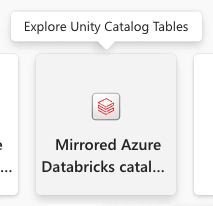
Select an existing connection if you have one configured, or create a new connection.
To create a connection, you must be either a user or an admin of the Azure Databricks workspace. You can authenticate to your Azure Databricks workspace by using Organizational account or Service principal authentication.
Note
The authentication choice you make here applies to Databricks authentication and Unity Catalog authorization. If you need to access Azure Data Lake Storage (ADLS) Gen2 accounts behind a firewall, follow the steps to Enable network security access for your Azure Data Lake Storage Gen2 account later in this article. When ADLS Gen2 is behind a firewall, Fabric Workspace Identity is required for storage firewall access, regardless of the authentication method chosen for the Databricks connection.
After you connect to an Azure Databricks workspace, on the Choose tables from a Databricks catalog page, select the catalog, schemas, and tables that you want to add and access from Fabric by using the inclusion or exclusion list. Pick the catalog and its related schemas and tables that you want to add to your Fabric workspace.
You can only see the catalogs, schemas, and tables that you have access to. For more information, see Unity Catalog privileges and securable objects.
By default, the Automatically sync future catalog changes for the selected schema option is enabled. For more information, see Mirroring Azure Databricks > Metadata sync.
Select Next to continue.
On the Review and create page, review the details and optionally change the mirror item name, which must be unique in your workspace. By default, the name of the mirrored item is the name of the catalog.
Select Create to continue.
A Databricks catalog item is created and for each table, a corresponding Databricks type shortcut is also created.
Schemas that don't have any tables aren't shown.
You can also see a preview of the data when you access a shortcut by selecting the SQL analytics endpoint. Open the SQL analytics endpoint item to launch the Explorer and Query editor page. You can query your mirrored Azure Databricks Unity Catalog tables by using T-SQL in the SQL Editor.
Create Lakehouse shortcuts to the Databricks catalog item
You can also create shortcuts from your Lakehouse to your Databricks catalog item to use your Lakehouse data and use Spark Notebooks.
- First, create a lakehouse. If you already have a lakehouse in this workspace, you can use an existing lakehouse.
- Select your workspace in the navigation menu.
- Select + New > Lakehouse.
- Provide a name for your lakehouse in the Name field, and select Create.
- In the Explorer view of your lakehouse, in the Get data in your lakehouse menu, under Load data in your lakehouse, select the New shortcut button.
- Select Microsoft OneLake. Select a catalog. This is the data item that you created in the previous steps. Then select Next.
- Select tables within the schema, and select Next.
- Select Create.
- Shortcuts are now available in your Lakehouse to use with your other Lakehouse data. You can also use Notebooks and Spark to perform data processing on the data for these catalog tables that you added from your Azure Databricks workspace.
Create a semantic model
You can create a Power BI semantic model based on your mirrored item, and manually add or remove tables. For more information about creating and managing semantic models, see Create a Power BI semantic model.
For the best experience, use the Microsoft Edge browser for semantic modeling tasks.
Manage your semantic model relationships
After you create a new semantic model based on your mirrored item, configure the relationships between tables.
- Select Model Layouts from the Explorer in your workspace.
- Once you select Model layouts, you're presented with a graphic of the tables that are included as part of the semantic model.
- To create relationships between tables, drag a column name from one table to another column name of another table. A popup appears to identify the relationship and cardinality for the tables.
Enable network security access for your Azure Data Lake Storage Gen2 account
Configure network security for your Azure Data Lake Storage (ADLS) Gen2 account when you have an Azure Storage firewall configured. This section applies to ADLS Gen2 storage accounts behind an Azure Storage firewall. Azure Databricks workspace storage behind an Azure Storage firewall isn't supported.
Prerequisites
When an Azure Storage firewall protects ADLS Gen2, Fabric uses Workspace Identity to access the firewall. Even if you select Service principal for ADLS authentication in the Network Security tab, you must allow the Workspace Identity in the Azure Storage account firewall.
Workspace Identity is used for storage firewall access. A service principal or OAuth is used for Databricks authentication and Unity Catalog authorization.
To enable the workspace identity authentication type (recommended), associate the Fabric workspace with an F capacity. To create a workspace identity, see Authenticate with workspace identity.
You can only associate a catalog with a single storage account.
Enable network security access
When creating a new Mirrored Azure Databricks Catalog, in the Choose data step, select the Network Security tab.
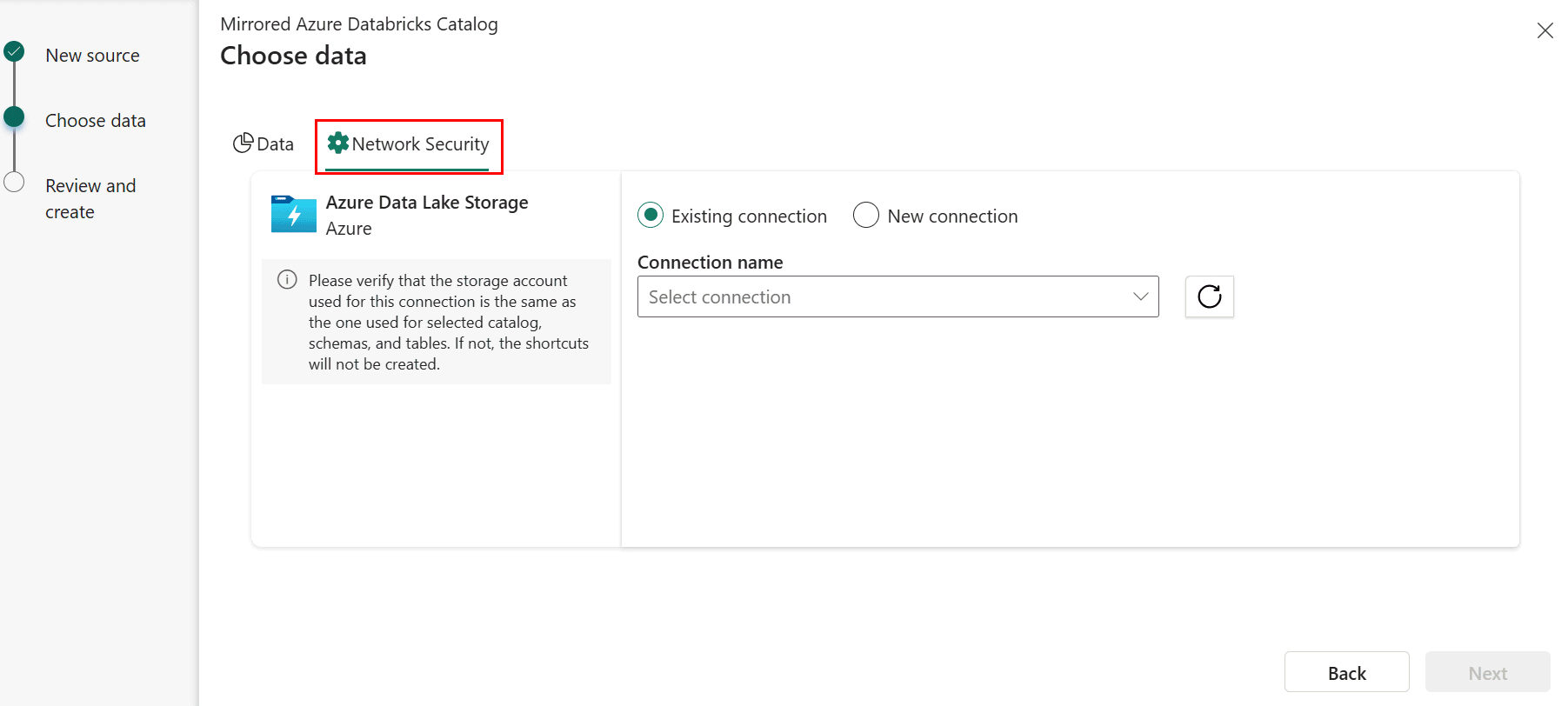
Select an Existing connection to the storage account if you have one configured.
- If you don't have an existing ADLS connection, create a New connection.
- The URL of the storage endpoint is where the selected catalog's data is stored. The endpoint should be the specific folder where the data is stored, rather than specifying the endpoint to be at the storage account level. For example, provide
https://<storage account>.dfs.core.windows.net/container1/folder1rather thanhttps://<storage account>.dfs.core.windows.net/. - Provide the connection credentials. The authentication types supported are Organizational account, Service principal, and Workspace Identity (recommended).
Note
When ADLS Gen2 is protected by an Azure Storage firewall, Fabric uses Workspace Identity to traverse the firewall regardless of the authentication type selected here. The authentication type (Service principal or Organizational account) controls Databricks authentication and Unity Catalog authorization, while Workspace Identity controls trusted access through the storage firewall. The Workspace Identity must be allowed in the Azure Storage account firewall even if you select a different authentication type for the ADLS connection.
In the Azure portal, provide access rights to the storage account based on the authentication type you picked in the previous step. Navigate to the storage account in the Azure portal. Select Access Control (IAM). Select +Add and Add role assignment. For more information, see Assign Azure roles using the Azure portal.
Assign a role based on the scope of the connection:
- Storage account: The chosen authentication identity needs the Storage Blob Data Reader role on the storage account.
- Container: The chosen authentication identity needs the Storage Blob Data Reader role on the container.
- Folder within a container (recommended): The chosen authentication identity needs Read (R) and Execute (E) permissions at the folder level. If you're using Service Principal or Workspace Identity as the authentication type, also give that identity Execute permissions on the root folder of the container and each folder in the hierarchy leading to the specified folder.
For more information and steps to grant ADLS access, see ADLS Access control.
Enable Trusted Workspace Access by configuring a resource instance rule for your Fabric workspace on the storage account. For detailed steps, see Trusted workspace access and Secure Fabric mirrored databases from Azure Databricks.
After the connection is established, a shortcut to Unity Catalog tables is created for the tables whose storage account name matches the storage account specified in the ADLS connection. Shortcuts aren't created for tables whose storage account name doesn't match.
Important
If you plan to use the ADLS connection outside the Mirrored Azure Databricks catalog item scenarios, you also need to assign the Storage Blob Delegator role on the storage account.
Tip
If you receive a 403 authorization error when using a Service Principal for Databricks authentication with a firewall-protected ADLS Gen2 account, verify that the Workspace Identity is allowed in the Azure Storage account firewall. Even when a Service Principal is selected for authentication, Fabric uses the Workspace Identity to traverse the storage firewall.
Enable OneLake security on the Mirrored Databricks item
Map Unity Catalog (UC) policies to Microsoft OneLake security by following these steps:
- Sync the Entra Group and apply permissions in Unity Catalog. In Azure Databricks, use Automatic Identity Management to sync a Microsoft Entra ID group and grant it the necessary Unity Catalog privileges (USE, BROWSE, and SELECT) on the relevant catalog and tables.
- Assign a OneLake Data Access Role. In the Fabric workspace, create a data access role for the newly mirrored data. Add the same Entra group to this role and grant it read access to the OneLake shortcuts corresponding to the Azure Databricks tables. To get started with table level security, select the Manage OneLake security button in the ribbon. Ensure you keep access configurations synchronized as catalog structures and permissions evolve. For more information, see the OneLake data access control model (preview).
Related content
- Secure Fabric mirrored databases from Azure Databricks
- Blog: Secure Mirrored Azure Databricks Data in Fabric with OneLake security
- Limitations in Microsoft Fabric mirrored databases from Azure Databricks
- Frequently asked questions for mirrored databases from Azure Databricks in Microsoft Fabric
- Mirroring Azure Databricks Unity Catalog
- Control external access to data in Unity Catalog