Märkus.
Juurdepääs sellele lehele nõuab autoriseerimist. Võite proovida sisse logida või kausta vahetada.
Juurdepääs sellele lehele nõuab autoriseerimist. Võite proovida kausta vahetada.
By using OneLake security roles, you can control who can access specific tables and folders in your Fabric data items. This article shows you how to create, edit, and delete security roles, and how to assign members to those roles. For an overview of OneLake security concepts and permissions, see OneLake security overview.
The following data items support OneLake security:
| Fabric item | Status | Supported permissions |
|---|---|---|
| Lakehouse | Preview | Read, ReadWrite |
| Azure Databricks Mirrored Catalog | Preview | Read |
Role creation and membership assignment take effect as soon as you save the role, so make sure you want to grant access before adding someone to a role.
Prerequisites
- Fabric Write or Reshare permissions (generally included for Admin or Member workspace users)
- While in preview OneLake security is disabled by default and needs to be enabled on a per-item basis. For more information, see Get started with OneLake security.
Create a role
Use the following steps to create a OneLake security role.
Open the Fabric item where you want to define security.
Select Manage OneLake security (preview) from the item menu.
On the OneLake security (preview) pane, select New.
Provide the following information for the new role:
Parameter Value Role name Provide a name that meets the following guidelines:
* The role name only contains alphanumeric characters.
* The role name starts with a letter.
* Names are case insensitive and must be unique.
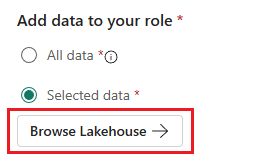
* The maximum name length is 128 characters.Type of role Select Grant. Select Grant permissions Choose the permissions you want to grant. Read is selected at a minimum, and you can optionally add ReadWrite. Add data to your role If you want this role to apply to all of the tables and files in this lakehouse, select the All data toggle. This selection also provides access to any folders that are added in the future.
If you want this role to apply only to a selected group of tables and folders, select the Selected data toggle. Then, use the following steps to define the approved data for this role.Add members to your role Manually enter the names or email addresses of the users that you want to include in the role. Or, select Advanced configuration and follow the steps in Assign virtual members If you chose to add Selected data to your role, configure that selection:
Select Browse Lakehouse or the equivalent for the item that you're working with.
Expand the Tables and Files directories to view data in your lakehouse.
Check the boxes next to the tables and files that you want the role to apply to.
Select Add data to add the selected items to your role.
Review the Preview role summaries.
- To edit the Data preview, select Browse Lakehouse and update the selected tables and folders.
- To remove a user from the Members preview, select more options (...) next to their name, then Remove from role.
Select Create role and wait for the notification that the role was successfully published.
Edit a role
Use the following steps to edit an existing OneLake security role.
Open the item where you want to define security.
Select Manage OneLake security (preview) from the item menu.
On the OneLake security pane, select the role that you want to edit.
This action opens the role details page, which includes two tabs: Data in role and Members in role.
Review the information in the Data in role tab:
This tab shows all of the data that the members of the role can access.
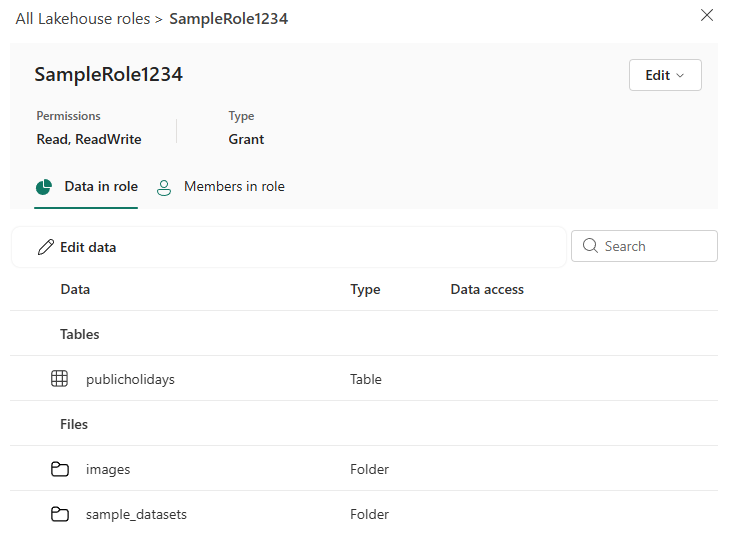
The role name tells you which role you are looking at. To edit the role name, select the Edit dropdown. Select Update role name, enter a new name, and then confirm by selecting the check mark. You can discard your changes by selecting the X.
The Permissions item tells you what permissions the role grants. To change the role permissions, select the Edit dropdown. Select Edit role permissions, edit the selected permissions by using the dropdown, and then confirm by selecting the check mark. You can discard your changes by selecting the X.
The Data column shows the name of the tables or folders that are part of the role access. You can expand and collapse schemas to view the items underneath. Hover over an entry to view the full path of the table or folder. Hover over the ... to see options to configure Row-level security or Column-level security. The row level security and column level security guides provide more information on how that works.
The Type column tells you the type of item that you selected. The values are either: Schema, Table, or Folder.
The Data access column indicates whether any row or column level restrictions are applied to the item. An icon with a lock and horizontal lines indicates row level security is applied, while an icon with a lock and vertical lines indicates column level security is applied.
To edit the data included in the role, select Edit data.
This action opens the table and folder selection dialog.
Check and uncheck tables or folders to add or remove them from the role.
Select Add data to confirm your selections.
Select the Members in role tab to view the members of the role.
The Members column shows the profile picture and name of the member.
The Type column indicates whether the member is a User or Group.
The Added using column denotes whether a user was added via their email address as a member of the role, or included as part of a lakehouse permissions group. For more information about adding users by using item permissions, see Assign virtual members.
To edit the members of the role, select Add members.
To add members manually, enter a name or email in the Add members to your role textbox. Select the correct name from the suggested list. Then, select the check icon to confirm your selection, or select the X icon to clear the selection.
To remove users from the role, select more options (...) next to their name and select Remove from role.
If you make any changes to role membership, the role updates immediately. A notification shows the success or failure of any changes.
Delete a role
Use the following steps to delete a OneLake data access role.
Open the lakehouse where you want to define security.
Select Manage OneLake security (preview) from the Lakehouse menu.
On the OneLake security pane, check the box next to the roles you want to delete.
Select Delete and wait for the notification that the roles are successfully deleted.
Assign a member or group
OneLake security role supports two methods of adding users to a role. The main method is by adding users or groups directly to a role using the Add people or groups box on the Assign role page. The second method is by creating virtual memberships with permission groups using the Advanced configuration control.
When you add users directly to a role, you make them explicit members of the role. These users appear with their name and picture in the Members list.
By using virtual members, the membership of the role is dynamically adjusted based on the Fabric item permissions of the users. By selecting Advanced configuration and selecting a permission, you add any user in the Fabric workspace who has all of the selected permissions as an implicit member of the role. For example, if you choose ReadAll, Write, any user of the Fabric workspace that has ReadAll and Write permissions to the item is included as a member of the role. You can see which users are included in a permission group by looking at the Added using column in the Members in role tab. You can't manually remove these members directly. To remove a member that you added through a permission group, remove the permission group from the role.
Regardless of which membership type you use, OneLake security roles support adding individual users, Microsoft Entra groups, and security principals.
Assign virtual members
You can use the following permissions to identify virtual members:
- Read
- Write
- Reshare
- Execute
- ReadAll
To assign users to permission groups, use the following steps:
Select the name of the role you want to assign members to.
On the role details page, select the Members in role tab.
Select Add members.
Select Advanced configuration.
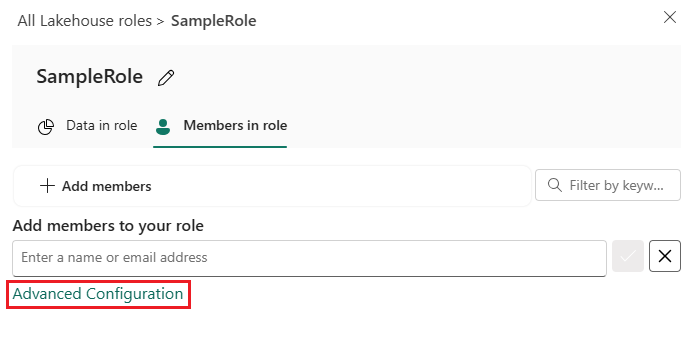
In the Permission groups box, select the check box next to each permission that you want to include users for.
Each permission group shows a count of how many users are included in that group.
Selecting multiple permission groups includes users with all of the selected required permissions.
Select Add to include the groups and save the role.