Märkus.
Juurdepääs sellele lehele nõuab autoriseerimist. Võite proovida sisse logida või kausta vahetada.
Juurdepääs sellele lehele nõuab autoriseerimist. Võite proovida kausta vahetada.
[This article is prerelease documentation and is subject to change.]
Important
- This is a production-ready preview feature.
- Production-ready previews are subject to supplemental terms of use.
Memory in Copilot Studio helps an agent remember details from its interactions and use that context for future interactions. This feature enables the agent to deliver more relevant and consistent results over time. Each agent maintains a separate memory store for every user, so one person's context is never shared with another.
Note
Features in this article are used by agents or workflows powered by the GitHub Copilot harness.
Usage-based billing applies to using, building, testing, and evaluating agents. These actions might consume Copilot Credits. Learn more in Manage costs for agents powered by the GitHub Copilot harness.
As the maker, you turn Memory on or off for each agent. When you turn it on, the agent keeps a separate memory for every user interaction.
How memory works
Each user's memory lives in a dedicated folder in Microsoft-managed storage that the agent reads from and writes to. The lifecycle is always the same:
- Capture: The agent records signals such as user preferences and relevant context shared during the conversation.
- Store: These signals are saved as files in that folder.
- Apply: On subsequent interactions, the agent reads from this memory to inform its responses or decisions.
Turn Memory on or off
To turn Memory on or off:
- Create or open the agent in Copilot Studio.
- Select the Build tab.
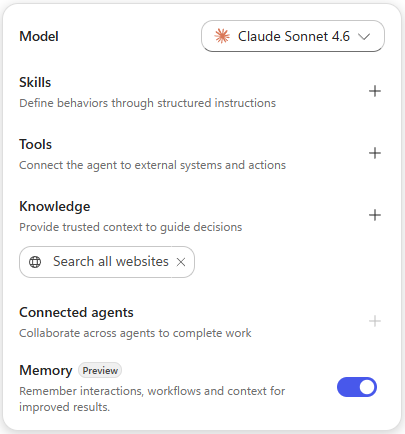
- In the components panel, use the Memory toggle to turn the feature on or off.
Important
- A user's memories are private to that user. The maker and other users can't see them.
- If a user doesn't interact with the agent for 28 days, the system deletes their memories from that agent.
- User memory is disabled in group chats and Microsoft Teams channels.
- Turning Memory off doesn't delete stored memories. It only prevents the agent from using them.
Manage your memories
Memory is transparent and user-controlled. Each user can review and remove what an agent remembers about them, and makers can't view end users' memories. There are two ways to manage memories:
- In chat: For conversational agents, ask the agent in natural language to describe what it remembers, update a specific memory, or forget something.
- In the memory portal: The portal lists everything an agent has stored for the user and opens in a new browser tab, where a user can View memories or Delete all memories.

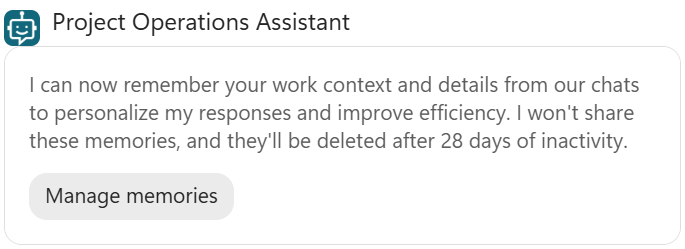
The agent displays a link to the memory portal directly in the conversation:
- First interaction in a channel: The first time a user interacts with a memory-enabled agent in a new channel, the agent's response includes a link to the portal. For example, their first message to the agent in Microsoft Teams or Microsoft Copilot.
- On request in chat: The agent can also display the portal link dynamically during a conversation, so they can open it whenever they want to review or clear their memories. For example, when a user asks what it remembers about them.
Tip
To delete or update a specific memory, ask the agent in chat. To clear all memories at once, use the portal.