Märkus.
Juurdepääs sellele lehele nõuab autoriseerimist. Võite proovida sisse logida või kausta vahetada.
Juurdepääs sellele lehele nõuab autoriseerimist. Võite proovida kausta vahetada.
Note
Features in this article are powered by the standard harness, which uses the billing options described in Licensing for agents powered by the standard harness. Learn how to access standard features in Access standard agents and agent flows.
To deploy a real-time agent, enable the real-time model, configure the core agent settings, and then set up the required channel-specific features. You can deploy the same agent to the voice channel, digital messaging channels, or both.
Note
Real-time agents is in preview for digital messaging channels. Preview features aren't meant for production use and might have restricted functionality. These features are subject to supplemental terms of use. Microsoft provides them before an official release so that customers can get early access and provide feedback.
Set up and enable real-time agents
Create a new agent, and configure its basic details, such as a descriptive name and the purpose of the agent in the description.
Go to the agent's Voice settings and turn on Enable voice. In Voice type, select Real-time.
Important
This setting is a one-time selection. After you select Real-time, you can't switch back to a basic agent type. To use a basic agent, create a new agent. This setting is required even if you're using the agent on a digital messaging channel.
Select the model you want to use, GPT-Realtime, GPT-Realtime-Mini, or GPT-5-Chat (Preview). GPT-5-Chat (Preview) is a text LLM voice model that generates voice responses through Microsoft Neural Text-to-Speech (TTS).
Learn more about how these models work based on their Supported regions and deployment considerations. The following table describes the scenarios in which you can use different models.Scenario GPT-Realtime GPT-5-Chat (Preview) Conversation style Native speech-to-speech interactions Speech is converted to text for reasoning and then synthesized back to speech Latency Lowest latency for natural conversations Higher latency than GPT-Realtime Voice customization Supports the built-in real-time voice options available for real-time voice agents Supports Microsoft Neural Text-to-Speech (TTS), including a broader voice catalog and custom voice models Branded voice experiences Limited customization options Recommended when you need a custom or branded voice experience Regional deployment flexibility Limited to supported real-time model regions Greater flexibility through speech recognition and TTS services Best suited for Natural, low-latency voice conversations and open-ended interactions Scenarios requiring advanced voice customization, custom voices, compliance requirements, or regional deployment flexibility Tip
- Use GPT-Realtime when natural conversation quality and low latency are the primary requirements.
- Use GPT-Realtime-Mini (Preview) for scenarios that need fast speech interactions with lower latency and resource usage.
- Use GPT-5-Chat (Preview) when voice customization, custom voice models, or deployment flexibility are more important than response latency.
Go to the agent's Security settings and select No Authentication.
Knowledge and tools
You can configure your agent to use knowledge and tools. Learn more in Knowledge sources summary, Add tools to custom agents, and Tools, knowledge, MCP, and API.
Nested agents (preview)
Real-time agents only support child agents.
Important
Ensure child agent descriptions don't overlap with topic descriptions. Explicitly define invocation order in the agent's instructions.
Topics
Real-time agents support all topics configured in Copilot Studio. Use topics to define deterministic behaviors such as greetings, business rules, and escalation, while the model you selected manages conversational responses at runtime. Learn more in Choose how to control the conversation.
Best practices
Use topics only when deterministic behavior is required.
Use static text in greeting messages for the fastest first response. Dynamic messages with variables and expressions increase initial latency.
Disable the Conversation Start topic if you want the real-time agent model to handle the greeting. Otherwise, the greeting configured in the Conversation Start topic plays instead of the voice model greeting.
Let the real-time agent model handle general conversation and follow-up questions.
Include an explicit action in the On Error topic, such as transfer or end call. Message-only error handling isn't sufficient. Without a deterministic next step, customers might experience silence for voice agents or stuck calls for messaging channels, leading to confusion and poor customer experience.
Use explicit topic and tool descriptions to declare ownership of data collection. Learn more in Write effective topic and tool descriptions.
Topic node support
The following list describes topic support in real-time agents:
Condition node
| Feature | Support |
|---|---|
| If/Else branching | Supported |
| Power Fx expressions | Supported |
| Slot filling reprocessing | Supported |
Message node
| Feature | Support |
|---|---|
| Basic message | Supported |
| Message variations | Supported |
| Variable insertion | Supported |
| SSML | Voice channel only |
| Rich Media/Adaptive Cards | Supported only for digital messaging channels. This feature is in preview. |
| Quick Replies | Supported only for digital messaging channels. This feature is in preview. |
Question node
| Feature | Support |
|---|---|
| Prompt text | Supported |
| Automatic hold | Not supported |
| Slot filling | Supported |
| Skip behavior/Greedy slot filling | Supported |
| Reprompt/Retry | Supported |
| Invalid response handling | Supported |
| Topic interruption | Supported |
| Barge‑in | Supported for voice channel only. |
| Custom reprompt message | Supported |
| DTMF input | Supported for voice channel only. |
| Silence detection | Supported for voice channel only. |
HTTP node
| Feature | Support |
|---|---|
| HTTP methods: GET, POST, PUT, PATCH, DELETE | Supported |
| URL endpoints | Supported |
| Headers and payloads | Supported |
| Response parsing and schema | Supported |
| Variable mapping | Supported |
| Error handling | Supported |
Tool node
| Feature | Support |
|---|---|
| Power Automate flow | Supported |
| Tool invocation | Supported |
| Input/Output mapping | Supported |
| New prompt | Supported |
Set variable value node
| Feature | Support |
|---|---|
| Literal assignment | Supported |
| Expression assignment | Supported |
| Variable to variable | Supported |
Topic management node
| Feature | Support |
|---|---|
| End current topic | Supported |
| End all topics | Supported |
| End conversation | Supported |
| Go to step | Supported |
| User input for recognize intent | Supported |
| Go to another topic | Supported |
Transfer conversation node
| Feature | Support |
|---|---|
| Transfer to agent | Supported |
| External phone number transfer | Supported for voice channel only. |
Advanced
| Feature | Support |
|---|---|
| Create generative answers | Supported |
System trigger support
| Trigger | Support | Details |
|---|---|---|
| On Conversation Start | Supported | Fires when a new conversation begins |
| On Talk to representative | Supported | Transfers to human agent |
| Unknown Topic/On Unknown Intent | Not supported | Fallback when no topic matches |
| OnSelectIntent (multiple topics matched) | Not supported | Disambiguation between similar topics |
| Reset Conversation (OnSystemRedirect) | Supported | Clears variables and restarts flow |
| On Sign in | Not supported | |
| Unknown DTMF key press | Supported | Unmapped keypad input. Applicable to voice channel only. |
| The agent chooses / User says a phrase | Supported | Agent selects topic based on intent |
| A message is received | Not supported | Increases latency |
| A custom client event occurs | Not supported | Only at session start |
| The conversation update | Not supported | Members added or removed, session changes |
| It's invoked | Not supported | Requires synchronous UI |
| It's redirected | Supported | |
| The user is inactive for a specified period. | Supported | User inactive timeout. Applicable to digital messaging channels only. |
| Silence detection | Supported | Applicable to voice channel only. |
| A plan completes | Not supported | |
| AI response generated | Not supported | |
| On Error | Supported | Handles orchestration errors |
Pass variables between topics and the language model
When you use topics in a hybrid conversational flow, understanding how to pass variables between topics and the real-time language model is critical for building reliable, stateful interactions. This process applies across channels.
This functionality works through the following process:
You pass input variables defined on a topic into the topic at invocation time, so the language model can provide structured data to the deterministic flow.
You return output variables defined on a topic to the language model at the end of topic execution as structured key-value pairs.
Tool call outputs follow the same pattern.
The language model is populated with conversational context, including tool call output key-value pairs. However, you only return explicitly defined output variables as structured data.
The variable description helps the model understand how to use the variable during a conversation. Provide clear and descriptive definitions.
Learn more in Manage topic inputs and outputs.
Multilingual support
Add all secondary languages you want. Localization strings aren't required for any real-time flows. However, for deterministic topic messages, you need to provide the translated messages. Learn more in Configure and create multilingual agents.
The real-time model can understand and respond in many languages. However, Microsoft doesn't formally validate all languages for general availability.
As of June 2026, the following languages are formally validated:
- Dutch (Netherlands) (nl-NL)
- English (Australia) (en-AU)
- English (United States) (en-US)
- English (United Kingdom) (en-GB)
- French (Canada) (fr-CA)
- French (France) (fr-FR)
- German (Germany) (de-DE)
- Italian (Italy) (it-IT)
- Portuguese (Brazil) (pt-BR)
- Spanish (Spain) (es-ES)
- Spanish (United States) (es-US)
Microsoft continues to validate other languages and adds them after certification completion. You can add any language supported by Copilot Studio. However, languages that aren't fully certified for GA-level quality should be thoroughly tested before production deployment.
Important
Technical language capability doesn't equal a supported or certified language. If you intend to deploy agents in languages other than English, you should conduct extensive testing with real-world callers and call flows before going live.
Context variables
A real-time agent supports context variables that allow it to behave more intelligently by carrying information about the conversation and the customer. The available context variables depend on the channel. This set includes:
| Context variable | Description |
|---|---|
| Channel ID | Identifies the communication channel used for the interaction. Applicable to voice channel only. |
| Caller phone number (ANI) | The originating phone number of the caller. Applicable to voice channel only. |
| Callee number (DNIS) | The destination phone number that the caller dialed. Applicable to voice channel only. |
| Conversation ID | A unique identifier for the active call session. |
| SIP headers | Supported SIP header key-value pairs associated with the call. Applicable to voice channel only. |
| Current date (UTC) | The current date in Coordinated Universal Time (UTC), provided at runtime to allow date-aware responses. |
| Current time (UTC) | The current time in Coordinated Universal Time (UTC), provided at runtime to allow time-aware responses. |
Learn more about all other context variables, including digital messaging and custom context variables, in Configure context variables for agents.
Channel specific settings
Agent voice
Select the voice your agent uses by selecting your agent and go to Settings > Voice > Select voice. Real-time agents support the following voices:
- Alloy
- Ash
- Ballad
- Coral
- Echo
- Sage
- Shimmer
- Verse
- Marin
- Cedar
Note
- The agent voice is for your real-time agent and isn't the one configured in Copilot Service admin center.
- To match your Dynamics system message voices with your real-time agent, use only the following supported voices: Alloy, Echo, Shimmer, or Ash.
- Agents that use Text LLM, GPT-5-Chat (Preview), generate voice responses through Microsoft Neural Text-to-Speech (TTS). This model supports a broader voice catalog and custom voice models, making it suitable for organizations that require branded voice experiences or advanced voice customization.
Speech sensitivity
Speech sensitivity voice activity detection (VAD) determines when the agent should respond after the caller finishes speaking.
Understanding VAD types
Real-time agents support two VAD approaches:
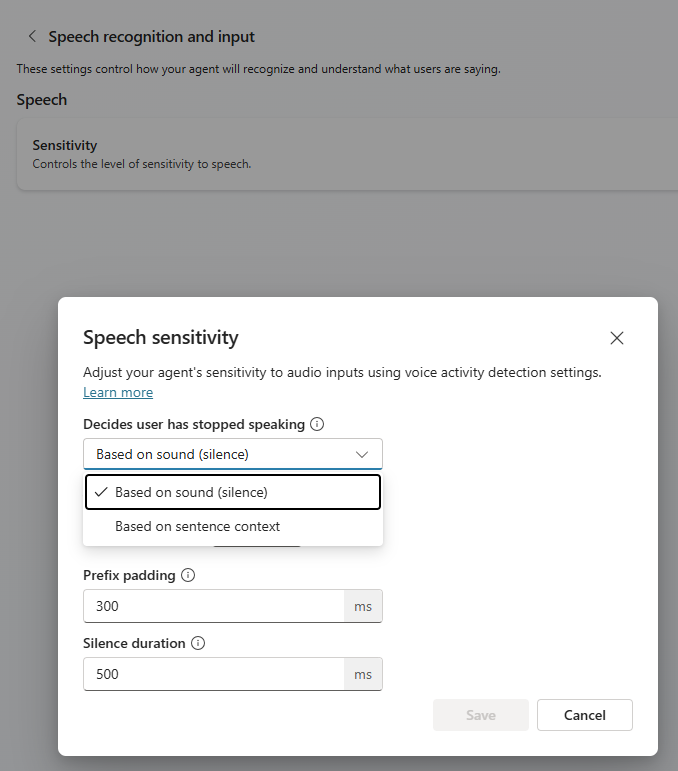
Server-based VAD - Based on sound (silence)
Detects end of speech based on audio signals (silence duration, volume)
Responds quickly once silence is detected
Best for structured interactions, short responses, noisy environments
Semantic VAD - Based on sentence context
Determines turn completion based on meaning of what was said
Adapts to natural pauses, filler words, trailing speech
Best for: Conversational interactions, complex questions, open-ended discussions
Select the right VAD
Use server-based VAD when all of the following conditions are true:
- Interactions are structured (IVR-style menu navigation).
- Responses are short and predictable.
- Background noise is a concern (semantic VAD might wait too long).
- You want fast, crisp turn-taking.
Use semantic VAD when all of the following conditions are true:
- Conversations are open-ended.
- Callers might hesitate or use filler words ("um", "let me think...").
- Questions are complex (callers explain situations).
- Natural conversation flow is prioritized.
Configure server-based VAD
Go to Settings > Voice > Phone Setup > Speech input > Sensitivity > Based on sound (silence).
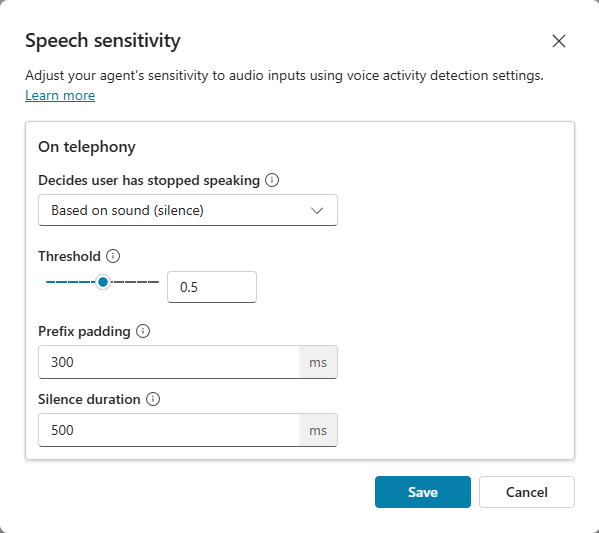
| Parameter | Description | Default | Recommended range |
|---|---|---|---|
| Threshold | Sensitivity to voice versus noise (0-1 scale) | 0.6 | 0.5-0.7 |
| Prefix padding (ms) | Audio captured before speech starts | 300 ms | 200-500 ms |
| Silence Duration (ms) | Silence required to end turn | 750 ms | 750-1000 ms |
Threshold
- Lower (0.3-0.4): More sensitive; picks up quiet speech, might trigger on background noise.
- Higher (0.7-0.9): Less sensitive; requires louder speech, reduces false triggers.
- Recommended: Start with 0.5; increase if background noise causes false triggers.
Prefix padding
- Captures audio before speech detection (prevents cutting off first word).
- Lower (200 ms): Faster response; might miss first syllable.
- Higher (500 ms): Safer capture; slight delay.
- Recommended: 300 ms (good balance).
Silence Duration
- How long the caller must be silent before agent responds.
- Lower (500 ms): Fast turn-taking; might interrupt if caller pauses mid-thought.
- Higher (1000 ms): More patient; might feel slow.
- Recommended: Start with 750 ms.
Configure Semantic VAD
Go to Settings > Voice > Phone Setup > Speech input > Sensitivity > Based on sentence context.
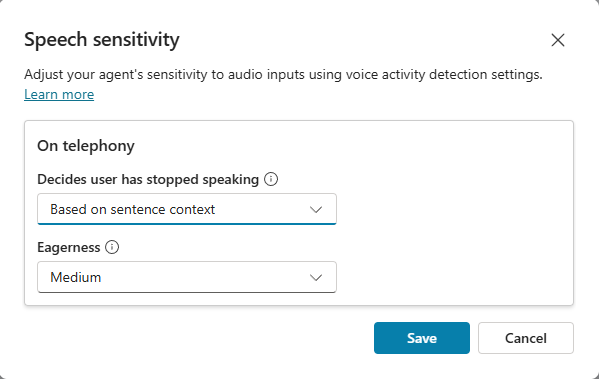
Parameter: Eagerness (how quickly the agent responds after semantic completion)
| Setting | Behavior | Best for |
|---|---|---|
| Low | Waits longer, very patient | Callers who think out loud, frequent pauses |
| Medium | Balanced (default) | General conversations |
| High | Responds quickly | Fast-paced interactions, simple questions |
DTMF configuration
Dual-Tone Multi-Frequency (DTMF) allows callers to enter information by using their phone keypad.
You can turn on DTMF for your agent at both the topic and global levels. To set it at the global level, select your agent and go to Settings > Voice > Conversation behavior > DTMF.
Important
When building DTMF-only experiences, configure DTMF input for every input node, including menu selections and multi-digit inputs such as account numbers or PINs. Ensure all possible customer input paths have corresponding DTMF mappings so users can navigate and complete the conversation using keypad input alone.
Silence detection
Silence detection enables real-time agents to recognize when a caller provides no input for a specified period. Set up silence detection as a global voice setting for the agent by going to Settings > Voice > Conversation Behavior > Silence detection.
Important
- Silence detection isn't turned on by default. If the user doesn't speak, the agent waits indefinitely without prompting. Explicitly turn on silence detection and configure a reprompt message to handle silent callers.
- The default silence detection timeout is 7,000 ms (7 seconds). Validate this value against your specific use case and caller environment before deploying to production. Seven seconds might feel too long for some callers or too short for others depending on the nature of the interaction, for example, complex questions or noisy environments. Test with real-world call data to determine the appropriate threshold for your scenario.
- Before enabling silence detection, ensure that the behavior you configure in your silence detection topic (for example, Escalate, Hang Up, Reprompt) is intentional and appropriate for your use case. Misconfigured fallback behavior, such as inadvertently setting the fallback to Escalate when the intent is to hang up, or vice versa, can result in unexpected call outcomes.
Latency messaging
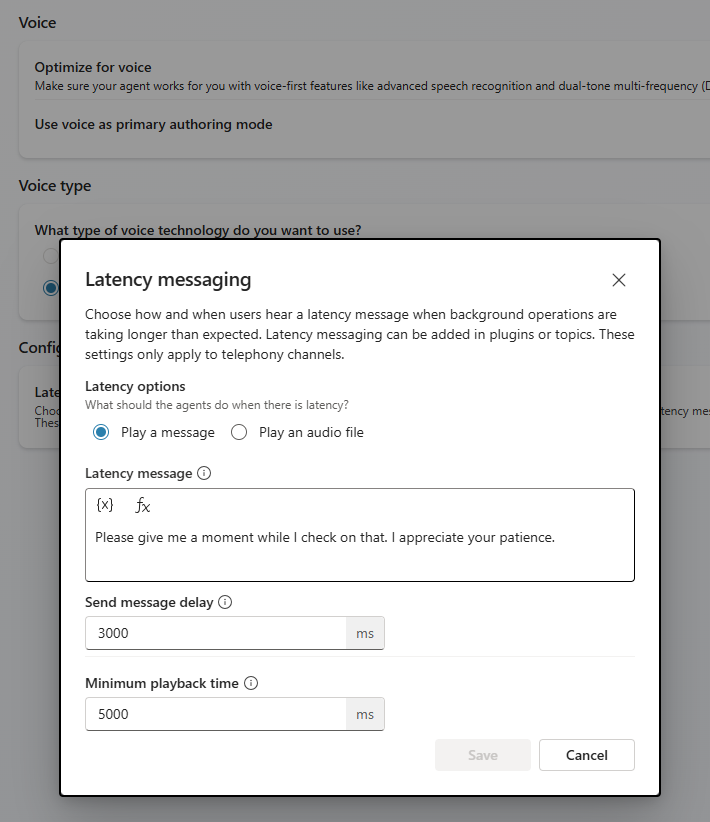
Add latency message or music to your agent when background operations take longer than expected. To configure latency messaging, go to Settings > Voice > Conversation behavior > Latency messaging.
Important
Because the Text LLM real-time agent solution uses multiple sequential steps (ASR, LLM, TTS), callers experience a few seconds of silence between speaking and hearing a response. Set appropriate expectations with users, for example, by using a phrase such as "One moment please, I'm looking that up for you...".
Real-time agent evaluation
Real-time agents support sending text during evaluation, however, audio processing isn't supported.