Märkus.
Juurdepääs sellele lehele nõuab autoriseerimist. Võite proovida sisse logida või kausta vahetada.
Juurdepääs sellele lehele nõuab autoriseerimist. Võite proovida kausta vahetada.
Agent mode lets GitHub Copilot orchestrate the tools contributed by the MSSQL extension for Visual Studio Code. When the extension is installed and active, GitHub Copilot can list Microsoft SQL Server connections, connect to a server and database, retrieve schema metadata, and execute queries, all from natural-language prompts, with your approval on each action.
All actions use the same connection context and credentials as the MSSQL extension. Agent mode doesn't introduce another authentication or permission changes.
Tip
Use agent mode for multi-step workflows, exploration at scale, and delegated changes. Use ask mode when you need a single answer or a one-shot query. Use plan mode when you need to reason about a design before writing Transact-SQL (T-SQL) data definition language (DDL).
Key takeaways
- Agent mode picks up MSSQL extension tools automatically. No
@mssqlmention required. - Every tool call requires your approval before execution.
- Agent mode is schema-aware through its tools: each tool call returns real data from your connected database.
- For architectural context across all surfaces, see How GitHub Copilot works with the MSSQL extension.
When to use agent mode
Agent mode is best for:
- Multi-step workflows. "Connect to LocalDev, switch to AdventureWorks, then show me every table with a foreign key to Customer."
- Exploration at scale. "Find any stored procedures that reference SalesOrderHeader and summarize what each one does."
- Delegated changes. "Add audit columns to every table in the Sales schema and regenerate the related stored procedures."
Use ask mode when a single question or a one-shot query answers your need. Use slash commands when you already know which action you want. Use plan mode when you want a written plan before any changes.
For details about how agent mode selects and executes tools, see the Visual Studio Code documentation on agent mode.
What is agent mode?
Agent Mode lets GitHub Copilot perform SQL-related actions using the MSSQL extension, and user confirmation is required before execution.
You can invoke these actions by using chat variables such as #mssql_connect, or by issuing equivalent natural-language requests, for example:
Connect to my Library database using my LocalDev profile
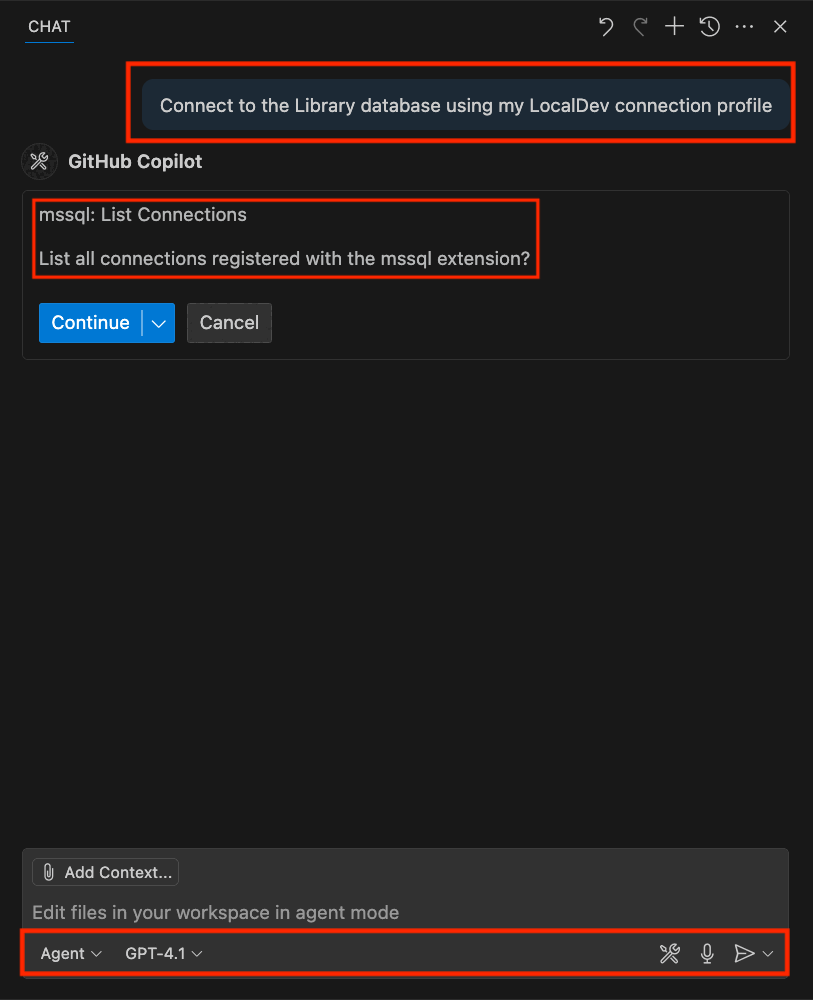
MSSQL Agent Mode tool reference
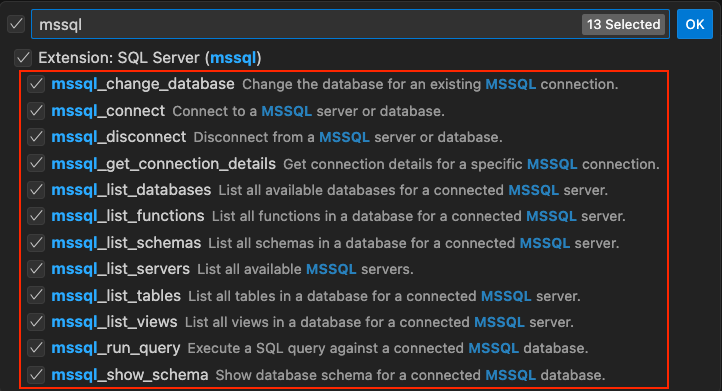
This section provides a detailed reference for the SQL-specific tools available in GitHub Copilot Agent Mode. The MSSQL extension contributes these tools, enabling GitHub Copilot to execute actions through chat variables or natural language prompts. All tools require user confirmation before execution.
Tip
You can also use chat variables like #mssql_connect to invoke these tools directly, or write prompts in natural language such as:
Connect to my development database
GitHub Copilot handles tool selection automatically.
Connection management
| Tool name | Description |
|---|---|
connect |
Connects to a database by using a saved connection profile or a specified server and database. |
disconnect |
Ends the current active connection session. |
change_database |
Changes the database for an existing connection session. |
get_connection_details |
Gets connection details for a specific MSSQL connection. |
list_servers |
Lists all saved SQL Server connection profiles in your environment. |
list_databases |
Lists all available databases for a connected MSSQL server. |
Examples
Use the following phrases to interact with GitHub Copilot.
- Connect to my LocalDev environment
- Disconnect from my current database
- List my available connection profiles
- List all databases in the localhost server
- Set the active connection to localhost
- Set AdventureWorks as the active database
- Get the connection string for AdventureWorks on localhost
How connection logic works
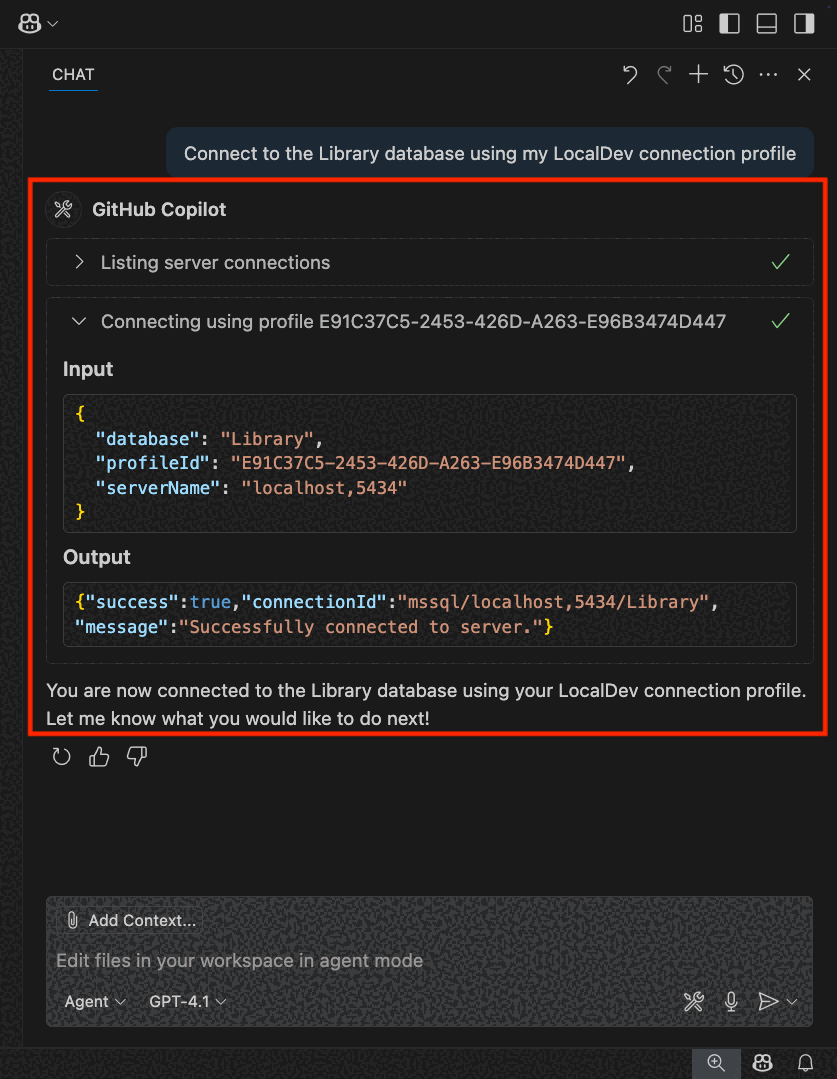
GitHub Copilot Agent Mode supports flexible ways to connect to your SQL database, either by referencing saved profiles or by specifying a server and database directly. Here's how the connection logic works.
When you connect with a saved profile:
- You connect by referencing the name of a saved connection profile.
- GitHub Copilot uses the
mssql_list_serverstool to verify the profile exists. - The
mssql_connecttool then uses the savedprofileIdand its parameters to establish the connection.
When you connect by specifying a server and database:
If a saved profile matches both the specified server and database:
- GitHub Copilot uses
mssql_list_serversto find the match. - It then calls
mssql_connectusing the full profile.
- GitHub Copilot uses
If a saved profile matches only the server:
- GitHub Copilot finds the matching server profile.
- It attempts to connect by substituting the user-requested database into that profile.
- If the connection fails, an error is shown.
If no profile matches the specified server:
- GitHub Copilot reports an error.
This flexible matching system lets GitHub Copilot handle a range of connection scenarios. It minimizes user effort while ensuring secure, confirmable actions.
Schema exploration
| Tool name | Description |
|---|---|
show_schema |
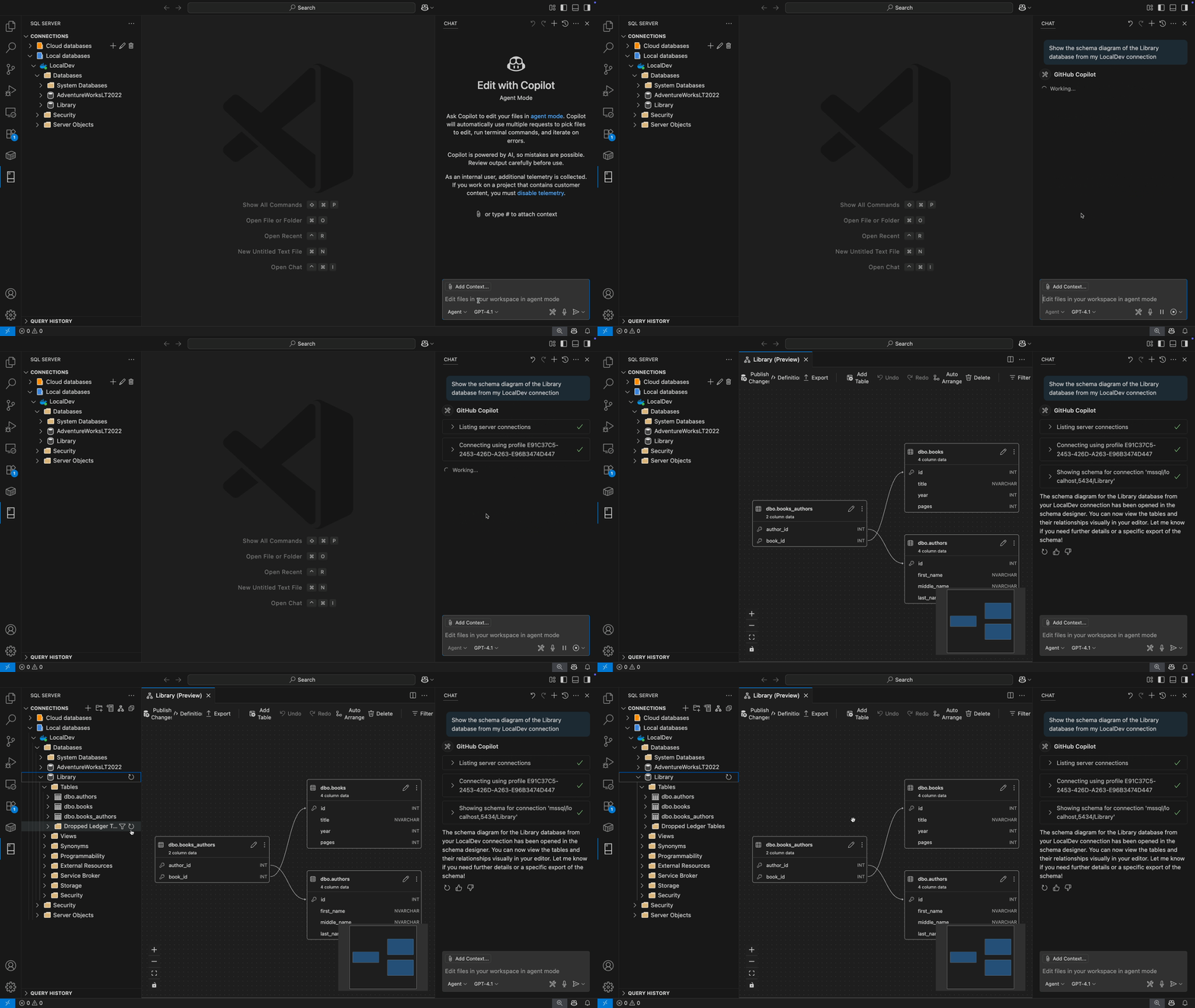
Displays a high-level diagram of your connected database schema, including tables and relationships. |
list_schemas |
Lists all schemas in a database for a connected MSSQL server. |
list_tables |
Lists all tables in a database for a connected MSSQL server. |
list_views |
Lists all views in a database for a connected MSSQL server. |
list_functions |
Lists all functions in a database for a connected MSSQL server. |
Examples
Use the following phrases to interact with GitHub Copilot.
- Show me the schema for this database
- Show me all tables in the current database
- List all views from this MSSQL database
- Give me a list of all the functions available in this schema
- What schemas are available in this database?
Query execution
| Tool name | Description |
|---|---|
run_query |
Runs a SQL query against the connected database. |
Examples
Use the following phrases to interact with GitHub Copilot.
- Give me the top five posts published this week
- Execute the current file to find how many comments each post has
- Get all categories along with the number of posts in each
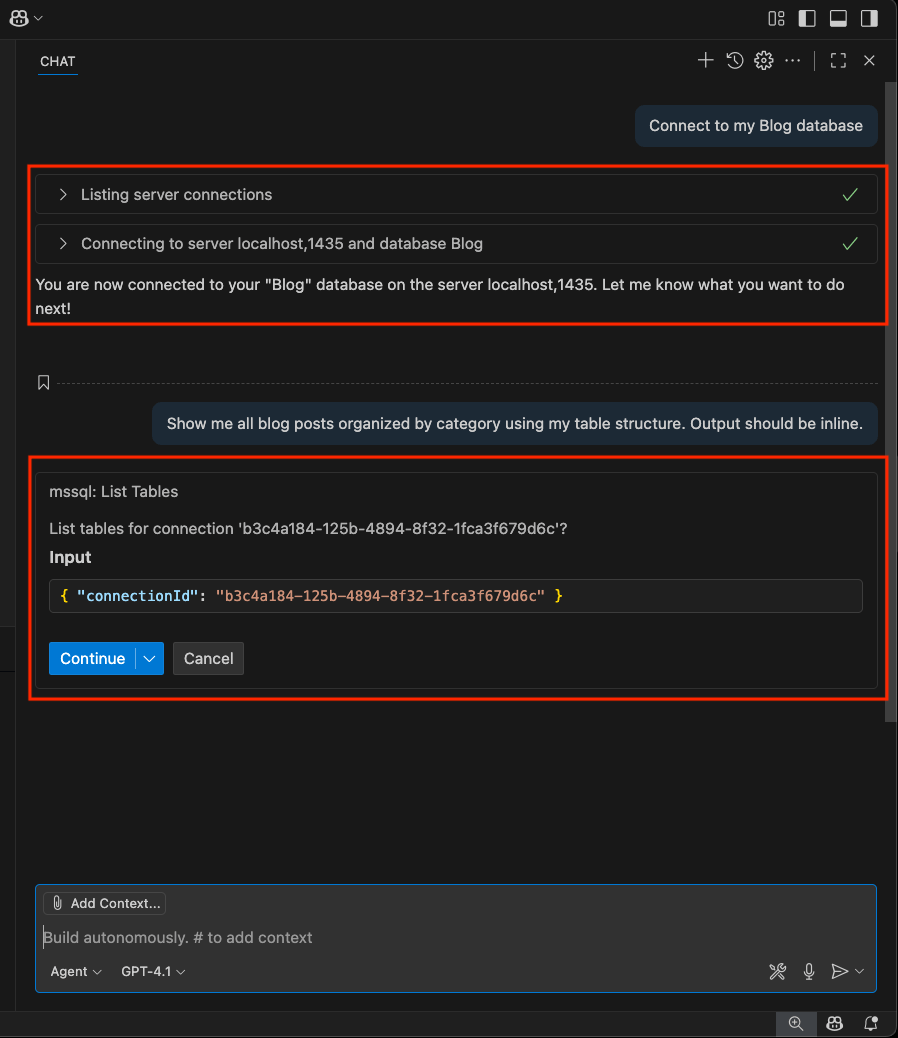
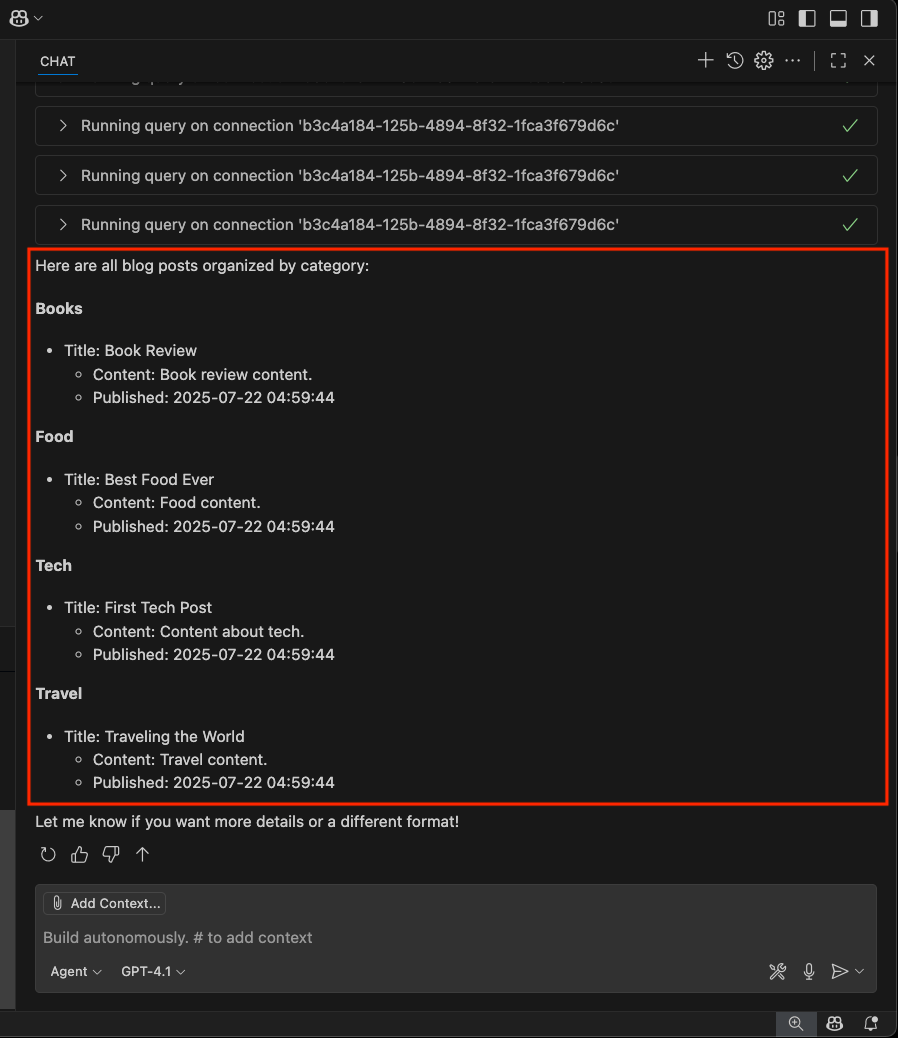
How tools are managed in Agent Mode
GitHub Copilot can use MSSQL-specific tools and other extension-contributed tools while it processes your request. You can see these tools in the Agent Mode interface under the Tools menu, where you can also turn specific tools on or off.
When you invoke a tool, especially if it interacts with your machine or database, GitHub Copilot asks for confirmation to ensure secure execution. You can allow the tool for just the current session, the workspace, or permanently.
For more information about tool visibility and approvals, see Manage tool approvals.
Agent Mode confirmation workflow
When GitHub Copilot selects a tool, it prompts you with a confirmation dialog that shows details about the requested action. You must explicitly approve the request before it can execute any commands that interact with your machine or database:
- Allow in this session
- Allow in this workspace
- Always allow
This confirmation step helps ensure secure, intentional interactions with your development environment.
Note
For more information on how confirmation works across all tools in Agent Mode, see the Visual Studio Code documentation on tool approvals.
Agent mode prompt catalog
Use these natural-language prompts to invoke MSSQL extension tools through agent mode. For each category, an equivalent slash command or ask mode prompt is cross-referenced.
Connection management
Connect to my LocalDev profile and set AdventureWorks as the active database.
List all my saved connection profiles and tell me which one I'm currently connected to.
Disconnect from my current database.
Equivalent slash commands: /connect, /listServers, /changeDatabase, /disconnect.
Schema exploration
Show me every table in the SalesLT schema, grouped by whether they're
referenced by a foreign key from another table.
Find all stored procedures that reference SalesLT.SalesOrderHeader and
summarize what each one does in one sentence.
Which tables in the current database have no primary key?
Equivalents ask prompts: see Chat with the @mssql participant.
Query execution
Run a query to count the number of active customers in SalesLT.Customer,
then show me the top 10 by order total.
Show me the execution plan for this query: SELECT ... FROM ...
Execute the last query I ran against my Dev database instead.
Multi-step workflows
Connect to LocalDev, switch to AdventureWorks, list all tables with a
foreign key to SalesLT.Customer, and save the list to a file called
customer-dependents.md.
Find every stored procedure that uses dynamic SQL and open each one
in a new editor tab so I can review them.
Delegated schema changes
Note
Schema changes are good candidates to run through plan mode first. Plan the changes, review them, then hand the plan to agent mode for execution.
Add createdAt and updatedAt audit columns to every table in the Sales
schema that doesn't already have them. Use DATETIME2(7) with a default
of GETUTCDATE().
Regenerate every stored procedure that inserts into SalesLT.Customer
to include the new email column.
Related content
- How GitHub Copilot works with the MSSQL extension
- Quickstart: Chat with the
@mssqlparticipant (ask mode) - Quickstart: Use plan mode for spec-driven database design
- Quickstart: Use GitHub Copilot slash commands
- Quickstart: Use custom instructions to align GitHub Copilot with your T-SQL conventions
- Quickstart: Generate code
- Quickstart: Design schemas visually with embedded GitHub Copilot scenarios
- Quickstart: Use the smart query builder
- Quickstart: Query optimizer assistant
- Object-relational mapping integrations with GitHub Copilot
- Limitations and known issues