Once you're connected to your devices and apps using Windows App, it's important to know how to use its features and configure settings. This article shows you how to configure display settings, such as multiple displays, display resolutions, and scaling for devices in Windows App.
Select a tab for the platform you're using.
Here are the display settings you can configure in Windows App for Windows.
Set custom display settings
If you want to use different display settings to the default settings or settings specified by your admin, you can configure custom settings by following these steps. You can only configure custom settings for devices, not apps.
Open Windows App, select Devices, then find the device you want to configure custom display settings for.
Select the ellipses (...) on the card of the device, then select Settings.
Toggle Use default settings to off.
For Display Settings, you can select the following options:
| Display configuration |
Description |
| All displays |
Automatically use all displays for the device. If you have multiple displays, all of them are used. |
| Single display |
Only a single display is used for the device. |
| Select displays |
Only select displays are used for the device. |
Each display configuration in the previous table has its own settings. Use the following table to understand each setting:
| Setting |
Display configurations |
Description |
| Single display when in windowed mode |
All displays
Select displays |
Only use a single display when running in windowed mode, rather than full screen. |
| Start in full screen |
Single display |
The device is full-screen. |
| Fit session to window |
All displays
Single display
Select displays |
When you resize the window, the scaling of the device automatically adjusts to fit the new window size. The resolution stays the same. |
| Update the resolution on resize |
Single display |
When you resize the window, the resolution of the device automatically changes to match.
If this setting is disabled, a new option for Resolution is displayed where you can select from a predefined list of resolutions. |
| Choose which display to use for this session |
Select displays |
Select which displays you want to use. All selected displays must be next to each other. |
| Maximize to current displays |
Select displays |
The device shows full-screen on the current display(s) the window is on, even if display isn't selected in the settings. If this setting is off, the device shows full-screen on the same display(s) regardless of the current display the window is on. If your window overlaps multiple displays, those displays are used when maximizing the device. |
Set monitor configuration (preview)
With the new connection experience in Windows App for Windows, you can choose which displays or monitors to use in full-screen mode without disconnecting. The same settings are available in windowed mode, so you can set preferences before switching to full screen or select which displays to use while staying in windowed mode.
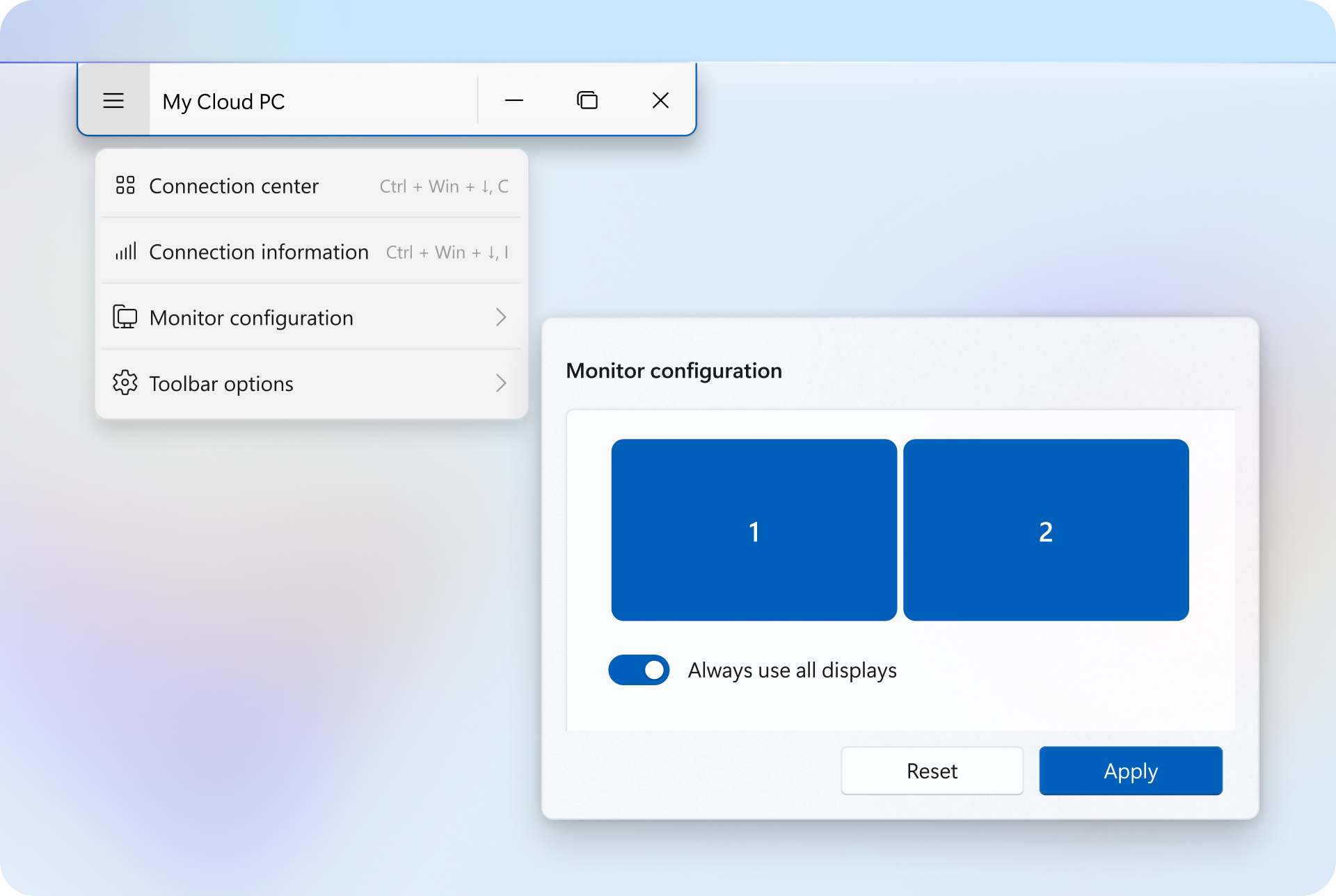
Open Windows App and connect to a device.
Once connected, open the menu:
Full screen mode: Expand the new connection bar (preview), then select Open menu.
Windowed mode: Select the ellipses (...) on the title bar.
Select Monitor configuration to view and change the following settings:
| Setting |
Description |
| Display selection |
Choose which displays to use. |
| Always use all displays - On |
Use all available displays. |
| Only use selected displays - Off |
Use only the selected displays. |
Note
In windowed mode, you can also access these settings by selecting the down arrow next to the Full screen button on the title bar.
After selecting your preferred display settings:
Full screen mode: Select Apply to apply your changes.
Windowed mode: Changes to display selection are applied immediately in windowed mode. The resulting behavior depends on your configured window settings (see the following table). Selecting Enter full screen switches the session to full-screen mode using the selected settings.
| Monitor configuration |
Window configuration - Resolution |
Window configuration - Scaling |
Behavior |
| Single display |
Use selected monitors
or
Use primary monitor |
Fill screen |
The remote session scales to fit the window without changing the display's resolution. Black borders might appear in the window. |
| Single display |
Use selected monitors
or
Use primary monitor |
Actual size |
The remote session uses the display's resolution and scaling settings. Scroll bars might appear in the window. |
| Multiple displays selected |
Use selected monitors |
Fill screen |
The remote session scales to fit the window without changing the resolution of the selected displays. Multiple displays are shown in one window, and black borders might appear. |
| Multiple displays selected |
Use selected monitors |
Actual size |
The remote session uses the resolution and scaling settings of each selected display. Multiple displays appear in a single window, and black borders or scroll bars might appear. |
Set window configuration (preview)
The new connection experience in Windows allows you to adjust display resolution and scaling while connected to a remote session in windowed mode.
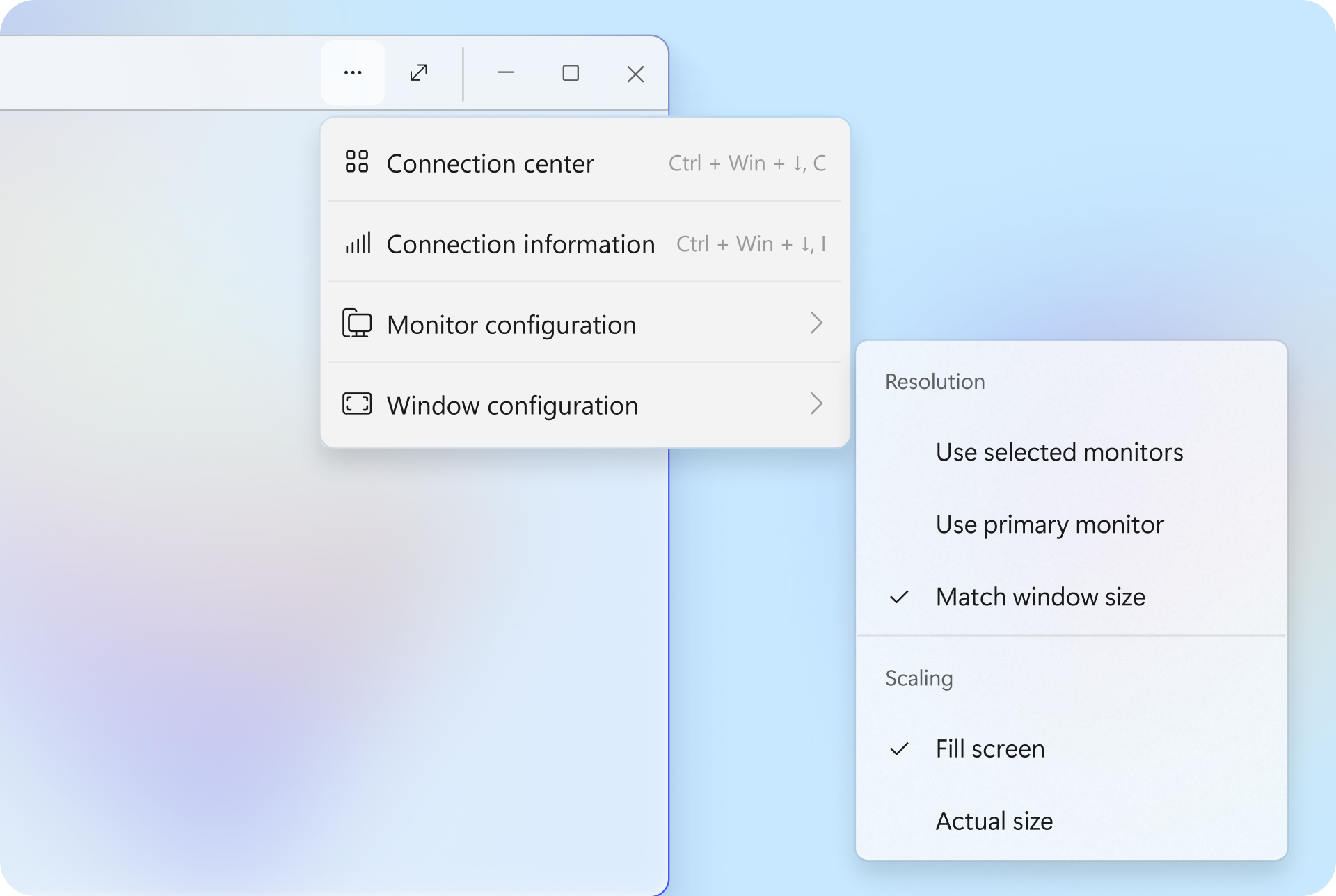
Open Windows App, connect to a device, then switch to windowed mode.
Select the ellipses (...) on the title bar.
Select Window configuration to view and adjust the following settings:
| Category |
Setting |
Description |
| Resolution |
Use selected monitors |
Matches the resolution of the displays selected in Monitor configuration. |
| Resolution |
Use primary monitor |
Matches the resolution of your primary monitor. |
| Resolution |
Match window size |
Automatically adjusts the resolution to match the window size. |
| Scaling |
Fill screen |
Automatically scales the remote session to fit the window without changing the resolution.
If resolution isn't set to Match window size, black borders might appear in the window. |
| Scaling |
Actual size |
Uses the scaling settings of the displays used.
If resolution isn't set to Match window size, black borders or scroll bars might appear in the window. |
Note
With the new connection experience (preview), display settings on the Windows App device card won't work as expected. Use the connection bar to change display settings instead.
Light mode and dark mode
You can change Windows App between light mode and dark mode, or use the mode your device is configured to use in your system settings. To change between light mode and dark mode:
Open Windows App.
Select the cog icon for Settings.
In the section General, select the drop-down menu for Choose your mode.
Tap Light, Dark, or Use system settings. The change takes effect immediately.
Here are the display settings you can configure in Windows App for macOS.
Set custom display settings
If you want to use different display settings to the default settings or settings specified by your admin, you can configure custom settings by following these steps. You can only configure custom settings for devices, not apps.
Open Windows App, select Devices, then find the device you want to configure custom display settings for.
Select the pencil icon (edit) on the card of the device.
Check the box for Use customized settings. This check box isn't applicable for remote PCs.
On the Display tab, you can select from the following options:
| Option |
Description |
| Resolution |
Select the resolution to use for the device. You can select from a predefined list, or add custom resolutions.
This setting is only available when Use all monitors, Optimize for Retina displays and Update the session resolution on resize are unchecked. |
| Use all monitors |
Automatically use all displays for the device. If you have multiple displays, all of them are used. |
| Start session in full screen |
When checked, the device is displayed full-screen. When unchecked, the device is displayed in a window. |
| Fit session to window |
When you resize the window, the scaling of the device automatically adjusts to fit the new window size. The resolution stays the same. |
| Color quality |
The quality and number of colors used. Higher quality uses more bandwidth. |
| Optimize for Retina displays |
Scale the device to match the scaling used on the Mac client. This uses four times more bandwidth. |
| Update the session resolution on resize |
When you resize the window, the resolution of the device changes automatically to match. |
Add, remove, or restore display resolutions
To add, remove or restore display resolutions:
Open Windows App.
From the macOS menu bar, select Windows App, then select Settings.
On the Preferences pane, select the Resolutions tab.
To add a custom resolution, select the + (plus) icon and enter values in the fields for Width and Height in pixels, then select Add.
To remove a resolution, select the resolution you want to remove, then select the - (minus) icon. Confirm that you want to delete the resolution by selecting Delete.
To restore the default resolutions, select Restore Defaults.
Displays have separate Spaces
macOS enables you to create extra desktops, called Spaces, where only the Windows that are in that space are visible. The macOS setting Displays have separate Spaces, which can be found in your Mac's Mission Control system settings, controls whether each display has its own Spaces, or if all displays share the same Spaces.
When you use multiple displays, this setting can cause some displays to be blank in certain scenarios. If Displays have separate Spaces is disabled and Windows App has Start session in full screen enabled, but Use all monitors disabled, only one display is used and the others are blank. Either enable Displays have separate Spaces in Mission Control so a device in Windows App is displayed full-screen on one display, with others showing the macOS desktop, or enable Use all monitors so the device in Windows App is displayed on all displays.
Sidecar
You can use Apple Sidecar during a remote session, allowing you to extend a Mac desktop display using an iPad as an extra display.
Here are the display settings you can configure in Windows App for iOS/iPadOS.
Set display settings
By default, Windows App adds letterboxing and/or pillarboxing to a remote session to compensate for:
The rounded corners of an iPad or iPhone display that otherwise leads to graphics being cut off in the corners of a remote session.
iOS/iPadOS system gestures that otherwise interfere with input near the top and bottom of a remote session, and mouse and trackpad gestures that otherwise interfere with input the corner of a remote session.
All devices and apps use the same display settings. You can't set custom display settings per device or app. To set the resolution used for remote sessions and whether to use the full display of your device:
Open Windows App.
Tap the cog icon for Settings, or tap your user account picture to open the settings pane.
Tap Display.
Tap a resolution from the list of available resolutions.
To use the full display of your device, on iPadOS toggle Use Full Display to on, or on iOS toggle Use Home Indicator Area to on to use the area of the screen occupied by the Home indicator.
Light mode and dark mode
You can change Windows App between light mode and dark mode, or use the mode your device is configured to use in your iOS or iPadOS settings. To change between light mode and dark mode:
Open Windows App.
Tap the cog icon for Settings, or tap your user account picture to open the settings pane.
Tap General, then tap Appearance.
Tap Light, Dark, or System. The change takes effect immediately.
Display auto-lock
You can configure whether your device should keep the display on when in a remote session, or be allowed to automatically lock as configured in your iOS/iPadOS settings. To configure display auto-lock:
Open Windows App.
Tap the cog icon for Settings, or tap your user account picture to open the settings pane.
Tap General.
Toggle Allow Display Auto-Lock to on to allow your device to automatically lock, or off to keep the display on.
External displays
iPhone and iPad support an external display using a wired connection or AirPlay. How Windows App uses the external display depends on your device and its settings. The resolution used for external displays is limited by your device. For more information, see Charge and connect with the USB-C port on your iPad and Charge and connect with the USB-C connector on your iPhone.
iPad with Stage Manager enabled: when you use a wired connection, you can use the external display for the remote session while using your iPad with other apps, including multi-tasking, windows resizing, and dynamic resolution across the iPad and external display. When you use AirPlay, the remote session is shown on the external display at its native resolution.
iPad without Stage Manager: when you use a wired connection or AirPlay, the remote session is shown on the external display at its native resolution. You can use Windows App as a trackpad to control the mouse pointer on the external display. Keyboard, mouse, trackpad, and touch input are automatically mapped to your external display and its resolution. You can use mouse, trackpad, and touch input simultaneously.
iPhone: when you use a wired connection or AirPlay, the remote session is shown on the external display at its native resolution. You can use Windows App as a trackpad to control the mouse pointer on the external display. Mouse support on iPhone through AssistiveTouch isn't supported on an external display. The SwiftPoint GT mouse or ProPoint GT mouse are supported on an external display. Ensure your Swiftpoint mouse is selected as an input device in Windows App by following the steps in Use keyboard, mouse, touch, and pen in Windows App.
Apple Vision Pro compatibility mode (preview)
You can use Windows App on Apple Vision Pro in compatibility mode in preview, where you access desktops and applications in a 2D window. It doesn't support multi-window currently.
Here are the display settings you can configure in Windows App for Android/Chrome OS.
Resolution and scaling
All devices and apps use the same display settings. You can't set custom display settings per device or app. To set the resolution used for remote sessions and whether to use the full display of your device:
Open Windows App.
Tap the user profile icon to open the settings pane. If you haven't added any remote resources, you need to tap the X (cross) icon on the start screen first.
Tap Display.
A default resolution is listed. You can select other options, such as Match this device, which uses the same resolution in a remote session as your local device is set to. Alternatively, tap Custom and select a resolution from the list of available resolutions. In custom, you can also select a scaling percentage.
Orientation
You can configure the orientation of the remote session to either match the orientation of your device as you rotate it, or lock to landscape or portrait. To configure the orientation:
Open Windows App.
Tap the user profile icon to open the settings pane. If you haven't added any remote resources, you need to tap the X (cross) icon on the start screen first.
Tap Display.
For Orientation, tap the drop-down list and select from Auto-adjust, Lock to landscape, or Lock to portrait.
Display auto-lock
You can configure whether your device should keep the display on when in a remote session, or be allowed to automatically lock as configured in your Android/Chrome OS settings. To configure display auto-lock:
Open Windows App.
Tap the user profile icon to open the settings pane. If you haven't added any remote resources, you need to tap the X (cross) icon on the start screen first.
Tap General.
Toggle Allow display auto-lock to on to allow your device to automatically lock, or off to keep the display on.
Hardware acceleration
You can configure whether your device uses its GPU to render frames more efficiently. If hardware rendering isn't available or encounters an issue, Windows App automatically continues using the existing rendering path. To configure hardware acceleration:
Open Windows App.
Tap the user profile icon to open the settings pane. If you haven't added any remote resources, you need to tap the X (cross) icon on the start screen first.
Tap Display.
Turn on Use hardware acceleration when possible to allow Windows App to use your device's GPU.
Use all monitors (Preview)
On supported Chromebooks, Windows App can extend your Windows 365 Cloud PC or Azure Virtual Desktop desktop session across multiple monitors, giving you more space to work with apps and windows. You can use up to four monitors, depending on the capabilities of your Chromebook.
Prerequisites
Before using multiple monitors, make sure:
You are using Windows App version 11.0.26101.14228 or later.
Your Chromebook supports extending its desktop across multiple displays.
Your external monitors are connected using a supported wired connection, such as HDMI or a compatible docking station.
Enable multiple monitors
Open ChromeOS display settings and arrange your monitors to match their physical positions (for example, to the left or right of your Chromebook screen).
Open Windows App.
Tap the user profile icon to open the settings pane.
Tap Display.
Turn on Use all monitors. This will automatically turn on Use hardware acceleration when possible, for better performance.
Connect to your remote desktop.
Note
The remote desktop session uses all available displays supported by your Chromebook. You can't choose individual monitors for the session.
Limitations and considerations
Supported devices: This preview is intended for supported Chromebooks. The monitors must be recognized as extended displays by ChromeOS.
Number of monitors: Desktop sessions support up to four monitors, depending on the device hardware.
Connections: Wireless displays aren't supported for this feature.
Monitor selection: All available supported displays are used. Selecting specific monitors isn't supported.
Resolution: 4K monitors are supported. Windows App uses the resolution of each display; dynamic resolution changes during a session aren't supported.
Primary display: The display where you start Windows App is the primary display. The connection bar appears on that display.
Troubleshooting
Confirm that ChromeOS detects each connected monitor and that the displays are set to extend rather than mirror.
Check that Use all monitors is turned on in Windows App.
If you change your monitor connections or arrangement, disconnect and reconnect the remote session.
Here are the display settings you can configure in Windows App in a web browser. Display settings are only available to configure once you're connected to a remote session.
Full screen
You can display your remote session full-screen from your web browser. To enter and exit full screen:
Sign in to Windows App using your web browser.
Connect to a device.
On the toolbar of the session, select the diagonal arrows icon for Full screen.
To exit full screen, select the diagonal arrows icon for Exit full screen. On Windows, you can also press Esc on your keyboard, or on macOS, you can also press and hold Esc on your keyboard to exit full screen.
High DPI
If you're using a display with a high resolution (also known as high dots per inch, or high DPI), you can configure Windows App to use a higher resolution for the remote session. Using a native resolution can provide higher-fidelity graphics and improved text clarity.
To enable higher screen resolution:
Sign in to Windows App using your web browser.
Connect to a device.
On the toolbar of the session, select the desktop monitor icon for Display settings.
Toggle High DPI to on.
Select Update. The change is applied immediately.
Note
Enabling higher screen resolution with a high-DPI display may cause increased CPU or network usage.
Enhanced graphics
Enhanced graphics is enabled by default in Windows App to enhance the performance of your Windows 365 Cloud PC or Azure Virtual Desktop session by leveraging hardware acceleration. This provides smoother interactions, especially in graphics-intensive applications, without needing to install additional software.
To disable Hardware acceleration:
Sign in to Windows App using your web browser.
Connect to a device.
On the toolbar of the session, select the desktop monitor icon for Display settings.
Toggle Enhanced graphics to off.
Select Update. The change is applied immediately.
Use multiple displays
Multiple display support in Windows App on Web allows you to extend your Windows 365 Cloud PC or Azure Virtual Desktop session across multiple monitors.
Prerequisites
Before using multiple monitors, ensure:
You're using a Chromium-based browser, such as:
Microsoft Edge
Google Chrome
You have at least two displays connected to your device. A maximum of two contiguous displays can be used at the same time.
Enable multiple monitors
You can enable multiple monitors either before connecting or at any time during a session.
Turn on before connection:
Go to Windows App on Web.
Select the desktop or app you want to use.
Turn on Multiple displays (preview) in the connection settings.
Start your session.
Turn on during a session:
Select the cog icon for Settings.
Select Display to expand the display settings section.
Turn on Use multiple displays.
When multiple displays is enabled:
A new browser window opens on your second display.
Select anywhere in the new window to enter full-screen mode.
Your remote session spans across displays using multiple browser windows.
Each display runs in a separate browser window.
Full-screen mode must be activated on the secondary display after launch.
Known issues/ limitations
In this preview release:
Only Chromium-based browsers (Microsoft Edge and Google Chrome) are supported.
Only two displays are supported (single additional monitor).
Full-screen must be manually enabled on the second display after connection.
Troubleshooting
If multiple monitors aren't working as expected:
Make sure you're using a supported browser (Edge or Chrome).
Confirm your second display is connected and recognized by your operating system.
Verify that Multiple displays (preview) is enabled before starting the session.
Disconnect and reconnect your session after changing display or browser settings.
Optimize for ultra-wide displays
If you are using a primary monitor that is at least 1600 pixels wide, you can configure Windows App to divide your remote session into two side-by-side displays. These displays will behave as though you were using two physical monitors. Features native to physical monitors on Windows such as application snapping will behave as though you were using two physical monitors. This setting is known as Split screen.
Split Screen can also be configured anytime during a session if the previously described constraints have been met. To enable Split Screen mode during a session:
On the toolbar of the session, select the desktop monitor icon for Display settings.
Ensure Hardware acceleration is toggled on.
Toggle Optimize for ultra-wide displays to On in the resource display settings.
Select Update. The change is applied immediately.
Note
The side-by-side layout of the two displays in Split Screen mode, with the divide between them in the center of the session, cannot be modified. Using your remote resource in Split screen mode may cause a slight delay in graphical responsiveness.
Light and dark modes
You can change between light mode (default) and dark mode for the web portal of Windows App. It doesn't pass through the setting to your devices and apps, so you'll need to configure those separately. To change the web portal between light mode and dark mode:
Sign in to Windows App using your web browser.
Select the cog icon for Settings.
Toggle Dark Mode to On to use dark mode, or Off to use light mode. The change takes effect immediately.
