Märkus.
Juurdepääs sellele lehele nõuab autoriseerimist. Võite proovida sisse logida või kausta vahetada.
Juurdepääs sellele lehele nõuab autoriseerimist. Võite proovida kausta vahetada.
This article provides detailed guidance for designing interaction for Windows widgets.
Navigation
A widget should be glanceable and focused, and should represent a single aspect of the app's primary purpose. Widgets may provide one or more calls to action. When the user clicks on a call to action, the widget should launch the associated app or website instead of implementing the action in the widget itself. A widget has only one primary page that can house multiple interactions. Clicking on an item in the widget should never take you to a completely different view of the widget. For example, in a weather widget you might show the weather for multiple days but clicking on one of the days will not expand details inline, but will instead launch the app or web.
The following are the maximum number of touch points recommended for each supported widget size.
| Widget size | Maximum touchpoints |
|---|---|
| small | 1 |
| medium | 3 |
| large | 4 |
Don't design the widget around the following navigation patterns:
- Pivots that switch between unrelated experiences.
- Second-level pages for detailed tasks.
- Vertical or horizontal scrolling to reach the widget's primary information.
These are design constraints for a glanceable experience, not a statement that HTML web content can't implement scrolling or navigation. For a web widget, keep content usable within each supported size and move detailed tasks to the app or website.
Containers
The following images show example uses of container elements in a widget template. The containers group visual elements into columns and rows to create a hierarchical grid structure.
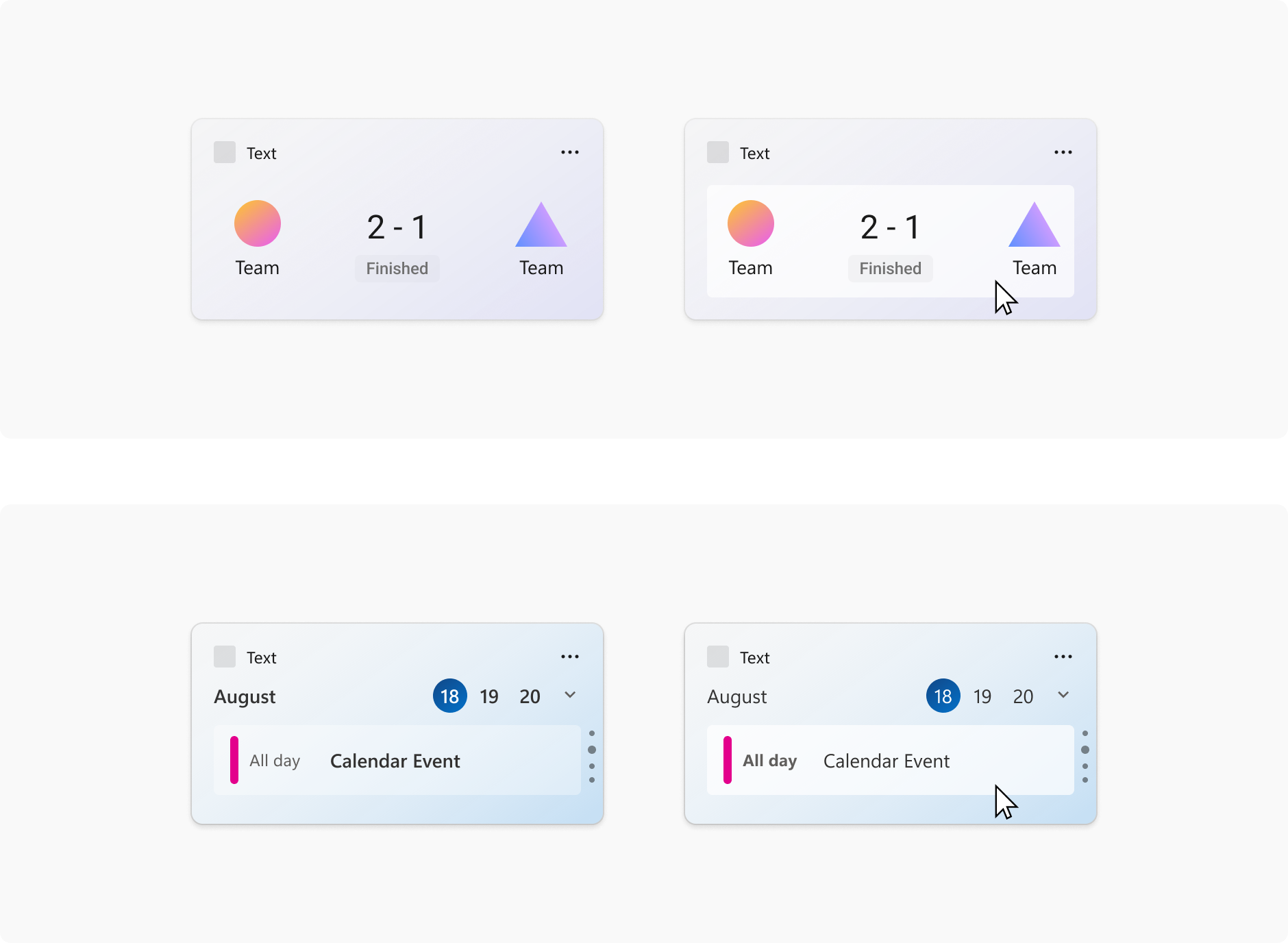
Image links
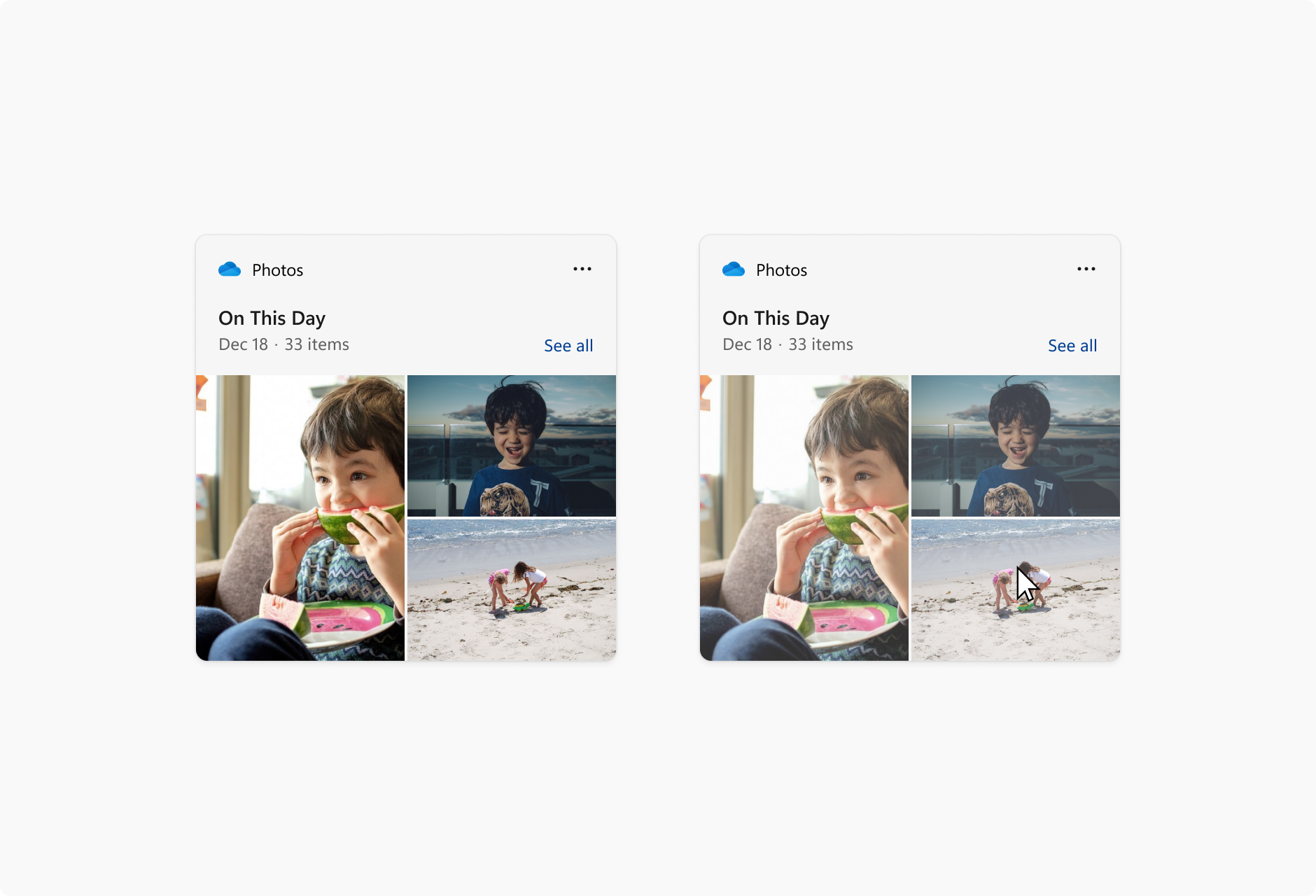
The following images show example uses of image link elements in a widget template.
Pagination
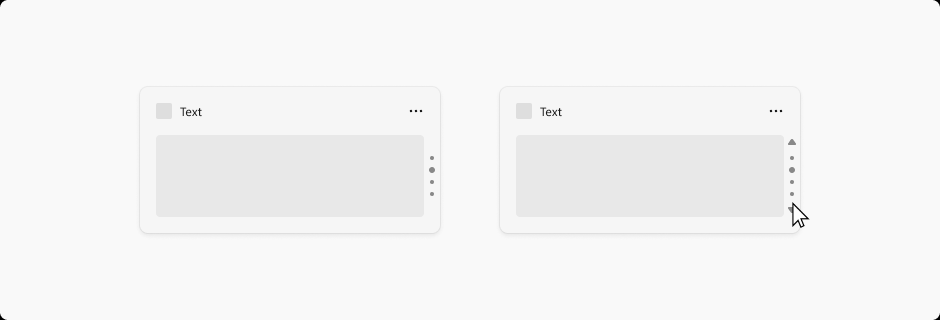
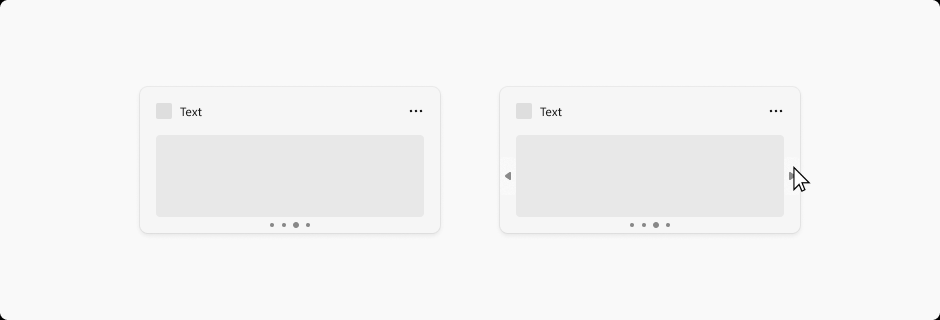
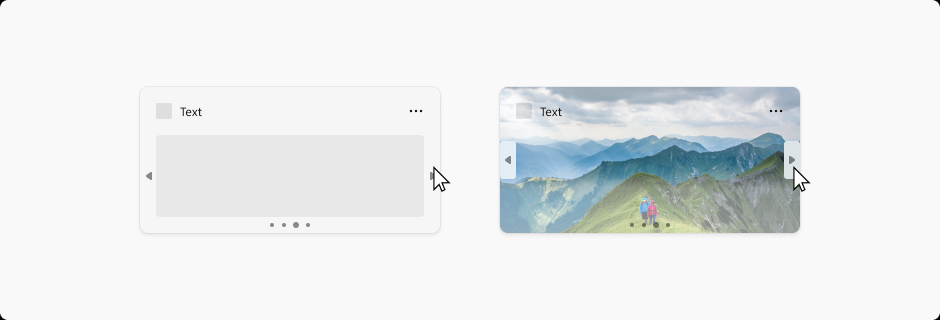
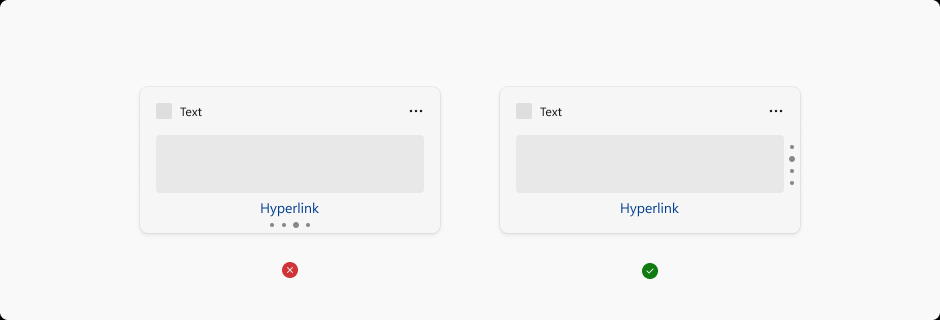
The following images show examples of pagination in a widget template. The pagination controls can be aligned horizontally or vertically. Navigation arrows appear in response to a cursor hover.
Hyperlinks
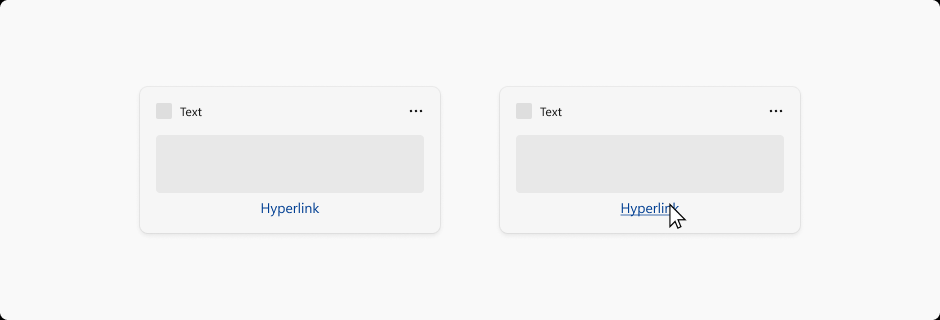
The following images show example of hyperlinks in a widget template.
Dropdown menus
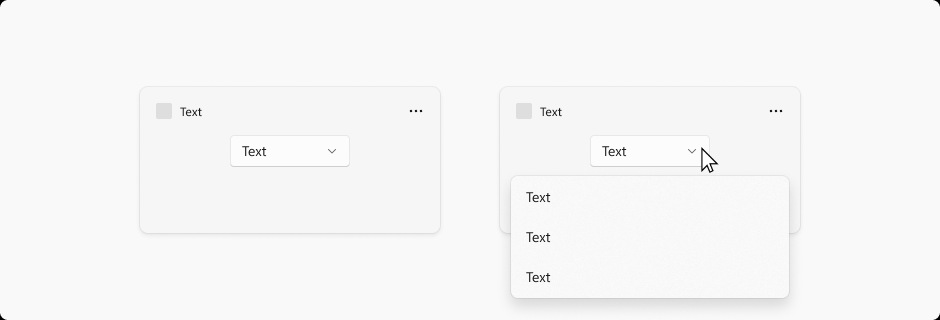
The illustration shows a host-rendered dropdown extending beyond the card boundary. Don't assume that custom HTML or a web widget's menus can render outside their content area. Test menu placement and clipping in the target host. Menus should dismiss when the user clicks outside them.
Tehke meiega GitHubis koostööd
Selle sisu allika leiate GitHubist, kus saate ka probleeme luua ja läbi vaadata ning päringuid teha. Lisateavet leiate meie kaasautorite juhendist.

Windows developer