Note
Access to this page requires authorization. You can try signing in or changing directories.
Access to this page requires authorization. You can try changing directories.
This article outlines the steps to create a warehouse connection.
Summary
The warehouse connector supports the following authentication types for copy and dataflow Gen2 respectively.
| Authentication type | Copy | Dataflow Gen2 |
|---|---|---|
| Organizational account | √ | √ |
Set up your connection for dataflow Gen2
You can connect dataflow Gen2 to a warehouse by using Power Query connectors. Follow these steps to create your connection:
- Check capabilities to make sure your scenario is supported.
- Complete prerequisites for Data Warehouse.
- Get data in Fabric.
- Connect to a warehouse.
Prerequisites
You must already have an existing Warehouse - Create a Warehouse in Microsoft Fabric.
Supported capabilities
- Import
Connection settings
Get data
To get data in Data Factory:
On the left side of Data Factory, select Workspaces.
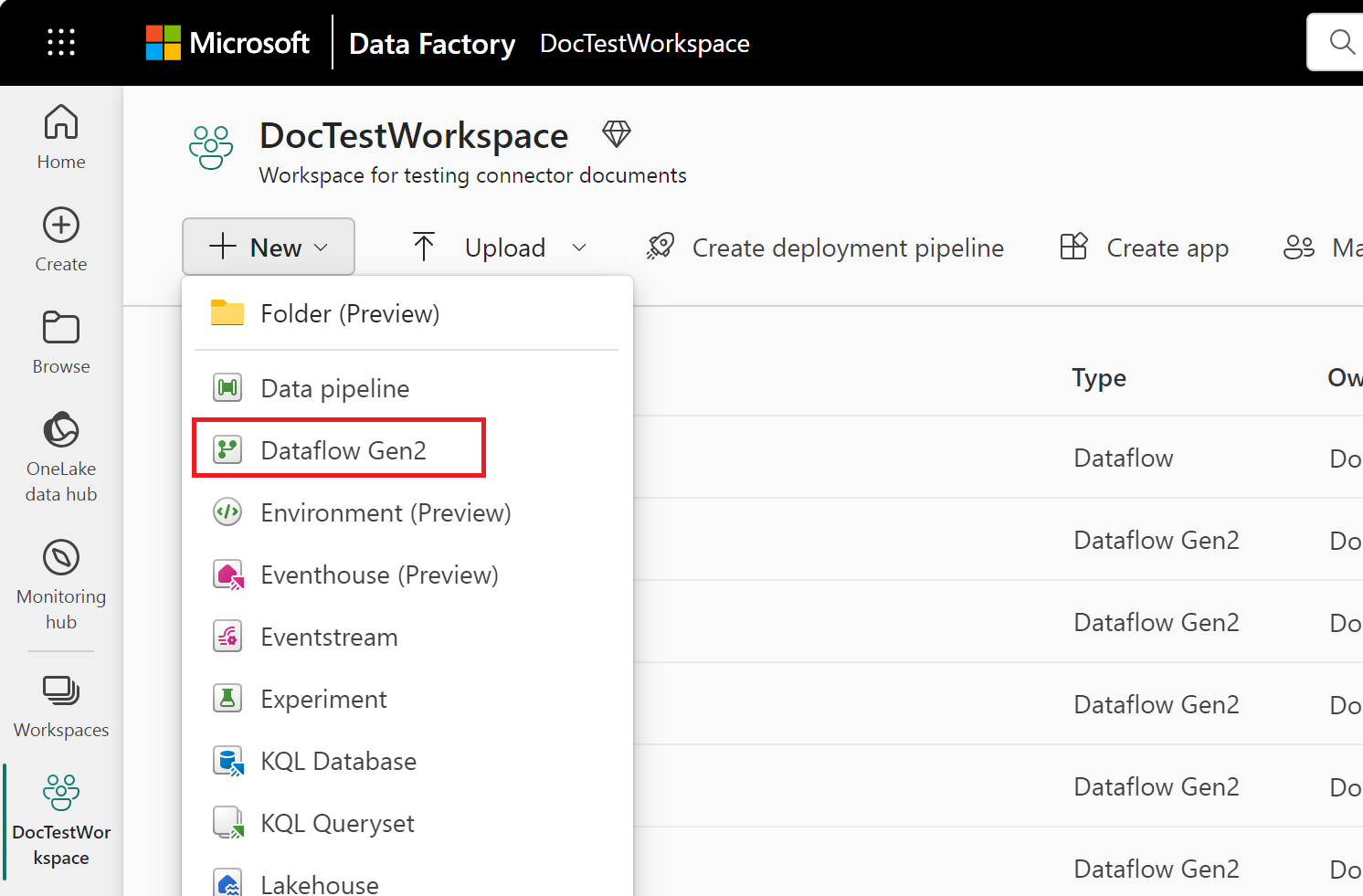
From your Data Factory workspace, select New > then select your data factory item: a dataflow, pipeline, copy job, or mirroring job.
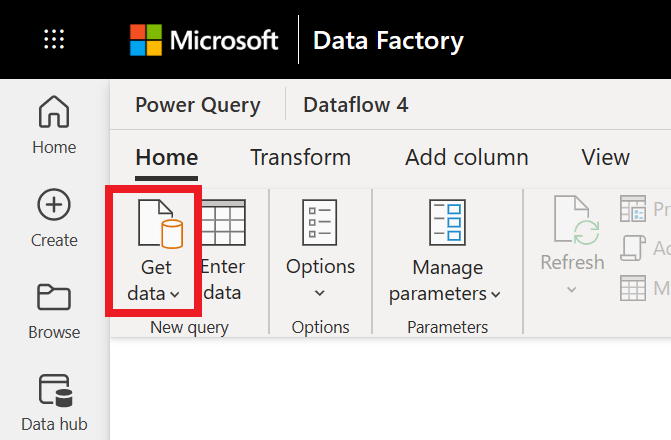
In Power Query, either select Get data in the ribbon or select Get data from another source in the current view.
In the Choose data source page, use Search to search for the name of the connector, or select View more to the right of the connector list to see all the connectors available in Data Factory.

If you choose to view more connectors, you can still use Search to search for the name of the connector, or choose a category to see a list of connectors associated with that category.


Connection instructions
To get data from a Warehouse in Power Query Online:
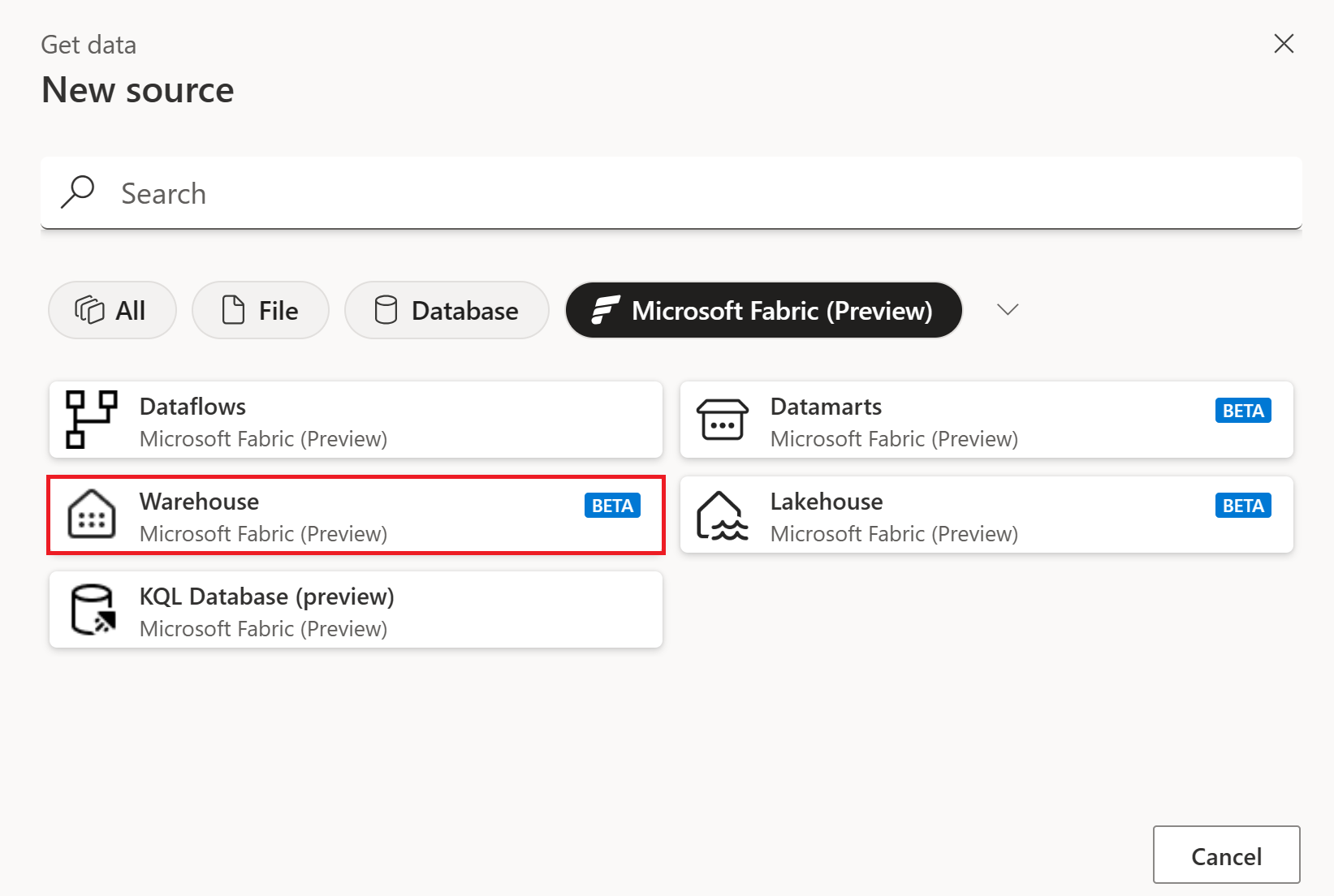
From the New source page, select Microsoft Fabric > Warehouse. More information: Where to get data
In Connect to data source, select Sign in to sign in to your organizational account.
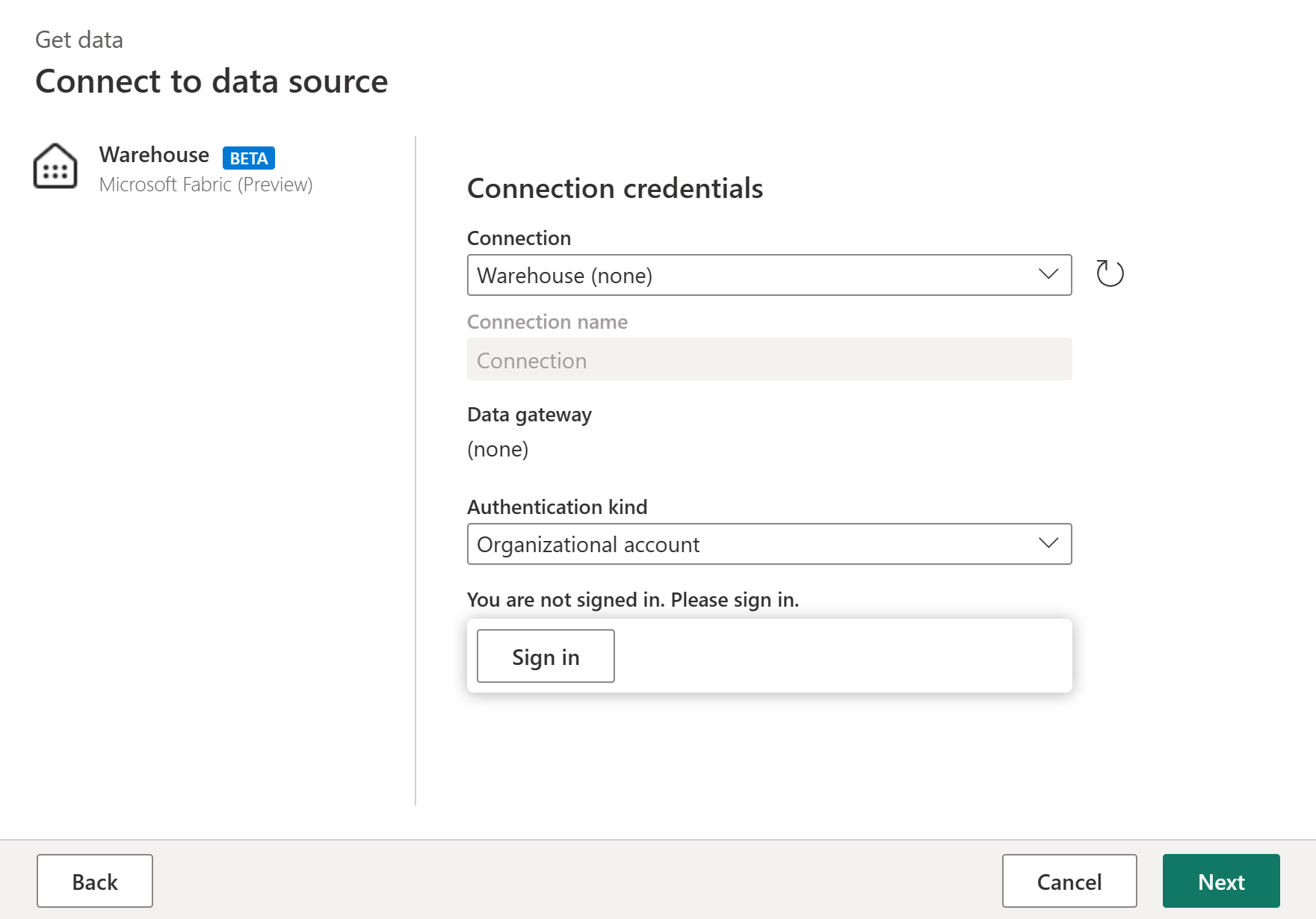
Once you've signed in, select Next.
In Choose data, select the data items that you want to transform, and then select Create.
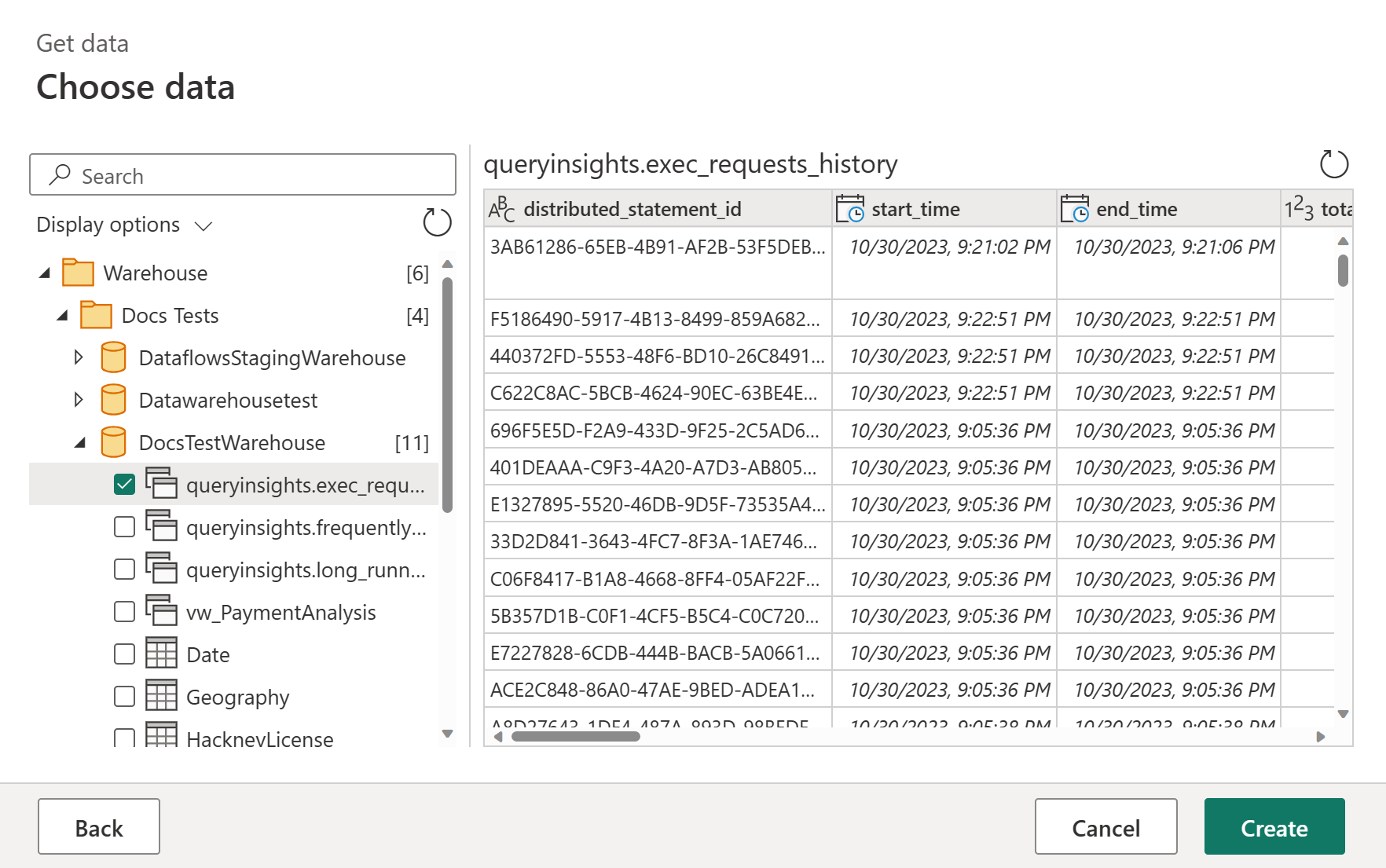
Using relative references
Inside the navigator, a special node with the name !(Current Workspace) is located. This node displays the available Fabric Data Warehouses in the same workspace where the Dataflow Gen2 is located.
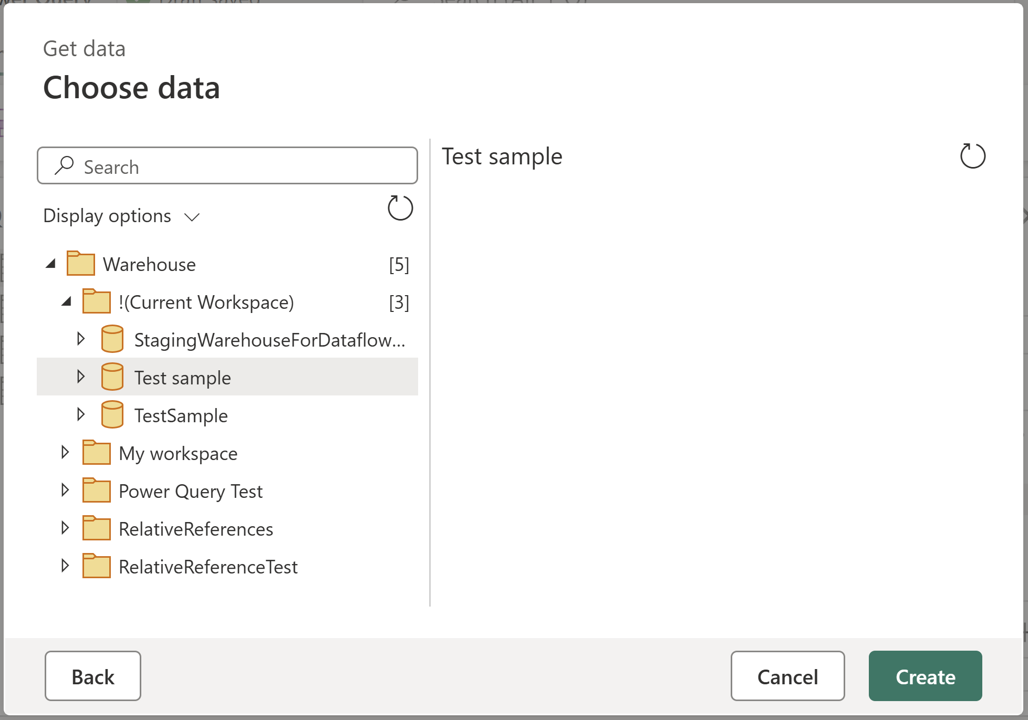
When using any items within this node, the M script emitted uses workspace or warehouse identifiers and instead uses relative references such as the "." handler to denote the current workspace and the name of the warehouse as in the example M code.
let
  Source = Fabric.Warehouse([HierarchicalNavigation = null]),
  #"Navigation 1" = Source{[workspaceId = "."]}[Data],
  #"Navigation 2" = #"Navigation 1"{[displayName = "Test sample"]}[Data],
  #"Navigation 3" = #"Navigation 2"{[Schema = "dbo", Item = "Date"]}[Data]
in
  #"Navigation 3"
Set up your connection in a pipeline
You can set up a Data Warehouse connection in the Get Data page or in the Manage connections and gateways page. Connections established through Manage connections and gateways page are currently in preview. The sections below describe how to configure the connection through each option.
In Get Data page:
Go to Get Data page and navigate to OneLake catalog through the following ways:
- In copy assistant, go to OneLake catalog section.
- In a pipeline, select Browse all under Connection, and go to OneLake catalog section.
Select an existing warehouse to connect to it.

You can also select a warehouse by choosing none in the pipeline Connection drop‑down list. When none is selected, the Item field becomes available, and you can pick the warehouse you need.
(Preview) In Manage connections and gateways page:
On this page, select + New, choose Warehouse as the connection type, and enter a connection name. Then complete the organizational account authentication by selecting Edit credentials.

After the connection is created, go to the pipeline and select it in the connection drop‑down list.

Note
If you create the connection through Manage connections and gateways page:
- To allow multiple users to collaborate in one pipeline, please ensure the connection is shared with them.
- If you choose to use an existing Data Warehouse connection within the tenant, ensure it has at least Viewer permission to access the workspace and warehouse. For more information about the permission, see this article.