Muistiinpano
Tämän sivun käyttö edellyttää valtuutusta. Voit yrittää kirjautua sisään tai vaihtaa hakemistoa.
Tämän sivun käyttö edellyttää valtuutusta. Voit yrittää vaihtaa hakemistoa.
Granular billing in Azure Backup lets you view backup costs at a custom granularity level for improved chargeback and reporting across teams, applications, and cost centers.
Important
- Granular billing supports both Recovery Services vaults and Backup vaults.
- This feature is a management-plane reporting change only and doesn’t modify pricing meters or total backup costs.
- Existing historical bill lines remain in the earlier format, while only new charges use the selected granularity.
- Vault level is the default for existing and new vaults, which maintains backward compatibility.
Available billing granularity levels
Azure Backup provides multiple granularity levels to help you view and analyze backup costs based on your reporting and chargeback requirements.
You can select one of the following granularity levels as per the requirements:
Vault level (default): Shows backup costs that surface under the associated Recovery Services vault or Backup vault. Costs for resources that map to a designated meter appear as one line item per vault.
Protected item level: Shows backup costs for each protected item.
Tag level: Aggregate backup costs by a tag to view and analyze spend at the resource level.
Default tag (recommended): When you select Tag level, Azure Backup automatically passes the built-in
ms-resource-parenttag to Azure Cost Management. Backup charges for each protected item appear under the associated resource in Azure Cost Management, so you get a consolidated view of resource and backup costs without extra configuration.Custom tag: To attribute backup costs to a different resource, add the
cm-resource-parenttag and set its value to the Azure Resource Manager (ARM) resource ID of the target resource where you want the backup costs to appear. Azure Backup then aggregates the backup charges under that resource in Azure Cost Management, so you can support custom chargeback and cost reporting scenarios.
Set up granular billing by using Azure portal
The steps are the same for both vault types, except for the navigation to the Properties pane. Select the vault type that you want to configure:
In the Azure portal, go to the Recovery Services vault, and then select Settings > Properties.
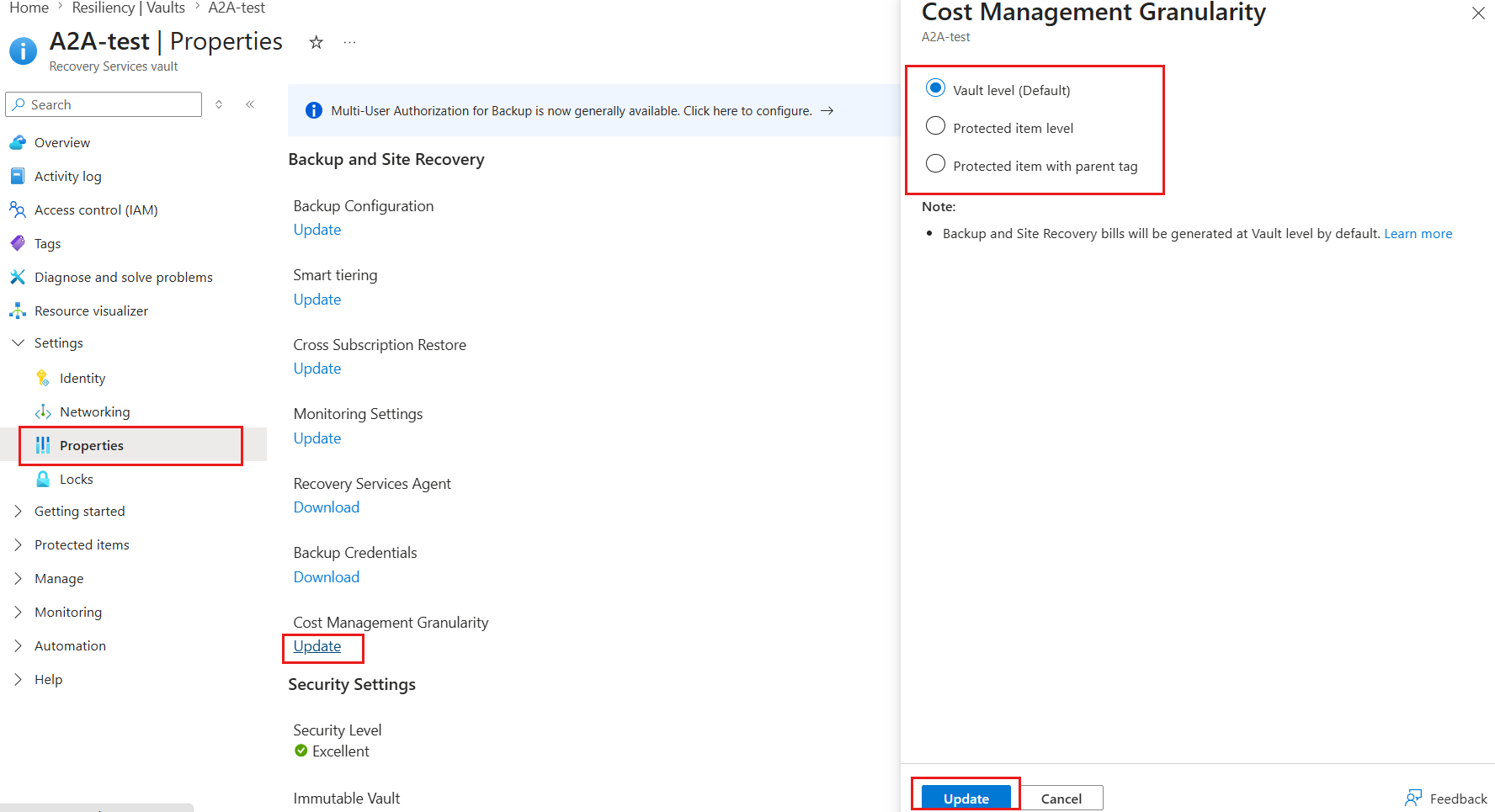
On the Properties pane, for Cost Management Granularity, select Update .
On the Cost Management Granularity pane, select a granularity option.
Select Update to save the setting.
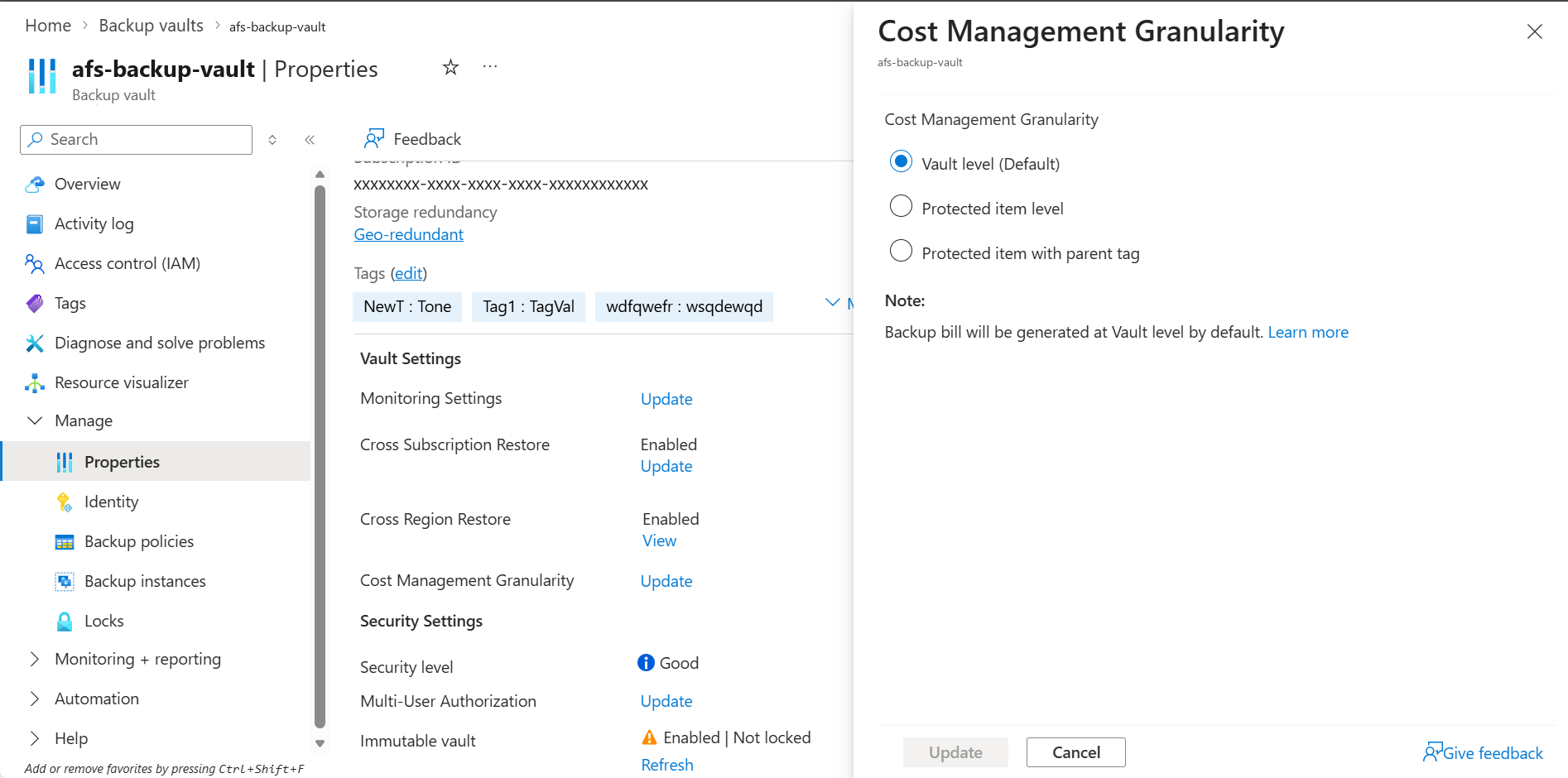
The following table lists the granularity levels and the value that you pass to the -CostManagementGranularity parameter.
| Granularity level (portal) | Value | Behavior |
|---|---|---|
| Vault level (default) | VaultLevel | All backups in the vault roll up to a single line item per vault. |
| Protected item level | ProtectedItemLevel | Shows backup costs for each protected item. |
| Tag level | ProtectedItemWithParentTag | Aggregates backup costs by a parent tag, so you can view spend at the resource level. |
Prerequisites
Before you configure granular billing by using Azure PowerShell, ensure that you meet the following prerequisites:
- Review the Recovery Services vault overview or the Backup vault overview, depending on the vault type that you use.
- Review the
Az.RecoveryServicesandAz.DataProtectioncmdlet references in the Azure library. - Verify that you have write access on the vault, such as the Backup Contributor or Contributor role.
- For the custom tag scenario, verify that you have permission to add tags to the vault and read access to the parent resource whose ARM resource ID you use.
Set up Azure PowerShell for granular billing configuration
Use the Azure Az PowerShell module to interact with Azure. Before you set up Azure PowerShell for granular billing configuration, install Azure PowerShell. To migrate to the Az PowerShell module, see Migrate Azure PowerShell from AzureRM to Az.
To set up Azure PowerShell, run the following cmdlets:
Install or update the required modules.
Note
The
-CostManagementGranularityparameter requires Az.RecoveryServices 7.14.1 or later for Recovery Services vaults, and Az.DataProtection 3.1.0 or later for Backup vaults.Install-Module -Name Az.RecoveryServices -MinimumVersion 7.14.1 -Force Install-Module -Name Az.DataProtection -MinimumVersion 3.1.0 -ForceConfirm the installed module versions:
Get-Module -Name Az.RecoveryServices, Az.DataProtection -ListAvailable |
    Select-Object Name, Version
Example output:
Name                Version
----                -------
Az.DataProtection   3.1.0
Az.RecoveryServices 7.14.1
Confirm that the new parameter is available in your installed modules:
'New-AzRecoveryServicesVault',
'Update-AzRecoveryServicesVault',
'New-AzDataProtectionBackupVault',
'Update-AzDataProtectionBackupVault' | ForEach-Object {
    $cmd = Get-Command $_ -ErrorAction SilentlyContinue
    [pscustomobject]@{
        Cmdlet       = $_
        Installed    = $null -ne $cmd
        HasParameter = ($null -ne $cmd) -and $cmd.Parameters.ContainsKey('CostManagementGranularity')
    }
} | Format-Table -AutoSize
Example output:
Cmdlet                             Installed HasParameter
------                             --------- ------------
New-AzRecoveryServicesVault             True         True
Update-AzRecoveryServicesVault          True         True
New-AzDataProtectionBackupVault         True         True
Update-AzDataProtectionBackupVault      True         True
Sign in to your Azure account by using
Connect-AzAccount. On the webpage that appears, you're prompted to enter your account credentials.Associate the subscription that you want to use with the account, because an account can have several subscriptions:
Select-AzSubscription -SubscriptionName $SubscriptionName
The following table lists the cmdlets that this article uses for each vault type.
| Task | Recovery Services vault | Backup vault |
|---|---|---|
| Set granularity at creation | New-AzRecoveryServicesVault with -CostManagementGranularity |
New-AzDataProtectionBackupVault with -CostManagementGranularity |
| Change granularity | Update-AzRecoveryServicesVault with -CostManagementGranularity |
Update-AzDataProtectionBackupVault with -CostManagementGranularity |
| Read granularity | Get-AzRecoveryServicesVault - read Properties.CostManagementSettings.GranularityLevel |
Get-AzDataProtectionBackupVault - CostManagementSettingGranularityLevel |
| Apply a custom parent tag | Update-AzTag |
Update-AzTag |
Configure granular billing by using Azure PowerShell
Select the vault type that you want to configure:
Set the granularity when you create a vault
The -CostManagementGranularity parameter is optional on New-AzRecoveryServicesVault. If you don't specify this option when you create the vault, the default value is VaultLevel.
To create a vault with a granularity level, run the following cmdlet. Replace ProtectedItemLevel with any value from the granularity table.
$vault = New-AzRecoveryServicesVault `
    -Name "afs-vault" `
    -ResourceGroupName "backup-rg" `
    -Location "westus" `
    -CostManagementGranularity ProtectedItemLevel

$vault.Properties.CostManagementSettings.GranularityLevel
Example output:
ProtectedItemLevel
Change the granularity on an existing vault
Use Update-AzRecoveryServicesVault for day-2 changes. This cmdlet mirrors the portal flow Recovery Services vault > Properties > Cost Management Granularity > Update.
Switch a vault to protected item level
To switch a vault to protected item level, run the following cmdlet:
$updatedVault = Update-AzRecoveryServicesVault `
    -ResourceGroupName "backup-rg" `
    -Name "afs-vault" `
    -CostManagementGranularity ProtectedItemLevel

$updatedVault.Properties.CostManagementSettings.GranularityLevel
Example output:
ProtectedItemLevel
View the current granularity setting
Get-AzRecoveryServicesVault doesn't require a new parameter. The setting appears on the returned vault object under Properties.CostManagementSettings.GranularityLevel, following the same pattern as CrossSubscriptionRestoreState.
To view the current granularity setting, run the following cmdlet:
$vault = Get-AzRecoveryServicesVault `
    -ResourceGroupName "backup-rg" `
    -Name "afs-vault"

$vault.Properties.CostManagementSettings.GranularityLevel
Example output:
ProtectedItemLevel
To audit the granularity setting across every Recovery Services vault in the subscription, run the following cmdlet:
Get-AzRecoveryServicesVault | ForEach-Object {
    [pscustomobject]@{
        Name              = $_.Name
        ResourceGroupName = $_.ResourceGroupName
        Location          = $_.Location
        Granularity       = $_.Properties.CostManagementSettings.GranularityLevel
    }
} | Format-Table -AutoSize
Example output:
Name       ResourceGroupName Location Granularity
----       ----------------- -------- -----------
afs-vault  backup-rg         westus   ProtectedItemLevel
fin-vault  finance-rg        eastus   VaultLevel
hr-vault   hr-rg             westus2  ProtectedItemWithParentTag
Configure tag-level granularity
Tag-level granularity involves the following independent responsibilities:
- Applying the tag on the vault: Reuse the standard Az.Resources cmdlets. The process requires no new backup cmdlet for tagging.
- Enabling tag-level cost grouping: Set the
-CostManagementGranularityparameter toProtectedItemWithParentTagon the vault.
Scenario 1: Use the default parent tag
The backup service automatically applies the ms-resource-parent tag, so you only need to enable tag-level granularity on the vault. No manual tagging is needed.
To use the default parent tag, follow these steps:
Enable tag level cost grouping on the vault.
Update-AzRecoveryServicesVault `
    -ResourceGroupName "backup-rg" `
    -Name "afs-vault" `
    -CostManagementGranularity ProtectedItemWithParentTag
Verify the configured setting.
$vault = Get-AzRecoveryServicesVault -ResourceGroupName "backup-rg" -Name "afs-vault"
$vault.Properties.CostManagementSettings.GranularityLevel
Example output:
ProtectedItemWithParentTag
Note
The default ms-resource-parent tag doesn't apply as a visible tag on the vault or the protected resource. Azure Backup passes the tag to Azure Cost Management as part of the billing details, so you won't see it in the vault's Tags pane.
Scenario 2: Use a custom parent tag
To group cost by a custom parent, first apply the cm-resource-parent tag to the vault, with its value set to the parent resource's ARM resource ID. Then enable tag-level granularity on the vault.
Important
Use Update-AzTag -Operation Merge to preserve the existing tags on the vault. New-AzTag replaces all tags on the resource, so don't use it here.
To use a custom tag, follow these steps:
Apply the custom parent tag on the Recovery Services vault. The tag key is
cm-resource-parent, and the tag value is the parent resource's ARM resource ID.$vault = Get-AzRecoveryServicesVault -ResourceGroupName "backup-rg" -Name "afs-vault" $parent = Get-AzResource -Name "financeparent" -ResourceGroupName "storage-rg" Update-AzTag -ResourceId $vault.ID ` -Tag @{ "cm-resource-parent" = $parent.Id } ` -Operation MergeExample output:
Id         : /subscriptions/xxxxxxxx-xxxx-xxxx-xxxx-xxxxxxxxxxxx/resourceGroups/backup-rg/providers/Microsoft.RecoveryServices/vaults/afs-vault/providers/Microsoft.Resources/tags/default
Name       : default
Type       : Microsoft.Resources/tags
Properties :
             Name                Value
             ==================  ==========================================================
             cm-resource-parent  /subscriptions/xxxxxxxx-xxxx-xxxx-xxxx-xxxxxxxxxxxx/resour
                                 ceGroups/storage-rg/providers/Microsoft.Storage/storageAcc
                                 ounts/financeparent
Enable tag level cost grouping on the vault.
Update-AzRecoveryServicesVault `
    -ResourceGroupName "backup-rg" `
    -Name "afs-vault" `
    -CostManagementGranularity ProtectedItemWithParentTag
Verify the configured setting.
$vault = Get-AzRecoveryServicesVault -ResourceGroupName "backup-rg" -Name "afs-vault"
$vault.Properties.CostManagementSettings.GranularityLevel
Example output:
ProtectedItemWithParentTag
The following table lists the granularity levels and the value that you pass to the --cost-management-granularity option.
| Granularity level (portal) | Value | Behavior |
|---|---|---|
| Vault level (default) | VaultLevel | All backups in the vault roll up to a single line item per vault. |
| Protected item level | ProtectedItemLevel | Shows backup costs for each protected item. |
| Tag level | ProtectedItemWithParentTag | Aggregates backup costs by a parent tag, so you can view spend at the resource level. |
Prerequisites
Before you configure granular billing by using the Azure CLI, ensure that you meet the following prerequisites:
- Review the Recovery Services vault overview or the Backup vault overview, depending on the vault type that you use.
- Review the
az backup vaultandaz dataprotection backup-vaultcommand references. - Verify that you have write access on the vault, such as the Backup Contributor or Contributor role.
- For the custom tag scenario, verify that you have permission to add tags to the vault and read access to the parent resource whose ARM resource ID you use.
Set up the Azure CLI for granular billing configuration
Before you set up the Azure CLI for granular billing configuration, install the Azure CLI. You can also run these commands in Azure Cloud Shell, which always includes a recent CLI version.
To set up the Azure CLI, run the following commands:
Check the installed Azure CLI version:
az versionExample output:
{
  "azure-cli": "2.65.0",
  "azure-cli-core": "2.65.0",
  "azure-cli-telemetry": "1.1.0",
  "extensions": {}
}
Add the dataprotection extension. The
az dataprotectioncommand group is an extension, not part of the CLI core, so you must install it before you can manage Backup vaults. Skip this step if you only use Recovery Services vaults.az extension add --name dataprotection --upgradeConfirm that the extension is installed:
az extension list --query "[].{Name:name, Version:version}" -o tableExample output:
Name             Version
---------------  ---------
dataprotection   1.5.1
Confirm that the granularity option is available in your installed Azure CLI version. The option appears in the help output of the command:
az backup vault update --helpExample output:
--cost-management-granularity
    Use this parameter to configure cost management settings for the vault.
    By default, the property is "VaultLevel" for the vault.
    Allowed values: ProtectedItemLevel, ProtectedItemWithParentTag, VaultLevel.
Sign in to your Azure account:
az loginSet the subscription that you want to use, because an account can have several subscriptions:
az account set --subscription "<subscription-name-or-id>"
The following table lists the commands that this article uses for each vault type.
| Task | Recovery Services vault | Backup vault |
|---|---|---|
| Set granularity at creation | az backup vault create with --cost-management-granularity |
az dataprotection backup-vault create with --cost-management-granularity |
| Change granularity | az backup vault update with --cost-management-granularity |
az dataprotection backup-vault update with --cost-management-granularity |
| Read granularity | az backup vault show |
az dataprotection backup-vault show |
| List vaults and granularity | az backup vault list |
az dataprotection backup-vault list |
| Apply a custom parent tag | az tag update |
az tag update |
Configure granular billing by using Azure CLI
Select the vault type that you want to configure:
Create a vault with a granularity level
To create a vault with a granularity level, run the following command:
az backup vault create \
    --name "afs-vault" \
    --resource-group "backup-rg" \
    --location "westus" \
    --cost-management-granularity ProtectedItemLevel \
    --query "{name:name, granularity:properties.costManagementSettings.granularityLevel}"
Example output:
{
  "granularity": "ProtectedItemLevel",
  "name": "afs-vault"
}
Change the granularity on an existing vault
To change the granularity on an existing vault, run the following command:
az backup vault update \
    --name "afs-vault" \
    --resource-group "backup-rg" \
    --cost-management-granularity ProtectedItemWithParentTag \
    --query "properties.costManagementSettings.granularityLevel" -o tsv
Example output:
ProtectedItemWithParentTag
View the current granularity setting
The az backup vault show command doesn't accept a new option. To view the granularity level, read properties.costManagementSettings.granularityLevel from the JSON output.
To retrieve the cost-management granularity level configured for the vault, run the following command:
az backup vault show \
    --name "afs-vault" \
    --resource-group "backup-rg" \
    --query "properties.costManagementSettings.granularityLevel" -o tsv
Example output:
VaultLevel
To audit every Recovery Services vault in the subscription, run the following command:
az backup vault list \
    --query "[].{Name:name, ResourceGroup:resourceGroup, Granularity:properties.costManagementSettings.granularityLevel}" \
    -o table
Example output:
Name       ResourceGroup    Granularity
---------  ---------------  --------------------------
afs-vault  backup-rg        VaultLevel
fin-vault  finance-rg       ProtectedItemLevel
hr-vault   hr-rg            ProtectedItemWithParentTag
Configure tag-level granularity
Tag-level granularity involves the following independent responsibilities:
- Applying the tag on the vault: Use the standard
az tagcommand group. No backup-specific command is required for tagging. - Enabling tag level cost grouping: Set the
--cost-management-granularityparameter toProtectedItemWithParentTagon the vault.
Scenario 1: Use the default parent tag
The backup service automatically applies the ms-resource-parent tag. You only need to enable tag level granularity on the vault, and no manual tagging is needed.
To use the default parent tag, follow these steps:
Enable tag level cost grouping on the vault.
az backup vault update \
    --name "afs-vault" \
    --resource-group "backup-rg" \
    --cost-management-granularity ProtectedItemWithParentTag
Verify the configured setting.
az backup vault show \
    --name "afs-vault" \
    --resource-group "backup-rg" \
    --query "properties.costManagementSettings.granularityLevel" -o tsv
Example output:
ProtectedItemWithParentTag
Note
The default ms-resource-parent tag doesn't apply as a visible tag on the vault or the protected resource. Azure Backup passes the tag to Azure Cost Management as part of the billing details, so it doesn't appear in az backup vault show --query tags.
Scenario 2: Use a custom parent tag
To group cost by a custom parent, first apply the cm-resource-parent tag to the vault, with its value set to the parent resource's ARM resource ID. Then enable tag level granularity on the vault.
Important
Use az tag update --operation Merge to preserve the existing tags on the vault. The Replace operation overwrites all tags on the resource.
To use a custom tag, follow these steps:
Apply the custom parent tag on the vault. The tag key is
cm-resource-parent, and the tag value is the parent resource's ARM resource ID.vaultId=$(az backup vault show \ --name "afs-vault" \ --resource-group "backup-rg" \ --query id -o tsv) parentId=$(az storage account show \ --name "financeparent" \ --resource-group "storage-rg" \ --query id -o tsv) az tag update \ --resource-id "$vaultId" \ --operation Merge \ --tags "cm-resource-parent=$parentId" \ --query "properties.tags" -o jsonExample output:
{
  "cm-resource-parent": "/subscriptions/xxxxxxxx-xxxx-xxxx-xxxx-xxxxxxxxxxxx/resourceGroups/storage-rg/providers/Microsoft.Storage/storageAccounts/financeparent"
}
Enable tag level cost grouping on the vault.
az backup vault update \
    --name "afs-vault" \
    --resource-group "backup-rg" \
    --cost-management-granularity ProtectedItemWithParentTag
Verify the configured setting.
az backup vault show \
    --name "afs-vault" \
    --resource-group "backup-rg" \
    --query "properties.costManagementSettings.granularityLevel" -o tsv
Example output:
ProtectedItemWithParentTag
Validate backup charges in Cost Analysis
After you configure granular billing for Azure Backup, verify that the updated backup charges reflect correctly in Cost Management by using the selected granularity.
Note
- New charges appear in the selected format after you update Cost Management granularity.
- Older charges keep the previous format.
- Activity logs capture the change to the cost setting.
- The updated changes might take up to 2 hours to appear in Cost Analysis.
To validate backup charges in Cost Analysis, follow these steps:
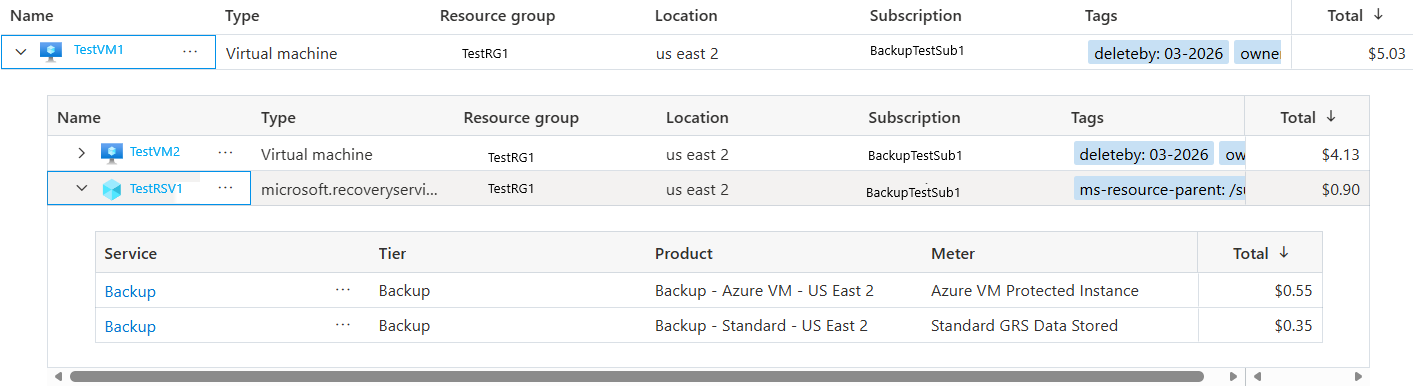
Go to the Cost Management + Billing in Azure Portal and select Cost Management > Cost analysis. Set the scope to the target subscription.
On the Cost analysis pane, set the View as Resources and verify if the new backup charges appear in the selected granularity format.
The prices shown in the following screenshot are for example purposes only.
Troubleshoot granular billing issues
This section provides troubleshooting steps to resolve issues related to granular billing in Azure Backup.
The expected charges don’t appear in Cost Analysis.
To resolve the issue:
Confirm that the vault type is Recovery Services vault or Backup vault.
Verify that you saved the granularity setting.
Check the activity log that the update operation completed successfully.
Wait up to 2 hours and refresh Cost Analysis to view the changes.
Ensure that you select the correct subscription and time range scope in Cost Analysis.