Muistiinpano
Tämän sivun käyttö edellyttää valtuutusta. Voit yrittää kirjautua sisään tai vaihtaa hakemistoa.
Tämän sivun käyttö edellyttää valtuutusta. Voit yrittää vaihtaa hakemistoa.
Modern cloud applications move through stages that might include source code, pipelines, registries, and runtime environments. A small code change can create many cloud workloads across your environments. When a security issue appears at runtime, you might not know where the issue starts or how many assets it affects.
Code to runtime gives you end-to-end visibility throughout the software development lifecycle (SDLC). Code to runtime helps you find the origin of an issue, assess its impact, and fix the issue at the source.
Before continuing, take a look at the container image mapping prerequisites.
Where you see code to runtime
You access code to runtime from recommendations in Microsoft Defender for Cloud.
Note
Currently only containers and container images vulnerability assessment recommendations are supported.
When SDLC context is available, the recommendation page shows:
- A context banner indicating the issue's SDLC flow
- An SDLC chain view: Source → CI/CD Pipeline → Registry → Runtime
- A dynamic count of impacted assets
- Cards representing each SDLC stage
- Links to deeper views and remediation actions
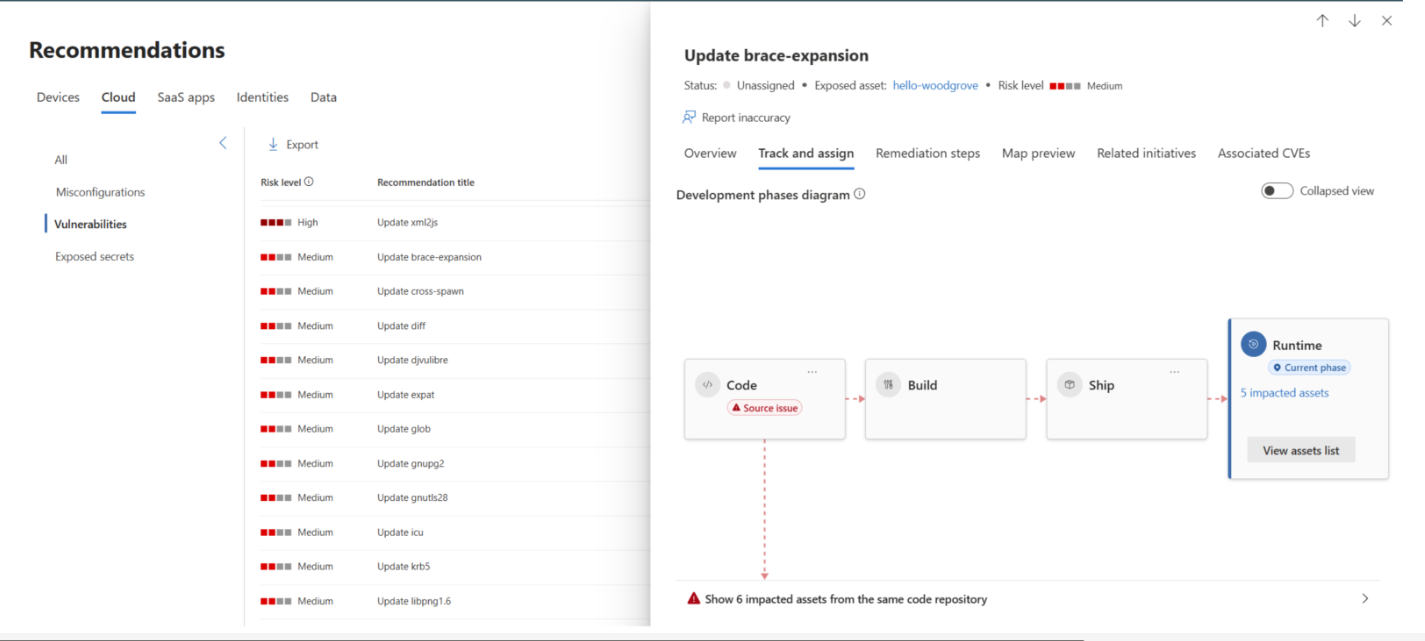
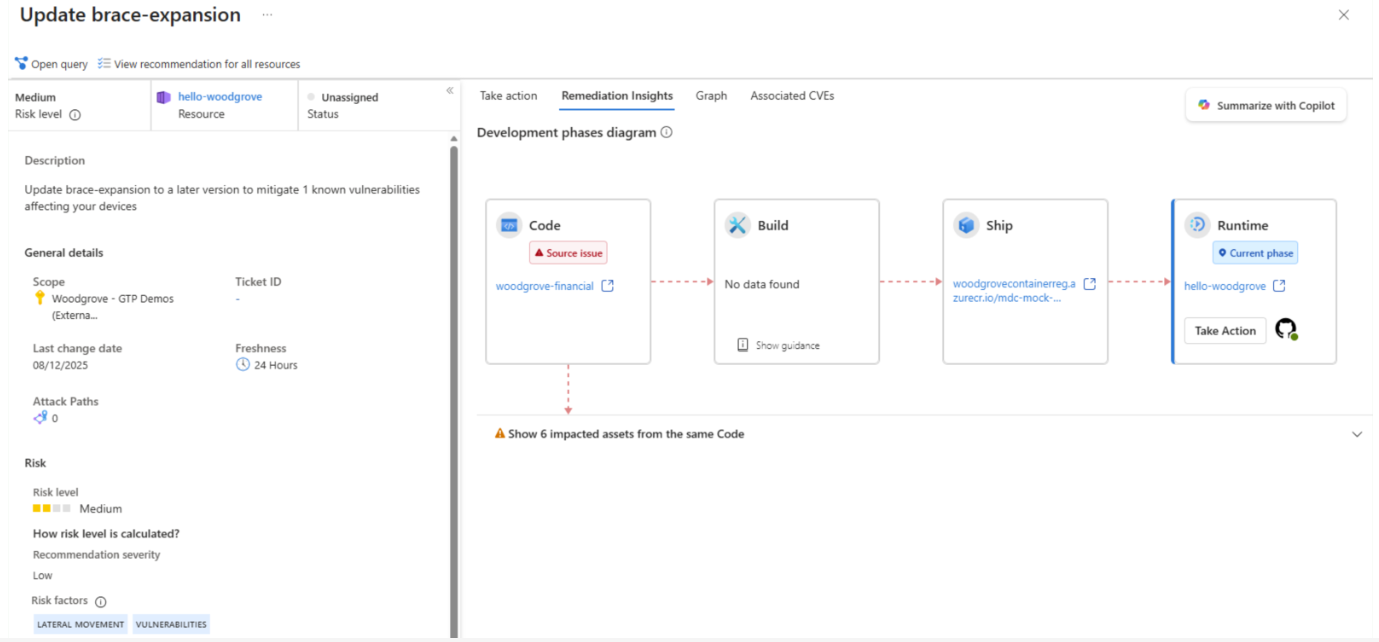
How Code to runtime builds end-to-end context
For any recommendation supported by code to runtime, Defender correlates data across the SDLC to identify:
- Where the issue originated, such as in code or the build pipeline.
- Which intermediate stages are involved. These stages include the image in the registry and the CI/CD pipeline that was part of the deployment.
- How many assets are affected, so you can see the impact.
- Which actions you can take at each stage.
Why this feature matters
Code to runtime matters for several reasons:
- If you fix the issue only at runtime, it can reappear during the next deployment.
- Fixing the issue at the source prevents recurring regressions.
- Understanding the impact helps you plan rollouts and coordinate work.
- It helps you identify the owner for the fix.
Walk the SDLC chain from runtime back to source
The SDLC chain provides a clear, linear path that explains how the affected workload was created. Each stage appears as a card. You can expand each stage card to see metadata and available actions.
Understand the impact of the issue
Before taking action, open the All impacted assets grid for more information:
- The list shows the impacted assets from the same source. It includes assets in the cloud environment or code environment. Fixing the issue at the source can impact all the affected assets either by automated CI/CD processes or by manual deployment of new code.
- Filter the list based on your preferences. For example, filter runtime assets by Kubernetes namespace to assign the issue to a specific development team. You can also filter by relevant asset metadata, such as image tags and labels.
- When you select a line, the system shows more details for that instance of the issue.
The grid shows:
- Each affected resource from the same security issue and same source
- Different metadata items according to the resource type
- Filtering and navigation options
The impacted assets grid helps you:
- Prioritize issues
- Coordinate with owning teams
- Decide whether you need a staged rollout
- Avoid unintentionally breaking dependent workloads
Handling missing or partial data
Some SDLC stages might not show full data. Common causes include:
- Disabled connectors
- Missing permissions
- Absent pipeline signals
- Unsupported setups
For each gap, Defender shows:
- Why the data is missing
- How to enable or set up the missing parts
- Next steps to expand SDLC coverage
Act on these insights
After you understand the issue and its impact, choose the appropriate next step:
Assign ownership
Assign the recommendation directly to a person or team inside Defender for Cloud.
Create or link a GitHub issue
If you enable repository integration, you can:
- Auto populate an issue with the SDLC context
- Route it directly to the relevant fixer
- Provide precise guidance on what needs to change
Learn more about GitHub Advanced Security integration with Microsoft Defender for Cloud.
Note
This feature is currently available only in the Azure portal.
Apply exemptions
Apply exemptions in a consistent way.
If you exempt a finding, temporarily or permanently, you can do so:
- At the SDLC stage where it makes the most sense
- Once, instead of repeatedly across multiple workloads
- With partial exemptions if you want visibility on selected findings
Example workflow
A typical investigation that uses code to runtime includes these steps:
- Open a container recommendation.
- Review the SDLC context banner.
- Identify the earliest stage where the issue originated.
- Expand SDLC cards to explore source, pipeline, registry, and runtime data.
- Use the impact grid to understand how many workloads are affected.
- Assign ownership or open a GitHub issue.
- (Optional) Apply an exemption at the appropriate SDLC stage.
Summary
Code to Runtime gives you a unified, contextual view across the software development lifecycle (SDLC) so you can:
- Find the real source of a runtime issue
- Understand its reach
- Fix it once in the most effective place
- Provide engineering teams with actionable, precise context
This approach helps security and engineering teams work together and reduces repeated manual fixes.