Muistiinpano
Tämän sivun käyttö edellyttää valtuutusta. Voit yrittää kirjautua sisään tai vaihtaa hakemistoa.
Tämän sivun käyttö edellyttää valtuutusta. Voit yrittää vaihtaa hakemistoa.
In time-streaming scenarios, a common pattern is to perform operations on the data contained in temporal windows. Stream Analytics has native support for windowing functions, so you can create complex stream processing jobs with minimal effort.
There are five kinds of temporal windows:
Use the window functions in the GROUP BY clause of the query syntax in your Stream Analytics jobs. You can also aggregate events over multiple windows by using the Windows() function.
All the windowing operations output results at the end of the window. When you start a stream analytics job, you can specify the Job output start time. The system automatically fetches previous events in the incoming streams to output the first window at the specified time. For example, when you start with the Now option, it starts to emit data immediately. The output of the window is a single event based on the aggregate function used. The output event has the time stamp of the end of the window and all window functions are defined with a fixed length.
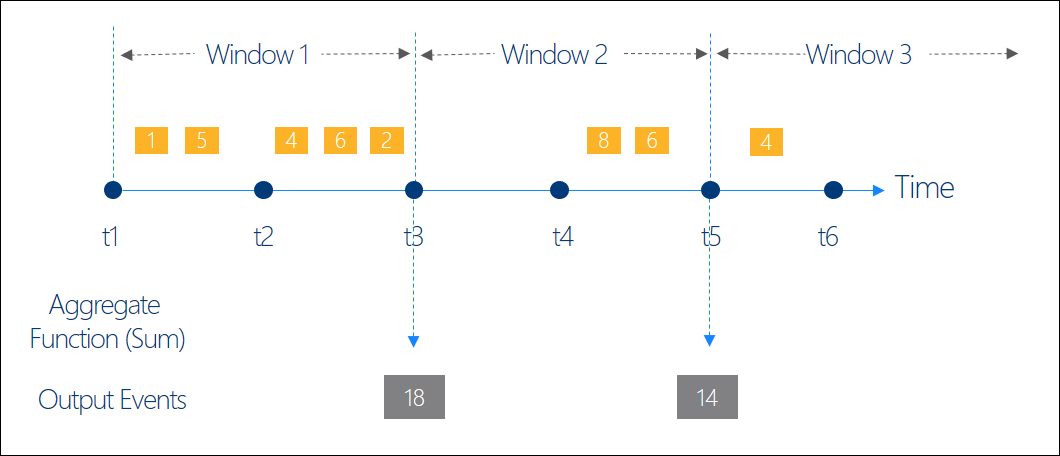
Tumbling window
Use Tumbling window functions to segment a data stream into distinct time segments, and perform a function against them.
The key differentiators of a tumbling window are:
- They don't repeat.
- They don't overlap.
- An event can't belong to more than one tumbling window.
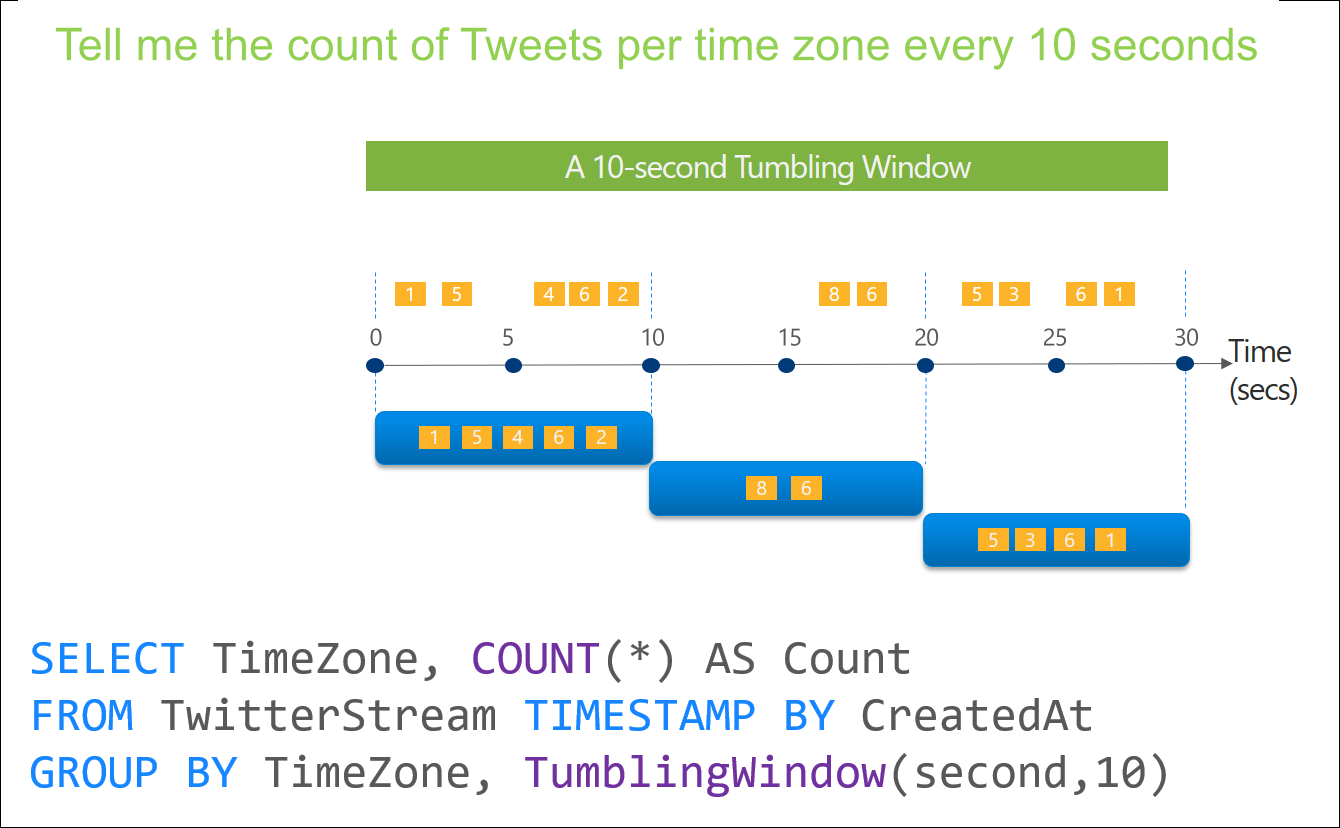
Here's the input data for the example:
| Stamp | CreatedAt | TimeZone |
|---|---|---|
| 1 | 2021-10-26T10:15:01 | PST |
| 5 | 2021-10-26T10:15:03 | PST |
| 4 | 2021-10-26T10:15:06 | PST |
| ... | ... | ... |
Here's the sample query:
SELECT System.Timestamp() as WindowEndTime, TimeZone, COUNT(*) AS Count
FROM TwitterStream TIMESTAMP BY CreatedAt
GROUP BY TimeZone, TumblingWindow(second,10)
Here's the sample output:
| WindowEndTime | TimeZone | Count |
|---|---|---|
| 2021-10-26T10:15:10 | PST | 5 |
| 2021-10-26T10:15:20 | PST | 2 |
| 2021-10-26T10:15:30 | PST | 4 |
Hopping window
Hopping window functions hop forward in time by a fixed period. It might be easy to think of them as tumbling windows that can overlap and be emitted more often than the window size. Events can belong to more than one hopping window result set. To make a hopping window the same as a tumbling window, specify the hop size to be the same as the window size.
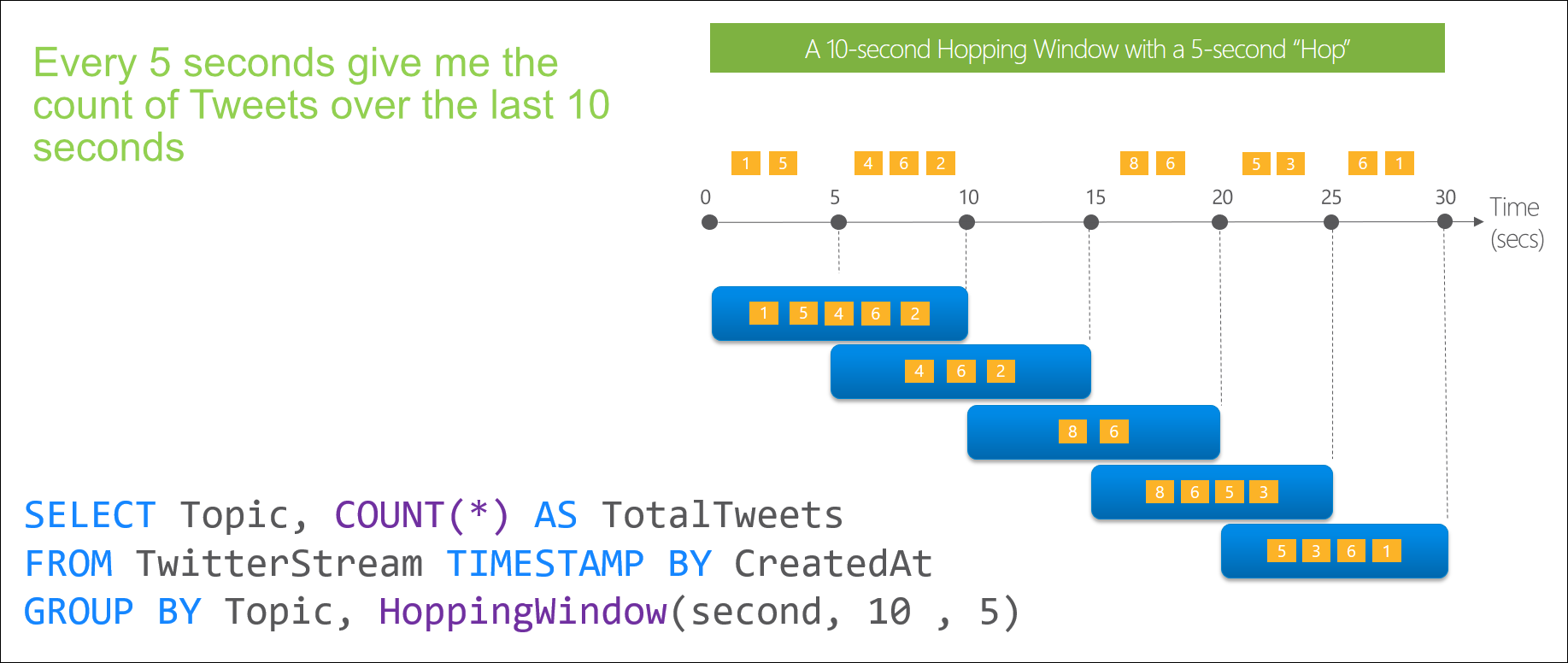
Here's the sample data:
| Stamp | CreatedAt | Topic |
|---|---|---|
| 1 | 2021-10-26T10:15:01 | Streaming |
| 5 | 2021-10-26T10:15:03 | Streaming |
| 4 | 2021-10-26T10:15:06 | Streaming |
| ... | ... | ... |
Here's the sample query:
SELECT System.Timestamp() as WindowEndTime, Topic, COUNT(*) AS Count
FROM TwitterStream TIMESTAMP BY CreatedAt
GROUP BY Topic, HoppingWindow(second,10,5)
Here's the sample output:
| WindowEndTime | Topic | Count |
|---|---|---|
| 2021-10-26T10:15:10 | Streaming | 5 |
| 2021-10-26T10:15:15 | Streaming | 3 |
| 2021-10-26T10:15:20 | Streaming | 2 |
| 2021-10-26T10:15:25 | Streaming | 4 |
| 2021-10-26T10:15:30 | Streaming | 4 |
Sliding window
Sliding windows, unlike tumbling or hopping windows, output events only for points in time when the content of the window actually changes. In other words, when an event enters or exits the window. So, every window has at least one event. Similar to hopping windows, events can belong to more than one sliding window.
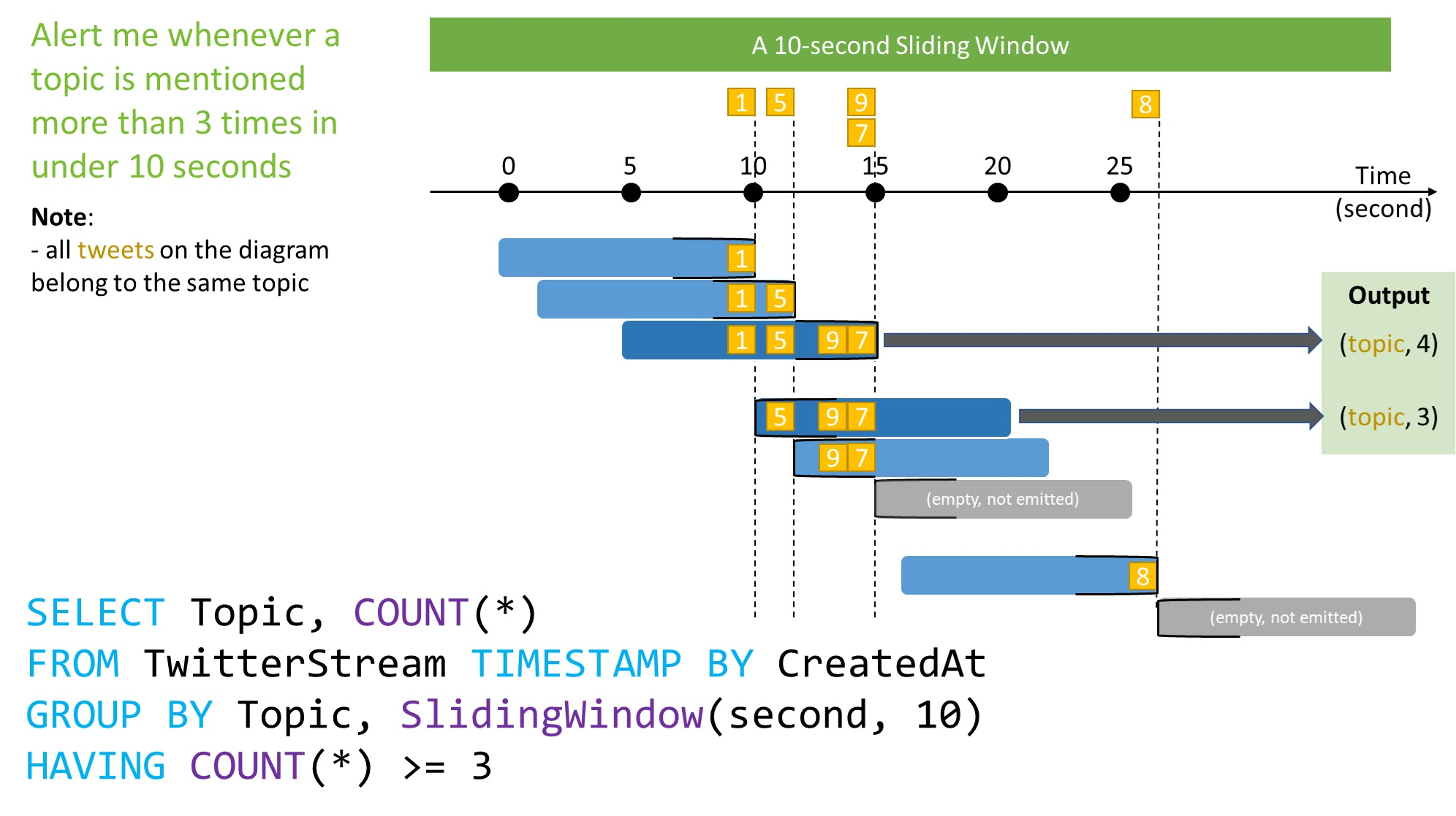
Here's the sample input data:
| Stamp | CreatedAt | Topic |
|---|---|---|
| 1 | 2021-10-26T10:15:10 | Streaming |
| 5 | 2021-10-26T10:15:12 | Streaming |
| 9 | 2021-10-26T10:15:15 | Streaming |
| 7 | 2021-10-26T10:15:15 | Streaming |
| 8 | 2021-10-26T10:15:27 | Streaming |
Here's the sample query:
SELECT System.Timestamp() as WindowEndTime, Topic, COUNT(*) AS Count
FROM TwitterStream TIMESTAMP BY CreatedAt
GROUP BY Topic, SlidingWindow(second,10)
HAVING COUNT(*) >=3
Output:
| WindowEndTime | Topic | Count |
|---|---|---|
| 2021-10-26T10:15:15 | Streaming | 4 |
| 2021-10-26T10:15:20 | Streaming | 3 |
Session window
Session window functions group events that arrive at similar times. They filter out periods of time where there's no data. The session window function has three main parameters:
- Timeout
- Maximum duration
- Partitioning key (optional).
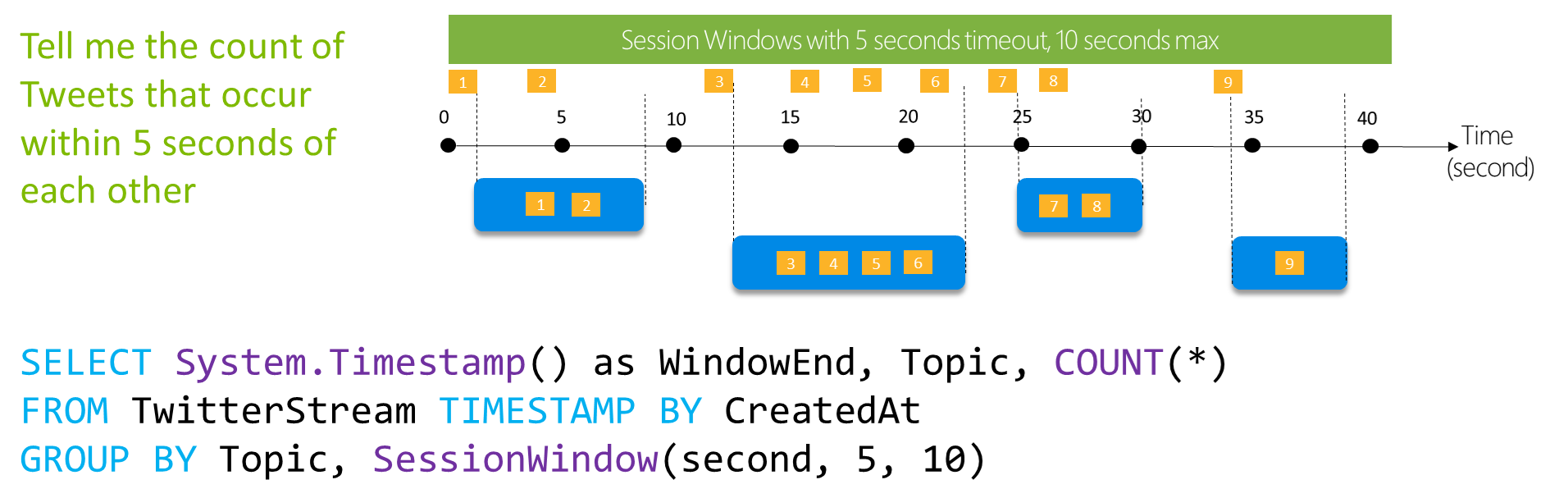
A session window begins when the first event occurs. If another event occurs within the specified timeout from the last ingested event, the window extends to include the new event. Otherwise, if no events occur within the timeout, the window closes at the timeout.
If events keep occurring within the specified timeout, the session window keeps extending until maximum duration is reached. The maximum duration checking intervals are the same size as the specified max duration. For example, if the max duration is 10, then the checks on if the window exceeds maximum duration happen at t = 0, 10, 20, 30, and so on.
When you provide a partition key, the function groups the events together by the key and applies the session window to each group independently. This partitioning is useful for cases where you need different session windows for different users or devices.
Here's the sample input data:
| Stamp | CreatedAt | Topic |
|---|---|---|
| 1 | 2021-10-26T10:15:01 | Streaming |
| 2 | 2021-10-26T10:15:04 | Streaming |
| 3 | 2021-10-26T10:15:13 | Streaming |
| ... | ... | ... |
Here's the sample query:
SELECT System.Timestamp() as WindowEndTime, Topic, COUNT(*) AS Count
FROM TwitterStream TIMESTAMP BY CreatedAt
GROUP BY Topic, SessionWindow(second,5,10)
Output:
| WindowEndTime | Topic | Count |
|---|---|---|
| 2021-10-26T10:15:09 | Streaming | 2 |
| 2021-10-26T10:15:24 | Streaming | 4 |
| 2021-10-26T10:15:31 | Streaming | 2 |
| 2021-10-26T10:15:39 | Streaming | 1 |
Snapshot window
Snapshot windows group events that have the same timestamp. Unlike other windowing types, which require a specific window function (such as SessionWindow()), you can apply a snapshot window by adding System.Timestamp() to the GROUP BY clause.
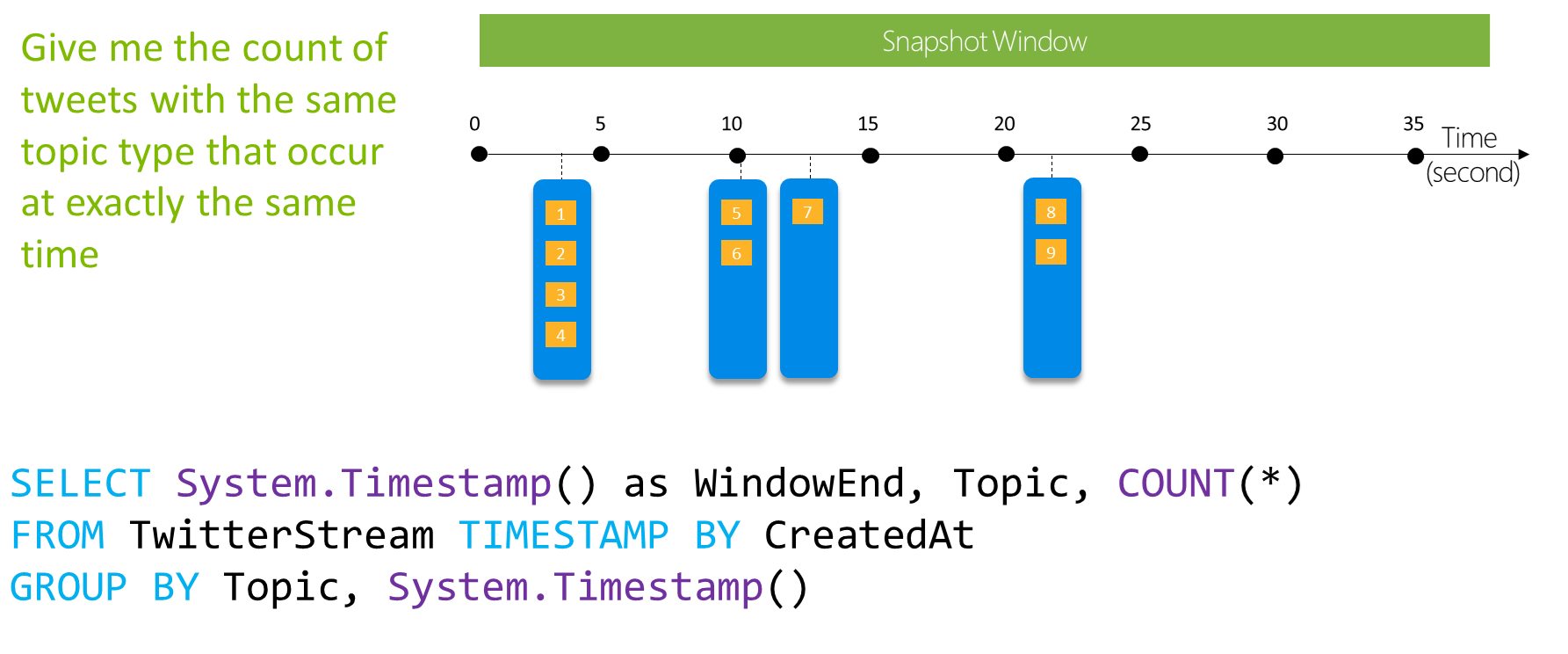
Here's the sample input data:
| Stamp | CreatedAt | Topic |
|---|---|---|
| 1 | 2021-10-26T10:15:04 | Streaming |
| 2 | 2021-10-26T10:15:04 | Streaming |
| 3 | 2021-10-26T10:15:04 | Streaming |
| ... | ... | ... |
Here's the sample query:
SELECT System.Timestamp() as WindowEndTime, Topic, COUNT(*) AS Count
FROM TwitterStream TIMESTAMP BY CreatedAt
GROUP BY Topic, System.Timestamp()
Here's the sample output:
| WindowEndTime | Topic | Count |
|---|---|---|
| 2021-10-26T10:15:04 | Streaming | 4 |
| 2021-10-26T10:15:10 | Streaming | 2 |
| 2021-10-26T10:15:13 | Streaming | 1 |
| 2021-10-26T10:15:22 | Streaming | 2 |
Next steps
See the following articles: