Muistiinpano
Tämän sivun käyttö edellyttää valtuutusta. Voit yrittää kirjautua sisään tai vaihtaa hakemistoa.
Tämän sivun käyttö edellyttää valtuutusta. Voit yrittää vaihtaa hakemistoa.
Use exclusions to prevent Microsoft Defender for Endpoint on macOS from scanning trusted files, folders, processes, and file extensions. Exclusions apply to on-demand scans, real-time protection (RTP), and behavior monitoring (BM), while retaining endpoint detection and response (EDR) visibility.
Antivirus exclusions apply only to antivirus capabilities, not to EDR. Files excluded from antivirus scanning can still result in EDR alerts and other detections.
Exclusions can help avoid incorrect detections or mitigate performance issues caused by Defender for Endpoint on macOS. To identify the process, path, or extension to exclude, use real-time protection statistics.
Warning
Defining exclusions lowers the protection offered by Defender for Endpoint on macOS. Evaluate the risks before adding an exclusion, and exclude only files that you're confident aren't malicious.
Important
If you want to run multiple security solutions side by side, see Considerations for performance, configuration, and support.
You might have already configured mutual security exclusions for devices onboarded to Microsoft Defender for Endpoint. If you still need to set mutual exclusions to avoid conflicts, see Add Microsoft Defender for Endpoint to the exclusion list for your existing solution.
Supported exclusion types
Defender for Endpoint on macOS supports the following exclusion types:
File extension: All files with the specified extension anywhere on the device.
- Example:
.test
- Example:
File: A specific file identified by its full path.
- Examples:
/var/log/test.log/var/log/*.log/var/log/install.?.log
- Examples:
Folder: All files in the specified folder, recursively.
- Examples:
/var/log//var/*/
- Examples:
Process: A specific process, identified by its full path or file name, and all files opened by the process. We recommend using the full path.
- Examples:
/bin/catcatc?t
- Examples:
Important
Exclusion paths must be hard links, not symbolic links. To check whether a path is a symbolic link, run file <path-name>.
Supported wildcards for file, folder, and process exclusions
You can use the following wildcard patterns when defining file, folder, and process exclusions:
Asterisk (
*): Matches any number of characters, including no characters. If this wildcard isn't used at the end of the path, it substitutes for only one folder.- When an
*wildcard appears at the end of a path, it matches all files and subfolders under the parent of the wildcard. - Examples:
/var/*/tmp:- Includes: Files in
/var/abc/tmpand/var/def/tmpand their subfolders. - Doesn't include:
/var/abc/logor/var/def/log.
- Includes: Files in
/var/*/:- Includes: Files in
/varand its subfolders.
- Includes: Files in
- When an
Question mark (
?): Matches any single character.- Example:
file?.log- Includes:
file1.logandfile2.log. - Doesn't include:
file123.log.
- Includes:
- Example:
Note
Defender for Endpoint on macOS attempts to resolve firm links when evaluating exclusions. Firm link resolution doesn't work when the exclusion contains wildcards or the target file (on the Data volume) doesn't exist.
Best practices for adding antivirus exclusions
Use the following practices to limit the security impact of antivirus exclusions:
- Record the submitter, date, application, reason, and exclusion details in a central location accessible only to security administrators.
- Set an expiration date for each exclusion. An exclusion might require no expiration date if the independent software vendor confirms that the application can't be adjusted to prevent the incorrect detection or high CPU usage.
- Don't automatically copy exclusions from another antimalware product. The exclusions might not apply to Defender for Endpoint on macOS.
- For a known application file that doesn't change frequently, consider a file hash allow indicator instead of an antivirus exclusion.
- If an antivirus exclusion is necessary, make it as specific as possible. Avoid broad folder and file extension exclusions when a file or full process path meets the requirement.
Configure exclusions
Use one of the following methods to configure exclusions.
Configure exclusions using a configuration profile
Use Microsoft Intune, Jamf Pro, or another mobile device management solution to deploy a configuration profile that contains the exclusions. For the preference keys, supported values, and configuration profile examples, see Set preferences for Microsoft Defender for Endpoint on macOS.
Configure exclusions using Defender for Endpoint security settings management
Note
Before you begin, review the Defender for Endpoint security settings management prerequisites.
You can use the Microsoft Intune admin center or the Microsoft Defender portal to manage exclusions as endpoint security policies and assign the policies to Microsoft Entra groups. If you're using security settings management for the first time, complete the following steps:
Step 1: Enable security settings management for macOS
On the Enforcement scope page in the Microsoft Defender portal at https://security.microsoft.com/securitysettings/endpoints/configuration_management, in the Enable configuration management section, select macOS devices, and then select one of the following values:
- Select On tagged devices to test security settings management with selected devices. Add the
MDE-Managementtag to each test device. For instructions and other tagging methods, see Create and manage device tags. - Select All devices to enroll all eligible macOS devices.
Most devices enroll and apply assigned policies within a few minutes, although some devices might take up to 24 hours.
Step 2: Create a Microsoft Entra device group
Create a dynamic Microsoft Entra device group based on the macOS operating system type. Dynamic membership automatically adds matching devices, so you don't need to maintain group membership manually. For more information, see Create Microsoft Entra groups for security settings management.
Step 3: Create a macOS exclusions policy
For detailed instructions, see Create an endpoint security policy (link opens in a new tab).
When you create the policy on the macOS policies tab of the Endpoint security policies page in the Defender portal at https://security.microsoft.com/policy-inventory?osPlatform=Mac, use these specific settings:
- Select platform: Select macOS.
- Select template: Select Microsoft Defender Antivirus exclusions.
In the policy creation wizard, use these settings:
- Configuration settings tab:
- In the Antivirus engine section, select
 Add.
Add. - For Type, select Path, File extension, or File name.
- For Additional settings, select Configure instance, and then add the exclusion.
- In the Antivirus engine section, select
- Assignments tab: Assignment group limitations apply to devices managed through Defender for Endpoint security settings management. For details, see the Assignments step.
Configure exclusions from the Defender for Endpoint app
If your administrator allows user-defined exclusions, use the following steps to add an exclusion directly in the Defender for Endpoint app:
Open the Defender for Endpoint app.
In Manage settings, select Add or Remove Exclusion....
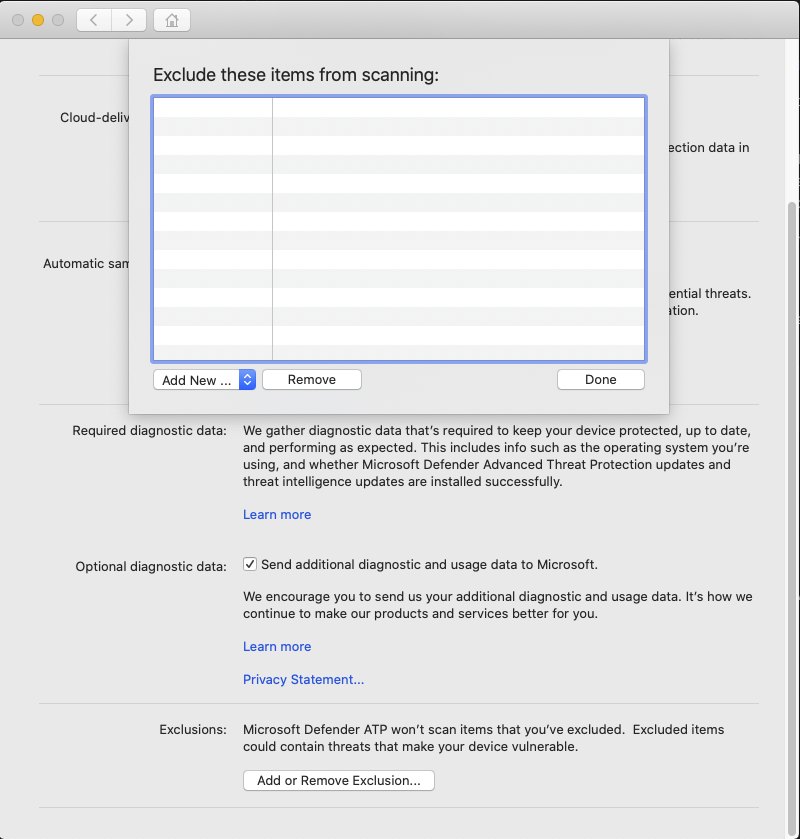
Select the exclusion type, and then follow the prompts.
Administrators can use the exclusionsMergePolicy preference to allow or prevent user-defined exclusions. For more information, see Exclusion merge policy.
Configure exclusions using the command line
If your administrator allows user-defined exclusions, you can manage exclusions from Terminal. To view the available subcommands and options, run the mdatp exclusion command:
mdatp exclusion
Command syntax
The following syntax summarizes the available exclusion subcommands, options, and values:
mdatp exclusion {extension {add|remove} --name <extension> | file {add|remove} --path <file-path> | folder {add|remove} --path <folder-path> | process {add|remove} {--path <process-path> | --name <process-name>} | list}
When an exclusion value contains a wildcard, enclose the value in double quotation marks. This syntax prevents the shell from expanding the wildcard before mdatp processes it.
Add or remove file extension exclusions
The following commands add and remove the .txt file extension exclusion:
mdatp exclusion extension add --name .txt

mdatp exclusion extension remove --name .txt
Add or remove file exclusions
The following commands add and remove a file exclusion:
mdatp exclusion file add --path /var/log/dummy.log

mdatp exclusion file remove --path /var/log/dummy.log
Add or remove folder exclusions
The following commands add and remove a folder exclusion:
mdatp exclusion folder add --path /var/log/

mdatp exclusion folder remove --path /var/log/
The following command adds a folder exclusion that uses wildcards:
mdatp exclusion folder add --path "/var/*/tmp"
Add or remove process exclusions
You can identify a process by its full path or file name. We recommend using the full path. The following commands add and remove a process exclusion by full path:
mdatp exclusion process add --path /bin/cat

mdatp exclusion process remove --path /bin/cat
For the complete command reference, see Microsoft Defender for Endpoint on macOS resources.
Validate exclusions with the EICAR test file
The EICAR test file is a small, harmless text file that contains a standard string recognized by antivirus products as malware. You can use it to safely confirm that an exclusion works without using real malware. Defender for Endpoint on macOS detects the file by its content, not its file name.
Before testing an exclusion, verify that real-time protection is enabled. Run the following command and confirm that it returns true:
mdatp health --field real_time_protection_enabled
Create the EICAR test file so that its file name, extension, or location matches the exclusion that you want to validate:
- Use a specific file name or create the file in a specific folder to validate file and folder exclusions.
- Use any file name with the excluded extension to validate a file extension exclusion.
If Defender for Endpoint detects the file, the exclusion doesn't work. If the file exists and Defender for Endpoint doesn't detect it, the exclusion works.
These steps are designed to validate file, folder, and file extension exclusions. They don't provide a general test for process exclusions, which depend on the process that creates or opens the file.
Use one of the following methods to create an EICAR test file that matches your exclusion:
With internet access: Replace
test.txtwith a file name or path that matches your exclusion, and then run the following command:curl -o test.txt https://secure.eicar.org/eicar.com.txtWithout internet access: Change
test.txtto a file name or path that matches your exclusion, and then run the following command:echo 'X5O!P%@AP[4\PZX54(P^)7CC)7}$EICAR-STANDARD-ANTIVIRUS-TEST-FILE!$H+H*' > test.txt
Related content
The following articles provide more information about configuring and managing Defender for Endpoint on macOS: