Muistiinpano
Tämän sivun käyttö edellyttää valtuutusta. Voit yrittää kirjautua sisään tai vaihtaa hakemistoa.
Tämän sivun käyttö edellyttää valtuutusta. Voit yrittää vaihtaa hakemistoa.
You can enhance the user experience of your declarative agents for Microsoft 365 Copilot by adding the code interpreter capability. The capabilities element in the manifest reference, and the Capabilities section in Agent Builder, provide several options for you to unlock features for your users.
Code interpreter is an advanced tool designed to solve complex tasks via Python code. It uses the reasoning model to write and run code, enabling users to solve complex math problems, analyze data, generate visualizations, and more. After the code runs, code interpreter outputs the results and the related code that it generates. It can also produce downloadable images or files based on the scenario, and accepts files as input for modification and analysis.
The code interpreter capability is available to users with a Microsoft 365 Copilot license and Copilot Chat users without metered usage enabled.
Note
Code Interpreter is enabled by default for in-context agents. To change this setting, select the Settings icon and update the Code Interpreter setting as needed, as shown in the following screenshot.
Enable code interpreter in Microsoft 365 Agents Toolkit
If you're using Agents Toolkit and Visual Studio Code to create your agent and want to enable code interpreter, add the CodeInterpreter value to the capabilities property in your manifest file, as shown in the following example.
Note
You must be using version 1.2 or later of the declarative agent manifest schema to add the CodeInterpreter capability.
{
  "capabilities": [
    {
      "name": "CodeInterpreter"
    }
  ]
}
Enable code interpreter in Agent Builder
Code interpreter is always enabled in Agent Builder. This capability is automatically included for all agents.
Code interpreter capability examples
The code interpreter capability uses the reasoning model to allow declarative agents to write and run Python code in a sandboxed environment. This capability lets users solve complex math problems, analyze data, generate visualizations, and more. After the code runs, code interpreter outputs the results and the generated code. It can also produce downloadable images and other files based on the scenario and accepts files as input for modification and analysis.
Code interpreter provides functionality for:
- Data graphing
- Data QR codes and data visualizations
- Creating files containing synthetic data
- Solving complex math problems
- Modifying uploaded images
- Generating downloadable files
Copilot can also provide copyable and downloadable versions of the code it generates when running these tasks.
Create graphs and charts
Users can employ agents that have code interpreter enabled to create graphs and charts. For example, in response to the prompt Graph the first 20 numbers in a Fibonacci sequence, Copilot produces the following line graph.
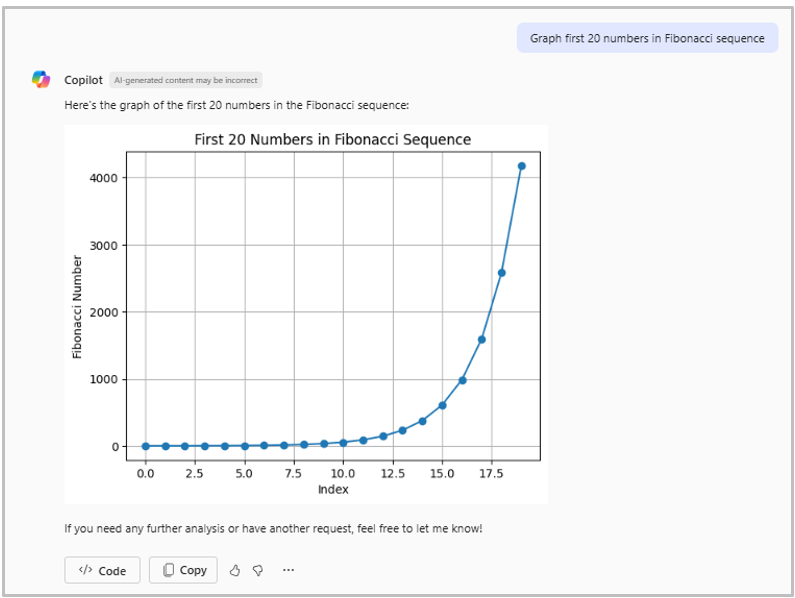
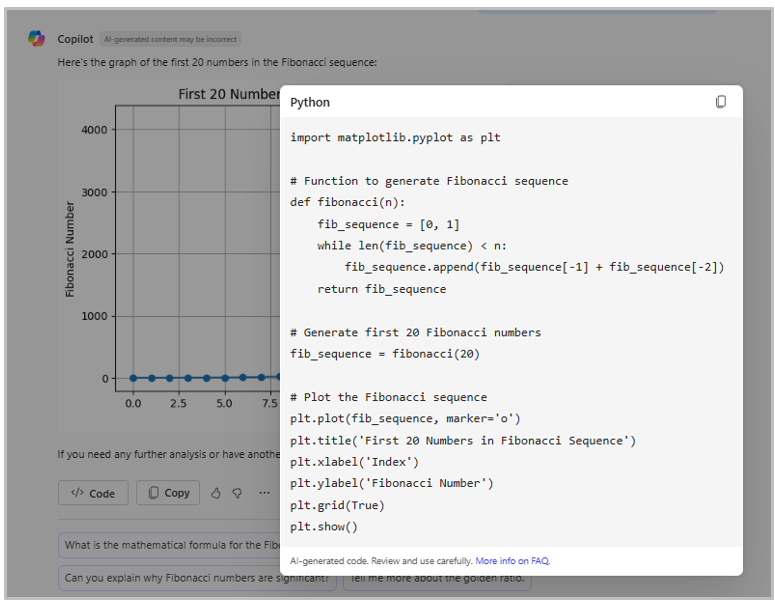
When the user selects the </> Code button, the agent provides the corresponding Python code.
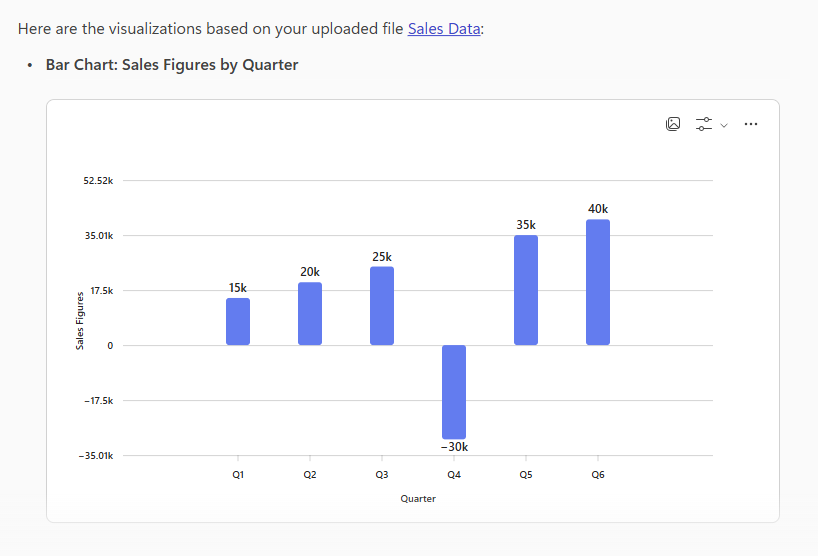
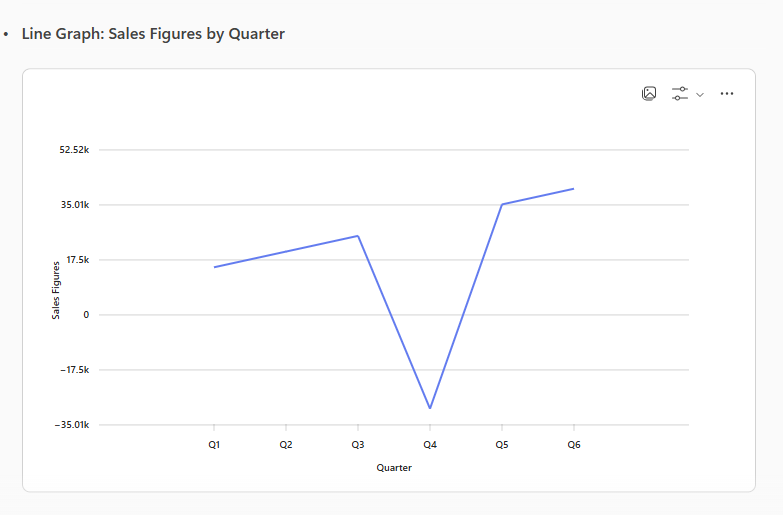
Users can also upload data files to generate graphs and charts so they can visualize their data. The supported file formats are Word, Excel, PowerPoint, PDF, CSV/TSV, and TXT/UTF8. For example, a user can upload an Excel file with sales data and enter the prompt: Create a bar chart and line graph of my uploaded sales data. The agent returns the following response.
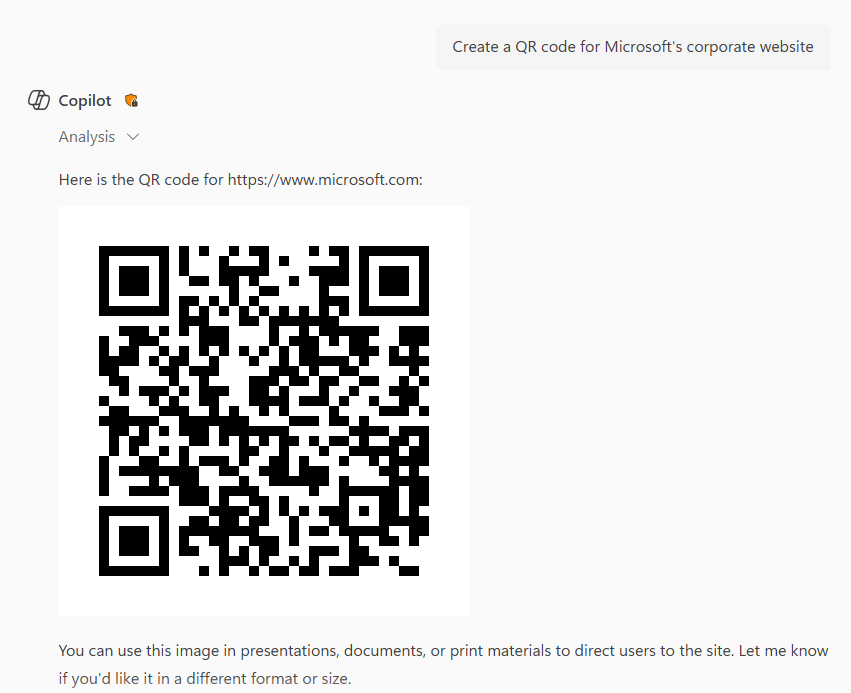
Create QR codes and data visualizations
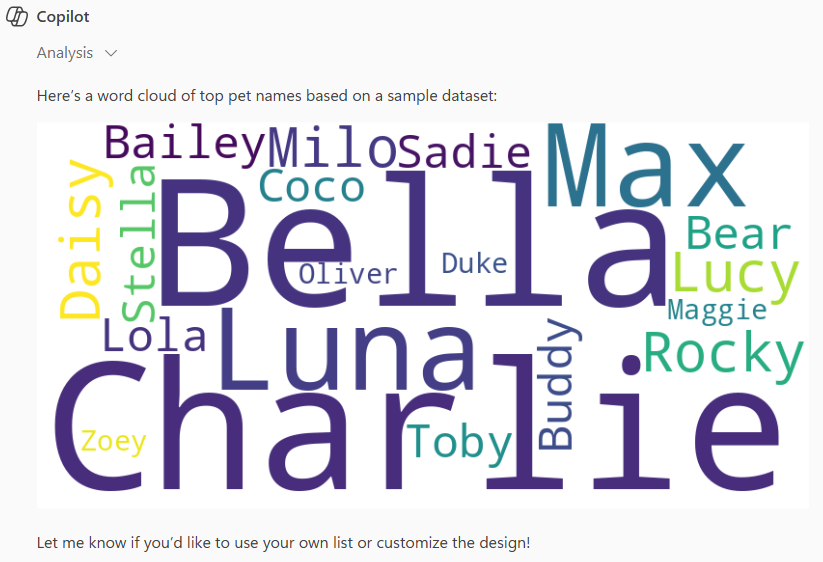
With code interpreter enabled, users can create a variety of data visualizations such as QR codes and word clouds. For example, in response to the user prompt Create a QR code for Microsoft's corporate website, the agent presents both the corresponding URL and matching QR code.
For a word cloud, the prompt Create a word cloud of top pet names generates an image that includes the most common names, as shown in the following example.
Create synthetic data
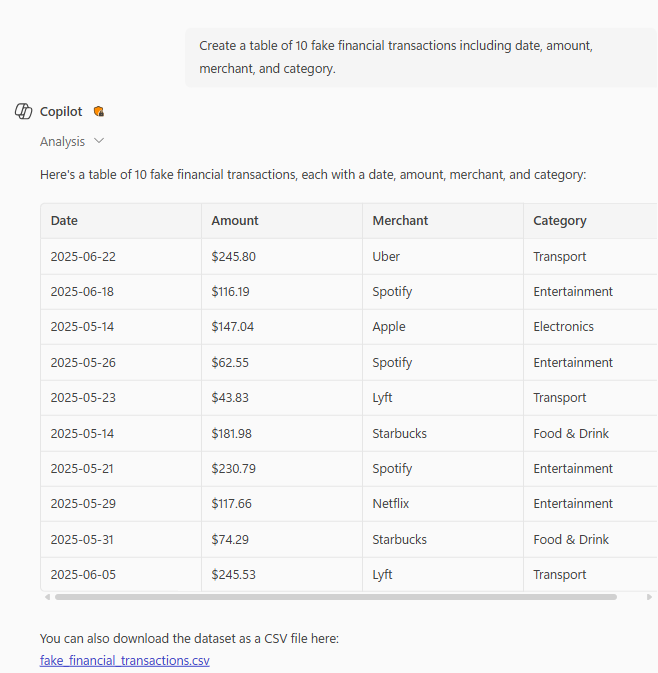
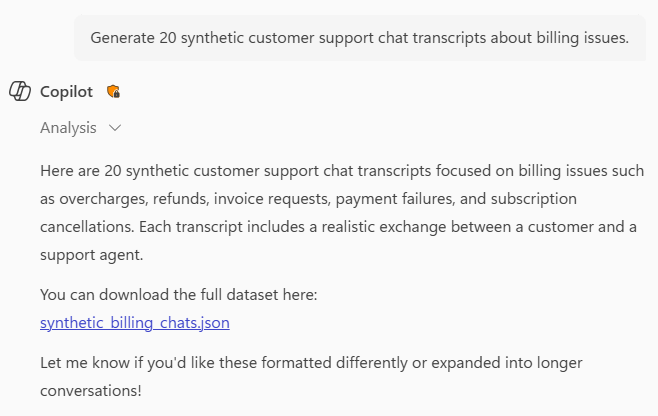
When a user needs sample data to work with, by integrating code interpreter you make it possible for them to create synthetic data for a variety of purposes. The agent can generate the requested sample data and then output it as Word, Excel, PowerPoint, or PDF files. Users can download the generated files directly from the agent's response. Following are example prompts and responses.
Prompt: Create a table of 10 fake financial transactions including date, amount, merchant, and category.
Prompt: Generate 20 synthetic customer support chat transcripts about billing issues.
Solve complex math problems
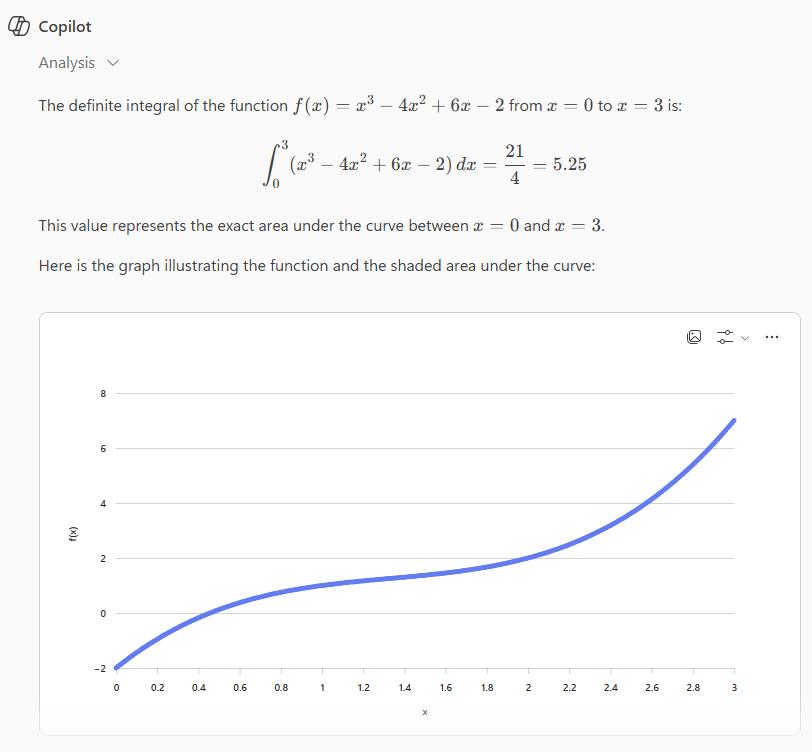
When you add code interpreter to your agent, users can prompt your agent to solve complex math problems, as shown in the following example.
Prompt: Provide the integral of the area under the curve for the function ( f(x) = x^3 - 4x^2 + 6x - 2 ) from ( x = 0 ) to ( x = 3 ).
Modify uploaded images
Integrating code interpreter also allows users to modify uploaded images. Agents with this capability can add banners and captions to images and can generate black and white versions of color images. (The following image was generated by Copilot.)

To modify that image, the user can enter the prompt Give me a black and white version of the attached image. Add a banner that says "1934 Bentley 4" and a caption that says "Image generated by Copilot." The agent provides the following result.

Generate downloadable files
Code interpreter can generate and host downloadable files, enabling your agent to allow users to download files that the agent generates. When code interpreter produces output files (such as images, charts, spreadsheets, or documents), Copilot automatically presents a download link in the response. Users can select the link to save the file locally.
This capability is useful in many scenarios, for example:
- Data exports: Generate an Excel spreadsheet of computed data or analysis results and offer it as a download.
- Reports: Create a formatted PDF or Word document summarizing findings and make it available for download.
- Generated visuals: Produce a chart, QR code, or word cloud as a downloadable image file.
- Processed files: Apply modifications to an uploaded image or document and return the result as a downloadable file.
The following example prompt triggers file generation and automatic download link creation.
Prompt: Create a spreadsheet with a multiplication table for numbers 1 through 10 and give me the Excel file.
The agent generates the Excel file and presents a download link in the response.
Note
Files generated by code interpreter are hosted temporarily and are available for download during the active session only. Files are not persisted after the session ends.