Muistiinpano
Tämän sivun käyttö edellyttää valtuutusta. Voit yrittää kirjautua sisään tai vaihtaa hakemistoa.
Tämän sivun käyttö edellyttää valtuutusta. Voit yrittää vaihtaa hakemistoa.
Administrators can use this guide to set up the Recon Agent in Microsoft Perception, configure access, and start and review sessions. Create the agent identity in the portal, then run the PowerShell script to assign its read-only permissions.
Before you start, confirm that Perception is set up in your tenant. Review Prerequisites for subscription and access requirements.
Prerequisites
- Completion of Microsoft Perception setup in your tenant.
- Microsoft Defender XDR.
- One or more Azure subscriptions.
Recommended products (optional)
The following products are recommended to help improve Recon Agent findings, but aren't required to use the agent:
- Microsoft Defender Cloud Security Posture Management (Defender CSPM)
- Microsoft Defender for Servers Plan 2
Required permissions
For privileged setup tasks, use just-in-time access through Microsoft Entra Privileged Identity Management (PIM), when available. Activate only the roles needed for the task.
Access to agents is controlled by existing security roles in Microsoft Defender:
| Role | What you can do |
|---|---|
| Security Admin | Set up and configure the Recon Agent, including its identity and permissions, and remove agents. At least one user in your organization needs this role. |
| Security Reader | Start sessions, view and interact with agent sessions, and view session details. |
To delegate agent setup, have your Microsoft Entra administrator assign Security Admin. Granting the agent its Microsoft Graph and Azure permissions requires the additional roles listed in Agent permissions.
Agent permissions
Human roles control who can set up or use the Recon Agent. Agent permissions authorize the agent to read Microsoft Entra ID directory information and Azure resource information.
The permission assignment script grants Microsoft Graph application permissions and Azure role-based access control (RBAC) roles. The administrator who grants each permission set needs the corresponding role:
| Permission set | Role required to grant permissions | Permissions granted to the agent |
|---|---|---|
| Microsoft Graph application permissions | Privileged Role Administrator in Microsoft Entra ID. | User.Read.All, Organization.Read.All, GroupMember.Read.All, Application.Read.All, DelegatedPermissionGrant.Read.All, Policy.Read.All, RoleManagement.Read.Directory, and AuditLog.Read.All. |
| Azure RBAC roles at subscription scope | Role Based Access Control Administrator on each target subscription. | Reader, Key Vault Reader, Log Analytics Reader, and Security Reader. |
Set up the Recon Agent with PowerShell
Create the agent identity in Perception, then use the permission assignment script to grant the permissions listed in Agent permissions.
Prepare access and tools
Have PowerShell and the Azure CLI available before you run the script. Use an account with Security Admin for agent setup. Assigning permissions also requires Privileged Role Administrator for Microsoft Graph and Role Based Access Control Administrator on each target subscription.
Create the identity and assign permissions
To enable the Recon Agent, create its identity and assign read-only permissions:
Note
The Recon Agent uses an agent identity, not an agent user identity. Agent user identities don't support the Recon Agent's read-only operations.
As a user with the Security Admin role, sign in to the Microsoft Defender portal and go to Perception > Agents.
In Ready for setup, find Recon Agent and select Set up. Create a new agent identity. For general setup information, see Set up an agent.
In the Microsoft Defender portal, go to Perception > Agents and open Recon Agent.
Copy the agent's object ID from the Identity section. Use this value for the script's
AgentIdparameter.Copy the permission assignment script into a file named
ReconAgent-Permissions.ps1.Confirm that Azure CLI is signed in with the account authorized to grant the selected permission sets. Run the script in PowerShell with your tenant ID, agent object ID, and target subscription IDs. To grant both permission sets, use an account with the Microsoft Entra and Azure roles listed in Prepare access and tools:
.\ReconAgent-Permissions.ps1 -TenantId "<tenant-id>" -AgentId "<agent-object-id>" -Permissions All -SubscriptionId "<subscription-id>"If different administrators grant the two permission sets, have each administrator run only the corresponding command with their authorized account:
.\ReconAgent-Permissions.ps1 -TenantId "<tenant-id>" -AgentId "<agent-object-id>" -Permissions Graph .\ReconAgent-Permissions.ps1 -TenantId "<tenant-id>" -AgentId "<agent-object-id>" -Permissions Azure -SubscriptionId "<subscription-id>"SubscriptionIdaccepts one or more subscriptions and is required forAllorAzure. The script prompts for Azure CLI sign-in when needed.Review the permission assignment results and resolve reported failures before starting a session.
Complete agent setup in the portal.
Permission assignment script
Save the following script as ReconAgent-Permissions.ps1 to grant the Recon Agent's Microsoft Graph application permissions and Azure RBAC roles.
<#
.SYNOPSIS
    Assigns the Graph API permissions and Azure RBAC roles required by Recon.

.DESCRIPTION
    Assigns the following Graph API application permissions:
      - User.Read.All
      - Organization.Read.All
      - GroupMember.Read.All
      - Application.Read.All
      - DelegatedPermissionGrant.Read.All
      - Policy.Read.All
      - RoleManagement.Read.Directory
      - AuditLog.Read.All

        Assigns the following Azure RBAC roles at subscription scope:
            - Reader
            - Key Vault Reader
            - Log Analytics Reader
            - Security Reader

.PARAMETER TenantId
    The Tenant Id.

.PARAMETER AgentId
    The Entra ID Object ID (principal ID) of the Agent Identity to assign roles to. To get this value,
    1. Go to the Microsoft Defender portal at https://security.microsoft.com/ -> Perception -> Agents
    2. Search for the Recon Agent and click on it to open the agent details page
    3. Copy the value under the "Identity" section

.PARAMETER Permissions
    Permission sets to assign: All, Azure, or Graph. Defaults to All.

.PARAMETER SubscriptionId
    One or more Azure subscriptions to receive the Recon RBAC assignments.
    Values can be comma-delimited, space-delimited, or supplied as an array.
    Required when Permissions is All or Azure.

Example: .\ReconAgent-Permissions.ps1 -TenantId <TenandId> -AgentId <AgentId> -Permissions All -SubscriptionId <SubscriptionId>
Example: .\ReconAgent-Permissions.ps1 -TenantId <TenandId> -AgentId <AgentId> -Permissions Azure -SubscriptionId <SubscriptionId1>, <SubscriptionId2>

#>

[CmdletBinding()]
param(
    [Parameter(Mandatory = $true)]
    [ValidatePattern('^[0-9a-fA-F]{8}-([0-9a-fA-F]{4}-){3}[0-9a-fA-F]{12}$')]
    [string]$TenantId,

    [Parameter(Mandatory = $true)]
    [ValidatePattern('^[0-9a-fA-F]{8}-([0-9a-fA-F]{4}-){3}[0-9a-fA-F]{12}$')]
    [string]$AgentId,

    [ValidateSet('All', 'Azure', 'Graph')]
    [string]$Permissions = 'All',

    [string[]]$SubscriptionId,

    [Parameter(ValueFromRemainingArguments = $true, DontShow = $true)]
    [string[]]$AdditionalSubscriptionId
)

$ErrorActionPreference = 'Stop'

$subscriptionIds = @(@($SubscriptionId) + @($AdditionalSubscriptionId) |
    ForEach-Object { $_ -split '[,\s]+' } |
    Where-Object { -not [string]::IsNullOrWhiteSpace($_) } |
    ForEach-Object { $_.Trim() } |
    Sort-Object -Unique)

if ($Permissions -in @('All', 'Azure') -and $subscriptionIds.Count -eq 0) {
    throw '-SubscriptionId requires at least one subscription GUID when -Permissions is All or Azure.'
}

foreach ($id in $subscriptionIds) {
    if ($id -notmatch '^[0-9a-fA-F]{8}-([0-9a-fA-F]{4}-){3}[0-9a-fA-F]{12}$') {
        throw "Invalid subscription ID '$id'. Supply one or more GUIDs separated by commas or spaces."
    }
}

function Invoke-AzJson {
    param(
        [Parameter(Mandatory)]
        [string[]]$Arguments
    )

    $output = & az @Arguments 2>&1
    if ($LASTEXITCODE -ne 0) {
        throw "az $($Arguments -join ' ') failed: $($output -join [Environment]::NewLine)"
    }

    if (-not $output) {
        return $null
    }

    return ($output -join [Environment]::NewLine) | ConvertFrom-Json | Write-Output
}

function Test-AzureActionAllowed {
    param(
        [Parameter(Mandatory)]
        [string]$Scope,

        [Parameter(Mandatory)]
        [string]$Action
    )

    $permissionsResponse = Invoke-AzJson -Arguments @(
        'rest', '--method', 'GET',
        '--url', "https://management.azure.com$Scope/providers/Microsoft.Authorization/permissions?api-version=2022-04-01",
        '--output', 'json'
    )

    foreach ($permission in @($permissionsResponse.value)) {
        $isAllowed = @($permission.actions | Where-Object {
            $Action -like [string]$_
        }).Count -gt 0
        $isExcluded = @($permission.notActions | Where-Object {
            $Action -like [string]$_
        }).Count -gt 0

        if ($isAllowed -and -not $isExcluded) {
            return $true
        }
    }

    return $false
}

function Write-Section {
    param([string]$Title)

    Write-Host ''
    Write-Host $Title -ForegroundColor Cyan
    Write-Host ('-' * $Title.Length) -ForegroundColor DarkGray
}

function Write-Step {
    param(
        [string]$Message,
        [ValidateSet('Info', 'OK', 'Warn', 'Err', 'Step')]
        [string]$Level = 'Info'
    )

    $color = switch ($Level) {
        'OK' { 'Green' }
        'Warn' { 'Yellow' }
        'Err' { 'Red' }
        'Step' { 'Cyan' }
        default { 'Gray' }
    }
    $prefix = switch ($Level) {
        'OK' { '[ OK ]' }
        'Warn' { '[WARN]' }
        'Err' { '[FAIL]' }
        'Step' { '[STEP]' }
        default { '[ -- ]' }
    }

    if ($Level -eq 'Step') {
        Write-Host ''
    }

    Write-Host (
        '{0} {1} {2}' -f
        (Get-Date -Format 'HH:mm:ss'), $prefix, $Message
    ) -ForegroundColor $color
}

function Write-ConsoleResults {
    param([object[]]$Results)

    Write-Section 'Granular Recon permission assignment'
    Write-Step `
        -Message "Agent: Recon, EntraObjectId: $AgentId" `
        -Level Step

    foreach ($result in @($Results |
        Sort-Object PermissionSet, SubscriptionId, Role)) {
        $category = if ($result.PermissionSet -eq 'Graph') {
            'Microsoft Graph permission'
        }
        else {
            'Azure RBAC'
        }
        $value = if ($result.PermissionSet -eq 'Azure') {
            "{0} ({1})" -f $result.Role, $result.Scope
        }
        else {
            "Graph $($result.Role)"
        }
        $assignmentResult = switch ($result.Status) {
            'Already assigned' { 'Already existed' }
            'Assigned' { 'Added' }
            default { $result.Status }
        }
        $level = if ($result.Status -eq 'Failed') { 'Err' } else { 'OK' }

        Write-Step `
            -Message "$category`: $value - $assignmentResult" `
            -Level $level
        if ($result.Status -eq 'Failed' -and
            -not [string]::IsNullOrWhiteSpace([string]$result.Details)) {
            Write-Host ("       Details:  {0}" -f $result.Details) `
                -ForegroundColor DarkGray
        }
    }
}

if (-not (Get-Command az -ErrorAction SilentlyContinue)) {
    throw 'Azure CLI is required but the az command was not found.'
}

Write-Host ''
Write-Host 'Recon Agent Permission Assignment' -ForegroundColor Cyan
Write-Host 'Assigns required Microsoft Graph and Azure RBAC permissions' `
    -ForegroundColor DarkGray
Write-Host "Permission set: $Permissions"
Write-Host "Tenant: $TenantId"

# Ensure Azure CLI is signed in to the requested tenant.
$account = $null
try {
    $account = Invoke-AzJson -Arguments @('account', 'show', '--output', 'json')
}
catch {
    # No usable cached Azure CLI session.
}

if (-not $account -or [string]$account.tenantId -ne $TenantId) {
    & az login --tenant $TenantId --allow-no-subscriptions | Out-Null
    if ($LASTEXITCODE -ne 0) {
        throw "Azure CLI sign-in to tenant $TenantId failed."
    }
}

$agentServicePrincipal = Invoke-AzJson -Arguments @(
    'rest', '--method', 'GET',
    '--url', "https://graph.microsoft.com/v1.0/servicePrincipals/$AgentId",
    '--output', 'json'
)
if ([string]$agentServicePrincipal.id -ne $AgentId) {
    throw "Agent service principal $AgentId could not be resolved in tenant $TenantId."
}

$results = @()

if ($Permissions -in @('All', 'Graph')) {
    $graphToken = & az account get-access-token `
        --tenant $TenantId `
        --resource-type ms-graph `
        --query accessToken `
        --output tsv 2>&1
    if ($LASTEXITCODE -ne 0 -or [string]::IsNullOrWhiteSpace([string]$graphToken)) {
        throw "Unable to acquire a Microsoft Graph token: $($graphToken -join [Environment]::NewLine)"
    }
    $graphHeaders = @{
        Authorization = "Bearer $([string]$graphToken)"
        Accept = 'application/json'
    }

    # Graph API roles (AppRoleId -> Role Name)
    $graphRoleIds = @{
        'df021288-bdef-4463-88db-98f22de89214' = 'User.Read.All'
        '498476ce-e0fe-48b0-b801-37ba7e2685c6' = 'Organization.Read.All'
        '98830695-27a2-44f7-8c18-0c3ebc9698f6' = 'GroupMember.Read.All'
        '9a5d68dd-52b0-4cc2-bd40-abcf44ac3a30' = 'Application.Read.All'
        '81b4724a-58aa-41c1-8a55-84ef97466587' = 'DelegatedPermissionGrant.Read.All'
        '246dd0d5-5bd0-4def-940b-0421030a5b68' = 'Policy.Read.All'
        '483bed4a-2ad3-4361-a73b-c83ccdbdc53c' = 'RoleManagement.Read.Directory'
        'b0afded3-3588-46d8-8b3d-9842eff778da' = 'AuditLog.Read.All'
    }

    $graphServicePrincipal = Invoke-AzJson -Arguments @(
        'ad', 'sp', 'show',
        '--id', '00000003-0000-0000-c000-000000000000',
        '--output', 'json'
    )
    $GraphObjectId = [string]$graphServicePrincipal.id
    if ([string]::IsNullOrWhiteSpace($GraphObjectId)) {
        throw "Microsoft Graph service principal could not be resolved in tenant $TenantId."
    }

    $existingAssignmentsResponse = Invoke-AzJson -Arguments @(
        'rest', '--method', 'GET',
        '--url', "https://graph.microsoft.com/v1.0/servicePrincipals/$AgentId/appRoleAssignments",
        '--output', 'json'
    )
    $existingAssignments = @($existingAssignmentsResponse.value)

    foreach ($rid in $graphRoleIds.Keys) {
        $roleName = $graphRoleIds[$rid]
        $existingAssignment = $existingAssignments |
            Where-Object {
                [string]$_.resourceId -eq $GraphObjectId -and
                [string]$_.appRoleId -eq $rid
            } |
            Select-Object -First 1

        if ($existingAssignment) {
            $results += [pscustomobject]@{
                PermissionSet = 'Graph'
                Role = $roleName
                Status = 'Already assigned'
                Details = ''
            }
            continue
        }

        $body = @{
            principalId = $AgentId
            resourceId = $GraphObjectId
            appRoleId = $rid
        } | ConvertTo-Json -Compress

        try {
            Invoke-RestMethod `
                -Method Post `
                -Uri "https://graph.microsoft.com/v1.0/servicePrincipals/$AgentId/appRoleAssignments" `
                -Headers $graphHeaders `
                -ContentType 'application/json' `
                -Body $body | Out-Null
            $results += [pscustomobject]@{
                PermissionSet = 'Graph'
                Role = $roleName
                Status = 'Assigned'
                Details = ''
            }
        }
        catch {
            $details = if ($_.ErrorDetails.Message) {
                $_.ErrorDetails.Message
            }
            else {
                $_.Exception.Message
            }
            $results += [pscustomobject]@{
                PermissionSet = 'Graph'
                Role = $roleName
                Status = 'Failed'
                Details = $details
            }
        }
    }
}

if ($Permissions -in @('All', 'Azure')) {
    $azureRoles = @(
        'Reader'
        'Key Vault Reader'
        'Log Analytics Reader'
        'Security Reader'
    )

    foreach ($currentSubscriptionId in $subscriptionIds) {
        $subscription = Invoke-AzJson -Arguments @(
            'account', 'show',
            '--subscription', $currentSubscriptionId,
            '--output', 'json'
        )
        if ([string]$subscription.tenantId -ne $TenantId) {
            throw "Subscription $currentSubscriptionId belongs to tenant $($subscription.tenantId), not requested tenant $TenantId."
        }

        & az account set --subscription $currentSubscriptionId
        if ($LASTEXITCODE -ne 0) {
            throw "Unable to select Azure subscription $currentSubscriptionId."
        }

        $scope = "/subscriptions/$currentSubscriptionId"
        try {
            $canWriteRoleAssignments = Test-AzureActionAllowed `
                -Scope $scope `
                -Action 'Microsoft.Authorization/roleAssignments/write'
            if (-not $canWriteRoleAssignments) {
                throw "The signed-in account does not have Microsoft.Authorization/roleAssignments/write at $scope. Assign Owner, User Access Administrator, or Role Based Access Control Administrator at this scope or a parent scope."
            }
        }
        catch {
            $results += [pscustomobject]@{
                PermissionSet = 'Azure'
                SubscriptionId = $currentSubscriptionId
                Scope = $scope
                Role = 'Role assignment preflight'
                Status = 'Failed'
                Details = $_.Exception.Message
            }
            continue
        }

        foreach ($roleName in $azureRoles) {
            try {
                $existingRoleAssignments = @(Invoke-AzJson -Arguments @(
                    'role', 'assignment', 'list',
                    '--assignee-object-id', $AgentId,
                    '--role', $roleName,
                    '--scope', $scope,
                    '--output', 'json'
                ))

                if ($existingRoleAssignments.Count -gt 0) {
                    $results += [pscustomobject]@{
                        PermissionSet = 'Azure'
                        SubscriptionId = $currentSubscriptionId
                        Scope = $scope
                        Role = $roleName
                        Status = 'Already assigned'
                        Details = ''
                    }
                    continue
                }

                Invoke-AzJson -Arguments @(
                    'role', 'assignment', 'create',
                    '--assignee-object-id', $AgentId,
                    '--assignee-principal-type', 'ServicePrincipal',
                    '--role', $roleName,
                    '--scope', $scope,
                    '--output', 'json'
                ) | Out-Null

                $results += [pscustomobject]@{
                    PermissionSet = 'Azure'
                    SubscriptionId = $currentSubscriptionId
                    Scope = $scope
                    Role = $roleName
                    Status = 'Assigned'
                    Details = ''
                }
            }
            catch {
                $results += [pscustomobject]@{
                    PermissionSet = 'Azure'
                    SubscriptionId = $currentSubscriptionId
                    Scope = $scope
                    Role = $roleName
                    Status = 'Failed'
                    Details = $_.Exception.Message
                }
            }
        }
    }
}

Write-ConsoleResults -Results $results
Write-Host

if ($results.Status -contains 'Failed') {
    exit 1
}

exit 0
Allow other users access
Have your Microsoft Entra administrator assign Security Reader or Security Admin to the people who need to use the agent. These roles let them view and interact with sessions after setup.
Start a Recon Agent session
For information about the available session entry points, see Start a new session.
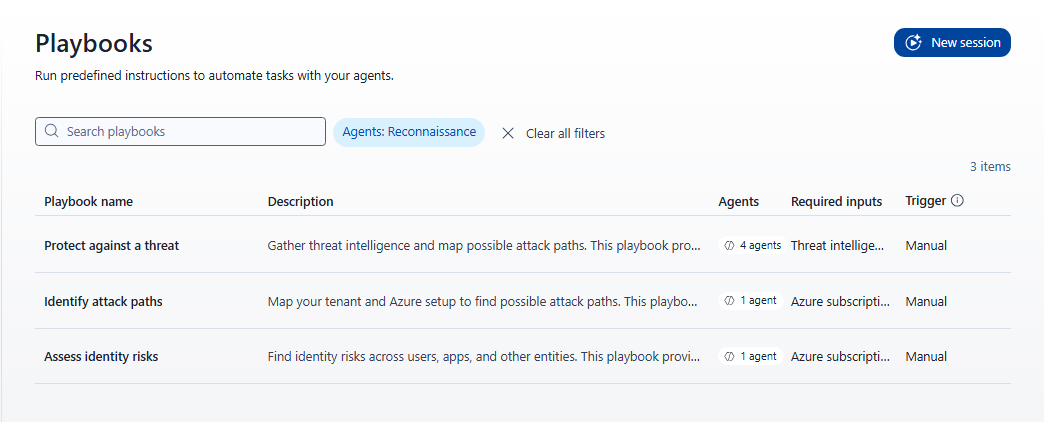
Select a playbook from Choose a Recon use case. The following steps show how to start an Assess identity risks session:
In the navigation pane, select Perception > Sessions.
Select New session.
Select the Assess identity risks playbook.
The Additional inputs needed pane opens. Two inputs are required:
Field Description Azure subscription The Azure subscription ID or name to scope the session to. Each session is limited to one subscription. The administrator preconfigures this list during Recon Agent setup and you can only use preconfigured subscriptions. Managed identity Select the managed identity. 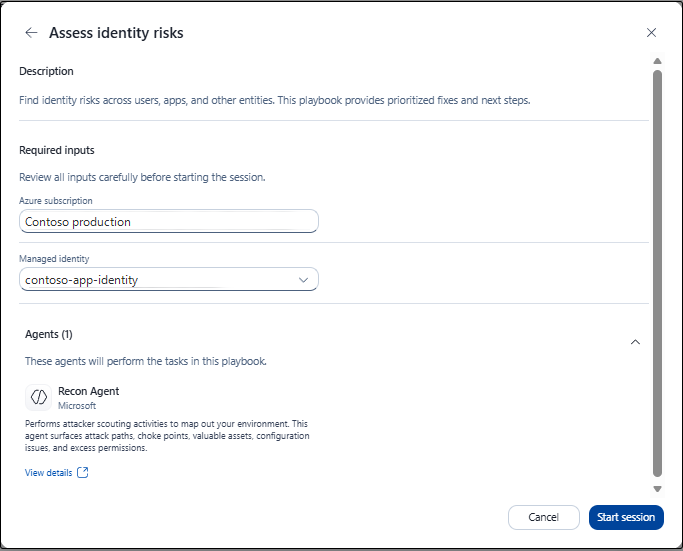
Note
When you start an Identify attack paths session, the subscription picker lists subscriptions available to the signed-in user, not the Recon Agent application. That user needs read access to the entire selected subscription. After the session starts, Recon uses its own identity for reconnaissance.
Fill in both fields and select Start session.
The session opens with a Running status. The agent shows its progress as it drafts a task list and starts its work.
Monitor session progress
While the session is running, the right-side pane shows:
- Overview: Shows the session summary and current status.
- Progress: Tracks completed steps. For example, the value changes from 0/1 to 1/1 when the task is complete.
- Recon Agent: Identifies the active agent for the session.
- Inputs: Shows the target environment and use case you provided.
- Outputs: Lists files generated so far and updates as the session progresses.
If the session reports collection failures or insufficient permissions, address those limitations before drawing conclusions about the affected scope.
Understand the report
Review the report against the question you set out to answer:
- Check the scope and limitations. Review any stated assumptions, missing data, or failed collection steps. Don't treat a session as an exhaustive assessment of your environment.
- Inspect the evidence. Review the resources, identities, permissions, and relationships cited in a finding. Verify material claims before using them to make a security decision.
- Separate observations from assumptions. A potential attack path isn't proof that an attacker has used it or that exploitation would succeed.
- Decide what needs follow-up. Identify which findings need more investigation, review by a resource or identity owner, or separately authorized testing.
Important
Recon Agent outputs are AI-generated and based on data available through read-only API access. Review the findings for accuracy before you use them to plan remediation or communicate risk. The report includes the banner "AI-generated content may be incorrect. Check it for accuracy."