Create a simple flow
In this unit, you create a flow that converts dates in the dd/MM/yyyy format, commonly used in Europe, to the American format (MM/dd/yyyy). The flow prompts users to enter a date and displays the converted date in a message box.
Note
To make the flow work with date formats used in other regions, replace the presented date formats with the ones you want to use.
To create the flow:
Launch Power Automate desktop app and select the New flow button in the console.
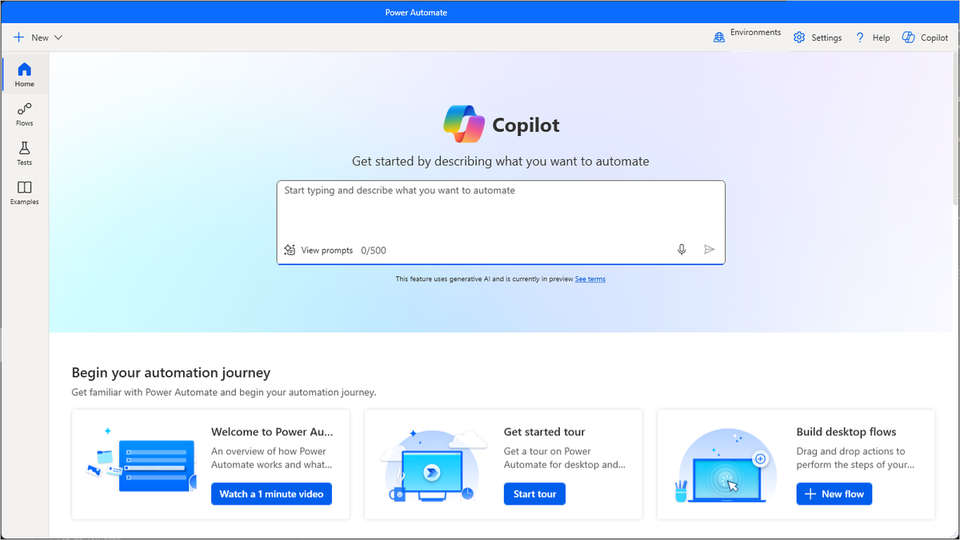
Enter a name for the flow and then select Create. In this example, the flow is named Date conversion.
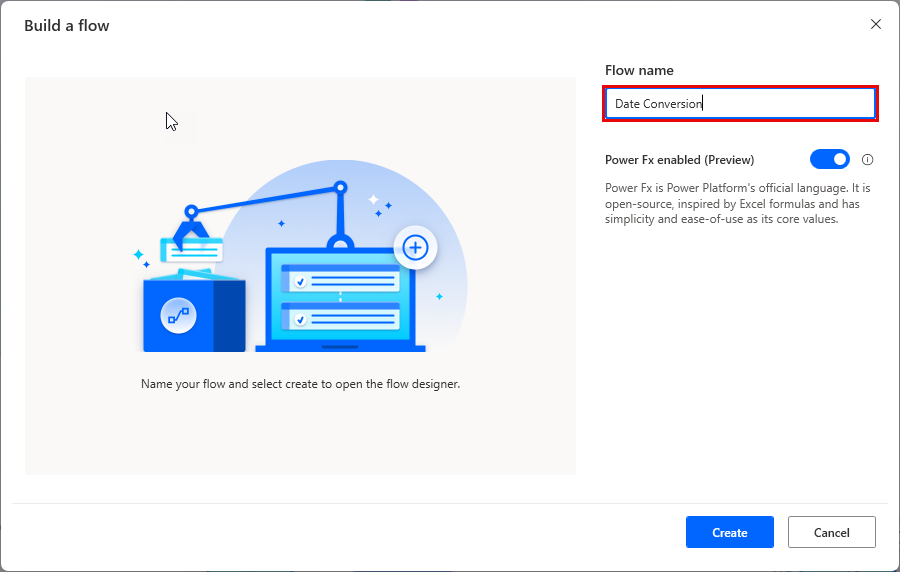
When the flow designer launches, use the actions pane to search for and select the Display input dialog action.
Note
If the search term matches a module name, the results display the module expanded with all its actions available. Searching also returns partial matches, but requires at least two provided characters.
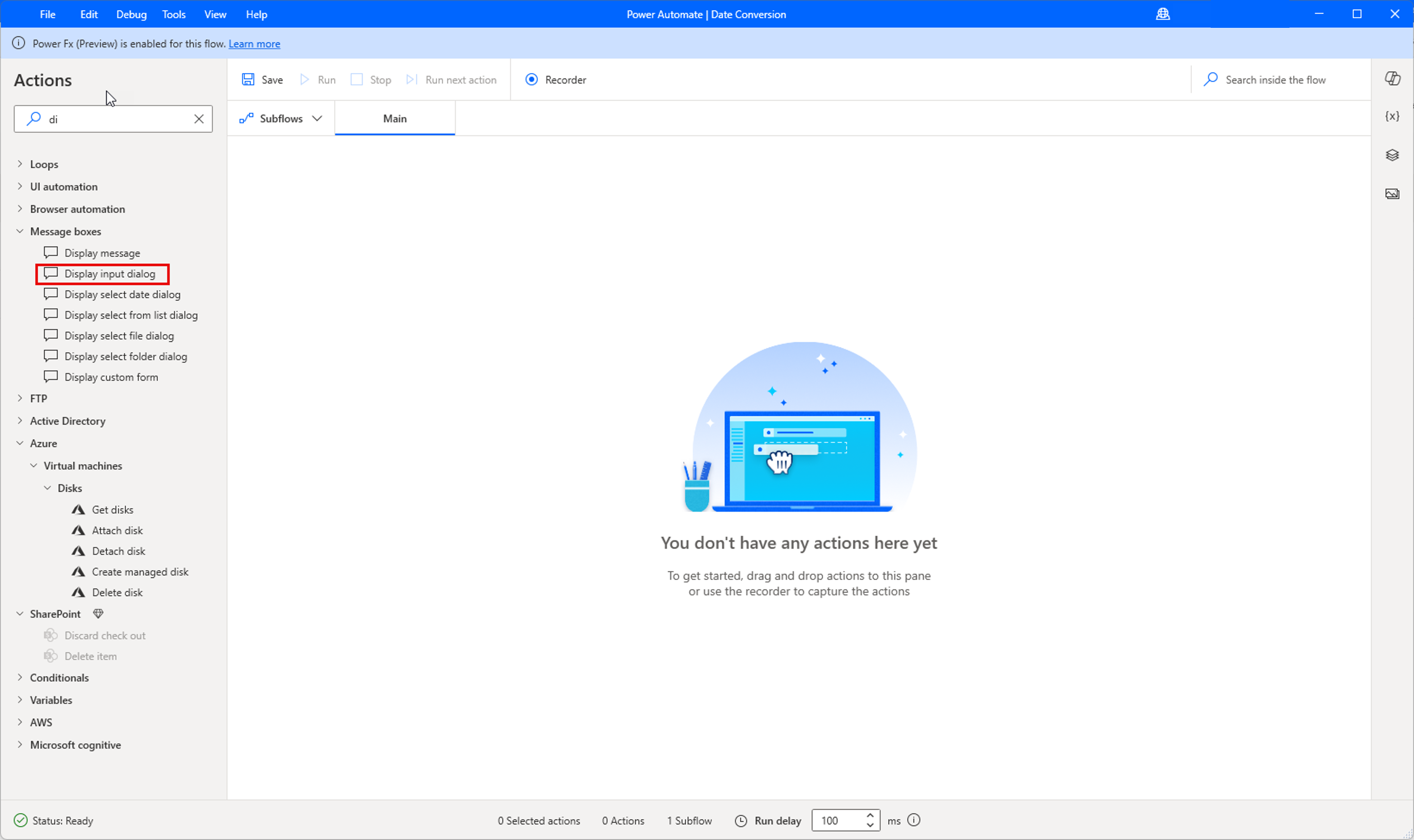
You can either double-click this action or drag and drop it from the actions to the main pane.
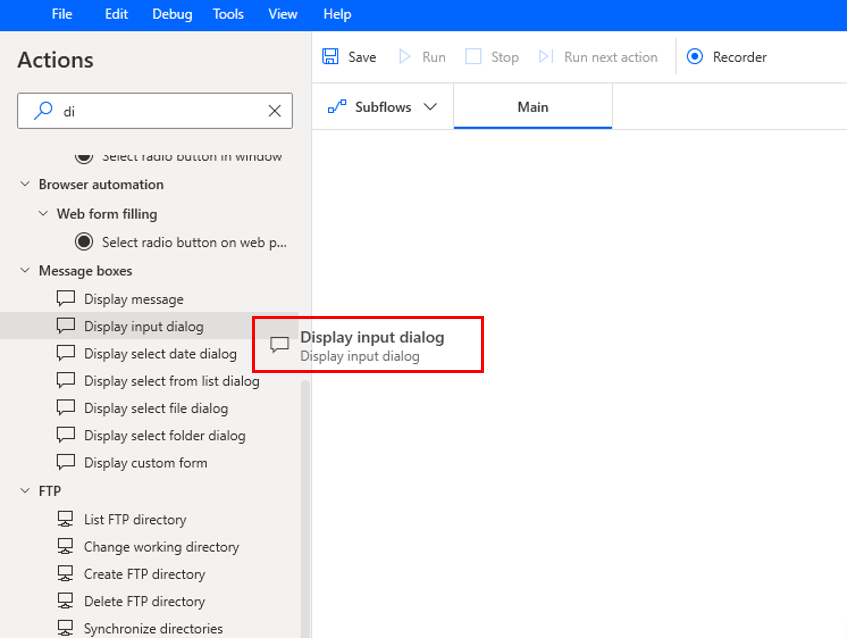
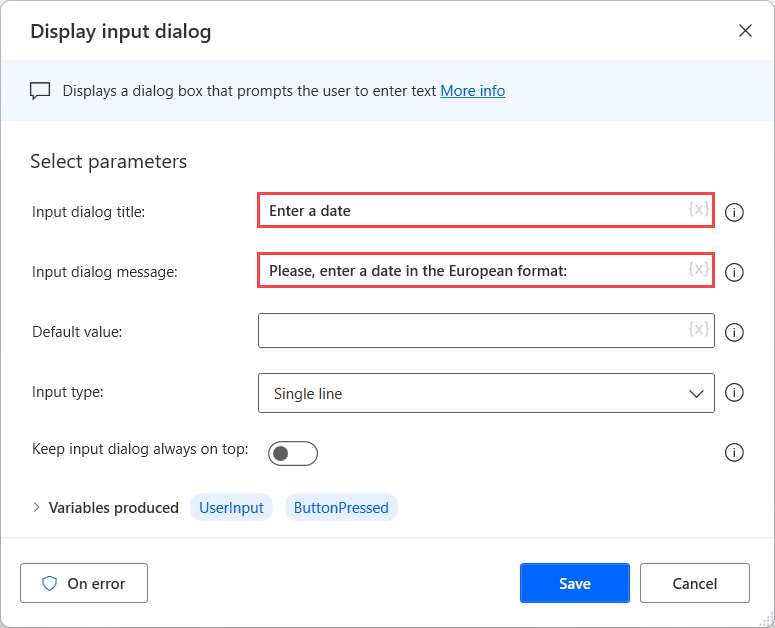
Set the action to prompt users to enter a date in the European format. Then select Save.
Deploy a Convert text to datetime action to convert the entered text to a datetime variable. The text represents the European date format, so configure the appropriate custom format in the action's properties. Select your variable for UserInput as the text to convert, ensure the toggle for custom format is on, and enter
dd/MM/yyyyas the custom format. Then select Save.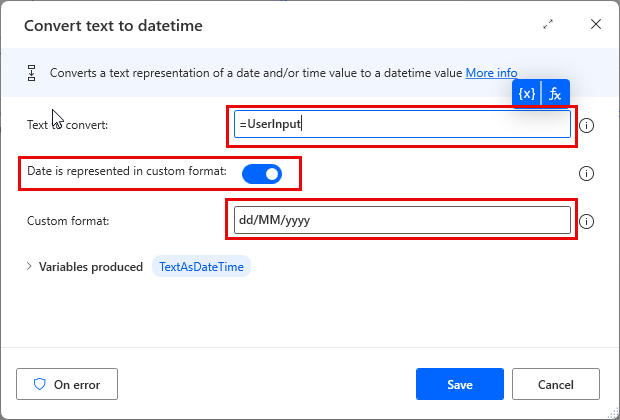
To convert the datetime variable to the U.S. date format, use the Convert datetime to text action with the appropriate custom format in its properties. Use your variable for TextAsDateTime as the Datetime to convert, select Custom as the format to use, and enter
MM/dd/yyyyas the custom format. The Sample bar shows what your formatted date looks like. Then select Save.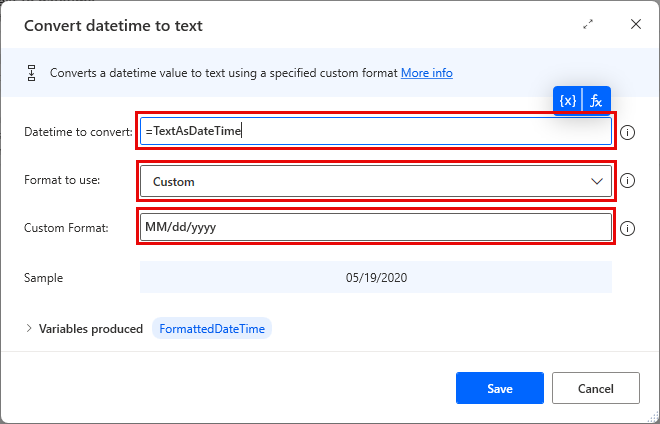
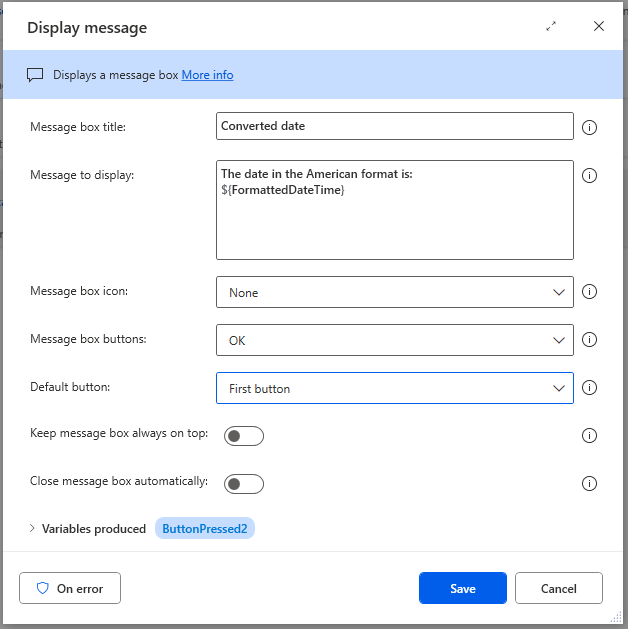
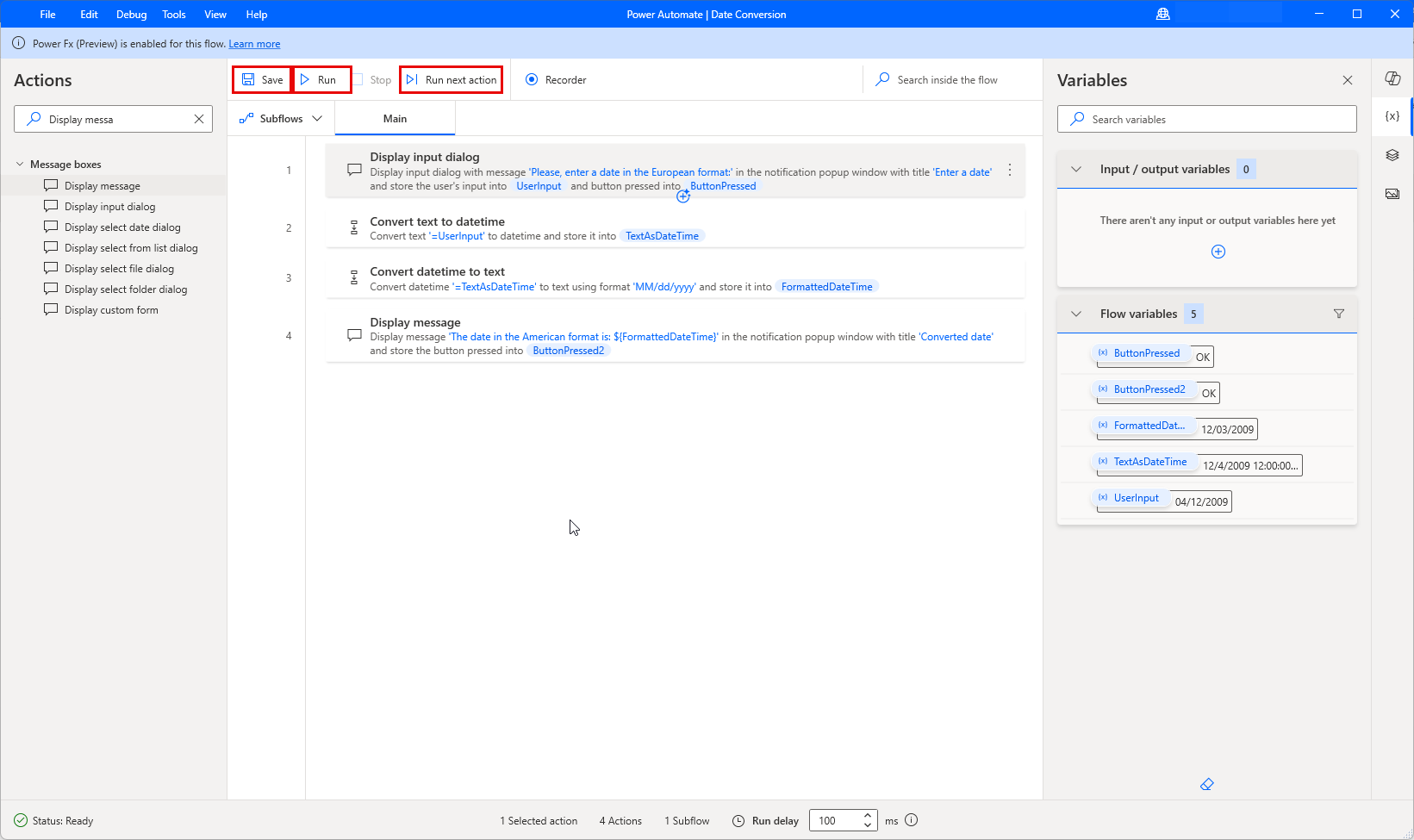
Use the Display message action to display the converted date in a message box. Enter Converted date in the title field. For message to display, enter The date in the American format is: and then select your variable for FormattedDateTime. The completed step should resemble the following image.
To test the flow, select the Run button. You see a popup appear on your screen. Enter a date in the European format (dd/MM/yyyy), and verify that the flow displays the appropriate American date format. To check how every single action is implemented, run the flow step by step by using the Run next action button.
If the flow runs as expected, select Save and then close the flow designer.
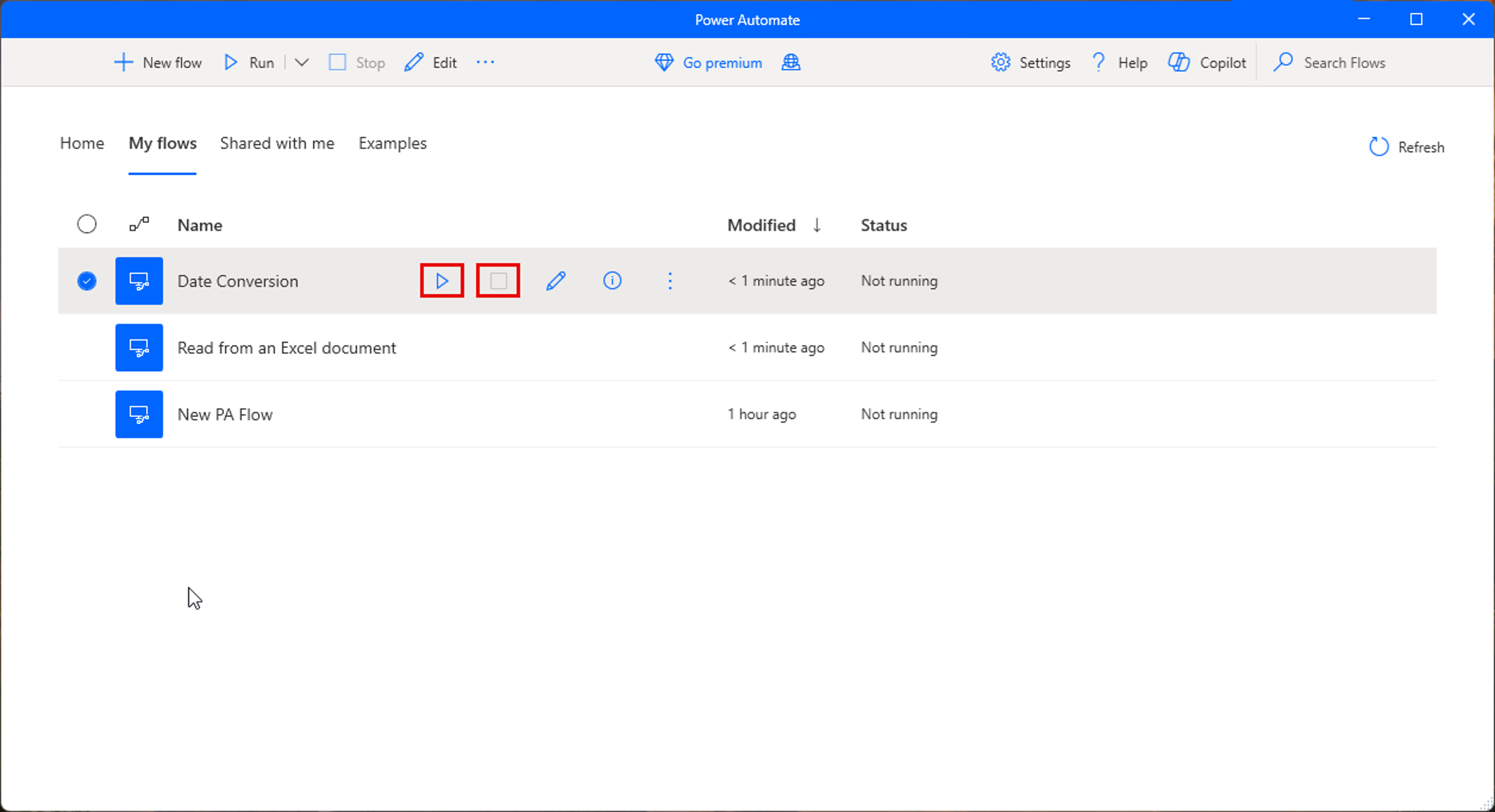
Now, you can also run your flow manually through the Run button in the console. If you want to stop running the flow, select the Stop button.
Note
You might notice a difference in the day number when converting from European to U.S. That's because Power Automate saves the date with a timestamp value of 12:00 AM. The day value in the U.S. is one less than the European date.
