Advanced data types
Although you can handle most of the Power Automate desktop app data types similarly, some data types need distinctive treatment. In this unit, you examine these advanced data types that need special handling.
Lists
If you want to store a high volume of information of the same data type, the best way to achieve it is through lists.
Lists are collections of items that you can reference as a group. Depending on the individual items, you can create lists of text values, numbers, files, and more.
The list data type is the equivalent of a single-dimension array in programming terms, and it functions virtually in the same way.
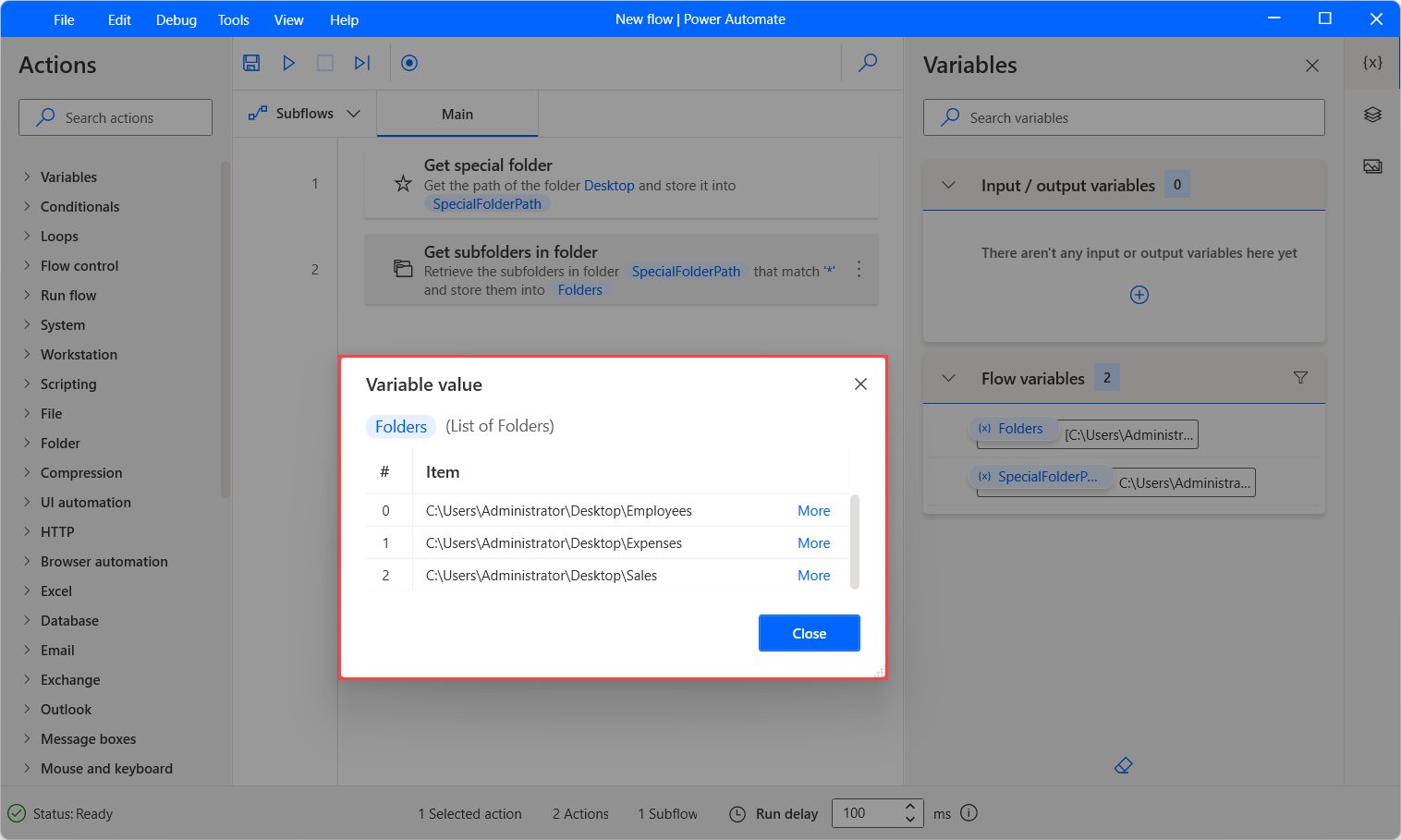
You can create lists through the Create new list action and add items to that list through the Add item to list action.
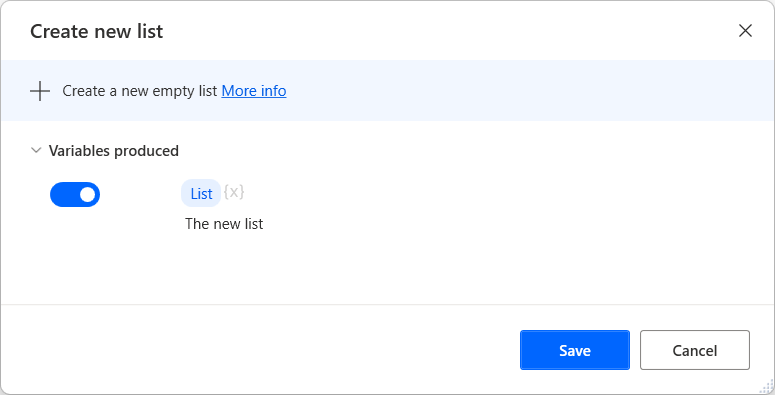
You can also create lists through actions that generate lists as output, such as the Get files in folder action that returns a files list.
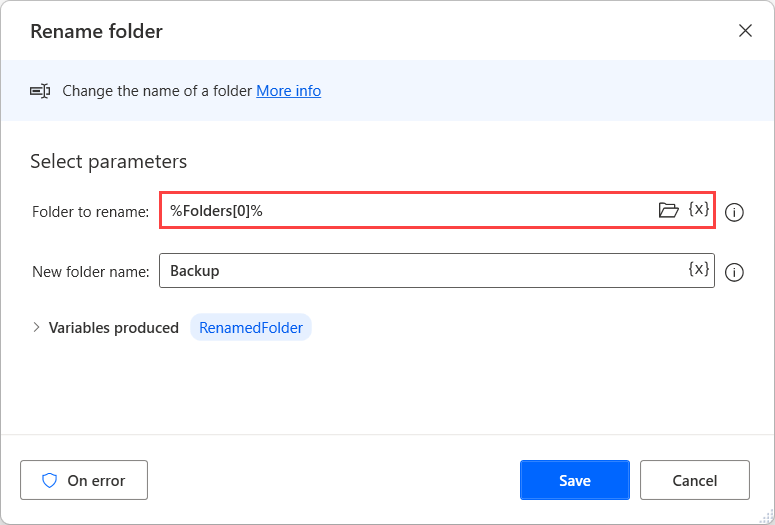
If you want to retrieve a specific item of a list, use the following notation: %VariableName[ItemNumber]%.
For example, you can rename the first folder of the previously displayed folder list by using the following action. Keep in mind that the ItemNumber should be 0 for the first item of the list.
Note
If you want to iterate through the items of a list, a common practice is to deploy a For each action.
Data tables
To store data structured in a tabular form, use data tables in Power Automate desktop app.
A data table contains rows and columns. You can retrieve each item through its unique row and column number. Consider data tables as lists that have other lists as items.
In programming terms, data tables are the equivalent of a two-dimensional array, and they function in virtually the same way.
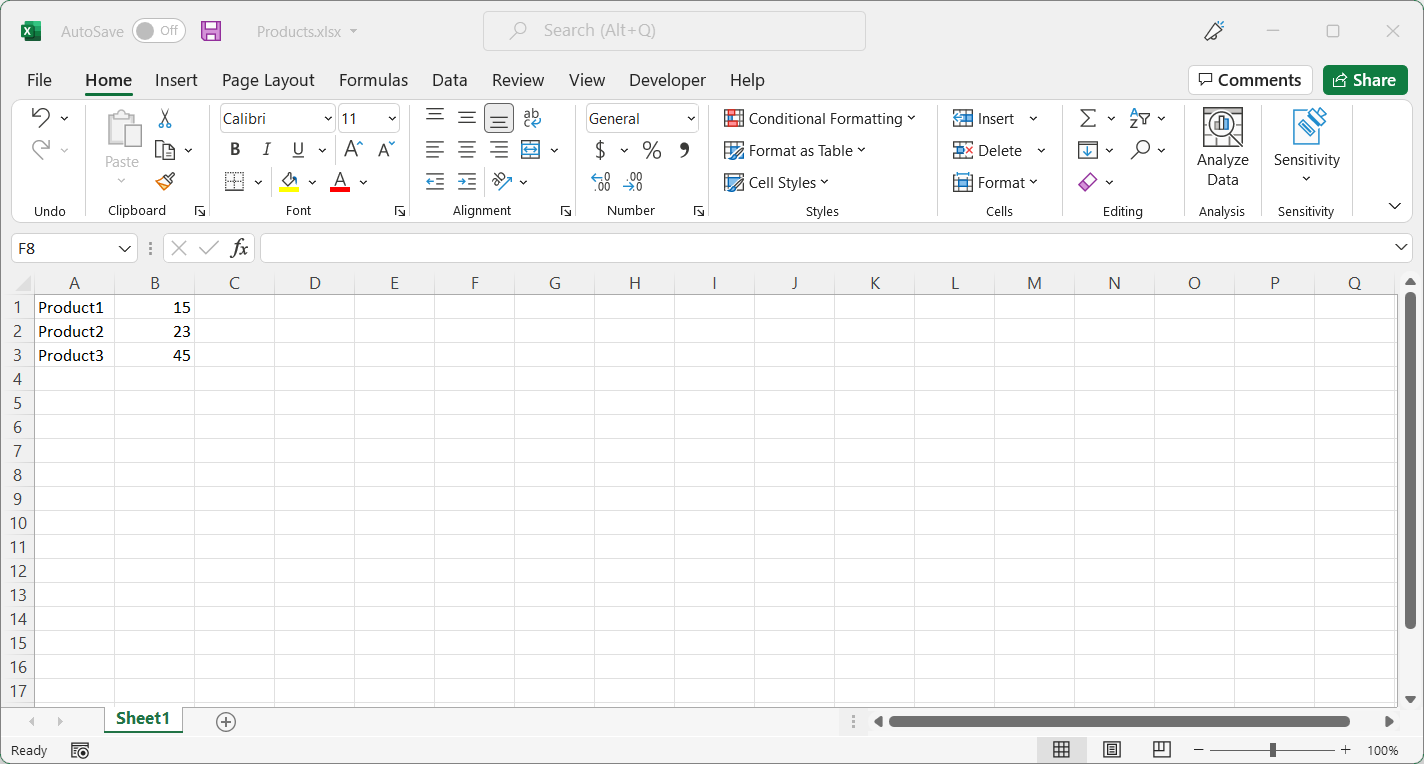
You can't create a data table directly, but you can generate data tables through the Read from Excel and the Execute SQL statement actions.
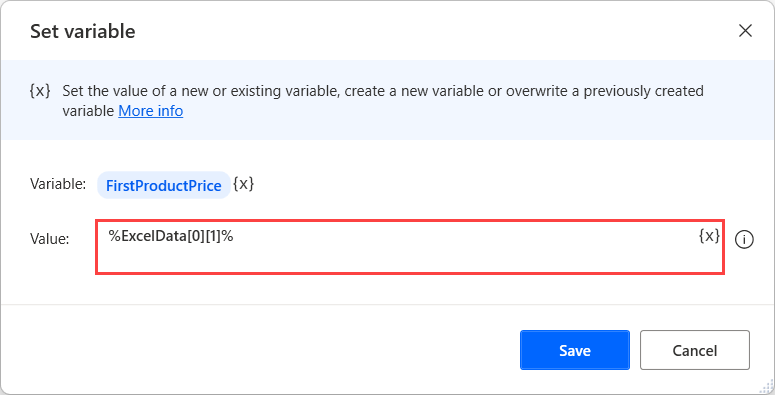
To retrieve a specific data table item, use the following notation: %VariableName[RowNumber][ColumnNumber]%.
For example, you can save the first product's price inside a new variable by using the following action. Keep in mind that the RowNumber and the ColumnNumber should be 0 for the first item.
Note
If you loop through a data table by using a For each action, the variable that contains the current iteration's data is a data row.
JSON format - custom objects
If you want to use data in JSON format in your flows, Power Automate desktop app provides the custom objects.
Custom objects have a similar structure to JSON, and they're made up of objects and arrays.
The objects are unordered name/value pairs inside curly braces and separated by commas. For example, the following object contains two pairs of names and values { "firstName": "John", "lastName": "Michael" }.
The arrays are ordered collections of values inside brackets and separated by commas. For example, the following array contains four numbers [1,2,3,4].
The combination of these two structures allows you to create ordered lists of name/value pairs.
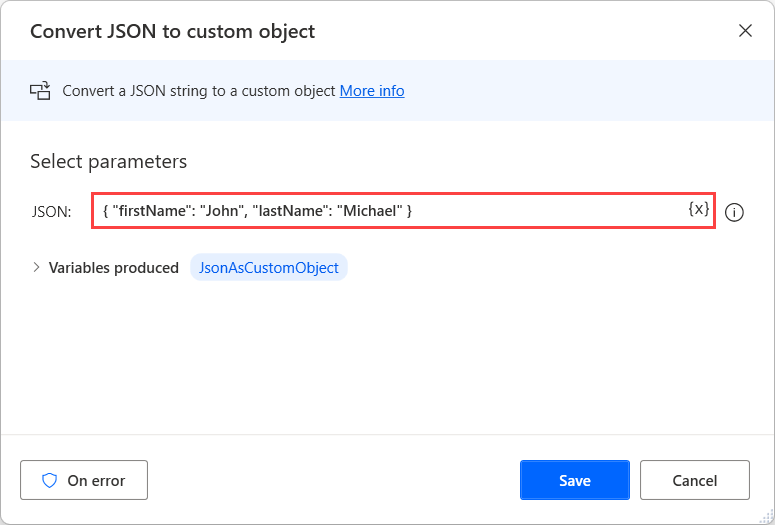
You can access individual object values by using either the dot (.) notation (Object.PropertyName) or the bracket ([]) notation (Object["PropertyName"]).
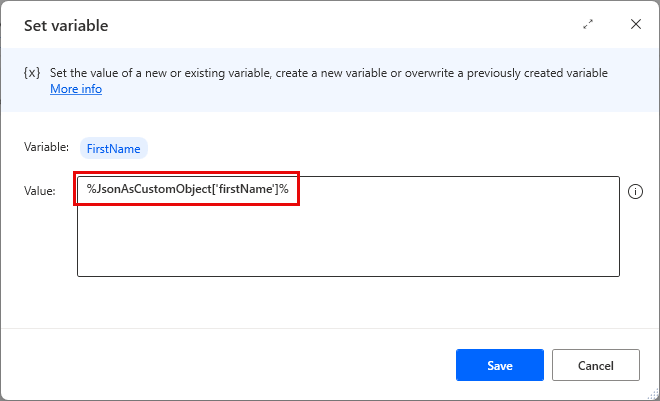
To convert variables between JSON and custom objects data types, use the Convert custom object to JSON and the Convert JSON to custom object actions.