Note
Ang pag-access sa pahinang ito ay nangangailangan ng pahintulot. Maaari mong subukang mag-sign in o magpalit ng mga direktoryo.
Ang pag-access sa pahinang ito ay nangangailangan ng pahintulot. Maaari mong subukang baguhin ang mga direktoryo.
Azure Managed Redis offers a password-free authentication mechanism by integrating with Microsoft Entra ID. Azure Managed Redis caches use Microsoft Entra ID by default. When you create a new cache, managed identity is enabled.
Although access key authentication is still available, it comes with a set of challenges around security and password management. For contrast, in this article, you learn how to use a Microsoft Entra token for cache authentication.
In this article, you learn how to use your service principal or managed identity to connect to your Redis instance.
Prerequisites and limitations
- Microsoft Entra authentication is supported for SSL connections only.
- Microsoft Entra groups aren't supported.
- Some Redis commands are blocked. For a full list of blocked commands, see Redis commands not supported in Azure Managed Redis.
Important
After a connection is established by using a Microsoft Entra token, client applications must periodically refresh the Microsoft Entra token before expiry. Then the apps must send an AUTH command to the Redis server to avoid disrupting connections. For more information, see Configure your Redis client to use Microsoft Entra.
Configure your Redis client to use Microsoft Entra
If you have used access keys in the past for authentication, you need to update your client workflow to support authentication by using Microsoft Entra ID. In this section, you learn how to connect to Azure Managed Redis using a Microsoft Entra ID.
Add users or System principal to your cache
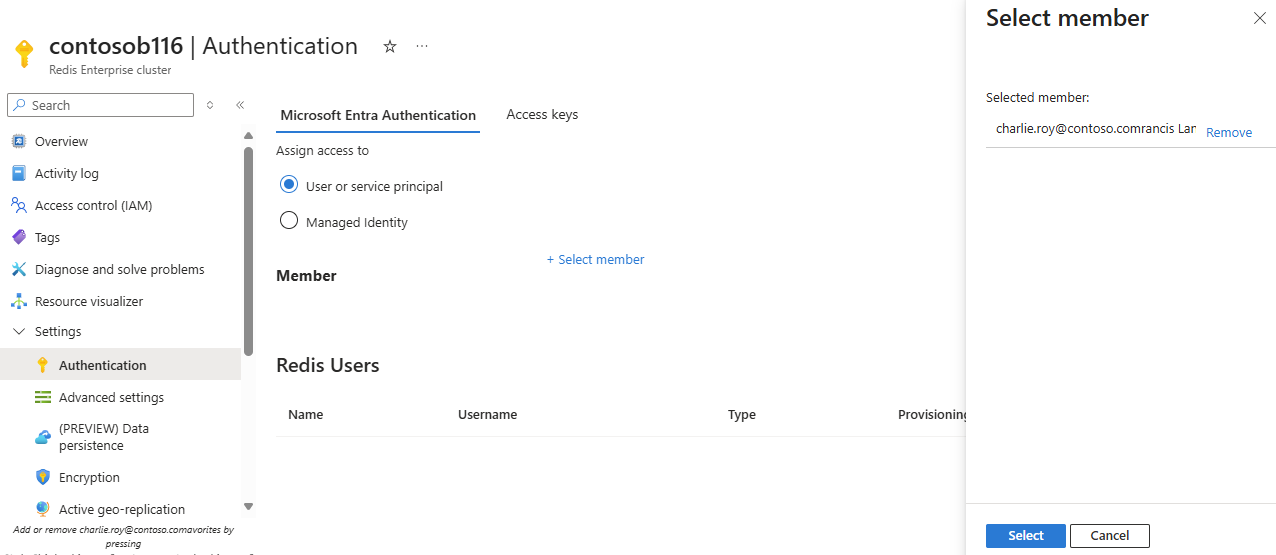
Connect to your cache in the Azure portal.
On the Resource menu, select Authentication.
On the Microsoft Entra Authentication tab, select User or service principal and then + Select member.
Type the name of the user who you want to run the program. Select the user to add in the list and Select. The user is added to the list of Redis users.
Microsoft Entra client workflow
Configure your client application to acquire a Microsoft Entra token for scope,
https://redis.azure.com/.default, oracca5fbb-b7e4-4009-81f1-37e38fd66d78/.default, by using the Microsoft Authentication Library (MSAL).Update your Redis connection logic to use the following
UserandPassword:User= Object ID of your managed identity or service principalPassword= Microsoft Entra token that you acquired by using MSAL
Ensure that your client executes a Redis
AUTHcommand automatically before your Microsoft Entra token expires by using:User= Object ID of your managed identity or service principalPassword= Microsoft Entra token refreshed periodically
Best practices for Microsoft Entra authentication
- Configure private links or firewall rules to protect your cache from a denial of service attack.
- Ensure that your client application sends a new Microsoft Entra token at least three minutes before token expiry to avoid connection disruption.
- When you call the Redis server
AUTHcommand periodically, consider adding a jitter so that theAUTHcommands are staggered. In this way, your Redis server doesn't receive too manyAUTHcommands at the same time.
Troubleshooting Microsoft Entra ID and your cache
If you encounter authentication issues with Microsoft Entra ID on your Azure Managed Redis instance, you can use the Azure CLI to test connectivity or validate your tokens using a PowerShell script.
Test connectivity with Azure CLI
You can use the Azure CLI to quickly test if you can connect to your Redis cluster. The az redisenterprise test-connection command is helpful for debugging connection issues and verifies end-to-end connectivity by sending a ping command.
For prerequisites to use the Azure CLI with Azure Managed Redis, see Manage an Azure Managed Redis cache using the Azure CLI.
To test connection with Microsoft Entra ID authentication (the default), run the following command:
az redisenterprise test-connection --name <cache-name> --resource-group <resource-group-name>
Or explicitly specify Entra authentication:
az redisenterprise test-connection --name <cache-name> --resource-group <resource-group-name> --auth entra
Note
This command uses the credential established through az login, which supports user accounts, managed identities, or service principals.
Validate Microsoft Entra tokens
If your application fails to access the Azure Managed Redis instance through Microsoft Entra ID, you can also use the following PowerShell script:
This PowerShell script validates Microsoft Entra ID tokens for Azure Managed Redis Cache resources. The script checks tokens and verifies access policies to help you diagnose authentication issues.
Client library support
The library Microsoft.Azure.StackExchangeRedis is an extension of StackExchange.Redis that enables you to use Microsoft Entra to authenticate connections from a Redis client application to an Azure Managed Redis. The extension manages the authentication token, including proactively refreshing tokens before they expire to maintain persistent Redis connections over multiple days.
This code sample demonstrates how to use the Microsoft.Azure.StackExchangeRedis NuGet package to connect to your Azure Managed Redis instance by using Microsoft Entra.
The following table includes links to code samples. They demonstrate how to connect to your Azure Managed Redis instance by using a Microsoft Entra token. Various client libraries are included in multiple languages.
| Client library | Language | Link to sample code |
|---|---|---|
| StackExchange.Redis | .NET | StackExchange.Redis code sample |
| redis-py | Python | redis-py code sample |
| Jedis | Java | Jedis code sample |
| Lettuce | Java | Lettuce code sample |
| node-redis | Node.js | node-redis code sample |
| go-redis | Go | go code sample |
Disable access key authentication on your cache
If you have a cache using access keys, we recommend switching to Microsoft Entra ID as the secure way to connect your cache and disabling access keys.
When you disable access keys, the system terminates all existing client connections, regardless of whether they use access keys or Microsoft Entra ID authentication.
Before you disable access keys on geo-replicated caches, you must:
- Unlink the caches.
- Disable access keys.
- Relink the caches.
To disable access keys, follow this procedure:
In the Azure portal, select the Azure Managed Redis instance where you want to disable access keys.
On the Resource menu, select Authentication.
On the working pane, select Access keys.
Select the Access Keys Authentication control to disable access keys.
Confirm that you want to update your configuration by selecting Yes.
Important
When the Access Keys Authentication setting is changed for a cache, all existing client connections, using access keys or Microsoft Entra, are terminated. Follow the best practices to implement proper retry mechanisms for reconnecting Microsoft Entra-based connections. For more information, see Connection resilience.