Note
Kailangan ng pahintulot para ma-access ang page na ito. Maaari mong subukang mag-sign in o magpalit ng mga direktoryo.
Ang pag-access sa pahinang ito ay nangangailangan ng pahintulot. Maaari mong subukang baguhin ang mga direktoryo.
NotebookUtils supports file mount and unmount operations through the Microsoft Spark Utilities package. You can use the mount, unmount, getMountPath(), and mounts() APIs to attach remote storage (ADLS Gen2, Azure Blob Storage, OneLake) to all working nodes (driver node and worker nodes). After the storage mount point is in place, use the local file API to access data as if it's stored in the local file system.
Mount operations are particularly useful when you:
- Work with libraries that expect local file paths.
- Need consistent file system semantics across cloud storage.
- Access OneLake shortcuts (S3/GCS) efficiently.
- Build portable code that works with multiple storage backends.
API reference
The following table summarizes the available mount APIs:
| Method | Signature | Description |
|---|---|---|
mount |
mount(source: String, mountPoint: String, extraConfigs: Map[String, Any] = None): Boolean |
Mounts remote storage at the specified mount point. |
unmount |
unmount(mountPoint: String, extraConfigs: Map[String, Any] = None): Boolean |
Unmounts and removes a mount point. |
mounts |
mounts(extraOptions: Map[String, Any] = None): Array[MountPointInfo] |
Lists all existing mount points with details. |
getMountPath |
getMountPath(mountPoint: String, scope: String = ""): String |
Gets the local file system path for a mount point. |
Authentication methods
Mount operations support several authentication methods. Choose the method based on your storage type and security requirements.
Microsoft Entra token (default and recommended)
Microsoft Entra token authentication uses the identity of the notebook executor, either a user or service principal. It doesn't require explicit credentials in the mount call, which makes it the most secure option. Use this option for Lakehouse mounting and Fabric workspace storage.
# Mount using Microsoft Entra token (no credentials needed)
notebookutils.fs.mount(
    "abfss://mycontainer@mystorageaccount.dfs.core.windows.net",
    "/mydata"
)
Tip
Use Microsoft Entra token authentication whenever possible. It eliminates credential exposure risk and requires no additional setup for Fabric workspace storage.
Account key
Use an account key when the storage account doesn't support Microsoft Entra authentication, or when you access external or third-party storage. Store account keys in Azure Key Vault and retrieve them with the notebookutils.credentials.getSecret API.
# Retrieve account key from Azure Key Vault
accountKey = notebookutils.credentials.getSecret("<vaultURI>", "<secretName>")
notebookutils.fs.mount(
    "abfss://mycontainer@<accountname>.dfs.core.windows.net",
    "/test",
    {"accountKey": accountKey}
)
Shared access signature (SAS) token
Use a shared access signature (SAS) token for time-limited, permission-scoped access. This option is useful when you need to grant temporary access to external parties. Store SAS tokens in Azure Key Vault.
# Retrieve SAS token from Azure Key Vault
sasToken = notebookutils.credentials.getSecret("<vaultURI>", "<secretName>")
notebookutils.fs.mount(
    "abfss://mycontainer@<accountname>.dfs.core.windows.net",
    "/test",
    {"sasToken": sasToken}
)
Important
For security purposes, avoid embedding credentials directly in code. Any secrets displayed in notebook outputs are automatically redacted. For more information, see Secret redaction.
Mount an ADLS Gen2 account
The following example illustrates how to mount Azure Data Lake Storage Gen2. Mounting Blob Storage and Azure File Share works similarly.
This example assumes that you have one Data Lake Storage Gen2 account named storegen2, which has a container named mycontainer that you want to mount to /test in your notebook Spark session.
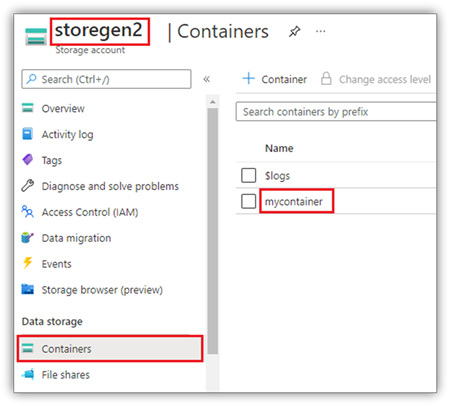
To mount the container called mycontainer, NotebookUtils first needs to check whether you have the permission to access the container. Currently, Fabric supports three authentication methods for the trigger mount operation: Microsoft Entra token (default), accountKey, and sasToken.
For security reasons, store account keys or SAS tokens in Azure Key Vault (as the following screenshot shows). You can then retrieve them by using the notebookutils.credentials.getSecret API. For more information about Azure Key Vault, see About Azure Key Vault managed storage account keys.
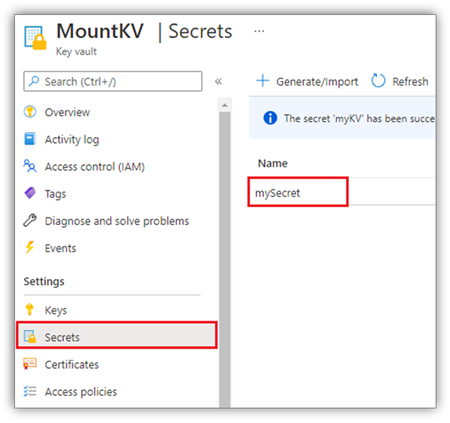
Sample code for the accountKey method:
# get access token for keyvault resource
# You can also use the full audience, such as https://vault.azure.net.
accountKey = notebookutils.credentials.getSecret("<vaultURI>", "<secretName>")
notebookutils.fs.mount(
    "abfss://mycontainer@<accountname>.dfs.core.windows.net",
    "/test",
    {"accountKey":accountKey}
)
Sample code for sasToken:
# get access token for keyvault resource
# You can also use the full audience, such as https://vault.azure.net.
sasToken = notebookutils.credentials.getSecret("<vaultURI>", "<secretName>")
notebookutils.fs.mount(
    "abfss://mycontainer@<accountname>.dfs.core.windows.net",
    "/test",
    {"sasToken":sasToken}
)
Mount parameters
You can tune mount behavior with the following optional parameters in the extraConfigs map:
- fileCacheTimeout: Blobs are cached in the local temp folder for 120 seconds by default. During this time, blobfuse doesn't check whether the file is up to date. You can set this parameter to change the default timeout time. When multiple clients modify files at the same time, to avoid inconsistencies between local and remote files, shorten the cache time or set it to 0 to always get the latest files from the server.
- timeout: The mount operation timeout is 30 seconds by default. You can set this parameter to change the default timeout time. When there are too many executors or when mount times out, increase the value.
You can use these parameters like this:
notebookutils.fs.mount(
   "abfss://mycontainer@<accountname>.dfs.core.windows.net",
   "/test",
   {"fileCacheTimeout": 120, "timeout": 30}
)
Cache configuration recommendations
Choose a cache timeout value based on your access pattern:
| Scenario | Recommended fileCacheTimeout |
Notes |
|---|---|---|
| Read-heavy, single client | 120 (default) |
Good balance of performance and freshness. |
| Moderate multi-client access | 30–60 |
Reduces risk of stale data. |
| Multiple clients modifying files | 0 |
Always fetches the latest from the server. |
| Files rarely change | 300+ |
Optimizes read performance. |
Zero-cache pattern
When multiple clients modify files simultaneously, use a zero-cache configuration to always fetch the latest version from the server:
# For scenarios with multiple clients modifying files
# Use zero cache to always fetch the latest from the server
notebookutils.fs.mount(
    "abfss://shared@account.dfs.core.windows.net",
    "/shared_data",
    {"fileCacheTimeout": 0}
)
Note
Increase the timeout parameter when mounting with many executors or when you experience timeout errors.
Mount a Lakehouse
Lakehouse mounting only supports Microsoft Entra token authentication. Sample code for mounting a Lakehouse to /<mount_name>:
notebookutils.fs.mount(
 "abfss://<workspace_name>@onelake.dfs.fabric.microsoft.com/<lakehouse_name>.Lakehouse",
 "/<mount_name>"
)
Access files under the mount point by using the notebookutils fs API
Use mount operations when you want to access data in remote storage through a local file system API. You can also access mounted data by using the notebookutils.fs API with a mounted path, but the path format differs.
Assume that you mounted the Data Lake Storage Gen2 container mycontainer to /test by using the mount API. When you access the data with a local file system API, the path format is like this:
/synfs/notebook/{sessionId}/test/{filename}
When you want to access the data by using the notebookutils fs API, use getMountPath() to get the accurate path:
path = notebookutils.fs.getMountPath("/test")
List directories.
notebookutils.fs.ls(f"file://{notebookutils.fs.getMountPath('/test')}")Read file content.
notebookutils.fs.head(f"file://{notebookutils.fs.getMountPath('/test')}/myFile.txt")Create a directory.
notebookutils.fs.mkdirs(f"file://{notebookutils.fs.getMountPath('/test')}/newdir")
Access files under the mount point via local path
You can read and write files in a mount point by using the standard file system. The following Python example shows this pattern:
#File read
with open(notebookutils.fs.getMountPath('/test2') + "/myFile.txt", "r") as f:
    print(f.read())
#File write
with open(notebookutils.fs.getMountPath('/test2') + "/myFile.txt", "w") as f:
    print(f.write("dummy data"))
Check existing mount points
Use the notebookutils.fs.mounts() API to check all existing mount point info:
notebookutils.fs.mounts()
Tip
Always check existing mounts with mounts() before creating new mount points to avoid conflicts.
Check if a mount exists before mounting
existing_mounts = notebookutils.fs.mounts()
mount_point = "/mydata"

if any(m.mountPoint == mount_point for m in existing_mounts):
    print(f"Mount point {mount_point} already exists")
else:
    notebookutils.fs.mount(
        "abfss://container@account.dfs.core.windows.net",
        mount_point
    )
    print("Mount created successfully")
Unmount the mount point
Use the following code to unmount your mount point (/test in this example):
notebookutils.fs.unmount("/test")
Important
The unmount mechanism isn't automatically applied. When the application run finishes, to unmount the mount point and release the disk space, you need to explicitly call an unmount API in your code. Otherwise, the mount point still exists in the node after the application run finishes.
Mount-process-unmount workflow
For reliable resource management, wrap mount operations in a try/finally block to ensure cleanup happens even if an error occurs:
def process_with_mount(source_uri, mount_point):
    """Complete workflow: mount, process, unmount."""

    try:
        # Step 1: Check if already mounted
        existing = notebookutils.fs.mounts()
        if any(m.mountPoint == mount_point for m in existing):
            print(f"Already mounted at {mount_point}")
        else:
            notebookutils.fs.mount(source_uri, mount_point)
            print(f"Mounted {source_uri} at {mount_point}")

        # Step 2: Process data using local file system
        mount_path = notebookutils.fs.getMountPath(mount_point)

        with open(f"{mount_path}/data/input.txt", "r") as f:
            data = f.read()

        processed = data.upper()

        with open(f"{mount_path}/output/result.txt", "w") as f:
            f.write(processed)

        print("Processing complete")

    finally:
        # Step 3: Always unmount to release resources
        notebookutils.fs.unmount(mount_point)
        print(f"Unmounted {mount_point}")

process_with_mount(
    "abfss://mycontainer@mystorage.dfs.core.windows.net",
    "/temp_mount"
)
Known limitations
- Mounts are job-level configurations. Use the
mountsAPI to check whether a mount point already exists or is available. - Unmounting doesn't happen automatically. When the application run finishes, call an unmount API in your code to release disk space. Otherwise, the mount point remains on the node after the application run finishes.
- Mounting an ADLS Gen1 storage account isn't supported.