Note
Ang pag-access sa pahinang ito ay nangangailangan ng pahintulot. Maaari mong subukang mag-sign in o magpalit ng mga direktoryo.
Ang pag-access sa pahinang ito ay nangangailangan ng pahintulot. Maaari mong subukang baguhin ang mga direktoryo.
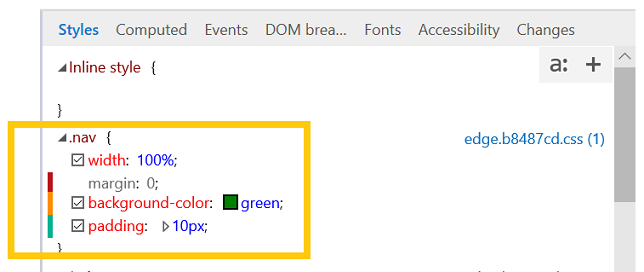
View and edit the currently applied styles, organized by stylesheet. As you make changes to your properties, a colored indicator bar will appear for changed (yellow), added (green), and deleted (red) properties.
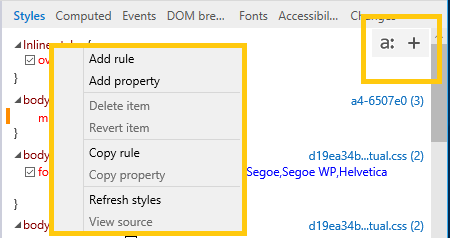
You can display the pseudo states panel by clicking the "a:" button. Define a new style rule by clicking the "+" button or right-clicking anywhere in the Styles pane to open the context menu.
Editing pseudo elements
Use the Styles pane to add, edit, and delete pseudo elements and pseudo states. To apply a CSS pseudo state to the selected element, open the Pseudo states panel (a: button) and tick the desired class.
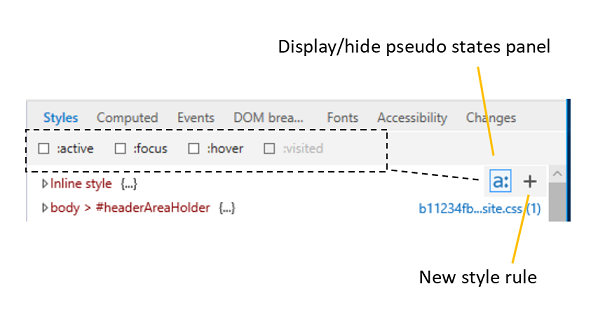
To add a pseudo element, click the + (New style rule) button and edit as you would a regular stylesheet.
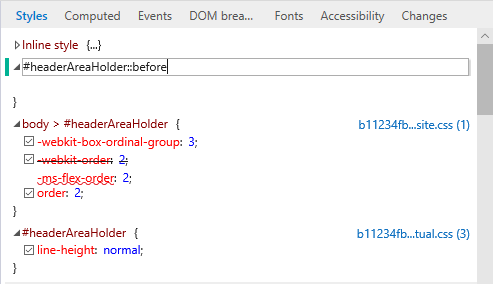
Pseudo elements are grouped under their own headings in the Styles pane.