Note
Ang pag-access sa pahinang ito ay nangangailangan ng pahintulot. Maaari mong subukang mag-sign in o magpalit ng mga direktoryo.
Ang pag-access sa pahinang ito ay nangangailangan ng pahintulot. Maaari mong subukang baguhin ang mga direktoryo.
This page describes how to convert an external table to a Unity Catalog managed table in Azure Databricks using the ALTER TABLE ... SET MANAGED command or Catalog Explorer.
SET MANAGED overview
Use SET MANAGED to convert an external table to a Unity Catalog managed table. Although you can also use CREATE TABLE AS SELECT (CTAS) for conversion, Databricks recommends SET MANAGED for the following benefits:
- Minimizes reader and writer downtime.
- Handles concurrent writes during conversion.
- Retains table history.
- Keeps the same table configurations, including name, settings, permissions, and views.
- Supports rolling back a converted managed table to an external table.
Prerequisites
All readers and writers to the external tables must use name-based access. For example:
SELECT * FROM catalog_name.schema_name.table_name;Path-based access is not supported and may fail after the table has been converted.
You must use Databricks Runtime 17.0 or above or Serverless compute to use
SET MANAGEDorUNSET MANAGED.To convert Unity Catalog tables with Iceberg reads (UniForm) already enabled, you must use Databricks Runtime 17.2 or above or Serverless compute to use
TRUNCATE UNIFORM HISTORY.Azure Databricks readers and writers must use Databricks Runtime 15.4 LTS or above. If your readers or writers use 14.3 LTS or below, see Alternative option for readers and writers on Databricks Runtime 14.3 LTS or below.
The
SET MANAGEDcommand fails with aDELTA_TRUNCATED_TRANSACTION_LOGerror if your table hasminReaderVersion=2,minWriterVersion=7, andtableFeatures={..., columnMapping}. You can verify if your table has these properties usingDESCRIBE DETAIL.External (non-Databricks) clients must support reads to Unity Catalog managed tables. See Read tables with Delta clients.
- Use the Access Insights dashboard to see whether readers and writers accessing your tables are Databricks Runtime or external non-Databricks.
Important
To avoid conflicts, cancel any existing OPTIMIZE command jobs (liquid clustering, compaction, ZORDER) operating on your table, and do not schedule any jobs while you convert your external tables to managed tables.
Convert from external to managed table
Important
Converting external to managed tables using Catalog Explorer is in Beta.
Catalog Explorer
When you convert using Catalog Explorer, name-based access is used automatically. You can convert one or more external tables in a schema at a time.
Go to the table or schema you want to convert in Catalog Explorer.
Under About this table (table detail page) or About this schema (schema detail page), click Explore optimizations.
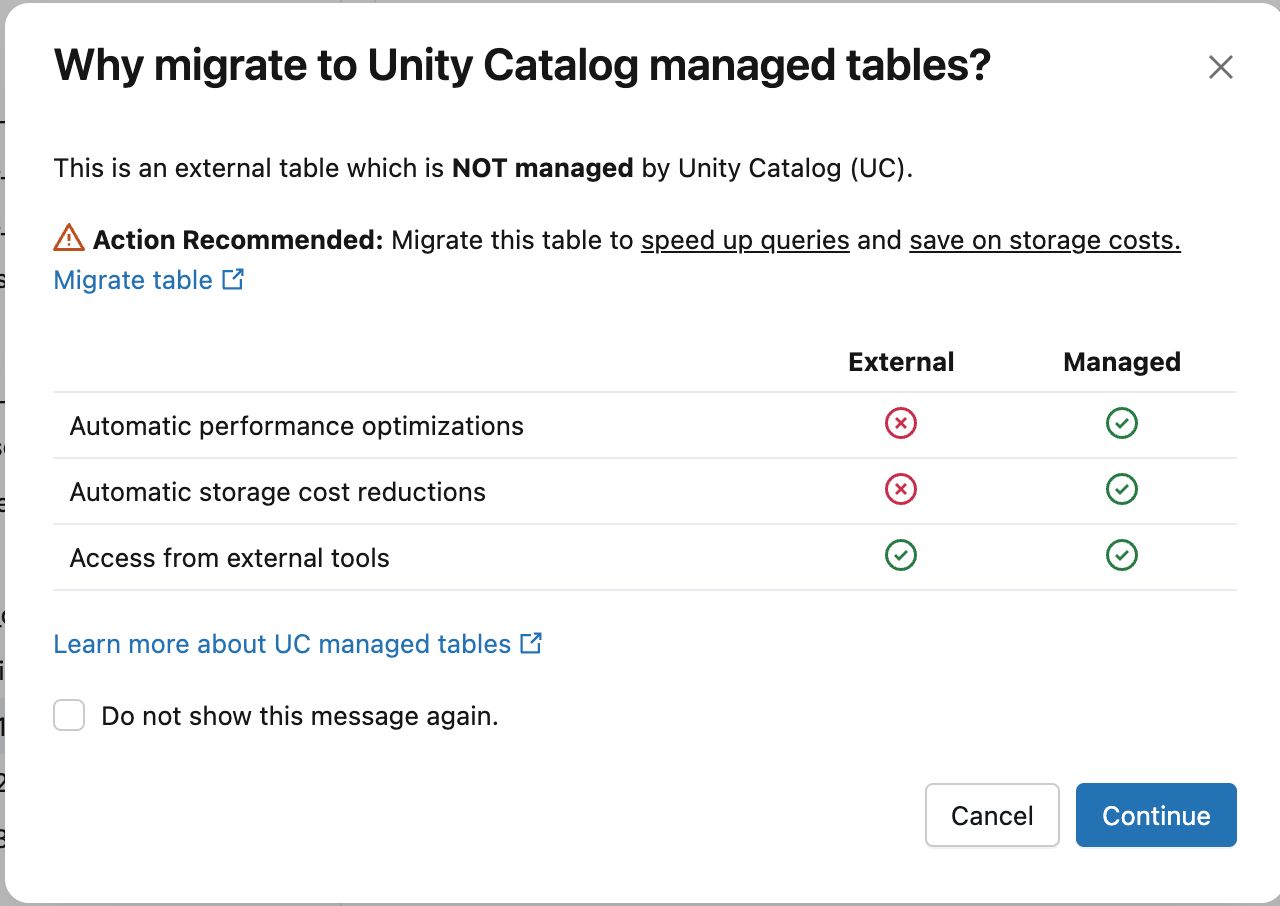
In the Why migrate to Unity Catalog managed tables? dialog, click Continue.
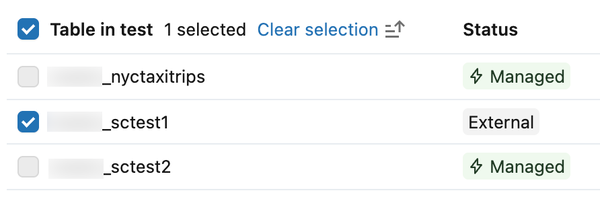
Select the external tables you want to convert. If you opened the dialog from a table detail page, your table is pre-selected. Use the search bar to find additional tables. Managed tables are not selectable.
Click Create conversion notebook.
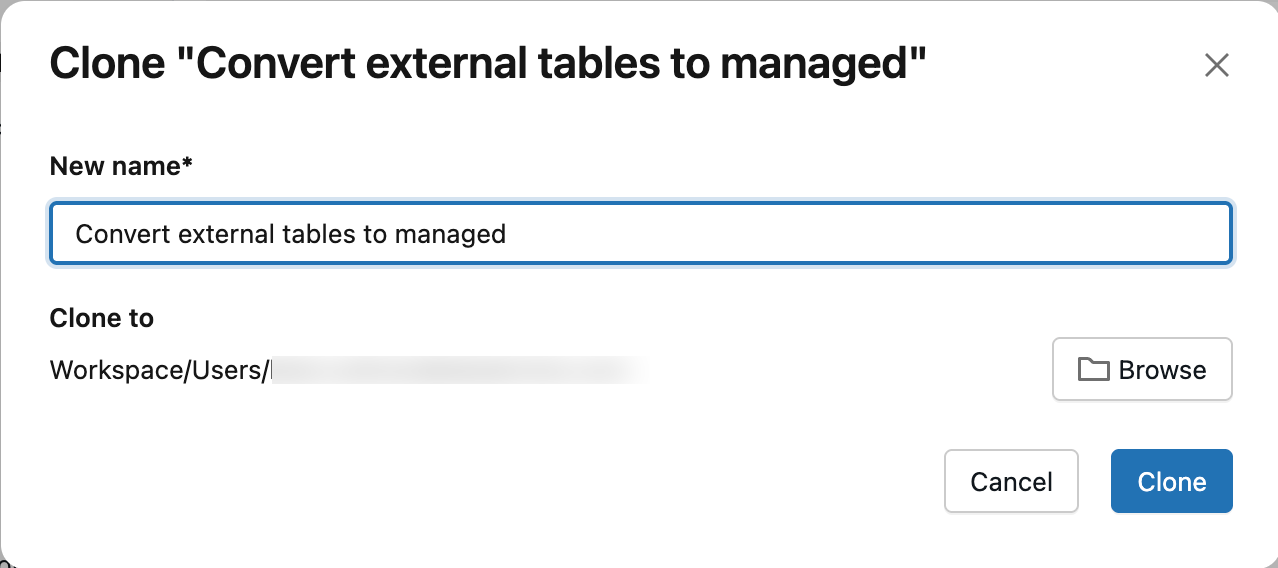
Optionally, enter a name for the notebook. By default, the notebook is saved to your home folder. Click Browse to save it to a different location.
In the notebook, review the best practices and verify that you meet all prerequisites.
Run the SET MANAGED Queries cell.
After the cell runs, the table type displays as MANAGED instead of EXTERNAL in Catalog Explorer. Refresh the page if the status doesn't update immediately.
SQL
Depending on whether your external table has Apache Iceberg reads (UniForm) enabled, run one of the following commands. See Verify that Iceberg reads (UniForm) are enabled to verify if your table has Apache Iceberg reads (UniForm) enabled.
For Unity Catalog external tables without Apache Iceberg reads (UniForm) enabled:
ALTER TABLE catalog.schema.my_external_table SET MANAGED;After conversion, you can enable Iceberg reads on your managed table without compatibility concerns.
For Unity Catalog external tables with Apache Iceberg reads (UniForm) already enabled:
ALTER TABLE catalog.schema.my_external_table SET MANAGED TRUNCATE UNIFORM HISTORY;Include
TRUNCATE UNIFORM HISTORYto maintain optimal table performance and compatibility.TRUNCATE UNIFORM HISTORYtruncates UniForm Iceberg history only and does not remove Delta history. This command results in a short read and write downtime for Iceberg after the truncation.
If the command is interrupted while copying data, restart it and it continues from where it left off.
Warning
Databricks recommends that you avoid running multiple SET MANAGED commands concurrently on the same table, which can lead to an inconsistent table state.
After table conversion, you must:
- Restart any streaming jobs (read or write) using the external table to avoid reading from or writing to the previous location. Stop the current job and start a new job with the same configuration.
- Verify that your readers and writers work with the managed table.
Predictive optimization is automatically enabled after conversion unless you manually disabled it. See Verify whether predictive optimization is enabled.
With predictive optimization enabled, Azure Databricks automatically deletes the data in your Unity Catalog external location after 14 days. If predictive optimization is disabled, run VACUUM (requires Databricks Runtime 17.0 or above or Serverless compute) on the newly converted managed table after 14 days.
VACUUM my_converted_table
Note
In some cases, the data in your Unity Catalog external location might not be deleted after 14 days, even with predictive optimization enabled — for example, if your managed table is not frequently used or is very small. In these cases, run VACUUM manually after 14 days to remove the previous data.
Azure Databricks deletes only the data in the external location. The Delta transaction log and reference to the table in Unity Catalog are kept.
Verify conversion
Catalog Explorer
Refresh the page. In the Details tab, under About this table, the table Type displays as Managed.
SQL
Run the following command to confirm that your external table has been converted to a managed table:
DESCRIBE EXTENDED catalog_name.schema_name.table_name
The table Type displays as MANAGED.
Alternative option for readers and writers on Databricks Runtime 14.3 LTS or below
Databricks recommends upgrading all readers and writers to Databricks Runtime 15.4 LTS or above to take advantage of SET MANAGED, including the ability to retain table history.
You can still use SET MANAGED if you have readers or writers on Databricks Runtime 14.3 or below. However, after converting to a managed table, you can't time travel to historical commits by timestamp — only by version. If you roll back to an external table in the 14-day window, time travel to historical commits made before conversion is re-enabled.
In all cases, rolling back to a Unity Catalog external table by timestamp does not work for any commits made to your converted Unity Catalog managed table between conversion and rollback.
Writing to a table after conversion with Databricks Runtime 15.4 LTS or below requires dropping the inCommitTimestamp feature:
ALTER TABLE <table_name> DROP FEATURE inCommitTimestamp;
Troubleshooting conversion failures
This section describes common issues when converting external tables to Unity Catalog managed tables and how to resolve them.
Databricks Runtime version consistency
Avoid running or retrying the conversion of the same table using different Databricks Runtime versions. Metadata can be serialized differently across versions, which causes a VERSIONED_CLONE_INTERNAL_ERROR.EXISTING_FILE_VALIDATION_FAILED failure. If the conversion fails, always retry using the same Databricks Runtime version.
Cluster shutdown during conversion
If your cluster shuts down during conversion, the command might fail with DELTA_ALTER_TABLE_SET_MANAGED_INTERNAL_ERROR. Retry the command to resume the conversion.
Corrupted external table
If the external table is already corrupted (for example, not valid table state), the conversion might fail with errors such as DELTA_TRUNCATED_TRANSACTION_LOG, DELTA_TXN_LOG_FAILED_INTEGRITY, or DELTA_STATE_RECOVER_ERRORS. Before attempting conversion, verify that you can run basic operations on the external table, such as DESCRIBE DETAIL.
File validation failure
The SET MANAGED command validates that all files in the latest snapshot of the table are copied to the new managed table location. If any files are missing, the command fails with a DELTA_ALTER_TABLE_SET_MANAGED_FAILED.FILE_VALIDATION_FAILED error.
To resolve this issue:
- Check your Spark driver logs to identify which files could not be migrated.
- Verify that these files exist at the source external table location and are accessible.
- Retry the
ALTER TABLE ... SET MANAGEDcommand.
If the issue persists, contact Databricks support.
Roll back to an external table
Important
The UNSET MANAGED command requires Databricks Runtime 17.0 or above or Serverless compute.
After converting an external table to a managed table, you can roll back within 14 days.
When you roll back, the table metadata is updated to point back to the original external location. All writes made to the managed location after conversion are preserved. Commits made to the managed location between conversion and rollback remain time-travelable by version, but not by timestamp.
Seven days after rollback, Azure Databricks automatically deletes data in the managed location.
To roll back to an external table, run the following command:
ALTER TABLE catalog.schema.my_managed_table UNSET MANAGED;
If the rollback command is interrupted, rerun it to retry.
You must also restart your streaming jobs after rolling back, similar to conversion.
Verify rollback
Run the following command to confirm that your conversion has been rolled back:
DESCRIBE EXTENDED catalog_name.schema_name.table_name
The table Type displays as EXTERNAL.
If you're viewing the table in Catalog Explorer, refresh the page. In the Details tab, under About this table, the table Type displays as EXTERNAL.
Downtime and data copy times
The SET MANAGED command minimizes or eliminates downtime compared to alternative approaches like DEEP CLONE. The conversion process uses a two-step approach:
- Initial data copy (no downtime): The table data and Delta transaction log are copied from the external location to the managed location. Readers and writers continue operating normally with no impact to ongoing operations.
- Switch to managed location (brief downtime): Commits made to the external location during the first step are moved to the managed location, and the table metadata is updated to register the new managed location. During this step, all writes to the external location are temporarily blocked, resulting in writer downtime. Readers on Databricks Runtime 16.1 or above experience no downtime; readers on Databricks Runtime 15.4 might experience downtime.
Estimated downtime:
| Table size | Recommended cluster size | Time for data copy | Reader and writer downtime |
|---|---|---|---|
| 100 GB or less | 32-core / X-Large SQL warehouse | ~6 min or less | ~1-2 min or less |
| 1 TB | 64-core / 2X-Large SQL warehouse | ~30 min | ~1-2 min |
| 10 TB | 256-core / 4X-Large SQL warehouse | ~1.5 hrs | ~1-5 min |
The estimates assume a throughput rate of 0.5-2 GB/CPU core/minute.
Note
Downtime can vary based on factors such as file size, number of files, and number of commits.
Known limitations
Streaming clients: You must restart any streaming jobs after conversion.
Table history constraints after rollback: Table history for commits made post-conversion but before rollback is time-travelable by version but not by timestamp.
Delta Sharing limitations: The
SET MANAGEDcommand is not fully compatible with Delta Sharing. Open Delta Sharing works as expected, but Databricks-to-Databricks sharing does not automatically update the recipient table's managed location. The recipient continues to read from the old location until the table is reshared. To reshare the table:ALTER SHARE <share_name> REMOVE TABLE <table_name>; ALTER SHARE <share_name> ADD TABLE <table_name> AS <table_share_name> WITH HISTORY;Multiple cloud regions: If the default managed location of your Unity Catalog metastore, catalog, or schema is in a different cloud region from the external table's storage location, you might incur additional cross-region data transfer costs. The cloud provider imposes these charges outside of Databricks control.
To verify the locations of your schema, catalog, and metastore:
DESC SCHEMA EXTENDED <catalog_name>.<schema_name>;

DESC CATALOG EXTENDED <catalog_name>;

SELECT * FROM system.information_schema.metastores;