Note
Ang pag-access sa pahinang ito ay nangangailangan ng pahintulot. Maaari mong subukang mag-sign in o magpalit ng mga direktoryo.
Ang pag-access sa pahinang ito ay nangangailangan ng pahintulot. Maaari mong subukang baguhin ang mga direktoryo.
The Conditional Access optimization agent helps you ensure all users, applications, and agent identities are protected by Conditional Access policies. The agent can recommend new policies and update existing policies, based on best practices aligned with Zero Trust and Microsoft's learnings. The agent also creates policy review reports (Preview), which provide insights into spikes or dips that might indicate a policy misconfiguration.
The Conditional Access optimization agent evaluates policies such as requiring multifactor authentication (MFA), enforcing device based controls (device compliance, app protection policies, and domain-joined devices), and blocking legacy authentication and device code flow. The agent also evaluates all existing enabled policies to propose potential consolidation of similar policies. When the agent identifies a suggestion, you can have the agent update the associated policy with one click-remediation.
Important
The ServiceNow integration in the Conditional Access optimization agent is currently in PREVIEW. This information relates to a prerelease product that might be substantially modified before release. Microsoft makes no warranties, expressed or implied, with respect to the information provided here.
Prerequisites
- You must have at least the Microsoft Entra ID P1 license.
- You must have available security compute units (SCU).
- On average, each agent run consumes less than one SCU.
- You must have the appropriate Microsoft Entra role.
- Security Administrator is required to activate the agent the first time.
- Security Reader and Global Reader roles can view the agent and any suggestions, but can't take any actions.
- Conditional Access Administrator and Security Administrator roles can view the agent and take action on the suggestions.
- You can assign Conditional Access Administrators with Security Copilot access, which gives your Conditional Access Administrators the ability to use the agent as well.
- For more information, see Assign Security Copilot access.
- Device-based controls require Microsoft Intune licenses.
- Review Privacy and data security in Microsoft Security Copilot.
Limitations
- Once agents are started, they can't be stopped or paused. It might take a few minutes to run.
- For policy consolidation, each agent run only looks at four similar policy pairs.
- We recommend running the agent from the Microsoft Entra admin center.
- Scanning is limited to a 24 hour period.
- Suggestions from the agent can't be customized or overridden.
- The agent can review up to 300 users and 150 applications in a single run.
How it works
The Conditional Access optimization agent scans your tenant for new users, applications, and agent identities from the last 24 hours and determines if Conditional Access policies are applicable. If the agent finds users, applications, or agent identities that aren't protected by Conditional Access policies, it provides suggested next steps, such as turning on or modifying a Conditional Access policy. You can review the suggestion, how the agent identified the solution, and what would be included in the policy.
Each time the agent runs, it takes the following steps. These initial scanning steps do not consume any SCUs.
- The agent scans all Conditional Access policies in your tenant.
- The agent checks for policy gaps and if any policies can be combined.
- The agent reviews previous suggestions so it won't suggest the same policy again.
If the agent identifies something that wasn't previously suggested, it takes the following steps. These agent action steps consume SCUs.
- The agent identifies a policy gap or a pair of policies that can be consolidated.
- The agent evaluates any custom instructions you provided.
- The agent creates a new policy in report-only mode or provides the suggestion to modify a policy, including any logic provided by the custom instructions.
Note
Security Copilot requires at least one SCU is provisioned in your tenant, but that SCU is billed each month even if you don't consume any SCUs. Turning off the agent doesn't stop the monthly billing for the SCU.
The policy suggestions identified by the agent include:
- Require MFA: The agent identifies users who aren't covered by a Conditional Access policy that requires MFA and can update the policy.
- Require device-based controls: The agent can enforce device-based controls, such as device compliance, app protection policies, and domain-joined devices.
- Block legacy authentication: User accounts with legacy authentication are blocked from signing in.
- Block device code flow: The agent looks for a policy blocking device code flow authentication.
- Risky users: The agent suggests a policy to require secure password change for high risk users. Requires Microsoft Entra ID P2 license.
- Risky sign-ins: The agent suggests a policy to require multifactor authentication for high risk sign-ins. Requires Microsoft Entra ID P2 license.
- Risky agents: The agent suggests a policy to block authentication for high risk sign-ins. Requires Microsoft Entra ID P2 license.
- Policy consolidation: The agent scans your policy and identifies overlapping settings. For example, if you have more than one policy that has the same grant controls, the agent suggests consolidating those policies into one.
- Deep analysis: The agent looks at policies that correspond to key scenarios to identify outlier policies that have more than a recommended number of exceptions (leading to unexpected gaps in coverage) or no exceptions (leading to possible lockout).
Important
The agent doesn't make any changes to existing policies unless an administrator explicitly approves the suggestion.
All new policies suggested by the agent are created in report-only mode.
Two policies can be consolidated if they differ by no more than two conditions or controls.
Getting started
Sign in to the Microsoft Entra admin center as at least a Security Administrator.
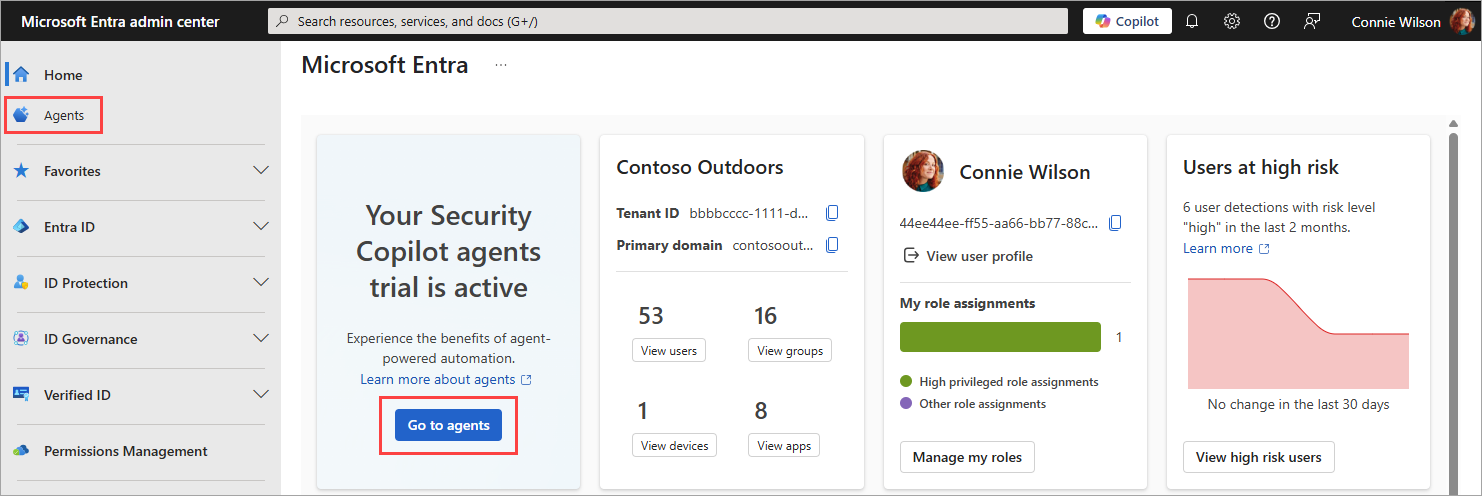
From the new home page, select Go to agents from the agent notification card.
- You can also select Agents from the left navigation menu.
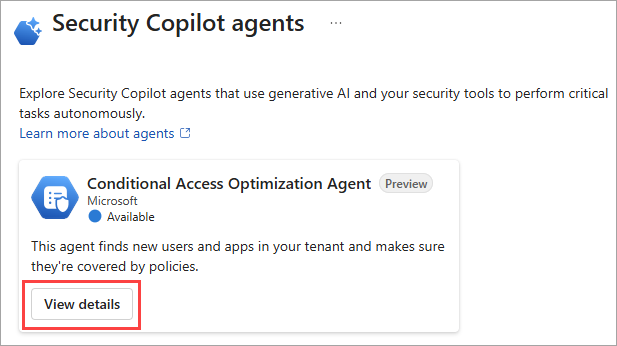
Select View details on the Conditional Access Optimization Agent tile.
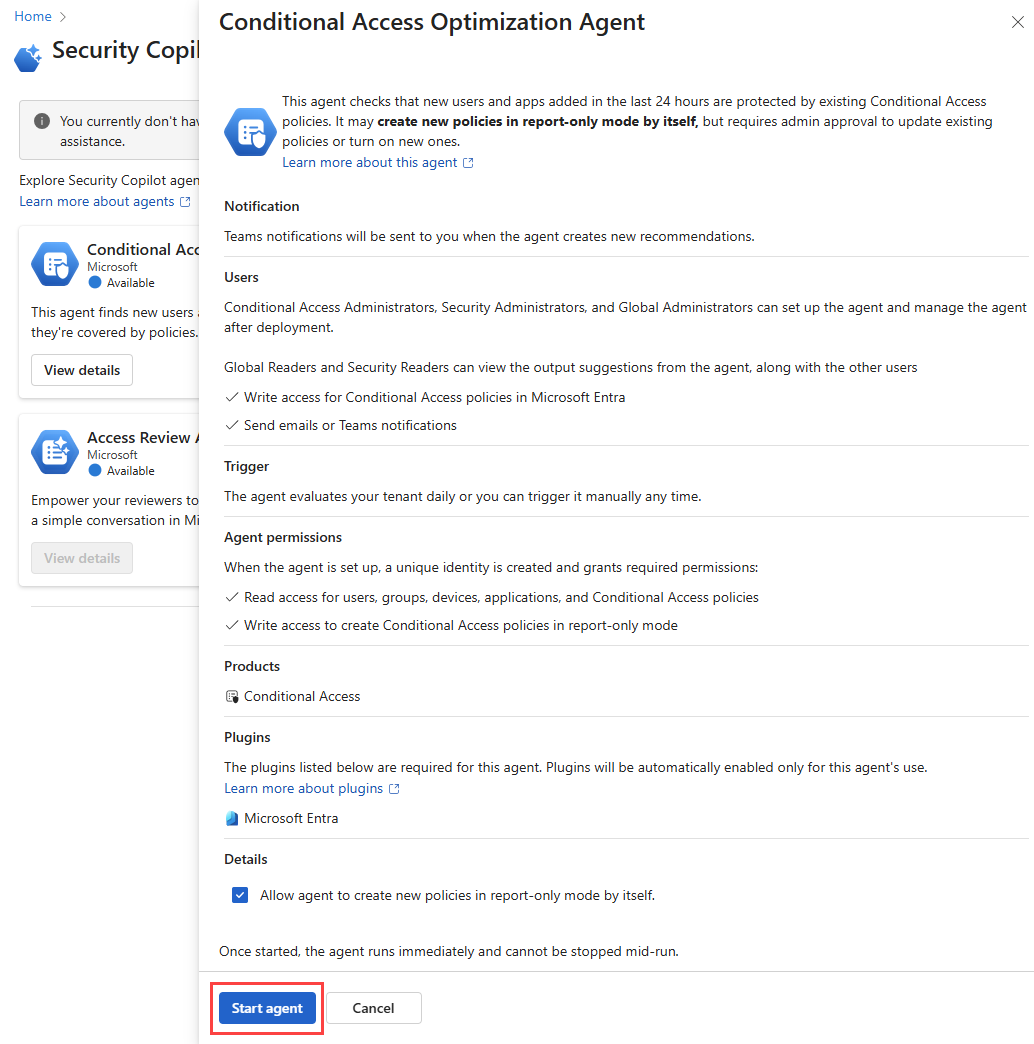
Select Start agent to begin your first run. Avoid using an account with a role activated through PIM.
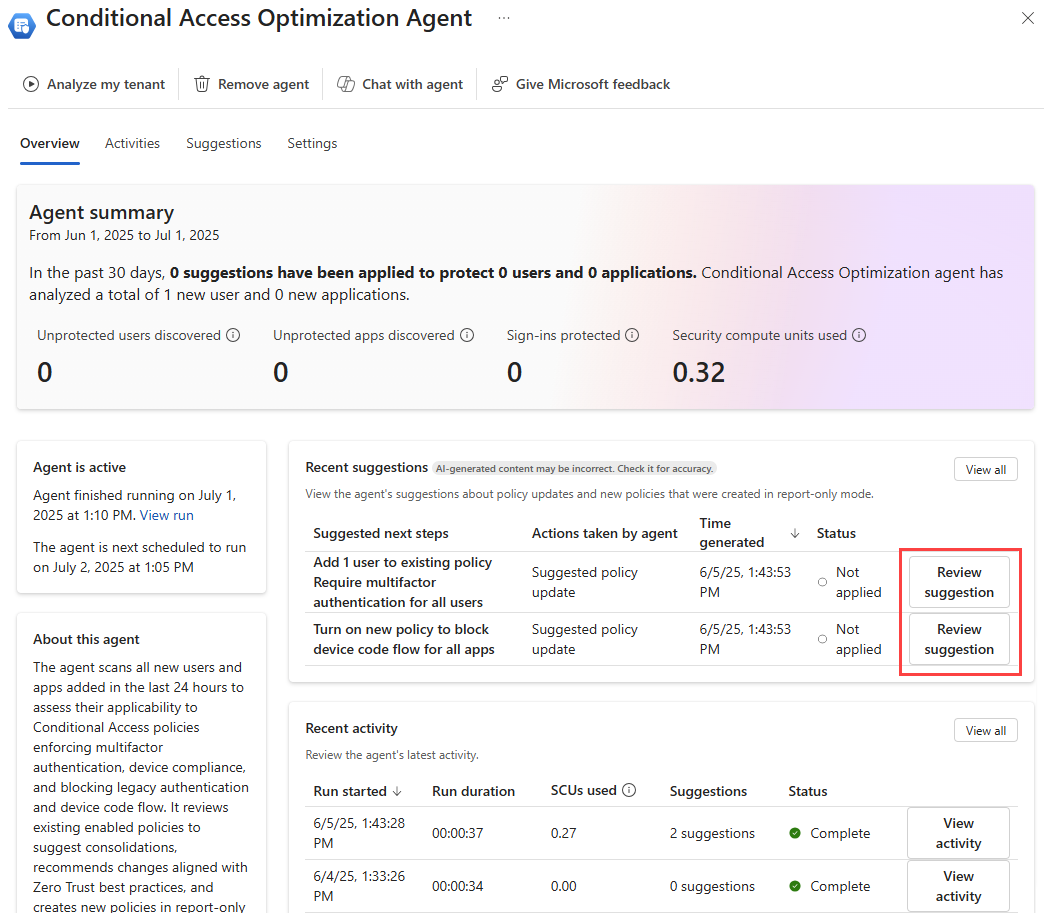
When the agent overview page loads, any suggestions appear in the Recent suggestions box. If a suggestion was identified, you can review the policy, determine policy impact, and apply the changes if needed. For more information, see Review and approve Conditional Access agent suggestions.
Remove agent
If you no longer wish to use the Conditional Access optimization agent, select Remove agent from the top of the agent window. The existing data (agent activity, suggestions, and metrics) is removed but any policies created or updated based on the agent suggestions remain intact. Previously applied suggestions remain unchanged so you can continue to use the policies created or modified by the agent.
Providing feedback
Use the Give Microsoft feedback button at the top of the agent window to provide feedback to Microsoft about the agent.
FAQs
When should I use the Conditional Access Optimization Agent vs Copilot Chat?
Both features provide different insights into your Conditional Access policies. The following table provides a comparison of the two features:
| Scenario | Conditional Access Optimization Agent | Copilot Chat |
|---|---|---|
| Generic Scenarios | ||
| Utilize tenant-specific configuration | ✅ | |
| Advanced reasoning | ✅ | |
| On-demand insights | ✅ | |
| Interactive troubleshooting | ✅ | |
| Continuous policy assessment | ✅ | |
| Automated improvement suggestions | ✅ | |
| Get guidance on CA best practices and configuration | ✅ | ✅ |
| Specific Scenarios | ||
| Identify unprotected users or applications proactively | ✅ | |
| Enforce MFA and other baseline controls for all users | ✅ | |
| Continuous monitoring and optimization of CA policies | ✅ | |
| One-click policy changes | ✅ | |
| Review existing CA policies and assignments (Do policies apply to Alice?) | ✅ | ✅ |
| Troubleshoot a user's access (Why was Alice prompted for MFA?) | ✅ |
I activated the agent but see "Fail" in the activity status. What's happening?
It's possible that the agent was enabled with an account that requires role activation with Privileged Identity Management (PIM). So when the agent attempted to run, it failed because the account didn't have the required permissions at that time.
You can resolve this issue by migrating to use Microsoft Entra Agent ID. Select Create agent identity from either the banner message on the agent page or the Identity and permissions section of the agent settings.