Note
Kailangan ng pahintulot para ma-access ang page na ito. Maaari mong subukang mag-sign in o magpalit ng mga direktoryo.
Ang pag-access sa pahinang ito ay nangangailangan ng pahintulot. Maaari mong subukang baguhin ang mga direktoryo.
In the previous tutorial steps, each source table mapped to exactly one node type or one edge type. However, relational tables often contain embedded entities. For example, the Employees table includes a Country column. Rather than storing the country as just a property on Employee nodes, you can extract it into its own Country node type and connect it with a livesIn edge. This approach creates a richer graph model that lets you query relationships between employees and countries directly.
In this tutorial step, you create the following graph entities from the Employees source table:
- A
Countrynode type (new) - A
livesInedge type connectingEmployeetoCountry(new). This edge indicates thatEmployee livesIn Country.
Adventure Works Employee table
In the Adventure Works data model, the Employees data source table has the following columns:
EmployeeID_KManagerIDEmployeeFullNameJobTitleOrganizationLevelMaritalStatusGenderTerritoryCountryGroup
The following table shows how these columns map to graph entities:
| Graph entity | Type | Key column |
|---|---|---|
Employee |
Node (already exists) | EmployeeID_K |
Country |
Node (new) | Country |
livesIn |
Edge (new), from Employee to Country |
EmployeeID_K → Country |
Note
In the preceding table, Country refers to both the source column in the Employees table and the new node type in the graph. They share the same name, but the column is raw data in the table while the node type is an entity in your graph model.
When you create a node type from a source table, you manually add relevant columns from the table as properties on that node type. Since the Employees table has 10 columns, both the Employee and Country node types have all 10 of these columns available to add as properties. In this article, you only add properties to Country that are relevant for the node type.
Create a Country node type
To create the Country node type, follow these steps:
In the top ribbon of your graph model, select Add node.
In Create a node, enter the following values:
- Node label:
Country - Source table: adventureworks_employees
- Key:
Country. SelectingCountryas the key column adds it as a property on the node type.
- Node label:
Don't add any other properties.
Select Create to add the node type to your graph.
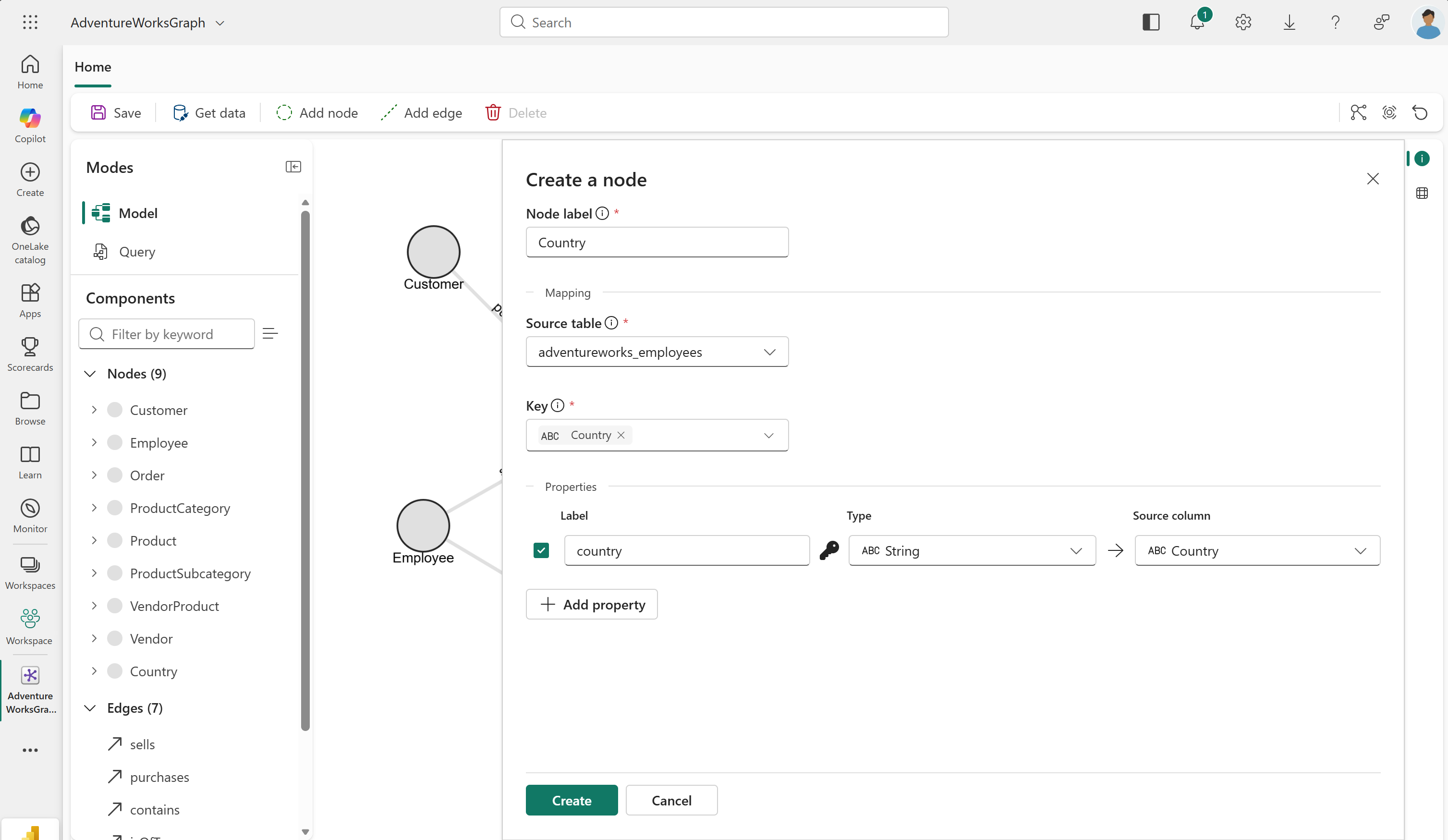
You see the Country node type added to your graph.
Create a livesIn edge
The Employee node type is already in your graph from a previous tutorial step. Connect the new Country node to the Employee node with a new livesIn edge.
To create the livesIn edge type, follow these steps:
- In the top ribbon, select Add edge.
- In the Create an edge dialog, enter the following values:
- Edge label:
livesIn - Source table: adventureworks_employees
- Origin node:
Employee - Origin key:
EmployeeID_K - Target node:
Country - Target key:
Country
- Edge label:
- Select Create to add the edge to your graph.
You see the livesIn edge type added to your graph between the Employee and Country nodes.
Modify the Employee node type
Now that Country is its own node type connected to Employee by the livesIn edge, the Country column is redundant as an Employee property. Edit the Employee node type to remove the Country property.
- Double-click the
Employeenode type to view its properties. - Select Edit definition.
- Uncheck the
Countryproperty to remove it from the node. - Select Save.
Tip
Excessive properties make your graph harder to maintain and use. For all node types, avoid having properties that are:
- Not required for the uniqueness of the nodes
- Not necessary for your queries or analyses
Load the graph
After you configure all node types and edge types, reload the graph. Reload is required after making structural changes to the graph.
In the top ribbon, select Save. This action verifies the graph model, loads data from OneLake, constructs the graph, and makes it ready for querying. Be patient, as this process might take some time depending on the size of your data.
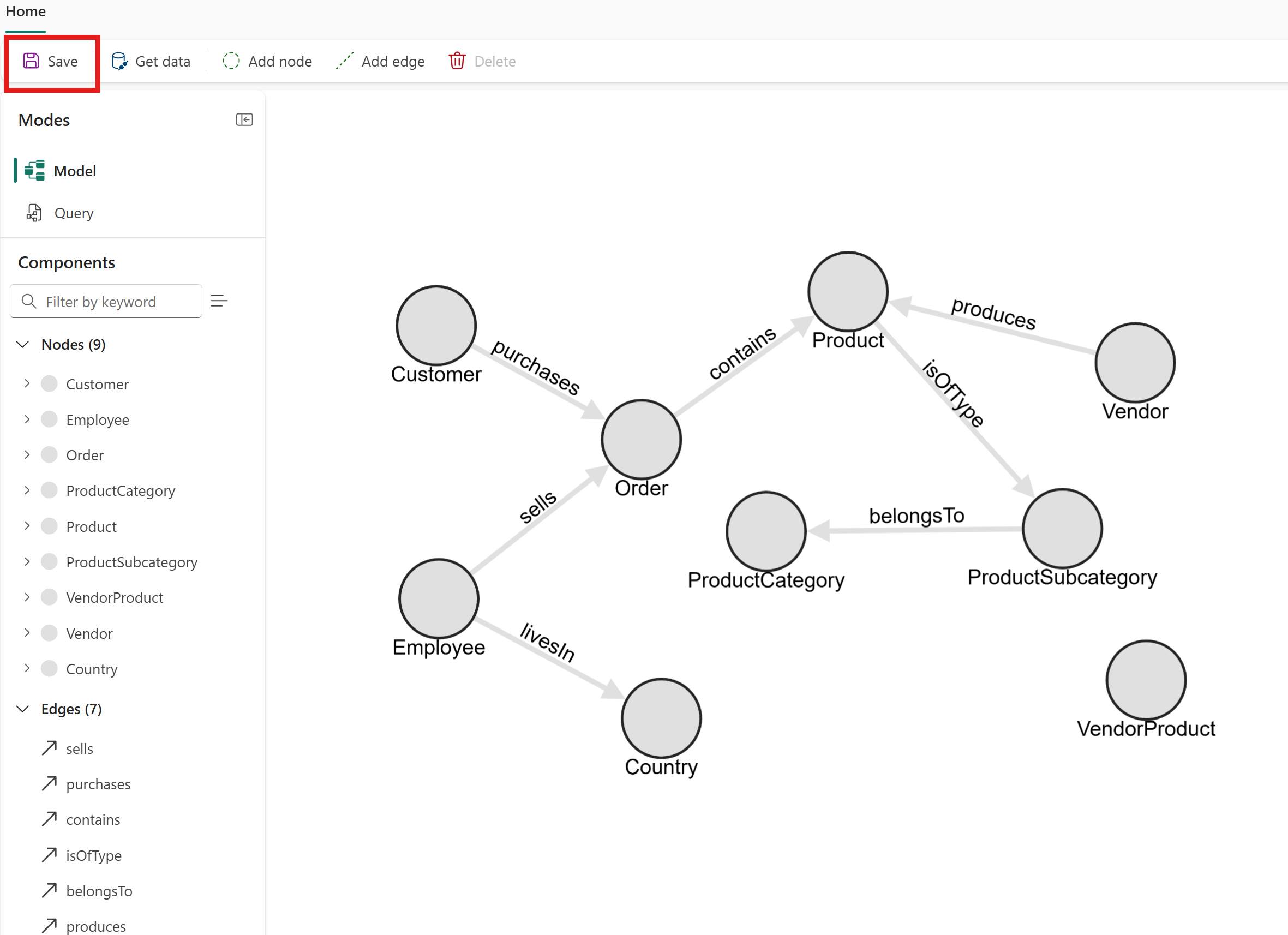
The graph now includes the new Country node type and livesIn edge type. This structure allows you to query relationships between employees and their countries directly.
Review
In this tutorial step, you worked with two node types and one edge type from the single Employees source table:
Employeenode (created in a previous step, refined here)Countrynode (new, extracted from theCountrycolumn)livesInedge (new, connectingEmployeetoCountry)
This pattern is useful whenever a relational table contains embedded entities that you want to represent as separate nodes in your graph. Look for columns that represent distinct real-world entities, such as countries, cities, or departments, as candidates for extraction into their own node types.
Tip
For more modeling patterns and decision guidance, see Design a graph schema.