Note
Ang pag-access sa pahinang ito ay nangangailangan ng pahintulot. Maaari mong subukang mag-sign in o magpalit ng mga direktoryo.
Ang pag-access sa pahinang ito ay nangangailangan ng pahintulot. Maaari mong subukang baguhin ang mga direktoryo.
Large static spatial datasets can be expensive to render directly on a map. To improve performance, Fabric Maps can convert GeoJSON files into high‑performance tilesets that enable faster rendering and smoother interaction. For background concepts, see What is a tileset in Fabric Maps?.
Important
Fabric Maps is currently in preview. Features and functionality may change.
Prerequisites
- A workspace with a Microsoft Fabric-enabled capacity.
- A map with editor permission. To create a tileset, you must have edit permissions on the map. Edit access is granted through Fabric workspace roles (Contributor, Member, or Admin) or item‑level permissions on the map. For more information, see Manage Map permissions.
- A lakehouse to store GeoJSON files.
Create a tileset
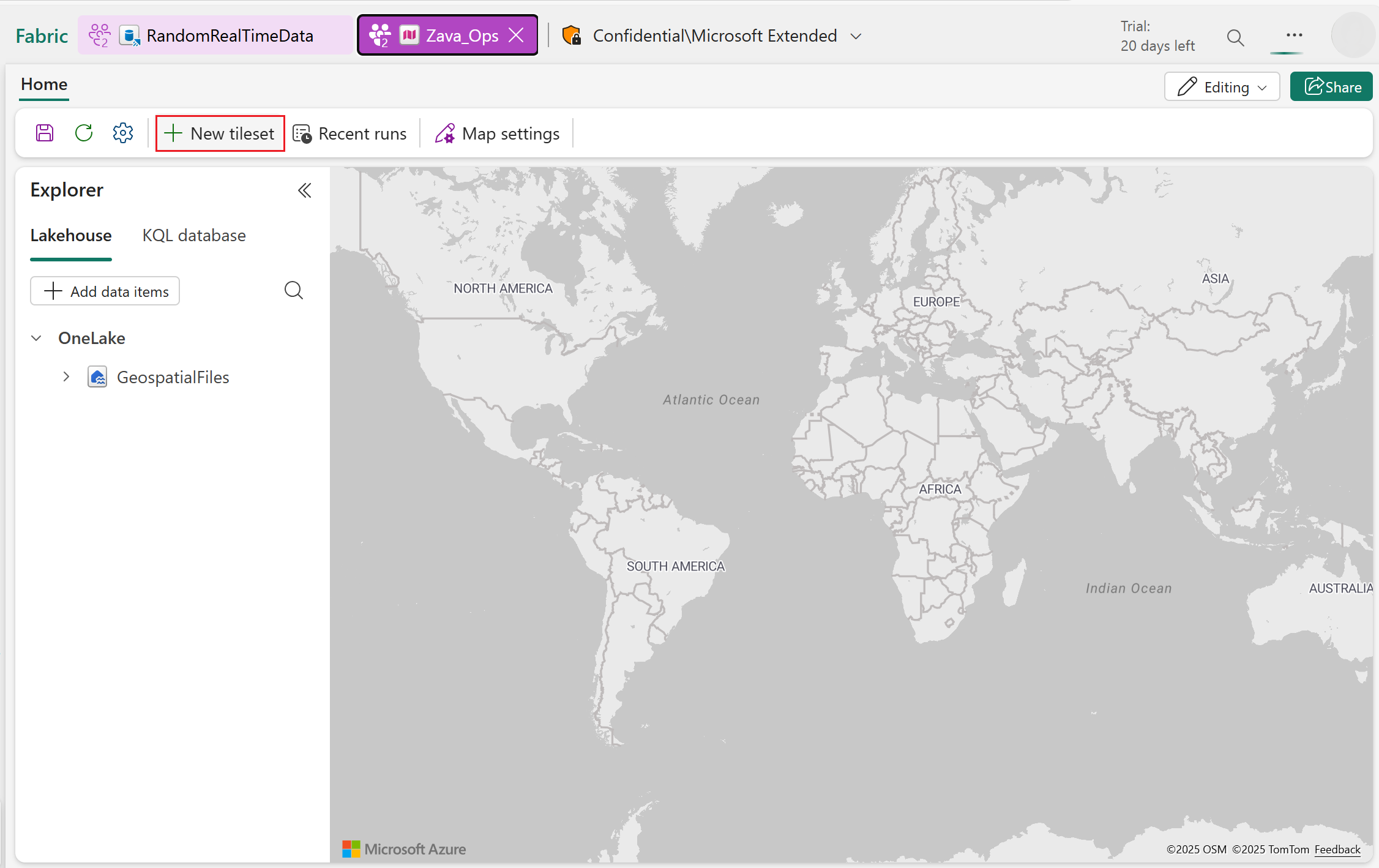
Select New tileset to open the creation wizard.
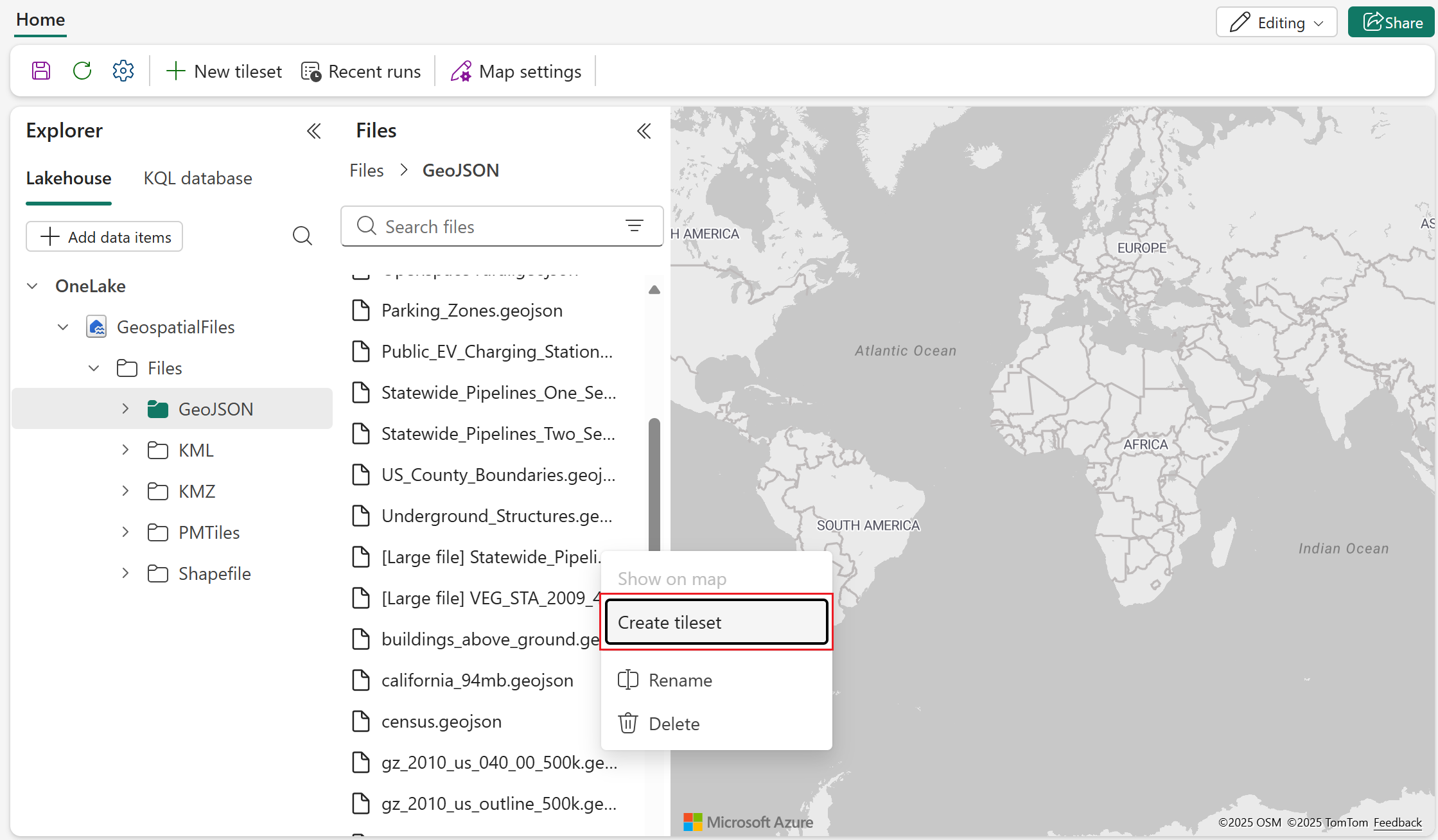
Alternatively, you can right-click on a GeoJSON file in lakehouse and then select Create tileset from the popup menu.
Note
Fabric Maps only supports one active job per item at a time.
Step 1: Connect to a lakehouse and select source files
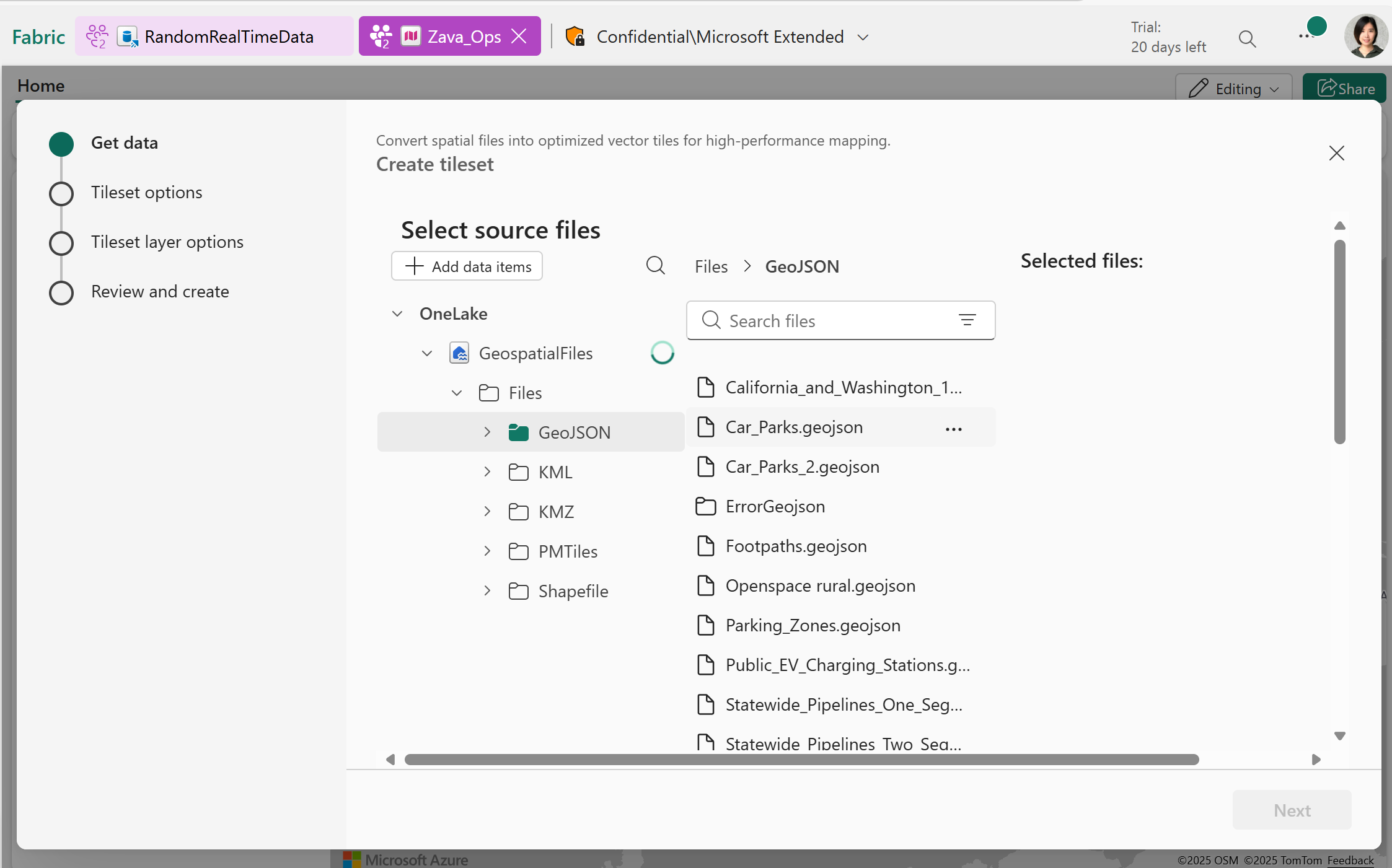
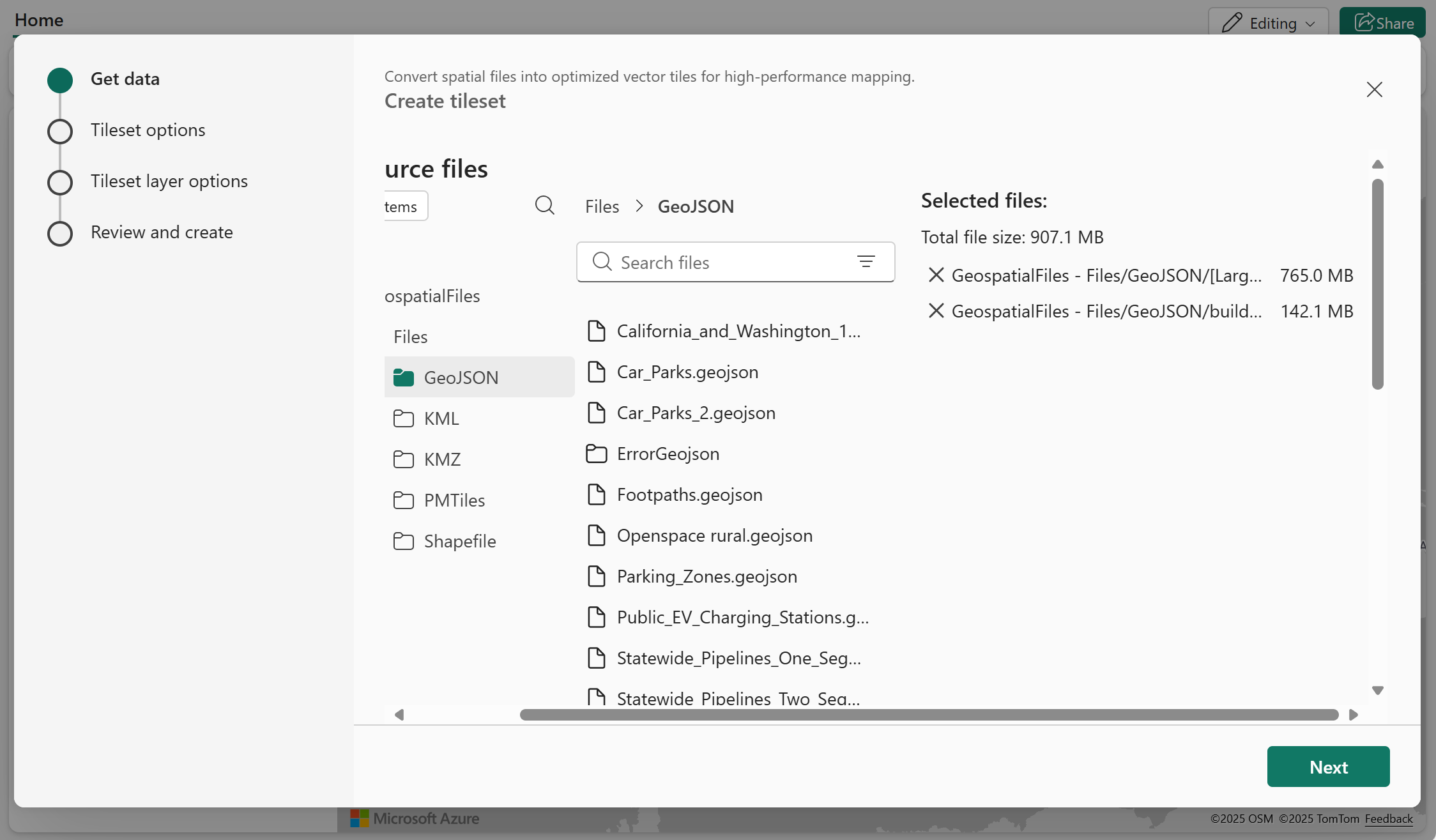
Start by connecting to at least one lakehouse that contains GeoJSON files. You can choose multiple files to convert into a vector tileset.
Note
- Currently, Fabric Maps supports only valid GeoJSON files with the .geojson extension as source files.
- The combined size of all selected files for a single conversion job must not exceed 1 GB.
Step 2: Configure tileset metadata
Specify the output location and name for your tileset. You can also add a description and copyright details if desired.
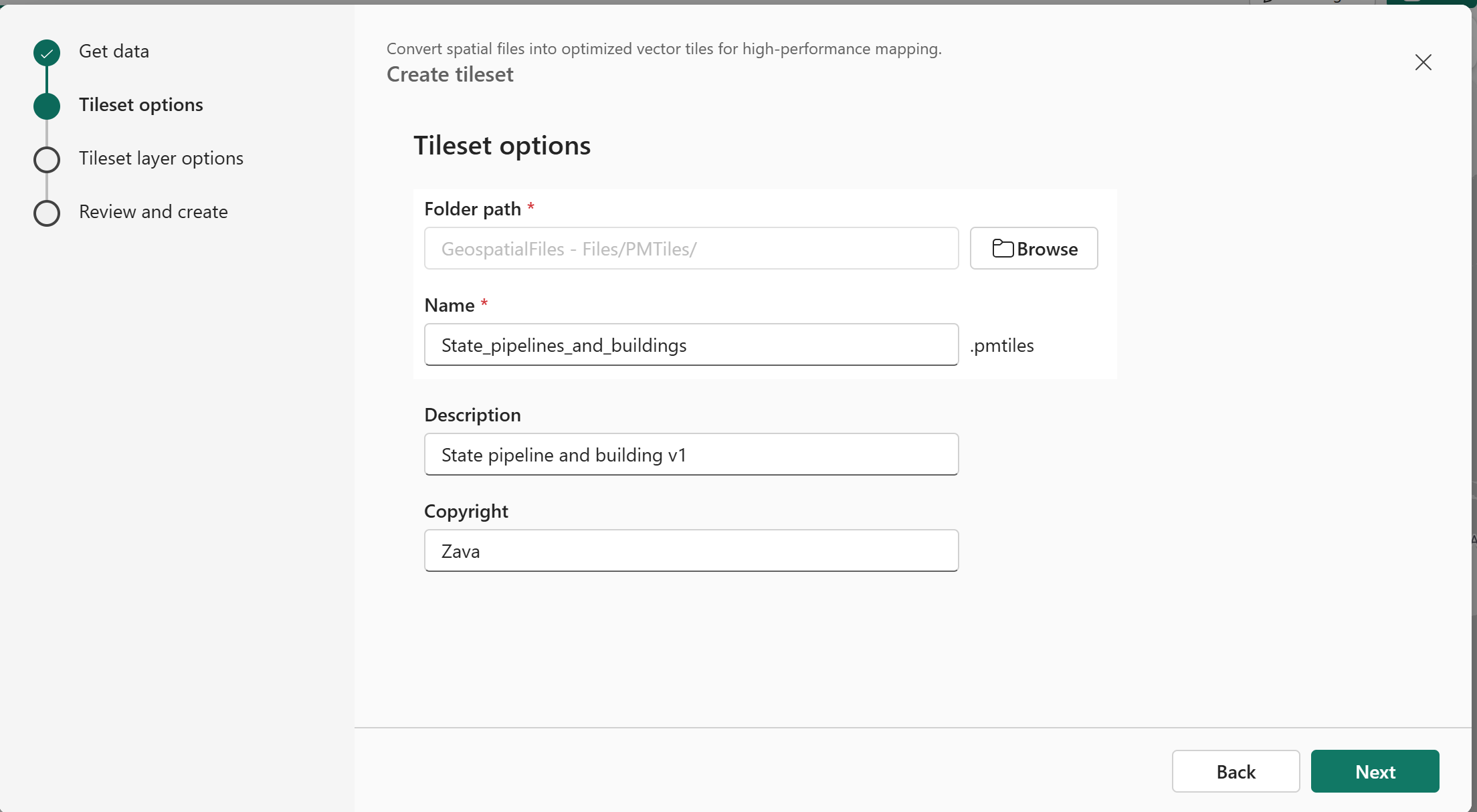
Note
The output tileset is generated in the PMTiles format, which packages all tiles into a single portable archive file.
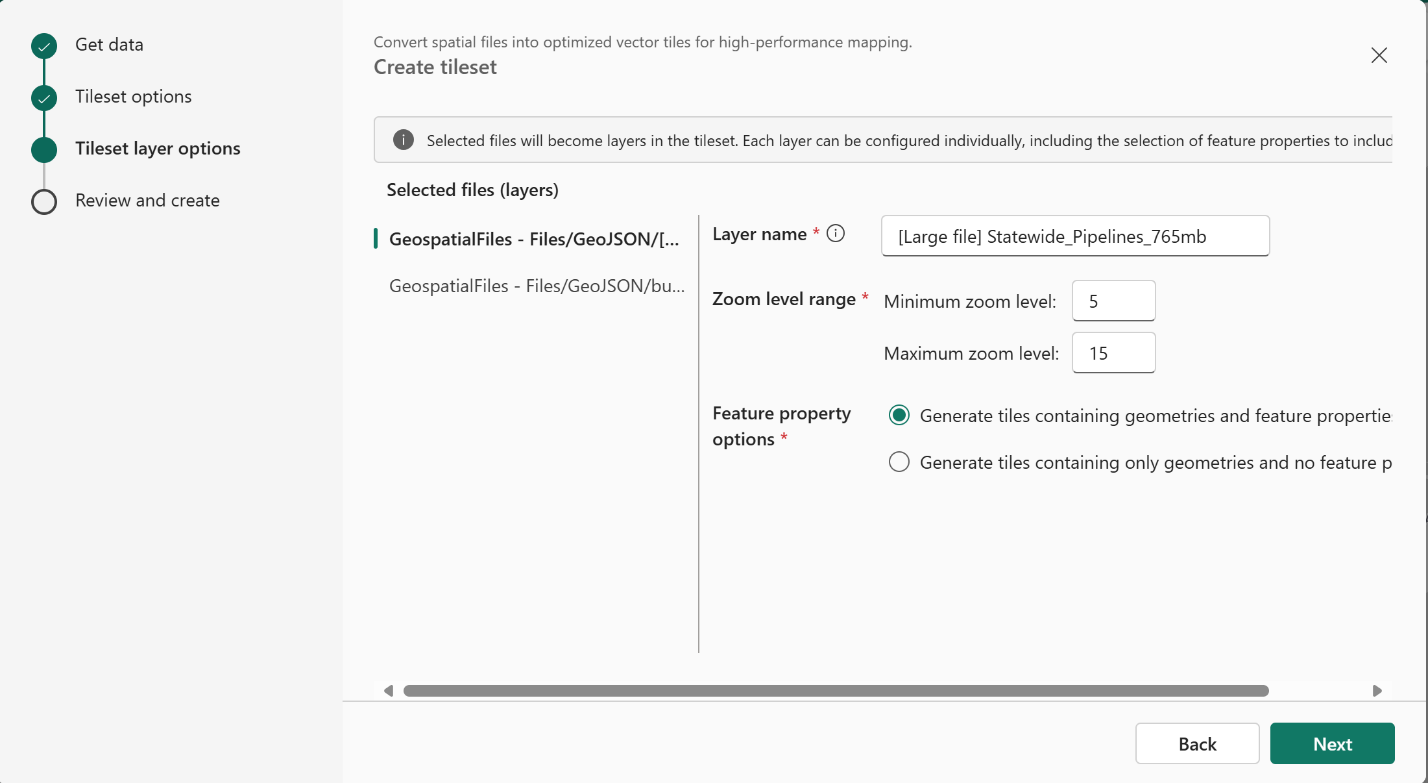
Step 3: Configure layer settings
Each file is processed as an individual layer within the tileset.
Next, set the following configuration options:
Layer name: You can assign a custom name to each layer or use the default name, which matches the file name.
Zoom level range: Define the minimum and maximum zoom levels for your spatial data visibility. For more information, see Understanding zoom levels in tilesets.
Note
Things to keep in mind with configuring zoom levels:
- Using a wider zoom level range generates more tiles, which can increase processing time.
- The supported zoom levels range from 5 to 18.
Feature properties: For GeoJSON datasets, you can choose whether to include all feature properties along with the geometries or only the geometries.
Note
Including all feature properties increases the size of the tiles and extends processing time.
Step 4: Review and create tileset
Review the configuration from previous steps, then select Create to start the spatial job.
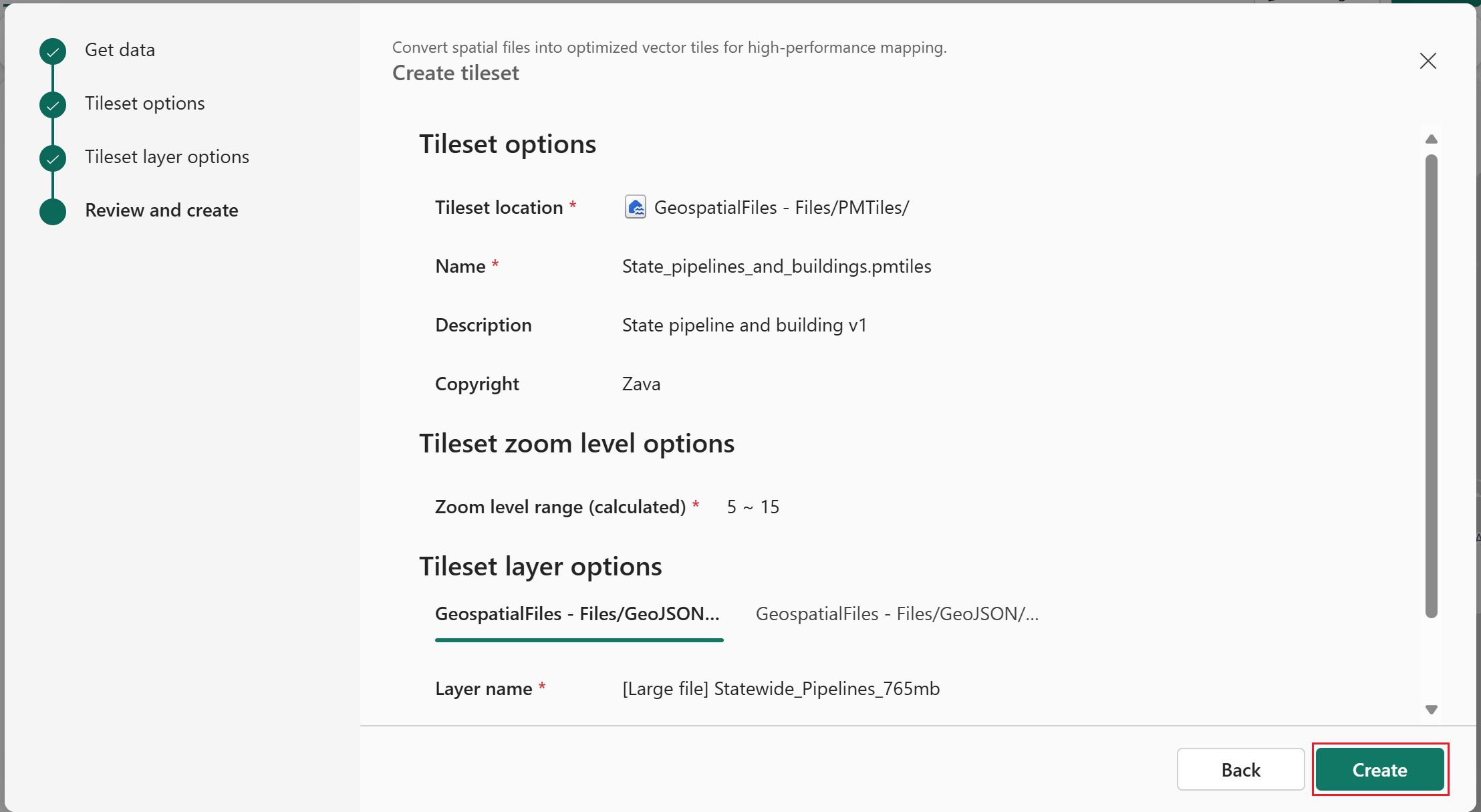
Note
The overall zoom level range for the tileset is automatically determined based on the settings defined in each individual layer.
Monitor the Tileset Creation Job
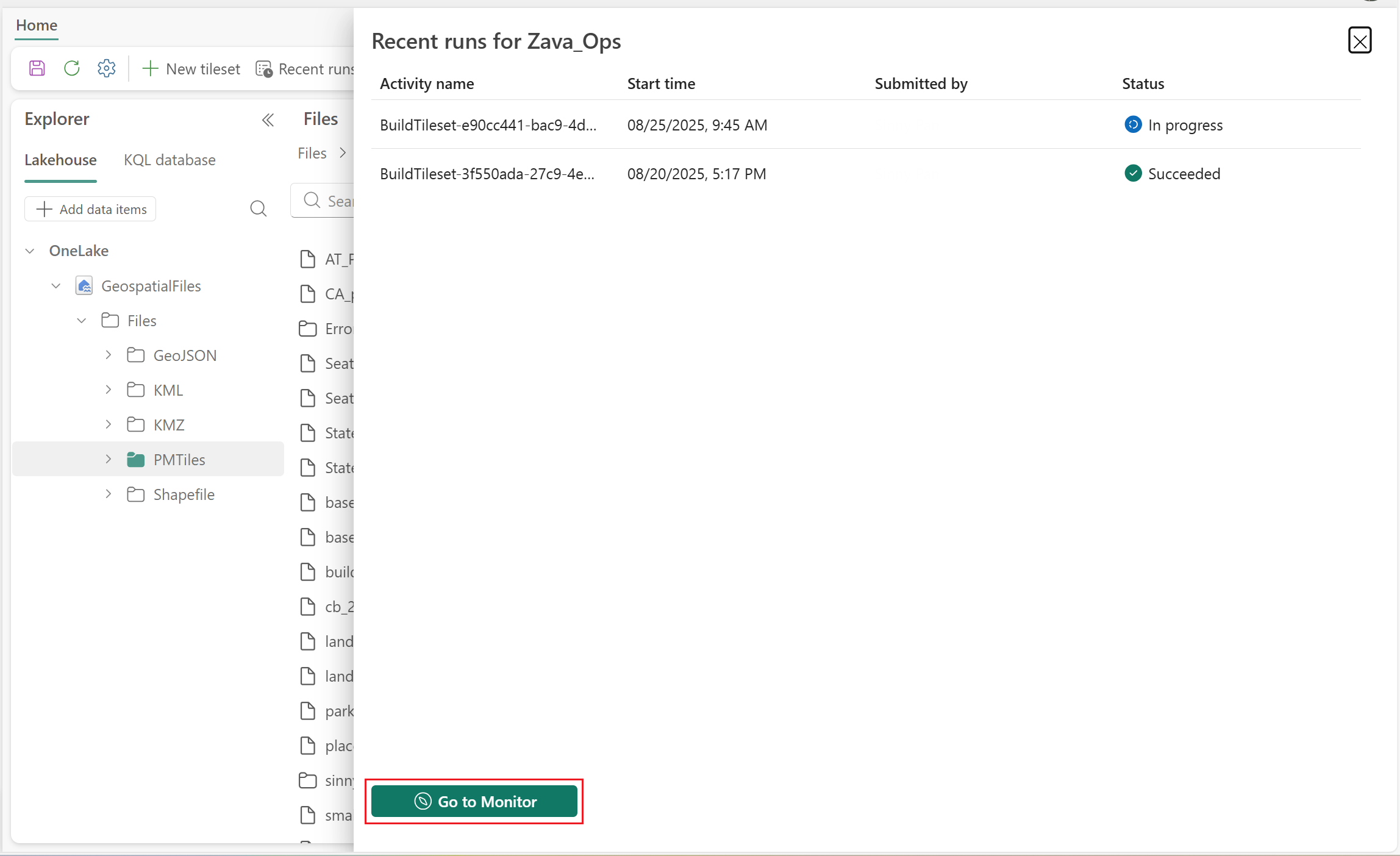
After starting the tileset creation process, a notification will confirm that the job is in progress. You can select View Tileset Job to see details of all recent runs for this spatial operation in the Map.
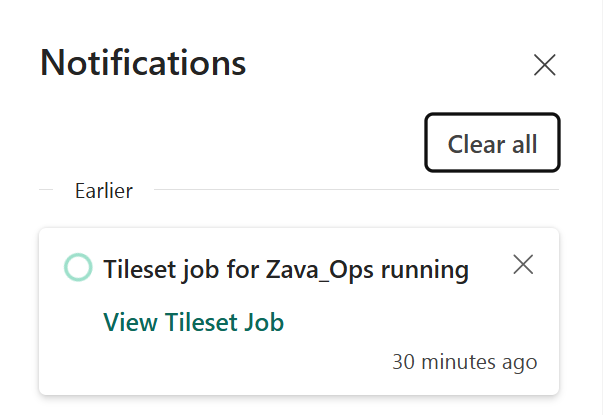
Note
The tileset creation job operates as a Long Running Operation.
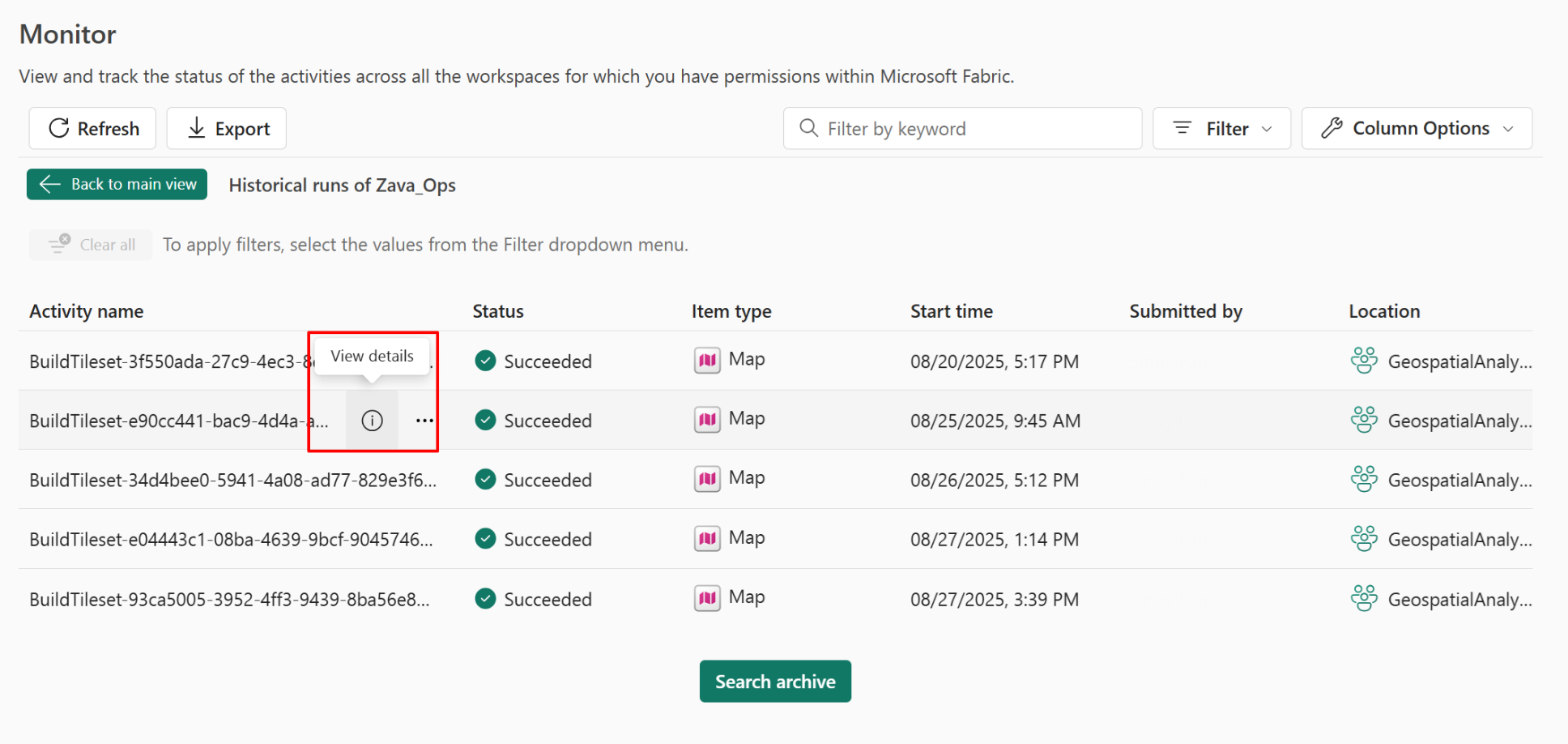
Select Go to Monitor to view more job history related to this map item.
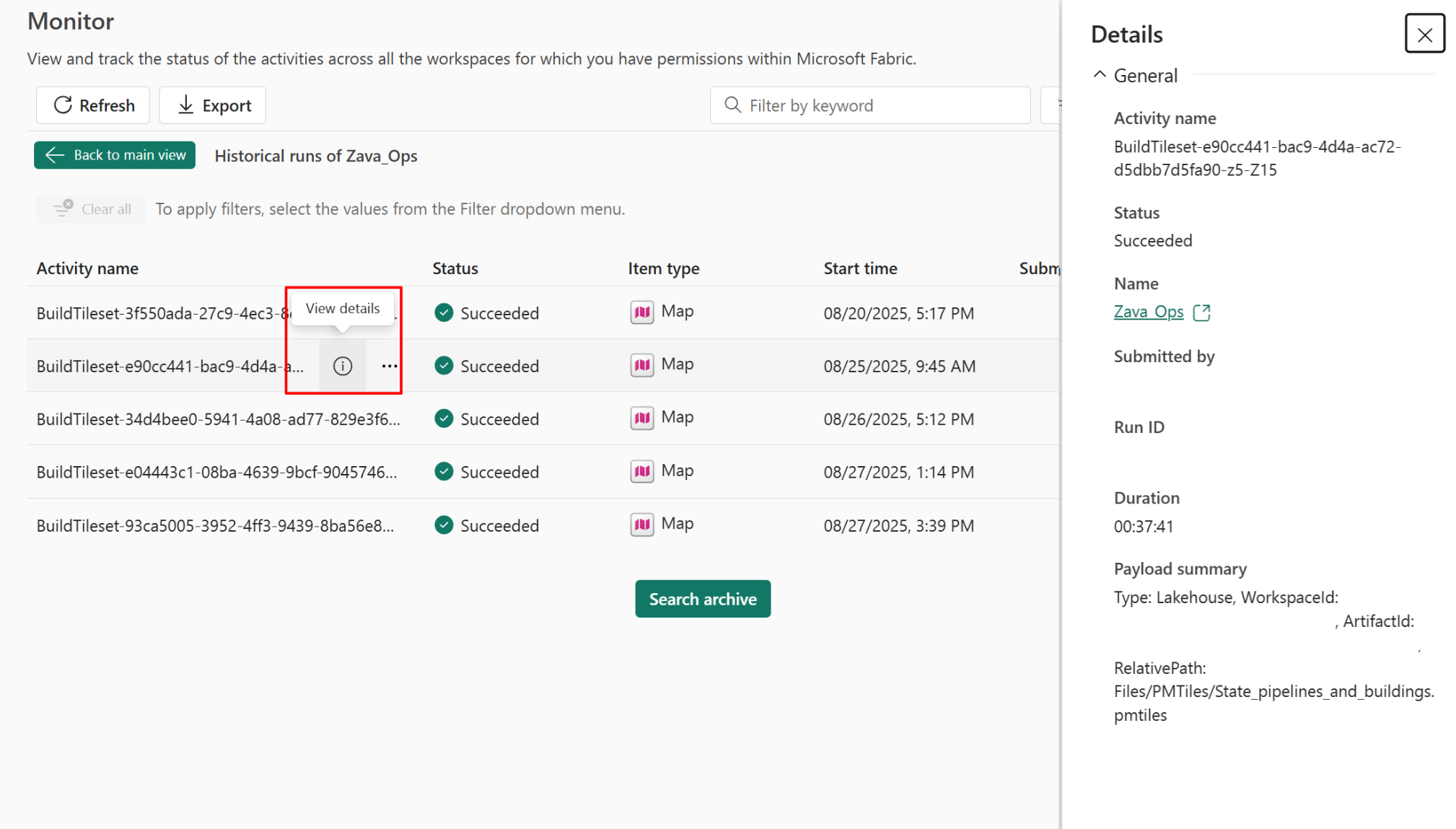
Select the View details icon to display more information about the selected job.
Tip
When you open the Monitor page from a notification panel, it automatically filters by the active map item at that moment. If you later start a new job with a different map item and revisit the Monitor page in the same browser tab, it only shows data for the new map item—not the previous one.
Cancel tileset creation
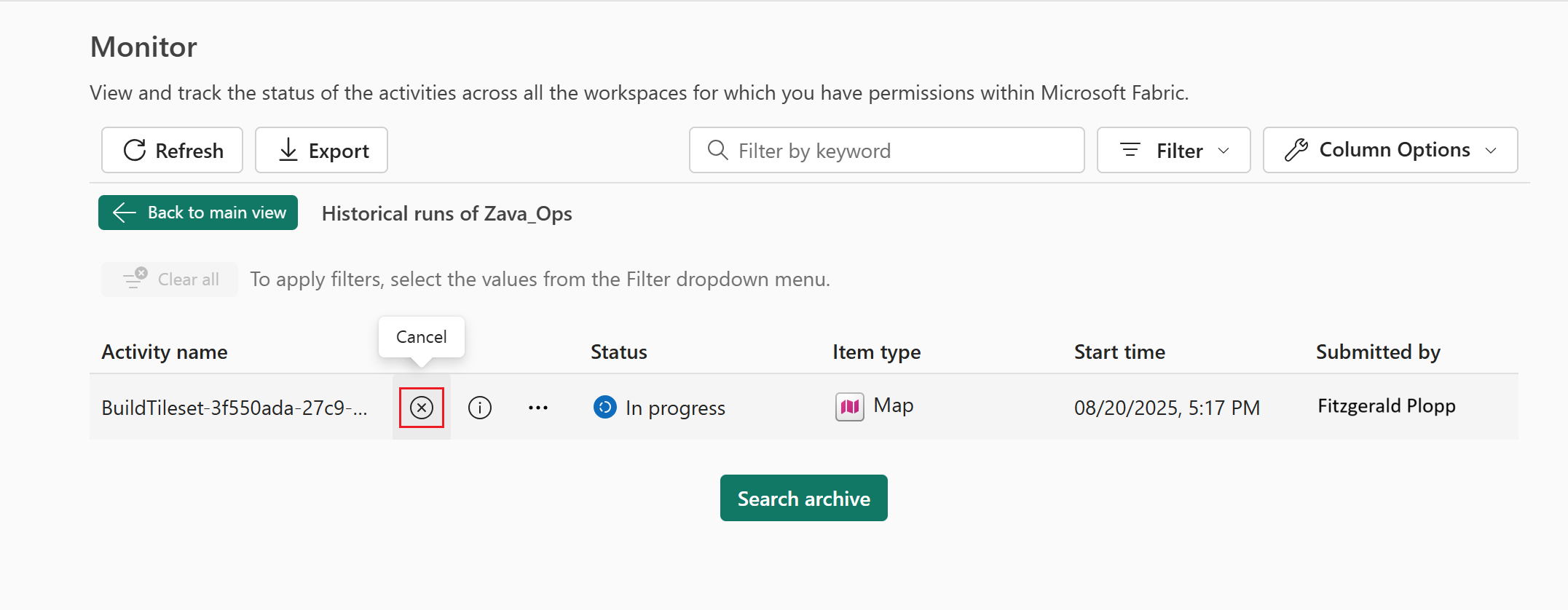
To cancel the tileset creation, open the Monitor page and select the Cancel icon next to the corresponding job.
Note
Users can only cancel a job when the status is In progress.