Note
Ang pag-access sa pahinang ito ay nangangailangan ng pahintulot. Maaari mong subukang mag-sign in o magpalit ng mga direktoryo.
Ang pag-access sa pahinang ito ay nangangailangan ng pahintulot. Maaari mong subukang baguhin ang mga direktoryo.
Windows update rings define how and when Windows updates are installed on devices. They control client‑side update behavior such as deferral periods, restart settings, deadlines, active hours, and user notifications. Update rings apply broadly to Windows updates and are commonly used to create deployment stages—for example, test, pilot, and production—by assigning different settings to different device groups.
In Microsoft Intune, update rings are configured through update ring policies, which provide a general policy surface for managing Windows Update behavior on devices. These policies use Windows Update client settings and can be used on their own or alongside other Windows update policies, such as feature updates, quality updates, and driver updates.
Note
When devices are managed through Windows Autopatch, update rings may be created and maintained by the service to implement rollout cadence and restart behavior. In these scenarios, admins typically shouldn't assign custom update rings to Autopatch‑managed devices. Instead, update rings work in combination with service‑managed policies that control update targeting and sequencing.
Prerequisites
 Network and connectivity requirements
Devices must have internet access and be able to reach required Microsoft endpoints:
 Licensing requirements
 Device platform requirements
Windows Update ring policies support the following Windows editions:
- Pro
- Pro Education
- Enterprise
- Education
- Windows IoT Enterprise
- Windows Team - for Surface Hub devices
- Windows Holographic for Business - Supports a suset of settings for Windows updates, including:
- Automatic update behavior
- Microsoft product updates
- Servicing channel: Any update build that is generally available. For more information, see Manage Windows Holographic.
Windows Enterprise LTSC and IoT Enterprise LTSC- LTSC is supported for Quality updates, but not for Feature updates. As a result, the following ring controls aren't supported for LTSC:
- Pause of feature updates
- Feature Update Deferral period
- Set feature update uninstall period
- Enable pre-release builds
- Use deadline settings for feature updates
 Device configuration requirements
The Microsoft Account Sign-In Assistant service (
wlidsvc) must be enabled and running.If the Microsoft Account Sign-In Assistant service is disabled, Windows Update doesn't offer feature updates. For more information, see Feature updates are not being offered while other updates are.
Create and assign update rings
In the Microsoft Intune admin center, select Devices > By platform > Windows > Manage updates > Windows updates
Select the Update rings tab > Create profile.
Under Basics, specify a name, a description (optional), and then select Next.
Under Update ring settings, configure settings aligned with your organization's update deployment strategy
- For information about the available settings, see Windows update settings.
- After configuring Update and User experience settings, select Next.
Under Scope tags, select + Select scope tags to open the Select tags pane if you want to apply them to the update ring. Choose one or more tags, and then click Select to add them to the update ring and return to the Scope tags page.
Select Next to continue to Assignments.
Under Assignments, choose + Select groups to include and then assign the update ring to one or more groups. Use + Select groups to exclude to fine-tune the assignment. Select Next to continue.
Tip
Assign update rings to device groups. The use of device groups removes the need for a user to sign-on to a device before the policy can apply.
Under Review + create, review the settings, and then select Create when ready to save your Windows update ring. Your new update ring is displayed in the list of update rings.
Manage update rings
In the Microsoft Intune admin center, select Devices > By platform > Windows > Manage updates > Windows updates
Select the Update rings tab and select the ring policy that you want to manage. Intune displays details similar to the following for the selected policy:
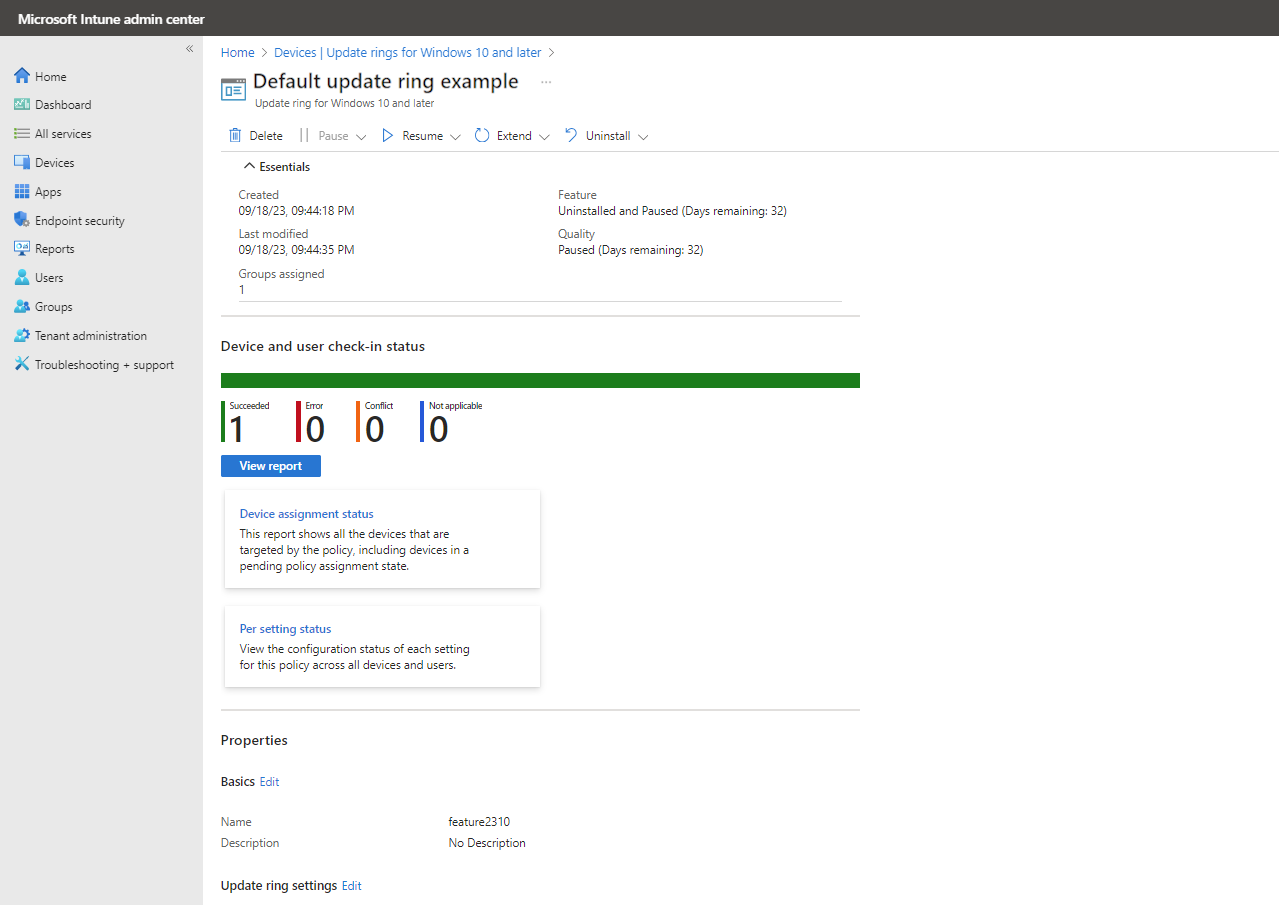
This view includes:
Policy actions: use the available actions to manage the selected update ring policy. For more information about each action, see the Policy actions section.
Essentials: A list of details about the policy, including when it was created, last modified, and a count of groups that are assigned to the policy.
Device and user check-in status: The default report view for this policy. In addition to this default view, the following report details and options are available:
- View report: A button opens a more detailed report view for Device and user check-in status.
- Two additional report tiles: You can select the tiles for the following reports to view additional details:
- Device assignment status: This report shows all the devices that are targeted by the policy, including devices in a pending policy assignment state.
- Per setting status: View the configuration status of each setting for this policy across all devices and users.
For details about this report view, see Reports for update ring policies.
Properties: View details for each configuration page of the policy, including an option to Edit each area of the policy.
Policy actions
Select a tab to learn more about its purpose and available options.
 Delete
 Pause
Pause Resume
 Extend
 Uninstall
Select Delete to stop enforcing the settings of the selected Windows update ring. Deleting a ring removes its configuration from Intune so that Intune no longer applies and enforces those settings.
Deleting a ring from Intune doesn't modify the settings on devices that were assigned the update ring. Instead, the device keeps its current settings. Devices don't maintain a historical record of what settings they held previously. Devices can also receive settings from other update rings that remain active.
To delete a ring:
- While viewing the overview page for an Update Ring, select Delete.
- Select OK.