Note
Ang pag-access sa pahinang ito ay nangangailangan ng pahintulot. Maaari mong subukang mag-sign in o magpalit ng mga direktoryo.
Ang pag-access sa pahinang ito ay nangangailangan ng pahintulot. Maaari mong subukang baguhin ang mga direktoryo.
Applies to:  SQL Server
Database Engine Tuning Advisor helps you tune databases, manage tuning sessions, and view tuning recommendations. Users with advanced knowledge of physical design structures can use this tool to perform exploratory database tuning analysis. Database tuning novices can also use the tool to find the best configuration of physical design structures for the workloads they tune. This lesson provides basic practice for database administrators who are new to the Database Engine Tuning Advisor graphical user interface and for system administrators who might not have extensive knowledge of physical design structures.
Prerequisites
To complete this tutorial, you need SQL Server Management Studio, access to a server that's running SQL Server, and an AdventureWorks2025 database.
- Install SQL Server Management Studio.
- Install SQL Server 2017 Developer Edition.
- Download AdventureWorks sample databases.
For instructions on restoring databases in SSMS, see Restore a Database Backup Using SSMS.
Note
This tutorial is meant for a user familiar with using SQL Server Management Studio and basic database administration tasks.
Tune a workload
Use the Database Engine Tuning Advisor to find the best physical database design for query performance on the databases and tables that you select for tuning.
Copy a sample SELECT examples statement and paste the statement into the Query Editor of SQL Server Management Studio. Save the file as
MyScript.sqlin a directory where you can easily find it. An example that works against theAdventureWorksdatabase is provided in the following code.USE [AdventureWorks2022]; GO -- Might need to modify database name to match database SELECT DISTINCT pp.LastName, pp.FirstName FROM Person.Person AS pp INNER JOIN HumanResources.Employee AS e ON e.BusinessEntityID = pp.BusinessEntityID WHERE pp.BusinessEntityID IN ( SELECT SalesPersonID FROM Sales.SalesOrderHeader WHERE SalesOrderID IN ( SELECT SalesOrderID FROM Sales.SalesOrderDetail WHERE ProductID IN ( SELECT ProductID FROM Production.Product AS p WHERE ProductNumber = 'BK-M68B-42')));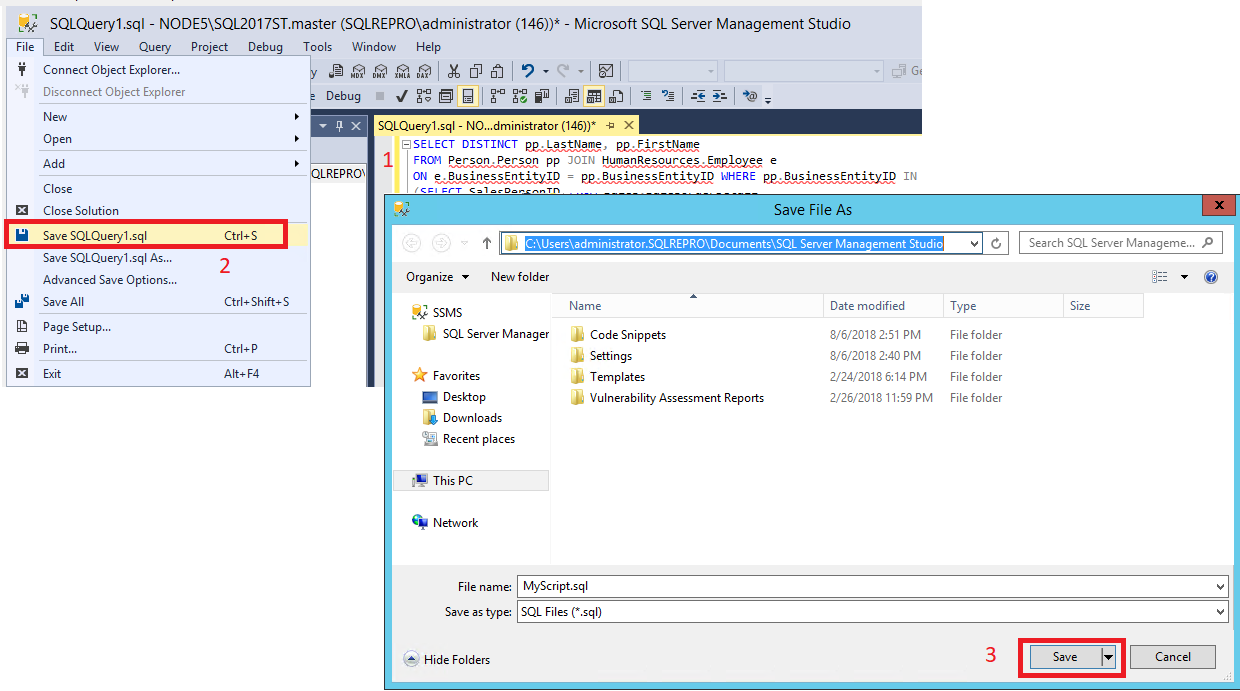
Start Database Engine Tuning Advisor. Select Database Tuning Advisor from the Tools menu in SQL Server Management Studio (SSMS). For more information, see Launch Database Engine Tuning Advisor. Connect to your SQL Server in the Connect to Server dialog box.
In the General tab of the right pane of the Database Engine Tuning Advisor GUI, type
MySessionin Session name.Select File for your Workload, and select the binoculars icon to Browse for a workload file. Locate the
MyScript.sqlfile that you saved in Step 1.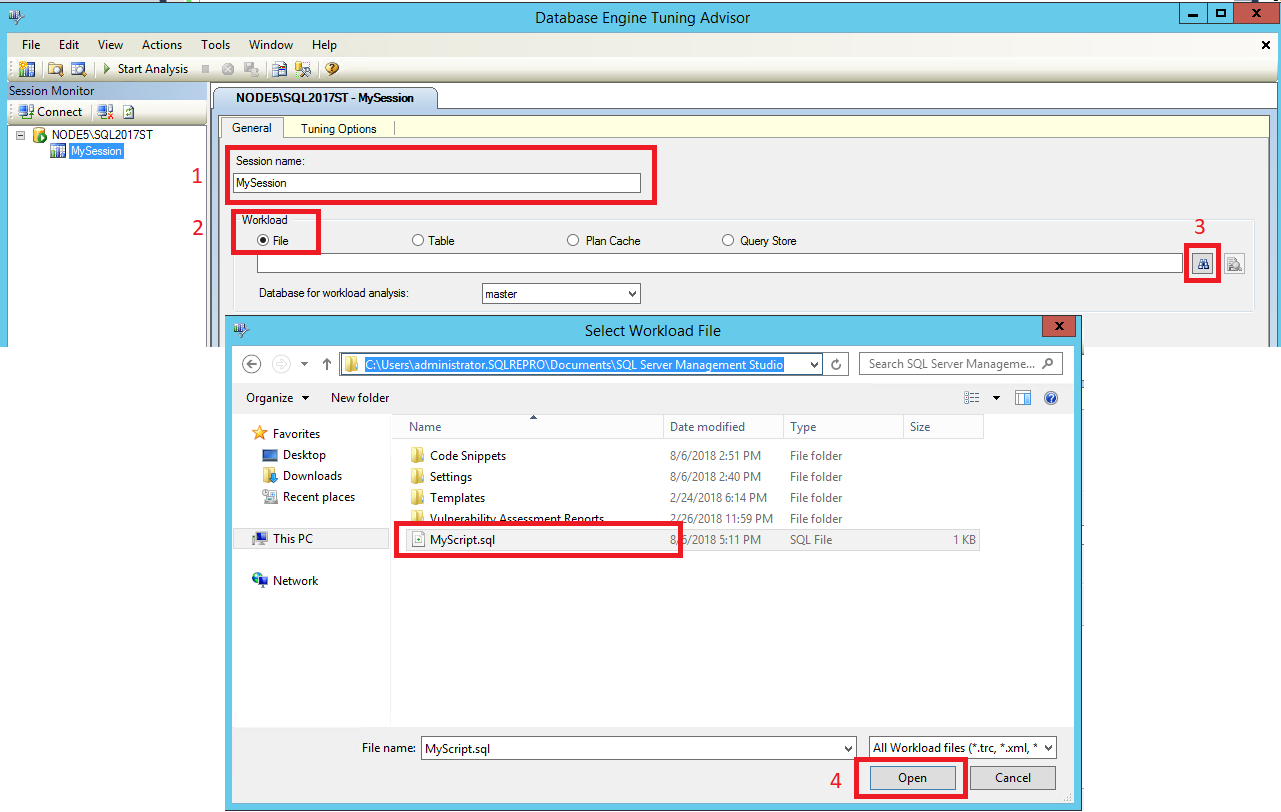
Select
AdventureWorks2025in the Database for workload analysis list, selectAdventureWorks2025in the Select databases and tables to tune grid, and select Save tuning log. Database for workload analysis specifies the first database to which Database Engine Tuning Advisor connects when tuning a workload. After tuning begins, Database Engine Tuning Advisor connects to the databases specified by theUSE DATABASEstatements contained in the workload.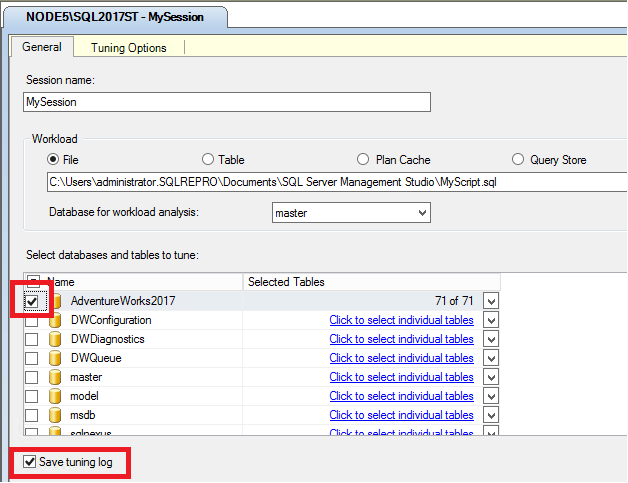
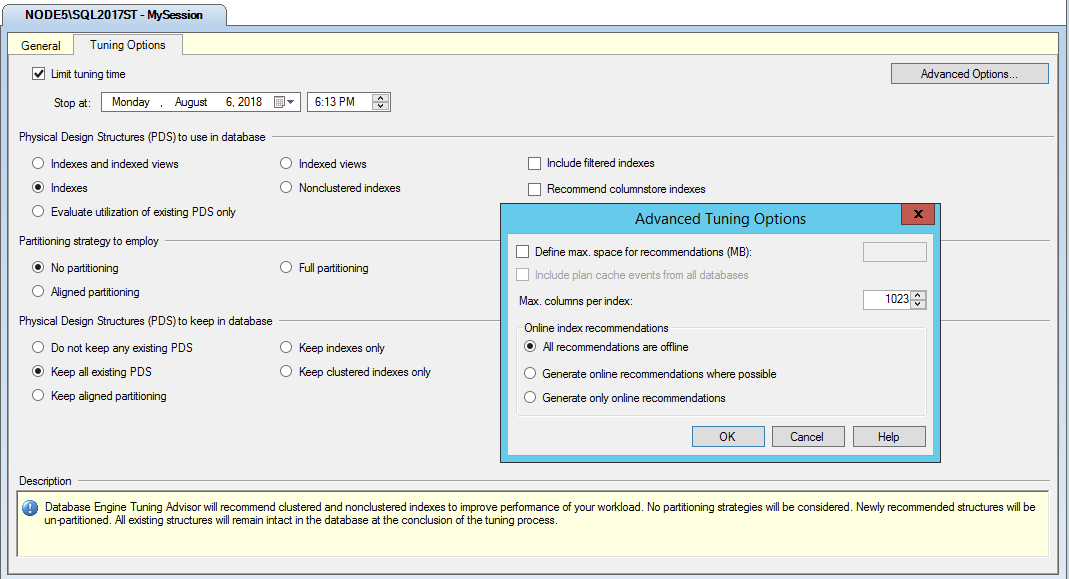
Select the Tuning Options tab. You don't set any tuning options for this practice, but take a moment to review the default tuning options. Press F1 to view the Help for this tabbed page. Select Advanced Options to view more tuning options. Select Help in the Advanced Tuning Options dialog box for information about the tuning options that are displayed there. Select Cancel to close the Advanced Tuning Options dialog box, leaving the default options selected.
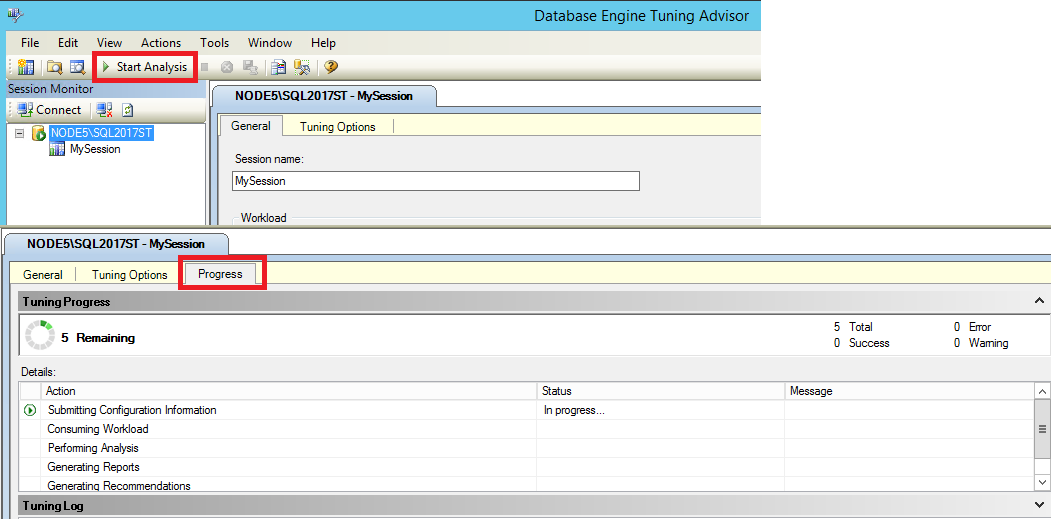
Select the Start Analysis button on the toolbar. While Database Engine Tuning Advisor is analyzing the workload, you can monitor the status on the Progress tab. When tuning is complete, the Recommendations tab is displayed.
If you receive an error about the tuning stop date and time, check the Stop at time on the main Tuning Options tab. Make sure the Stop at date and time are greater than the current date and time, and if necessary, change them.
After the analysis completes, save your recommendation as a Transact-SQL script by selecting Save Recommendations on the Actions menu. In the Save As dialog box, navigate to the directory where you want to save the recommendations script, and type the file name
MyRecommendations.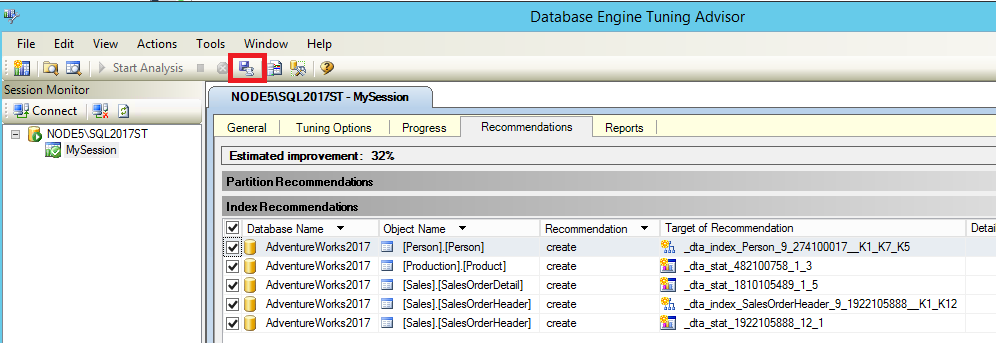
View tuning recommendations
On the Recommendations tab, use the scroll bar at the bottom of the tabbed page to view all of the Index Recommendations columns. Each row represents a database object (indexes or indexed views) that Database Engine Tuning Advisor recommends you drop or create. Scroll to the right-most column and select a Definition. Database Engine Tuning Advisor displays a SQL Script Preview window where you can view the Transact-SQL script that creates or drops the database object on that row. Select Close to close the preview window.
If you're having difficulty locating a Definition that contains a link, select to clear the Show existing objects check box at the bottom of the tabbed page. This action decreases the number of rows displayed. When you clear this checkbox, Database Engine Tuning Advisor shows you only the objects for which it has generated a recommendation. Select the Show existing objects check box to view all the database objects that currently exist in the
AdventureWorks2025database. Use the scroll bar at the right side of the tabbed page to view all of the objects.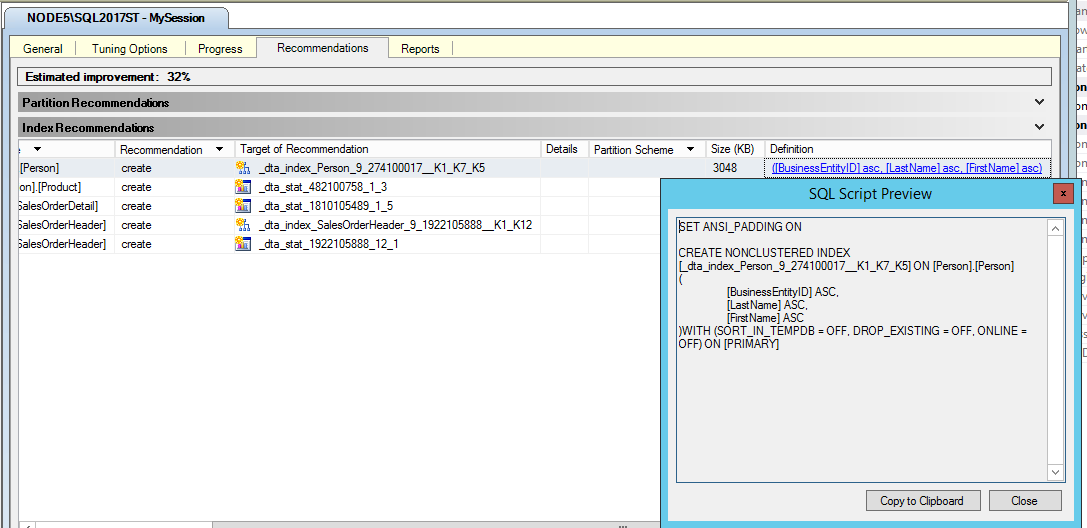
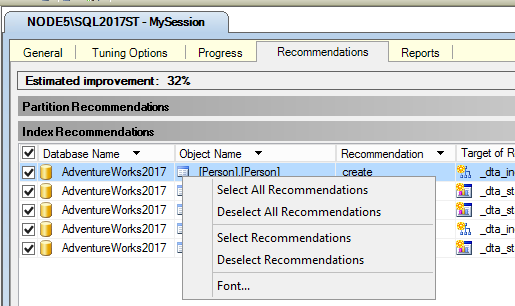
Right-click the grid in the Index Recommendations pane. This right-click menu enables you to select and deselect recommendations. It also enables you to change the font for the grid text.
On the Actions menu, select Save Recommendations to save all of the recommendations into one Transact-SQL script. Name the script
MySessionRecommendations.sql.Open the
MySessionRecommendations.sqlscript in the Query Editor of SQL Server Management Studio to view it. You could apply the recommendations to theAdventureWorks2025sample database by executing the script in the Query Editor, but don't do this. Close the script in Query Editor without running it.As an alternative, you could also apply the recommendations by selecting Apply Recommendations on the Actions menu of Database Engine Tuning Advisor, but don't apply these recommendations now in this practice.
If more than one recommendation exists on the Recommendations tab, clear some of the rows that list database objects in the Index Recommendations grid.
On the Actions menu, select Evaluate Recommendations. Database Engine Tuning Advisor creates a new tuning session where you can evaluate a subset of the original recommendations from
MySession.Type
EvaluateMySessionfor your new Session name, and select the Start Analysis button on the toolbar. Repeat Steps 2 and 3 for this new tuning session to view its recommendations.
Summary
You might need to evaluate a subset of tuning recommendations if you find you must change tuning options after you run a session. For example, you might ask Database Engine Tuning Advisor to consider indexed views when you specify tuning options for a session, but after the recommendation is generated you decide against using indexed views.
Use the Evaluate Recommendations option on the Actions menu to have Database Engine Tuning Advisor reevaluate the session without considering indexed views. When you use the Evaluate Recommendations option, the previously generated recommendations are hypothetically applied to the current physical design to arrive at the physical design for the second tuning session.
You can view more tuning result information in the Reports tab, which is described in the next task of this lesson.
View tuning reports
Although it's useful to view the scripts that implement the tuning results, Database Engine Tuning Advisor also provides many useful reports that you can view. These reports provide information about the existing physical design structures in the database you're tuning, and about the recommended structures. View the tuning reports by selecting the Reports tab.
Select the Reports tab in Database Tuning Advisor.
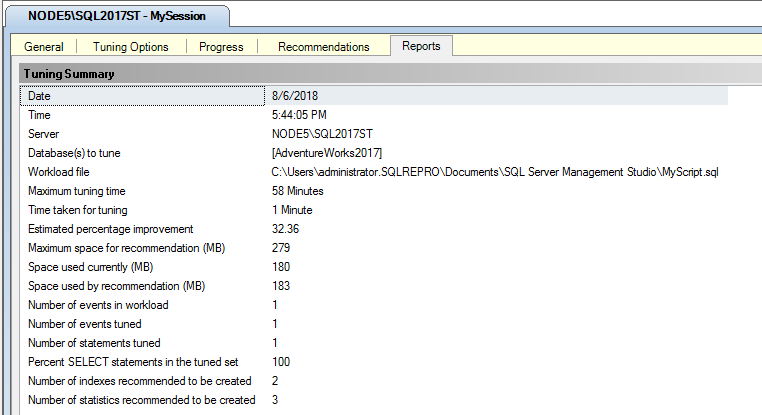
In the Tuning Summary pane, you can view information about this tuning session. Use the scroll bar to view all of the pane contents. Note the Expected percentage improvement and the Space used by recommendation. You can limit the space used by the recommendation when you set the tuning options. On the Tuning Options tab, select Advanced Options. Check Define max. space for recommendations and specify in megabytes the maximum space a recommendation configuration can use. Use the Back button in your help browser to return to this tutorial.
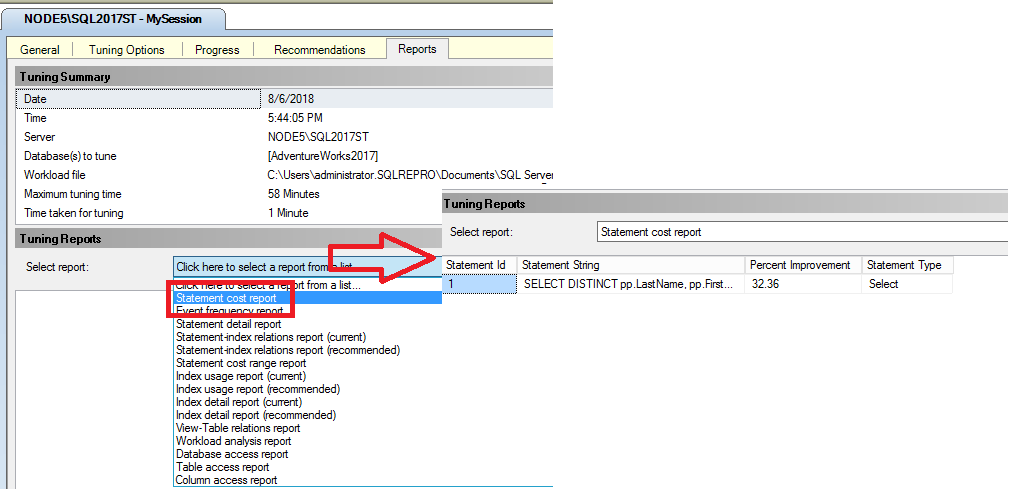
In the Tuning Reports pane, select Statement cost report in the Select report list. If you need more space to view the report, drag the Session Monitor pane border to the left. Each Transact-SQL statement that executes against a table in your database has a performance cost associated with it. Reduce this performance cost by creating effective indexes on frequently accessed columns in a table. This report shows the estimated percentage improvement between the original cost of executing a statement in the workload and the cost if the tuning recommendation is implemented. The amount of information contained in the report is based on the length and complexity of the workload.
Right-click the Statement cost report pane in the grid area, and select Export to File. Save the report as
MyReport. An .xml extension is automatically appended to the file name. You can openMyReport.xmlin your favorite XML editor or in SQL Server Management Studio to view the report contents.Return to the Reports tab of Database Engine Tuning Advisor, and right-click the Statement cost report again. Review the other options that are available. You can change the font for the report you're viewing. Changing the font here also changes it on the other tabbed pages.
Select other reports in the Select report list to familiarize yourself with them.
Summary
You explored the Reports tab of the Database Engine Tuning Advisor GUI for the MySession tuning session. You can use these same steps to explore the reports that were generated for the EvaluateMySession tuning session. Double-click EvaluateMySession in the Session Monitor pane to begin.