Remarque
L’accès à cette page requiert une autorisation. Vous pouvez essayer de vous connecter ou de modifier des répertoires.
L’accès à cette page requiert une autorisation. Vous pouvez essayer de modifier des répertoires.
Note
Community interest groups have now moved from Yammer to Microsoft Viva Engage. To join a Viva Engage community and take part in the latest discussions, fill out the Request access to Finance and Operations Viva Engage Community form and choose the community you want to join.
When Platform update 21 was released, it introduced an extra level of control over when batch jobs run. Before this update, you could only schedule a batch job to run every hour for a set number of hours or until a specific date. Now, administrators can add an active period, which means you can:
- Set time ranges when jobs in a batch group can start running.
- Choose to run batch jobs only outside of office hours.
- Decide how often batch jobs run during the active period. For example, an administrator might choose to run the batch jobs every hour but only between 6:00 PM and 8:00 AM.
Note
This feature is available starting with Platform update 21.
Set up active periods for batch jobs
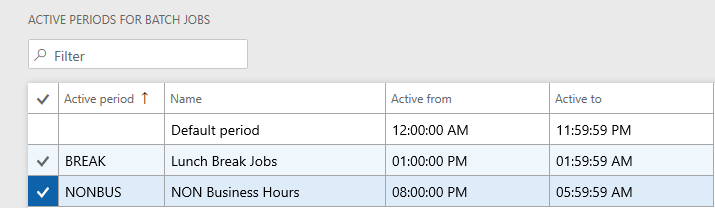
- Go to System administration > Setup > Active periods for batch jobs.
- Enter the name of the batch job, and specify the start and end dates for when the batch job is active.
- Select Save.
Assign active periods to batch jobs
- Go to System administration > Inquiries > Batch jobs.
- Select the batch job that you want to assign a period to, and select Edit.
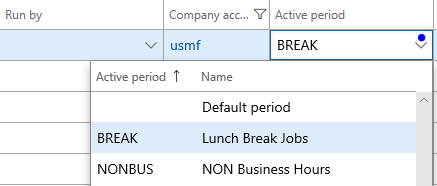
- In the Active period field, select the active period that you want to assign, and then select Save.