הערה
הגישה לדף זה מחייבת הרשאה. באפשרותך לנסות להיכנס או לשנות מדריכי כתובות.
הגישה לדף זה מחייבת הרשאה. באפשרותך לנסות לשנות מדריכי כתובות.
Important
This feature is in Beta. Workspace admins can control access to this feature from the Previews page. See Manage Azure Databricks previews.
Chat provides a unified, full-screen interface for asking data questions in natural language. Chat uses existing dashboards, queries, and Genie spaces to answer your questions with all available data.
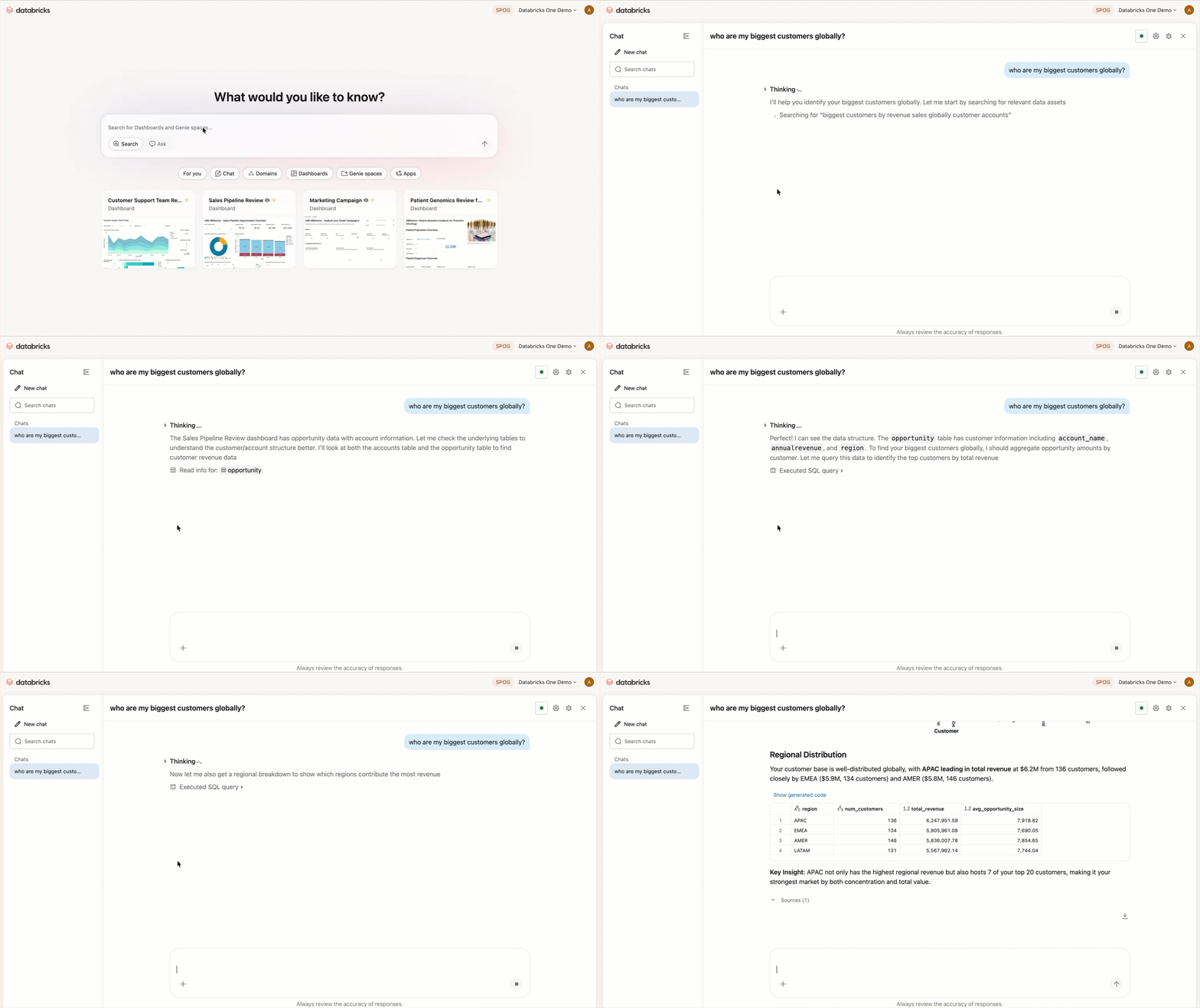
Enable Chat
Workspace admins can enable Chat for all workspace users:
- As a workspace admin, click your username in the top bar of the Azure Databricks workspace.
- From the menu, select Previews.
- Search for One Chat.
- Turn on One Chat.
Users must have the CAN USE permission on a SQL warehouse to use Chat.
How Chat works
When you submit a question to Chat:
- It searches available Genie spaces for one relevant to your question.
- If a matching Genie space is found, it uses that space to generate a response.
- If no matching Genie space is found, it uses Genie in Agent mode to search for relevant data assets and answer your question.
You can also connect external data sources such as Google Drive or SharePoint to give Chat access to your company documents. See Add a data source to a conversation.
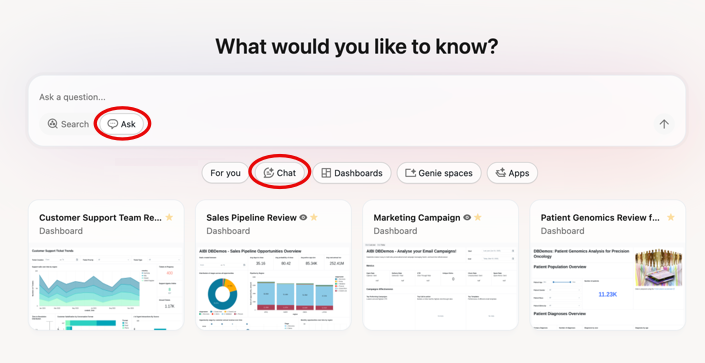
To open Chat, click Chat from the Databricks One home page, or use Ask mode in the search bar.
Chat limitations
- You cannot specify which SQL warehouse Chat uses. Databricks selects one automatically.
- Only one conversation can be active at a time.
- Workspaces with many Genie spaces might experience reduced routing accuracy.
Add a data source to a conversation
You can connect external data sources such as Google Drive or SharePoint to a Chat conversation. This allows Chat to search your company documents when answering questions. Each user authenticates individually. OAuth tokens are not shared between users.
On the Databricks One home page, click Chat.
Click the
 plus icon at the bottom left of the search bar.
Select a data source.
To connect additional data sources, click More connections at the bottom of the list. You can create a custom MCP connection in Unity Catalog. See Use external MCP servers.
Click Sign in and complete the steps to sign in.
The connection is added to your conversation. Chat can now search your documents when answering questions. After a connection is created, metastore admins and connection owners can manage or revoke user permissions on it. See Share the MCP server connection.
Note
Data source tools might not always trigger automatically. If document search doesn't start, try explicitly prompting Chat to use the tool, for example "use Google Docs" or "use SharePoint."
Google Drive limitations
- Maximum file size is 10MB.
- Only built-in Google Docs files are supported. PDFs, images, and other binary formats are not supported.
- Connection or token expiration errors might appear in the agent output. Re-authenticate to the connection to resolve.
SharePoint limitations
- Maximum file size is 10MB.
- Supported file types include built-in SharePoint documents, spreadsheets, and presentations, as well as common text-based formats such as
.txt,.csv,.json,.md, and others. PDFs, images, and other binary formats are not supported.